Reset your password

You can reset your password if necessary (for example, if you forgot your password or if you were locked out of your account after five attempts to enter your password when signing in to Life Sciences AI Agents). You can also ask an administrator to reset your password.

To reset your password:
  1. Open Life Sciences AI Agents in a browser to access the Sign In page. For example:
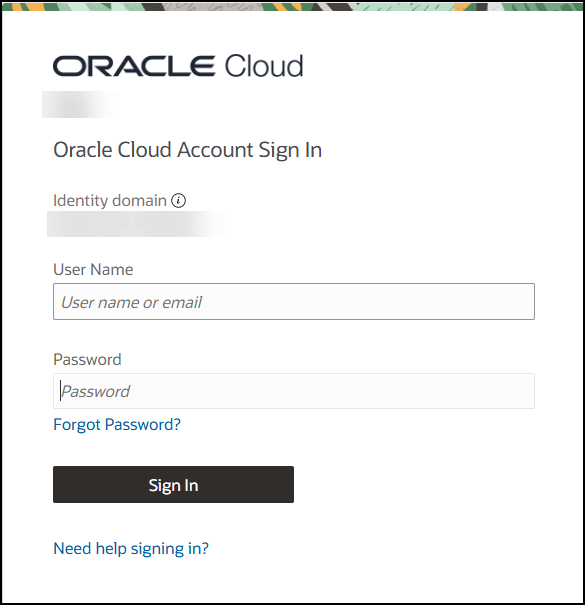

    Sign In page

  2. Select Forgot Password?. The Forgot Your Password? page opens. For example:
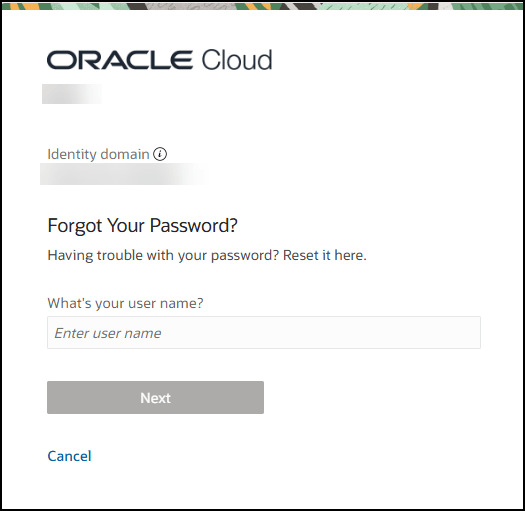

    Forgot Your Password page

  3. Enter or confirm your user name and select Next. The Password Reset Notification Sent page opens. For example:
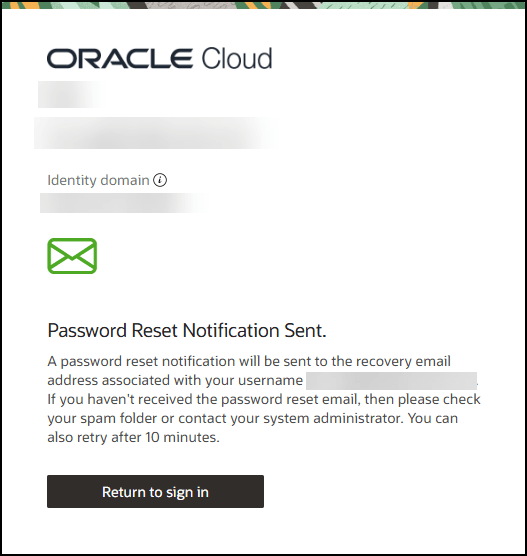

    Password Rest Notification Sent page

  4. Locate the password reset notification email sent to you from Oracle, and select the Reset Password link in the email. The Reset your password page opens.
  5. Enter your new password in the New Password and Confirm New Password fields. You cannot re-use any of your four previous passwords. The password:
    • Must have at least 12 characters.
    • Cannot exceed 40 characters.
    • Cannot contain the First Name of the user.
    • Cannot contain the Last Name of the user.
    • Cannot contain the user name.
    • Must have at least 1 lowercase character.
    • Must have at least 1 uppercase character.
    • Must have at least 1 numeric character.
  6. Select Reset Password. A confirmation message is sent to your email account and the Congratulations page opens in your browser.
  7. In the Congratulations page, select Continue to Sign In. The Sign In page opens.
  8. In the Sign In page, enter your user name or email address, and select Sign In. The Password page opens.
  9. In the Password page, enter your password, and select Verify. The page that opens depends on the secure verification method you last used.

    Note:

    You are locked out of your account after five attempts to enter your password.