Save to Topic dialog box
When the user selects Save to Topic, the Save to Topic dialog box appears. Here, the user can save to an existing topic or action, or to a new topic.
Your application should create a Save to Topic dialog box. This page should have similar options to the example (Figure 2–1) and can vary based on your application's design.
Figure 2-1 Save to Topic dialog box
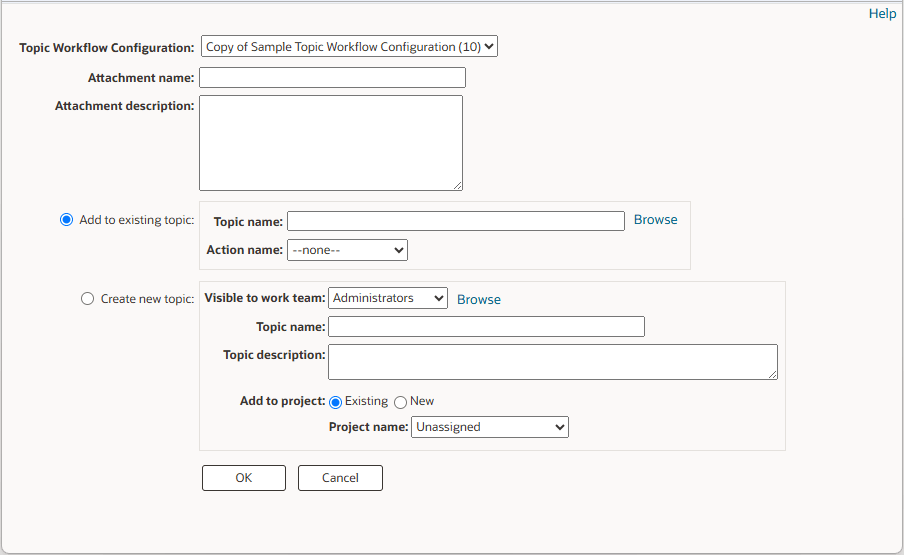
To save to a topic or action, the user can enter the attachment name and select an existing topic from the Add to existing topic drop-down list, or create a new topic. If an existing topic is selected, the Action name drop-down list is populated with the actions for that topic. The user can save an attachment to a topic or to an action in the topic.
If the user selects the Create new topic option, a new topic name is required and the user either selects an existing project or a new project. Projects are used to categorize a topic and are optional. The user can select Unassigned from the drop-down list if there is no project. The project, Unassigned, has ID 0. To create a topic, the user must have the permission to create topics.
Tasks
Your application invokes the following tasks to render the Save to Topic dialog box.
getUserInfo—Gets the user privileges. The task returns theTopicsUserInfovalue object, which contains the fieldCanSaveToNewTopic. If this field is false, you can disable the section for creating topics.The field
allowedAttachmentscontains a list of the type of attachment types that are allowed for this user configuration. The values in the list can be TABLE, IMAGE, URL, FILE, NOTE, or SIGNAL. The SIGNAL type is reserved. Use this list to determine the types of attachments to include in your dialog. For the Save to Topic example in Figure 2-2, only TABLE and IMAGE are included.If
allowedAttachmentsincludes URL, FILE, and NOTE, then a user selects the attachment type from the Attachment type radio button. The user selects the radio button Application data for a table or image from the application, or selects file, note, or URL. The file and URL radio buttons have input fields to enter the file or URL. For the note type, the user enters the text for the note in the attachment description field.getTopicConfigs—Gets the list of TopicWorkflowConfigurations available to the user, which can be used to populate the TopicWorkflowConfiguration dropdown list.getTopicContexts—Gets all topics to which the user can save an attachment and populates the existing topics drop-down list.Oracle Empirica Signal applications remember the most recent topic when the user saves an attachment. This topic becomes the default topic since users often save additional attachments to the most recent topic. You may design your application to remember the most recent topic.
getActionContexts—Gets associated actions using the user's selected existing topic.Oracle Empirica Signal applications remember the most recent saved action when the user saves an attachment. This action becomes the default action since users often save additional attachments to the most recent action. You can design your application to remember the last saved action.
getProjects—Gets a list of project names associated with your topics. This task is used when creating a topic.Oracle Empirica Signal applications remember the most recent project when the user saves an attachment to a new topic. This project becomes the default project for new topics since users sometimes create additional topics within the most recent project.
When Oracle Empirica Signal applications populate the Project drop-down list, they combine the project names returned from the Oracle Empirica Topics web service with projects from other areas of the application. In this way, users can associate new topics with projects across the application. If your application categorizes objects by name, you can design your application to aggregate project names from topics with other names from your application and thus include all these category names in the Project drop-down list. If you specify a project name that does not already exist, the project name is saved as a new project when the topic attachment is saved.You can design your application to remember the most recent project when new topics are created.
getTopicTemplateContexts—Gets the topic templates visible to at least one work team to which the user belongs.If topic templates have been created by an Oracle Empirica Topics administrator, and they are visible to a work team to which the user belongs, then the Topic template drop-down list should appear in the Save to Topic dialog box.
In the Save to Topic dialog box, if the user selects OK, the attachment is saved to the specified topic or action.
Your application invokes the following tasks to save the attachment when the user selects OK in the Save to Topic dialog box.
attachTopic—Attaches to an existing topic.attachAction—Attaches to an existing action.attachNewTopic—Creates a new topic and adds the attachment to it.-
attachNewAction—Creates a new action and adds the attachment to it.
- Streaming attachments
To save IMAGE or FILE attachments, your application must first call the Oracle Empirica Topics service APIstreamFileAttachment, and then call one of the four Oracle Empirica Topics web service calls to attach the file to a topic or an action. - Save to topic and work teams
An Oracle Empirica Topics administrator can configure a topic workflow configuration such that the topics are visible to a single work team, more work teams, or no work teams.
Parent topic: Use cases