User interface
Usability updates include persistent filters, table record counters, a loading limit banner, site count distribution tooltips, improved paste recognition, and modals updated to the new OJET design standards.
Bulk filters
This release updates the Studies/Countries/Sites bulk filter behavior so your selections persist when you apply your chosen filters. This change standardizes how bulk filters behave across pages.
When you apply filters using the filter modal, you won’t lose any prior selections, and actions such as Select all or Deselect all apply only to the items currently on screen. These updates apply across Dashboard views (Timeline Study, Timeline Country, Tabular, and Charts), as well as filters on the Bulk work, Team members, and Account overview pages.
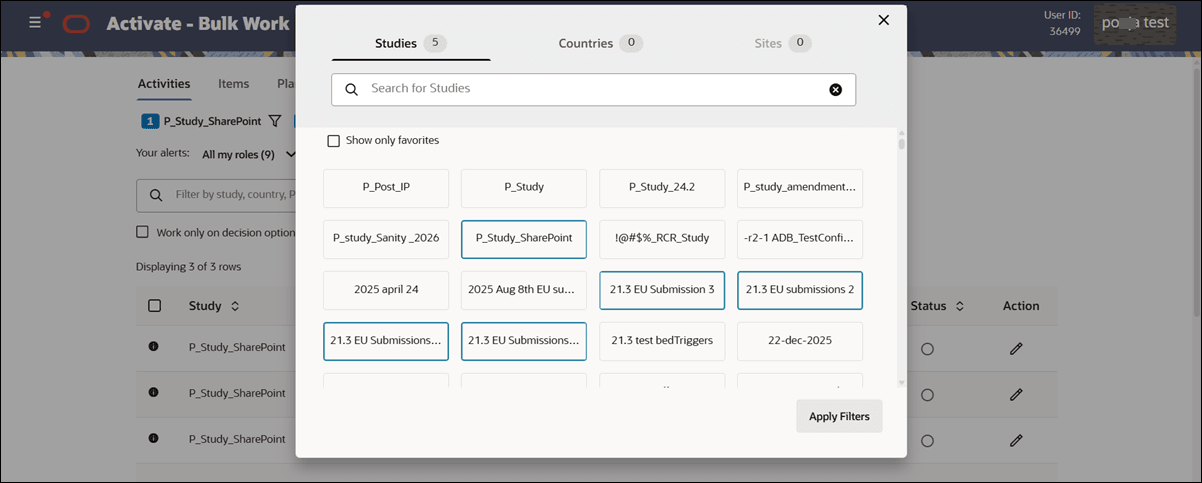
Table row count
This release adds a record counter to tables that use progressive loading to give you visibility into how many items are displayed out of the total available. With this enhancement, you'll see a counter in the upper-left corner of the table showing “Displaying x of y rows,” which updates as more items load while you scroll.
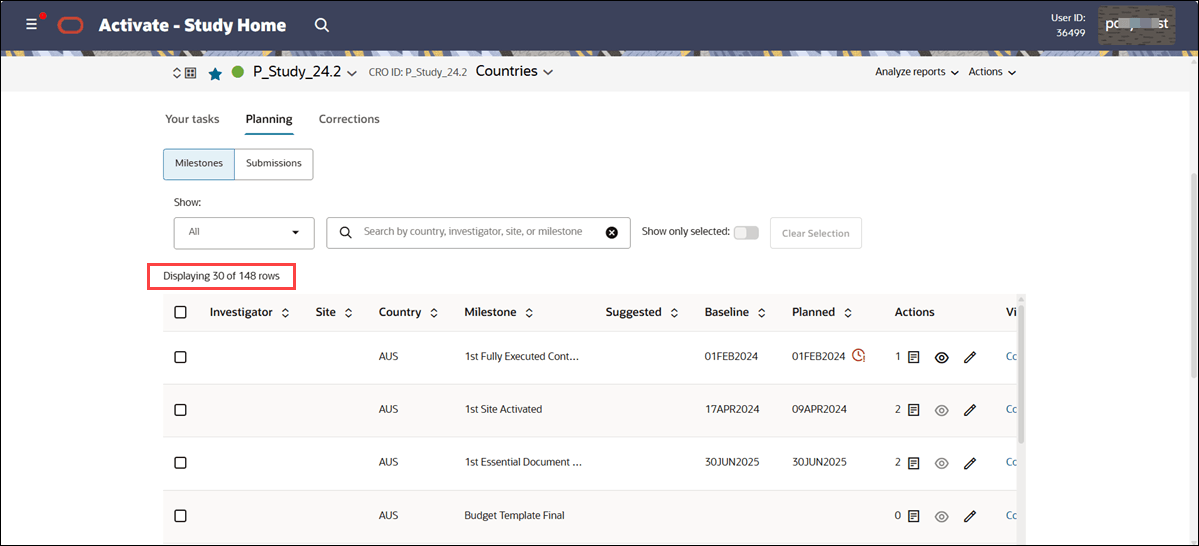
Table loading maximum
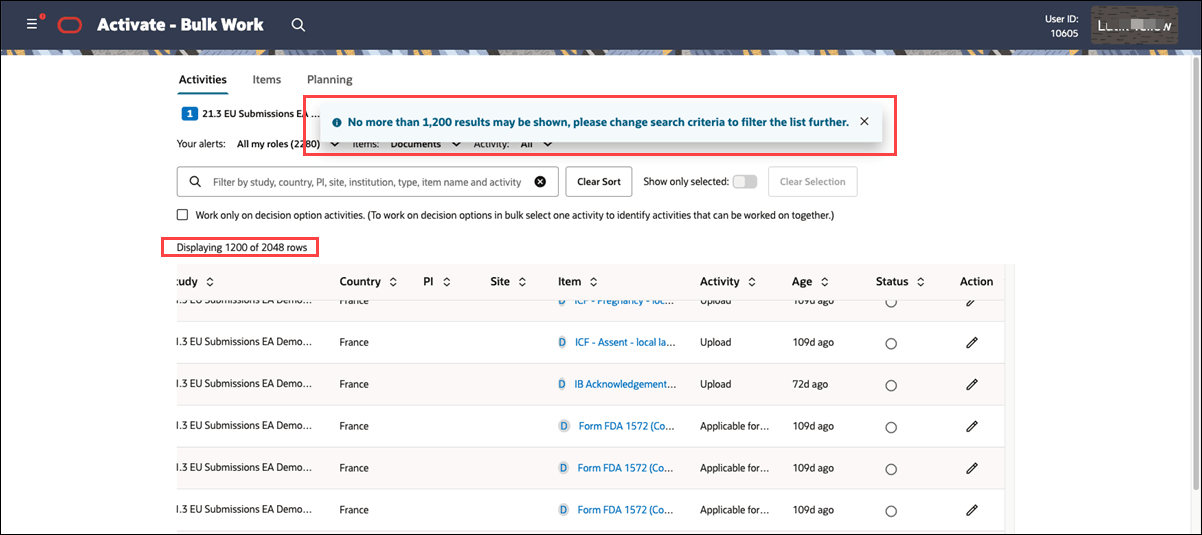
This release adds a banner message to tables when results reach the 1,200-record limit, indicating that additional filtering is required.
All tables continue to support progressive loading up to 1,200 results. Once you reach that limit by scrolling, you’ll see the message “No more than 1,200 results may be shown, please change search criteria to filter the list further.”
Study country and site details
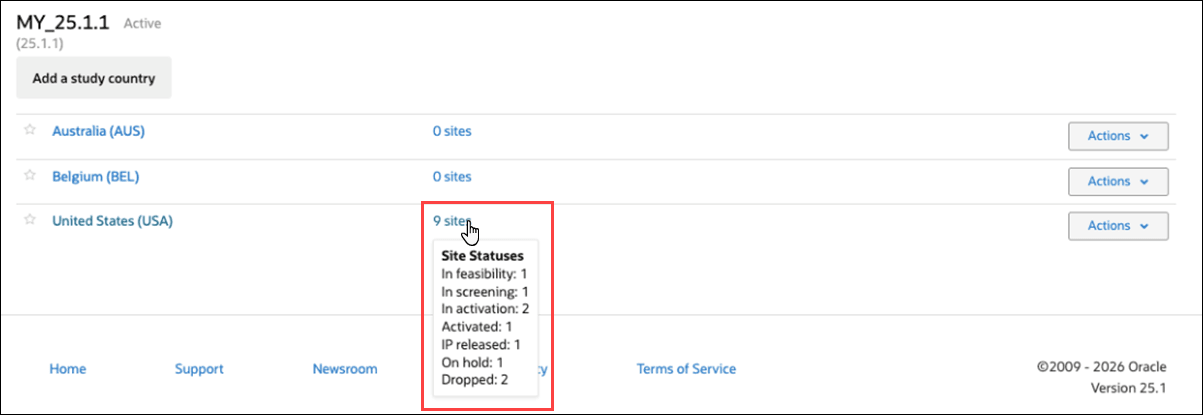
This release adds a helpful tooltip to the site count in View study country and site details, so you can quickly understand site distribution without leaving the page.
When you hover over the site count in a country row, you’ll see a breakdown of sites by status. The tooltip breakdown shows only those statuses with at least one site, and the site count is a link that takes you directly to the Sites tab for that country.
- In feasibility
- In screening
- In activation
- Activated
- IP released
- On hold
- Dropped
- Closed
Paste text via mouse click
In this release, we made a minor usability update so that when you paste text into a required field using the right-click menu, Oracle Site Activate recognizes it as a field update. This change ensures that related functionality (e.g., required field validation, character counters, or enabling the page’s Done button) works as expected.
OJET for Modals
- Artifact drawer discard dialog
- Corrections - Milestones - Edit
- Country Home - Sites tab - Remove study site dialog
- Milestones Prediction History
- Notes reply
- Planning - Milestones - Edit and Notes
- Study/Country/Site - Milestones and Submissions - Notes
- Study/Country/Site - Milestones and Submissions dialogs
- Submissions - Milestones - Edit and Notes