Submissions
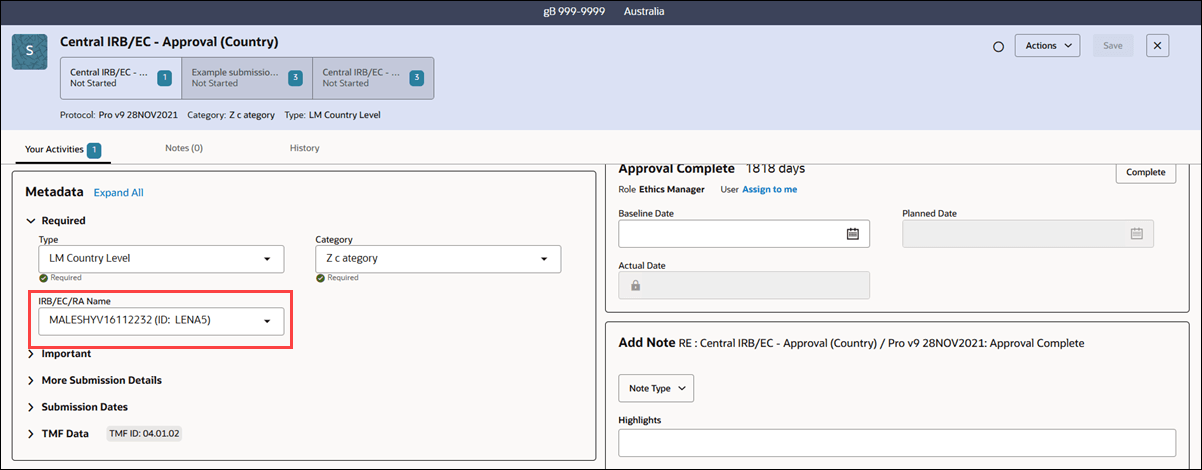
A new drawer layout for submissions activities replaces the previous modal design, and the IRB/EC/RA Name drop-down display of both the Agency name and ID if this option is enabled for your account.
Submission artifact drawers
Submission drawer layout
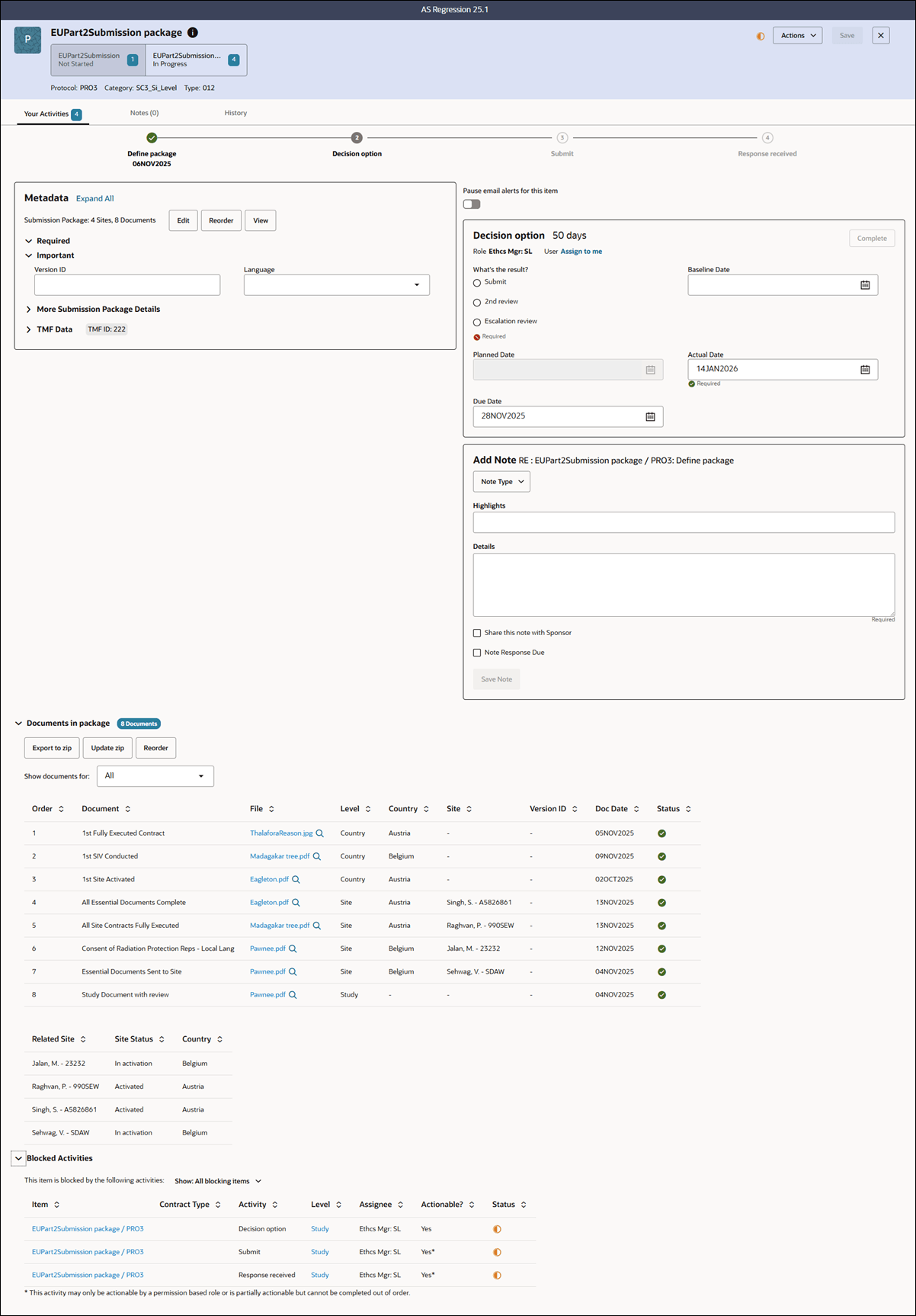
For submission artifacts, the drawer includes a button set just below the submission name to provide easy navigation between available packages, custom-named packages, or the overall Submission Package. Each button provides the package name, current version (if applicable), the number of open activities, and artifact status to indicate progress and outstanding work. Study and EU Submission Packages also show the Protocol, Category, and Type values just below the button set when these values are known. At the far right, you'll also see the artifact status icon, Actions drop-down, and the Save and Close options. The Save button will enable only after you've made changes to the drawer.
When you have the correct role permissions, you may add either a submission package or a subcommittee package directly from the drawer, streamlining workflow for complex multi-package submissions. These options are available in the drawer's Actions menu as they were previously.

Metadata fields
On the Your Activities tab, the Metadata panel on the left side of the drawer uses accordion sections, which you can expand or hide individually or use the “Expand All” or “Collapse All” controls. For country submissions, the top of the panel highlights the number of sites and countries approved from the submission. The “More Submission Details” section captures descriptive metadata not covered elsewhere, and the “Submission Dates” area lets you set both the initial submission and final approval dates.
The right side of the submission drawer presents all activity-specific metadata, including details like activity name, age, role, links to assign yourself, and the Complete button. If your organization has enabled settings for additional timeline information, you’ll also see baseline, planned, and completed dates in the activity section.
Submission package view
For each submission package, the Metadata panel describes the count of sites and documents included. During an open compile package activity, this is displayed as “Submission Package: 0 Sites, 0 Documents.” When the activity is complete, the description updates to show the actual count and to offer actions such as Edit, Reorder, or View. Click View to jump to the lower section of the drawer where you can access additional accordion sections. The “Documents in Package” section, when expanded, presents sortable tables for both documents and related sites, along with options to export or update the package as a zip file. If you select a country, it will exclude study level documents. Show documents for All to include study level documents. You can reorder documents using drag-and-drop tools; the interface enables Save and Cancel controls that respond to your changes in order.
Study and EU Submissions management
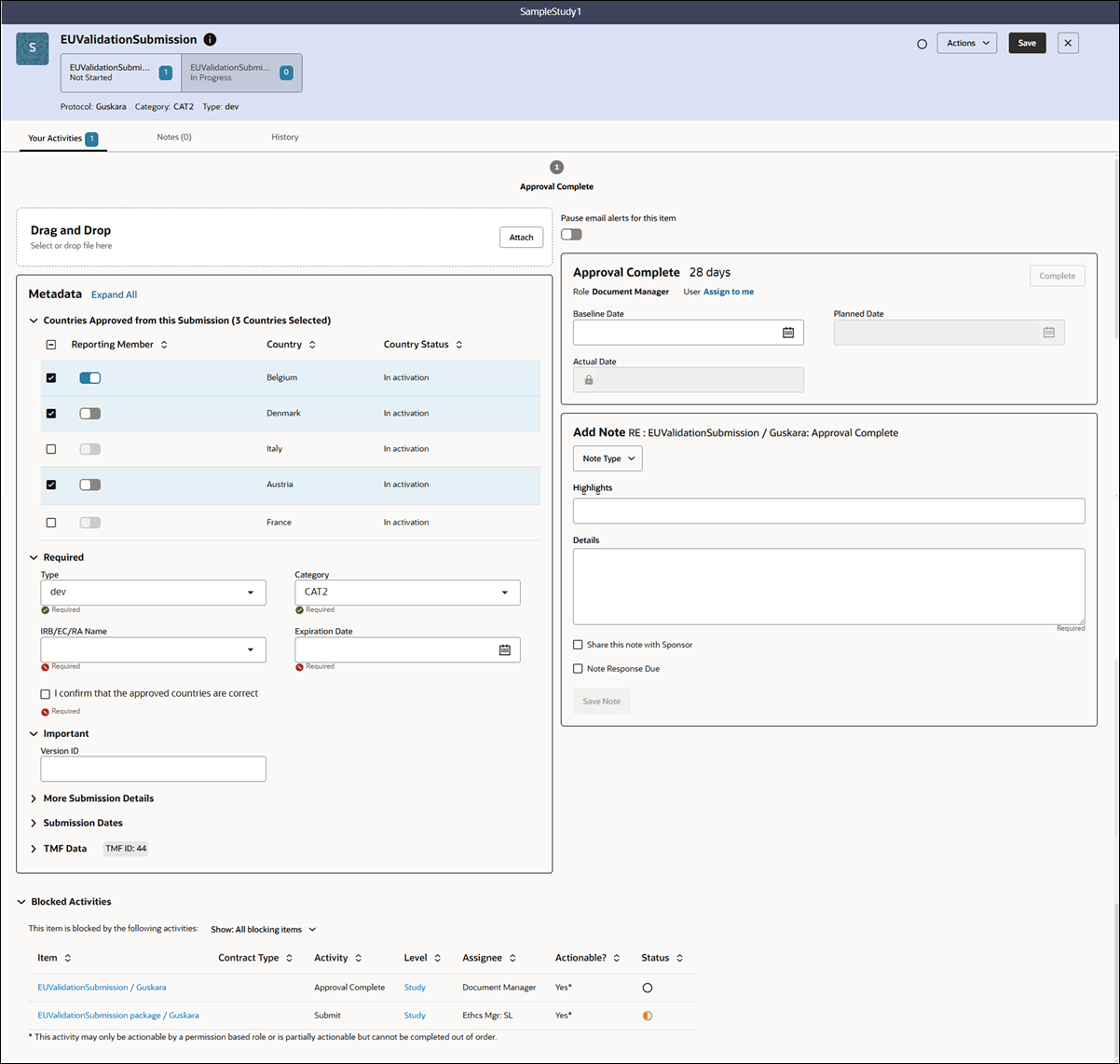
For study and EU submissions, you have granular control over approval selection. At the country level, you can select approved countries and designate one country as the Reporting Member state. At the site level, you may select approved sites within each country and edit those selections as necessary. Any update to the country or site selection, or reporting member state, enables the Save button. You'll be prompted to save or discard changes if you attempt to exit the drawer without saving.
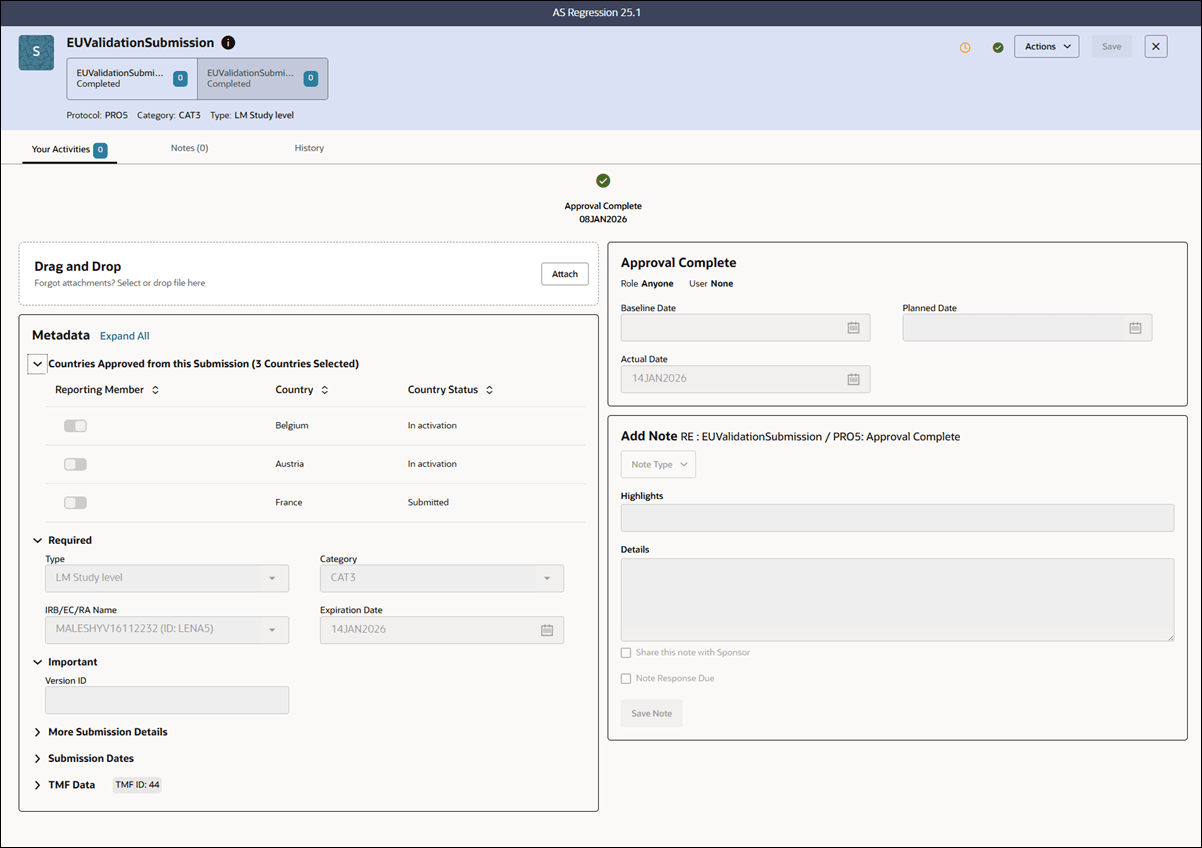
For EU Submissions, when the submission approval activity has been completed, you can still access the drawer to take limited actions on the Your Activities tab:
- Discontinue this version using the option in the Actions drop-down
- Drag and drop a file attachment
- Make Initial and/or Final approval dates visible on the activity calendar (eye icon)
Additionally, you can add a note on the Notes tab.
Submission Agency and ID
To make it easier to find the correct agency when managing submission items, we enhanced the IRB/EC/RA Name drop-down list to support display of both the Agency name and ID. When this feature is enabled for your organization’s account, you’ll see the agency name and the corresponding ID in the following format: Agency Name (ID: <AgencyID>).