Data Export Utility
Reports listed on the My Reports and Shared Reports tabs display new Author and date information, report lists load on scroll, you can now download reports asynchronously so you can continue working while the report generates, and more.
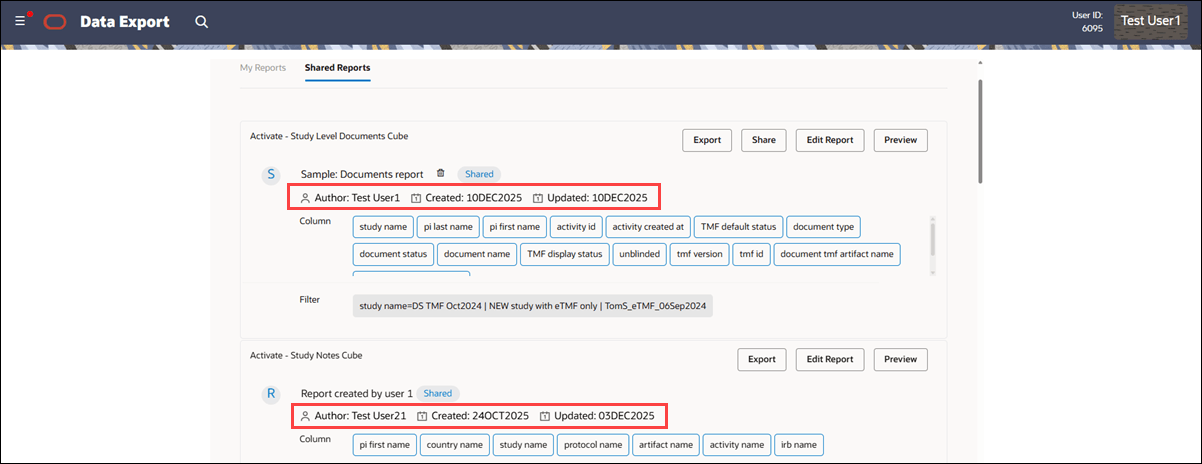
Report author and create and update dates
You now see the Author, Created date, and Updated date for shared reports in the Shared Reports tab, as well as for your reports in the My Reports tab on the Data Export Utility homepage, when that information is available. This enhancement provides visibility into report ownership and change history across shared and personal DEU reports.
Author, Created date, and Updated date display for all newly created or updated reports, so you can track who authored the report and when it was created or last modified. Some older reports may not show Author or Created date information, which is expected, but you’ll consistently see this information for newly recreated reports.
Progressive report loading
Previously, the Data Export Utility displayed a maximum of 50 reports. With this enhancement, the reports list now uses progressive loading. When you visit the home page, the latest 10 reports (sorted by last updated or saved) appear first, and as you scroll down, additional reports load in batches of 10.
This update lets you efficiently access and browse more than 50 reports and ensures the interface remains responsive as you navigate a long list.
Asynchronized report download
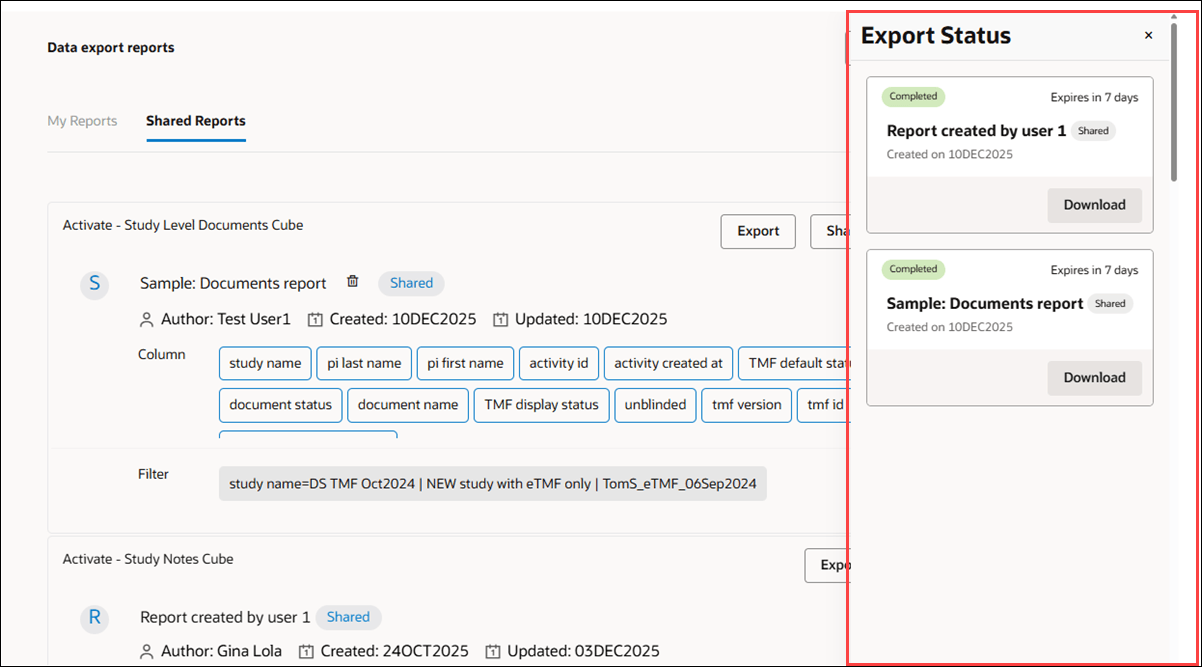
You can now download entire Data Export Utility (DEU) reports asynchronously, whether you are viewing your own or shared reports. On both the homepage and the preview page, you’ll see a new Export button. When you click Export, the system generates a ZIP or CSV file containing all report data, not just the information on the current page.
Export features include both individual user and account-level limits to ensure efficient operation. You may have up to two exports in progress at a time, while your organization’s account can support up to 10 at once. If you reach either limit, or if an export is already running for the specific report, the Export button is disabled. When you hover over the disabled button, a tool tip appears, explaining the reason, such as an export queue limit or a running export for that report.
A new Export Status button,  located to the left of the New Report button on the homepage and in the upper right of the report preview page, helps you track in-progress and available exports. The button shows the following states:
- no icon when no export is running or available for download
- a spinner icon when at least one export is in progress
- a badge showing the number of exports available for download when no export is running but some are ready
Click Export Status to open a drawer showing any exports in progress or available downloads. Export Status displays all your exports, including both your reports and shared reports. Every successful export file you generate is available for download for seven days before expiring. If an error occurs during report generation, an error message displays that you must acknowledge, and the failed export will not be listed in the Export Status drawer.
Date filtering
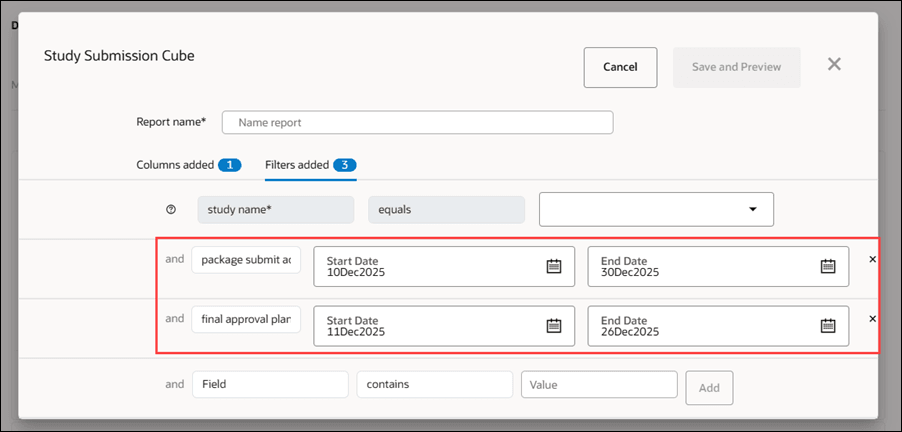
You can now filter on date and timestamp fields in any Data Export Utility cube. When a field's datatype is date or timestamp, you’ll find it listed in the filter drop-down menu. Selecting one of these fields changes the input to two date pickers, allowing you to define the start and end of your filter range either by selecting dates from a calendar or by entering them manually. Once you set the range, it appears on the filters tab (in the new or edit report modal) and on the Data Export Utility home page.
User specific filtering
The Data Export Utility now supports user-specific filters on shared reports. This enhancement lets you personalize shared report views without impacting the base report or other users’ views.
When you access a report from the Shared Reports tab on the home page or from the report preview page, you’ll see a new Edit Report button. Click to open the edit report modal, with the focus on the “Filters added” tab. Here, you can view the filters from the original report and modify them by adding or removing filters. The adjustments you make are unique to you, so your changes do not affect others. You can also navigate to the “Columns added” tab to review which columns are included and their order, but you cannot add new columns or change their sequence.
After updating filters, click Save and Preview to view the report with data filtered by your chosen filters. Your exports from the report will use the filters you specified.
The latest filter values appear in the “Filter” section on the Shared Reports tab for easy reference. If the original report author updates the shared report (e.g., changing which columns are included), you’ll see the updated columns, but your user-specific filters remain unchanged.

New Oracle Site Activate fields in Data Export Utility cubes
With release 25.1.1, we added the following new fields to the Data Export Utility cube definitions for Oracle Site Activate:
Study Activity Cube
- Study
- Study Status
- Site
- Person First Name
- Person Last Name
- Study
- Study Status
- Study Created At
- Country Status
- Sites Planned
- Study Country Created At
- Site
- Site Status
- General
- Artifact Version ID
- Milestone and Submission
- Milestone Active Status
- Milestone Level
- Submission Reason
- Submission Description
- Note Subtype
- Resolved At
- Study
- Study Status
Parent topic: Release 25.1.1