Enhanced reports
Release 26.1 includes multiple enhancements to Oracle Site Activate standard reports.
Adoption Dashboard report has improved KPI filtering
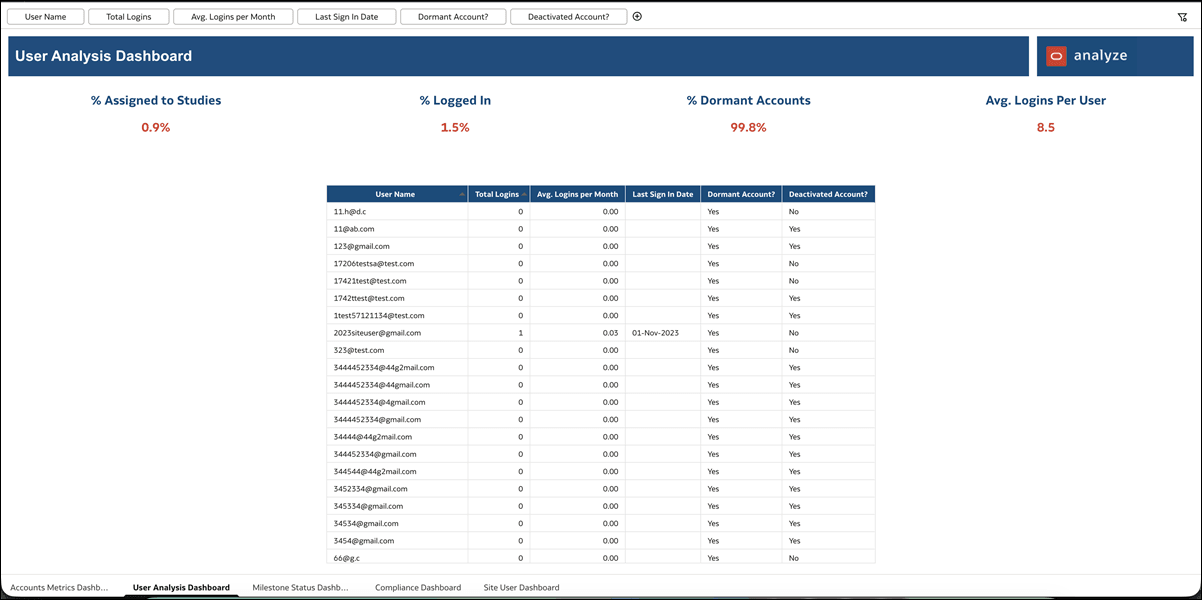
The Adoption Dashboard report's User Analysis Dashboard worksheet now supports filtering of key performance indicators (KPIs). When you change the filter selections at the top of the worksheet, the KPIs and user access table update to reflect the selected users.
Planning Impact Analysis report styling
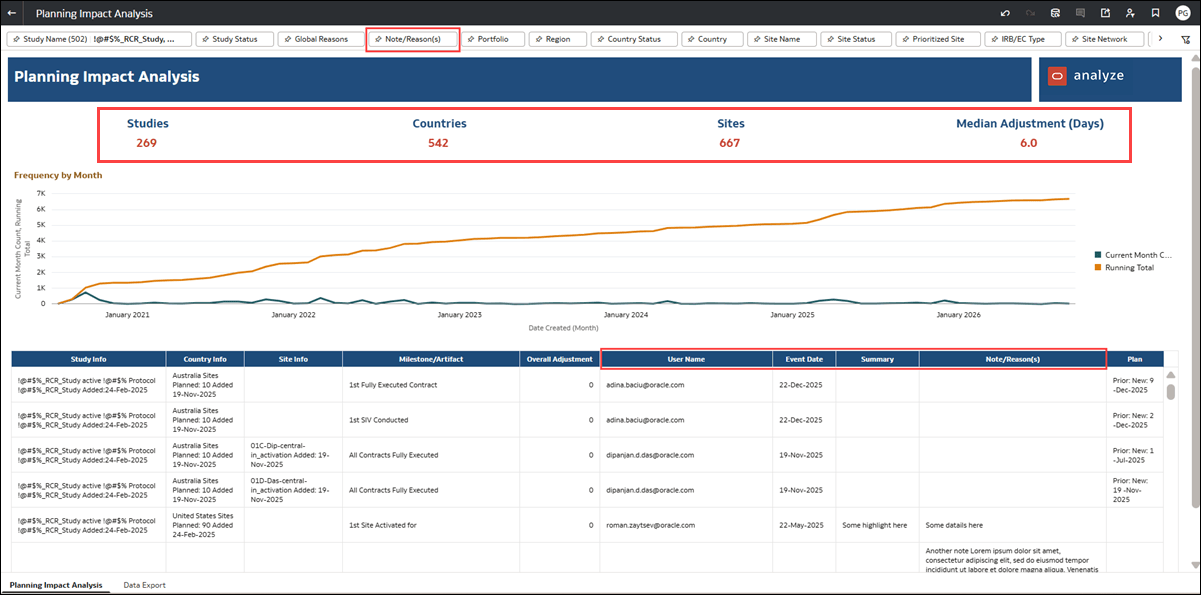
The Planning Impact Analysis report includes updates to the dashboard layout, key performance indicators (KPIs), detail table, and filtering options.
The dashboard now displays four KPIs in the following order: Studies, Countries, Sites, and Median Adjustment (Days). The redundant Median Overall Adjustment KPI has been removed. The updated layout also provides more space for the detail table while retaining the Frequency by Month line chart and KPIs.
The detail table now has separate User Name, Event Date, Summary, and Note/Reason(s) columns. You can view the user associated with each event, the event date, and any available note summary. The Note/Reason(s) column displays note or reply text for note records and the reason for change for activity and milestone history records.
You can also use the new Note/Reason(s) report filter to filter records by note or reason text. Your report filter selections are shared between the Planning Impact Analysis and Data Export worksheets during the same workbook session.
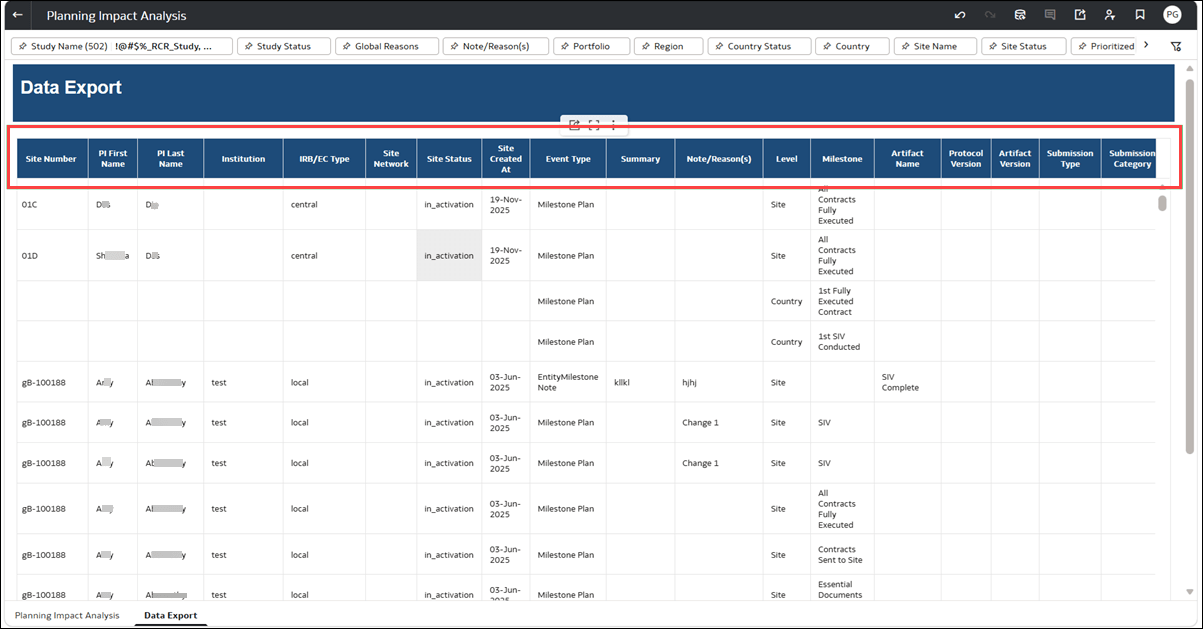
We also updated the Data Export worksheet to provide more detailed information in separate columns rather than combining multiple values in the Note Type column.
You can now view Summary and Note/Reason(s) as separate fields, along with existing event information such as Event Type, Event Timestamp, and User Name. The worksheet also uses the calculated Study Name, Portfolio, and Event Type values and consistently labels the institutional review board or ethics committee field as IRB/EC Type.
The columns have been reorganized to group study, country, site, event, milestone, and activity information in a consistent order. Date-only fields use the DD-Mon-YYYY format, while Event Timestamp retains its UTC value in DD-Mon-YYYY HH:mm format.
From left to right, column order in the updated Data Export worksheet is:
- Study Name
- Protocol Name
- Portfolio
- Compound Name
- Study Status
- Study Created At
- Region
- Country Status
- Country
- Sites Planned
- Country Created At
- Site Number
- PI First Name
- PI Last Name
- Institution
- IRB/EC Type
- Site Network
- Site Status
- Site Created At
- Event Type
- Summary
- Note/Reason(s)
- Level
- Milestone
- Artifact Name
- Protocol Version
- Artifact Version
- Submission Type
- Submission Category
- Submission Reason
- Version ID
- Activity Name
- Event Timestamp
- Prior Planned Date
- Plan Date
- Days Replanned
- User Name
Resource Allocation includes previously missing permission and renamed worksheets
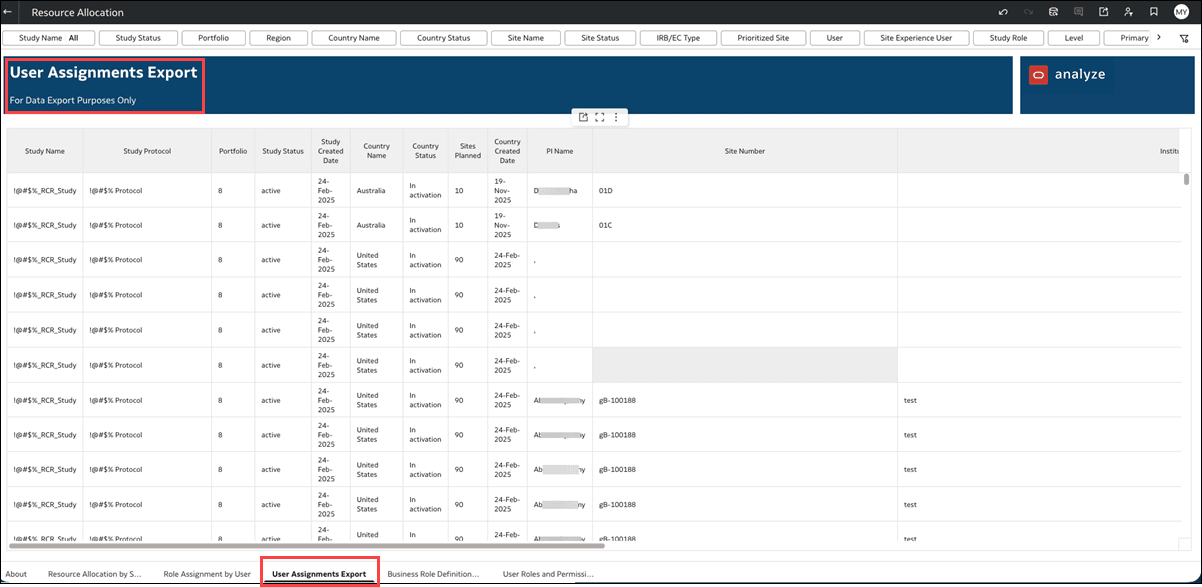
The Resource Allocation report now includes updated worksheet names and headings that more clearly identify the data available for export.
The Data Export worksheet has been renamed User Assignments Export, and User Role and Permissions Export has been renamed User Roles and Permissions Export. The Business Role Definitions Export worksheet retains its existing name. All three worksheets now display headings that match their respective tab names, replacing the previous For Data Export Purposes Only heading.
You can use User Assignments Export to view user assignments at the study, country, and site levels; User Roles and Permissions Export to view business and system roles by user; and Business Role Definitions Export to view business role permission definitions and their associated access levels.
We also made a minor update in this release to display the previously missing Enable manual 'Send to eTMF' button on Submission packages permission on the Business Role Definitions Export worksheet.
Submissions and Approval Status report query improvements
The Submissions and Approval Status report has been updated to improve loading and filtering performance. Previously, you may have experienced long loading times when opening the report, navigating between worksheets, or applying filters.
The report now processes less unnecessary data to improve performance while preserving the existing worksheets, displayed information, calculations, and filtering functionality. Your access to study data also remains unchanged.
The Study Name filter now defaults to <NULL> when you open the report. All other filter defaults remain unchanged.
Study Name and Study filters enhancements
The Study Name and Study filters in standard Oracle Site Activate Analyze reports now display your selected values in the top filter bar without requiring you to open the filters. When you change your selection, the displayed values update accordingly. You can also see when <Null> is selected, making it easier to identify the current filter settings.
This enhancement applies to the following reports and their affected worksheets:
- Account Metrics
- Adoption Dashboard
- Adoption Dashboard - Artifacts and Activities
- Compliance Dashboard
- Contract Module Dashboard
- Cycle Times Dashboard
- Milestone Predictions Dashboard
- Milestone and Submission Planning
- Open Activities
- Planning Impact Analysis
- Resource Allocation
- Site IP Release Package Dashboard
- Study Summary Dashboard
- Submissions and Approval Status
In the Submissions and Approval Status report, the Study Name filter now defaults to <Null> instead of All on the Submissions and Approval Dashboard, Submission and Approval Status, Submission and Approval Activities, and Submission Package Details worksheets. You can select the studies you want to view before loading report results for those studies.
In the Adoption Dashboard - Artifacts and Activities report, the Study Name filter is now shared across the Site User Dashboard, Completed Source Dashboard, Completed Source View, and Artifact Detail worksheets. Your selected study values remain visible and consistent as you navigate between these worksheets.