Feasibility surveys
Feasibility surveys now support dynamic PI and Institution in titles via URL parameters, PDF export headers include key study details, and surveys that have modified answers now include indicators to show which answers were changed from the last submitted version.
Survey title
Feasibility surveys now support passing the PI Name and Institution as query parameters when opening the Alchemer survey URL. This enhancement allows the PI Name and Institution to display at the top of the first survey page and to update dynamically for each site’s survey.
To use this feature, add the following merge codes to the end of your survey’s title in Alchemer:
- PI Name: [url("pi_name")]
- Institution: [url("institution")]
For example, set your survey title as: Survey12345 - Name: [url(“pi_name”)] , Institution: [url(“institution”)]. You can optionally separate the merge codes with a comma. Be sure to include the brackets, parentheses, and quotation marks exactly as shown above for correct functionality.
Survey PDF export
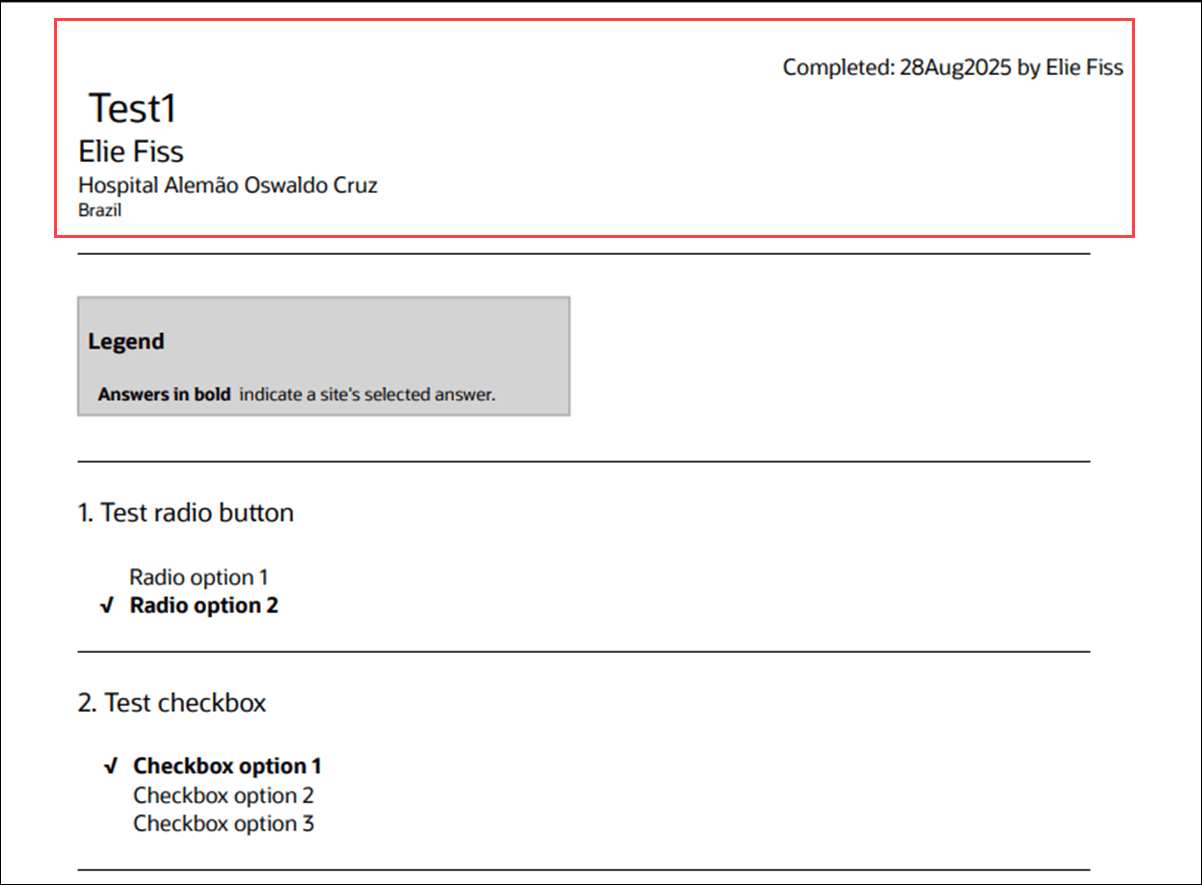
We enhanced the feasibility survey PDF to display key study details in the header on every page, so you can reference information wherever you are in the document. The header now includes the completion date, the submitter’s name, and study information.
Edited survey responses
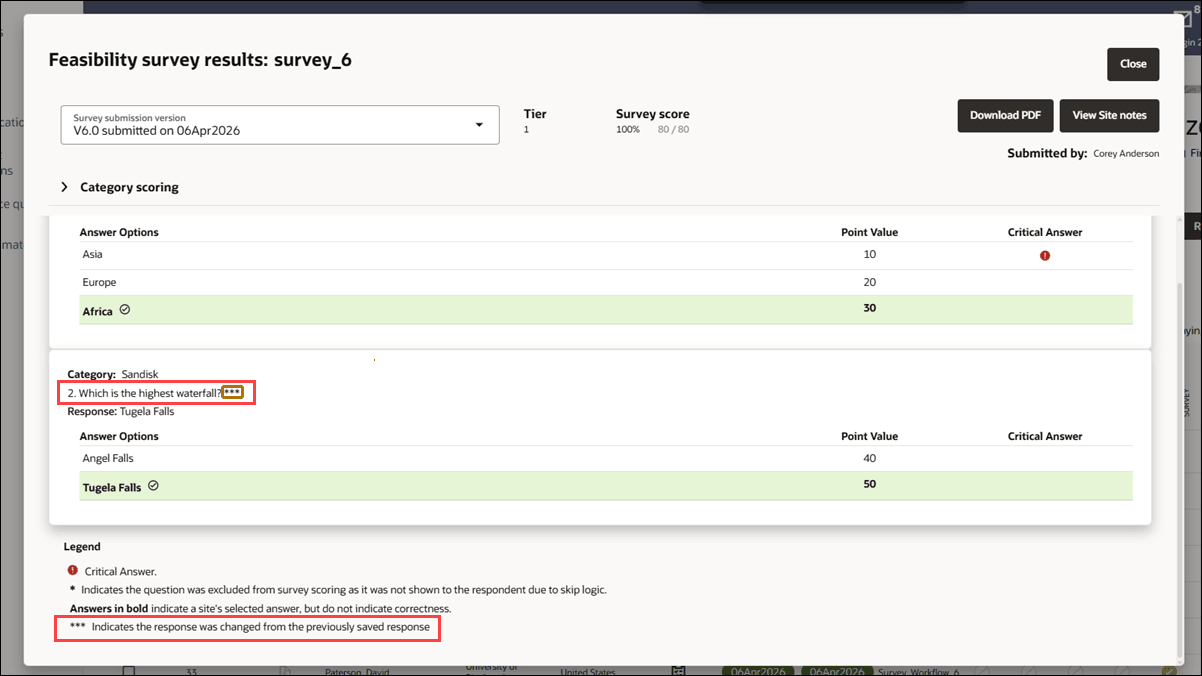
Now, when a site user modifies survey responses, you’ll see indicators for the changes. This enhancement highlights edits to previously submitted surveys so you can quickly assess what changed without manual side-by-side comparisons. When a submitted survey is edited and at least one answer changes, the latest version flags modified questions and responses by comparing against the immediately preceding version. CSV exports won’t include comparison indicators.
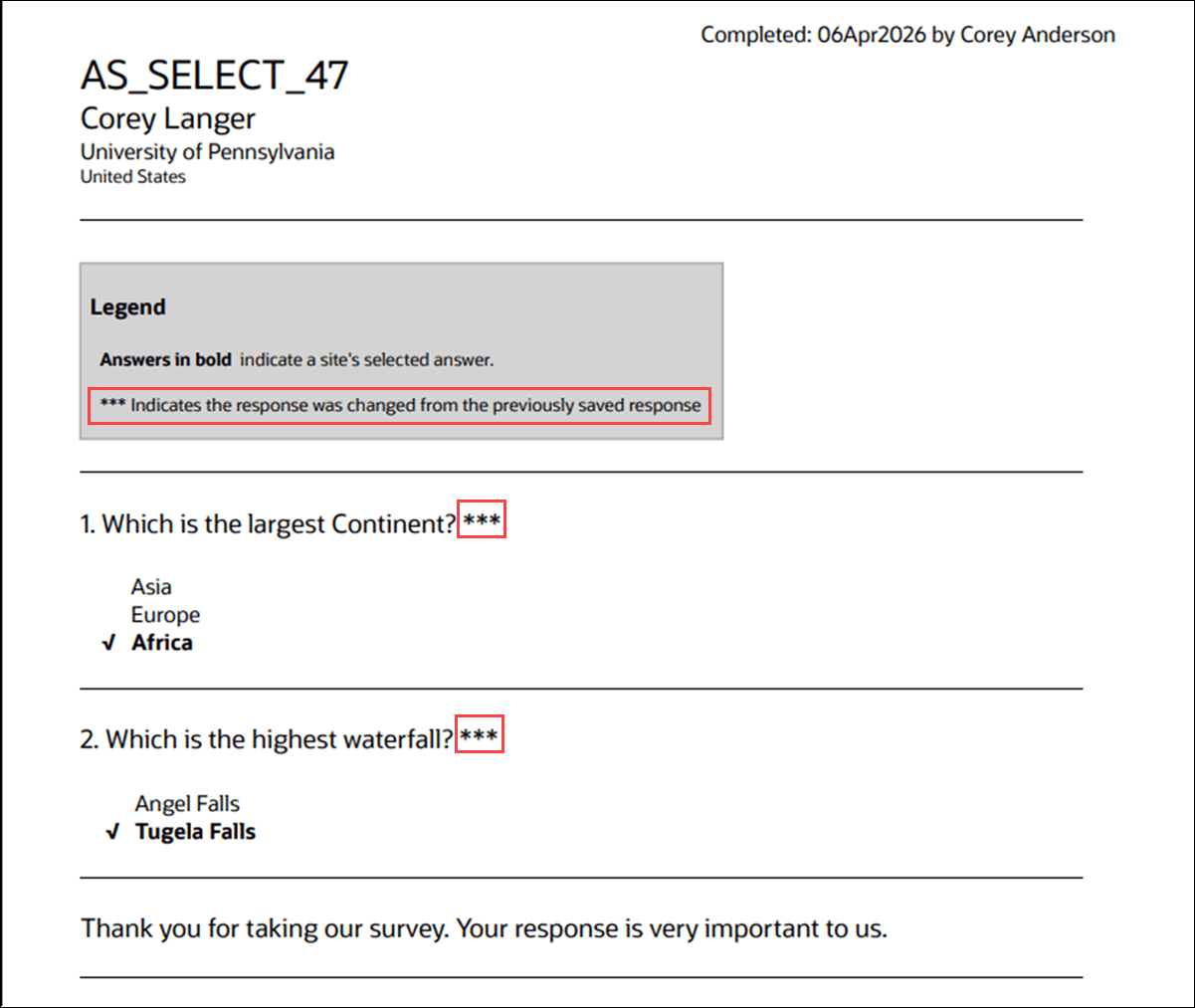
In the Survey response modal and PDF, changed questions are marked by appending three asterisks (***) to the question text, with a legend that reads: “*** Indicates the response was changed from the previously saved response.” All supported question types, including advanced list and grid, are validated for this behavior.
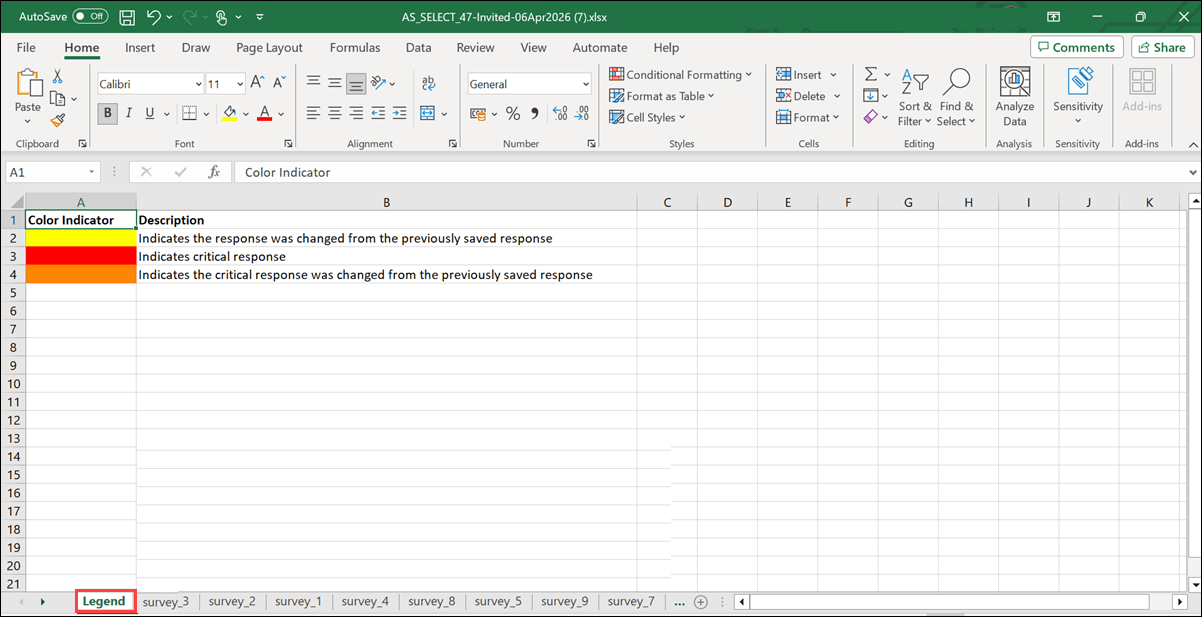
In XLSX exports, changed responses are highlighted with a yellow background. Critical responses stay red, and if a critical response is edited, the cell changes to dark amber. The export also has a new first sheet titled “Legends” to explain the indicators: yellow indicates a changed response; red indicates a critical response; dark amber indicates a changed critical response.
Parent topic: What's new in release 26.1