User management
Administrators can now bulk add role or team assignments for multiple users at once, we added a new permission for note editing and deletion, and you can now see the timestamp for your last login displayed below your name in the page header.
Bulk add role or team
If you have a role with User and Role Management permission, you can now bulk-add roles or teams for multiple users at once. These changes let you quickly grant roles and team assignments to multiple users and large groups. All updates respect existing role and team assignments and prevent accidental duplication or unwanted changes if you cancel before assigning.
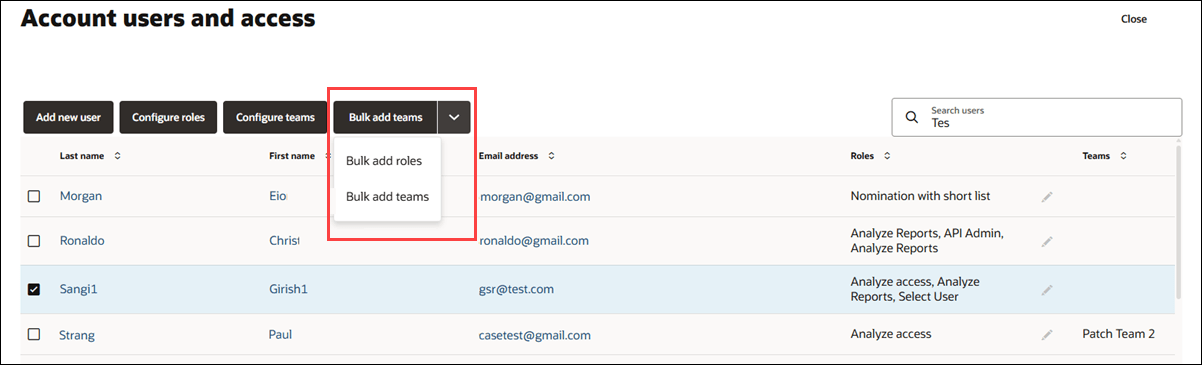
On the Account > Users page, you’ll see a new column of selection check boxes as the first column in the user grid. Above the table, a new “Bulk” button opens a drop-down menu for bulk adding either roles or teams. The Bulk button is disabled until you select at least one user in the grid.
When you click the enabled Bulk button, the Bulk assigning roles or Bulk or assigning teams drawer opens. Choose which roles or teams to assign and then click Assign to apply those selections to the users.
Notes user permission
Oracle Site Select now includes an Edit/delete own site notes only user role permission that allows you to edit or delete only your own site notes and reasons for study exclusion. This enhancement gives your organization more granular control over note management and enhances data security by limiting access to sensitive information based on your assigned permissions.
If you hold the new Edit/delete own site notes only permission, and not the broader Edit/delete a site note permission, you’ll see edit and delete icons only for site notes and reasons that you authored. Any edits you make are reflected in reporting views. Site notes and exclusion reasons written by others will not display the edit or delete icons for you.
If you have the permission to edit or delete all site notes, your functionality remains unchanged, and you can modify or remove all site notes and reasons. If you don’t have either edit/delete permission or the Read-only notes/reasons view permission, you cannot view or update site notes and reasons in any area, including the site grid notes drawer and modal.
Last login timestamp
You can now see your last login timestamp below your user name, at the far right of the page header after you log in. Each time you access the system, this timestamp shows when you previously logged in, helping you confirm that your account is secure. If you notice a last login date or time that does not match your activity, you can take immediate action to protect your credentials.

Parent topic: What's new in release 26.1