Oracle Simphony Refund Guidance
Note: Oracle recommends using referenced refunds as the standard refund workflow in Oracle Simphony whenever operationally possible.
Referenced Refunds
Referenced refunds in Oracle Simphony are the standard and recommended refund workflow.
Referenced refunds:
- Link directly to the original payment transaction
- Support full and partial refunds
- Improve reconciliation and auditability
- Reduce fraud and operational risk
Documentation
- Simphony POS Refund Documentation
- Referenced Refund Issued Through Reporting and Analytics Documentation
Unreferenced Refunds
Unreferenced refunds in Simphony should only be enabled where there is a legitimate operational requirement.
Because unreferenced refunds are not linked to an original transaction, Oracle strongly recommends restricting access to manager or supervisor roles only.
Warning: Unreferenced refunds increase exposure to fraud, social engineering, refund abuse, and operational mistakes.
Recommended Security Configuration
Oracle recommends that unreferenced refunds:
- Be enabled only when operationally required
- Be restricted to Manager or Supervisor roles
- Require authorization before transaction return activity
- Be reviewed regularly through audit and reconciliation procedures
Before You Begin
Ensure that:
- You have access to Simphony configuration roles
- A manager or supervisor role exists with permission to authorize transaction returns
- Workstation update permissions are available after configuration changes are complete
Configure Role Permissions
- Open the Roles Configuration, navigate to: Enterprise > Configuration > Personnel > Roles
- Open the role that requires restricted refund access, such as:
- Cashier
- Server
- Any operational role requiring manager-approved refunds
- Enable Authorization for Transaction Returns and Authorization for Transaction Void in the selected role, navigate to: Operations > Void/Returns
- Locate the following options:
- Option 62 – Authorize/Use the [Transaction Void] Key
- Option 77 – Authorize/Use the [Transaction Return] Key
- Enable the options. - This permission allows users assigned to the role to:
- Use the Transaction Void function key
- Use the Transaction Return function key
- Authorize other employees to perform transaction returns and voids
- Save the role configuration
- Perform a workstation update (WS Update)
Note: Oracle recommends enabling this option only for manager or supervisor roles.
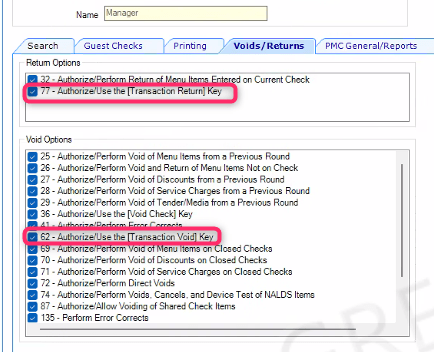
Description of the illustration transaction-return-option62_77.png
Verify the Configuration in POS
Test Restricted Access
- Log in to the workstation using a cashier or server account
- Select the Transaction Return function button
The system prompts for authorization before allowing the refund process.
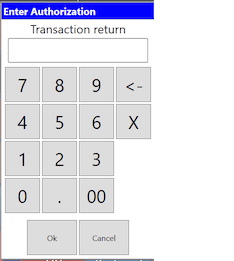
Description of the illustration transaction-return-prompt.png
- Repeat for the Transaction Void function button
Authorize the Refund
- When the Enter Authorization prompt appears, enter the manager employee ID
- Ensure that the manager role has Option 62 and Option 77 enabled
- After successful authorization, the transaction return or void function becomes available
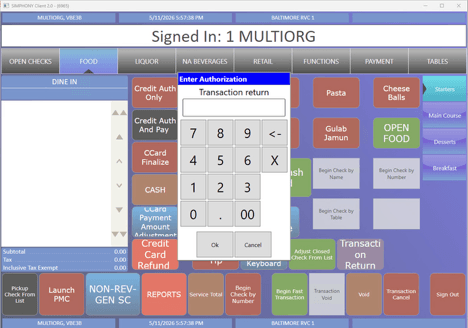
Description of the illustration manager-authorization-dialog.png
Expected Results
After configuration is complete:
- Cashiers and servers cannot perform unreferenced refunds without authorization
- Managers can authorize transaction returns or voids using their employee credentials
- Refund access remains controlled and auditable
Parent topic: Refunds in Oracle Payments