Create What-If Run
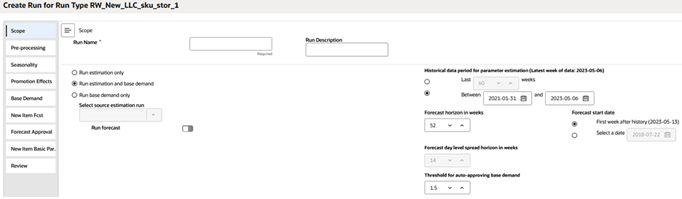
The menu on the left shows the different stages of estimation and forecasting. These stages can be different, depending on the forecast method that was selected for the run type.
You can set the scope of the run, the run name, and the description in the first tab. In the left side of the Scope tab, select Run Estimation Only to execute the end-to-end process for estimating demand parameters. Select Run Estimation and Base Demand to execute the end-to-end process for estimating demand parameters and generating base demand. Alternatively, you can select Run Base Demand Only and then select an estimation run from the list of previously completed estimation runs. If no such estimation run exists, this option will be disabled. If a completed estimation run is selected, then the historical data period section will be populated based on the estimation run and will be disabled. To also generate the forecast, turn on Run Forecast. Forecast generation for a price zone run type will always be disabled.
In the right side of the Scope screen, you can select the period of historical data that should be included in the estimation process. This part will not be enabled if the Run Base Demand Only option is selected. You can either select a period by specifying the start and end date or by specifying the number of weeks to be used from the latest historical data. In the Scope tab, you can also specify the time period for the forecast generation by selecting a start date for forecast period and a forecast horizon. You can also set the threshold used for auto-approving base demand. The base demand values that are less than this threshold times the average rate of historical sales are approved.
In the other tabs on the left menu, you can review and override the configuration parameters for each stage of the estimation and the base demand/forecast. To override a parameter, select the row in the table and click the Edit icon above the table. For the Elasticity, Seasonality, and Base Demand tabs, you can override the parameters at different levels of merchandise and location. This feature is applicable only for the Sales & Promo and the Life Cycle run types. The levels that are valid for the override depends on the stage (particular tab), that is, for elasticity and seasonality this is closely tied to escalation levels.
You can click the Add a parameter override button to override parameters at different levels of merchandise and location. The Active flag allows the user to not use an override temporarily without having to delete it, as shown below. Once the parameter is overridden at the selected intersection, you can add the override at multiple intersections by clicking Save and Add Another button. This override parameters table is shown below.
Figure 11-27 Override Parameters at the Intersection for Elasticity/Seasonality
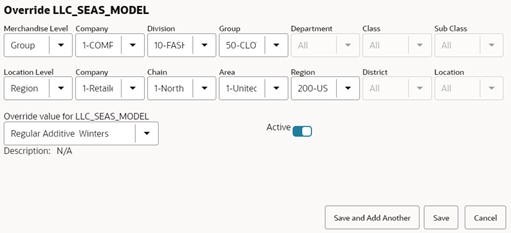
Figure 11-28 Override Parameters Table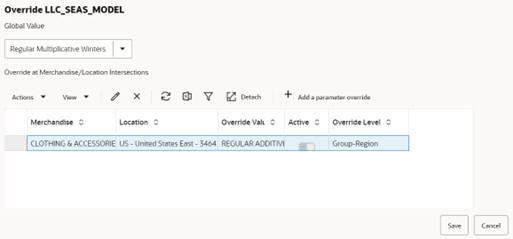
Figure 11-29 Override Parameters at the Intersection for Base Demand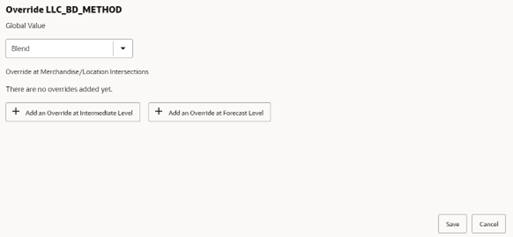
In the Seasonality tab, in addition to the configuration parameters, you can also modify the escalation path by selecting or unselecting the merchandise-location intersections that will be used during escalation process.
In the Forecast Approval tab, you can modify or view parameters related to the forecast approval method:
- Approval exceptions
- Navigations exceptions
The forecast approval method can be:
- Automatic: all forecasts are automatically approved.
- Manual: no forecast values are approved.
- By alert: you can pick one approval alert to decide if forecasts are approved or not.
There are overrides for all of the above settings, so different settings can be chosen for different item/store combinations.
There are four GA approval alerts to help with the forecast review process:
- Last Approved Forecast vs Current Forecast
- Last Year Sales vs Forecast
- Recent Sales vs Forecast
These three are designed to compare the baseline forecast with various flavors of baseline sales. The following is designed to check the promo impact on demand:
- Max Sales vs Forecasted Peak
There are a few settings for the approval alerts:
-
Approval alerts can be enabled or disabled.
-
Only calculate the alerts for sales larger than a threshold.
-
Determine the number of periods for which the errors are calculated.
-
Decide what errors are acceptable based on the Error Threshold. For item/store combinations with errors less than the threshold, the forecasts are approved.
Once the approval process was run using the approval alerts, some time series are approved while the others are not. The non-approved time series are prioritized using the navigation alerts. In this section, you can define how many priority buckets you want to define and give them some meaningful labels. The time series are assigned to navigation buckets based on how large the calculated error was during the approval process.
A set of labels commonly used are:
-
Urgent
-
Required
-
Optional
-
Informational
Time series are assigned to navigation alerts according to the navigation threshold:
-
if error > threshold 1 → Urgent
-
if threshold 1 > error > threshold 2 → Required
-
if threshold 2 > error > threshold 3 → Optional
-
if threshold 3 > error > threshold 4→ Informational
The number of navigation tiers needs to match the number of labels and number of thresholds.
The adjustment method allows the forecast adjustments to persist, or if they should be overwritten by subsequent forecast runs. The options are:
- No Adjustment: No adjustment is made to the system-generated forecast.
- Keep Last Forecast: If any adjustments were done to the forecast in the previous runs, they are reflected in the Adjusted Forecast measure. In this use case, the total forecast is retained.
- Keep Last Baseline: If any adjustments were done in the Adjusted Baseline in the previous runs, they are retained. In this use case, the system calculated peaks are applied on the Adjusted Baseline.
- Keep Last Peak: If any adjustments were done in the Adjusted Peak measure in the previous runs, they are retained. In this use case, the adjusted peaks are applied on the system-calculated baseline.
In the New Item Basic Parameters tab, you can set some general setting to support the setup of forecasting for new items:
- Adjustment factor: The only demand component needed to generate the forecast for New Items is base demand. If the Like Item substitution method is selected, the adjustment factor specifies what percent of a Like Item's base demand will be copied to the New Item.
- Recommended Number of Like Items: In this measure, you specify how many items you want to see in the User Selected Like Item list, in the Select and Approve view. If you change the value, the list is regenerated to reflect the new setting. The items in the list are sorted by similarities, which are calculated using item attributes and their weights.
The parameters above are global and can be overwritten using the usual mechanism.
Sales Density Threshold: In this measure, you enter the threshold for the data density. If the actual density is larger than the threshold, the time series qualifies to serve as Like Item/location for a new/item/location. The data density is calculated as:
data density = number of periods with demand larger than zero / total length of demand
For a time series with the following demand values: 0,1,0,1,0,today
The data density is 2/4 = 50%.
If the value for the threshold is zero, an item that is not actively selling can also be eligible as Like Item if it has an approved base demand.
This can be useful when the item to be introduced is a replacement or similar to an item that sold last season. In this case, the base demand of the New Item will be modeled after the approved base demand of the item that it replaced.
In the Review tab, you can see all the parameters that were overridden and submit the run for the execution.
For the Options Forecast, the run setup is defined by different steps:

Figure 11-30 Add a Parameter Override Button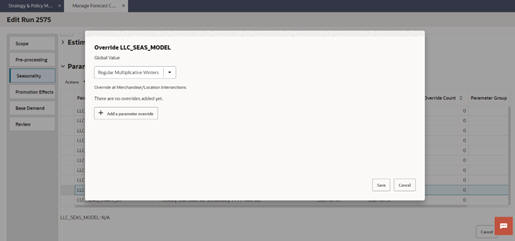
Figure 11-31 Modify Escalation Path for Seasonality/Elasticity
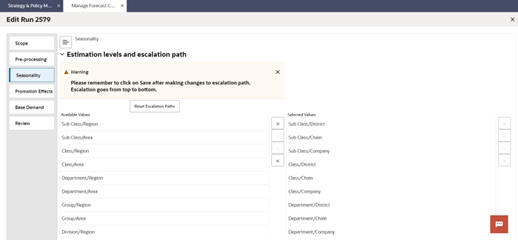
Description of "Figure 11-31 Modify Escalation Path for Seasonality/Elasticity"