New Item Setup
The workflow in the New Item Setup workspace workspace starts by selecting the New Items. An item is defined as new if it has a forecast startdate override that is in the future, that is, past the system today. The date can be loaded in the measure if available. If not, the date can be entered manually. Once you identified the New Item and the forecast startdate override is populated, you can select the substitution method. Depending on your selection, you may need to enter additional information. The workflow message measure will guide you through the process. For instance, if you choose User Input, you need to provide the User Provided Base Demand. If you do not provide the User Provided Base Demand, the workflow message warns you and displays Base Demand Not Input By User. You have successfully set up a New Item for forecasting when the workflow message is cleared and the Approval flag is selected. You finish by clicking the Approve button.
Another helpful tool in the process of setting up New Items is the Workflow Message Count measure. It displays the number of item/store combinations that have been flagged as new, but have not yet been successfully set up. When setting up the New Items was successful, the measure will display a count of zero.
Figure 11-44 New Item Setup
The metrics available in the New Item Setup workspace are:
-
Substitute Method
This measure displays a list where you can select the substitute method. When a substitute method is used to forecast, the method set for an intersection is cleared once the Default Forecast Start Date is greater than the Forecast Start Date Override plus the TS Duration for the intersection. Valid substitute method options are:
-
None: No forecast is created for the New Item.
-
Like Item: The forecast is created using the base demand of a Like Item. The Like Item is selected in the User Selected Like Item measure. The forecast of the New Item is given by:
Base demand New Item = base demand Like Item * Adjustment Factor
Forecast at time t = base demand New Item * seasonality at time t (coming from escalation level) * promo and price effects
-
-
Base Rate of Demand: We need to calculate the base rate of demand of the escalation level. The forecast for the new item is given by:
Forecast at time t = base rate of demand (coming from escalation level) * seasonality at time t (coming from escalation level) * promo and price effects
-
User Input: This method is very similar to Base Rate of Demand, with the difference that you have to manually specify a base rate of demand. The forecast is then generated using the same formula as for Base Rate of Demand.
User Provided Base Demand
If the User Input substitution method was selected, you have to enter the base rate of demand that is going to be used for the New Item when generating the forecast.
Forecast Startdate Override
This is a very important measure because it identifies an item as being new. It can be loaded if the information can be interfaced from another system. If not available, you can manually set it.
Approve Date
This measure displays the date when the Like Item recommendation was approved by clicking the Approve button.
Adjustment Factor
The only demand component needed to generate forecast for New Items is base demand. If the Like Item substitution method is selected, the adjustment factor specifies what percent of a Like Item's base demand will be copied to the New Item.
Approved Like Item
This measure is relevant if you selected the Like Item substitution method. If you go through the process to set up the New Item, and use the System Recommended Like Item or override by selecting another Like Item from the User Selected Like Item list, the Approval Flag is checked. Running the Approve New Items custom menu populates this measure.
System Recommended Like Item
This measure is relevant if you selected the Like item substitution method. Your environment needs to have item attributes and attributes weights, so similarities between new and existing items are calculated. In this case, the potential Like Items are sorted by their similarity scores, and the item with the highest score is displayed as the system recommendation.
Note how the Like Items are not displaying just the item label. First, you see a percentage. This represents how similar the Like Items are to the New Items. A value closer to 100% means high similarity. The second value shows the average demand of the Like Item. This is useful in selecting a Like Item, because it is an indication of forecast magnitude. This value is recalculated to reflect the latest data point, so what you see here may be outdated by a week. Finally, the third element is the item label. Note that if there is no logic to calculate similarities, you need to select the like item manually.
Workflow Message
The information in this measure guides you through the forecast setup process for New Items. It informs you on the next steps depending on the substitution method that you selected.
| Message | Cause | Action |
|---|---|---|
| Substitution Method Not Set | You have identified a New Item and set the Forecast Startdate Override, but did not select a substitution method. | Select a Substitution Method. |
| User Specified Like Item Not Set | You have identified a New Item and selected Like Item as the substitution method, but you did not select a Like Item. | Select a User Selected Like Item. |
| Base Demand Not Input By User | You have identified a New Item and selected Base Rate of Demand as the substitution method, but you did not input a User Provided Base Demand. | Input a User Provided Base Demand. |
| Existing Item | You have entered a Forecast Startdate Override for an item that is not new. | You can clear the date to avoid confusion. Even if you do not, no action is taken for the item with respect to New Item forecast setup. |
User Selected Like Item
This measure is relevant if you selected the Like item substitution method. It shows a list with items that you can select to override the system recommendation. The number of items displayed in the list is set in the Recommended Number of Like Items measure in the Settings step. Note how the Like Items are not displaying just the item label. First, you see a percentage. This represents how similar the Like Items are to the New Items. A value closer to 100% means high similarity. The second value shows the average demand of the Like Item. This is useful in selecting a Like Item, because it is an indication of forecast magnitude. This value is recalculated to reflect the latest data point, so what you see here may be outdated by a week. Finally, the third element is the item label.
Approve Flag
When the set up process for forecasting the New Item is successful, this measure becomes True and the measure displays a check mark. You are now ready to click the Approve button to approve the New Item forecast strategy.
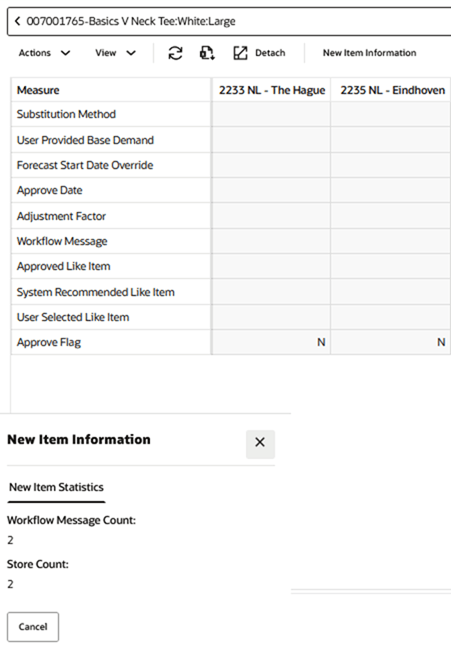
New Item Statistics
When you click New Item Information, a bottom drawer opens.
The measures in the New Item Statistics view are supporting the New Item setup process that happens mainly on the main screen. There is no need for a cycle set. The information shown in this view is relevant to the item selected in the grid, and for all stores.
The New Item Statistics view contains the following measures:
-
Workflow Message Count: This measure displays the count of the Workflow Message measure in the Select and Approve view. The workflow messages are guiding you in the New Item setup process. If the count is zero, you have set up correctly all New Items. The count corresponds to the number of New Item/store combinations that you still have to finish setting up.
-
Store Count: This measure displays the number of stores that a New Items has been set up for.
In addition to these workspaces, there are some general settings that can be accessed through Manage Forecast Configurations in the run setup under the New Item Basic Parameters tab.
To create a new mapping, click the + (plus) icon above the table in Map screen. Select an application and one or more run types (based on what the application allows) and click Save. To delete a mapping, select a row and click the X icon above the table.