Manage
In the Manage screen in train stop 3 you can set the value of configuration parameters for the run type. These values will be used when creating and executing batch runs for each run type. In this screen, you can also activate or inactivate run types by selecting a row and clicking the Activate button above the table. Active run types become part of the weekly batch process, and a new batch run is created and executed for each active run type. For each active run type, once the batch run is approved, the output of the batch run will be exported to and consumed by the applications that are mapped to that run type. In order to auto-approve the batch runs, select a row and click on Manage Auto-approve. For the Life Cycle run type, the start date calculation can be disabled or enabled by clicking the Disable Life Cycle Start Date Calculation or Enable Life Cycle Start Date Calculation button, respectively.
-
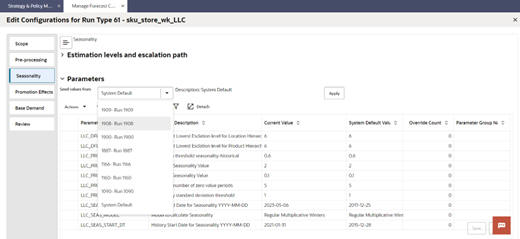
Set the values of all configuration parameters in that stage, based on the system default for the run type. To do this, select System Default from the drop-down menu and click Apply.
-
Set the values of all configuration parameters in that stage based on the values that were previously set in one of the what-if runs. To do this, select the desired run from the drop-down menu and click Apply.
-
Override the value of a certain configuration parameter. To do this, select a row and click the Edit icon above the table.
A configuration setting that is available in train stop 3 and is not available in train stop 2 is the Item Supersession option. Enabling Item Supersession activates the interface and the demand calculation. See the Oracle Retail AI Foundation Cloud Service Implementation Guide for details. Making it available in the Manage train stop as opposed to the run type creation, makes it more flexible, allowing to enable/disable the functionality, for any desired forecast run.