4 Managing Batches
The Process Orchestration and Monitoring (POM) application is a user interface for scheduling, tracking, and managing batch jobs. As an application administrator, you will be expected to monitor the various batches running in POM and potentially take corrective actions if a batch is in a failed or long-running state. This chapter summarizes the most common activities associated with POM and batch execution and provides references to additional details where available.
Batch Administration Duties
Throughout the project and after you are in a Production environment, the responsibility of monitoring and maintaining batch schedules and processes is divided across multiple groups. Review the information below for a typical breakdown of batch responsibilities.
Initial Configuration: Oracle Cloud Operations deploys batch schedules according to your subscriptions, which come pre-installed with certain basic configurations and enabled or disabled batch programs.
Final Configuration: Customer/Solution Implementation Partner (SI) is responsible for modifying the batch schedules during the project and after go-live in Production, based on their current implementation needs.
Scheduling: Customer/Solution Implementation Partner (SI) uses the POM scheduler to schedule nightly, cyclical, and ad hoc jobs. Oracle is not typically responsible for changing schedule start times after go-live, as it can be done in POM.
Notifications: Customer/Solution Implementation Partner (SI) is responsible for setting up batch notifications using Retail Home and POM. Oracle will not typically alter batch notifications on customer environments (unless needed to change internal notifications of batch status).
Error Resolution: Customer/Solution Implementation Partner (SI) is responsible for resolving issues in non-production environments and restarting batch processes from POM after the errors are resolved. In Production environments, the Customer is responsible for monitoring the batch and resolving errors, if possible (for example, if files are not uploaded on time or uploaded with bad data). In both cases, Service Requests can be raised with Oracle for support.
File Retention: Customer is responsible for retaining backups and archives of any file-based data sent as input to Oracle systems according to their business’s data retention policies. Oracle’s file retention policy for RAP solutions is between 7 and 30 days depending on the OCI region, after which time any incoming or outgoing files may be purged without notice.
Review the table below for a summary of duties broken down by environment type:
| Environments | Activities | Responsibility | Support Mechanism |
|---|---|---|---|
|
Non-Prod (Dev, Breakfix, Stage) |
Batch Monitoring Troubleshooting Data Correction Data File Retention |
Customer/SI partner |
Service Request |
|
Production |
Batch Monitoring Troubleshooting Data Correction |
Customer/Oracle |
Service Request/ Email groups |
|
Production |
Data File Retention |
Customer |
Service Request |
Batch Email Notifications
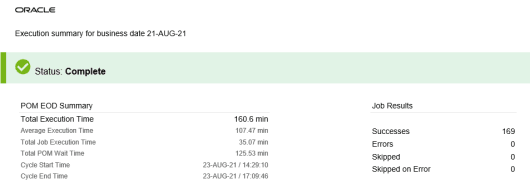
The primary source of information about the batch status on a daily basis will be the email notifications sent from POM for every batch execution. These emails will contain a summary of the batch status, the longest-running jobs, the total batch duration, and other useful details to help you assess the state of the current batch cycle. To keep the business up-to-date on batch execution status and take action in the case of batch failures, the designated administrators for the Retail Analytics and Planning applications will be expected to receive and review these emails regularly after going live in a production environment.
Figure 4-1 POM Sample Batch Notification
Each batch schedule in POM issues its email notifications. Additionally, POM supports numerous notification types for specific use cases, such as individual job failures and long-running processes. Customers are expected to set up local mailing lists which can receive automated messages from Oracle Cloud applications. To change the recipients on an email notification, access the Notifications interface in Retail Home. Follow these steps to add or update a notification:
-
Log in to Retail Home with a user having Retail Home Administrator privileges (see the section on Application Security Policies for role details if needed).
-
Open the Settings panel and access the Manage Notifications screen.
-
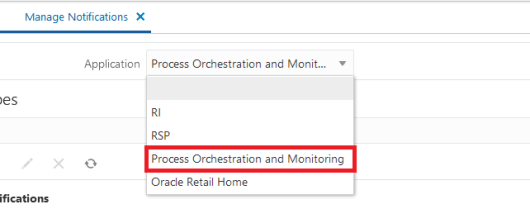
Select Process Orchestration and Monitoring from the dropdown.
-
A pre-populated list of supported notifications appears in the table below the dropdown. POM supports many different notification types. For example, the code for batch summary emails is
NightlySummaryReportExternal. You can type codes into the Filter box to find specific entries.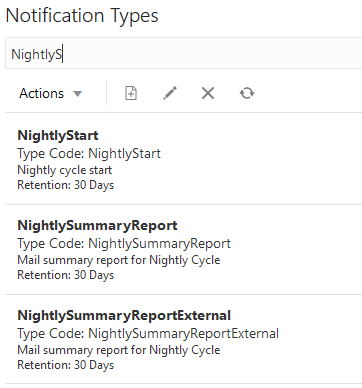
-
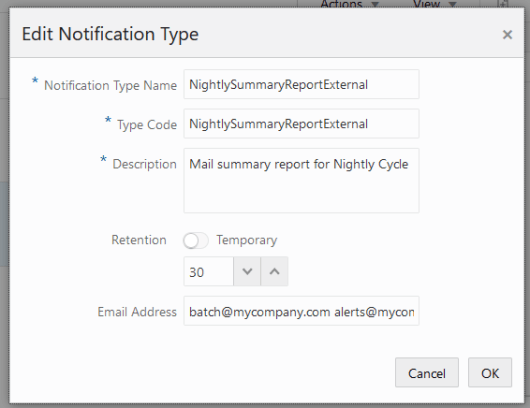
To add email addresses to a notification type, select a row and click the Edit icon. Enter one or more email addresses in the popup menu, separated by spaces. Do not edit the notification type code or name.
-
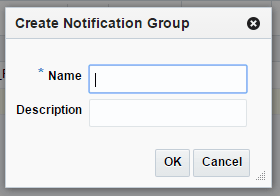
Once a Notification Type has been selected in the previous step, the Notification Groups table refreshes on the right side of the screen. You can add groups to the notification, and all users in these groups will see notifications in their Task panel from POM. Click Create in the Notification Groups table. Enter a name and description for the group of users or roles that you plan to send this notification to.
-
Click Add Job Role in the Notification Groups table to add valid roles to the new notification group. Notifications of this type will show up for users with these roles within the Notification Panels throughout Oracle Retail applications.
-
Enter a valid role name (for example,
BUYER_JOB) to issue the notifications to all users having that role.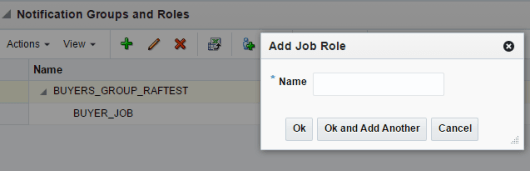
Repeat these steps for as many POM notification types as you wish to receive.
Note:
It is not recommended to set up these emails until the implementation is nearing completion, as it could result in spamming email inboxes with many unwanted messages from non-production environmentsThe POM notification email subject line should also be modified before completing this activity. Batch-related emails will include the customer name and environment name in the subject line and need to be updated separately in each POM environment.
-
In POM, select Tasks > System Configuration.
-
In System Configuration, select System.
-
In System, select the Edit icon.
-
In System Settings, set the
Environmentname as you want it to appear in email subject lines, such as Stage or Production. Set the Customer Name to a more descriptive customer name value (the default value is an internal customer code). -
Click OK to save the changes.
POM email notifications will now show the new values specified here for any email relating to POM processes, batch cycle executions, and job failures/warnings.
Batch Monitoring in POM
The POM application provides a Batch Monitoring screen for viewing detailed information about batch schedules, including
the current run status of each job in a schedule, and the runtime of completed jobs. Accessing the Batch Monitoring screen
requires you to have at least the OCI IAM user group BATCH_VIEWER_JOB. Once you have the necessary user permissions,
follow these general steps to monitor the batch:
-
Navigate to POM using the application link provided in Retail Home, or navigate directly to the POM URL, if known.
-
Click the Batch Monitoring link from the navigator menu.
-
Change the business date if you are looking to see batch information for prior runs; otherwise, select an application tile to open the batch details.
-
Select the batch cycle type (nightly / recurring / standalone).
-
Review the information shown on-screen or click Download Cycle Summary to save the information to review offline.
For additional information about this screen, refer to the POM User Guide section on “Batch Monitoring”.
Change Batch Start Time
Another maintenance task that the application administrator may be required to do periodically is to change the start time
for a batch cycle. This activity requires you to have the BATCH_SCHEDULE_ADMINISTRATOR_JOB in OCI IAM. The
POM application provides a way to configure each batch with a start time following the general steps below:
-
Navigate to POM using the application link provided in Retail Home, or navigate directly to the POM URL, if known.
-
Click the Scheduler Administration link from the navigator menu.
-
Select a schedule tile and frequency that you wish to edit.
-
Select the row displayed in the table and click the Edit action to modify the start time of the batch cycle.
-
The batch schedule change will only take effect from the next scheduler day onwards. If it needs to take effect immediately, click Restart Schedule on the Batch Monitoring screen.
For additional information about this screen, refer to the POM User Guide section on “Scheduler Administration”.
Manage Batch Dates and System Dates
Different applications manage their own business and processing dates across the Retail suite of applications, and these dates do not always align with what you see in the POM user interface. Understanding how the various dates must be setup is critical, as you may sometimes be required to change one or more dates in the applications and align the POM batches to those dates.
Within the context of Retail Analytics & Planning, the following dates are most often used:
- POM maintains the batch schedules by date, as you may only have a single schedule active per application/date. This is referred to as the POM Business Date. This date is purely for POM’s own orchestration of schedules and dependencies, and it has no implicit connection with the other applications.
- Merchandising Foundation CS has an internal system date known as the virtual date or “VDATE”. This date is stored in the PERIOD table and represents the current active business date from an operational standpoint. During normally daily operations the VDATE will be equal to today’s date in most cases.
- When MFCS is used, the AI Foundation data warehouse (AIF DATA) extracts the VDATE into an internal parameters table at the beginning of batch, and this is stored in the RA_SRC_CURR_PARAM_G table. This copy of the VDATE is used for validation purposes so the downstream application jobs know what date is currently being processed in batch.
- The AI Foundation data warehouse (AIF DATA) maintains its own business date to keep track of the most recent day of data loaded into the platform. This date is stored in the W_RTL_CURR_MCAL_G table and represents the last successful load of business data. During normal daily operations the current business date will be yesterday, because data is always loaded into the platform up through close of business for the prior day.
- Planning applications have a system date for dividing the calendar between elapsed periods and future periods. This is known as the RPAS_TODAY date and is usually synchronized with the POM business date automatically using the RPASCE batch programs, although it is possible to manually set/unset the value using RPAS administration tool tasks or alter the POM batch parameters to shift the date.
At the start of a normal AIF DATA nightly batch, MFCS, RDE, and the AIF data warehouse must be aligned to a specific date relationship:
- MFCS PERIOD.VDATE is the business date being extracted for the current run, representing the current day’s close-of-business date that all data will be stored against in AIF.
- The AIF warehouse current business date, stored in W_RTL_CURR_MCAL_G, is the last successfully completed warehouse business date, which is one day earlier than the incoming VDATE.
- The incoming source business date for the run must be exactly one day after the warehouse current business date.
- RA_SRC_CURR_PARAM_G’s copy of VDATE represents the source business date used by the rest of the AIF batch.
- An internal parameter in C_ODI_PARAM called RDE_LAST_VDATE_RUN represents the last MFCS business date successfully extracted by RDE and gets updated to VDATE after the extracts are completed in any given night.
- During the AIF DATA batch, the W_RTL_CURR_MCAL_G business date will be advanced by 1 day to align with the incoming VDATE, and then all of the dimension and fact data for that batch run will be loaded against that date.
- For Planning, the RPAS_TODAY date is automatically pulled from the POM business date using job parameters, so it will generally be the same value as VDATE for that batch.
In the normal case, if MFCS is running for business date D, the AIF warehouse current business date is D-1, and the incoming source business date is D. MFCS will move its own date to D+1 during the batch, around the same time that AIF DATA moves from D-1 to D. When MFCS is not being used, you are expected to directly load a file containing the RA_SRC_CURR_PARAM_G data along with your other nightly batch files, which allows the overall data flow above to remain largely the same.
BATCH_VALIDATION_JOB in the AIF DATA schedule validates this relationship before fact data is loaded and fails if the requirements are not met. Do not skip BATCH_VALIDATION_JOB to bypass a date error. The validation prevents source data for the wrong business date from being loaded into fact tables. Skipping it can cause duplicate facts, invalid date values, downstream validator failures, unique constraint errors, and recovery work that may require Oracle Support.
The POM Business Date is not directly connected to any part of the flow described above. It is independently managed by the POM application as a way to orchestrate all the nightly batch flows that need to happen for a particular business date. You can think of the POM business date as an overarching “action date” value that connects all of the schedules together. When initially setting up the nightly batch flow, the POM business date should be aligned with the MFCS VDATE (or equivalent source system date when MFCS is not used). When the nightly batch starts, it is an indication that you are doing all the work needed for that day’s close-of-business. POM will automatically advance the batch schedules to the next POM business date when they complete all jobs, ensuring continued alignment across schedules.
Review the table below for an example of the dates for a batch at various points during a run:
| Date Location | Batch Start | After AIF DATA RDE_SET_RA_SRC_CURR_PARAM_G_JOB | After MFCS DTESYS_JOB | After AIF DATA W_RTL_CURR_MCAL_G_JOB | During RPASCE Run | Batch End |
|---|---|---|---|---|---|---|
| POM Business Date | 5/25 | 5/25 | 5/25 | 5/25 | 5/25 | 5/26 |
| MFCS VDATE | 5/25 | 5/25 | 5/26 | 5/26 | 5/26 | 5/26 |
| AIF RA_SRC_CURR_PARAM_G | 5/24 | 5/25 | 5/25 | 5/25 | 5/25 | 5/25 |
| AIF W_RTL_CURR_MCAL_G | 5/24 | 5/24 | 5/24 | 5/25 | 5/25 | 5/25 |
| RPASCE RPAS_TODAY | 5/24 | 5/24 | 5/24 | 5/24 | 5/25 | 5/25 |
It can happen in exceptional cases that your POM schedules and business dates get out of alignment and do not follow the structure laid out above. It is critical to get all of the schedules back in alignment is quickly as possible when this occurs to avoid negatively impacting your batches. The steps you will follow to align business dates may be one or more of the following:
- If the POM schedules in the UI are not aligned, go to the task menu and open AMS Utilities > Align Business Dates. This utility helps to pull multiple disconnected schedules back into alignment for a specified POM business date. This does not affect application dates, only the POM date.
- Relative the desired POM business date, you should validate all other dates are aligned per the guidance in this document.
- If MFCS VDATE is not having the same date as POM business date, it needs to be updated in the PERIOD table (raise an SR with Oracle Support if you are not able to do this).
- If RA_SRC_CURR_PARAM_G is not having one day earlier than VDATE, you can update it from the Manage Configurations screen in the AIF user interface. Select the table name from the dropdown list and edit the row for VDATE to be one day earlier than the current VDATE in MFCS.
- If W_RTL_CURR_MCAL_G is not having one day earlier than VDATE, then the guidance depends on what the current value is.
- If the date in AIF is already ahead of where MFCS is, then it is not possible to go backwards, you cannot run batch for an already completed date. You would need an SR with Oracle Support for further review.
-
If the AIF business date is more than a day behind VDATE then you may use the standalone process RESET_BUSINESS_DATE_ADHOC to change it. Edit the parameters of the job in this process to add a date value in YYYY-MM-DD format like below, then run the job:
disJobType=ODI_JOB_RUN||name=PLP_RETAILRESETBUSINESSDATEGENERAL||context=DEVELOPMENT||type=SCN||logLevel=5||params=RA_BI.RI_ADHOC_BUSINESS_DT:2026-05-24 - If you advance the AIF business date, you will be skipping ahead in the data warehouse and cannot go back to load data for the skipped dates, you would only load data for the new business date and onwards. This is typically acceptable only in non-production environments, if it happens in a production environment you may reach out to Oracle Support for further guidance.
- RPAS_TODAY should generally stay aligned with POM business date on its own and will not need updating, but if it does, you would do so from the Online Administration Tools (OAT) using List/Set/Unset PDS Environment Variables tasks.
When multiple schedules are out of sync, recover them in a planned sequence. Do not independently advance MFCS, AIF DATA, AIF APPS, and RPASCE without confirming which dates have been successfully loaded. Use the following approach:
- Identify the last successfully completed business date for each schedule: MFCS, AIF DATA, AIF APPS, and RPASCE.
- Identify which dates contain required source data and which dates, if any, will be intentionally skipped.
- Recover AIF DATA first because AIF APPS and RPASCE depend on the data warehouse.
- If AIF DATA already contains the required data, use the Align Business Dates action to bring AIF APPS and RPASCE schedule dates forward. A full data repush is not required solely because AIF APPS or RPASCE schedule dates are behind.
- Keep POM schedule dates within the allowed schedule-date difference (POM schedules are not allowed to open more than 1 day apart from each other in normal operations). If POM prevents execution because schedule dates are too far apart, align the dependent schedules before rerunning.
Batch Validation Job
In the AIF DATA schedule, BATCH_VALIDATION_JOB confirms that the incoming source business date is exactly one day after the current AIF warehouse business date. When this job fails, stop and determine whether the source date is wrong, the warehouse current business date is wrong, or a prior business date was intentionally skipped.
| Step | Action |
|---|---|
| 1 | Capture the date values from the failure message. Identify the incoming source business date and the current warehouse business date. |
| 2 | Confirm the MFCS VDATE for the run (or if MFCS is not used, confirm the incoming date from the source system). |
| 3 | Confirm RA_SRC_CURR_PARAM_G.VDATE, which is the source date AIF/RDE is using. |
| 4 | Confirm the current AIF warehouse business date in W_RTL_CURR_MCAL_G. |
| 5 | Decide whether the incoming source date should be loaded (and the data warehouse is wrong), the incoming dataset should be reprocessed from a corrected file/extract, or the current date was already processed and should be skipped ahead. |
| 6 | Apply the chosen recovery path, referring to the section Manage Batch Dates and System Dates for more details as needed. |
| 7 | Rerun BATCH_VALIDATION_JOB and continue the schedule only after the expected date relationship is restored. |
Batch Error Details
When a batch process fails in POM, an email notification should be issued, stating the exact point of failure (assuming notifications are configured). You can also access the Batch Monitoring screen in the POM user interface to view the failed job and download the log information. The steps to download job logs are below:
-
Navigate to POM using the application link provided in Retail Home, or navigate directly to the POM URL, if known.
-
Click the Batch Monitoring link from the navigator menu.
-
Select your schedule and cycle from the available batches.
-
Click the name of a job with an incomplete status. Under the Batch Details screen, locate the table for Executions and click the download link in the Log column.
Review the error log details for the cause of failure. If the error message does not indicate a problem that can be fixed internally (for example, invalid data files, duplicate data rows, or data that violates a key constraint on the interface) then raise an Oracle Service Request for assistance. After batch issues have been resolved, you may restart the batch processing from the point of failure using the POM user interface.
Automatic Job Restarts
POM has the ability to automatically restart a failed job a number of times, depending on the type of failure. Automatic restarts do not appear as a job failure and do not send an error notification, assuming the job is successfully restarted and then runs to completion without any further issues. POM will look for specific error messages in the job logs during execution, and if any are encountered, it will restart the job instead of failing. The supported error message types are listed in the System Options for each batch schedule using a parameter name such as “RIRestartableErrorMessages” for the AIF DATA schedule or just “RestartableErrorMessages” for other schedules. You are allowed to edit the parameter to include additional error codes in comma-separated format and POM will combine the default values with your additional codes.
In the event of a job failure due to a restartable message, the system retries the job with an added delay after each retry:
- 1st retry: 30 second delay
- 2nd retry: 40 second delay
- 3rd retry: 50 second delay
- 4th retry: 60 second delay
Example log messages seen after a retry:
INFO  AbstractAsyncReSTJobExecutor -  Sleeping
        for 60 seconds, prior to the next invocation
INFO AbstractAsyncReSTJobExecutor -
Invocation 5If it still fails after the 4th retry, then the job will fail for the current execution and perform the standard failure actions, such as sending notification emails. All retry attempts will be captured in the POM logs for the job. When POM restarts due to an internal system issue unrelated to job processing, it will log the restarts as “attempts”. When retrying a failure due to restartable messages, it will log the restarts as “invocations” and specify which restartable message triggered a new invocation of the process. It is possible that a job may still fail due to errors that appear to be restartable. When this happens, the retry logic above will not be applied as the specific function or command that failed does not support automatic restarts. If you see a job failure that includes a restartable error message in the logs, but there is no indication of any retry attempts/invocations happening, you may raise a Service Request with Oracle Support for further assistance.
Reprocessing Bad Data Files
It is the customer’s responsibility to resolve issues with data files and re-upload files that need to be corrected to complete the nightly batch. For example, it is possible for a data file to have formatting issues that prevent it from loading into the Oracle database in RAP, and the file must be corrected from the source system before the RAP nightly batches can proceed. Follow the steps below to reprocess invalid files that are blocking a batch process:
-
Correct the files that have issues (coordinating with Oracle Support if POM does not help you determine which files need to be re-sent) and bundle them into a ZIP file named
RI_REPROCESS_DATA.zip. The zip file name is case sensitive and must be exactly this name, or it will not be detected. The ZIP file must not contain any folders or other objects unrelated to the data itself. -
Using Postman or POM UI, run the ad hoc process
REPROCESS_ZIP_FILE_PROCESS_ADHOCto import the ZIP file and unpack it (ensure all jobs in this process are enabled or it may not perform the needed functions). This process will overwrite any existing files with the new files you bring in, while keeping the other batch files unchanged. -
If your file failed to stage into the database at all, such as when it has an improper format or line-ending character, then you may rerun the failed job from the POM Nightly cycle at this time. If the batch failed further along in the process, after files are staged, then continue with the next steps.
-
Run the
C_LOAD_DATES_CLEANUP_ADHOCprocess to clear failed run statuses from the backend before loading new data. -
Use the
ADHOCprocesses associated with your failed data files to get them loaded up to the point of batch failure. For example, if the filePRODUCT.csvloaded into the database but then failed on theW_PRODUCT_DSload step, useRI_DIM_INITIAL_ADHOCjobs to stage the file again, then resume the batch.
Recovering from Job Timeouts
It is possible for a job to take more than 4 hours to complete due to extremely high data volumes or very intensive calculations planned for a given date. The job in POM may time out after 4 hours of inactivity (meaning a lack of response from the database or backend process). The backend process may still be running in the database and should be allowed to complete, even though the POM job has failed. If you encounter any situation where a POM job in your batch has failed after exactly 4 hours, you may raise a Service Request asking for assistance checking for any jobs in the database that could still be running relating to the failed process.
Restarting the Job
Support may ask you to restart the failed job after they check the backend status. You may also be asked by Oracle Support
to clear entries from a table named C_LOAD_DATES, which tracks the status of many batch jobs connected to
RI and RAP foundation processes. Records in this table must be deleted to allow a failed job to be restarted if it needs to
run from the beginning. Follow the steps below to complete this activity:
-
Access the Manage System Configurations screen inside the Control & Tactical Center in AI Foundation.
-
Select the
C_LOAD_DATEStable from the dropdown menu. -
Locate the rows relating to your failed job (Oracle Support should provide some indication of which rows they are, such as any rows where
TARGET_TABLE_NAME=W_RTL_ITEM_GRP1_DS). -
Select each row and click the Delete icon to remove the record from the database.
-
Now navigate to the POM UI Batch Monitoring screen, locate/select the failed batch job, and click Rerun.
With the entry removed from C_LOAD_DATES, the job will start from the beginning and attempt to repeat
all steps in the process. Once the job completes successfully, the rest of the batch cycle will resume automatically.
Skipping the Job
Oracle Support may determine that the failed job has completed successfully in the database and you are safe to resume the batch from after the failed job. Follow the steps below to complete this activity.
-
Open the POM UI and go to the Batch Monitoring screen.
-
Locate the failed job and click the Skip button. Enter a reason for the action such as “confirmed with Oracle Support to skip the job”.
-
The job should change from Failed to Skipped status and the next job in the batch cycle will have started automatically.