10 Ask
Retail Home is now integrated with Ask, an AI-powered chatbot that provides real-time, interactive support to help users with application-related questions.
The ODA widget appears in the lower-right corner of the Retail Home interface upon startup.
Note:
ODA is currently available only in production environments and is not supported in pre-production environments.
In the Legacy UI, the Ask Icon is displayed in the middle left of the screen and when clicked, the chatbot opens for interaction.
Figure 10-1 Ask Icon - Legacy UI
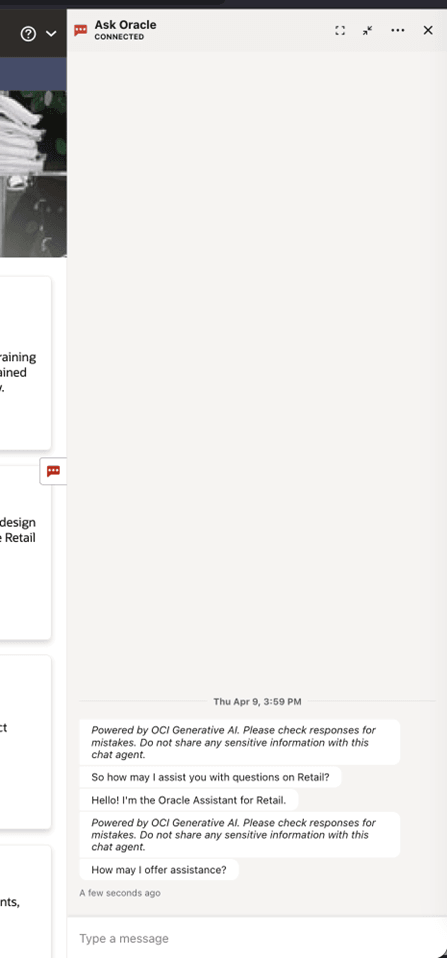
In the HWAO UI, the Ask icon is displayed in the bottom right corner left of the screen, beside the Ask Oracle icon. Clicking the Ask icon opens the Ask Oracle chat widget, where you can interact with the chatbot by entering your questions in natural language.
Figure 10-2 Ask Icon - HWAO UI
Figure 10-3 Ask Oracle Chat Widget
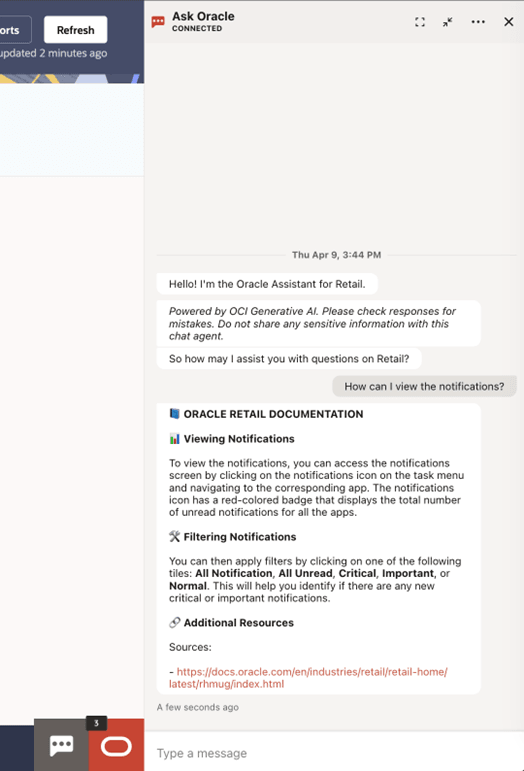
Some examples of the conversation are provided below. The user utterance is prefixed with User and the response from ODA is prefixed with Bot.
Sample Conversations
User: How can I access or view the dashboard I previously configured?
Bot: To view the dashboard you configured, you need to log in to Retail Home. The dashboards configured for your enterprise role(s) will be displayed. You can switch between roles if you have multiple roles assigned to you by clicking on the Role LOV near the end of the banner. You can also refresh your dashboard using the Refresh button.
User: How can I check if there is an ongoing outage?
Bot: To check if there is an ongoing outage, you can look for the Outage Banner on the Retail Home Dashboard. The banner displays a Some Systems are Experiencing an Outage message with details such as the name of the application impacted, reason for the outage, outage start time, and estimated completion time. If there are more than three outages listed, a More link is displayed, which when clicked, presents all current outages in an error modal dialog.
User: How can I display the applications in the Application Navigator?
Bot: To display applications in the Application Navigator, the Application Navigator Switch should be enabled for the application. This switch controls whether the application will be displayed in the Retail Home Application Navigator menu.
The Application Name in Application Navigator is the name configured in the Application Navigator Setup page. Users can add a new Application Navigator entry in Retail Home using the Add icon on the table toolbar.
Once the application is added and the Application Navigator Switch is enabled, the application will be visible in the Application Navigator menus.
User: Is there any new critical or important notification today?
Bot: To check for new critical or important notifications, you can access the notifications screen by clicking on the Notifications icon on the task menu and navigating to the corresponding app. The Notifications icon has a red-colored badge that displays the total number of unread notifications for all the apps. You can then apply filters by clicking on one of the following tiles: All Notification, All Unread, Critical, Important, or Normal. This will help you identify if there are any new critical or important notifications today.
User: How do I view the subscription consumption for all subscribed applications?
Bot To view subscription consumption for all subscribed applications, you can use the Application Dashboard page in Retail Home. The Application Dashboard page gives customer administrators the ability to view information about the products to which they have subscribed, including subscription metrics.
The subscription metrics display details related to all the applications subscribed by the customer, which includes the ability to view usage history. The customer would also see a Currently Overextended message for applications whose current usage crosses the permitted purchased limit.