Inventory Alerts Reports
The IPO Alerts functionality is designed to streamline issue identification and resolution within the inventory planning process. It integrates seamlessly with the Data Visualizer system, allowing users to move efficiently from data analysis to exception management.
The process begins with a set of reports generated in the Data Visualizer. These reports serve as alerts, highlighting potential issues in inventory management, such as stock shortages, overstock situations, or discrepancies between expected and actual inventory levels. Users can review these reports directly within the Data Visualizer interface and, when necessary, take immediate action by clicking on a specific report. This action automatically redirects the user to the IPO system, where further analysis and resolution steps can be performed.
Once in the report, users can select the specific piece of information or data point that requires attention. By right-clicking on the selected item, a contextual menu will appear, offering the option to choose the relevant section within the IPO system where this information should be displayed. Upon selection, the IPO system will open in a new browser tab. The system is designed to recognize the data selected in the report, applying appropriate filters so that users are immediately presented with the most relevant information.
Figure 1-36 Right Click on Selected Portion of Data
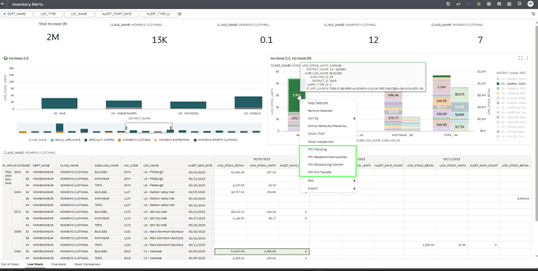
Inventory Alerts Reports are organized in 5 tabs: Out of Stock, Low Stock, Overstock, Capacity Constraint, and Stock Comparison. And they are explained in in detail in the below sessions.
Note:
The filters and information granularity displayed in the reports are customizable; however, this guide documents the initial predefined configuration of the reports.- Launch Retail Home.
- Use the Application Navigator to launch OAS (Oracle Analytics).
- Click Catalog, Shared Folders.
- Click AI Foundation
- Click Inventory Planning Optimization.
- Open report Inventory Alerts
- To see these alerts in Inventory Planning, right-click the bar chart on the right and select
- Click Open IPO - Planning.
- The Inventory Planning application will launch already filtered to the products and locations from the report.
- Use the Cycle Area to select the desired product.
- The Plan View will update to show information about that product.
- Any alerts will be highlighted in the tables.