Create Chains
To create a chain, follow the steps below.
- On the Locations Destination landing page, click the Organizational Hierarchy card. Alternatively, from the Home Experience select Organizational Hierarchy from the Product Map or Suggestions list view. The Organizational Hierarchy page appears.
- With the Company card as the focused card, choose Create Chain option from Overflow Menu.
- The New Chain drawer appears.
-
Figure 3-5 New Chain Drawer
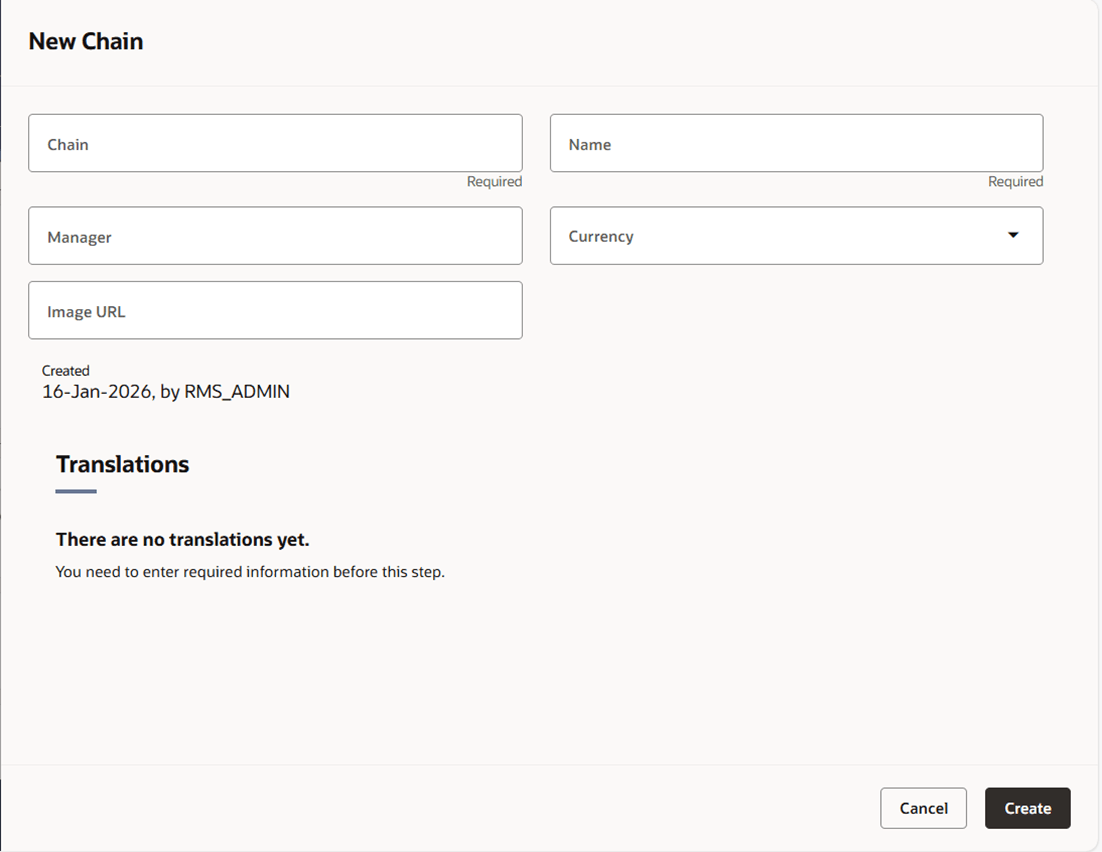
- In the Chains field, enter a unique number. This field is a required field.
- In the Chain Name field, enter the name of the chain. This field is a required field.
- In the Manager field, enter the name of the manager who is responsible for the chain.
- In the Currency field, enter, select or search for the chain's currency code.
- The Translations section is enabled when all required details are entered. Click
Create Translation button to add translations. The New Translation drawer appears.
- Add the translation. For more information see the "Translate Data" chapter in the Oracle Retail Merchandising Do the Basics User Guide.
- Then choose one of the following options.
- Click Create to save the chain and close the drawer.
- Click Cancel to reject all entries and close the drawer.