Editing Areas
To edit an area, follow the steps below.
- On the Locations Destination landing page, click the Organizational Hierarchy card. Alternatively, from the Home Experience, select Organizational Hierarchy from the Product Map or Suggestions list view. The Organizational Hierarchy page appears.
- When the Organizational Hierarchy page opens, the company will be selected and displayed in the focused card with all chains in the company listed in child cards below. Select the chain under which you will to edit an area, the chain will become the focused card. From the list of areas displayed below the selected chain, select the desired area. Alternatively, search for the desired area by keying a partial or full area ID or name in the Ask Oracle search bar at the top of the page.
- With the desired Area as the focused card, choose Edit Area option from
Overflow menu or simply click on the card title which is a hyperlink. The Edit Area
drawer appears.
Figure 3-9 Edit Area Drawer
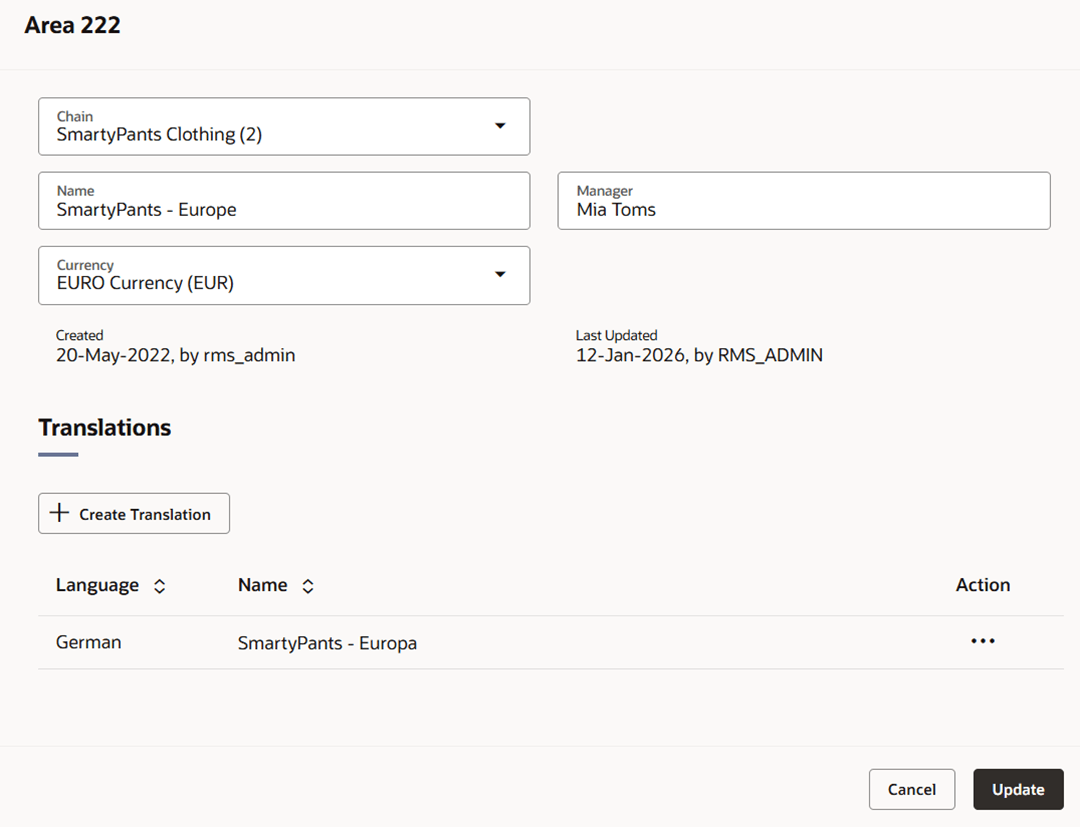
- The drawer title displays the Area ID.
- Edit the chain, area name, currency and/or manager, if necessary.
- Create or edit translations as necessary.
- For more information see the "Translate Data" chapter in the Oracle Retail Merchandising Do the Basics User Guide.
- Then choose one of the following options.
- Click Update to save your changes and close the drawer.
- Click Cancel to reject all entries and close the drawer.