Editing Company
To edit a company, follow the steps below.
-
On the Locations Destination landing page, click the Organizational Hierarchy card. Alternatively, from the Home Experience, select Organizational Hierarchy from the Product Map or Suggestions list view. The Organizational Hierarchy page appears.
-
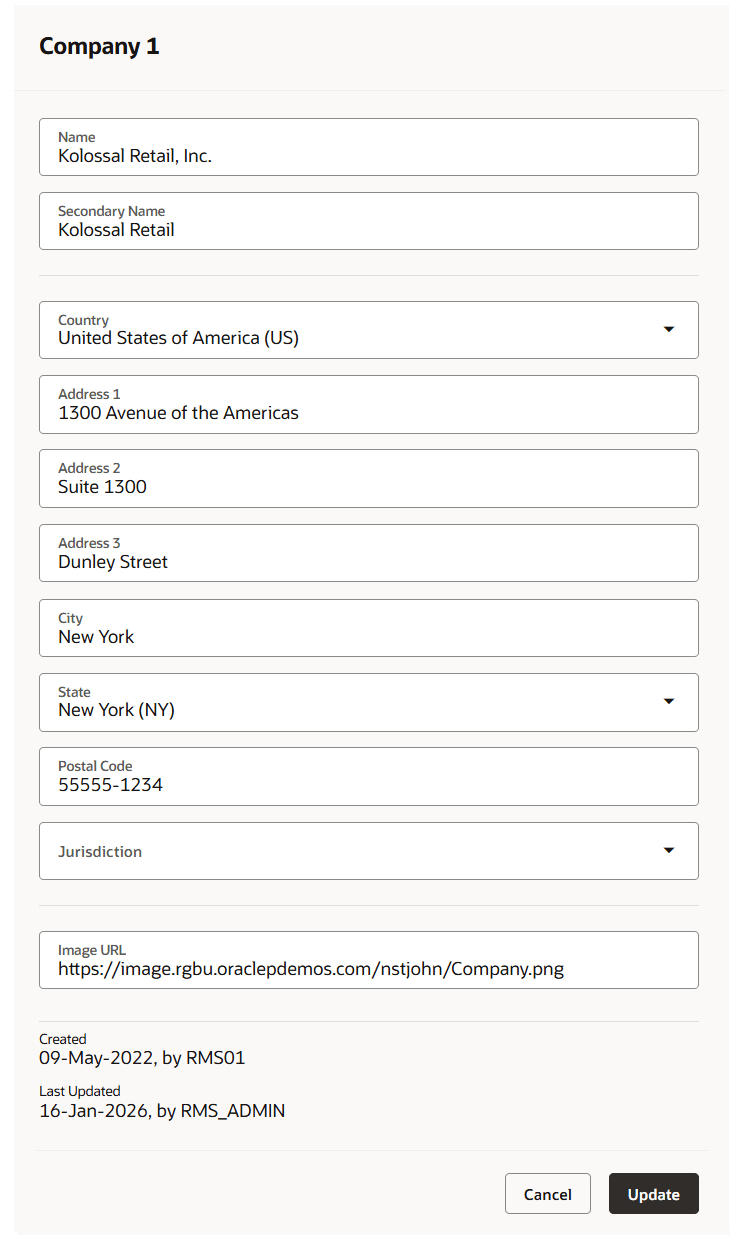
With the company card as the focused card, choose the Edit Company option from the Overflow menu or simply click on the card title, which is a hyperlink. The Edit Company drawer appears.
Figure 3-4 Edit Company Drawer
-
Edit the company name, secondary name, country, address details, Jurisdiction and/or image URL, as desired.
- Then choose one of the following options.
- Click Update to save your changes and close the drawer.
- Click Cancel to reject all changes and close the drawer.
- Then choose one of the following options.
Note:
- Modification to URL will change the company logo image displayed in the Organizational Hierarchy screen.
- The drawer displays the "created by" and "last updated by" user and date information, providing a record of recent changes.
- Currently, the company translations are not supported through the Company edit drawer, the translations can be viewed and maintained using the ‘Company’ foundation data loading spreadsheet template in Merchandising.