9 Warehouse Department Parameters
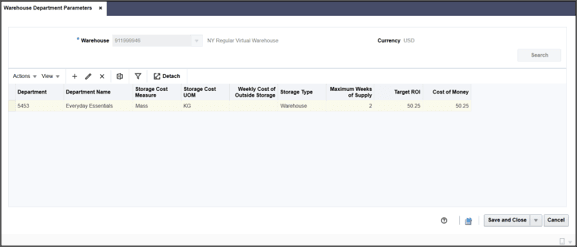
The Warehouse Department Parameters page allows you to specify investment buy parameters at the warehouse or warehouse/department level. You can set up costs of storage and other parameters for a specific warehouse. Within the warehouse, you can set up several sets of investment buy parameters which are specific for a set of items, such as frozen goods.
Figure 9-1 Warehouse Department Parameters Page
Adding Warehouse Department Parameters
To add warehouse department parameters, follow the steps below.
- From the Tasks menu, select Replenishment >Warehouse Department Parameters. The Warehouse Department Parameters window appears.
- In the Warehouse field, enter, select or search for the desired virtual warehouse.
- Click Search. The warehouse department parameters that match the search criteria are displayed in the Results section. Then, select Actions> Add or use the Add icon. The Add Warehouse Department Parameter page appears.
Figure 9-2 Add Warehouse Department Parameters Page
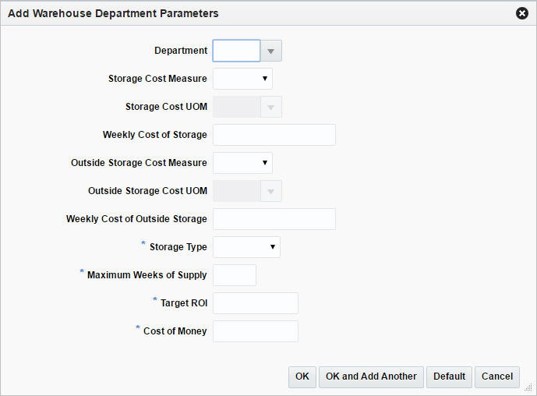
- In the Department field, enter, select or search for the department.
- In the Storage Cost Measure field, select the cost measure from the list. The Storage Cost UOM field enables.
- In the Storage Cost UOM field, enter, select or search for the unit of measure.
Note:
This field is disabled, if you select Eaches as a storage cost measure.
- In the Weekly Cost of Storage field, enter the weekly cost of storage value.
- In the Outside Storage Cost Measure field, select an outside cost measure from the list. The Outside Storage Cost UOM field enables.
- In the Outside Storage Cost UOM field, enter, select or search for the unit of measure.
- In the Weekly Cost of Outside Storage field, enter the weekly cost of outside storage value.
- In the Storage Type field, select the type from the list. This field is a required field.
- In the Maximum Weeks of Supply field, enter the number of weeks. This field is a required field.
- In the Target ROI field, enter the target ROI (Return of Investment). This field is a required field.
- In the Cost of Money field, enter the cost.
- Then choose one of the following options.
- Click OK to save the current parameter and close the page.
- Click OK and Add Another to save the current parameter and add additional entries.
- Click Default to save the current parameter and set it as the default value.
- Click Cancel to reject all entries and close the page.
Editing Warehouse Department Parameters
To edit warehouse department parameters, follow the steps below.
- From the Tasks menu, select Replenishment >Warehouse Department Parameters. The Warehouse Department Parameters window appears.
- In the Warehouse field, enter, select or search for the desired warehouse.
- Click Search. The warehouse department parameters that match the search criteria are displayed in the Results section. Then, select Actions> Edit or use the Edit icon. The Edit Warehouse Department Parameter page appears. The parameters of the selected record are shown.
- Edit the values, if necessary.
- Then choose one of the following options.
- Click OK to save your changes and close the page.
- Click Default to save the current parameter and set it as default value.
- Click Cancel to reject all entries and close the page.