20 Favorites
Favorites provide quick access to frequently used workspace templates. A workspace template can be added to Favorites after the workspace has been built and opened.
Adding a Workspace Template to Favorites
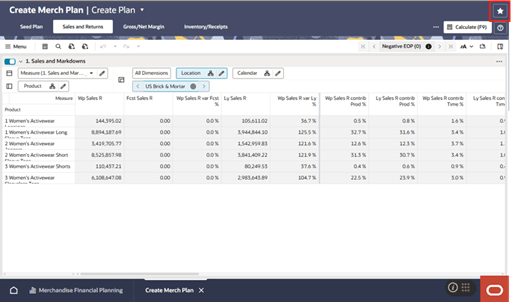
To add a workspace template to Favorites, build and open the workspace. In the open workspace, click the star icon in the upper-right area of the page. The workspace template is added to the user's Favorites.
To remove the workspace template from Favorites, open the workspace and click the star icon again.
Figure 20-1 Favorites Icon
Opening Favorites
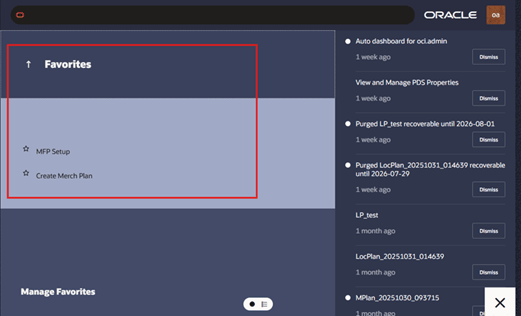
To access Favorites, click the Oracle icon in the lower-right corner of the page, and then select Favorites. The Favorites menu displays the workspace templates and other entries that the user has marked as favorites. Select a favorite to open or launch the associated workspace template.
Figure 20-2 Favorites Menu
Managing Favorites
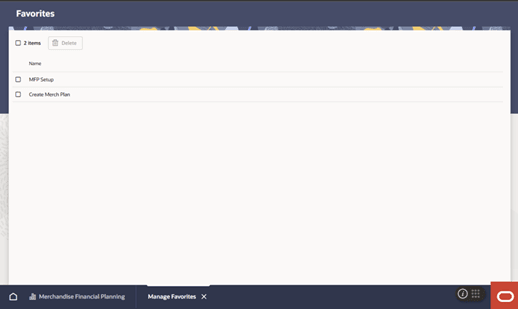
To manage favorites, click the Oracle icon in the lower-right corner of the page, select Favorites, and then select Manage Favorites. Use Manage Favorites to review and remove favorite entries, where available.
Favorites are user-specific and security-aware. Users can access only the favorites for workspace templates and content that are available to them based on their assigned permissions.
Figure 20-3 Manage Favorites Menu
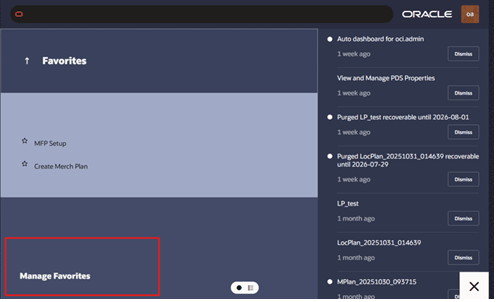
Figure 20-4 Manage Favoritesu