Savings Hub Pre-Survey
The Savings Hub Pre-Survey page welcomes customers to the Savings Hub experience, and tells them what they must do to get their personalized assistance program results. Its goal is to educate customers on assistance programs and entice them to take the survey.
Customers will get the pre-survey experience if they are accessing it for the first time from a promotional banner or a search of their utility's website (or if they previously started their survey but never completed it). However, if customers access Savings Hub from a marketing module promotion in their email or print Home Energy Report, they bypass the pre-survey experience and are directed to the first question of the Savings Hub Survey.
Customers can also take the survey and see its results without logging in by using the option Continue as a guest.
User Experience
The image below is an example of the Pre-Survey page. This copy is designed for a likely low- and moderate-income audience. A variation of this copy would be used for an audience that is not primarily income-qualified.
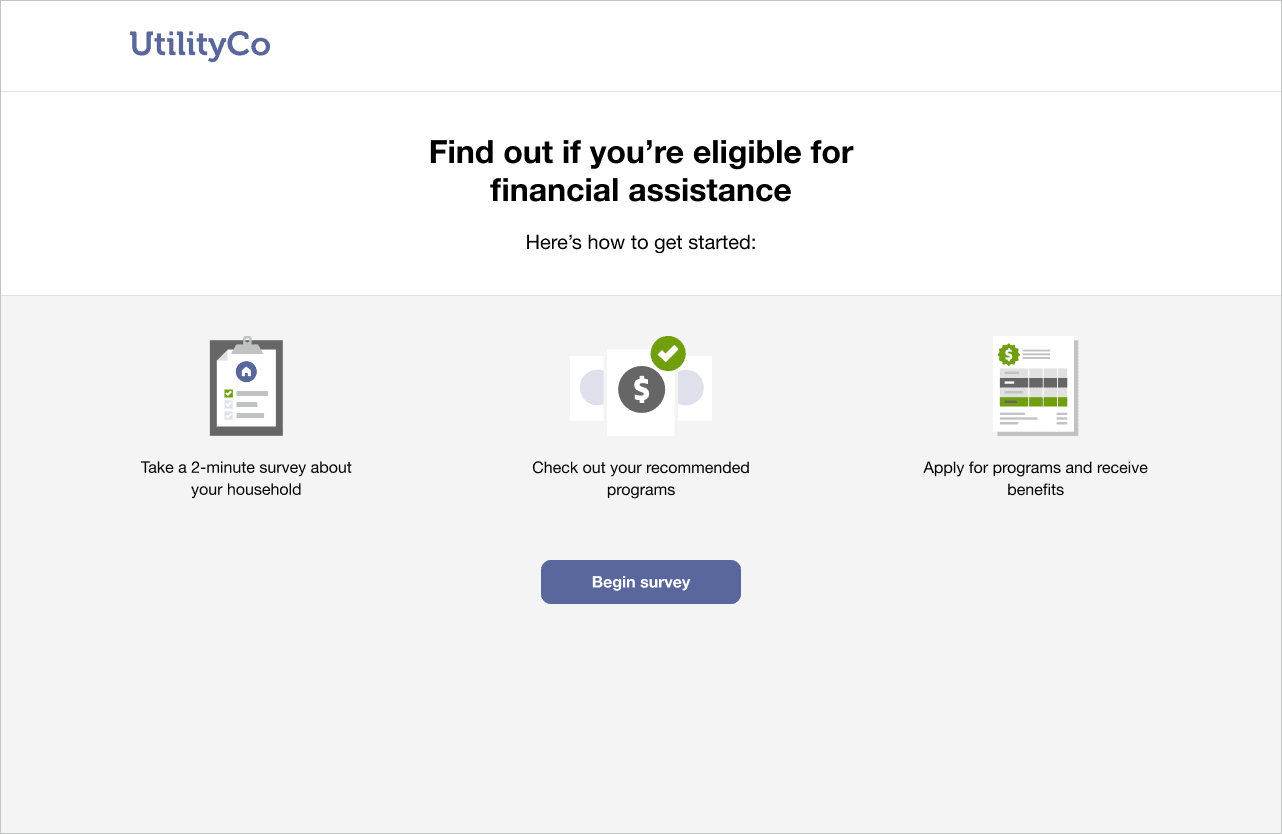
- Header: The header draws the customer’s attention with a potential financial assistance benefit.
- Subheader: The subheader calls attention to how the customer can get started with the survey.
- Getting-Started Steps: The illustrated instructions tell customers what they need to do to get their survey results.
- Begin Survey Button: The footer of the page includes a Begin Survey button that redirects the customer to the main Savings Hub Survey.
User Experience Variations
The user experience varies for customers depending upon their service types, available data, costs, and locale. Note that the following list indicates the primary user experience variations, not all possible variations.
Unstarted Survey
Customers who start the survey, leave, and return to it later will see an altered Pre-Survey screen with the following variations:
- Survey Subheader: The subheader encourages the customer to finish the survey.
- Progress Indicator: A progress indicator bar appears to show how many total questions are in the survey and how many questions have been answered.
- Continue Button: A Continue Survey button is located just below the progress indicator. When the customer clicks the button, they are redirected to the Savings Hub Survey page.
- Getting-Started Steps: The instructions for the survey are relocated to the bottom of the page in case the customer wishes to review the steps.