Adding New Fields to Field Activity
This section includes steps to add new fields to Field Activity. These fields are available but not present in Field Activity.
Oracle Fusion Field Service Configurations
1. Login to Oracle Fusion Field Service.
2. Navigate to Configuration > Resources, Activities, Inventories > Properties > Add New Property.
3. Select the Entity and Type of GUI. Enter the enumeration values (example: customprop1 and customprop2).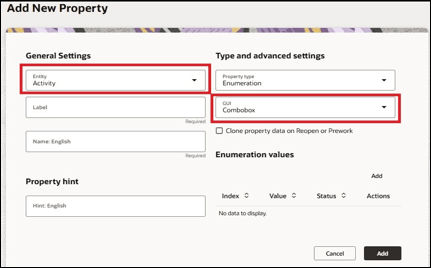
4. Click Add.
5. Navigate to Configuration > Displays > Screens and open the Activity Details section.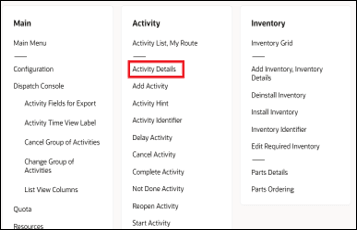
6. In the New Element section, drag and drop a new 'Input' to add a new element.
7. Map the element to Test Custom Property. Publish this screen configuration after mapping the field.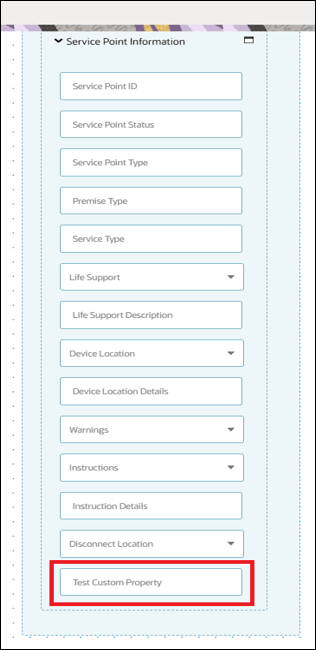
Oracle Integration Cloud Configurations
In Oracle Integration Cloud configurations use xsl files and not graphical mapper to include new properties. Since the changes are made in Oracle Fusion Field Service and the flow is from Oracle Fusion Field Service to Oracle Utilities Customer Cloud Service, modify the integration file for Complete Activity.
For xsl files to include the new field mappings as properties in Oracle Fusion Field Service:
1. Login to Oracle Integration Cloud.
2. Navigate to Projects > OU CCS OFFS and clone Oracle Utilities OFSC CCS Activity Complete (any version ex: 01.26.1000).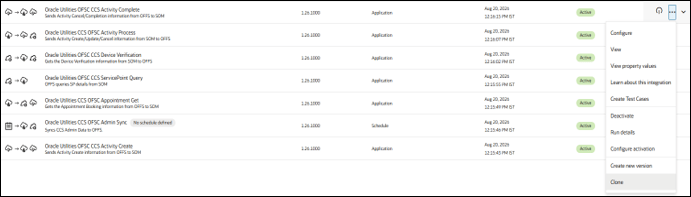
3. On the Clone Integration window, change the Name and Identifier as required.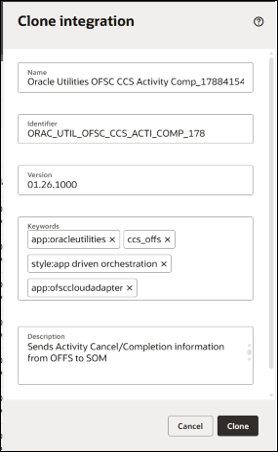
4. Click Clone.
The new cloned integration is created under the project.
5. Export the whole project(.car) for specific versions. Extract it & navigate to that flow location. For Oracle Fusion Field Service response use the following xsl file. Navigate to the file location and select it.
OUTL-BA-CCS_OFFS-01.26.1000\project\integrations\OUTL-BA-OFSC_CCS_ACTIVITY_COMP_01.26.1000\resources\processor_509\resourcegroup_512\ req_358b3cdb3d5745fb8e082acdde659bb2.xsl
For detailed information refer to Oracle Customer Cloud Service Integration to Oracle Fusion Field Service Configuration Guide included in this release.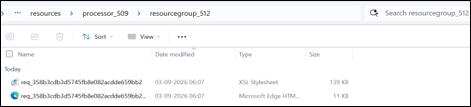
6. Navigate to the <xsl: template..> tags towards the end of the file.
7. Select the appropriate template tag based on the new UI property to be added in Oracle Fusion Field Service UI.
Example: To add a new field on the Service Point Details page, choose the following xsl tag:
<xsl:template name="servicePointDataDetails_Customizations">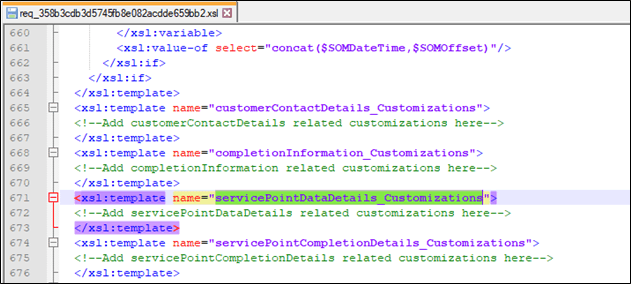
8. Add the new customized property in this tag. The sample custom property named u_custom is as below:
<tns:custom1>
<xsl:value-of select="$invokeOFSCGetActivity/nsmpr0:canonical_GETResponse/nsmpr0:activities.definitions.getActivitySchema/nsmpr1:u_custom"/>
</tns:custom1>
9. After editing, save the xsl and test the syntax by opening it in a web browser. It should open as shown without any errors.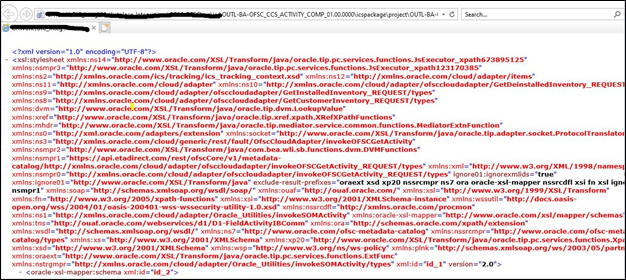
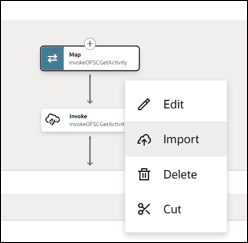
10. To upload the xsl file in Oracle Integration Cloud, deactivate the integration, open the flow and select the mapping icon. Click More Actions (3 dots) and select Import. Browse the .xsl file and import it.