Adding Enumeration Values to an Oracle Fusion Field Service Property
Oracle Fusion Field Service includes enum properties that need to add values to Oracle Utilities Customer Cloud Service, such as SQI, TOU, UOM, meter configuration type, and so on.
To add values to the enum property:
1. Login to Oracle Fusion Field Service.
2. Navigate to Configuration > Resource, Activities, Inventories > Properties.
3. Search for the property with label.
4. Click the Modify Property icon.
The Enumeration values section shows a combination of Index and Value. Example: LEFT SIDE OF HOUSE [LEFT], such as Description[id]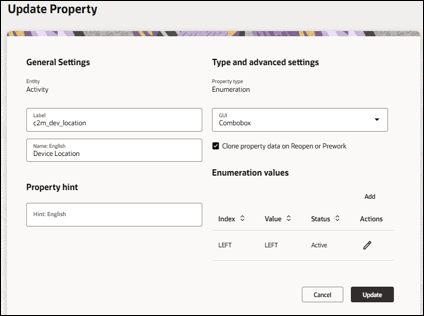
5. Click Add to add the values to the Enumeration values list.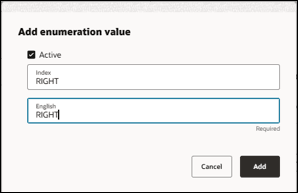
6. Click Update to save the value to the property.
The table below lists the properties to be updated to add custom values apart of the demo values that are part of the accelerator.
OFFS Property | Oracle Utilities Customer Cloud Service Admin Table |
|---|---|
Service Point Status Code | Service Point Status |
New Item Type | Device Type |
New Meter TOU | Time Of Use |
Customer Contact Type | Customer Contact Type |
New Meter SQI | Service Quantity Identifier |
Disconnect Location | Disconnect Location |
Service Point Instructions | Service Instructions |
Service Point Warnings | Service Point Warnings |
New Item Model | Model |
New Meter Model | Model |
New Item Manufacturer | Manufacturer |
New Meter Manufacturer | Manufacturer |
New Meter UOM | Unit Of Measure |
Item Configuration Type | Device Configuration Type |
Unit Of Measure | Unit Of Measure |
Time Of Use | Time Of Use |
Premise Type | Premise Type |
Service Point Type | Service Point Type |
Meter Configuration Type | Device Configuration Type |
Remark Type | Remark Type |
Premise Warning | Service Point Warnings |
Cancellation Reason | FA Cancel Reason |
Customer Contact Type | Customer Contact Type |
Meter ID Types | Meter ID Type |
Read Type | Read Type |
7. Add an entry to the corresponding Oracle Integration Cloud look up.
Example: After adding value to the Location properties, add an entry to the SOMOFSC_DeviceLocation Oracle Integration Cloud lookup.
To add an entry to the lookup:
1. Login to Oracle Integration Cloud.
2. Navigate to Projects > OU CCS OFFS > Lookups.
3. Search for the respective lookup.
Example: SOMOFSC_DeviceLocation
4. Click +.
5. Enter the SOM code in the SOM_DeviceLocation column.
6. Enter the offs enum field ID in the OFSC_DeviceLocation column.
7. Click Save.
8. Deactivate and activate the integration using the lookup.