User Operations
This chapter provides step by step instructions for user operations.
1. Login to Oracle Fusion Field Service Mobility application.
You can access the application by adding '/m' to the Oracle Fusion Field Service URL <offs_link/m>.
2. Access the Mobility page using the worker/technician's credentials. The page shows activities in the queue of the worker.
3. Click Activate Route to start working with activities.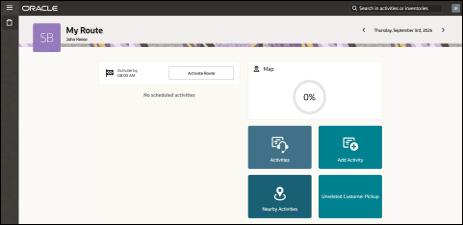
4. Select an activity. Click “>” against the activity. The options Start, Suspend, Map and Pick Activity are displayed.
5. Click Start to start the activity in the worker's queue.
6. Click Submit.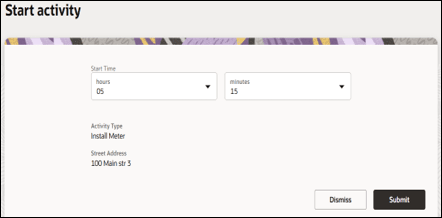
7. Click Meter Details. 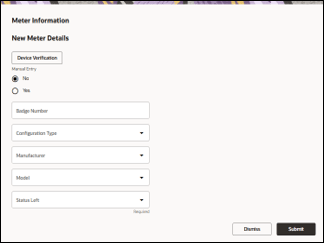
8. Click Device Verification. Enter the Badge Number and click Submit.After the verification is successful, the meter reading information is displayed in the Registers Information section.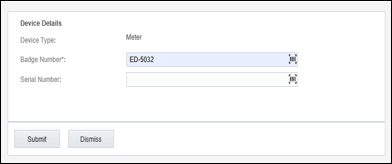
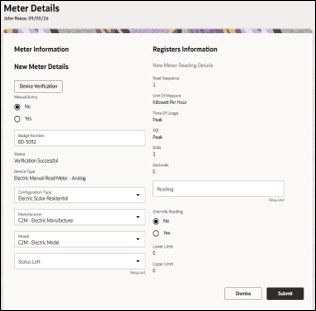
9. Enter the respective details in the Meter Information and Registers Information sections. Click Submit.
10. Click Complete.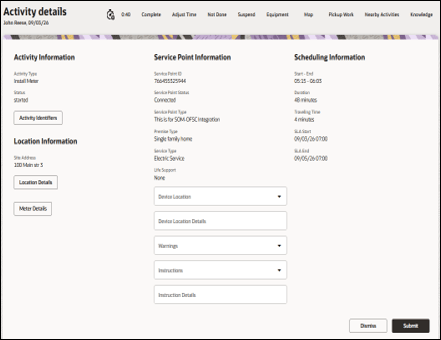
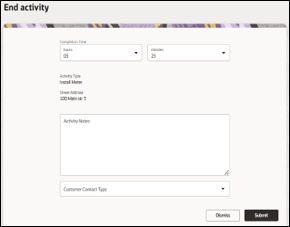
11. On the End Activity page, enter the required details. Click Submit.