Menu
The Menu icon, , is available in the application toolbar to help you navigate to the different pages
of the system.
, is available in the application toolbar to help you navigate to the different pages
of the system.
You only see the menu items that you have security access for. In turn if you do not have access to any menu items in a submenu, the whole submenu is suppressed.
| Keyboard Shortcut |
|---|
| Ctrl+Alt+M |
The initial view of the menu includes a link to the Home page, plus entries for the Main Menu and Admin Menu.
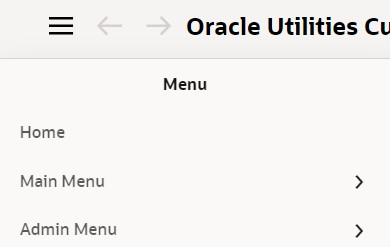
Main Menu
Clicking the Main Menu entry displays a submenu organized by functional area.
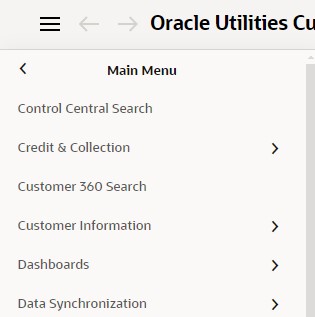
Clicking any functional area in turn displays a submenu that contains pages within that area.
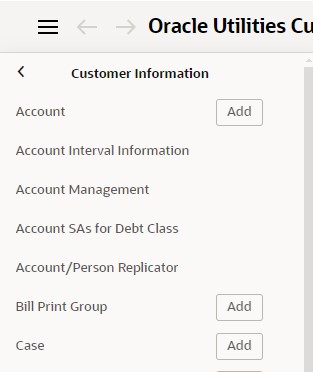
Some entries have an Add button adjacent. For these entries, clicking the menu item text opens the Search for that menu item. Click the Add button to add a new record for that search item. For entries without an Add option, select the menu item itself to launch that page.
How the Search and Add option behaves depends upon whether the maintenance page is fixed or portal-based.
-
Search: Navigates to the page and displays a pop-up search window for the user to enter the search criteria and select the entity to display. Once the entity is selected, the maintenance page is displayed with the data populated in the fields.
-
Add: Displays the maintenance page with empty fields so that the user can complete the information and save the entity.
-
Search: Displays a search portal where the user can enter the search criteria and select the desired entity. Once the entity is selected, the user is typically taken to a maintenance portal or the information is broadcasted to other zones within the same portal.
-
Add: Either navigates to a page where the user can select the entity type or business object, or directly to the input map where the user can enter and save the entity.
Users may also opt to use Menu Item Search to find a page.
Admin Menu
The admin menu functionality is analogous to the Main Menu functionality. One difference is that your implementation may opt to organize the admin menu alphabetically rather than by functional area.
Note:
Refer to Installation Options for information about the admin menu configuration options.Note:
Menu navigation paths referenced in the administrative user guide provide the functional grouping. If your implementation uses the alphabetic grouping, the page can be found in the alphabetic letter that is the first letter of the page name.Favorites, Bookmarks
If you have any Favorite Links, Favorite Scripts, Favorite Searches or Bookmarks, entries to open those options are also visible when initially opening the menu.
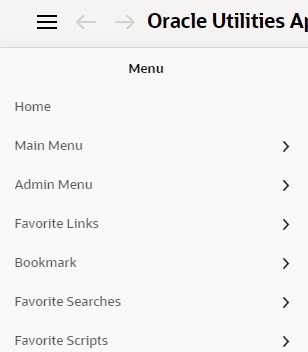
Clicking any of those menu entries displays you configured favorites or your saved bookmarks. The information is the same as what you see in the equivalent sidebar zone.
Parent topic: The Application Toolbar