Adding Secondary Actions to Service Point Card
You can use Visual Builder (VB) Studio to configure the secondary actions available on the service point cards that are displayed on the Premise landing page. These cards are available in CX for Utilities Agent Service and CX for Utilities Sales.
This image shows an example of where the secondary action menu items appear on the service point cards:
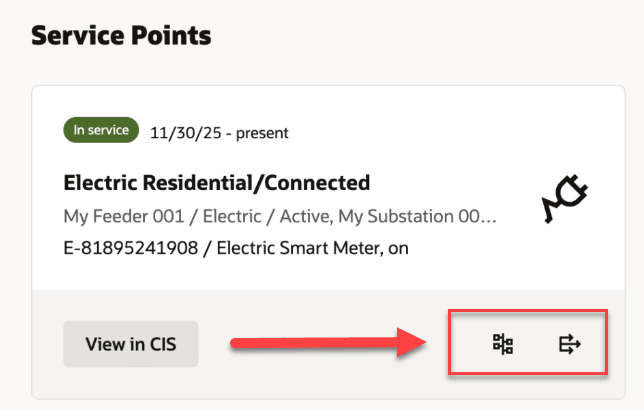
You can add these types of actions:
- Open URL action
- Navigate to page action
- Custom event action
Note:
To add an action that needs to be hidden when the transformer is not available, use Id ACTION_VIEW_TRANSFORMER. Similarly, you can use ACTION_VIEW_FEEDER or ACTION_VIEW_SUBSTATION.This example shows how to add secondary actions to a service point card on the Premise page.
This example assumes that the reader understands how to use VB Studio. For additional information, see:
-
Manage Premises in the Using CX for Utilities Agent Service Guide
-
The Visual Builder Studio library in the Oracle Help Center
-
Customizing Variables and Constants in the Extending Oracle Cloud Applications with Visual Builder Studio Guide
Example: Adding an Action Menu Item to the Service Point Card
-
Log into CX for Utilities Agent Service as an administrator.
-
Click the menu at the top right of the page and select Edit Page in Visual Builder Studio. If Ask Oracle is enabled, hover over the Oracle button at the bottom of the screen and select the Edit icon.
-
Select your workspace and click Select. Note that you can also create a new workspace if needed.
-
In the App UIs panel, expand Oracle Utilities Advanced Care UI application and then select e11y-user-action-template fragment under the Fragments submenu.
-
Select the Variables sub-tab to display the constants and variables.
-
Click on the USER_ACTION_CONTEXT_LIST constant.
-
On the right side of the screen, enter your configuration in the Default Value field, as shown here:
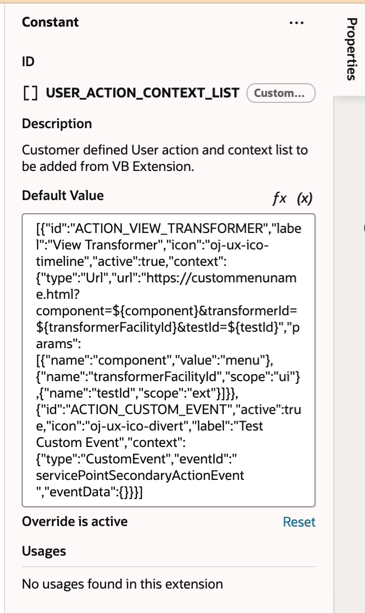
- This example shows configuration of USER_ACTION_CONTEXT_LIST in the e11y-user-action-template:
[ { "id": "ACTION_VIEW_TRANSFORMER", "label": "View Transformer", "icon":"oj-ux-ico-timeline", "active": true, "context": { "type": "Url", "url": "https://custommenuname.html?component=${component}&transformerId=${transformerFacilityId}&testId=${testId}", "params": [ { "name": "component", "value": "menu" }, { "name": "transformerFacilityId", "scope": "ui" }, { "name": "testId", "scope": "ext" } ] } }, { "id": "ACTION_CUSTOM_EVENT", "active": true, "icon":"oj-ux-ico-divert", "label": "Test Custom Event", "context": { "type": "CustomEvent", "eventId": " servicePointSecondaryActionEvent ", "eventData": {} } } ] - In the App UIs panel, expand Oracle Utilities Advanced Care UI application and then again expand Fragments select the service-points-section.
- Select the Variables sub-tab to display the constants and variables.
- Select the USER_ACTION_UI_SERVICE_POINTS_MORE_ACTIONS constant.
- On the right side of the screen, enter the same ID strings which were passed on the USER_ACTION_CONTEXT_LIST of e11y-user-action-template fragment.
- If there are extensions params that you want to use in action metadata's context params, click on the USER_ACTION_PARAMS_SERVICE_POINTS_MORE_ACTIONS constant, and In the Default Value field, enter the value:
[[ [ { "name": "testId", "value": $variables.testId } ] ]] - If you are configuring a custom event action, select the Events tab and for servicePointSecondaryActionEvent create an event listener and select an action chain which will implement your custom functionalities.
- Preview your changes to verify that they look as you expected. This will launch a new tab with the Premise Landing Page. Navigate to Service Points section and verify the secondary actions are displayed.
- When your changes are ready for use, complete the steps to publish your changes to your production environment.
Parent topic: Use Cases for Customer Experience for Utilities