Extending the Related Persons Drawer
You can use Visual Builder Studio (VB Studio) to extend the Create related persons drawer by adding, removing, or reordering fields that are displayed on the form. Fields on the form must be exposed by the Oracle Utilities Customer Information System APIs and mapped in the corresponding Utility Data Model template.
This image shows an example of the form with two additional fields displayed:
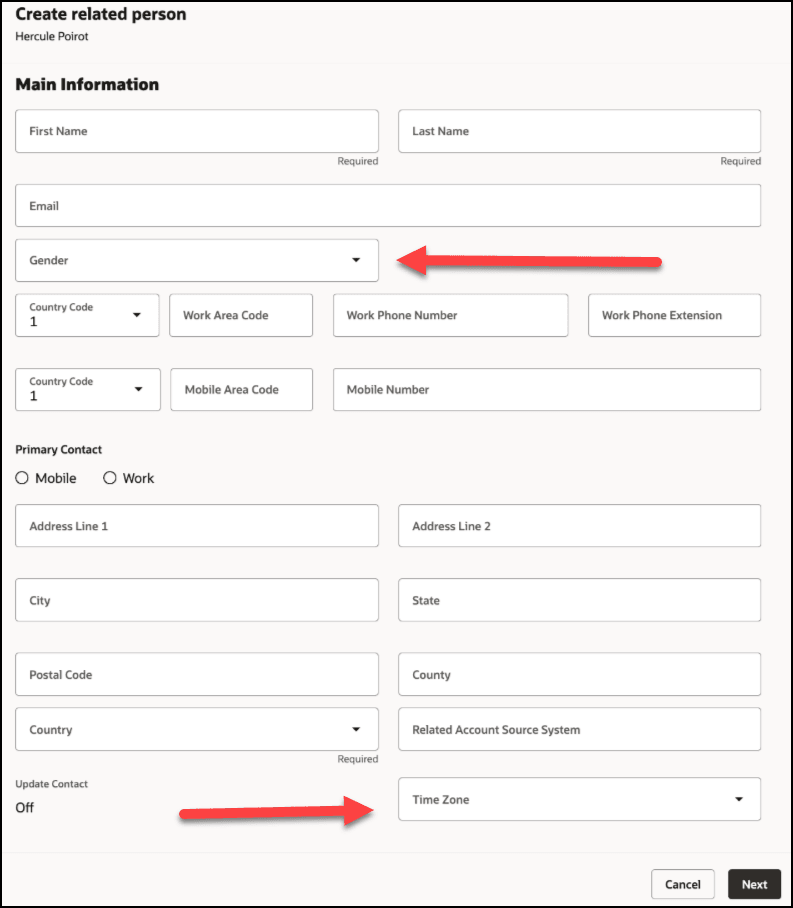
When extending this form, you can:
- Add new fields
- Reorder existing fields
- Remove default fields
- Map fields to different templates for custom layouts
When extending this form, be aware that the layout must always include First Name, Last Name, and County, which are required fields.
This example shows how to update the Create related persons drawer by adding, removing, and reordering fields.
This example assumes that the reader is familiar with how to use Visual Builder. For additional information, see:
-
The Visual Builder Studio library in the Oracle Help Center
-
Customizing Variables and Constants in the Extending Oracle Cloud Applications with Visual Builder Studio Guide
Example: Extending the Create Related Persons Drawer
-
Log into CX for Utilities Agent Service as an administrator.
-
Click the menu at the top right of the page and select Edit Page in Visual Builder Studio. If Ask Oracle is enable, hover over the Oracle button and select Edit.
-
Select your workspace and click Select. Note that you can also create a new workspace if needed.
-
In the Layouts panel, expand Customer Experience For Utilities and locate the Contacts layout (for Account or Contact).
- Open the Rule Sets sub-tab and select the Create Related Person rule set.
- To edit this rule set, navigate to the Contact layout.
- Create a custom rule for Create Related Contact.
- Select the dynamic form used to create a related person.
- Click the Duplicate icon next to the default rule.
- In the new rule, add additional fields as needed.
- Remove or reorder fields as needed, being sure not to remove First Name, Last Name or County fields, as they are required.
- To verify your changes, go to the create-related-person fragment and select Contacts layout.
- You can click on fields and view the form in design view to verify that it looks as expected.
Parent topic: Use Cases for Customer Experience for Utilities