Viewing Customer Activities
When you access the Customer Dashboard, you can view specific interactions that the utility has had with the customer. The Activity panel displays the most recent interactions, and includes a View all activities link at the bottom. Some activities also include hyperlinks that enable you to open the activity and view more details.
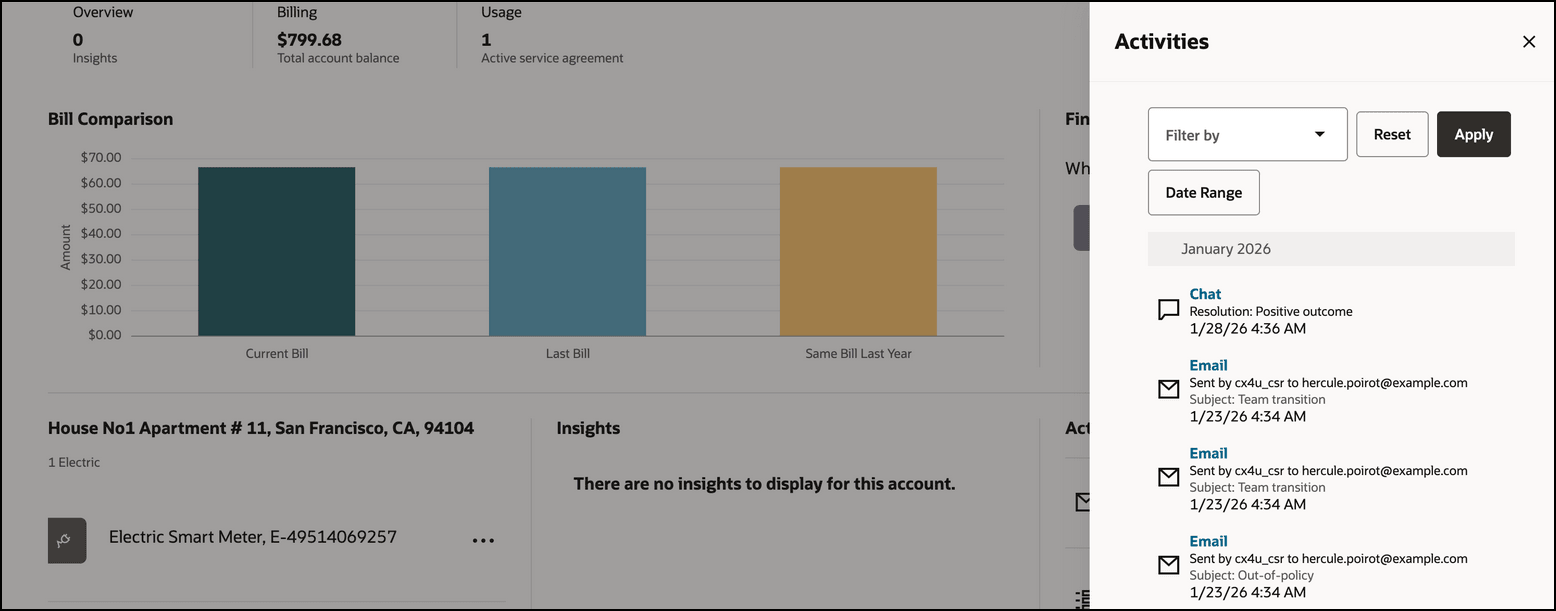
When you click the View All Activities link, the Activities drawer opens on the right of the screen, and includes a longer list of activities. You can use the Filter By button to refine your activity list to specific categories. For example, to view agent notes that were recorded for a call, or to see what was said in a chat, you would filter for activities in the Conversation Message category.
By default, the list displays activity records in six-month increments for the past three years. You can use the Date Range button to enter a more specific time frame, but you can't search beyond that time frame. For example, if your system is set up to display two years of historical data, you can't search for activities that happened more than two years ago.
Activities that display here are grouped by categories, which include:
- Conversation Message: These include:
- Calls: Call activity records for both inbound and outbound calls are displayed only if you are using a CTI integration. When you click on a call activity record, the system displays the name of the agent that took the call, the date and time of the call, and if available, the call resolution and wrap up notes. For customers that have multiple billing accounts, calls in the activity feed are filtered to display only the calls that are associated with the billing account you are viewing.
- Chats: Chat activity records display only if you are using a CTI integration. They include the name of the agent that replied to the chat, the customer that started the chat, the date and time of the chat, and if available, the chat resolution, chat summary and chat transcript. For customers that have multiple billing accounts, chats in the activity feed are filtered to display only the chats that are associated with the billing account you are viewing.
- Email: Email activity records show the date and time on which an email was sent, the to and from email addresses, and the subject line in the activity feed. When you click on the email, you can view the body of the email.
- Service Task: Service task records show interactions that were completed by contacts using self-service methods. When you click on a self-service activity record, the system displays details about the task.
- Financial Information: This category includes:
- Bill: A bill record displays the date and amount a bill issued on the billing account. Many bills can be produced for the billing account over time. Bills charge for the utility services and products supplied to a customer. When you click on a bill activity record, the system opens the Bill drawer, which displays details about the bill.
- Payment: Payment records show all payments that have been made on the billing account. When you click on a payment activity record, the system opens the Payment received drawer, which displays details about the payment.
- Service Request: Service request records show all open, closed, an in-progress service requests associated with the billing account. The activity feed displays the service request title, status, severity, and category. When you click on a service request activity record, the system opens the service request in the Oracle Fusion Service system.
- Note: Note activity records show all notes an agent adds to a billing account. The activity feed displays the user ID of the agent who created the note, the note title, the beginning of the note text, and the date and time the note was created.
- Customer Information: This category includes:
- Customer Contact: Customer contact records show instances of when a person associated with the account has contacted the utility. When you click on a customer contact activity record, the system opens the Customer contact drawer, where you can view information about the customer, the contact, and the characteristics associated with the interaction. You can also use the View in CIS link to access the customer contact record in your Oracle Utilities customer information system.
- Case: Case records show all instances of when a case was opened for the account in your Oracle Utilities CIS.
- Rebate Claim: Rebate claim records identify all instances of a customer applying for a rebate.
- Service Order: Service order activities track work requests at service point locations. These activities dynamically orchestrate the required actions based on the current state of the service point and desired outcome. For example, creating an Enable Service activity for a new service request may trigger additional related activities. Service order activities may be completed by field crews or executed automatically, such as through smart meter commands.
Note:
Field activities generated through Service Order Management orchestrations and integrations are listed under the Service Order category. For additional information, see the topic "Service Orders" in the Business User Guide for your Oracle Utilities customer information system, available in the Oracle Utilities Help Center. - Field Order: Field order activities track work performed by utility field personnel at service point locations. These activities, such as manual meter installations, are sent to the field work system for scheduling and assignment to crews. When the work is completed, the activity status is updated by the field work system.
Note:
Field activities created using classic Customer Care and Billing templates and integrations are listed under the Field Order category. For additional information, see the topic "Field Activity Maintenance" in the Business User Guide for your Oracle Utilities customer information system, available in the Oracle Utilities Help Center. - Credit and Collection: This category contains the following record types:
- Collection Process
- Severance Process
- Write Off Process
- Pay Plan Overdue Process
- Payment Arrangement
- Cut Process
- Credit Rating History
- Cash Only History
- Outage Call: These records identify instances when the customer called in regarding an outage.
This image shows an example of the Overview tab with the Activities drawer displayed:
Figure 5-13 Activities Drawer
View Activities
To view activities from the Customer Dashboard:
- Access the Customer Dashboard and select the Overview tab.
- View the most recent activities in the Activities section.
- Click the View All Activities link at the bottom of the list to open the Activities drawer on the right of the screen.
- To filter records by activity type, click the Filter by button, click on the activity type categories that you want to view, and then click Apply.
- To filter records by date range, click the Date Range button, use the calendars to select a date range of six months or less within the last three years, and then click Apply. Note that the available time frame can differ by utility.
- The system displays all activity records that match your filter criteria.
- Click on an activity to view additional details or to access the record. Whether the system opens a drawer or a new tab to view the activity details depends on the activity type. When you have finished reviewing the activity, close the drawer or tab to return to the Activities drawer.
- To clear filters or date range search criteria, complete one or more of these steps:
- To clear category filters, click the Reset button next to the Filter by button.
- To clear date range filters, click the Date Range button and then click the Reset button inside the Date Range Filter window.
- The search results then include all category records for the past six months.
Parent topic: Using the Overview Tab