Demand View
The Demand view allows customers to monitor household electricity demand over time alongside weather data. It shows electricity usage at specific intervals and identifies when demand is highest. Customers can view demand data by day to understand usage patterns and how weather affects demand.
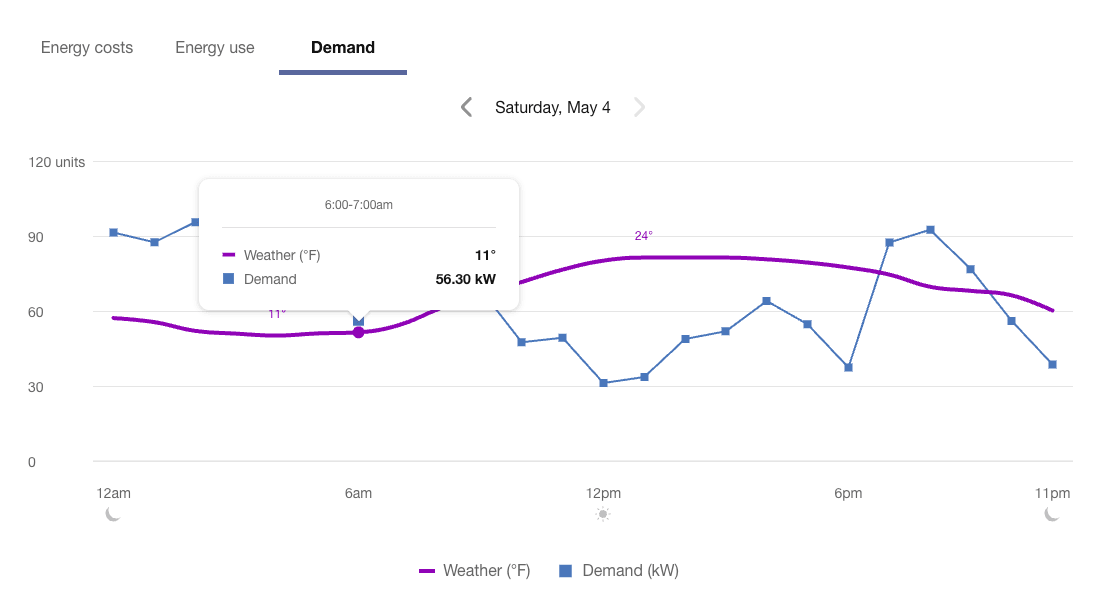
Configuration Options
For each element listed in the table, indicate the desired configuration in the Input Value column. If you do not provide an input for optional configurations, the default will be used.
| Configuration Option | Input Value |
|---|---|
|
Enable Demand View and Demand Insights for All Customers The Demand view can be enabled in the Data Browser, along with demand-related insights in the Energy Use view, for all residential customers. Default: Disabled. |
Optional Choose one of the following:
|
|
Enable Demand View and Demand Insights Only for Customers on Demand Rate The Demand view can be enabled in the Data Browser, along with demand-related insights in the Energy Use view, for residential customers who are on a demand rate. Customers who are not on a demand rate will not see the Demand view. Note: This configuration requires the Advanced Rates Engagement Cloud Service. See the Demand View requirements description in the product overview for details.Default: Disabled. |
Optional Choose one of the following:
|
|
Year and Bill Views for AMI Customers The Year and Bill views can be enabled for customers who have interval (AMI) data. This allows energy demand data to be displayed over larger time intervals. Demand data in the Year view is based on billing data from the utility. Demand data in the Bill view is calculated by Oracle Utilities and based on subdaily interval data from the utility. Note: If Oracle's method of calculating energy demand differs significantly from the utility's billing method, the data in the Bill view may not align with the data in the Year view. Contact Your Delivery Team to align calculation approaches before enabling these views.Default: Enable the Day view only. |
Optional Choose one of the following:
|
|
Enable Highest Demand Interval Insight The Highest Demand Interval insight can be enabled. This insight is represented by an icon indicating when energy demand was at its peak. Note: When enabled, this insight is displayed in the Energy Use View as well. When disabled, the insight is hidden from both views.Default: Disabled. |
Optional Choose one of the following:
|
|
Footer or Disclaimer A brief message displayed below the Demand view. This message can be used to explain the Demand view data or include relevant disclaimers. Default: None. |
Optional Choose one of the following:
|
User Experience Variations
Multiple Peak Demand Icons
If the demand values for two or more intervals are the same, and these values technically represent the highest demand of the bill period, then multiple peak demand icons are displayed within the same day in the Demand view.
This may be the case, for example, at households where a specific set of high-power machinery or equipment needs to be turned on at regular points in time, resulting in a demand spike that consistently reaches the same amount multiple times in a day, or on multiple days in a bill period.
This behavior can also occur in the Energy Use view. See Energy Use View - Multiple Peak Demand Icons for details.