Fault Tracing with LEC Configuration Manager
On this page:
To start Oracle Utilities Live Energy Connect (LEC) Configuration Manager, open the Windows Start menu and expand the Live Energy Connect folder and open Live Energy Connect Configuration Manager.
The following image is the default layout you will see:
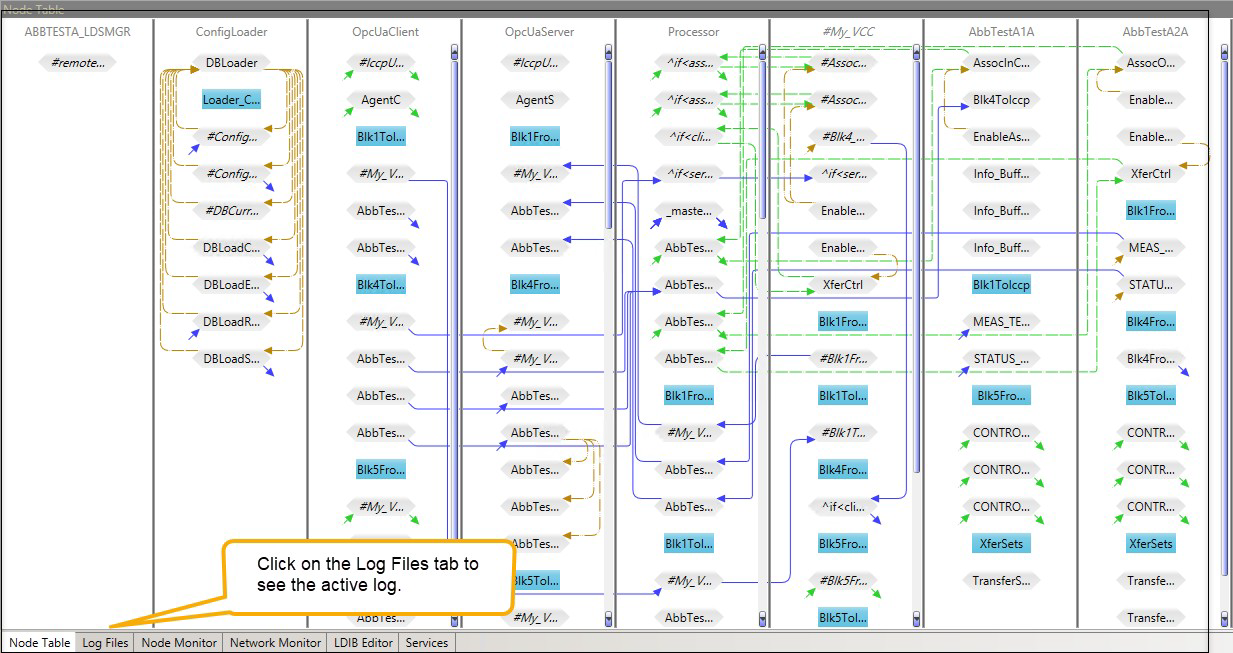
Log Files
The Log Files tab shows a running log of activity in your configuration:
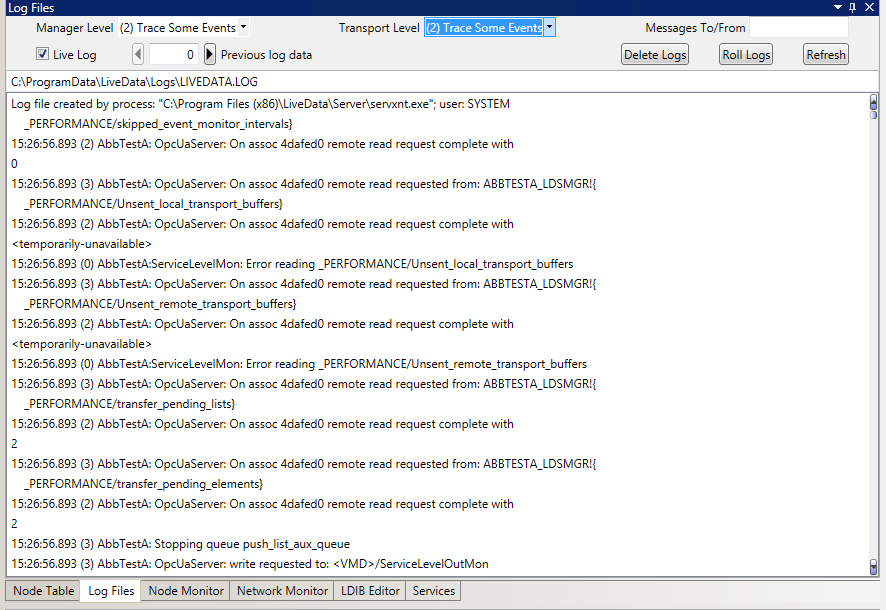
From the top of the Log Files screen, events and data are shown in reverse chronological order with the most recent at the top of the log. You can use the scroll bar to the right of the panel to see the beginning of the log by scrolling down to the bottom of the screen.
The following image shows how you can change Transport and Manager Level logging and edit the active log to search for specific errors.
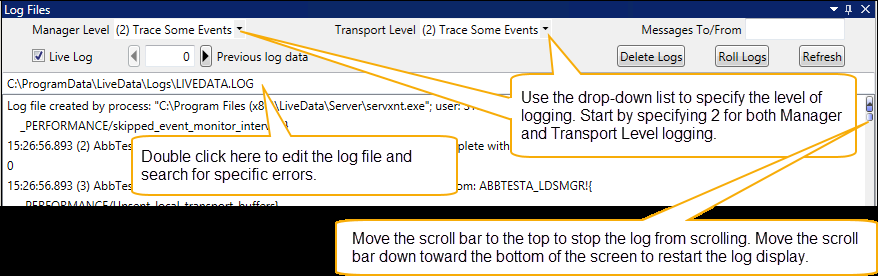
Moving the scroll bar to the top of the screen temporarily stops the scrolling display of messages.
Transport and Manager Levels
Log file information is divided into two types: Transport and Manager.
The transport layer is responsible for end-to-end communication over a network. It provides logical communication between application processes running on different hosts within a layered architecture of protocols and other network components. Transport Level logging displays information from the transport layer and other lower protocol layers. You can specify the amount of information that you would like to receive from least to most by selecting (0) Default, (1) Diagnostics, (2) Trace Some Events, (3) Trace All Events, and (4) Trace All Data from the Transport Level drop-down list.
The manager level displays information from the upper protocol layers: Session, Presentation, and ACSE. You can specify the amount of information that you would like to receive from least to most by selecting (0) Default, (1) Diagnostics, (2) Trace Some Events, (3) Trace All Events, and (4) Trace All Data from the Manager Level drop-down list.
Note: For both Transport and Manager levels, start with level 2 logging to trace some events so that you capture.
Editing a Log File
You might see an error as the log is scrolling that you would like to look at more closely. You can search for the error or a VMD or node by searching the log file in an editor.
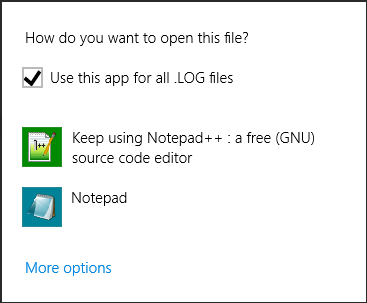
When you open a log file in an editor, LEC Server stops writing to the file unless you use an editor that allows LEC Server to continue writing to the file after you have opened it for inspection. One such editor is Notepad++. If you would like to use an editor other than Notepad, you first must install it on your system.
To select an alternative editor:
- Right-click the log file's path name and select Open With from the drop-down list.
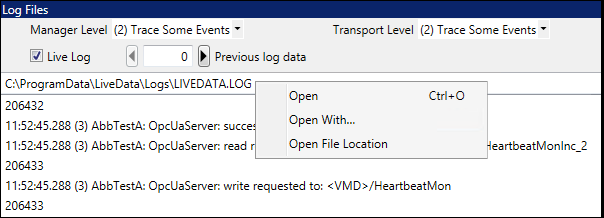
- Select the editor you want to use. If it does not appear in the list, click More options. If the desired editor still does not appear, click Look for another app on this PC at the bottom of the list to search for an editor.
Examine Messages to and from a Remote Peer VMD
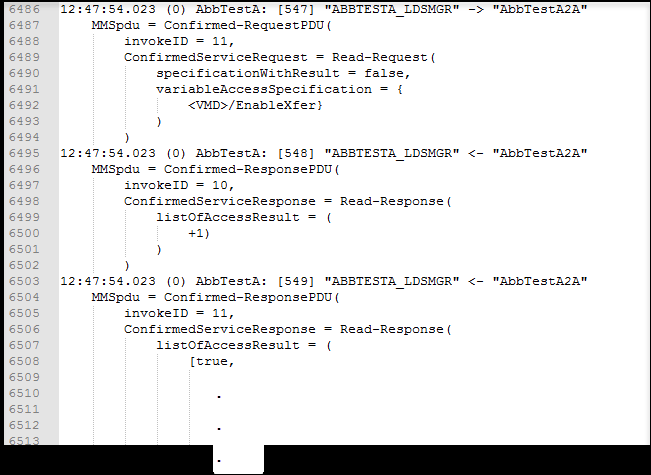
You can see formatted MMS message logging to and from a remote peer by specifying the name of the peer in the Messages To/From field as shown below.

Note: You can use a wildcard (*) to get information from all remote peers.
By typing the name of a remote VMD, you can receive detailed messages from and to the specified remote peer as shown on the next page.
Stop and Start the Live Log
You can stop or start the Live Log by unchecking or checking the box next to Live Log.

Note: The log is only live when Live Log is checked, and you have scrolled to the end of the log.
Delete Logs
You can delete all log files and start with a new log by clicking Delete Logs from the top-right of the Log Files panel. While debugging a configuration, it is helpful to stop the service, delete the existing log files, and restart the service to see if there are any issues when the configuration first starts.
Roll Logs
Alternatively, you can roll the contents of the active log in LIVEDATA.LOG to another file named LD_00001.LOG by clicking the Roll Logs button in the top-right corner of the Log Files panel.
The contents that were in LD_00001.LOG would be rolled into the file named LD_00002.LOG. The number of log files that you can have is configurable as is the size of a log file.
Note: Since LEC Server actually rolls the log files, LEC Server must be running in order to use this function.
For more information, contact My Oracle Support.
Refresh Logs
If you or another engineer has edited the log levels in the LDIB.ini file (see LDIB Editor), you can update the log levels by clicking Refresh in the right-corner of the Log Files panel.