Understanding SCADA Information in the Viewer
Oracle Utilities Network Management System SCADA Extensions provides SCADA information in the Viewer in several different ways. The following table describes how SCADA information may appear in the Viewer (depending on your system's configuration).
Data | Description |
Switch Status | Switch status information (that is, open or closed) received from SCADA is dynamically updated in the Viewer. Status symbology is no different than that for typical devices, except that it is based on data received automatically from a SCADA measurement rather than user input. |
Digital Measurements | Digital measurements (for example, tap position, auto reclose suppression, ground fault) received from SCADA are dynamically updated. These measurements are displayed as a letter code or symbol next to the SCADA device. Several digital measurement indicators may be listed. |
Analog Measurements | Analog measurements received from SCADA are dynamically updated. These measurements are displayed in the Viewer next to the associated SCADA device. Several unique measurements can be listed. When a new measurement is received, it replaces the current measurement. |
Quality Codes | Quality codes provide additional information about the quality of the measurement coming from the SCADA device (for example, out of scan, inhibited, manual override). A quality code is displayed as a letter code following a symbol or measurement. Quality Code Values: • I: inhibited • M: manually entered/overridden value • H: high limit violation L: low limit violation For example, SCADA Breaker with IM indicators on the manually entered values for Auto Recloser attribute (off) and temperature (125.00 F). 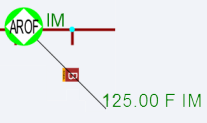 |
Common Network Viewer Alarm Indicators
The Common Network Viewer can display an alarm indicator beside a device when the device's topology measurement has active alarms. The indicator shows whether the device has one alarm or multiple alarms and whether the alarm or alarms are acknowledged. Hover over the indicator to view the alarm status.
The following NMS qualities are applied to the topology measurement to identify the device-alarm state:
• Device Has Alarm: The device has one acknowledged alarm.
• Device Has Unacknowledged Alarm: The device has one unacknowledged alarm.
• Device Has Alarms: The device has multiple acknowledged alarms.
• Device Has Unacknowledged Alarms: The device has multiple unacknowledged alarms.
Note: To make these qualities available to the Common Network Viewer, set Viewer.cond_quality_filter in the project CentricityTool.properties file to include all four device-alarm quality bits. The default value is 245760 (0x0003C000). This setting masks the relevant topology-measurement quality bits before condition data is sent to Flex Operations.
Enabling/Disabling SCADA Measurements in the Viewer
You can enable or disable SCADA measurements in the Viewer using the Hide / Display dialog box.
Note: To access the Hide/Display dialog box in the Viewer, see Hiding and Displaying Viewer Objects.
The system displays a flag ( ) to indicate that a device has available SCADA measurements.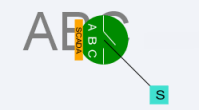
Choosing the SCADA Information Display
It is possible to change the how the SCADA measurements are displayed for a selected device. Any changes will affect the display for any user that has measures turned on.
To change the position of the measures for an asset device, right click the measures, which will display a popup with the following choices:
• device alias: Focuses the Viewer on the device associated with the measurements.
• Move: Allows you to move the measurements and digital measurement symbols to a new location. Choose Move, then drag the rectangle box surrounding the measurements to your desired location. Administration users can move the location for all users. Non-administrators only affect the location in the current loaded map for the user, and do not affect other users.
• Show Leader Line: This displays a leader line from the device to the measurement. (Administration users only.)
• Hide Leader Line: This hides the leader line. (Administration users only.)
• Rotate Clockwise: Rotates the measures clockwise. (Administration users only.)
• Rotate Counterclockwise: Rotates the measure counterclockwise. (Administration users only.)
• Resize Bigger: Increases the size of the measurements. (Administration users only.)
Resize Smaller: Decreases the size of the measurements. (Administration users only.)
•
Displaying SCADA Measurements with Device Details
If you select a SCADA device in the Viewer, the Device Details balloon displays a SCADA tab that lists the SCADA measurements for the selected device.
• The Attribute column contains a description of the measurement type, as configured in the ATTRIBUTES.description column in the Oracle Utilities Network Management System database for the matching attribute.
• The Value column contains the last reported measurement value. The value can be status, digital, or analog. For status measurements, the values are displayed as a test pair, such as open/close, on/off, and so on. Analog and digital values are shown as floating point and integer values.
• The NMS Quality column contains quality codes applied by NMS to the measurement, such as inhibited or manual override. Several NMS quality codes can be listed.
• The SCADA Quality column contains quality codes reported by the SCADA system for the measurement, such as out of scan. Several SCADA quality codes can be listed.
• The Source column contains the source for the measurement, as configured in the ANALOG_MEASUREMENTS.source or DIGITAL_MEASUREMENTS.source column in the Oracle Utilities Network Management System database.
If the Flex SCADA license is enabled, then any calculations associated with a device will be displayed in the SCADA tab. The following columns are applicable to calculations:
• The Source column indicates whether the calculation is a Calculated Measurement (a calculation whose value is written back to a SCADA measurement) or a Calculation (a calculation not associated with a SCADA measurement).
• The Calculation column contains the calculations definition.