Understanding the Flex Operations Workspace
The Flex Operations workspace is displayed after successfully logging on.
The workspace is comprised of a banner and panels for displaying tools (for example, Events and Crews).
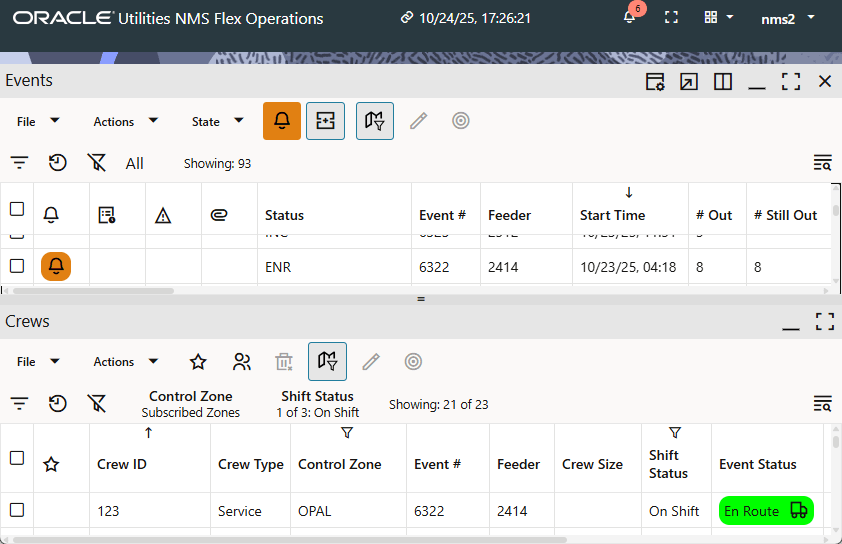
Understanding the Workspace Banner
The Flex Workspace banner displays connection information and access to the tools you need to manage outages:

The banner contains the following information and interaction buttons.
1. Application Name
2. Connection Indicator
3. Notifications Indicator (without [a] & with [b] notifications)
4. Full Screen Mode Toggle (change to full screen [a]/exit full screen [b])
5. Tools Selection Menu
6. User Menu
Understanding the Connection Indicator
The Connection Indicator shows the client's connection status and a system time based on that status.
• Connected clients display a link symbol, the word Connected, and the current system (server's) date and time.

• Disconnected clients display a broken link symbol, the word Disconnected, and the date and time when the disconnect occurred.

Note: You cannot view or edit any information while disconnected.