Get Directions or Access Other Map Views
The  Navigate menu allows you to select from options based on the object selected.
 • Directions to Location opens a navigation site (in a new browser tab) to get directions to the object's location.
•  Cycle Available Geographic and Internal Map Views cycles through different views of the device (schematics, geographic, and so forth).
•  View Full Extent zooms out to show the device in relation to its network.
• View in Geographic Map changes the Map to the geographic view.
View in Geographic Map changes the Map to the geographic view.•  View Schematic Map changes the Map to the schematic view.
•  View Single-Feeder Map changes the Map to show the feeder one line view.
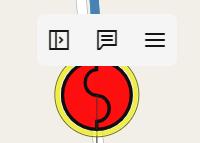
Note: When using Flex Operations on a touchscreen, tap on a device to display a popup menu which enables you to:
• Display the selection panel
• View the device’s tooltip
• Display the device’s right-click menu
Understanding Crew Management Features in the Map
For a selected event or crew, the right‑click context menus provide the available options for managing the crews. For a selected event, options will only be available to manage crews associated with that event. Similarly for a selected crew, options will only be available to manage the crew on events that it is already associated with.
Setting Outages as Stable or Not Stable
Predicted outages can be marked as stable or not using these menu options on the event context menu. For a detailed description of the event stable functionality, see Working with Stable Predictions.
Repredicting Upstream / Downstream
Options to repredict the location of an event are available when applicable to the currently selected event. For a more detailed description of these options, see Repredicting Upstream/Downstream.
Viewing Downstream/Connected Customers
Click the Customer List... button to view a list of customers downstream of the selected device. To view additional customer-related information, right‑click and select one of the Customer options:
• Customer Call History...: Opens the Customer Information Drawer with the Call History tab in focus. See Viewing Customer Call History for more information.
• Customer Event History...: Opens the Customer Information Drawer with the Event History tab in focus. See Viewing Customer Event History for more information.
Note: A separate tab in the Customer Information Drawer displays Customer Details. See Viewing Customer Details for details.
Creating a New Event on a Device or Conductor
You can create a new event on a device or conductor.
1. For the selected object, select  Create Event from the Event menu. The New Event dialog box will open.
2. Enter the new event information, then click OK.
See Creating an Event for more information.
Working with Notes
You can annotate, add, edit, and delete notes on the Map.
Adding a Note
1. With a device or conductor selected, select  Add Note from the Selection Panel’s
 Tag/Note menu.
Add Note from the Selection Panel’s Tag/Note menu.2. Enter the text and then click OK.
Editing a Note
1. In the Map, select the Note symbol, then from the Selection Panel, select  Edit from the Tag/Note menu.
2. Edit the text, then click OK.
Deleting a Note
In the Map, select the Note symbol, then from the Selection Panel, select  Remove from the Tag/Note menu.