Running the CM Content Upgrade Process for Flows
To upgrade an existing set of flows:
- Navigate to CM Content Upgrade page > Flows > Administration.
- From the From Product field select the product version under which the flows exit.
- From the To Product field select the product version to which the flows should be upgraded.
- If only a subset of flows have to be upgraded, provide a “Tag” corresponding to these flows (the tag that has been specified in the flows header). “%” can also be used.
- If the destination product version already has a set of flows, these can either be overwritten during the upgrade or skipped from being upgraded. It applies only to the flows in the destination product that have the same name as the flows from the source product. Select either “Override” or “Skip” based on the requirement.
- Click Upgrade.
The upgrade process should run to completion with appropriate messages displayed.
The history of CM Content Upgrade process runs are displayed in the History section.
Click the View Logs button (
 ) to display the logs corresponding to that specific CM Content Upgrade process run. The history table also shows the following information:
- From Product: Product from which flows have been upgraded.
- To Product: Product version to which flows have been upgraded.
- Tags: List of tags provided by the user as a flow selection criteria for the upgrade process.
- Status: Current status of the upgrade process (Completed, Error, In-progress)
- User Name: User who has triggered the upgrade process.
- Start Date: Start date and time of the upgrade process.
- End Date: End date and time of the upgrade process.
- Logs: To view the logs of the specific upgrade process run. The logs of the upgrade process also list the flows that have been upgraded.
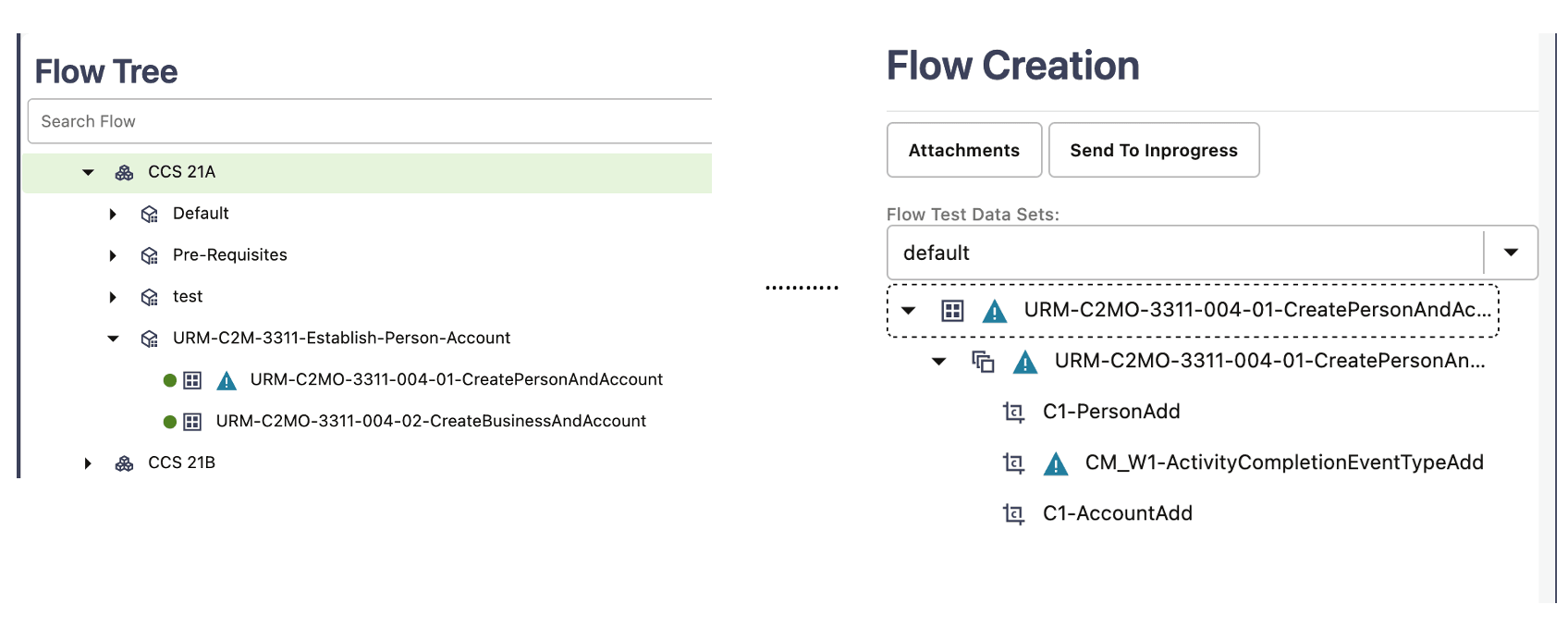
When you upgrade the custom test flows to a newer version of a product pack using the CM Content Upgrade feature in Oracle Utilities Testing Accelerator, flows using components that have been updated between the older and the newer version will automatically be highlighted with a marker. This ensures that you have clear visibility into the impact of changes in the application being tested on the automated test flows.
- Click the About section on the top-right corner of the application and select Clear Cache to clear the cache after the upgrade process is complete.
Note:
- For a flow to be picked up by the upgrade process, the flow header should have a tag specified.
- If a custom component has been created and used in the flows being upgraded, the upgrade process checks for the custom component name to start with “CM”. If the name doesn't start with CM, the upgrade process copies the custom component across and prefixes “CM” to the component name. All references to this component in flows will be updated accordingly to remain intact. This ensures that the flow works fine. But, if the name starts with “CM”, the upgrade process simply copies the custom component across from the source to the destination product.
- The test data defined in the flows in the source product will remain intact in the destination product flows.
Figure 6-2 Flows highlighted after a CM content upgrade