Let’s Explore How to Attach a File System to Oracle Autonomous Database
Introduction
Oracle Cloud Infrastructure (OCI) File Storage is a fully managed, elastic file system that supports the Network File System (NFS) protocol. It provides shared, scalable file storage that can be mounted concurrently by multiple compute instances and database systems within a Virtual Cloud Network (VCN). Oracle Autonomous Database, consisting of Autonomous Data Warehouse (ADW) and Autonomous Transaction Processing (ATP), is Oracle’s fully-managed database platform that automates provisioning, tuning, scaling, patching, and backups. While Autonomous Database does not provide direct OS-level file system access, certain deployment configurations — such as Oracle Autonomous Database on Dedicated Exadata Infrastructure, or Autonomous Database with private endpoint — allow integration with File Storage over a private VCN. Attaching File Storage to an Autonomous Database enables:
- Shared file access between Autonomous Database and other OCI resources in the same VCN.
- Staging and exchanging data files for ETL, analytics, or batch processing.
- Log archiving and report output directly to a persistent, managed file store.
Objectives
This document outlines the process and considerations for integrating OCI File Storage Service with Oracle Autonomous Data Warehouse (ADW) or Autonomous Transaction Processing (ATP) using a private endpoint. The objectives are to:
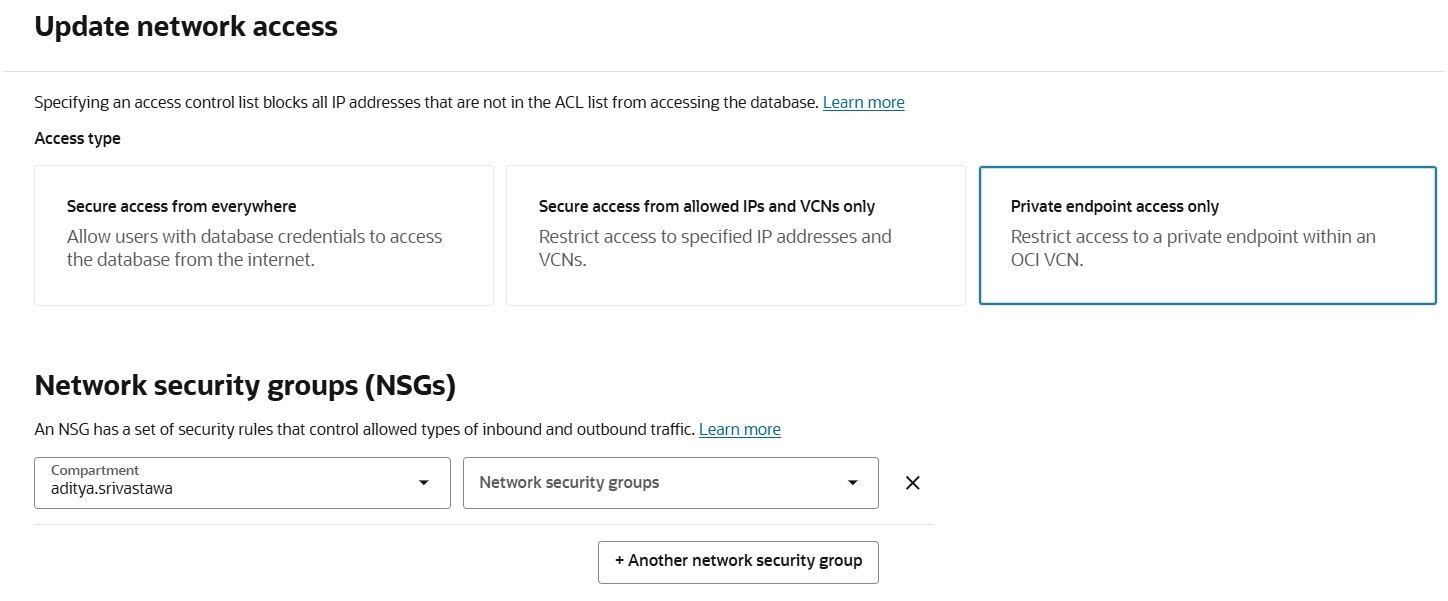
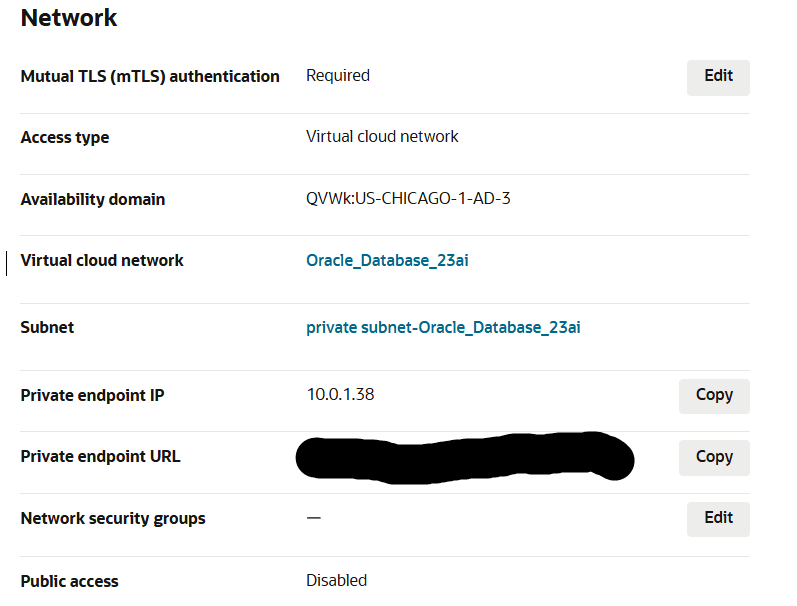
- Provision a Secure Autonomous Database: Deploy an Autonomous Database with private endpoint access to ensure all communication with File Storage occurs over a secure, private network.
- Enable Network Connectivity for NFS Access: Configure VCN security lists or network security groups to allow required NFS ports between Autonomous Database and File Storage.
- Provision and Configure File Storage: Create a file system and mount target within the same VCN/subnet (or peered network) as the Autonomous Database.
- Attach File Storage to Autonomous Database: Mount the file system to the Autonomous Database using supported OCI and database commands.
- Verify File System Attachment: Query
DBA_CLOUD_FILE_SYSTEMSto confirm successful attachment. - Perform File Operations from the Database: Create directories in the attached file system, write to, read from, and list files using PL/SQL packages such as
UTL_FILEandDBMS_CLOUD. - Understand Limitations and Restrictions: Document the service, network, and operational constraints for using File Storage with Autonomous Database.
Prerequisites
Before attaching an OCI File Storage to an Autonomous Database (ADW/ATP), ensure the following requirements are met:
Service & Deployment Requirements
An Autonomous Database deployed with either:
- Private endpoint enabled
- Hosted on Oracle Autonomous Database on Dedicated Exadata Infrastructure
File Storage must be provisioned in the same region as the Autonomous Database.
Networking Requirements
VCN & Subnet Configuration:
The Autonomous Database and the File Storage mount target must be in the same VCN/subnet, or connected via VCN peering.
Security Rules/NSGs:
Allow inbound and outbound NFS traffic between the Autonomous Database and File Storage mount target:
TCP 111(Portmapper)TCP/UDP 2048–2050(NFS-related daemons)TCP 2049(NFS)
DNS Resolution:
Ensure private DNS is enabled so the File Storage mount target’s FQDN can be resolved from the Autonomous Database.
IAM Permissions
You must have the following OCI permissions:
- Manage Autonomous Database
- Manage File Storage Family
- Manage Virtual Network Resources
You must have the following Database-level privilege:
- ADMIN user in the Autonomous Database (to run
DBMS_CLOUD_ADMINprocedures)
Tools & Access
You must have access to the following tools:
- OCI Console access for resource creation/configuration.
- SQL client access (SQL Developer, SQL*Plus, or SQLcl) to connect as ADMIN.
DBMS_CLOUD_ADMINpackage available in the Autonomous Database.
Information to Collect Before Starting
- Mount Target FQDN of the File Storage
- Subnet details for both ADB and File Storage
- Any export path configured in File Storage for the file system
Tasks
In the following tasks, you will configure and validate integration between File Storage and an Autonomous Database (ADW/ATP) deployed with private endpoint access.
Here are the steps:
- Provision OCI ADW with private endpoint access only
- Create VCN security rules for File Storage access
- Create a file system in File Storage
- Obtain the fully-qualified domain name (FQDN) for the mount target
- Attach the file system to Autonomous Database
- Query
DBA_CLOUD_FILE_SYSTEMS - Create and write to a file via
UTL_FILE - List files in the attached file system and read a file via
UTL_FILE
Task 1: Provision Autonomous Database
Create an ADW instance with private endpoint in the appropriate VCN and subnet.
Task 2: Configure Network Security
Create or update VCN security lists or network security groups to allow NFS protocol traffic between the Autonomous Database subnet and File Storage mount target subnets.
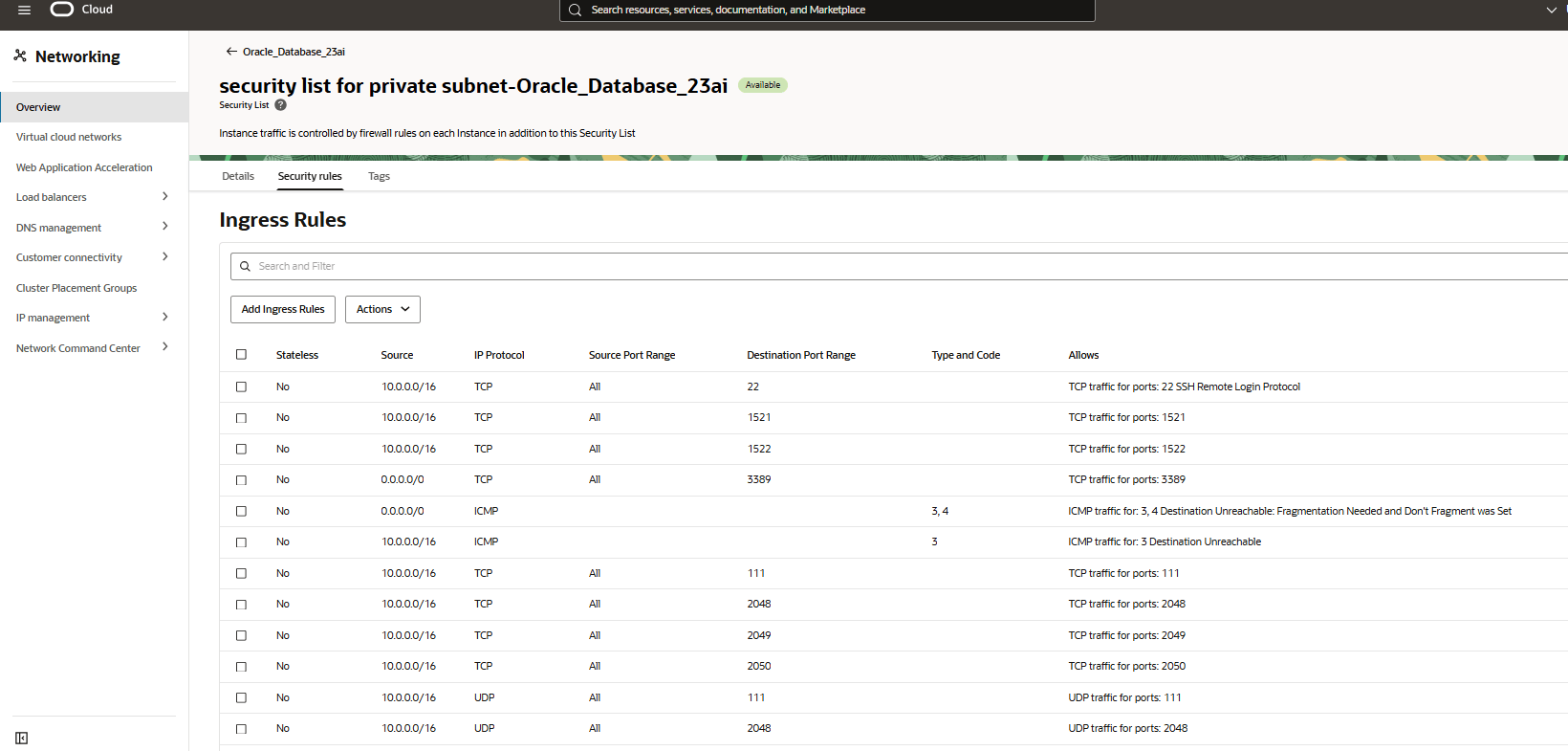
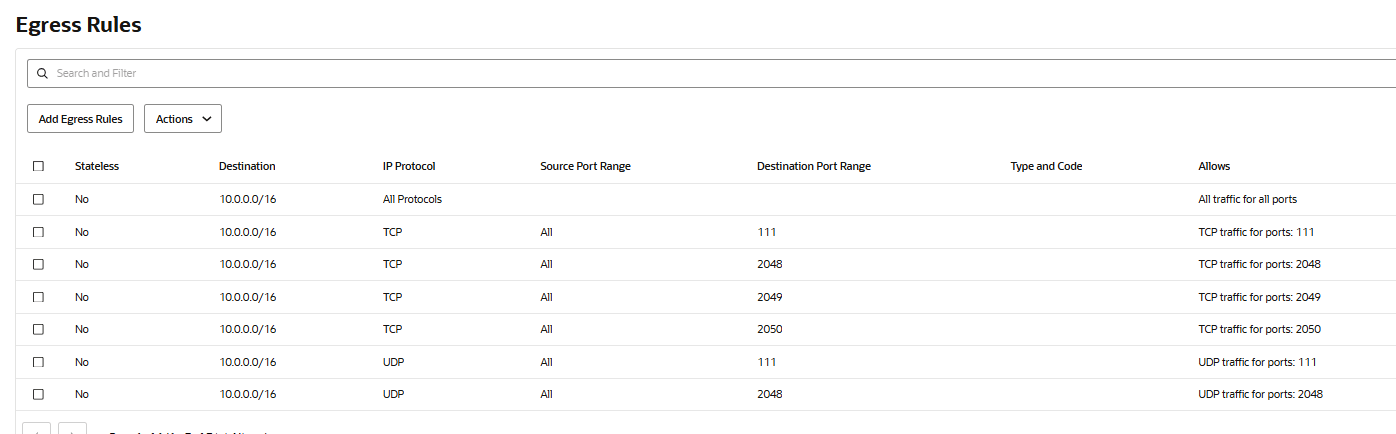
Create VCN security rules for File Storage access, by adding some ingress and egress rules in the VCN’s security list so that your Autonomous Database and file system can talk to each other.
Stateful ingress from ALL ports in source CIDR block to TCP ports 111, 2048, 2049, and 2050.
Stateful ingress from ALL ports in source CIDR block to UDP ports 111 and 2048.
Stateful egress from TCP ALL ports to ports 111, 2048, 2049, and 2050 in destination CIDR block.
Stateful egress from UDP ALL ports to port 111 in destination CIDR block.
Make sure service gateways is available
Task 3: Provision OCI File Storage
Create a file system in File Storage.
Home -> Storage -> File Storage -> File Systems -> Create File System for NFS in OCI console.
Make sure the mount target is the same as the Autonomous Database’s VCN and subnet.
Create a file system and a mount target in the same VCN or a peered VCN.

Home -> Storage -> File Storage -> Mount Targets in OCI console.
Configure export settings for the mount target.
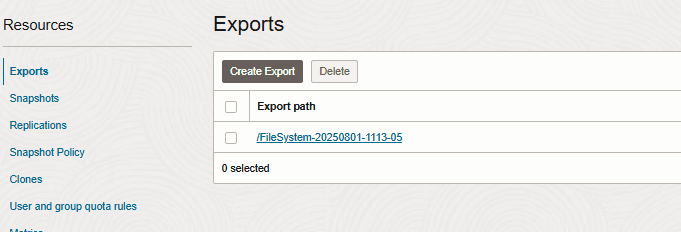
Task 4: Obtain Mount Target Details
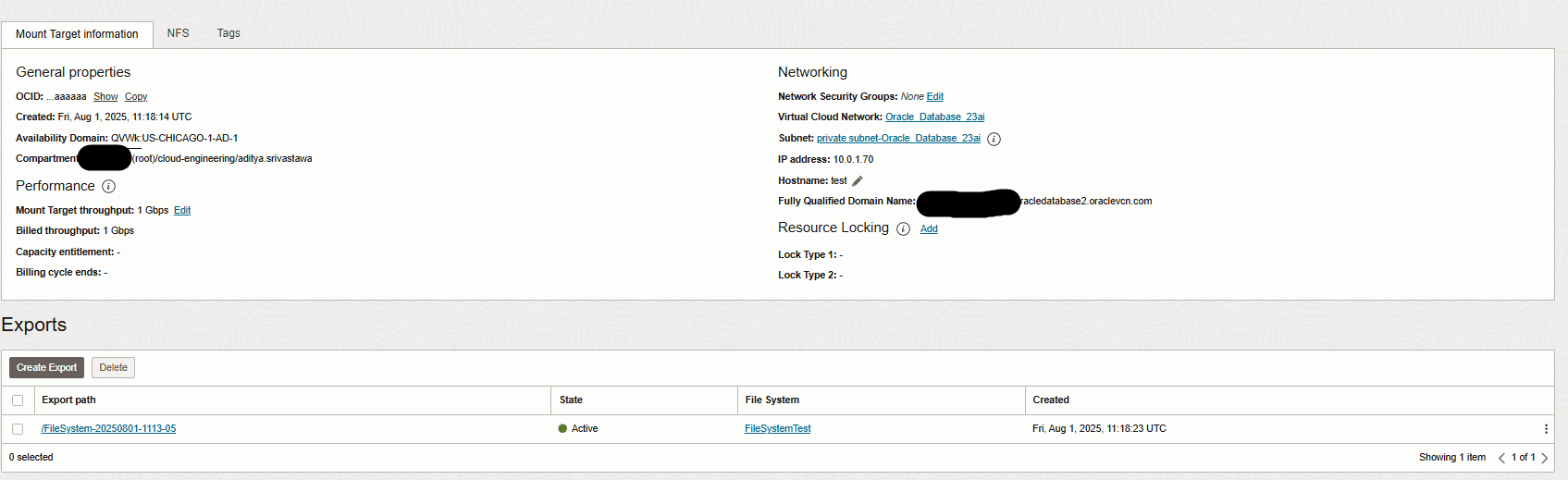
Retrieve the fully qualified domain name (FQDN) and export path of the mount target.
File Storage -> Mount Targets -> <yourMountTargetName> in OCI console and obtain FQDN as shown below:
Task 5: Attach the File System to Autonomous Database
  CREATE DIRECTORY FSS_DIR AS 'fss';

  BEGIN
    DBMS_CLOUD_ADMIN.ATTACH_FILE_SYSTEM(
      file_system_name => 'FileSystemTest',
      file_system_location => 'test.sub04171438361.oracledatabase2.oraclevcn.com:/  FileSystem-20250801-1113-05',
     directory_name => 'FSS_DIR',
      description => 'attach OCI file system'
    );
  END;
  /
Use DBMS_CLOUD_ADMIN.CREATE_FILE_SYSTEM to mount the File Storage to the Autonomous Database.

Task 6: Verify File System Attachment
Query DBA_CLOUD_FILE_SYSTEMS to confirm that the file system is mounted successfully.
SELECT file_system_name, file_system_location, directory_path FROM dba_cloud_file_systems;

Task 7: Perform File Operations
Create a directory object pointing to the File Storage & write files using UTL_FILE.PUT_LINE.
(You can create a file called channel.csv and write into it:)
DECLARE
  l_file         UTL_FILE.file_type;
  l_location     VARCHAR2(100) := 'FSS_DIR';
  l_filename     VARCHAR2(100) := 'channel.csv';
BEGIN
  -- Open file.
  l_file := UTL_FILE.fopen(l_location, l_filename, 'w');

  UTL_FILE.PUT(l_file, 'Catalog, Indirect, 12');

  -- Close the file.
  UTL_FILE.fclose(l_file);
END;
/
List files using DBMS_CLOUD.LIST_FILES.
SELECT object_name FROM DBMS_CLOUD.LIST_FILES('FSS_DIR');
Read file contents using UTL_FILE.GET_LINE.
DECLARE
  l_file         UTL_FILE.file_type;
  l_location     VARCHAR2(100) := 'FSS_DIR';
  l_filename     VARCHAR2(100) := 'channel.csv';
  l_text         VARCHAR2(32767);
BEGIN
  -- Open file.
  l_file := UTL_FILE.fopen(l_location, l_filename, 'r');

 UTL_FILE.GET_LINE(l_file, l_text, 32767);
 DBMS_OUTPUT.put_line(l_text);

  -- Close the file.
  UTL_FILE.fclose(l_file);
END;
/
Task 8: Document Restrictions and Limitations
Capture the supported configurations, service constraints, and known limitations for using OCI File Storage with Oracle Autonomous Database.
Key Validations
This works only if:
ADW has a private endpoint in the same VCN/subnet as File Storage or connected via VCN peering.
Security lists/NSGs allow NFS ports.
You’re using Oracle Autonomous Database on Dedicated Infrastructure, or Oracle Autonomous Database shared with private endpoint + OCI File Storage support.
DBA_CLOUD_FILE_SYSTEMS will show the mounted File Storage after successful attach.
UTL_FILE is enabled only on attached file systems or approved directories.
Limitations & Restrictions
Deployment Restrictions
Not supported on Autonomous Database Shared – public endpoint. OCI File Storage can only be mounted in Oracle Autonomous Database on Dedicated Exadata Infrastructure or Oracle Autonomous Database with private endpoint and proper VCN access. Autonomous Database must be in the same VCN (or peered VCN) as the File Storage mount target.
Network Restrictions
NFS traffic (TCP 111, 2048–2050, 2049) must be allowed in both directions between Autonomous Database subnet and File Storage subnet. If using VCN peering, security rules must allow NFS ports across the peering connection. DNS resolution must be enabled so Autonomous Database can resolve the FQDN of the mount target. No access to File Storage via internet gateway — you must use private routing.
File System Restrictions
Root access is not provided from Autonomous Database; operations are done as the database OS user. You cannot mount more than the Oracle-defined maximum number of file systems (varies by service level). Path length and filename must comply with NFS and Oracle limits (generally ≤255 characters per filename).
Database Restrictions
UTL_FILE operations are restricted to whitelisted directories created via DBMS_CLOUD_ADMIN.CREATE_DIRECTORY_IN_FILE_SYSTEM.
You cannot change the NFS mount point manually — it’s managed by Oracle.
No OS-level access — all file access must go through SQL, PL/SQL (UTL_FILE, DBMS_CLOUD), or tools like SQL Developer.
File I/O performance depends on VCN bandwidth limits and File Storage performance tier.
Operational Restrictions
If the File Storage mount target is deleted or export removed, the mount in Autonomous Database becomes unusable until reconfigured. No direct chmod/chown operations — permissions are managed by the export options in OCI Console. Maximum file size is limited by File Storage service (up to 8 EiB per file system, but individual files must be supported by NFS client limits). High availability depends on multiple mount targets across Availability Domains — Autonomous Database won’t fail over the File Storage automatically.
Related Links
Attach Network File System to Autonomous Database in Using Oracle Autonomous Database Serverless
Acknowledgments
- Author - Aditya Srivastawa (Principal Cloud Architect )
More Learning Resources
Explore other labs on docs.oracle.com/learn or access more free learning content on the Oracle Learning YouTube channel. Additionally, visit education.oracle.com/learning-explorer to become an Oracle Learning Explorer.
For product documentation, visit Oracle Help Center.
Attach a File System to Oracle Autonomous Database
G42348-01