Configure Multiple Standby Databases Using Data Guard in Oracle Base Database Service
Introduction
Users can configure multiple local and remote standby databases for a primary database using Data Guard automation with Oracle Base Database Service. This capability is available through the OCI Console, API/SDK, and Terraform.
Key Benefits
-
Improved data protection
Create local and remote standby databases to protect production databases from regional and intra-region failures with zero data loss. -
Increased flexibility
Add multiple standby databases across different geographic locations and create snapshot (read-write) replicas as needed. -
Better utilization of standby resources
Use standby databases to offload and scale query processing for reporting and analytics.
Objectives
The following sections describe the user journey for adding and managing standby databases in a Data Guard Group using the OCI Console:
- Create a standby database using the new Data Guard Group configuration
- Modify Data Guard member settings
- Add multiple standby databases to an existing configuration
- Perform a Data Guard switchover
- Perform a Data Guard failover
- Reinstate a disabled standby database
Task 1: Create a Standby Database Using the Data Guard Group Configuration
If you are creating a new Data Guard configuration, it is recommended to use the Data Guard Group resource to add the first standby database. This allows you to add additional standby databases in the future.
-
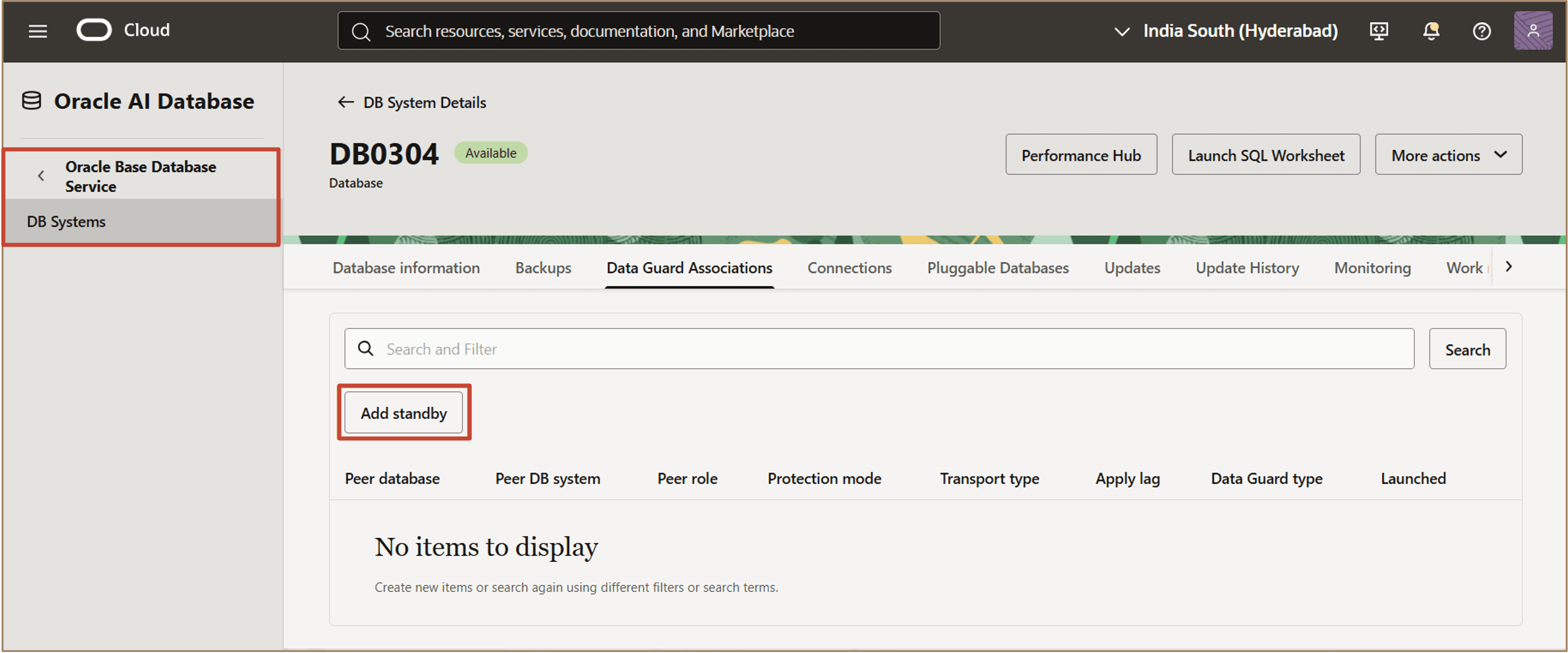
In Oracle Base Database Service, navigate to the DB Systems page and select your DB system.
-
From the Database Details page of the database for which you want to create a standby, click the Data Guard Associations tab.
-
In the Data Guard Associations tab, click Add standby.
-
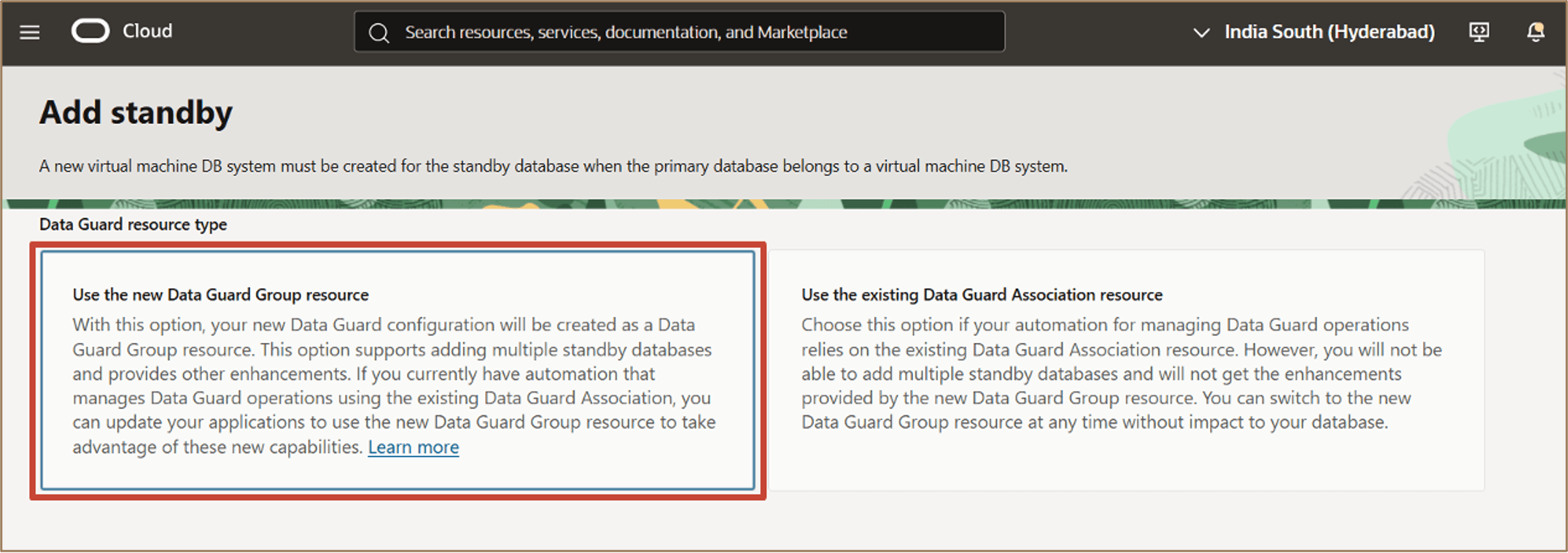
In the Add standby workflow, select Use the new Data Guard Group resource.
This option allows you to associate multiple standby databases with a primary database.
Description of the illustration add-first-standby-details.png
-
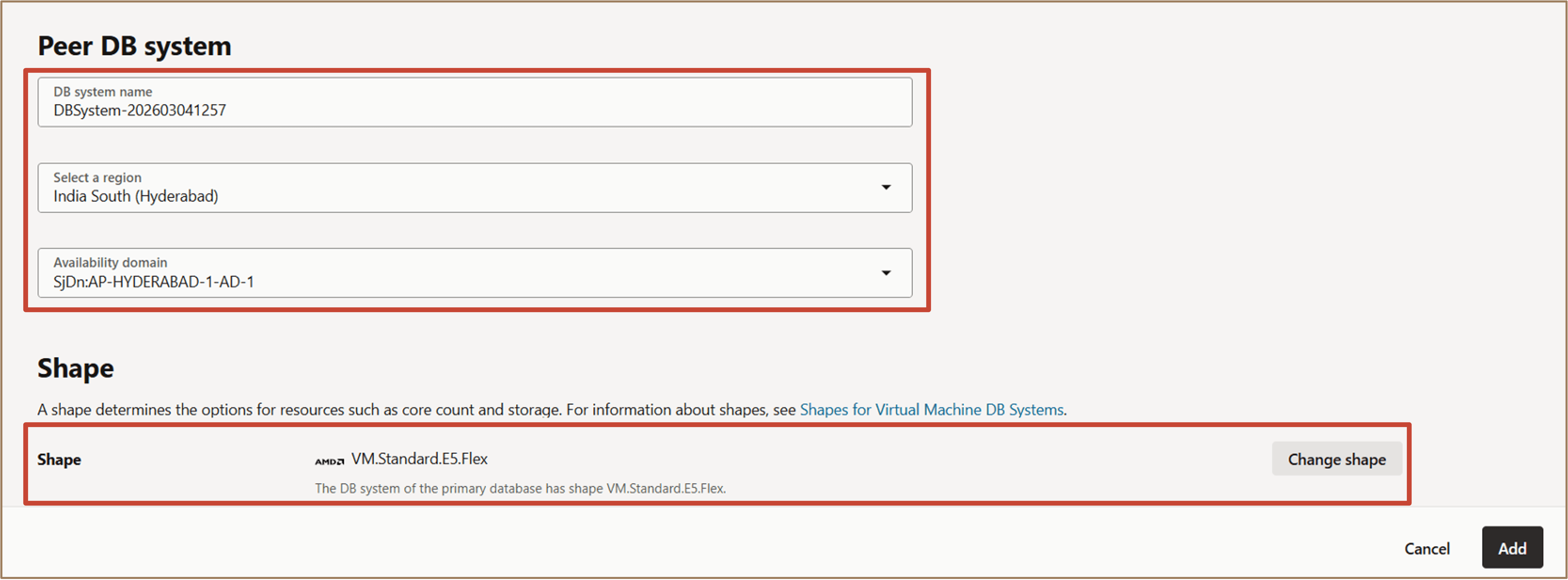
In the Peer DB system section, provide the following details:
- Enter a DB system name.
- Select a Region where the standby database will reside.
- Select an Availability Domain within the chosen region.
-
In the Shape section, select the required shape for the standby DB system.
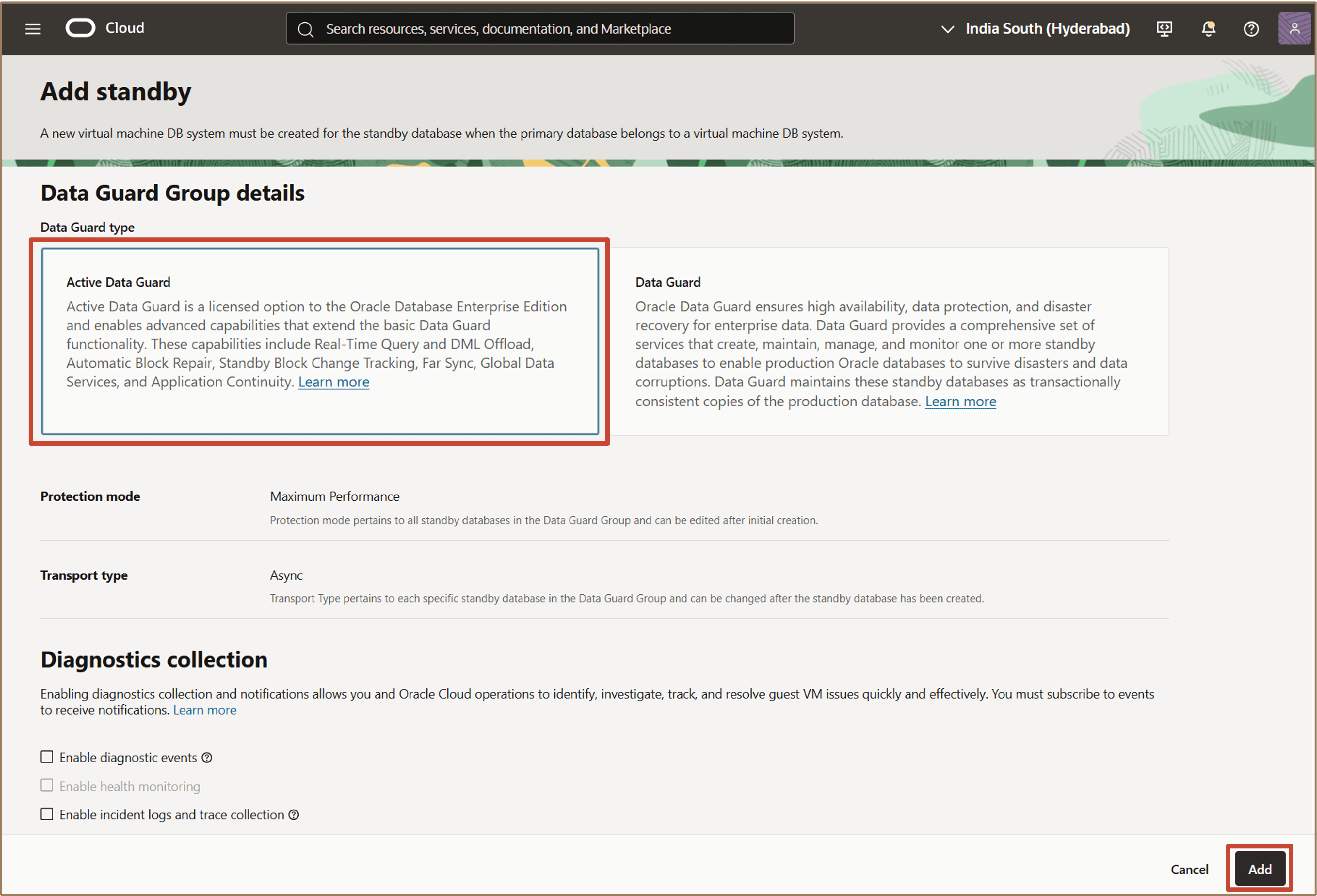
- Provide additional configuration details, including:
- DB system configuration
- Network information
- Data Guard type
- Database unique name
- Database credentials
-
Click Add.
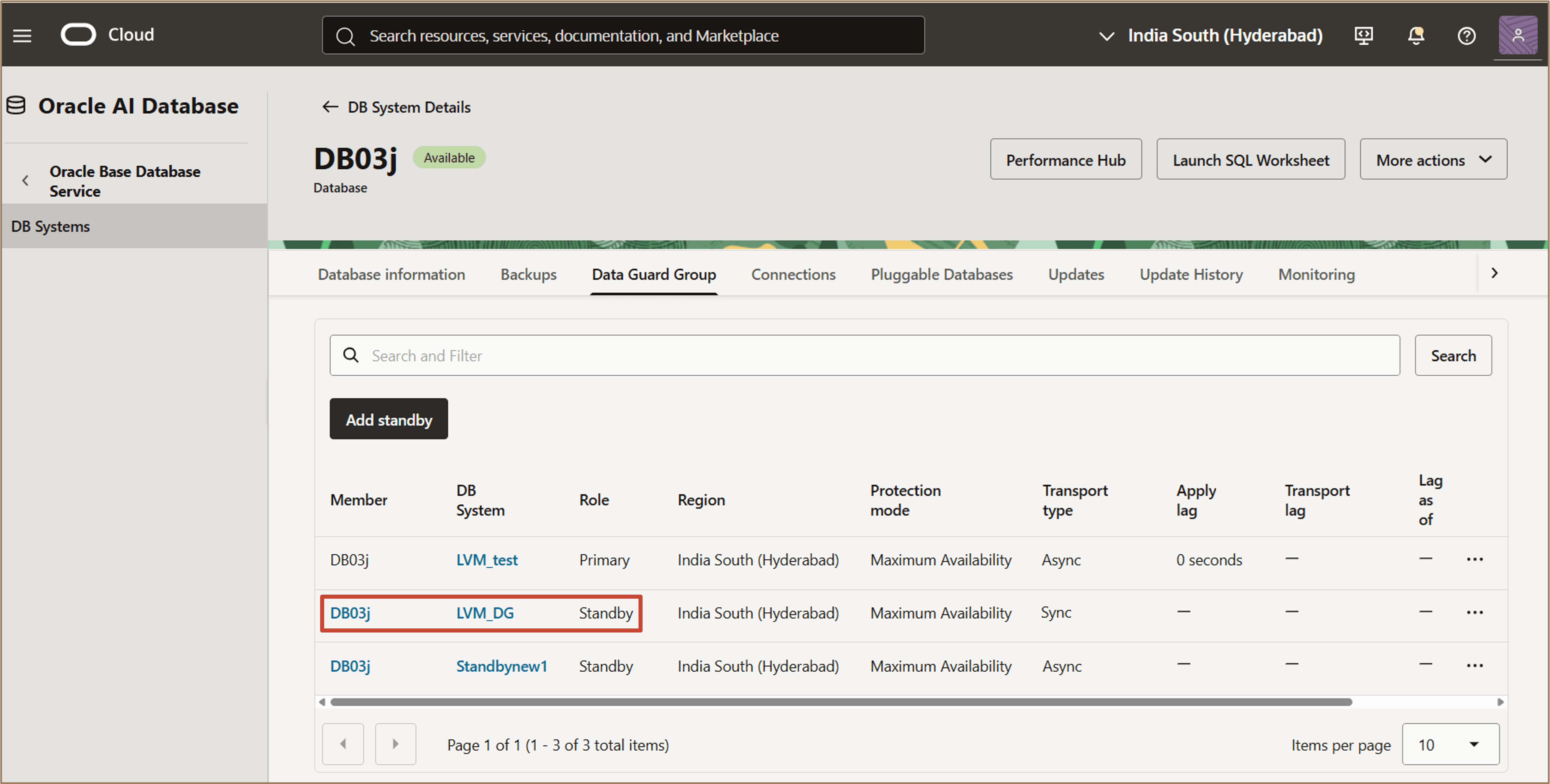
After the standby database is created, the Data Guard Group is displayed.
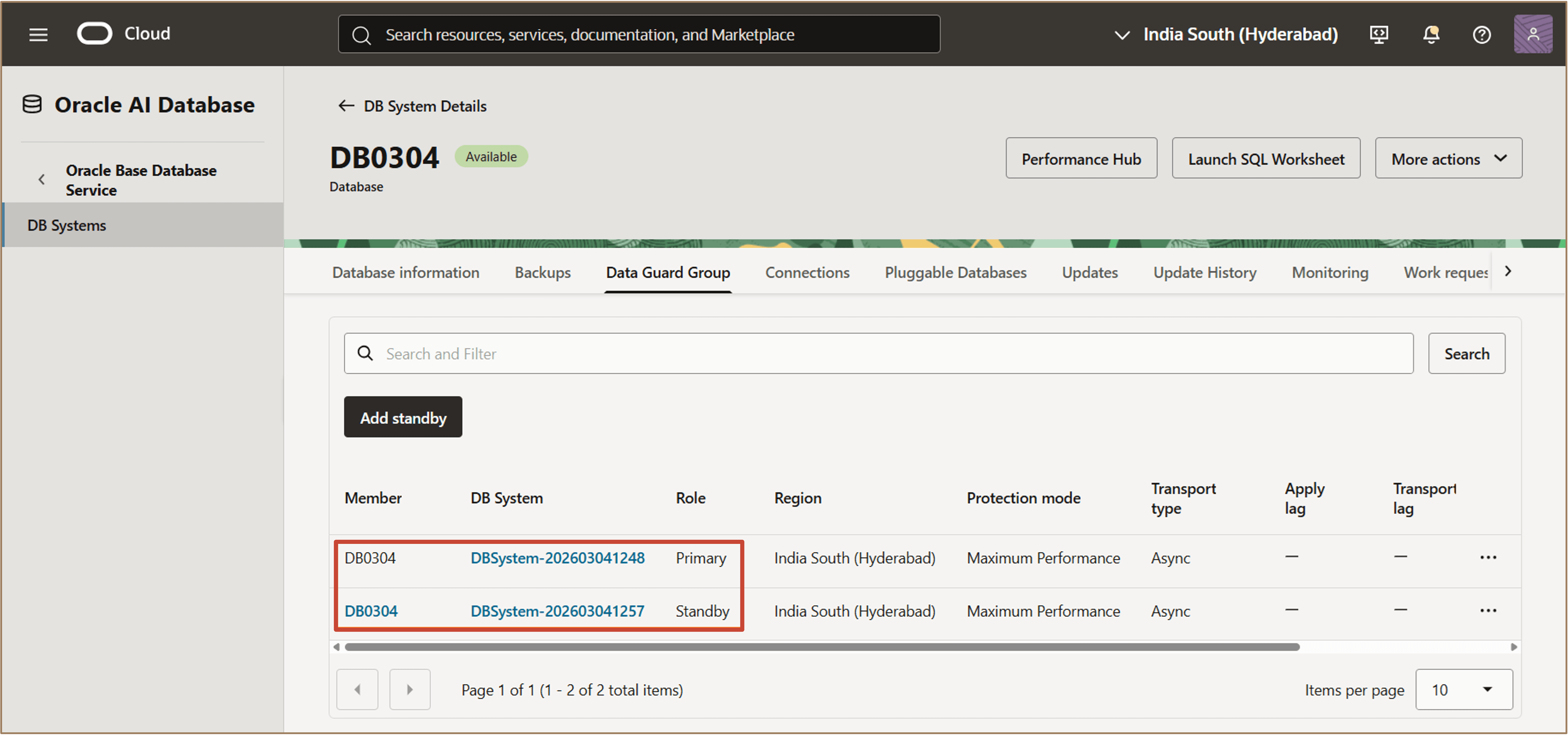
Description of the illustration add-standby-created.png
The Data Guard Group view shows information for all member databases, allowing you to view both the primary and standby databases in one place.
If you navigate to the Database Details page of the standby database, the same Data Guard Group information is displayed.
You can create additional standby databases by clicking Add standby on the primary database page and providing the required details.
Information for all member databases in the Data Guard Group is displayed on both the primary and standby database pages.
Note:
- This feature is only supported for Oracle database release 19c and later.
- The new Data Guard Group resource model allows creation of up to 6 standby databases for a primary database.
Task 2: Modify the Data Guard Member Settings
You can modify Data Guard settings from either the primary database or any of the standby databases.
-
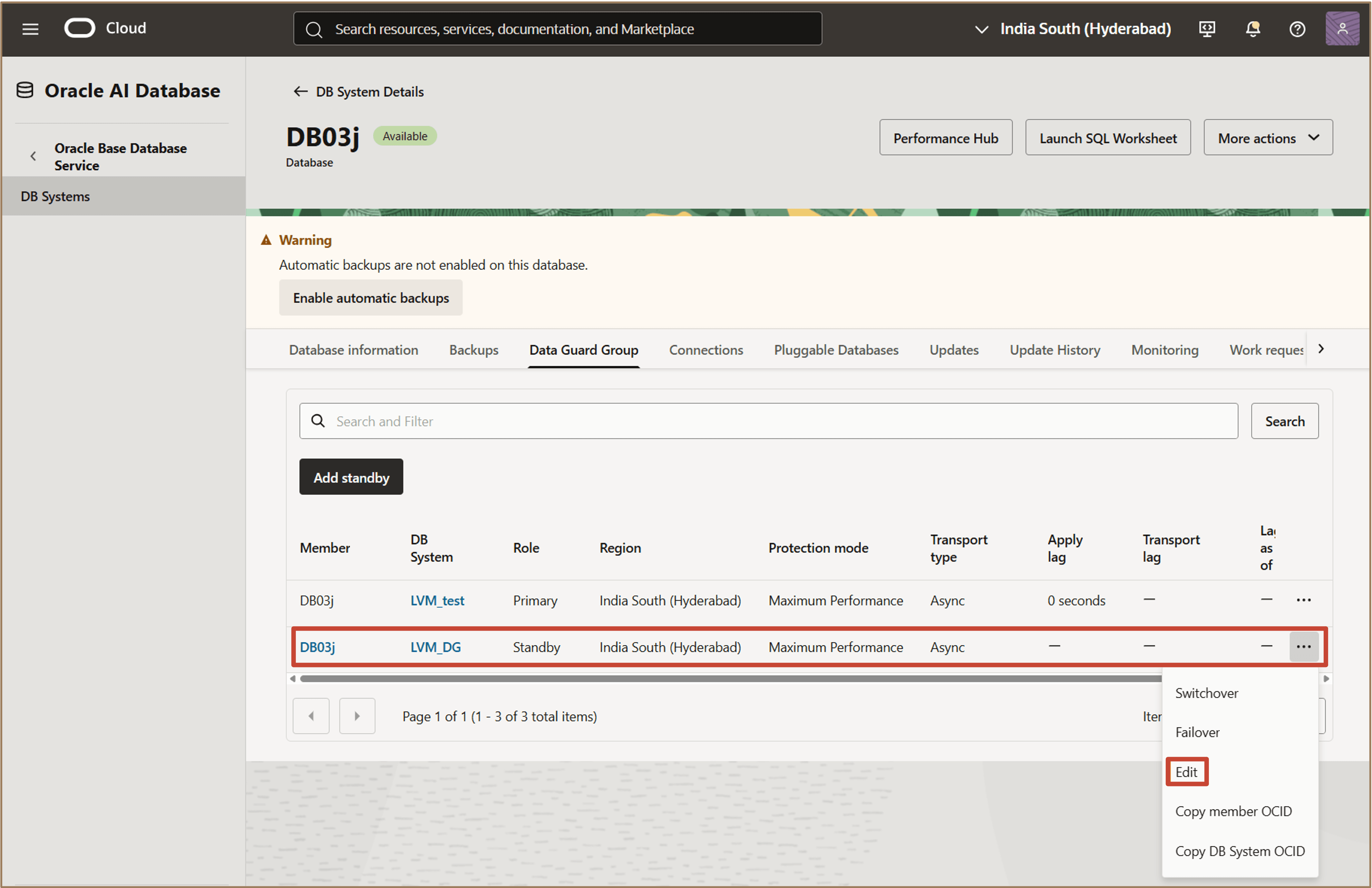
In the Data Guard Group tab, select the database (primary or standby) for which you want to modify the settings.
-
Click the actions menu (three dots) corresponding to the selected database.
-
Click Edit to open the Edit dialog.
-
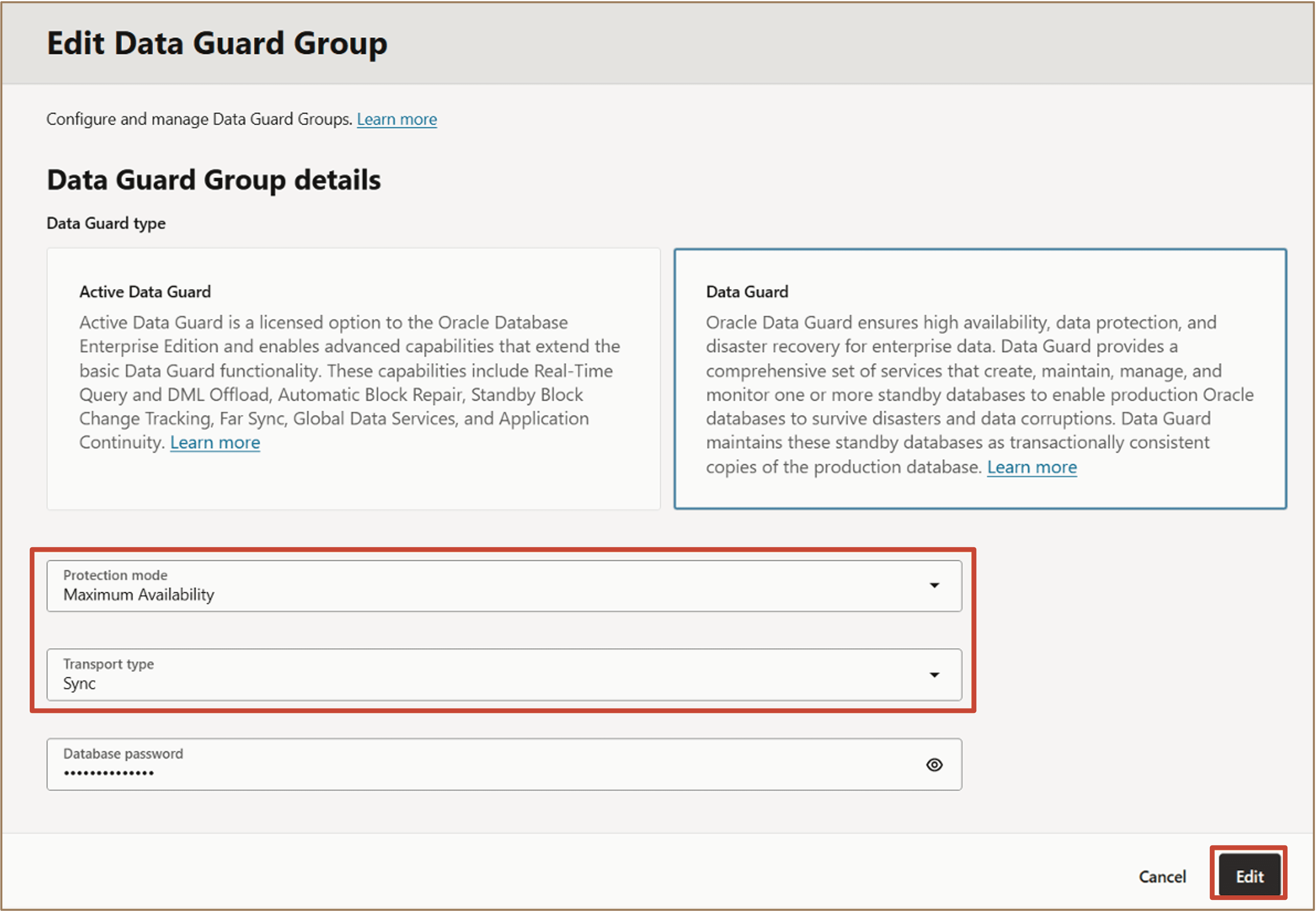
In the Edit Data Guard Group dialog, update the Data Guard configuration as needed.
You can modify settings such as:
- Data Guard type
- Protection mode
- Transport type
-
Click Edit to apply the changes.
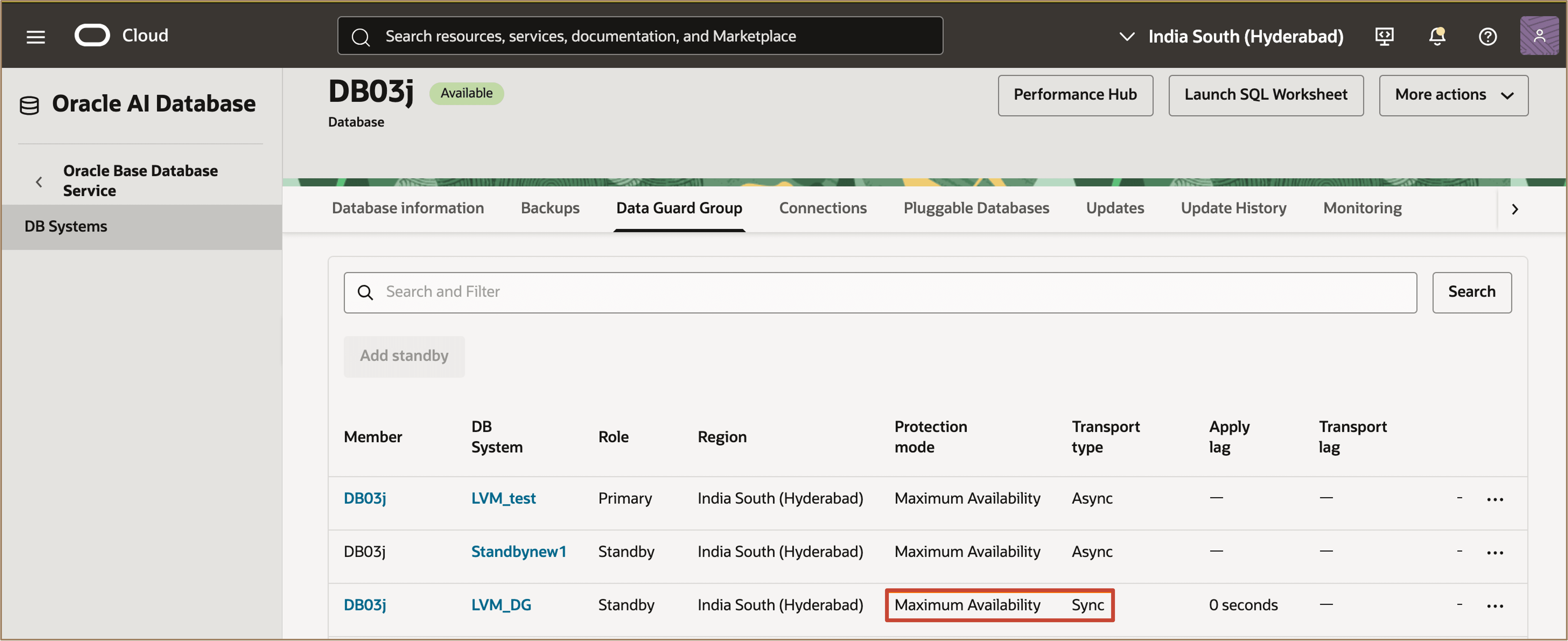
Description of the illustration edit-dgg-complete.png
After the update is complete, the changes are reflected in the Data Guard Group. In this example, the Data Guard configuration has been updated for one of the standby databases. Verify that the updated values for Data Guard type, Protection mode, and Transport type are displayed for the selected standby database.
Task 3: Add Multiple Standby Databases to an Existing Data Guard Association Configuration
To add more than one standby database using cloud automation, you must switch to the Data Guard Group resource. This can be done at any time.
The Data Guard Group resource includes updated APIs and user interfaces that support multiple standby databases.
You can switch from an existing Data Guard Association to a Data Guard Group in one of the following ways:
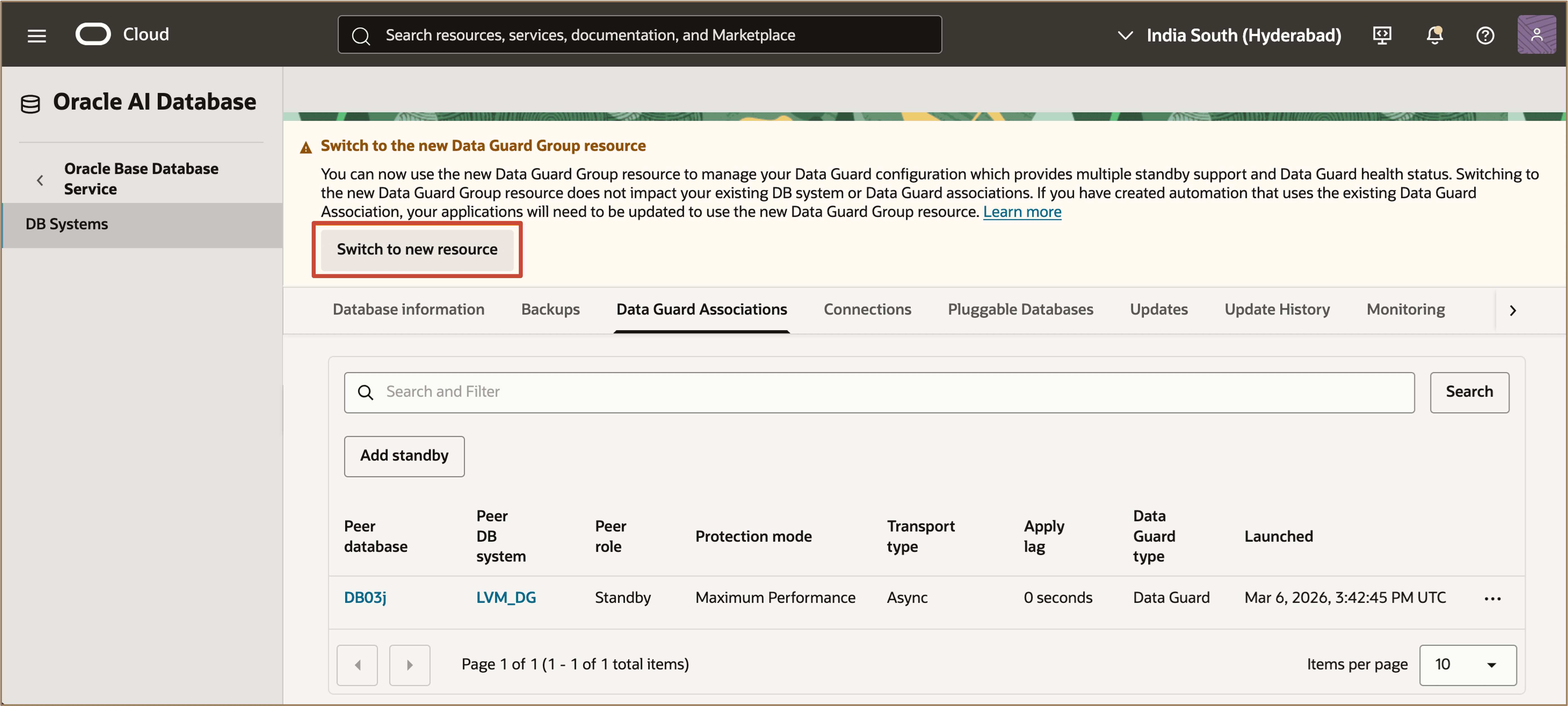
- Click Switch to new resource from the banner displayed at the top of the Database Details page.
- Click Add standby on the primary database page.
Note:
- Existing Data Guard configurations and database backup/restore capabilities created using cloud automation are preserved.
- Manually configured Data Guard or multiple standby databases are not recognized by cloud automation. You must recreate these configurations using the Data Guard Group resource to manage them through cloud automation.
-
Click Switch to new resource or Add standby to start the migration workflow.
-
In the Switch to the new Data Guard Group resource dialog, review the migration details and click Start to confirm and begin the migration.
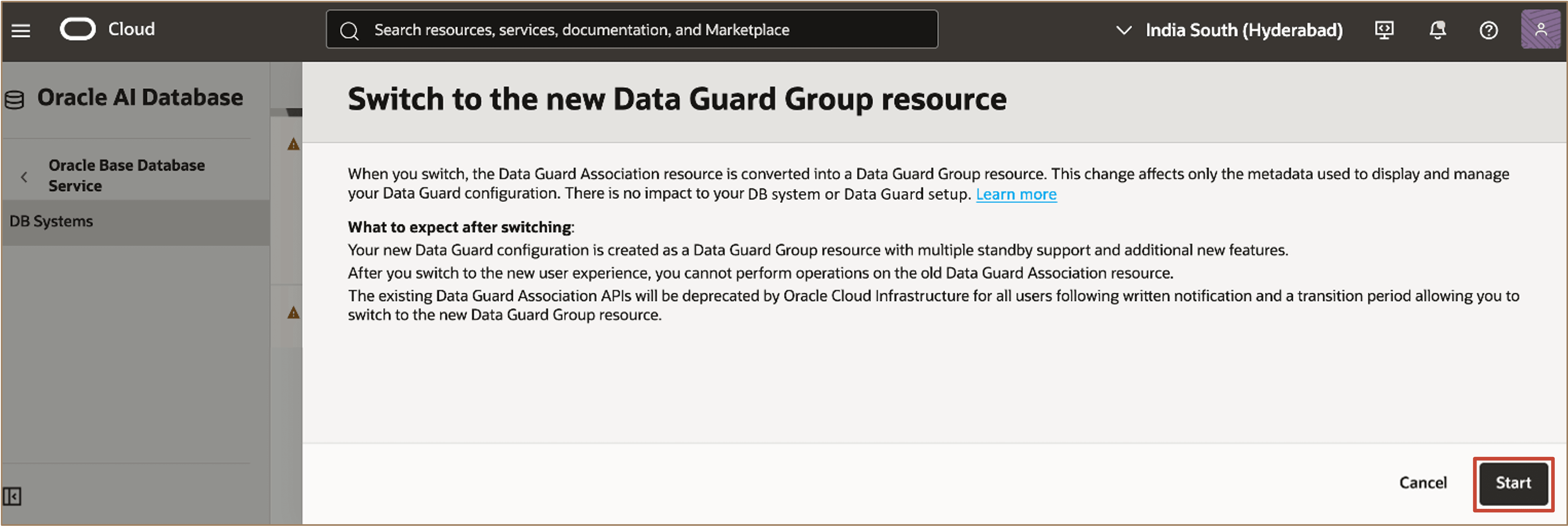
Description of the illustration switch-to-new-dg-confirm.png
After the migration is complete, the Data Guard Group details are displayed.
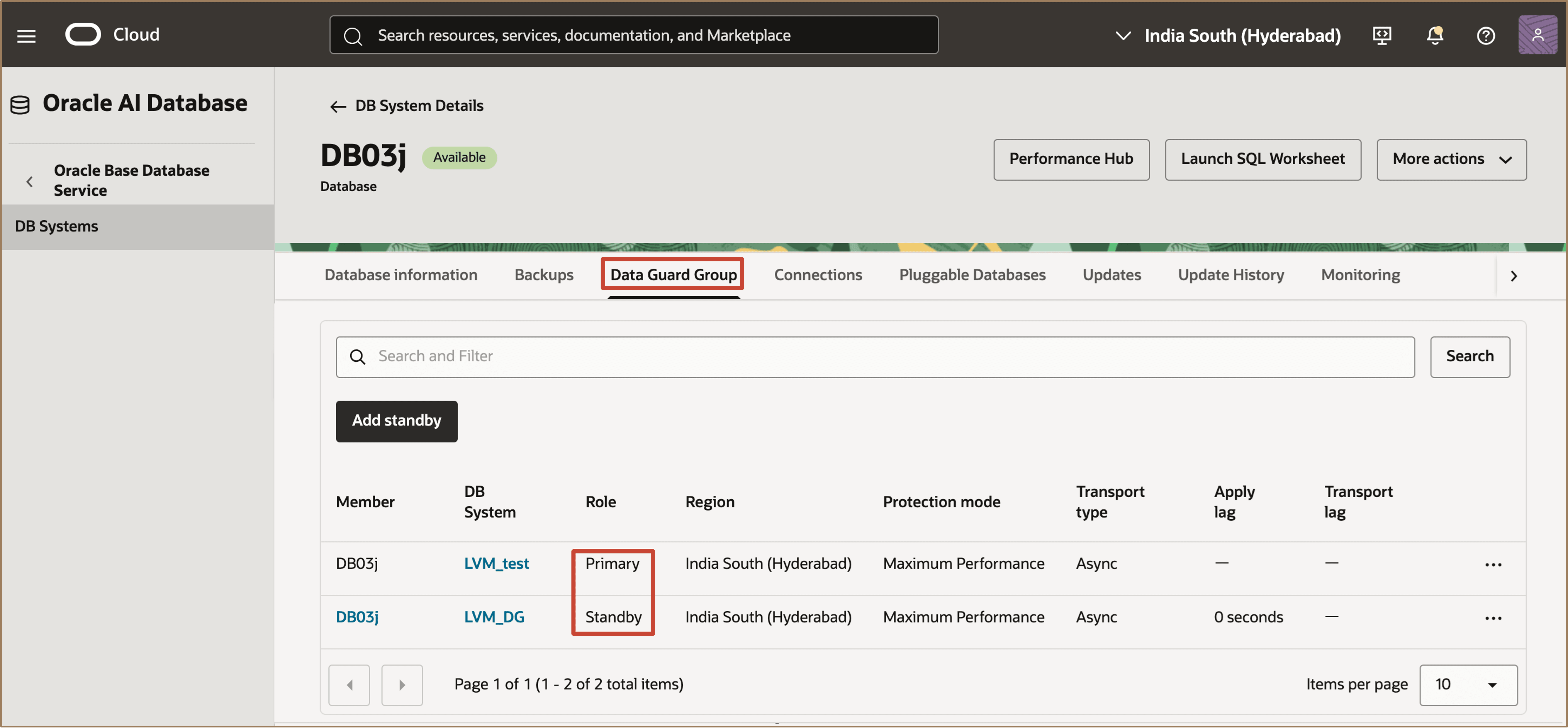
Description of the illustration switch-to-dgg-complete.png
Verify that the primary and standby databases are listed in the Data Guard Group.
You can now add additional standby databases by clicking Add standby. You can also modify the Data Guard configuration settings at any time.
Task 4: Perform a Data Guard Switchover
You can perform a switchover between the primary database and any of the standby databases in the Data Guard Group.
-
In the Data Guard Group tab, select the standby database that you want to switch over to.
-
Click the actions menu (three dots) for the selected standby database and click Switchover.
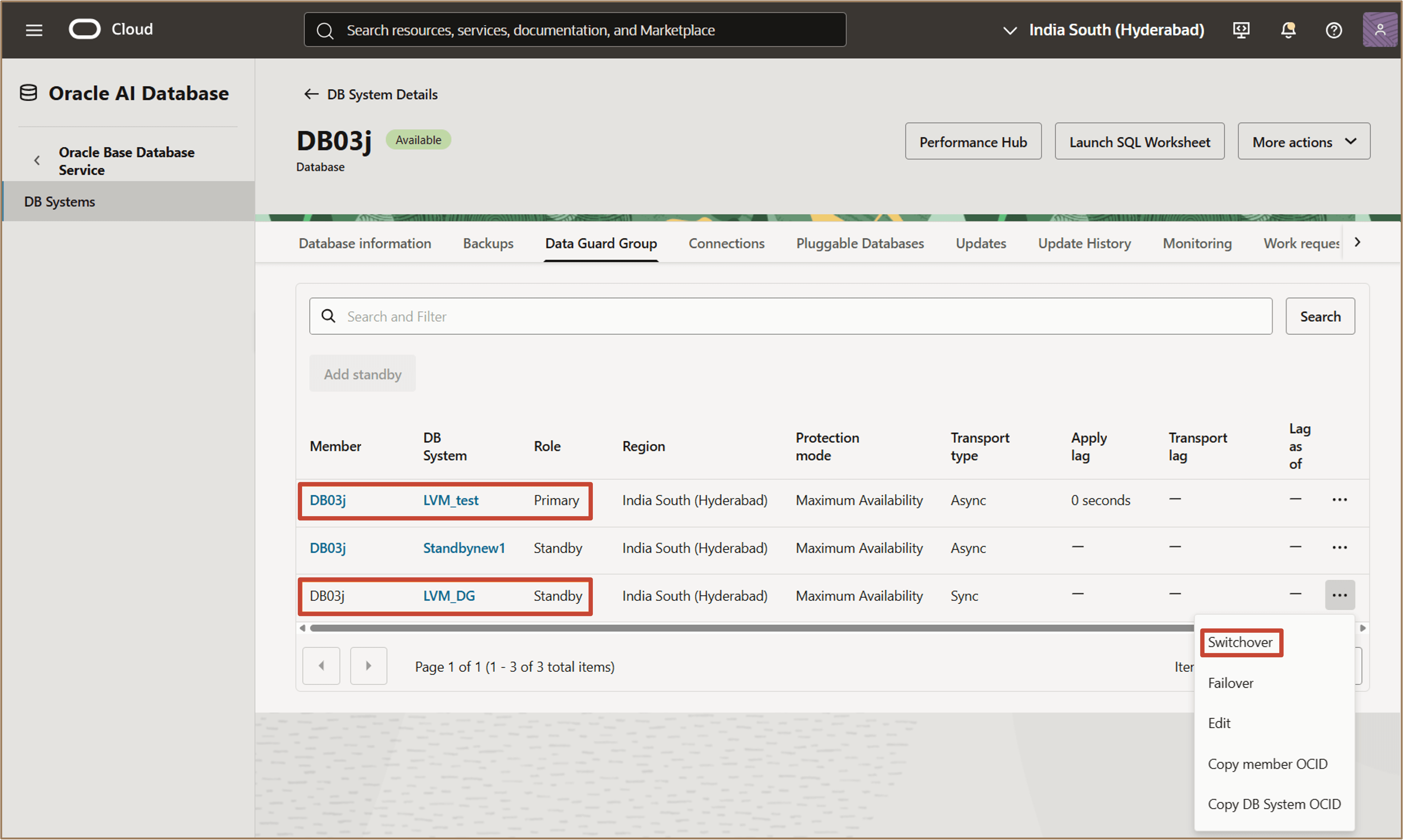
-
In the confirmation dialog, enter the database admin password and click Switchover to confirm the operation.
After the switchover is complete, the roles of the selected databases are reversed.
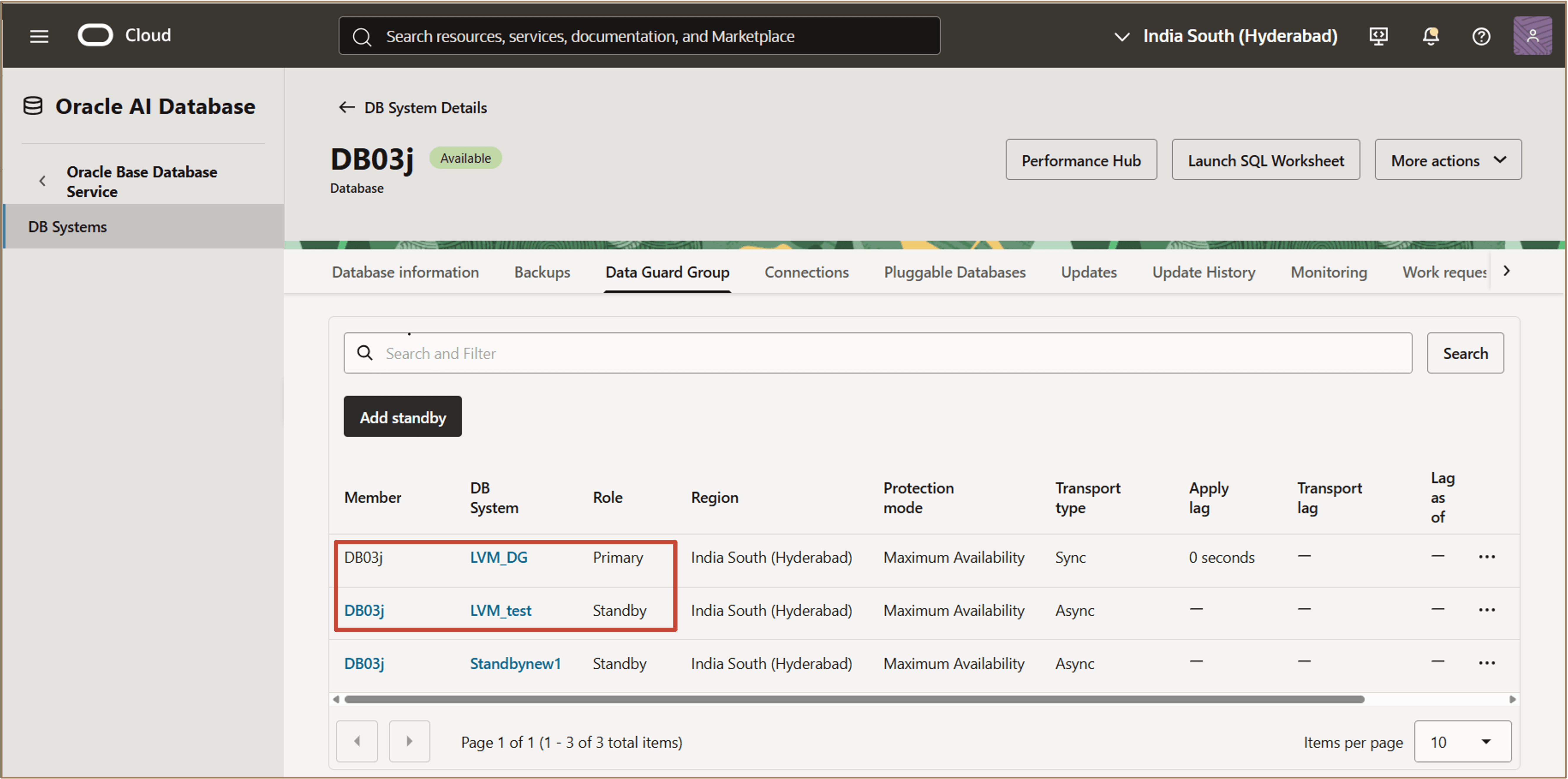
Description of the illustration switchover-complete.png
Verify that the standby database is now the Primary and the original primary database is now a Standby in the Data Guard Group.
Task 5: Perform a Data Guard Failover
You can perform a failover between the primary database and any of the standby databases in the Data Guard Group.
-
In the Data Guard Group tab, select the standby database that you want to fail over to.
-
Click the actions menu (three dots) for the selected standby database and click Failover.
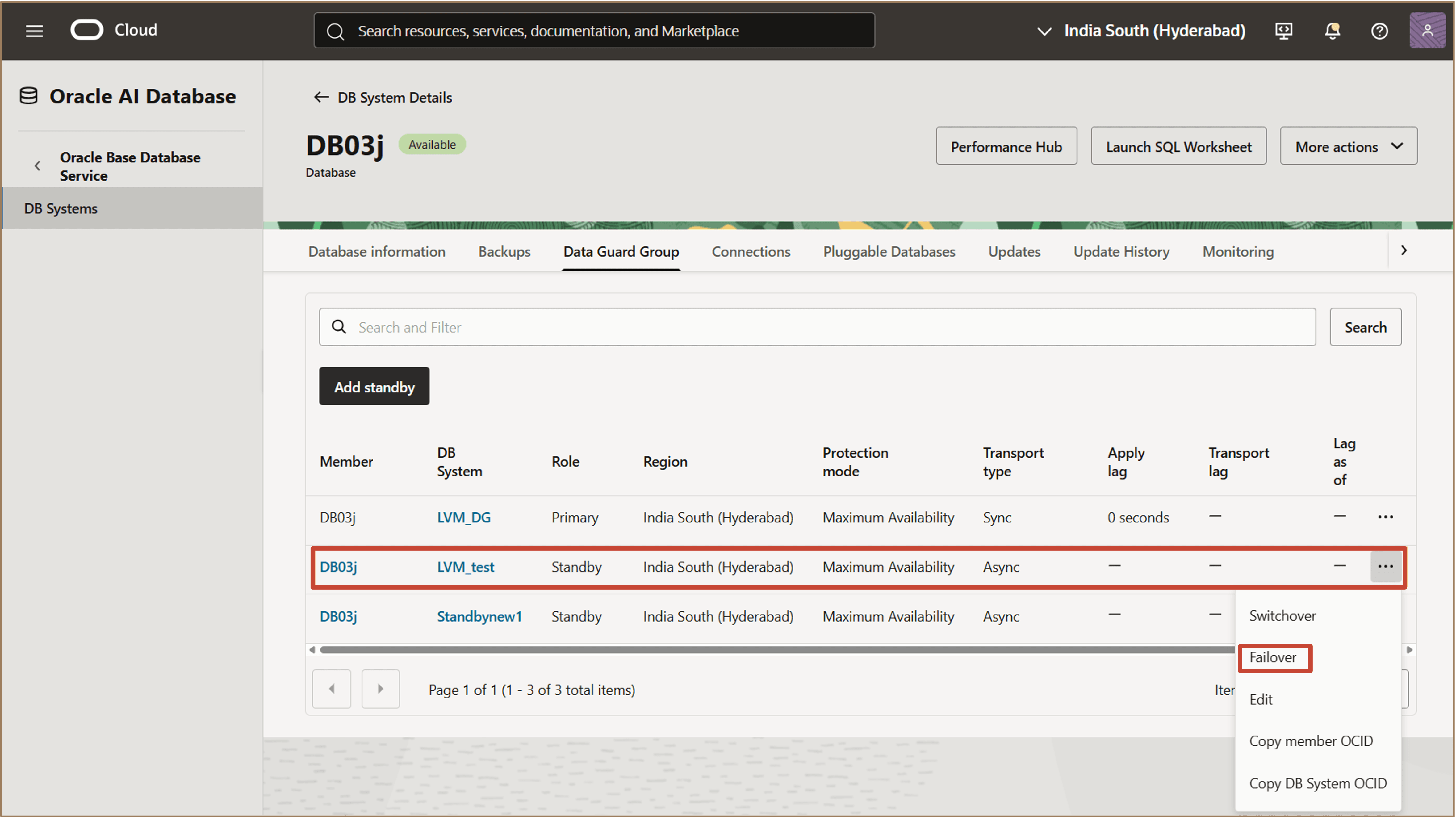
-
In the confirmation dialog, enter the database admin password and click Failover to confirm the operation.
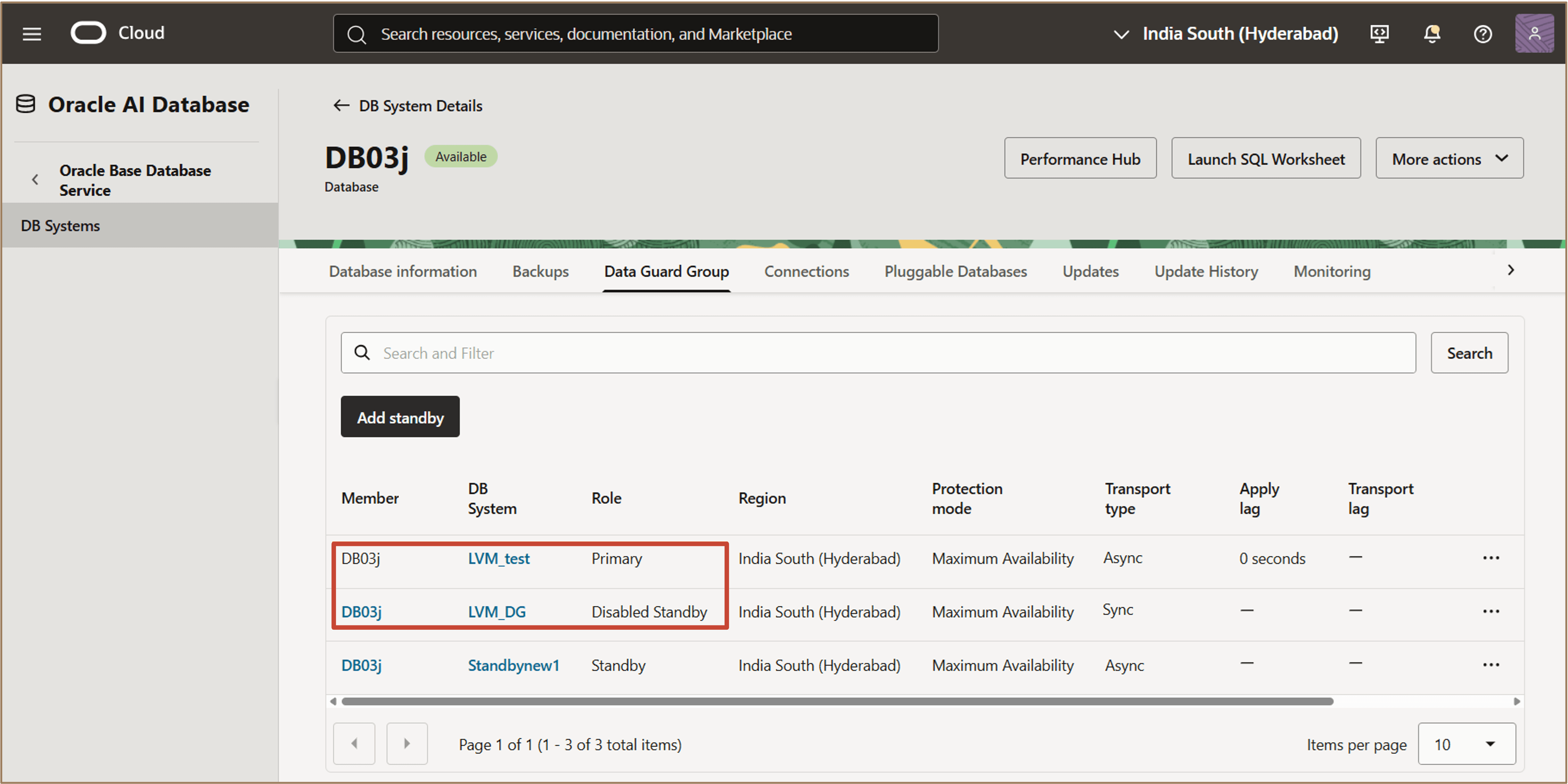
After the failover is complete, the selected standby database becomes the new Primary database.
Verify that the original primary database is now in a Disabled Standby role in the Data Guard Group.
Task 6: Reinstate a Standby Database in a Disabled Standby Role
You can reinstate a standby database that is in a Disabled Standby role in the Data Guard Group.
-
In the Data Guard Group tab, select the standby database with the Disabled Standby role.
-
Click the actions menu (three dots) for the selected database and click Reinstate.
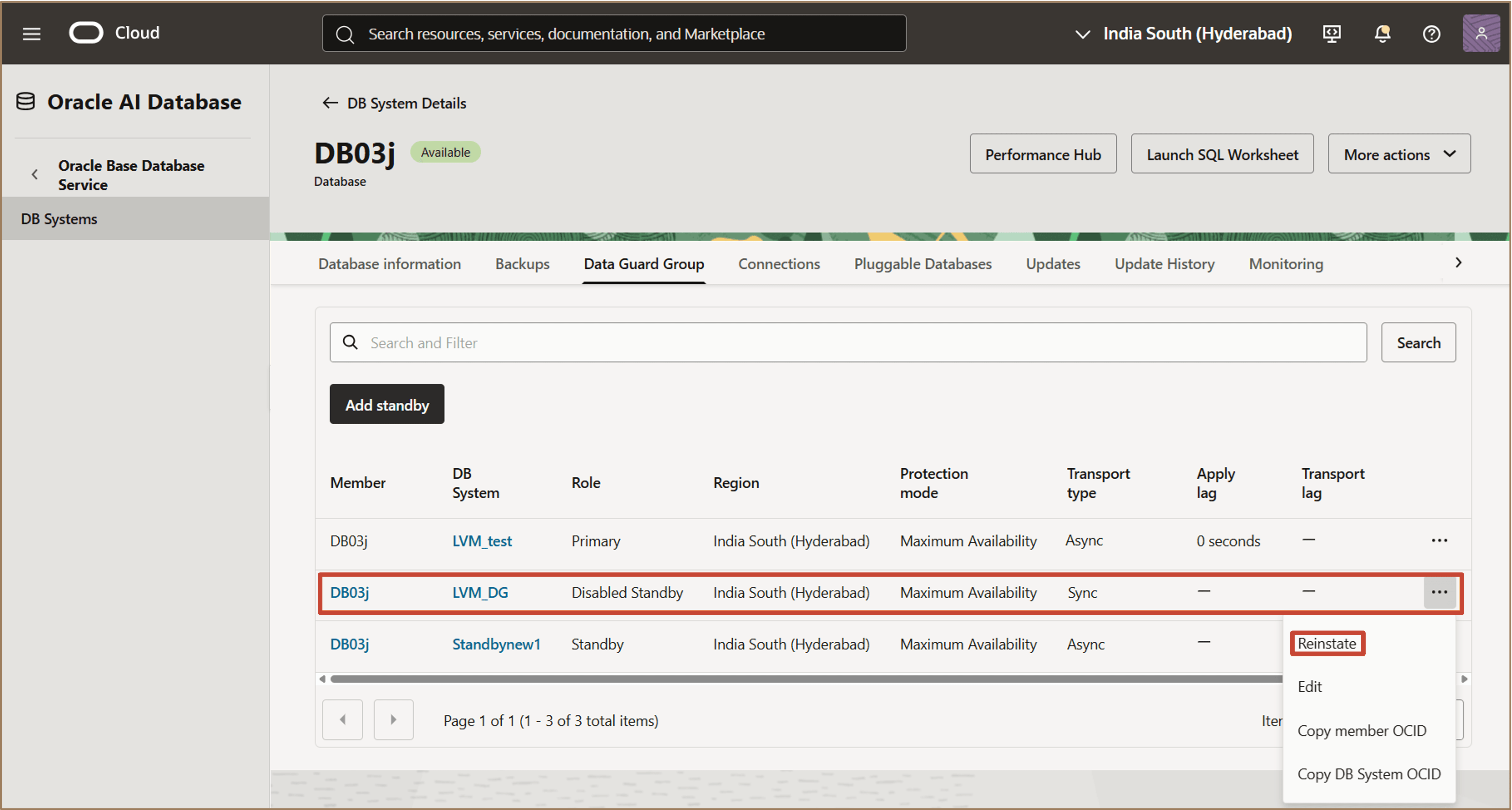
-
In the confirmation dialog, enter the database admin password and click Reinstate to confirm the operation.
After the reinstate operation is complete, the database is restored to a Standby role in the Data Guard Group.
Verify that the database previously in the Disabled Standby role is now listed as a Standby database.
Related Links
Acknowledgments
- Authors - Leo Alvarado, Dileep Thiagarajan, Tammy Bednar (Product Management)
More Learning Resources
Explore other labs on docs.oracle.com/learn or access more free learning content on the Oracle Learning YouTube channel. Additionally, visit education.oracle.com/learning-explorer to become an Oracle Learning Explorer.
For product documentation, visit Oracle Help Center.
Configure Multiple Standby Databases Using Data Guard in Oracle Base Database Service
G54603-02