Update Grid Infrastructure (GI) and Database software for Exadata Database Service on Exascale Infrastructure fleet using Exadata Fleet Update
Introduction
Exadata Fleet Update provides fleet-level orchestration for software maintenance. For Exadata Database Service on Exascale Infrastructure, you can create separate collections for Grid Infrastructure (GI) and Oracle Database software targets, and then run maintenance cycles with precheck, stage, apply, and optional cleanup.
For Exadata Database Service on Exascale Infrastructure, fleet-wide maintenance actions can be performed for:
Database software updatecollectionsGrid Infrastructure software updatecollections
This tutorial shows how to:
- Prepare the required IAM and network prerequisites.
- Create GI and Database collections for Exadata Database Service on Exascale Infrastructure targets.
- Create maintenance cycles and select target software images.
- Execute update actions (Precheck, Stage, Precheck, Apply) in the correct order.
- Validate outcomes and perform optional cleanup.
Key benefits
- Fleet-wide orchestration for GI and Database software updates.
- Consistent update workflow across Exadata Database Service on Exascale Infrastructure targets.
- Support for scheduled and on-demand maintenance actions.
- Built-in prechecks, job-level logging, retries, and cleanup.
Prerequisites
Required network setup for Exadata Database Service on Exascale Infrastructure
Configure security rules for client network and backup network to allow Fleet Update connectivity to Exascale VM clusters.
- Client network ingress rule for Fleet Update private endpoint:
- Stateless: No
- Source Type:
CIDR - Source CIDR: Client subnet’s CIDR
- IP Protocol:
TCP - Source Port Range:
All - Destination Port Range:
7085 - Description:
Allow access to Exadata Fleet Update private endpoint within the subnet.
- Client network egress rule to allow all outbound traffic.
- Stateless: No (all rules must be stateful)
- Destination Type:
CIDR - Destination CIDR:
0.0.0.0/0 - IP Protocol:
All
- Backup network egress rule to Oracle Object Storage service through Service Gateway.
- Stateless: No (all rules must be stateful)
- Destination Type:
Service - Destination Service:
- The service CIDR label called
OCI <region> Object Storage - If the client network does not have access to the Oracle YUM repos, use the service CIDR label called
All <region> Services in Oracle Services Network
- The service CIDR label called
- IP Protocol:
TCP - Source Port Range:
All - Destination Port Range:
443 (HTTPS) - Description:
Allow access to object storage
Required IAM policies
-
Create IAM policy to allow users in a group to manage collections. Below example shows policies are assigned to
CollectionAdminsgroup to manage collections of Exadata Database Service on Exascale Infrastructure resources in compartmentABC.allow group CollectionAdmins to manage fleet-software-update-family in compartment ABC allow group CollectionAdmins to inspect exascale-db-storage-vaults in compartment ABC allow group CollectionAdmins to manage db-homes in compartment ABC allow group CollectionAdmins to inspect db-nodes in compartment ABC allow group CollectionAdmins to use databases in compartment ABC allow group CollectionAdmins to use network-security-groups in compartment ABC allow group CollectionAdmins to manage exadb-vm-clusters in compartment ABC allow group CollectionAdmins to use private-ips in compartment ABC allow group CollectionAdmins to use vcns in compartment ABC allow group CollectionAdmins to use vnics in compartment ABC allow group CollectionAdmins to inspect database-software-images in compartment ABC allow group CollectionAdmins to use subnets in compartment ABC -
Create a dynamic group (e.g.
fsu-action-dyn-group) with resource type asfsuactionto make Exadata Fleet Update as principal actor to perform maintenance actions on resources. Follow https://docs.oracle.com/en-us/iaas/Content/Identity/Tasks/managingdynamicgroups.htm for steps to create dynamic group.resource.type='fsuaction' -
Assign below policies to dynamic group which allows Exadata Fleet Update to perform maintenance actions on Exadata Database Service on Exascale Infrastructure resource in compartment ABC
allow dynamic-group fsu-action-dyn-group to inspect db-nodes in compartment ABC allow dynamic-group fsu-action-dyn-group to manage subnets in compartment ABC allow dynamic-group fsu-action-dyn-group to manage vnics in compartment ABC allow dynamic-group fsu-action-dyn-group to manage private-ips in compartment ABC allow dynamic-group fsu-action-dyn-group to use vcns in compartment ABC allow dynamic-group fsu-action-dyn-group to manage exadb-vm-clusters in compartment ABC allow dynamic-group fsu-action-dyn-group to inspect exascale-db-storage-vaults in compartment ABC allow dynamic-group fsu-action-dyn-group to manage db-homes in compartment ABC where any {request.permission='DB_HOME_CREATE', request.permission='DB_HOME_UPDATE', request.permission='DB_HOME_INSPECT'} allow dynamic-group fsu-action-dyn-group to manage databases in compartment ABC where any {request.permission='DATABASE_CREATE', request.permission='DATABASE_UPDATE', request.permission='DATABASE_INSPECT'} allow dynamic-group fsu-action-dyn-group to use database-software-images in compartment ABC allow dynamic-group fsu-action-dyn-group to manage db-homes in compartment ABC where request.permission='DB_HOME_DELETE' allow dynamic-group fsu-action-dyn-group to manage databases in compartment ABC where request.permission='DATABASE_DELETE' -
Create IAM policy to allow users in a group to manage maintenance cycles. Below example shows policies are assigned to
CycleAdminsgroup to manage maintenance cycles of Exadata Database Service on Exascale Infrastructure resources in compartmentABC.allow group CycleAdmins to use fleet-software-update-collections in compartment ABC allow group CycleAdmins to manage fleet-software-update-cycles in compartment ABC allow group CycleAdmins to manage fleet-software-update-actions in compartment ABC allow group CycleAdmins to manage fleet-software-update-jobs in compartment ABC allow group CycleAdmins to manage fleet-software-update-work-requests in compartment ABC allow group CycleAdmins to use database-software-images in compartment ABC allow group CycleAdmins to manage db-homes in compartment ABC allow group CycleAdmins to use cloud-vmclusters in compartment ABC allow group CycleAdmins to manage databases in compartment ABC where any {request.permission='DATABASE_CREATE', request.permission='DATABASE_UPDATE', request.permission='DATABASE_INSPECT'} allow group CycleAdmins to use vmclusters in compartment ABC allow group CycleAdmins to inspect exadata-infrastructures in compartment ABC allow group CycleAdmins to use exadb-vm-clusters in compartment ABC allow group CycleAdmins to inspect exascale-db-storage-vaults in compartment ABC
Task 1: Create software target collections for Exadata Database Service on Exascale Infrastructure fleet
Create two collections: one for GI updates and one for Database updates
- In OCI Console, go to
Oracle AI Database->Exadata Fleet Update. -
Click
Create collection.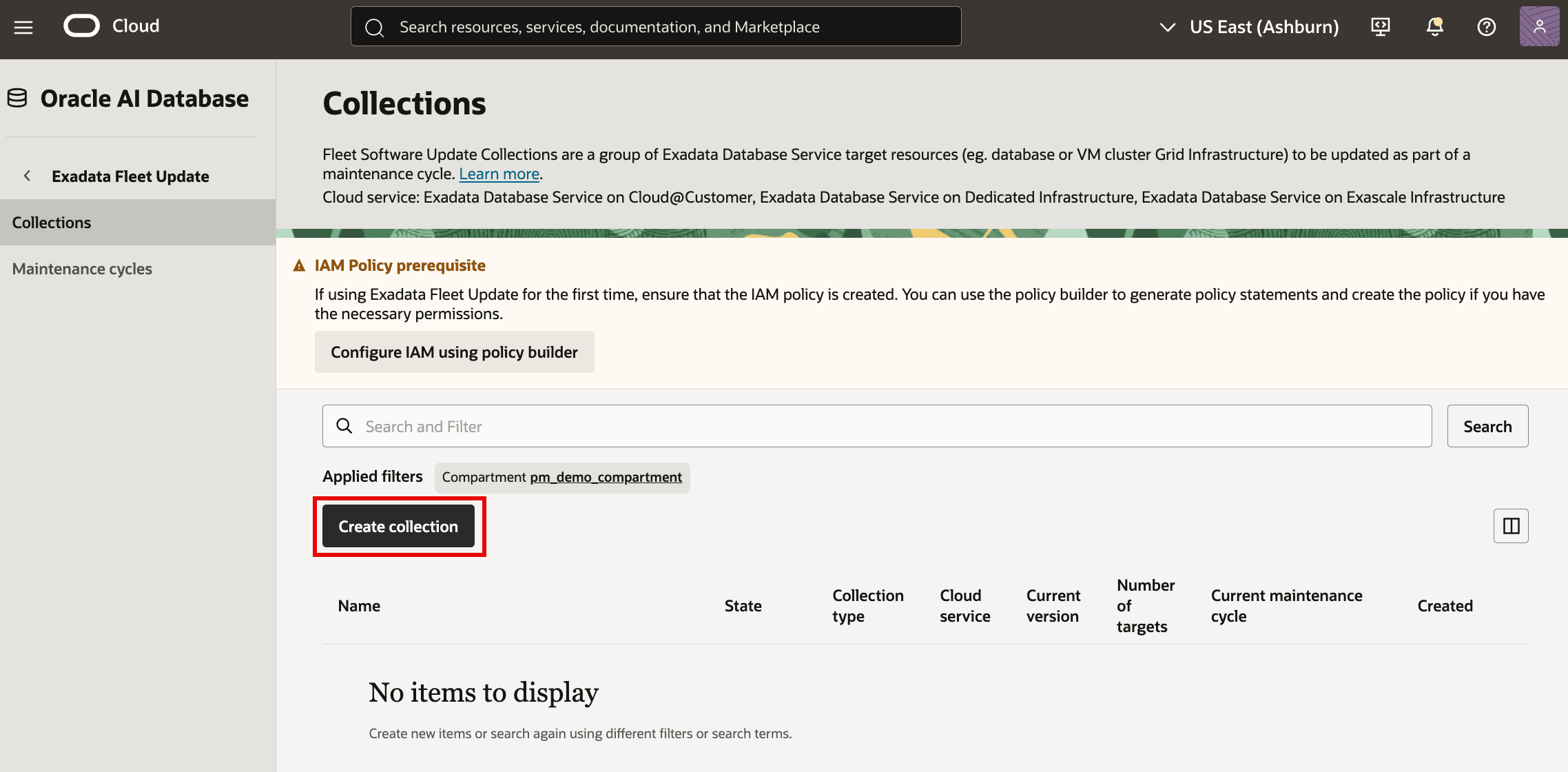
-
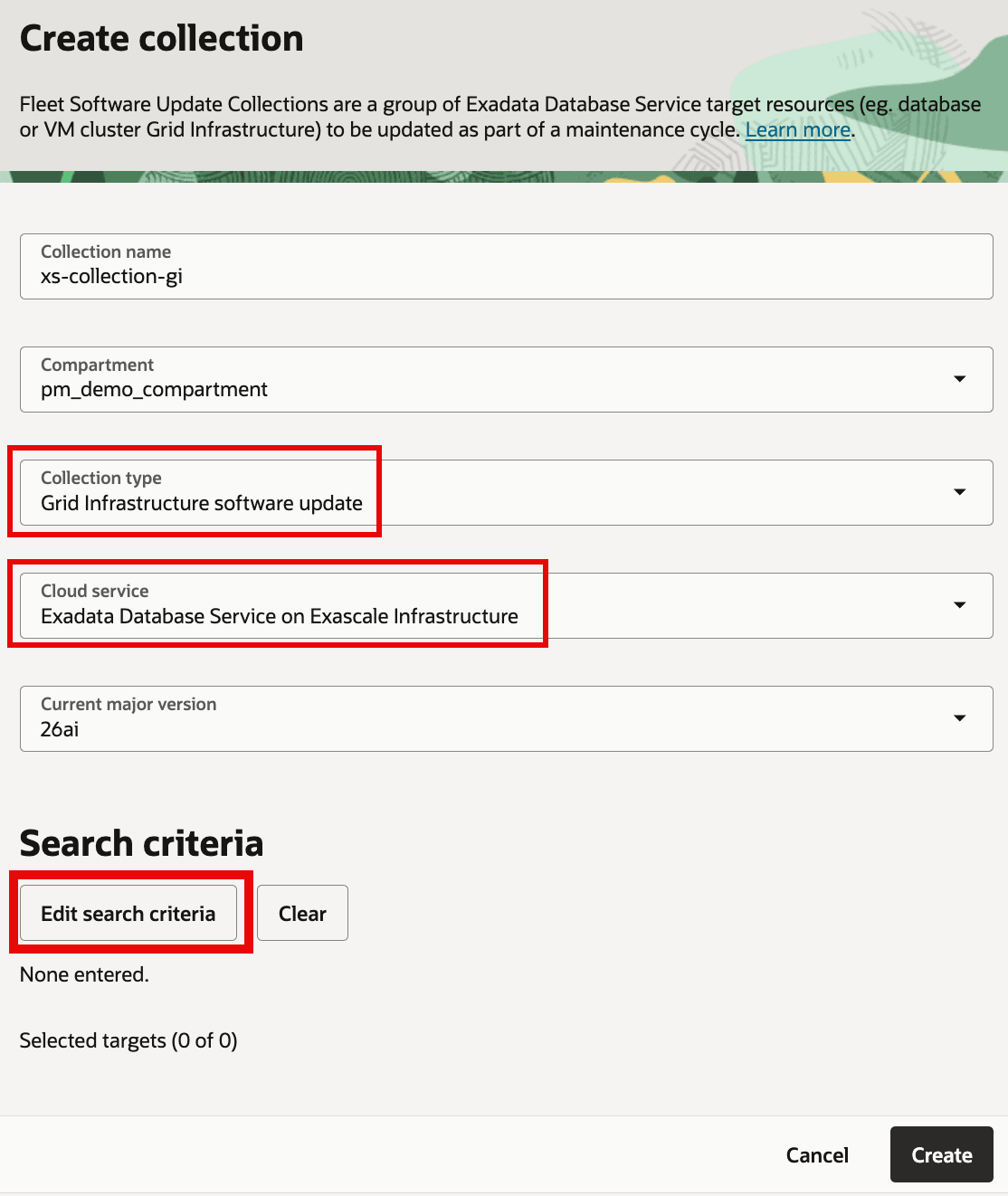
For GI collection, provide details and then click on
Edit search criteria:- Collection name
- Compartment
- Collection type:
Grid Infrastructure software update - Cloud service:
Oracle Exadata Database Service on Exascale Infrastructure -
Current major version
-
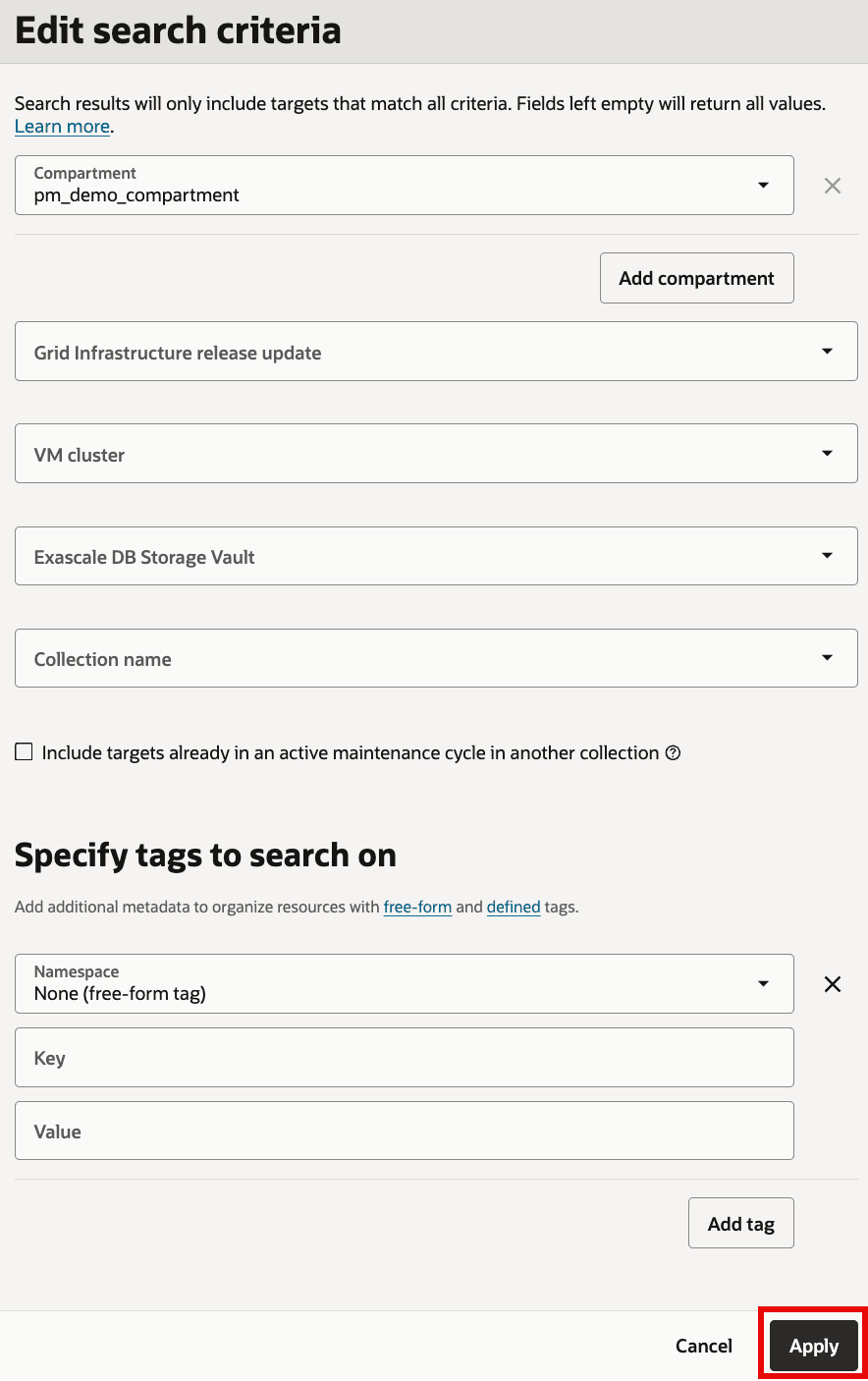
In search criteria, filter targets by different attributes as needed.
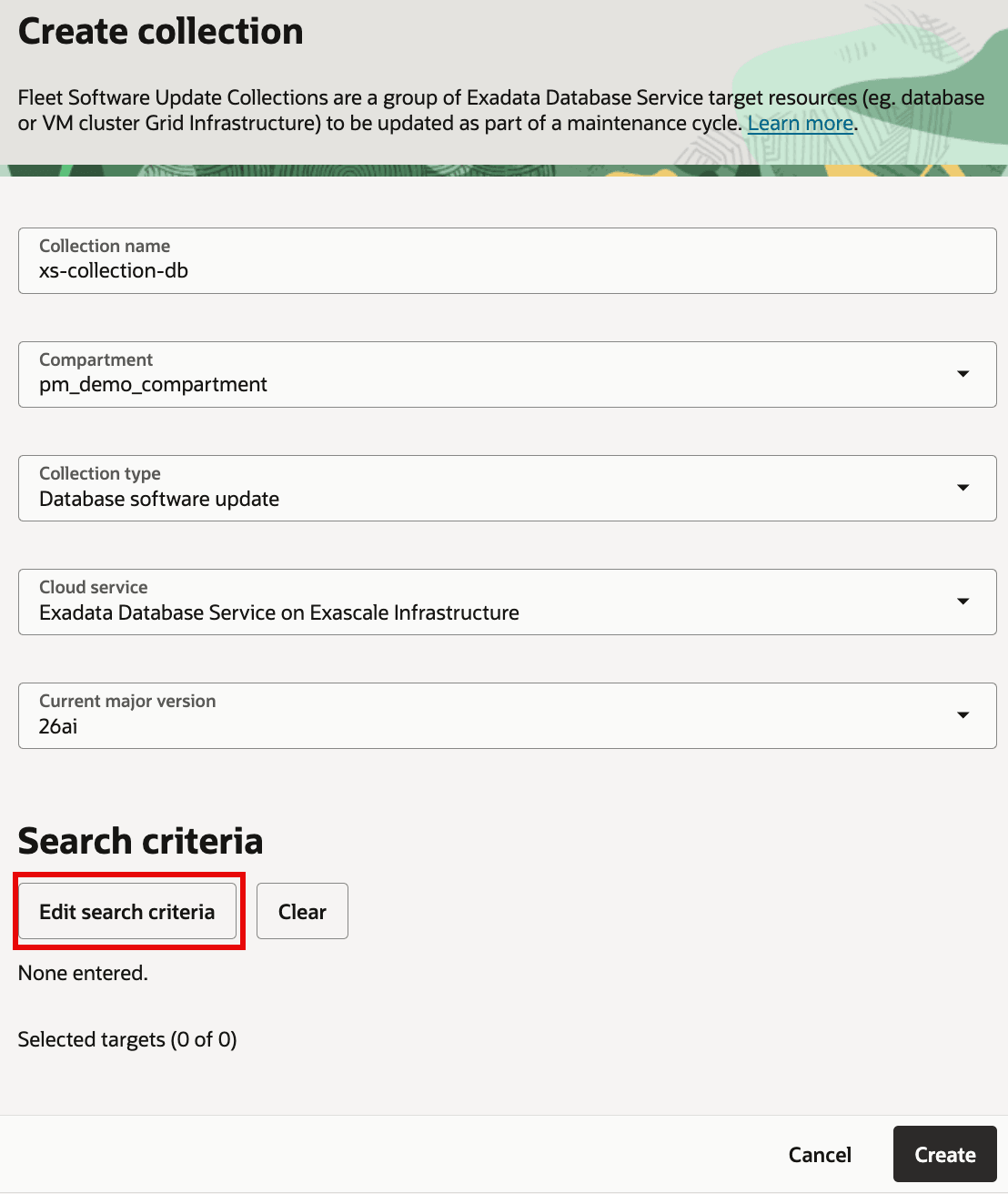
- Similarly, for Database collection, provide details and then click on
Edit search criteria:- Collection name
- Compartment
- Cloud service:
Oracle Exadata Database Service on Exascale Infrastructure - Collection type:
Database software update -
Current major version
-
In search criteria, filter targets by different attributes as needed.
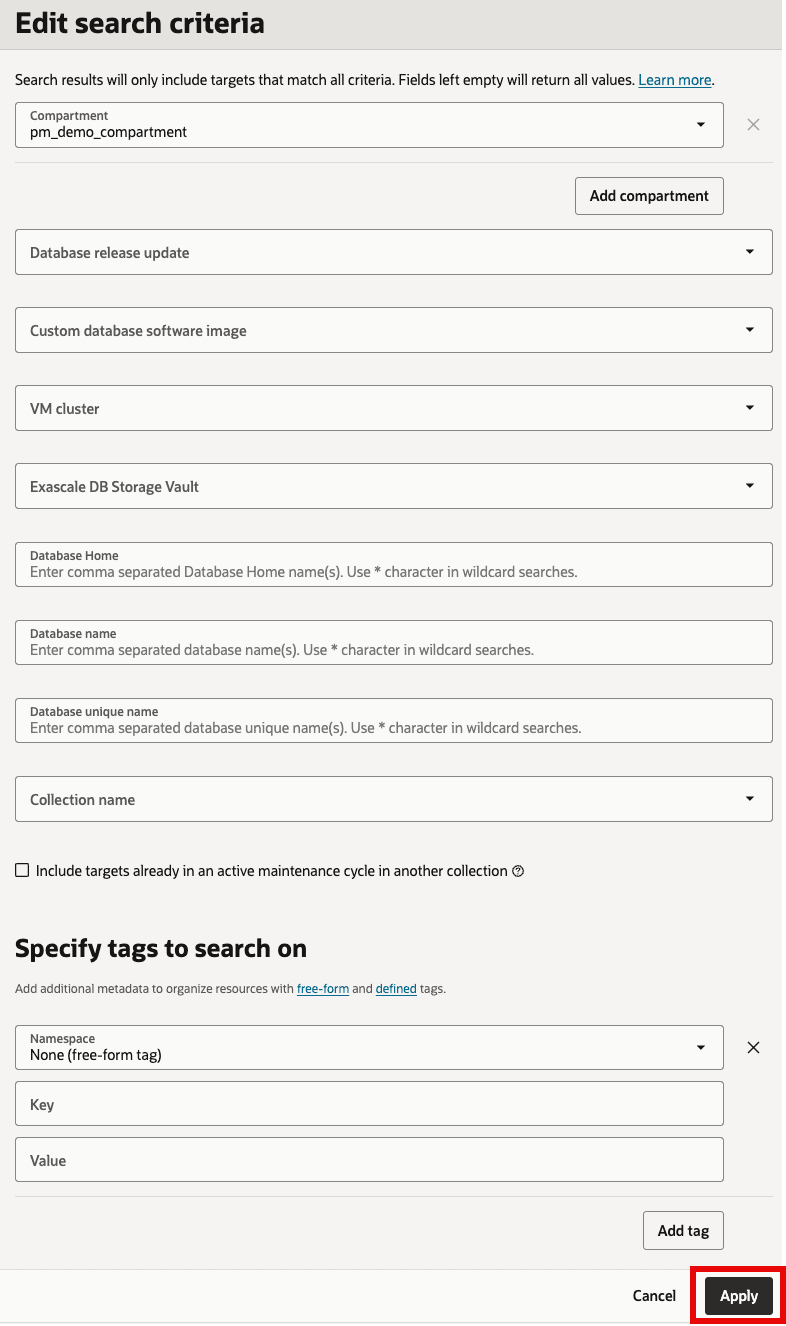
-
Review selected targets and click
Create.-
For GI collection:
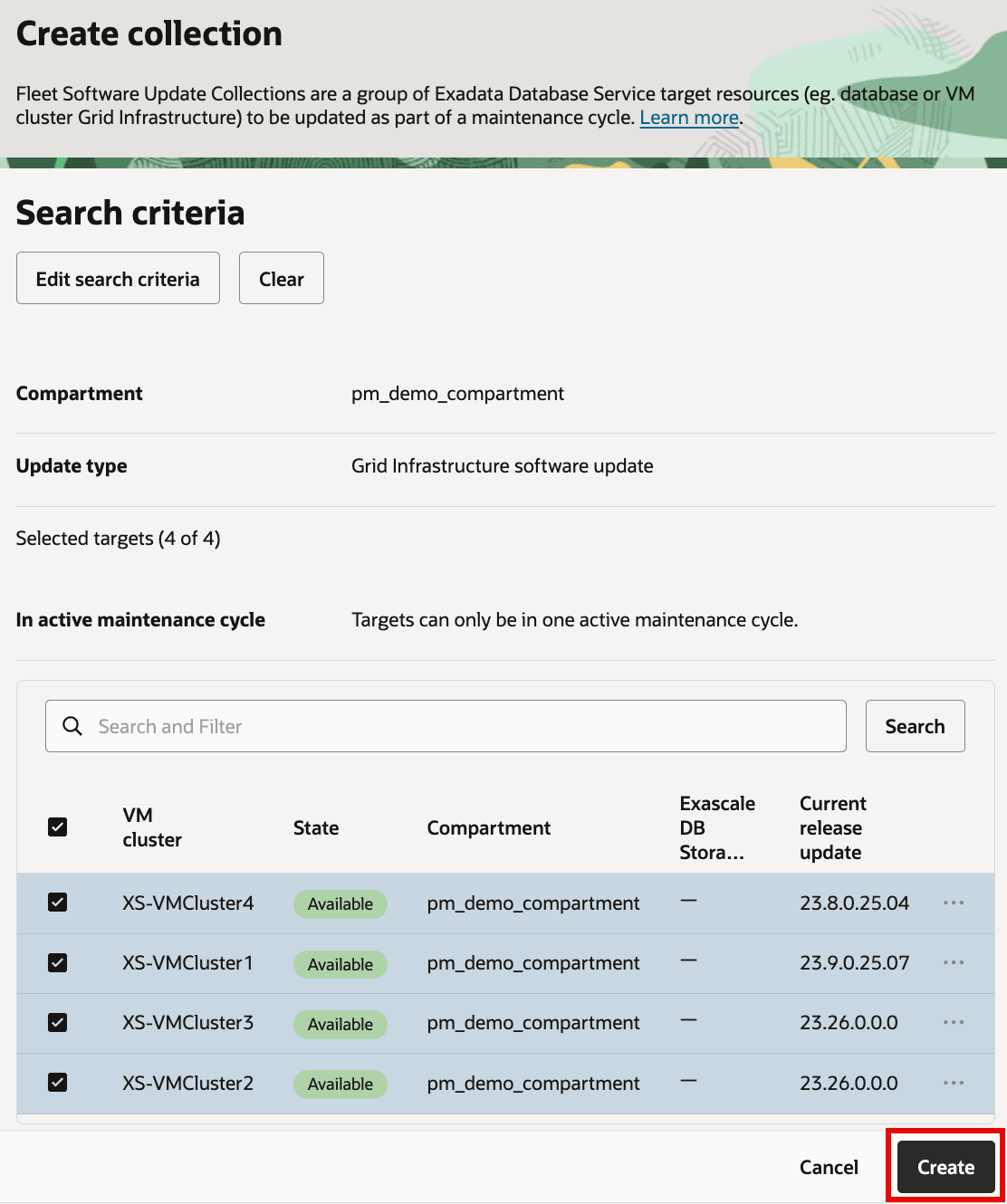
Description of the illustration GICollectionSelectTargets.png
-
For Database collection:
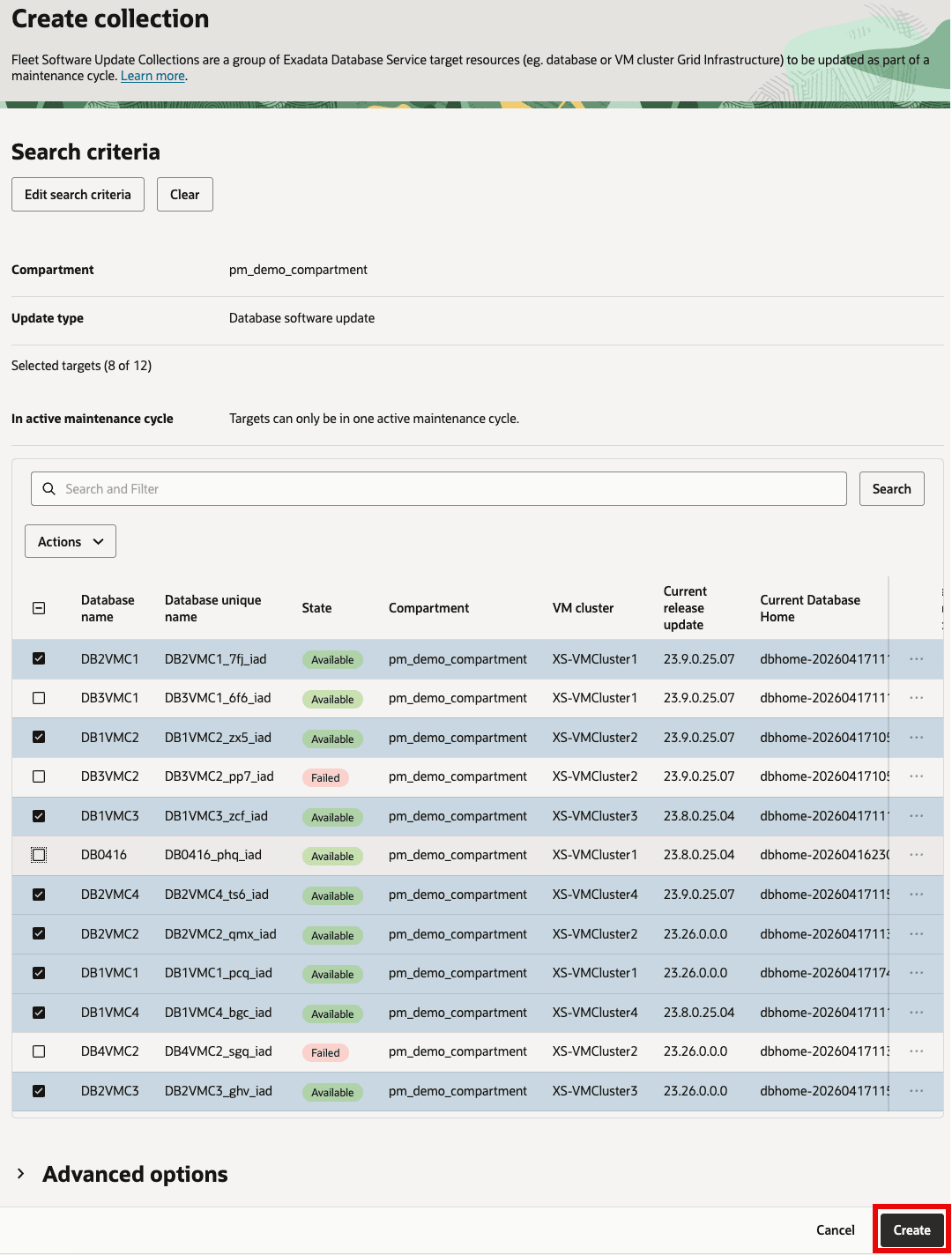
Description of the illustration DBCollectionSelectTargets.png
-
-
Once collection is created, check its details and targets in the collection
-
GI collection:
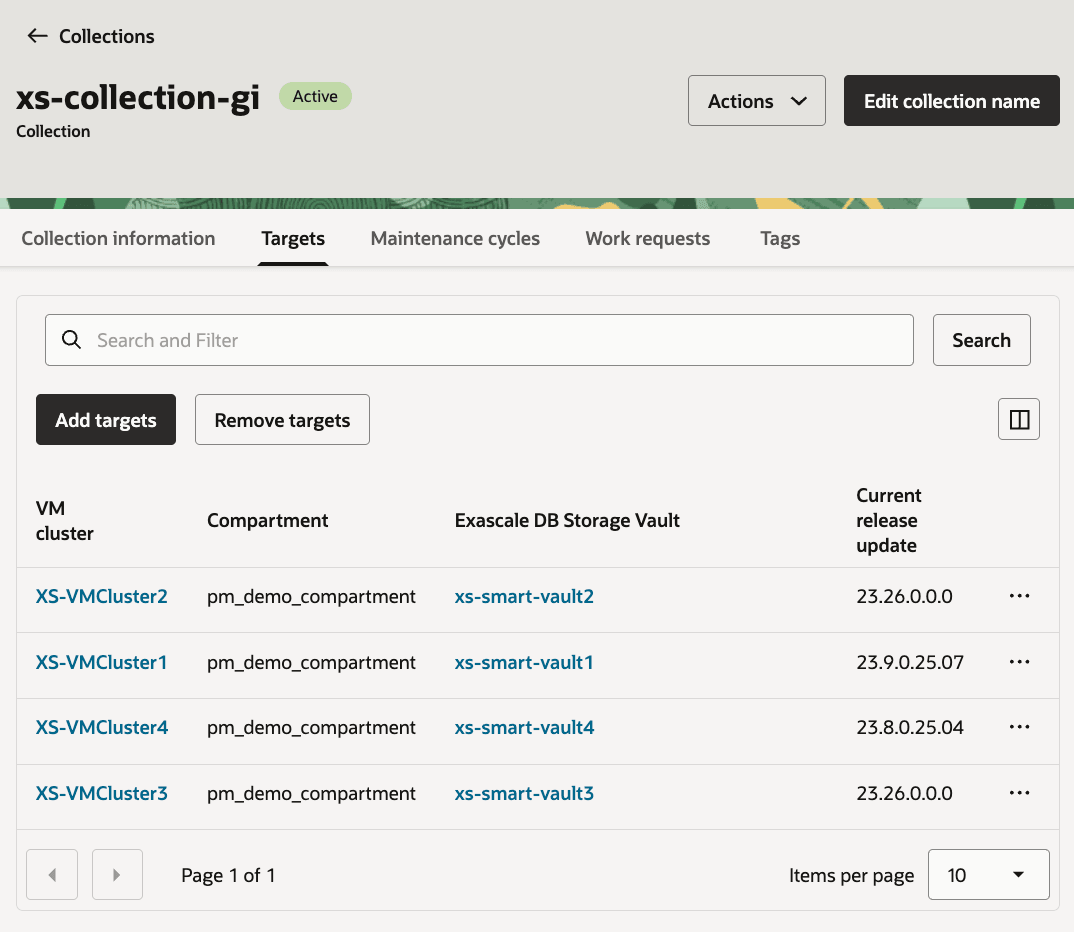
Description of the illustration GICollectionTargetDetails.png
-
Database collection:
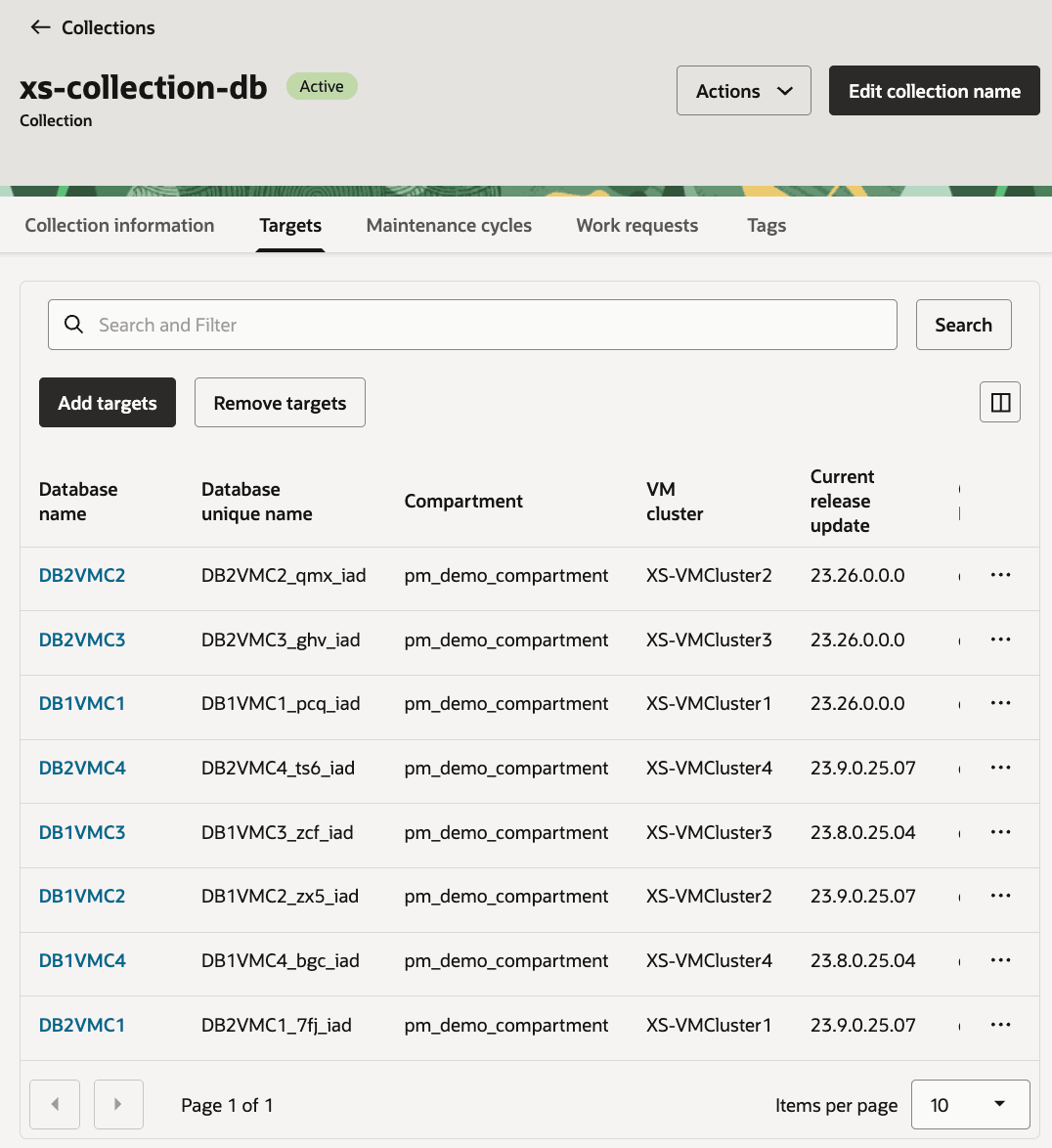
Description of the illustration DBCollectionTargetDetails.png
-
Task 2: Create maintenance cycle for GI collection
-
Open GI collection and under
Maintenance cyclestab, clickCreate maintenance cycle.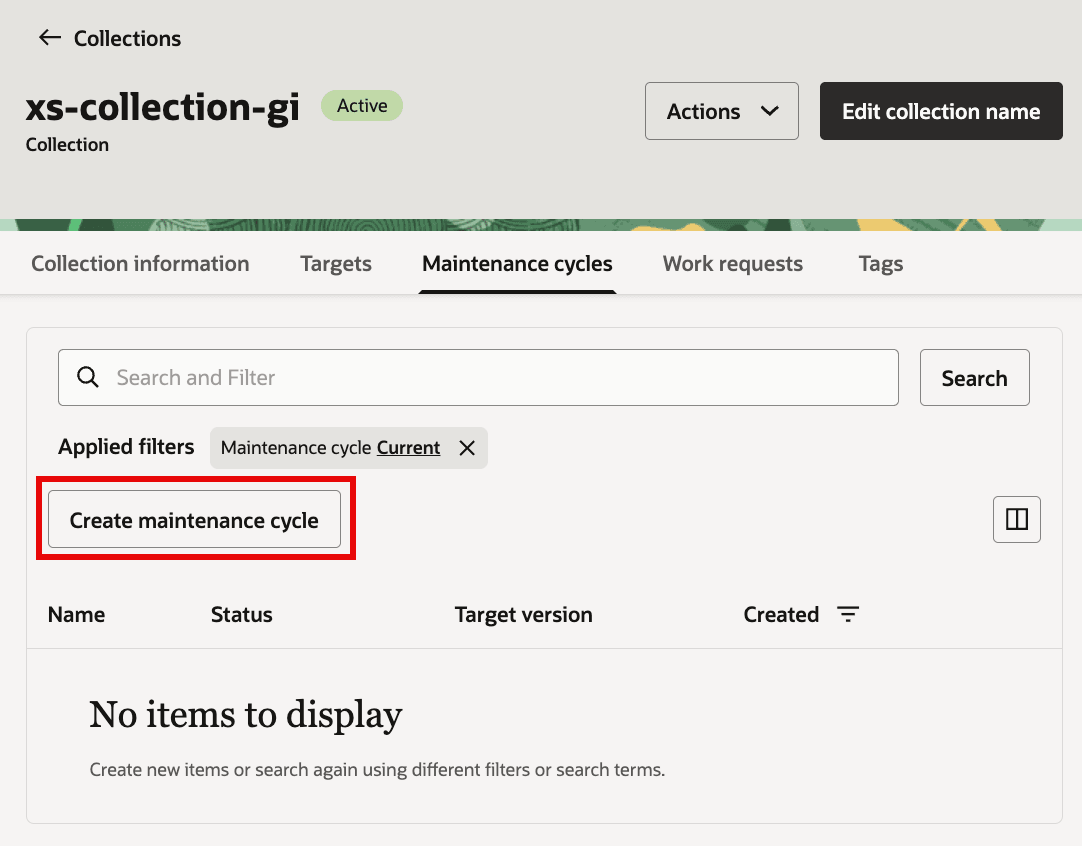
Description of the illustration GICreateMaintenanceCycle1.png
-
Provide values for:
- Enter cycle name:
- Choose target GI image:
- Select maintenance method:
- Provide schedule for
Stage softwareandApply updateor leave it blank to run maintenance action on demand. - Select option for
Incident logs and trace collection -
From
Advanced options: configureMaximum drain timeout (in seconds),Keep service placement,Ignore missing patches,Force rolling patch, andTags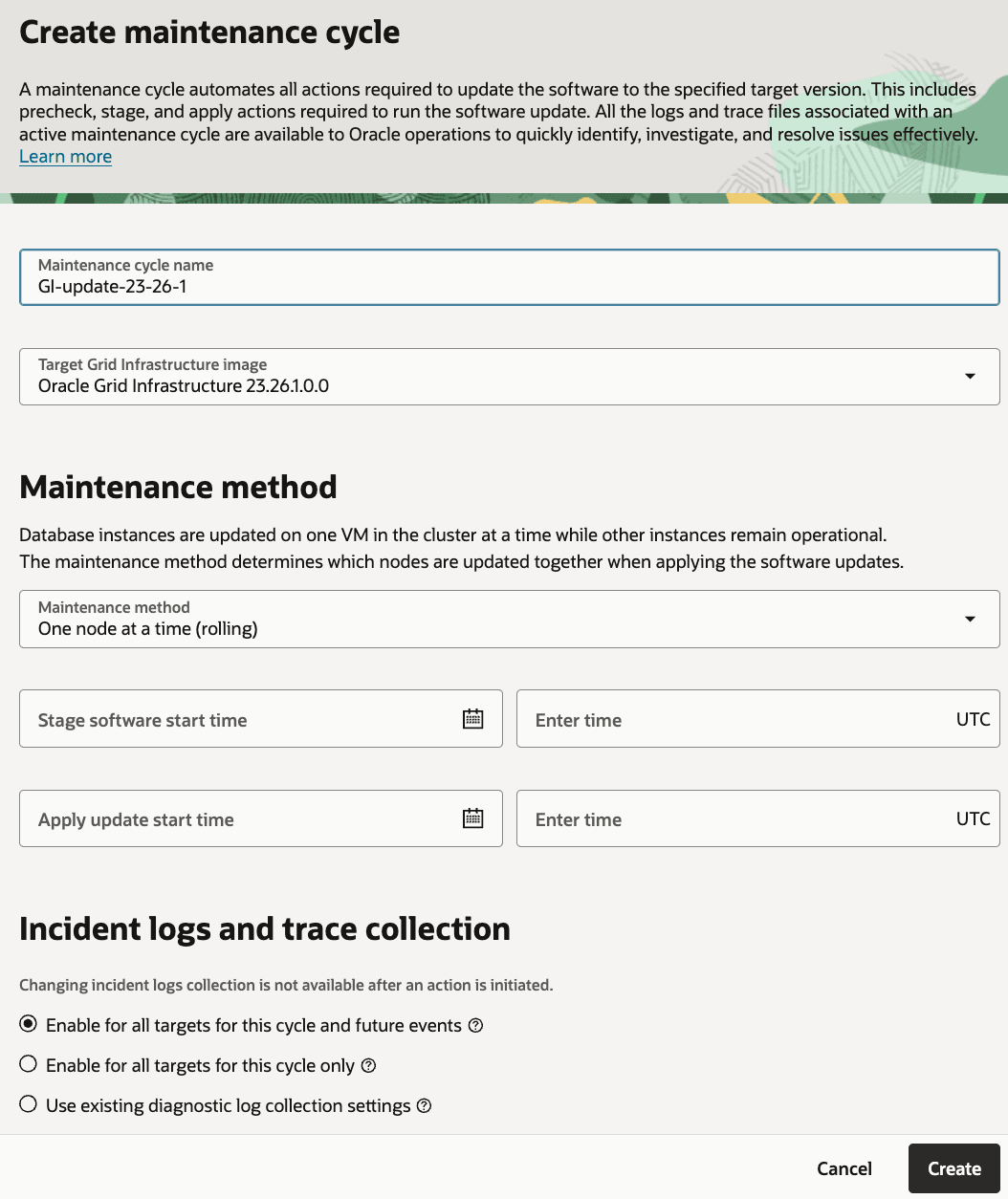
Description of the illustration GICreateMaintenanceCycle2.png
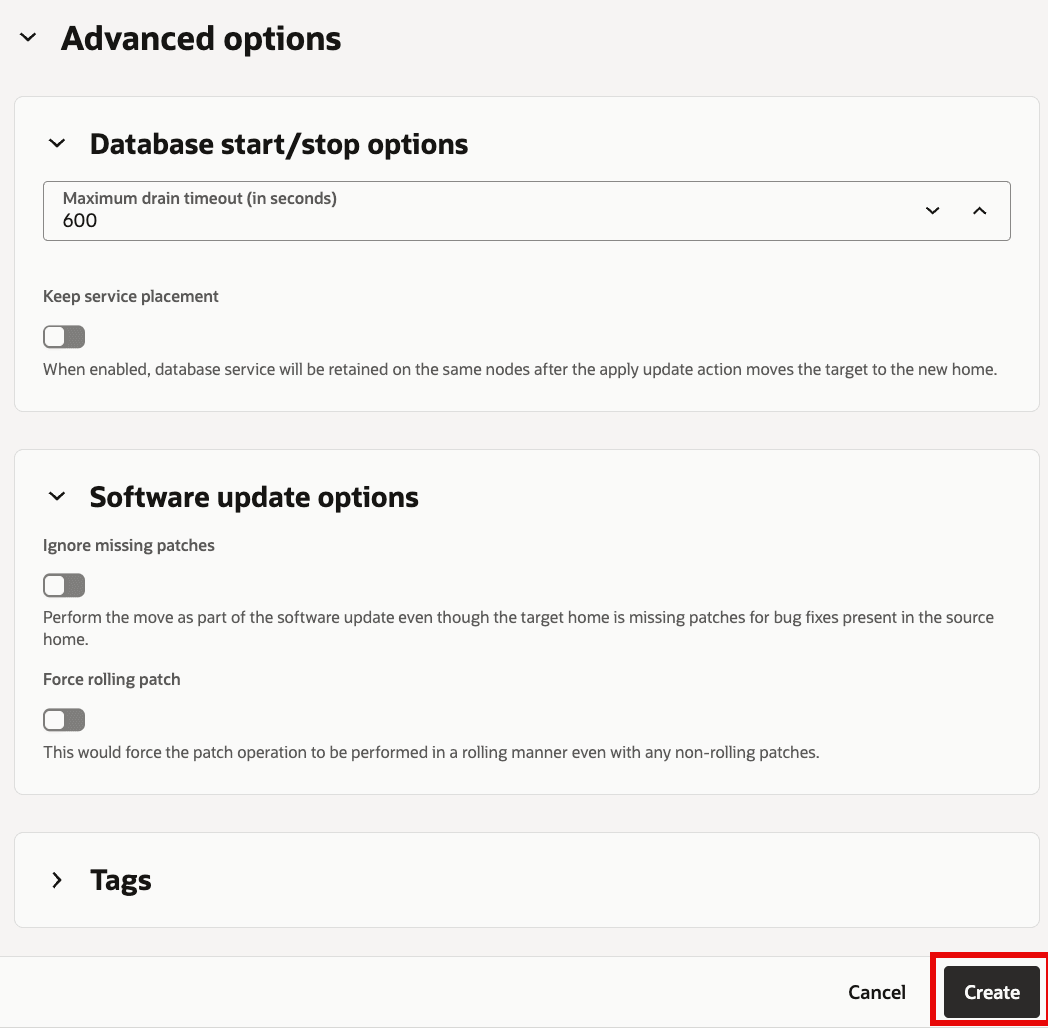
Description of the illustration GiCreateMaintenanceCycle3.png
Task 3: Run maintenance actions for the GI targets collection
-
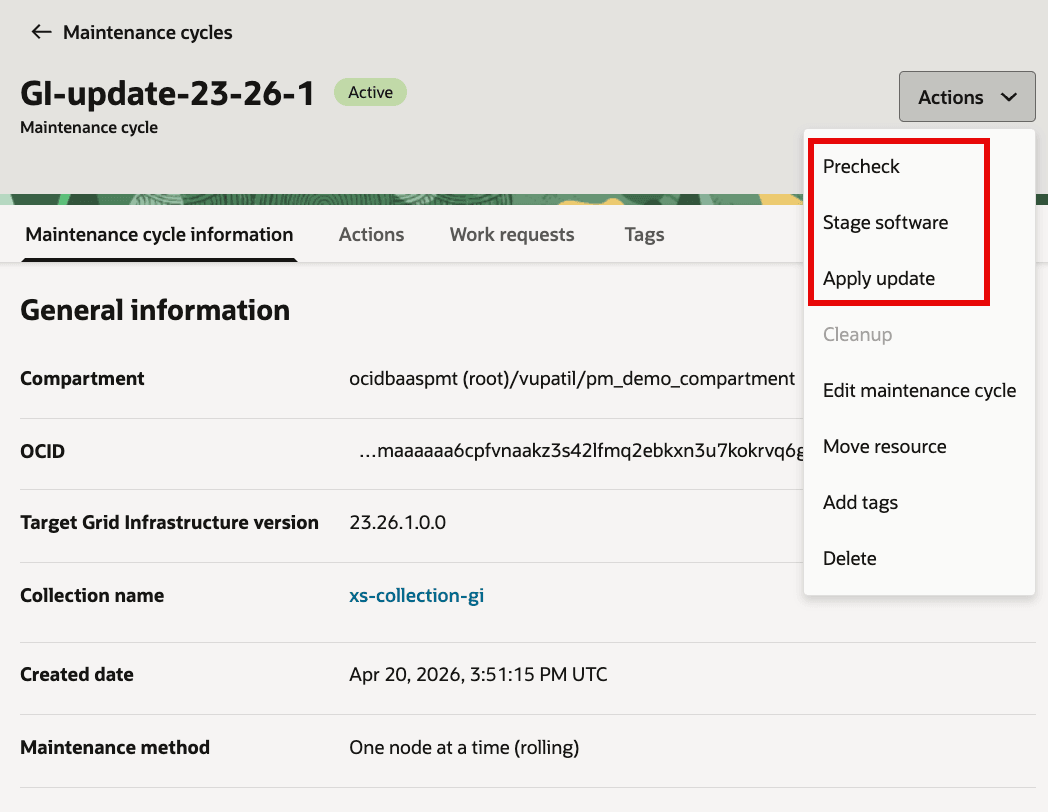
Open maintenance cycle details for GI collection and click
Actionsdrop down to run each action now or schedule it.For each maintenance cycle, actions run in this order:
Precheck (Stage)Stage softwarePrecheck (Apply)Apply update
-
Run
Precheckprior to staging software.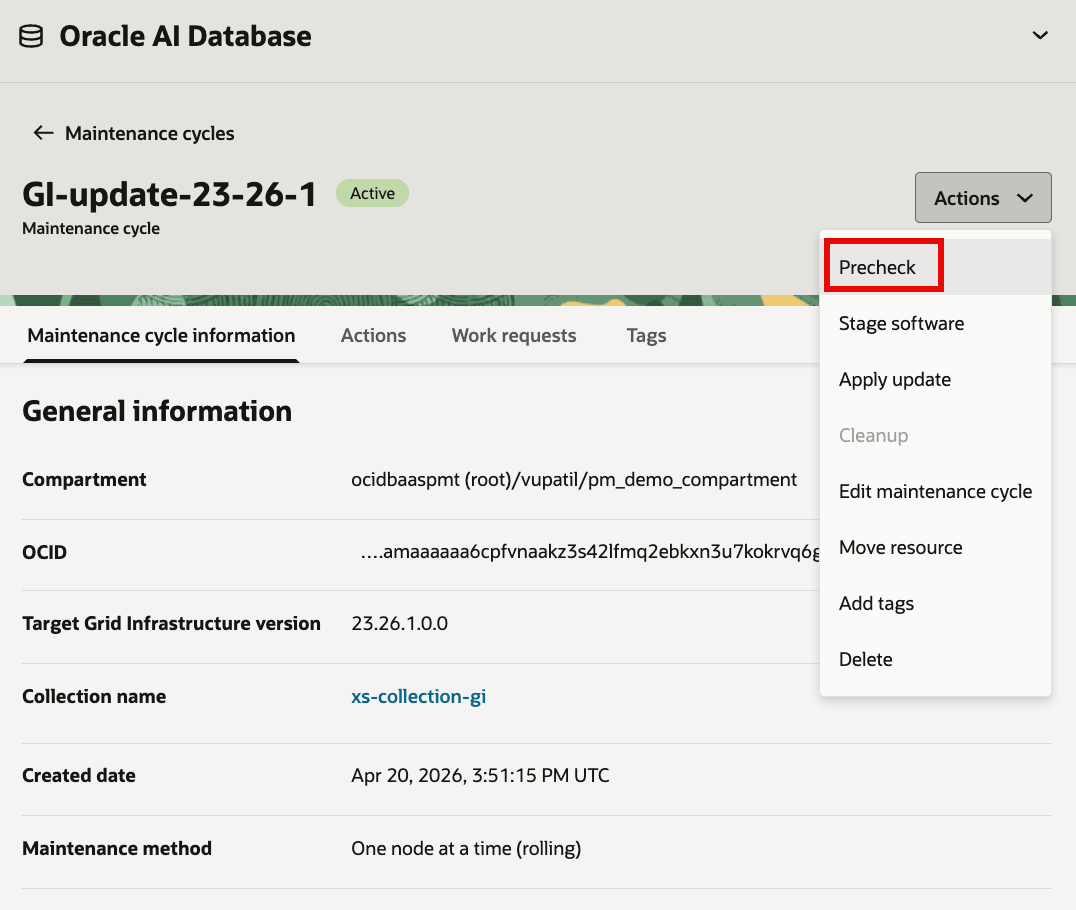
Description of the illustration GI_MC_Precheck1.png
You can schedule the maintenance action of precheck or run it on-demand.
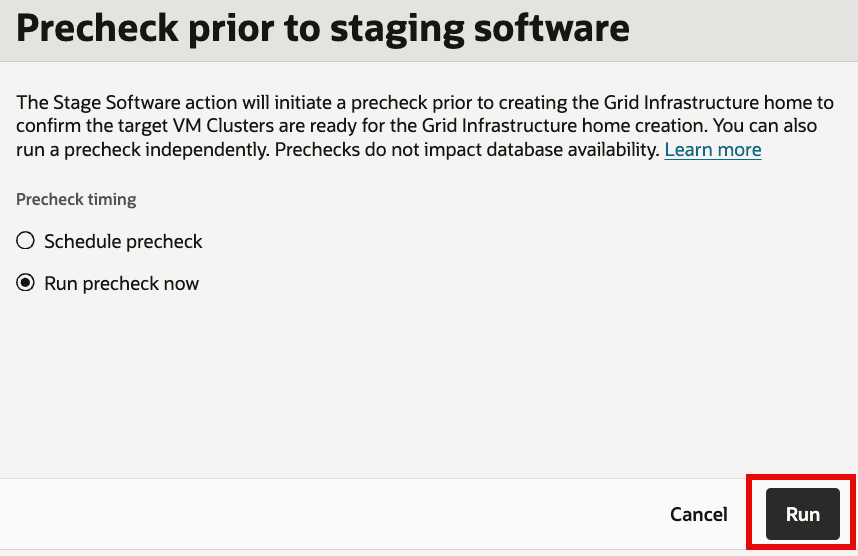
Description of the illustration GI_MC_Precheck2.png
For each target in the GI collection, a job is created.
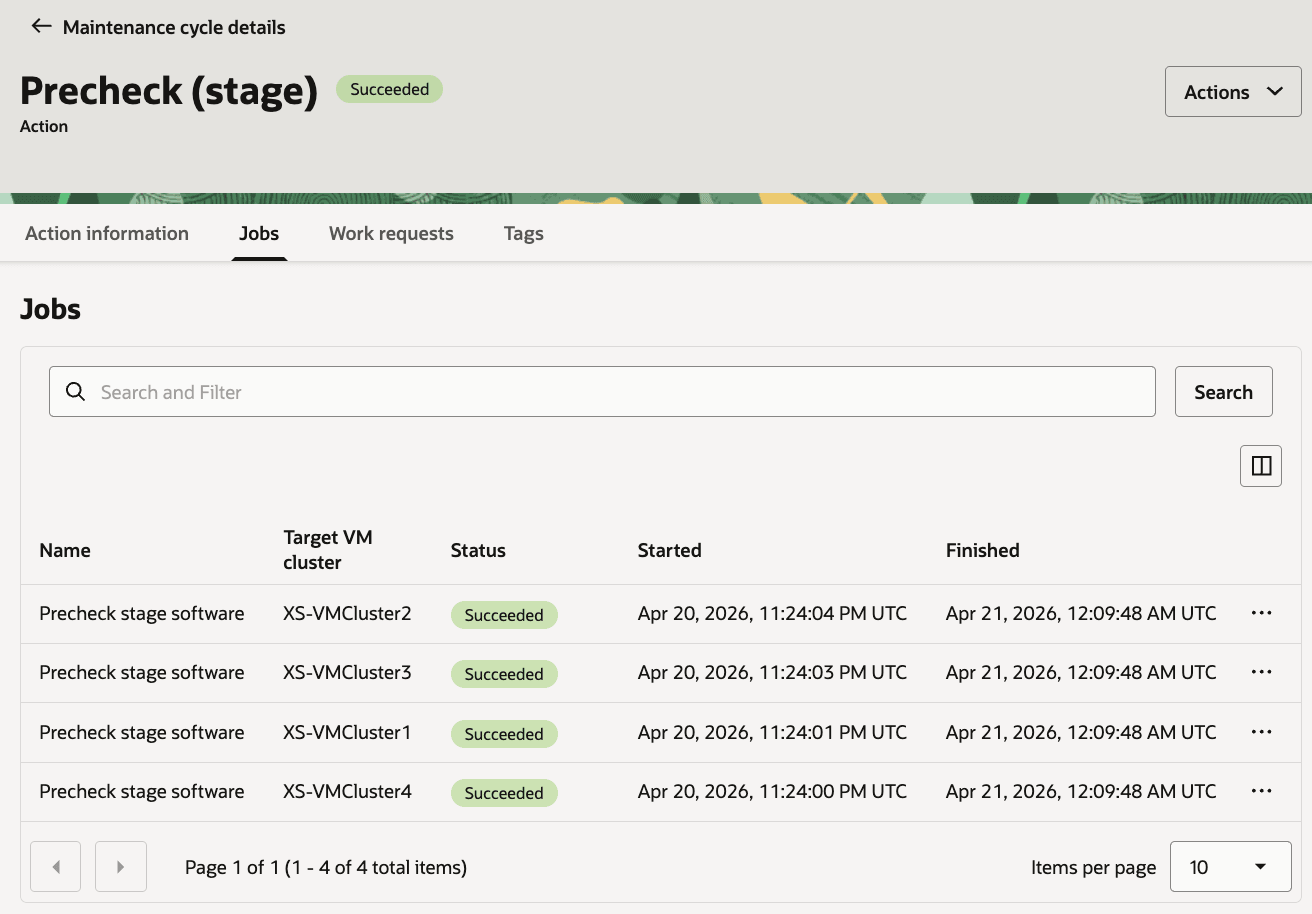
Description of the illustration GI_MC_Precheck7.png
For failed jobs, logs can be viewed and failed targets can be retried after fixing the reported issue.
-
After successful precheck maintenance action, run
Stage software.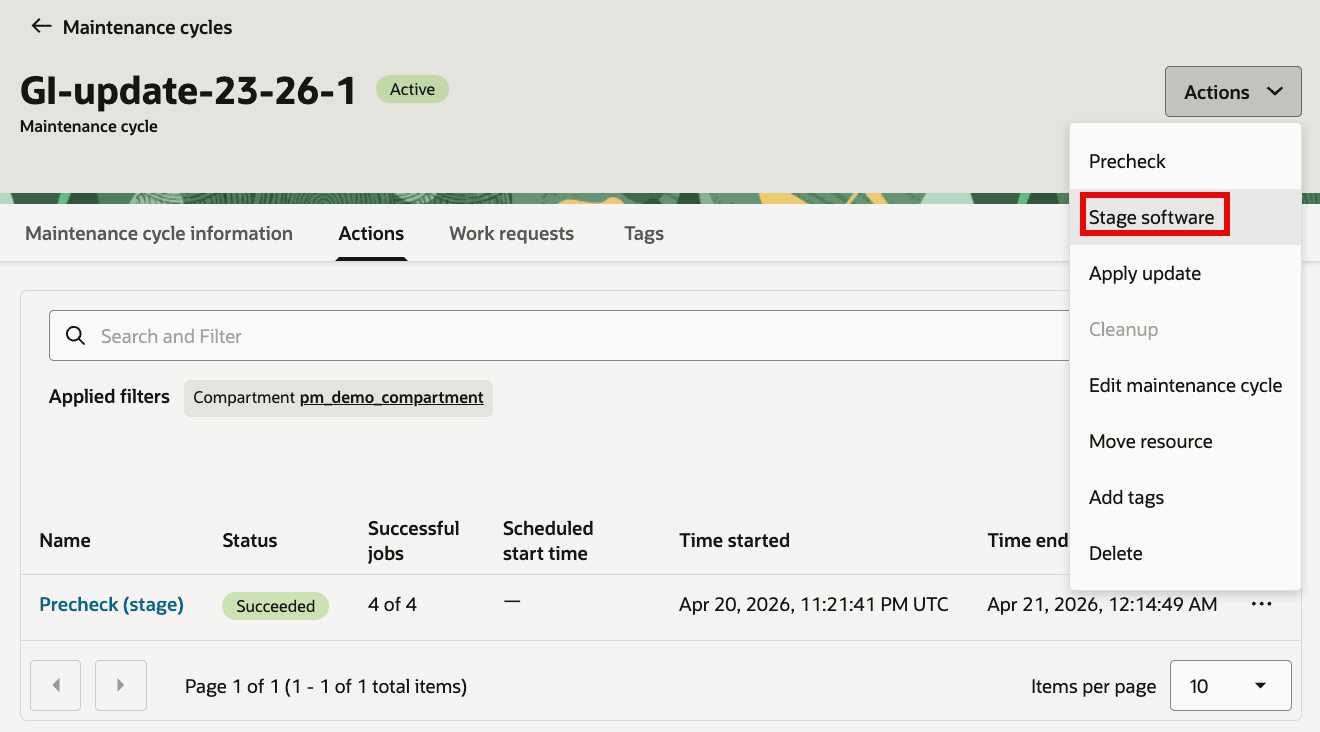
Description of the illustration GI_MC_Stage1.png
You can schedule the maintenance action of stage software or run it on-demand.
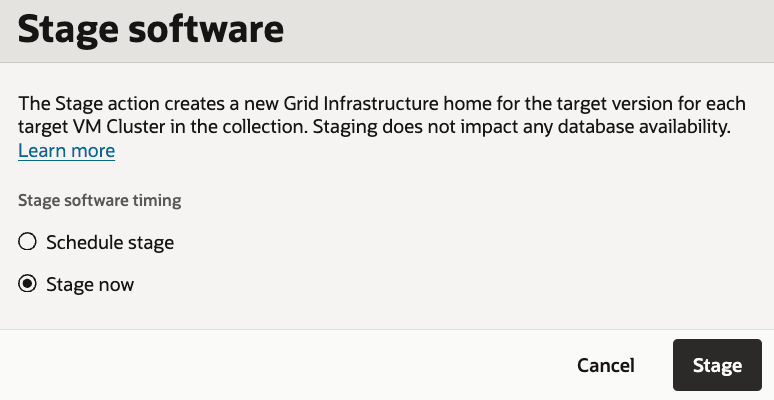
Description of the illustration GI_MC_Stage2.png
Monitor job created for each target in the GI collection for any failures.
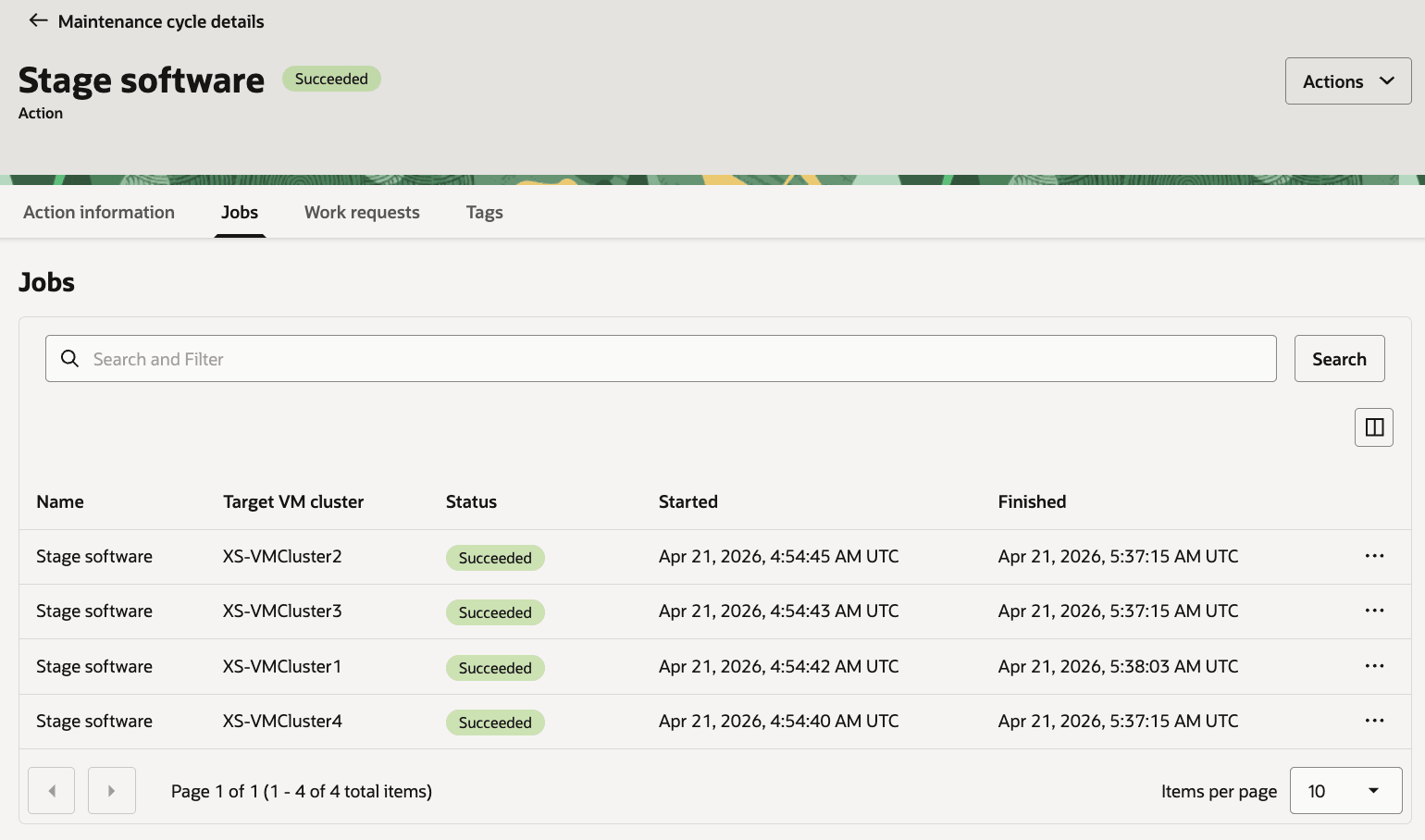
Description of the illustration GI_MC_Stage5.png
For failed jobs, logs can be viewed and failed targets can be retried after fixing the reported issue.
-
After successfully staging software on the GI targets in the collection, run
Precheck (Apply)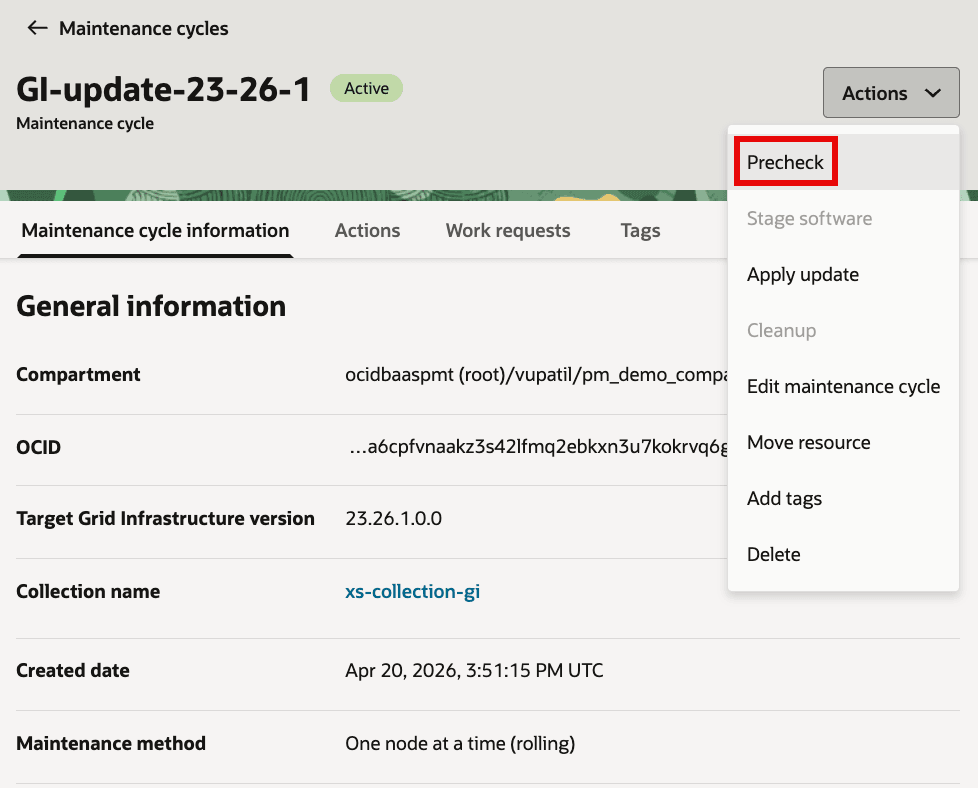
Description of the illustration GI_MC_ApplyPrecheck1.png
You can schedule the maintenance action of precheck or run it on-demand.
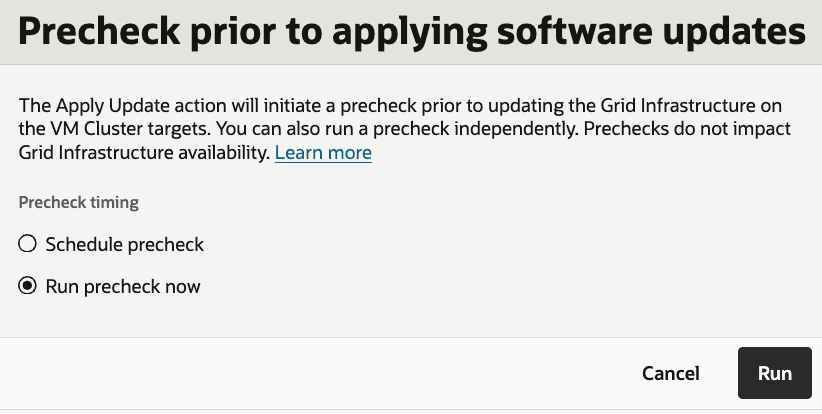
Description of the illustration GI_MC_ApplyPrecheck2.png
Monitor job created for each target in the GI collection for any failures.
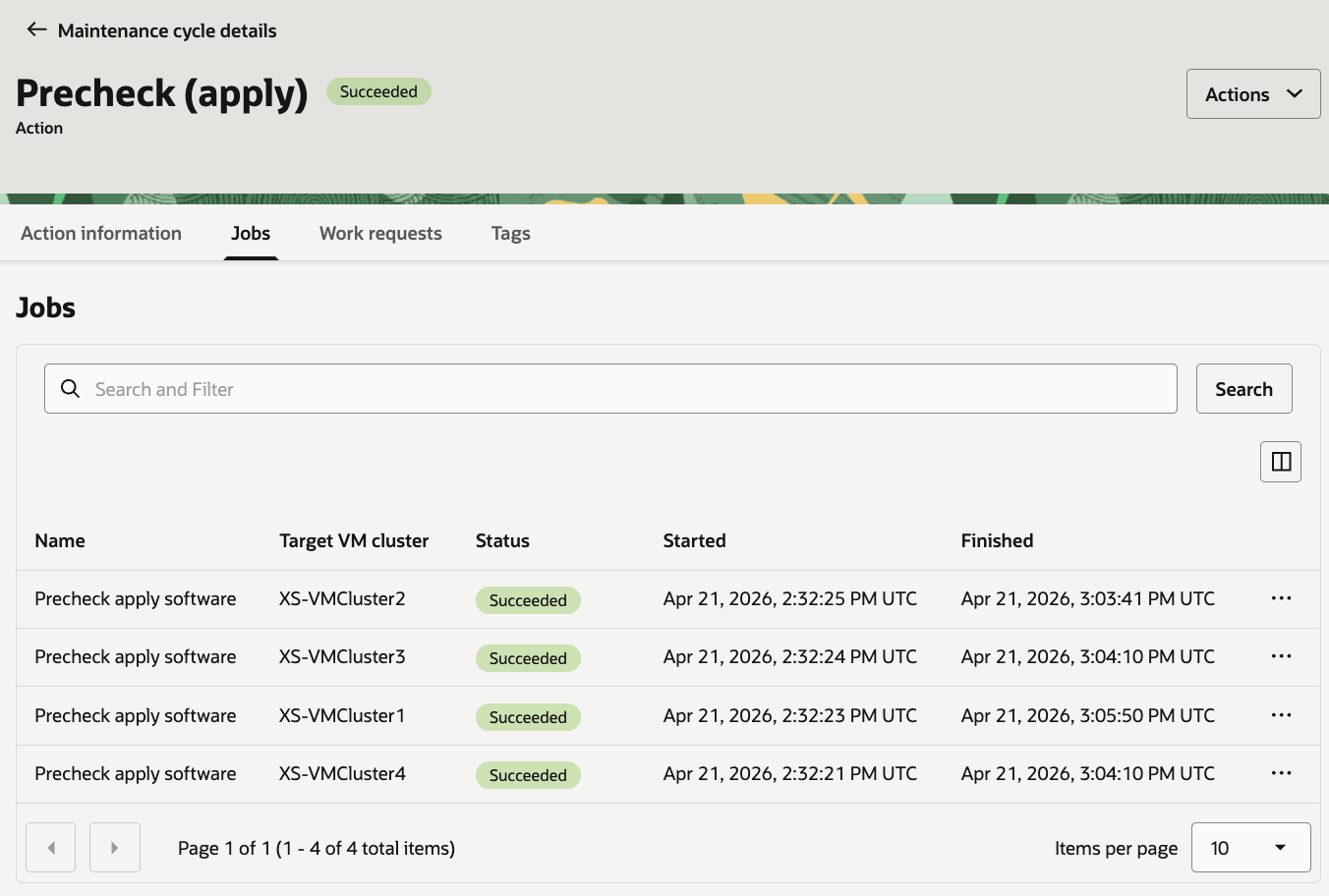
Description of the illustration GI_MC_ApplyPrecheck4.png
For failed jobs, logs can be viewed and failed targets can be retried after fixing the reported issue.
-
Run maintenance action
Apply updateto update the GI software of targets in the GI collection.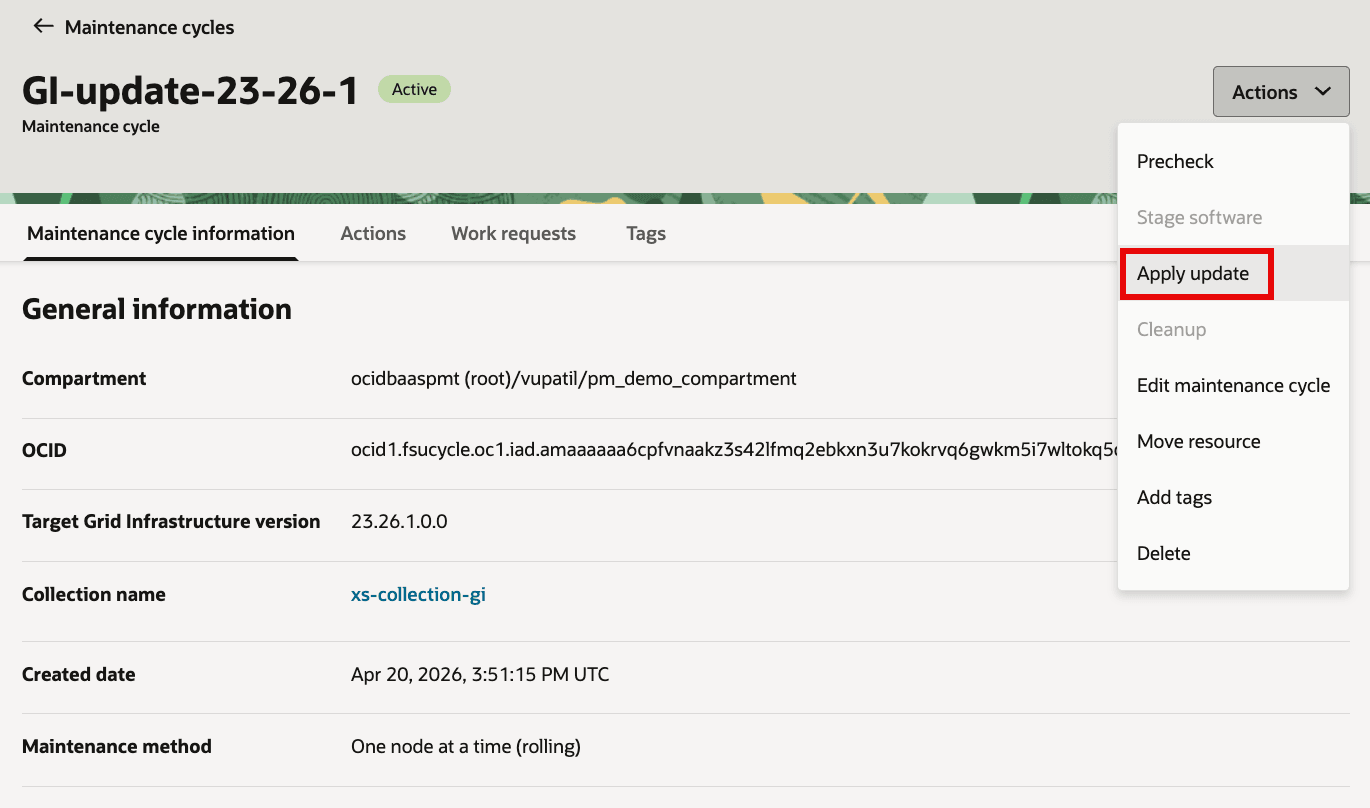
Description of the illustration GI_MC_Apply1.png
You can schedule the maintenance action of
Apply updateor run it on-demand.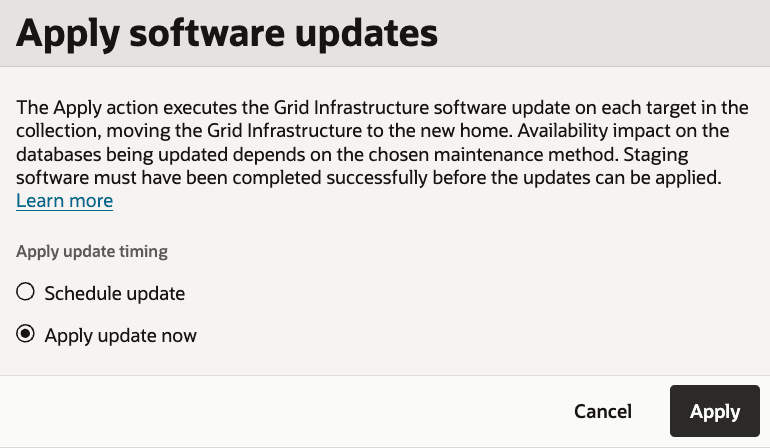
Description of the illustration GI_MC_Apply2.png
Monitor the jobs created for all the targets in the GI collection.
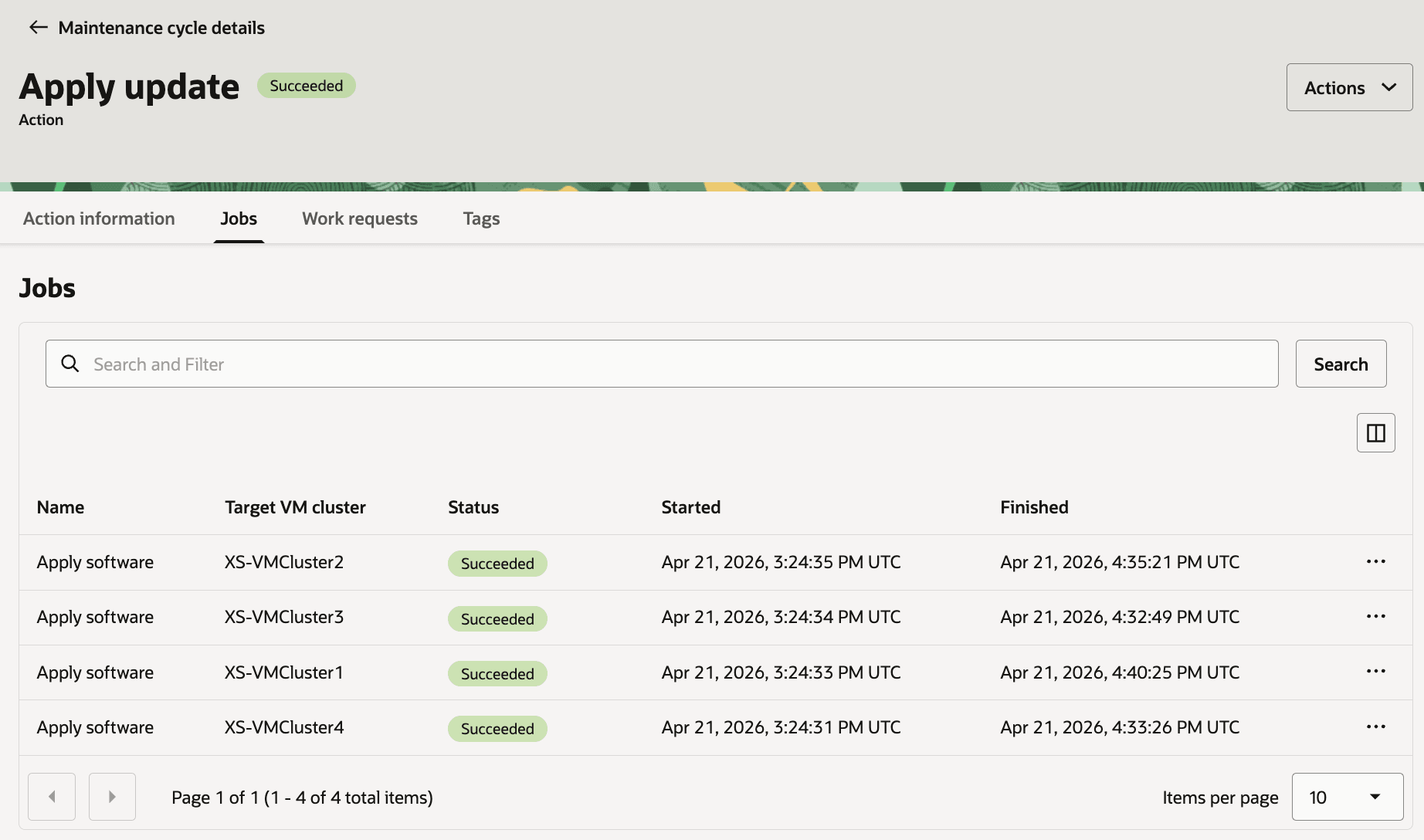
Description of the illustration GI_MC_Apply5.png
For failed jobs, logs can be viewed and failed targets can be retried after fixing the reported issue.
-
Verify all the targets in GI collection are at the GI version selected for maintenance cycle.
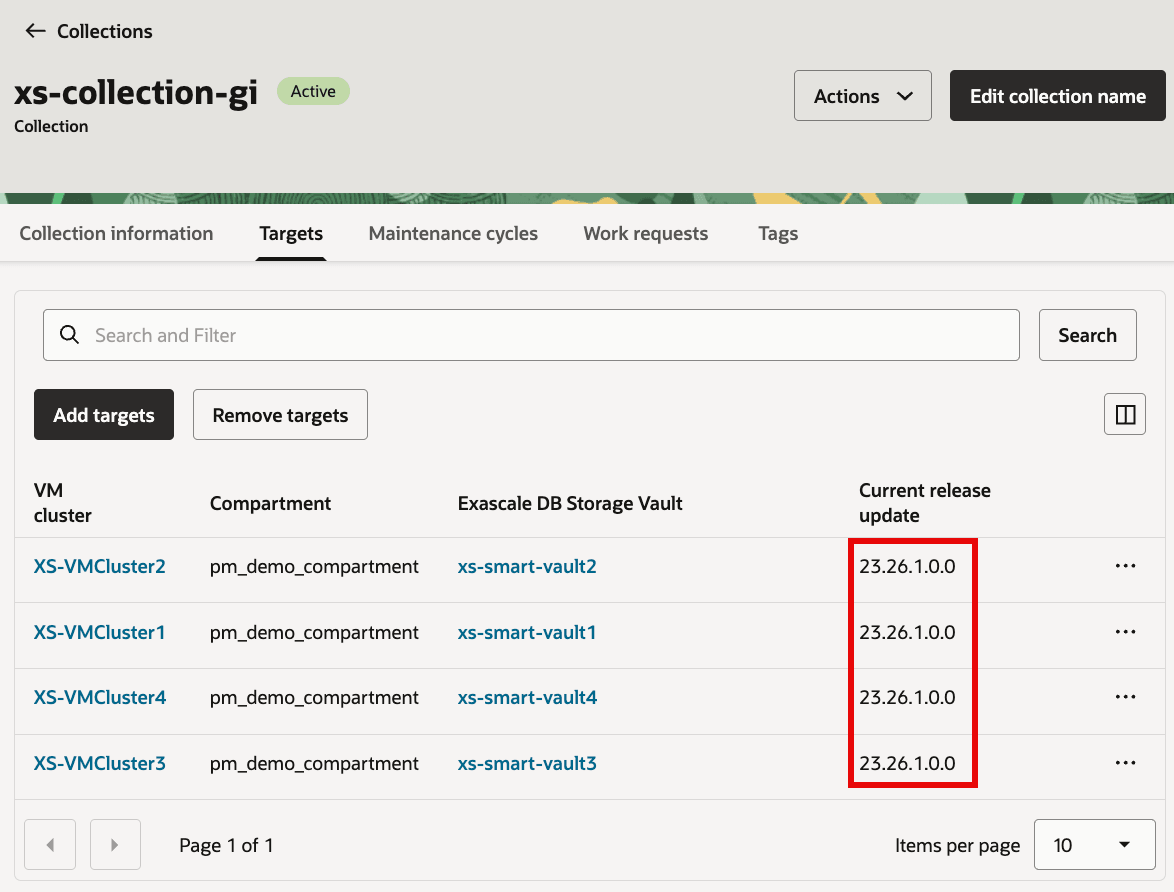
Task 4: Create maintenance cycle for Database collection
-
Open Database collection and under
Maintenance cyclestab, clickCreate maintenance cycle.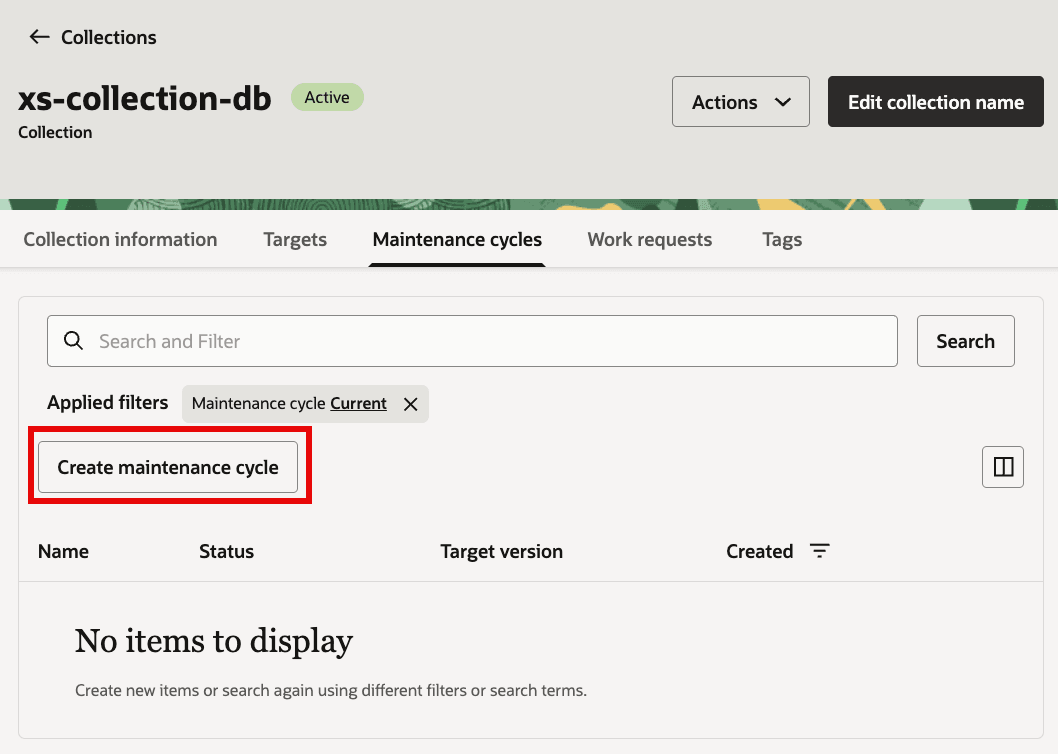
Description of the illustration DBCreateMaintenanceCycle1.png
-
Provide values for:
- Enter cycle name:
- Choose target Database image: (Oracle-provided or custom)
- Select maintenance method:
- Provide schedule for
Stage softwareandApply updateor leave it blank to run maintenance action on demand. - Select option for
Incident logs and trace collection -
From
Advanced options: configureMaximum drain timeout (in seconds),Keep service placement,Ignore missing patches,Force rolling patch, andTags - Select target database image
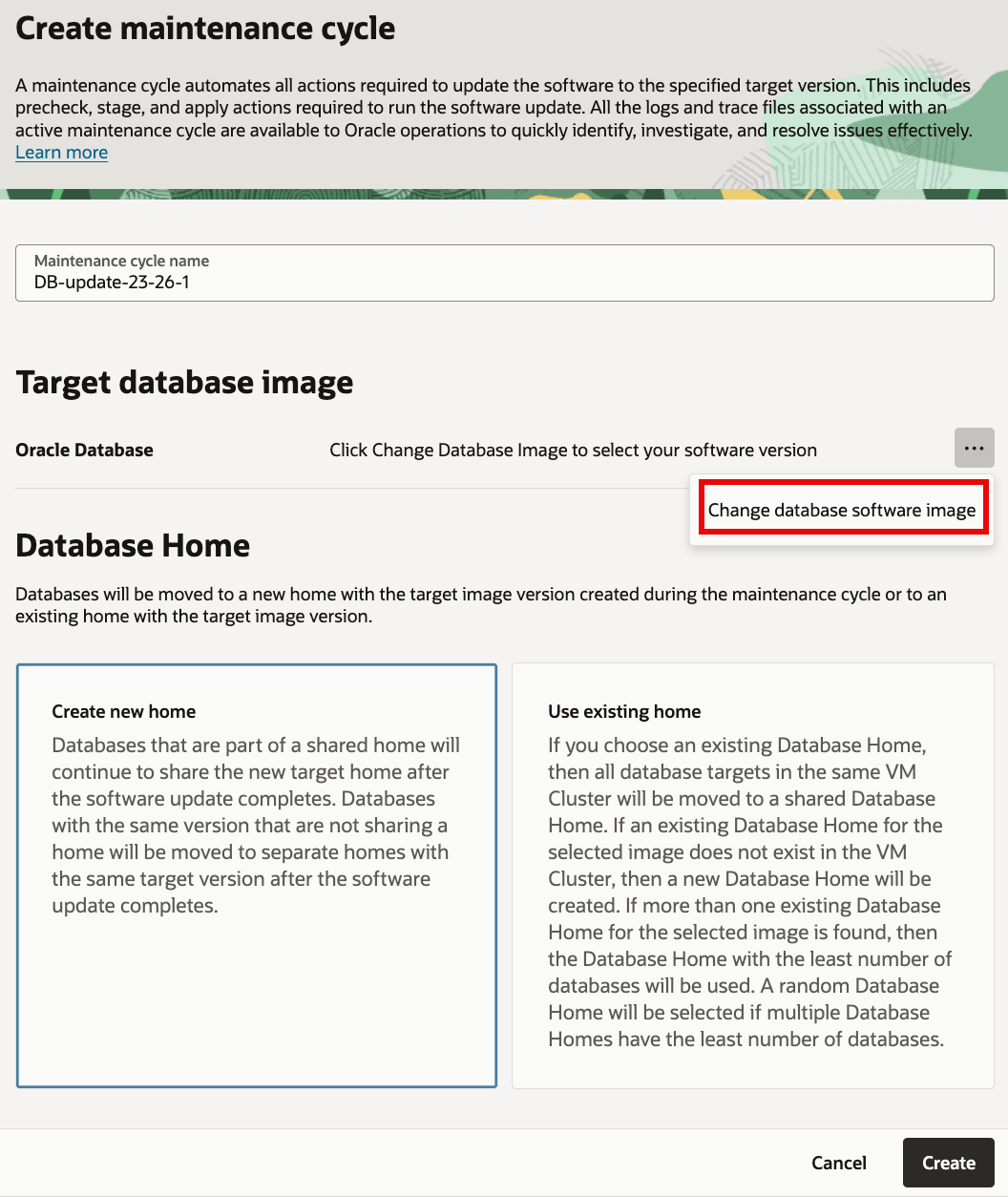
Description of the illustration DBCreateMaintenanceCycle2.png
- Select either Oracle-provided image or custom image. For Oracle-provided image select the version for target database image.
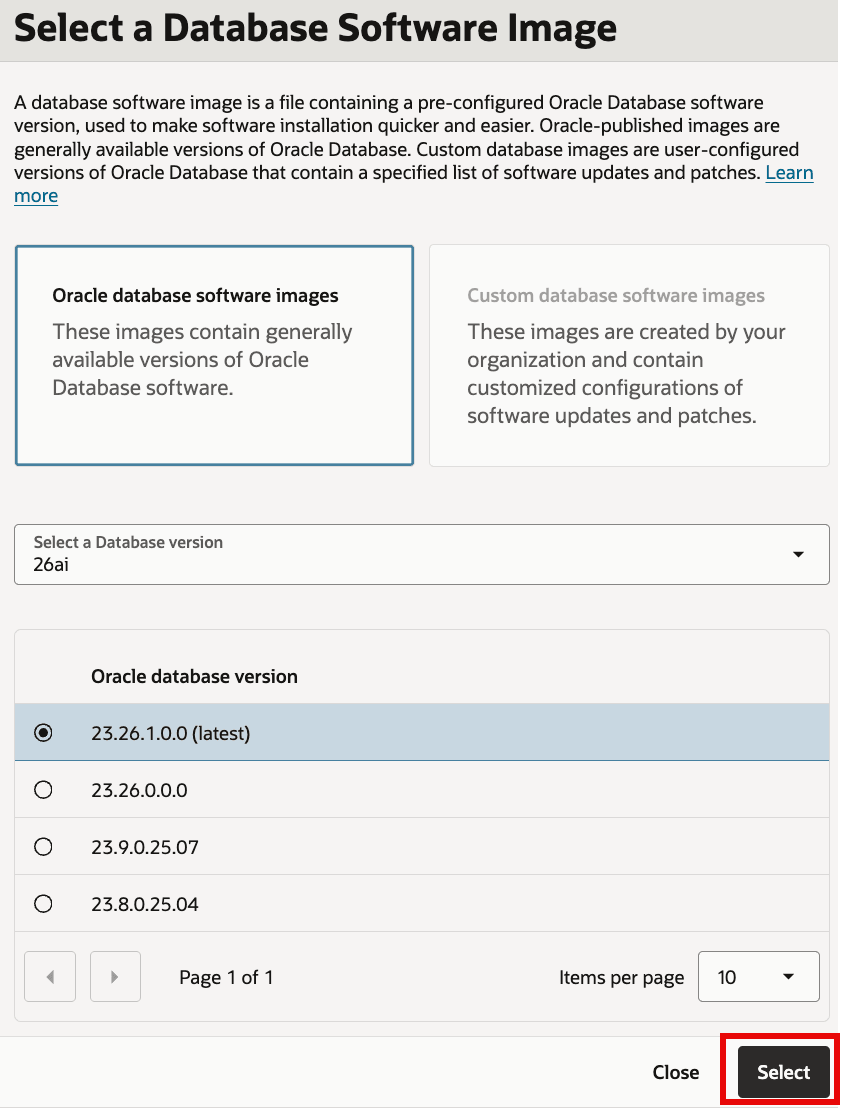
Description of the illustration DBCreateMaintenanceCycle3.png
- Select whether a new home should be created or an existing home (matching target database image version) should be used
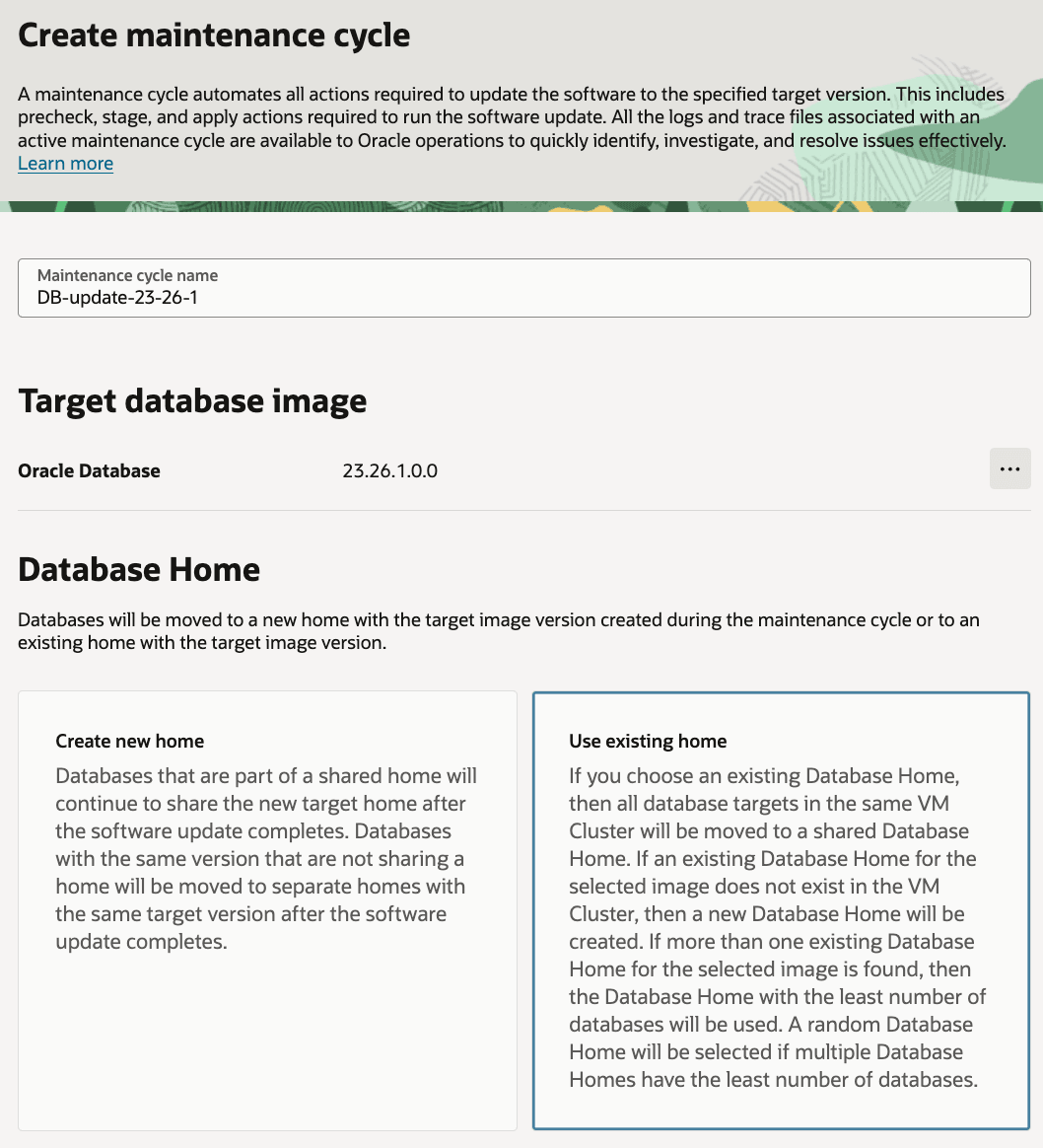
Description of the illustration DBCreateMaintenanceCycle4.png
- Select maintenance method and also provide schedule for
Stage softwareandApply updateor leave it blank to run maintenance actions on demand.
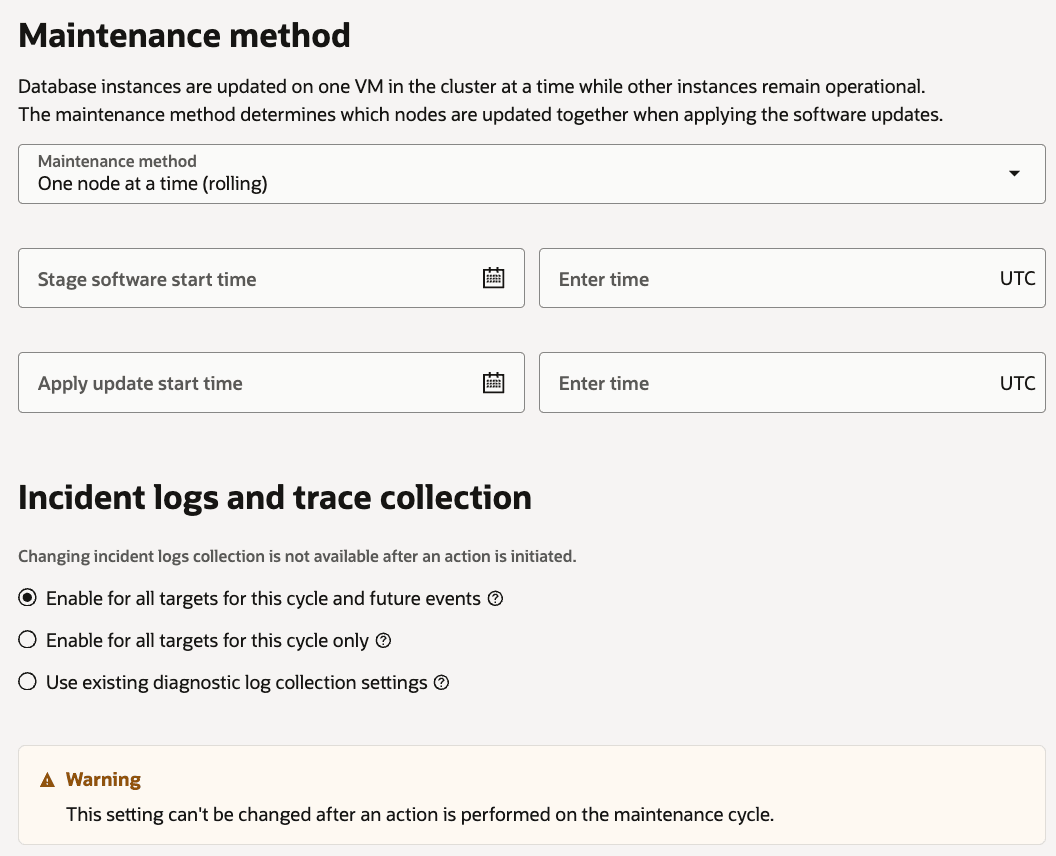
Description of the illustration DBCreateMaintenanceCycle5.png
- From
Advanced options: configureMaximum drain timeout (in seconds),Keep service placement,Ignore missing patches,Force rolling patch, andTags
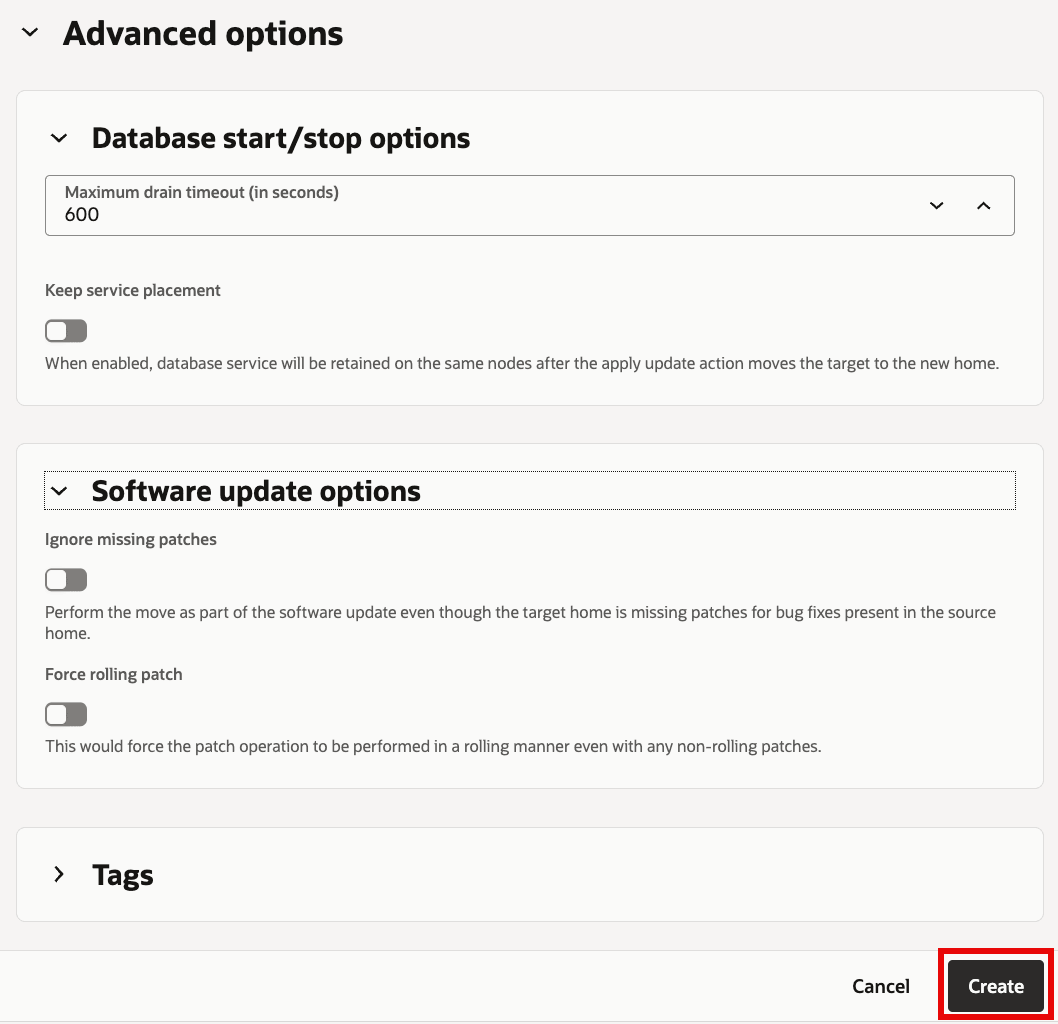
Description of the illustration DBCreateMaintenanceCycle6.png
Task 5: Run maintenance actions for the Database targets collection
-
Open database maintenance cycle details and click
Actionsdrop down to run each maintenance action now or schedule it.For each maintenance cycle, actions run in this order:
Precheck (Stage)Stage softwarePrecheck (Apply)Apply update
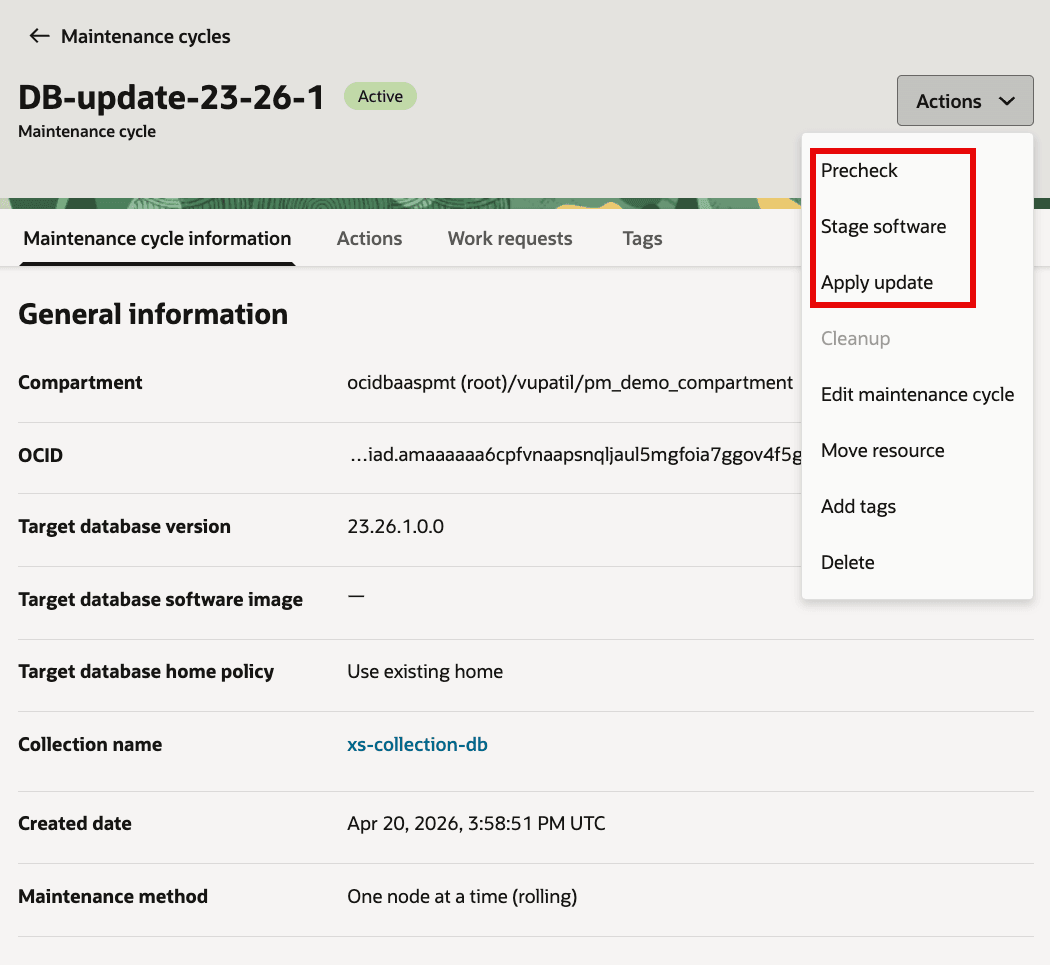
Description of the illustration DB_MC_Actions.png
The flow is similar to how GI Maintenance cycle actions were run in Task 3. For each step below, a screenshot after completion of maintenance action is shown.
-
Run
Precheckprior to staging software.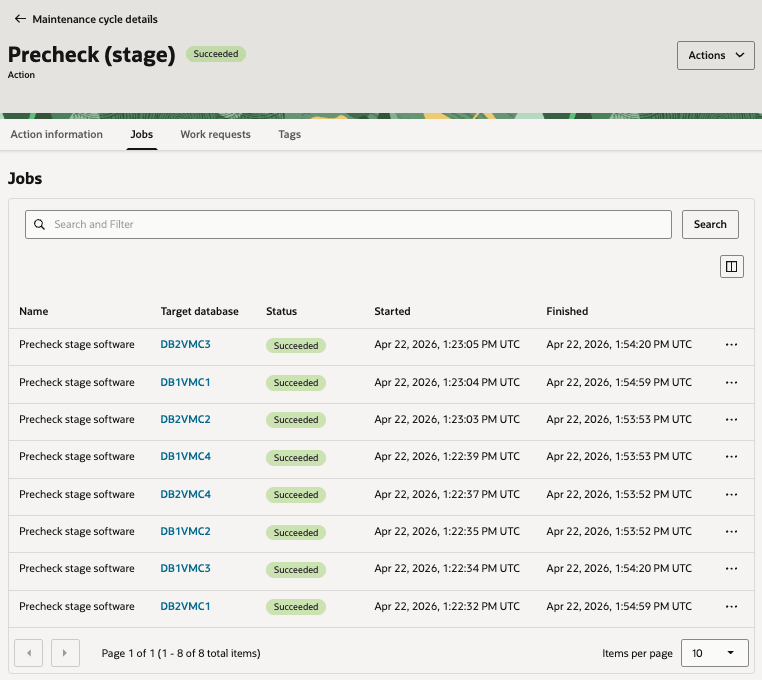
-
After successful precheck maintenance action, run
Stage software.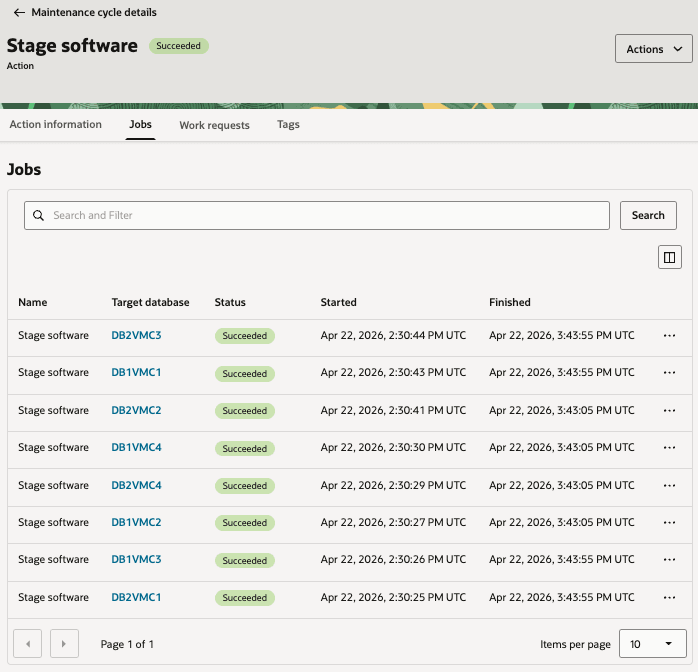
-
After successfully staging software on the Database targets in the collection, run
Precheck (Apply)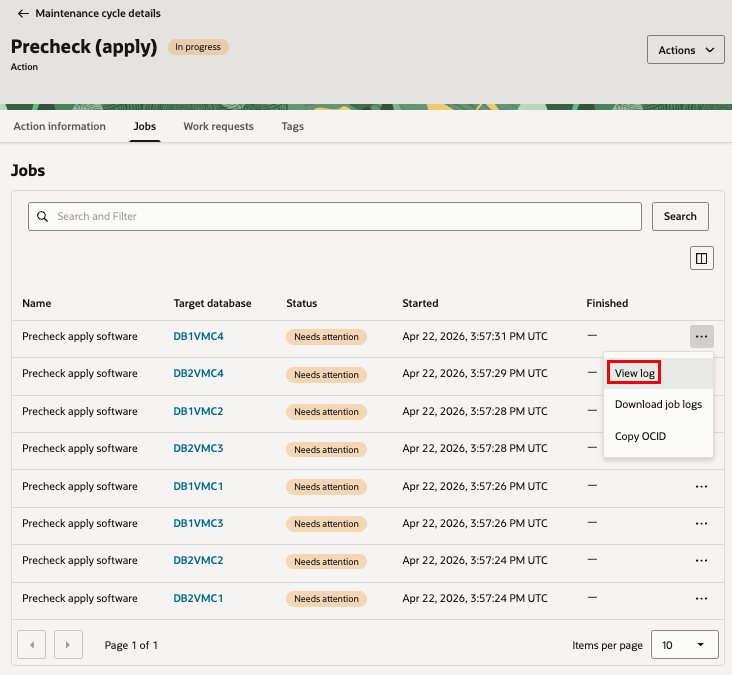
-
Finally, run maintenance action
Apply updateto update the Database software of targets in the Database collection.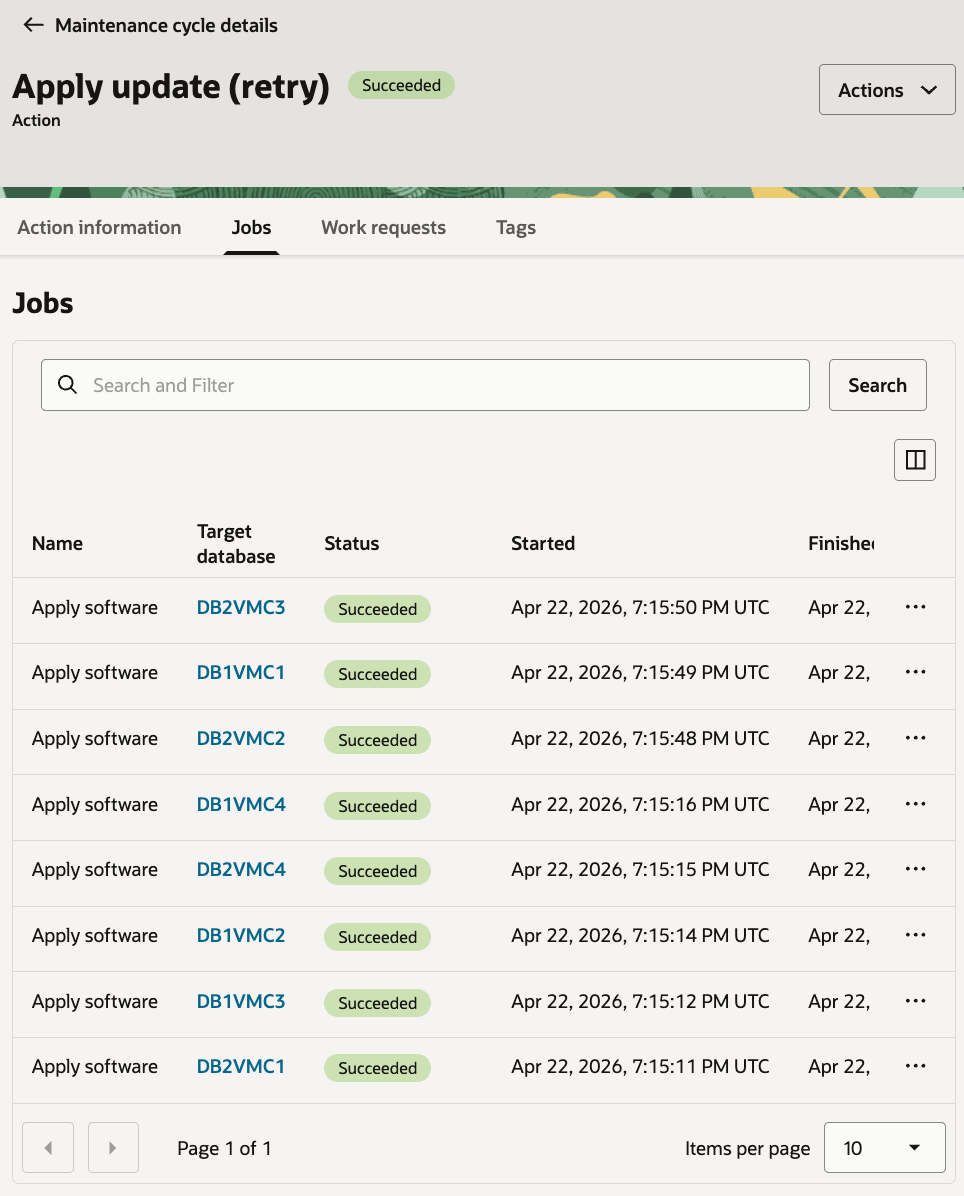
-
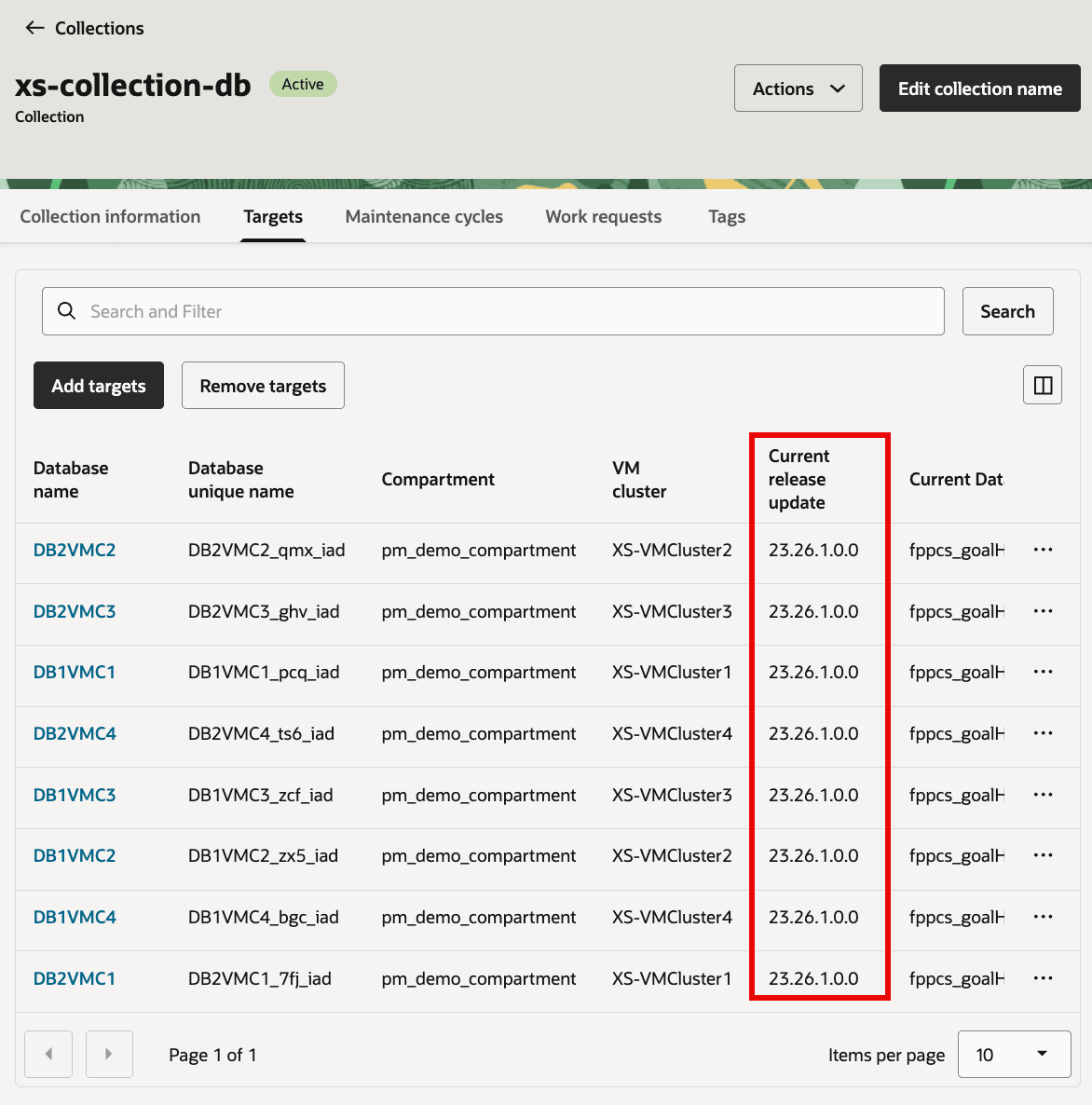
Verify all the targets in Database collection are at the Database version selected for maintenance cycle.
Optional Task: Cleanup
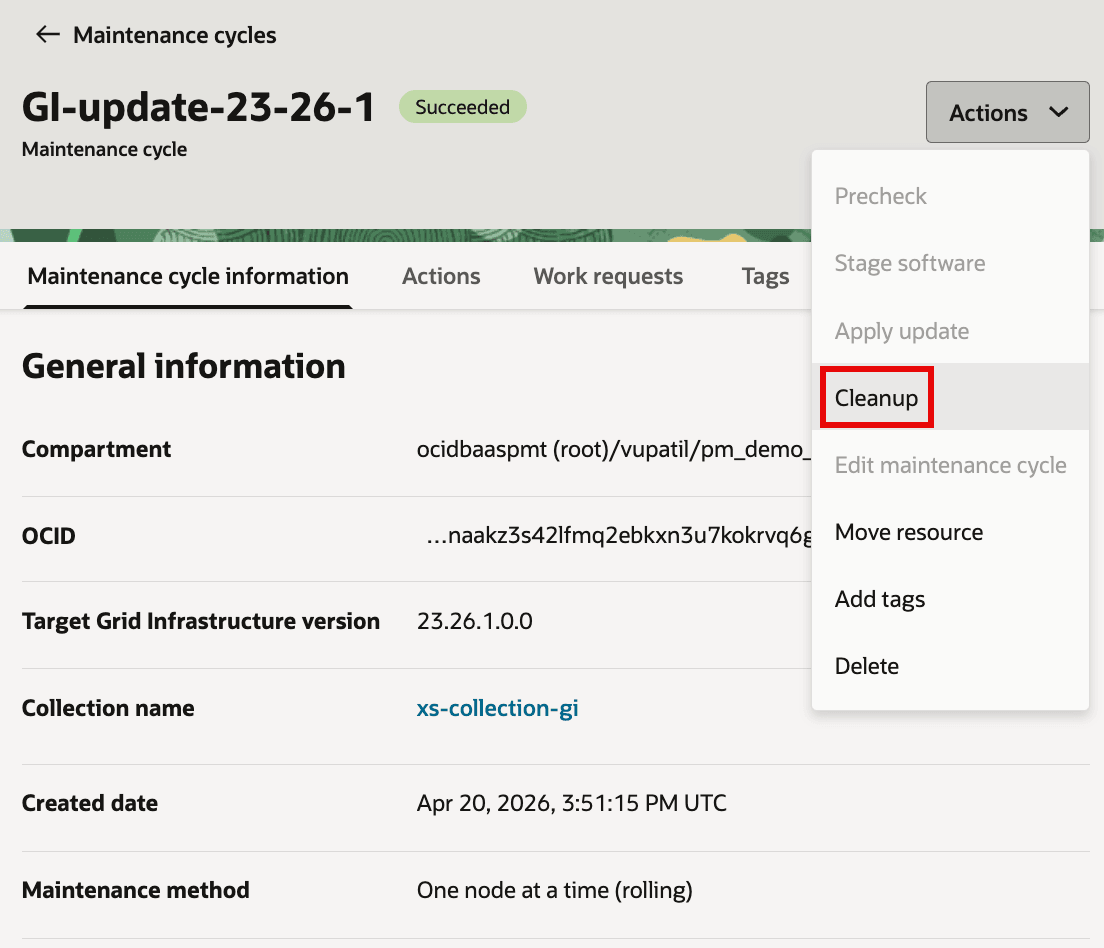
After successful apply, run cleanup to remove unused source homes.
- For maintenance cycle of both GI and Database collections, open actions menu and select
Cleanup - Run it now or schedule it.
- Resolve any
Needs Attentionjobs if homes are still in use, then retry cleanup.
Description of the illustration GI_MC_Cleanup1.png
Related links
- Exadata Fleet Update Administrator’s Guide
- Exadata Database Service on Exascale Infrastructure User’s Guide
- What’s New in Oracle Exadata Database Service on Exascale Infrastructure
Acknowledgments
- Authors - Prince Mathew, Vishal Patil (Product Management)
- Reviewers - Tammy Bednar, Leo Alvarado (Product Management)
More Learning Resources
Explore other labs on docs.oracle.com/learn or access more free learning content on the Oracle Learning YouTube channel. Additionally, visit education.oracle.com/learning-explorer to become an Oracle Learning Explorer.
For product documentation, visit Oracle Help Center.
Update Grid Infrastructure (GI) and Database software for Exadata Database Service on Exascale Infrastructure fleet using Exadata Fleet Update
G55769-01