Create a database from a point-in-time restore (PITR) backup in Oracle Exadata Database Service on Dedicated Infrastructure and Exascale Infrastructure
Introduction
Users can now restore a backup to a specific point-in-time (PITR) when creating a database in Oracle Exadata Database Service on Dedicated Infrastructure and Oracle Exadata Database Service on Exascale Infrastructure. This capability is supported for backups stored in both Autonomous Recovery Service and OCI Object Storage.
This enhancement provides greater flexibility for data management, allowing customers to perform precise data recovery to any chosen moment rather than being restricted to specific backup files. As a result, users can minimize the risk of data loss and recover data exactly when needed.
Restoring to a specific point-in-time is also easily accessible through the OCI Console or via APIs. This streamlined process minimizes manual effort and simplifies database recovery operations for users.
Objectives
- Create a database from a point-in-time restore (PITR) backup.
Prerequisites
- Oracle Database 19c release and later.
Task 1: Create a database from a point-in-time restore (PITR) backup.
-
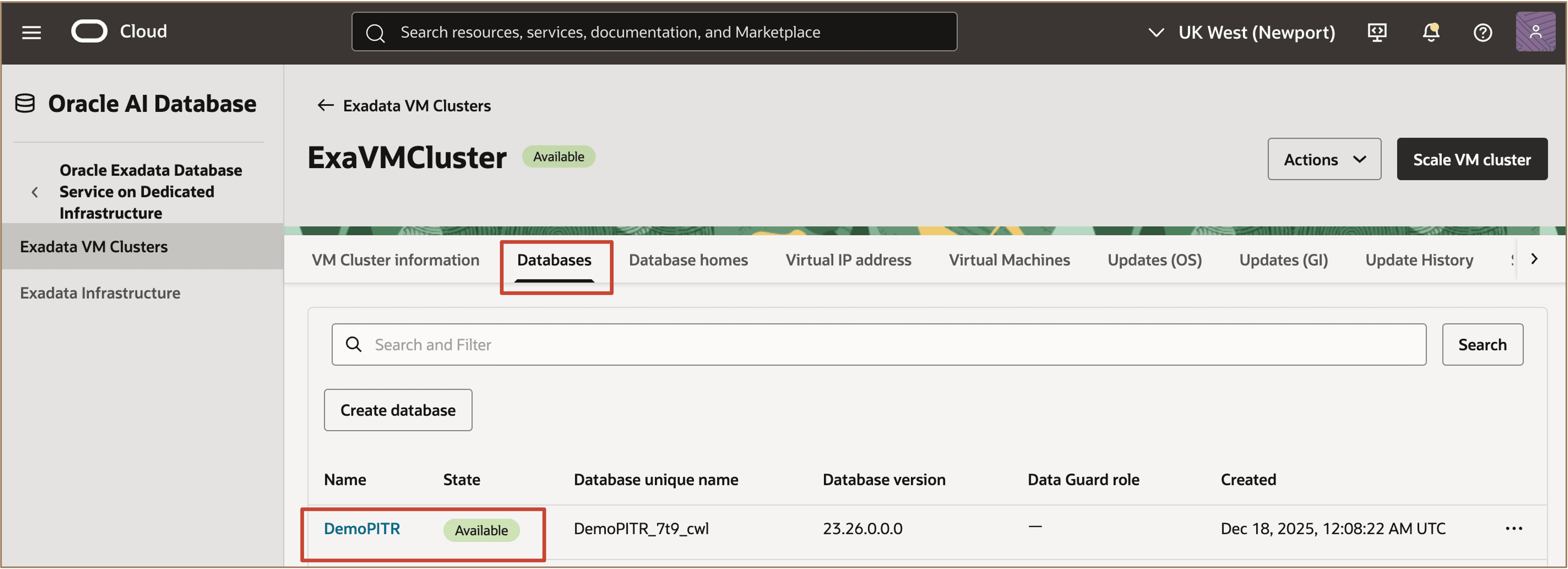
From the Exadata VM Clusters page, navigate to the VM Cluster that contains the database backup you want to use to create a new database. On the Databases tab, select the required database and go to its Database Details page.
-
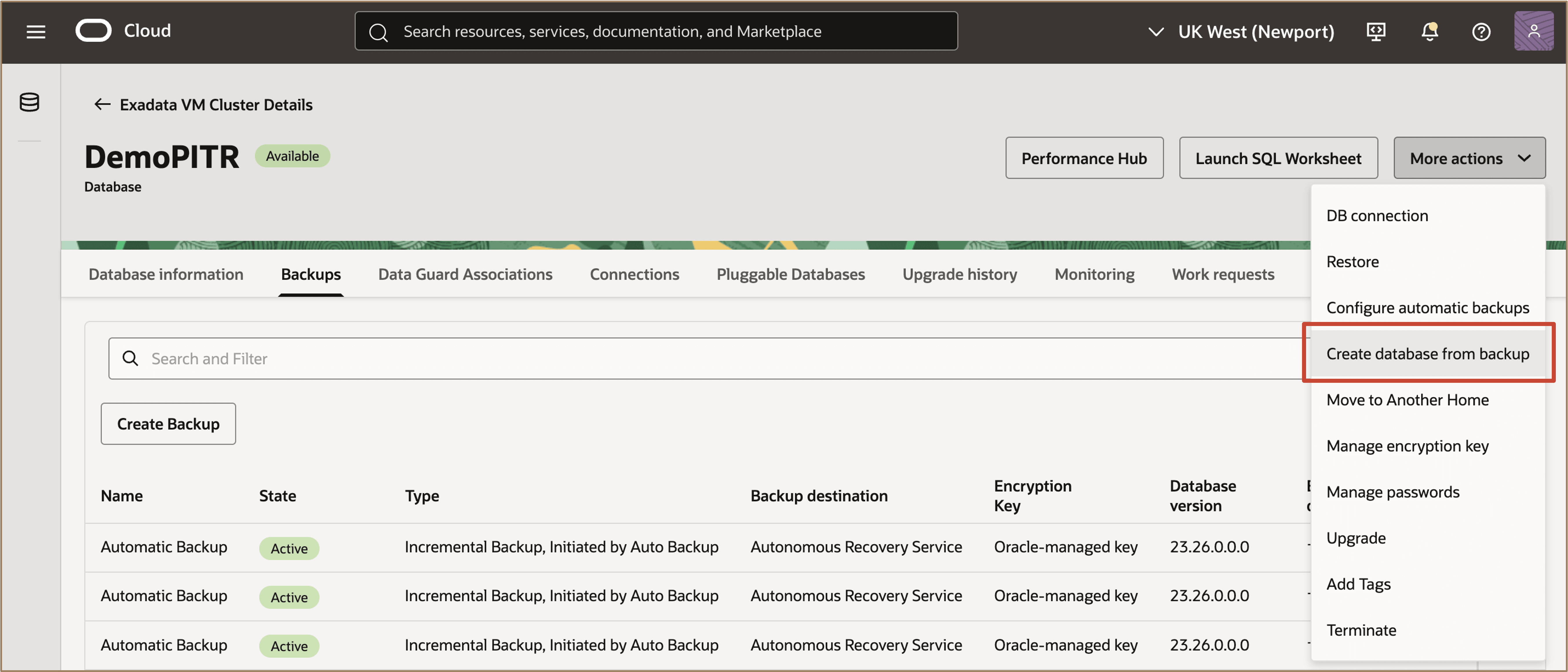
Under the More actions menu, select Create database from backup.
-
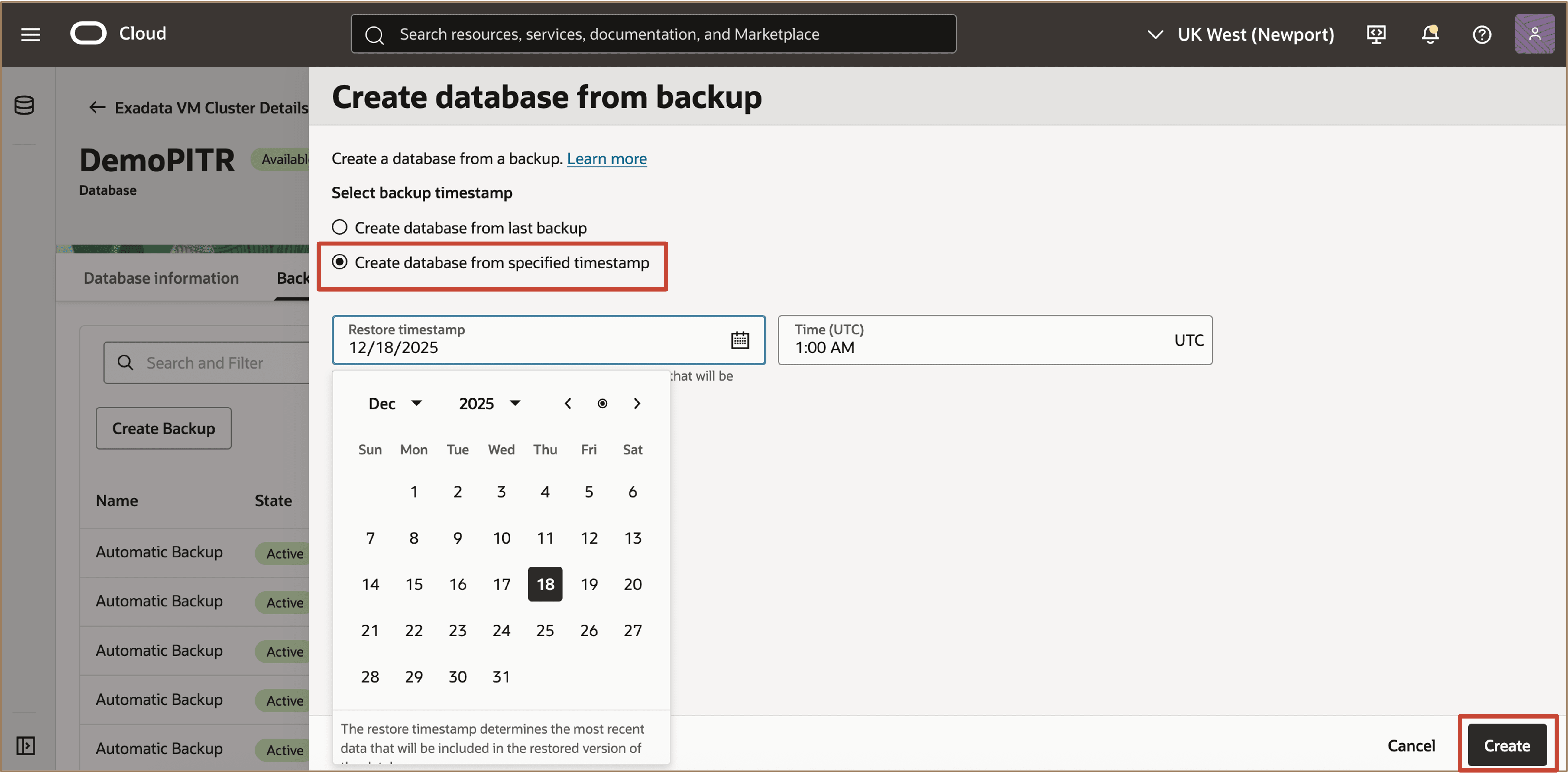
From the Create database from backup page, Select Create database from specified timestamp and choose a restore timestamp. Click on Create.
-
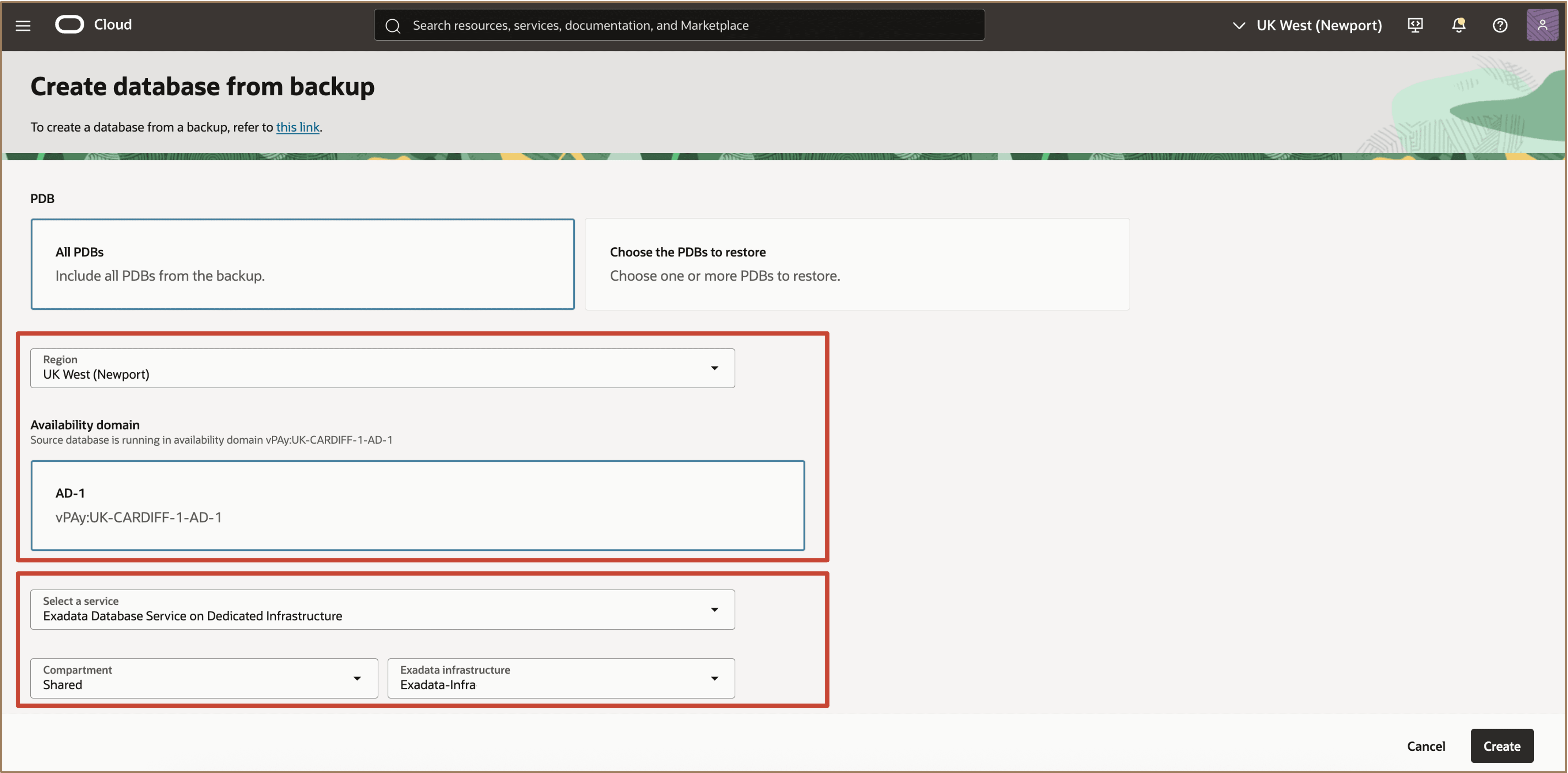
Provide additional placement details where the database will be created. You can create a database from a backup in a different region.
-
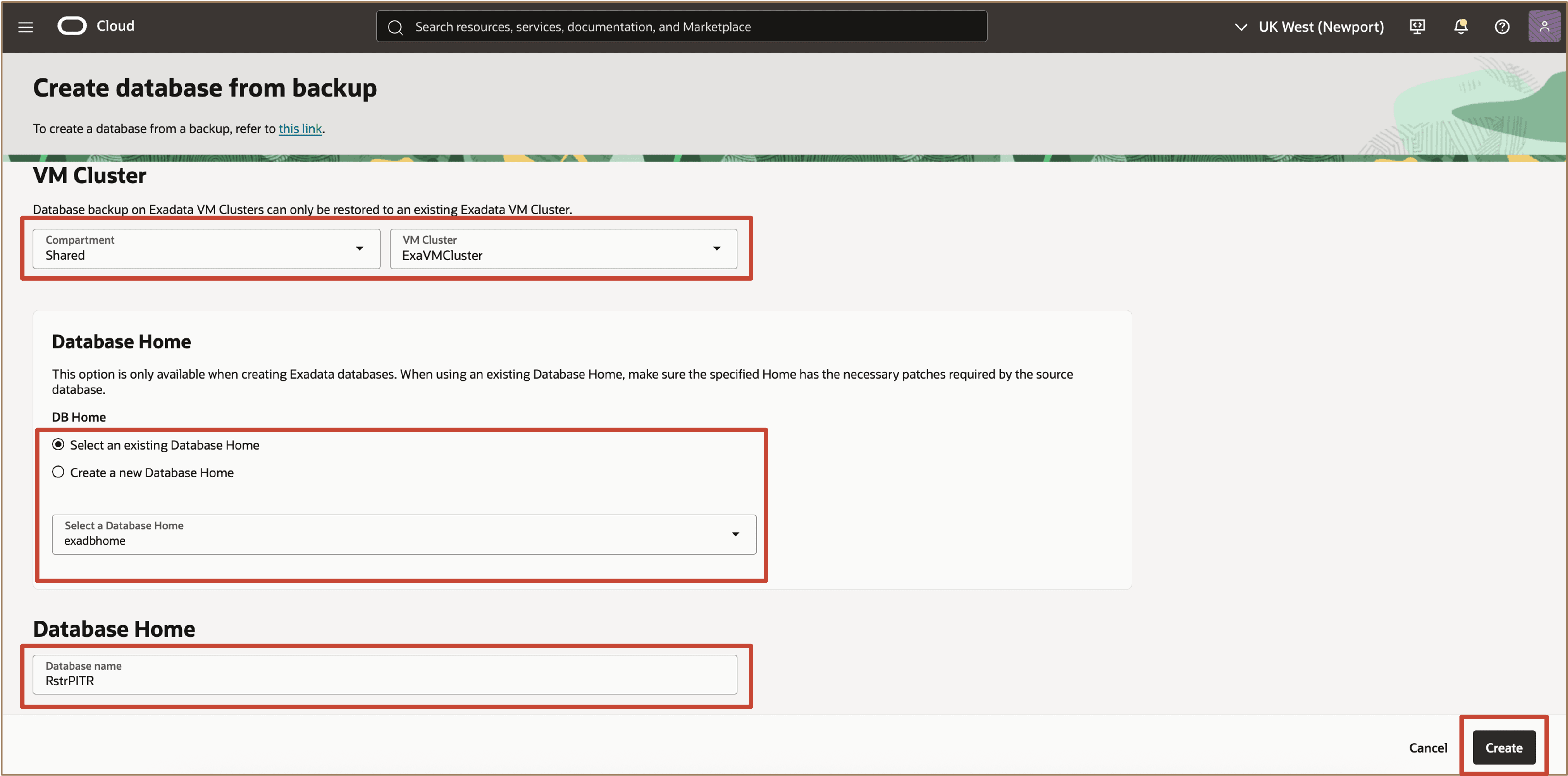
Continue entering the required details for the new database, such as selecting the VM Cluster, specifying the Database Home, providing the database name, and completing any additional configuration fields as needed. Once all information is filled in, click Create to initiate the database creation process.
-
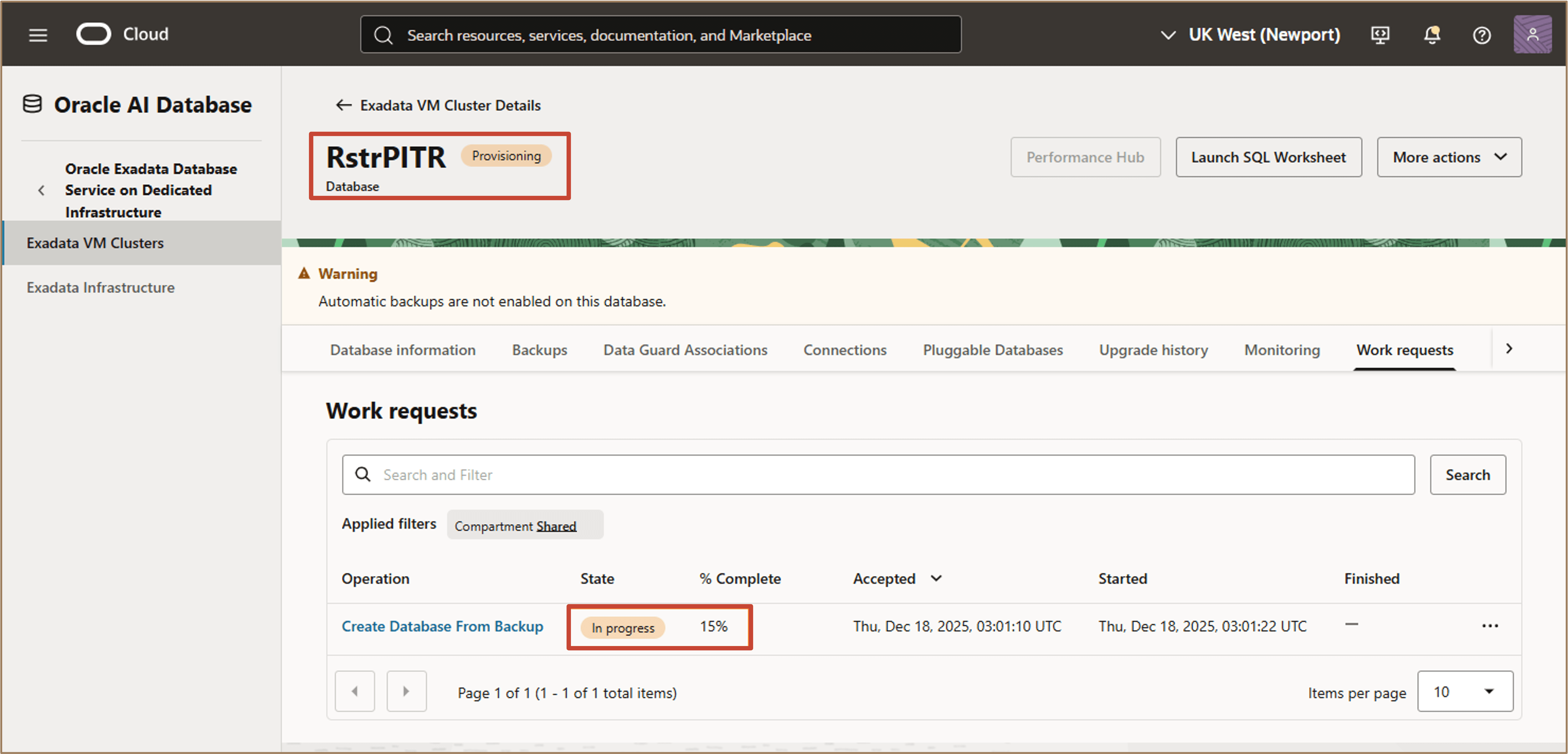
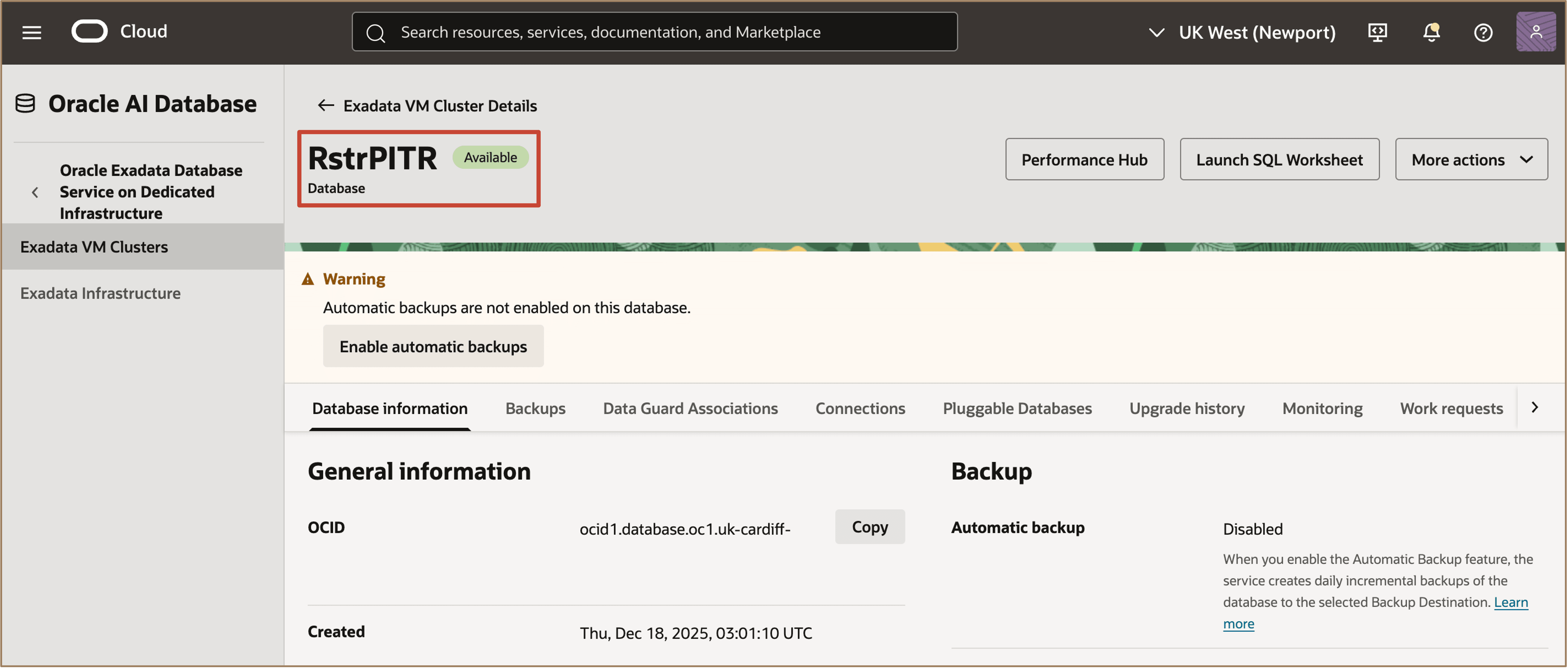
During the database creation process, the status will be displayed as Provisioning. Once the process is complete, the status will change to Available.
-
When the status is Available, you can view the details of the newly created database under the Database Information tab.
Related Links
-
What’s New in Oracle Exadata Database Service on Dedicated Infrastructure
-
What’s New in Oracle Exadata Database Service on Exascale Infrastructure
Acknowledgments
- Authors - Leo Alvarado, Dileep Thiagarajan, Tammy Bednar (Product Management)
More Learning Resources
Explore other labs on docs.oracle.com/learn or access more free learning content on the Oracle Learning YouTube channel. Additionally, visit education.oracle.com/learning-explorer to become an Oracle Learning Explorer.
For product documentation, visit Oracle Help Center.
Create a database from a point-in-time restore (PITR) backup in Oracle Exadata Database Service on Dedicated Infrastructure and Exascale Infrastructure
G49983-01