Set up Oracle Data Guard Configuration between Databases on Oracle Exadata Database Service on Dedicated Infrastructure and Oracle Exadata Database Service on Exascale Infrastructure
Introduction
Users can now set up Oracle Data Guard configuration using OCI Console, API, SDK, or Terraform between databases on Oracle Exadata Database Service on Dedicated Infrastructure and Oracle Exadata Database Service on Exascale Infrastructure. Users will also be able to run an explicit precheck before configuring Oracle Data Guard.
Objectives
-
Set up Oracle Data Guard configuration between databases on Oracle Exadata Database Service on Dedicated Infrastructure and Oracle Exadata Database Service on Exascale Infrastructure.
-
Run an explicit precheck before configuring Oracle Data Guard for Oracle Exadata Database Service.
Task 1: Set up Oracle Data Guard Configuration
-
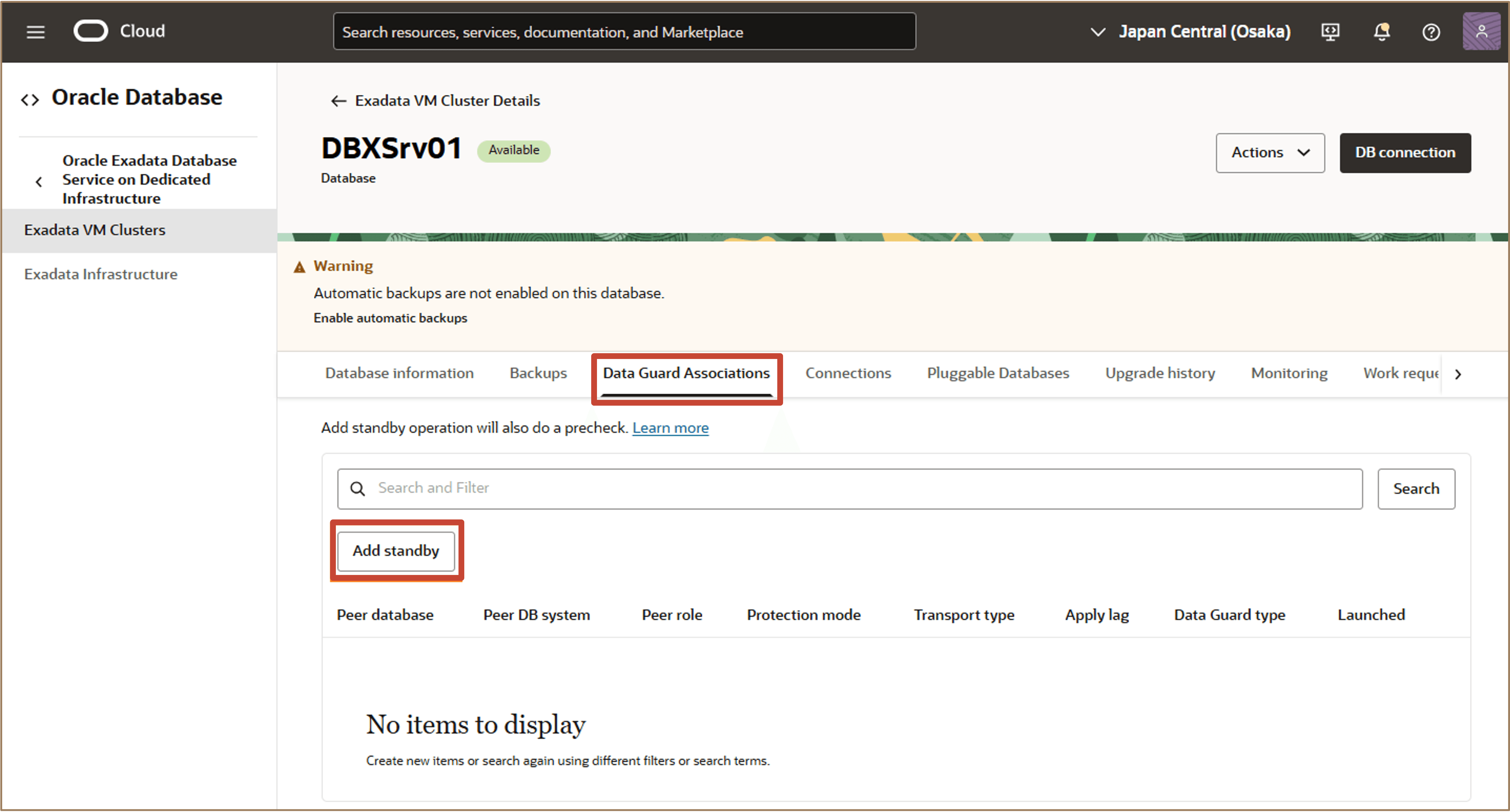
Log in to the OCI Console, navigate to the Database details page on Oracle Exadata Database Service on Dedicated Infrastructure and click Data Guard Associations. In the Data Guard Associations section, click Add standby.
-
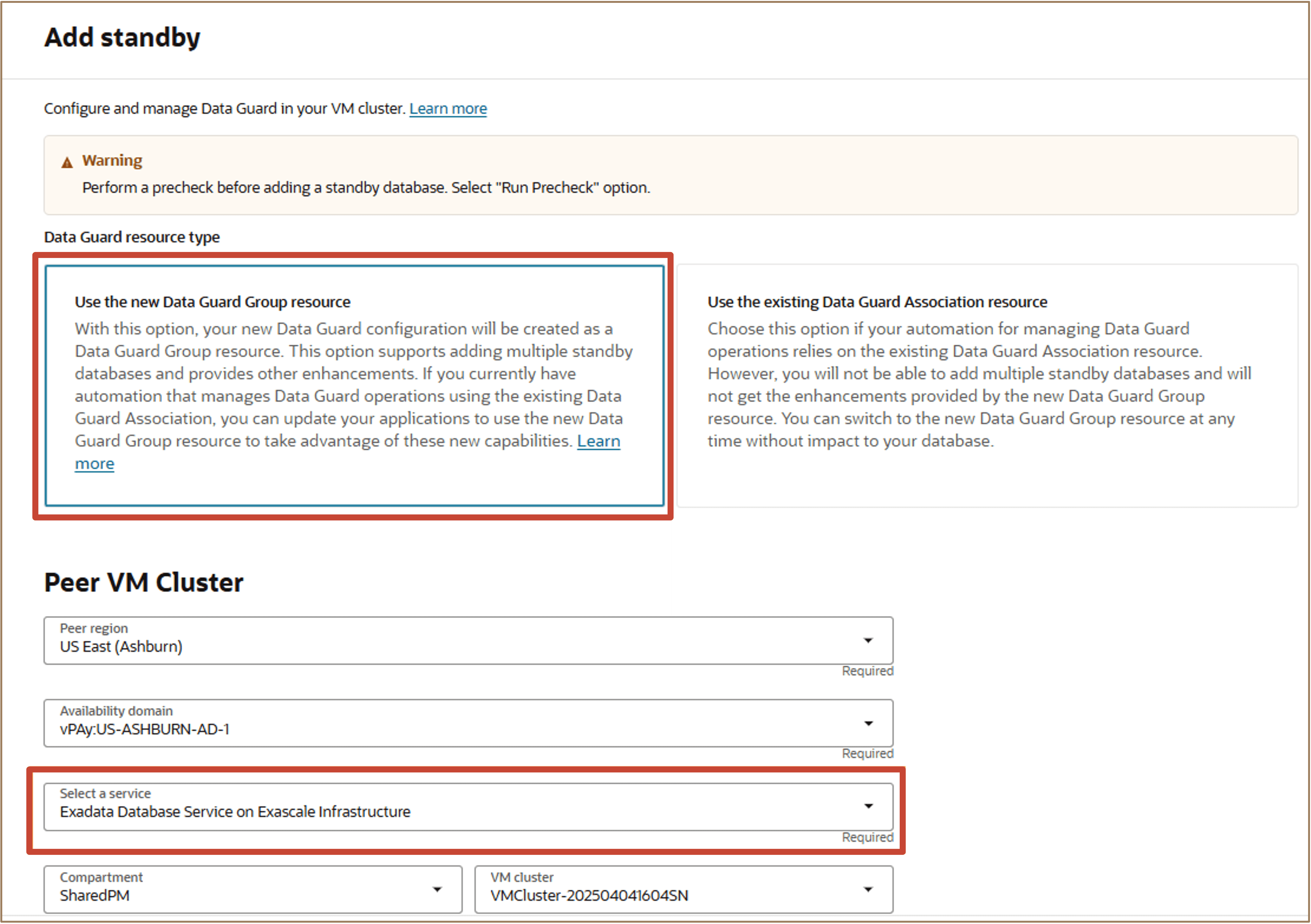
In the Add standby page, select Use the new Data Guard Group resource. This provides the ability to associate multiple standby databases with a primary database.
-
Peer region: Select a peer region. This is the region where the standby database will reside.
-
Availability domain: Select an availability domain. This is the availability domain within the target region.
-
Select a service: This is the service in which the standby database will be created.
Note: In this example, the standby database is being created on Oracle Exadata Database Service on Exascale Infrastructure.
-
Compartment: Select the compartment.
-
VM cluster: Select VM cluster.
-
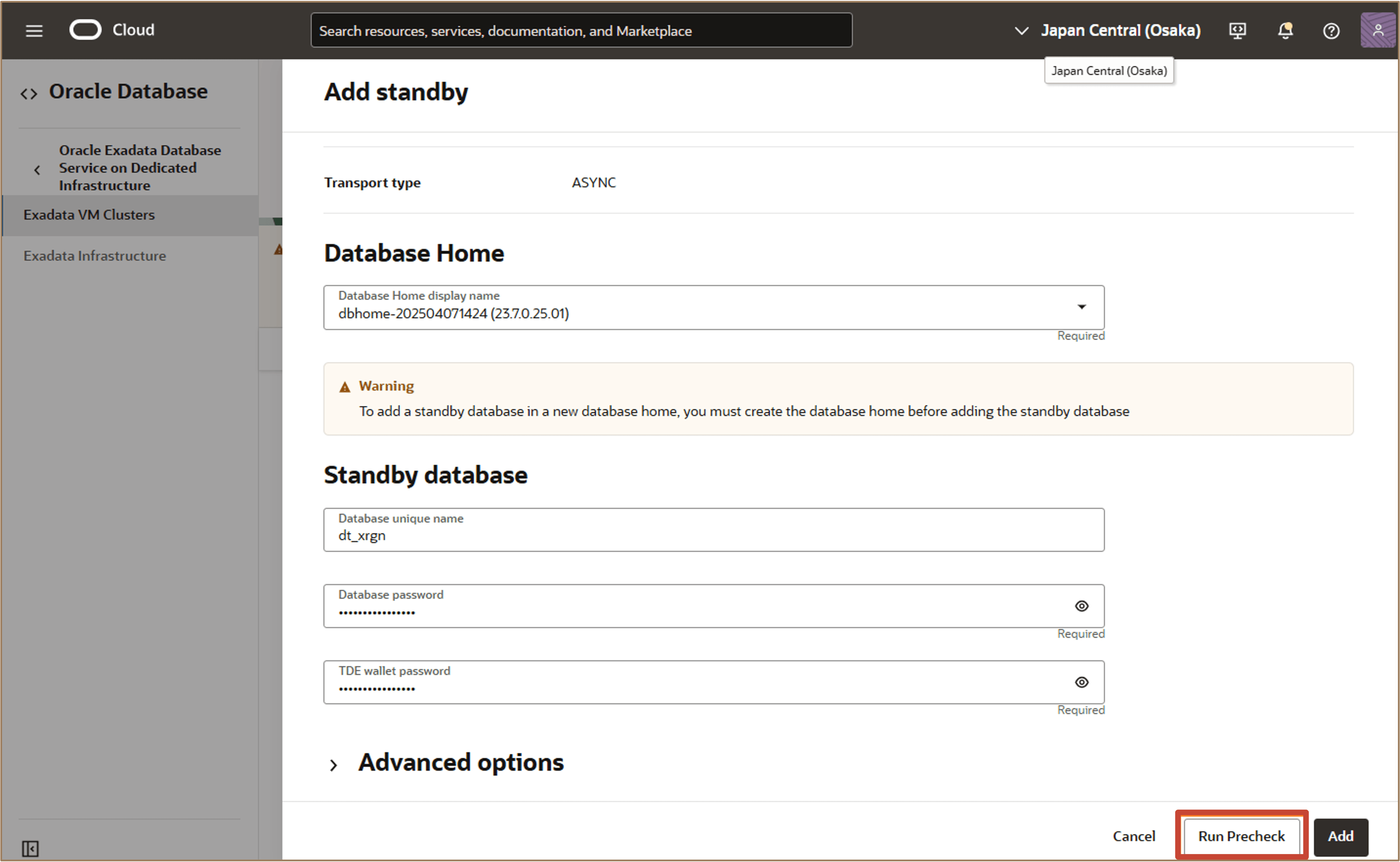
Enter additional details for Data Guard type, Database Home, Database Name, and Database credentials.
-
-
To explicitly run an Oracle Data Guard precheck when using the Oracle Data Guard group resource in Oracle Exadata Database Service, click Run Precheck.
-
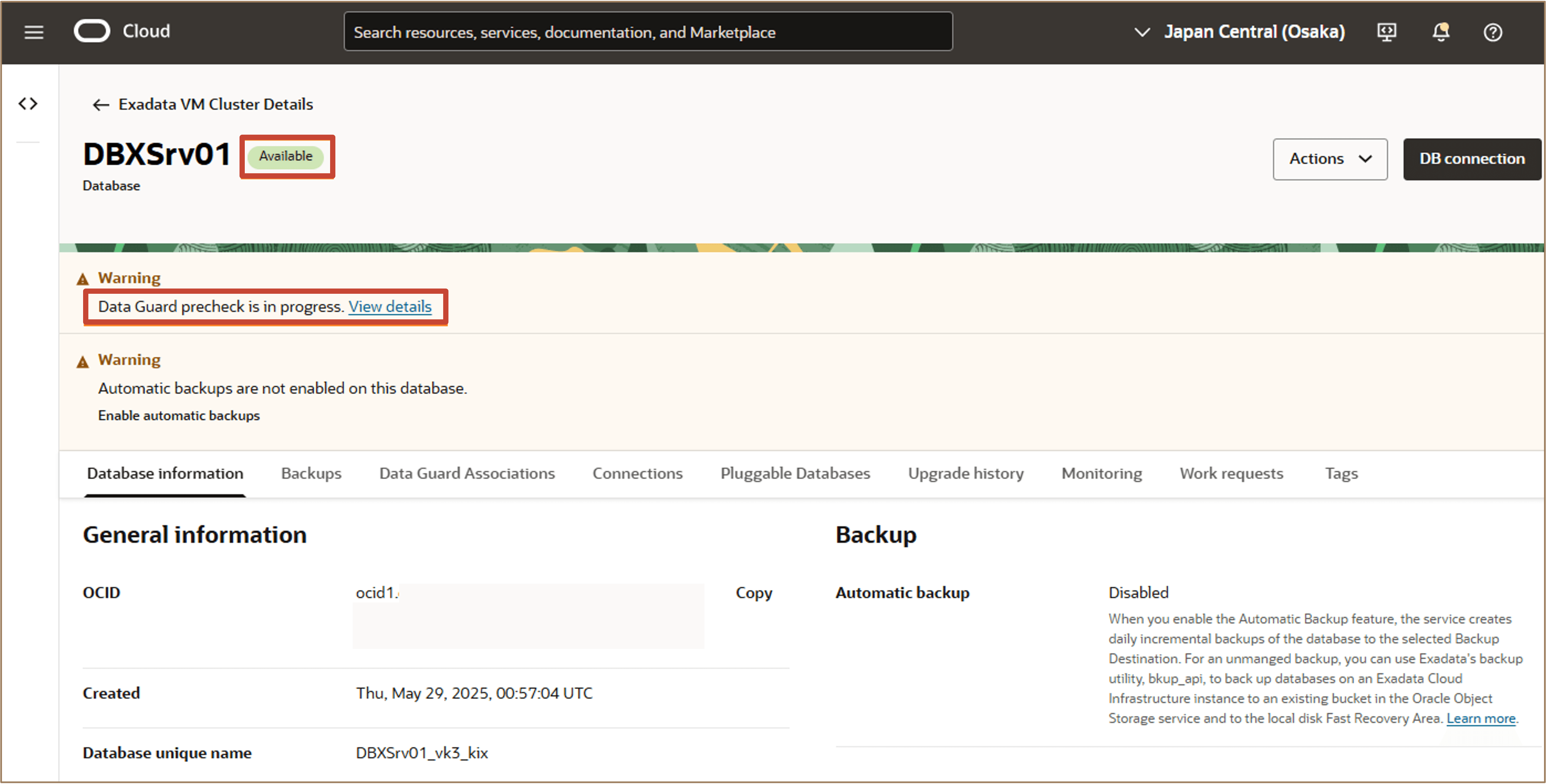
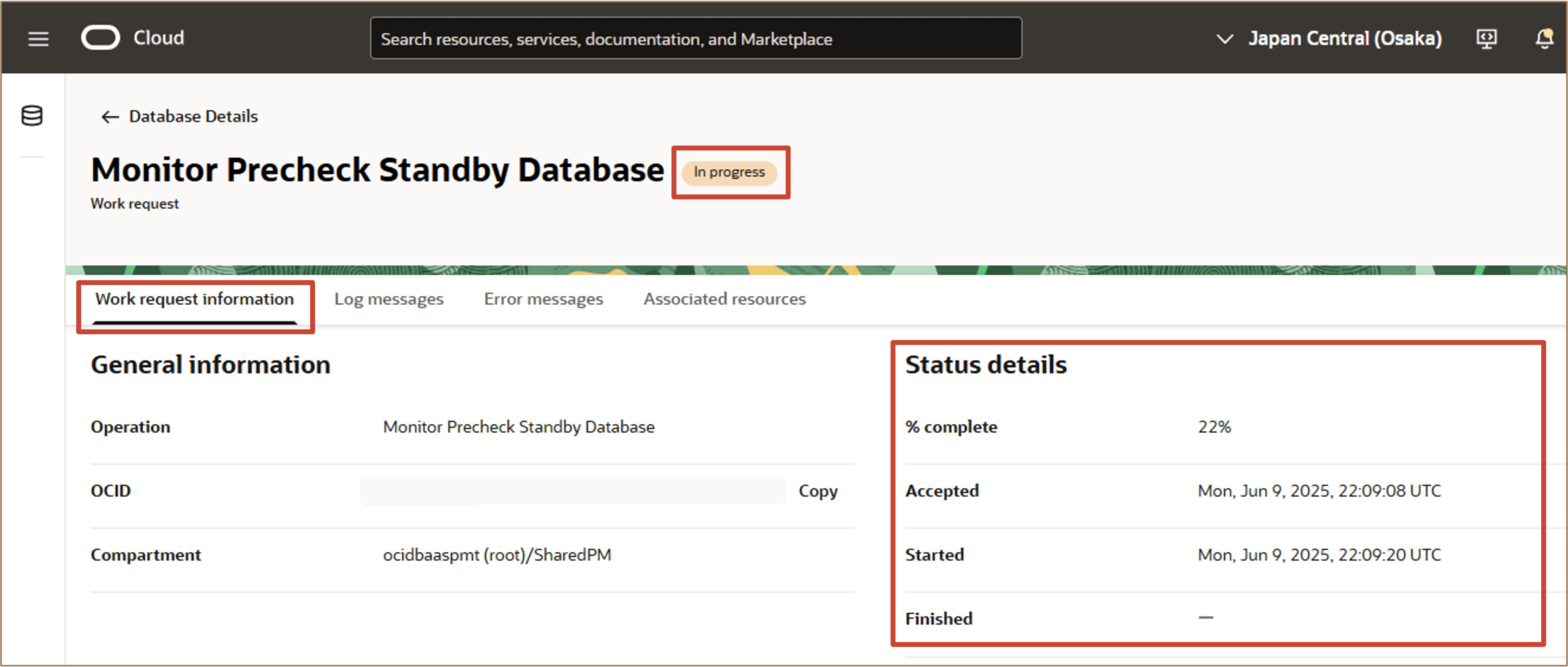
Click View Details to navigate to the work requests information page to monitor the status of the precheck operation.
-
Click Work request information. Under the Status details section, view the status details of the Monitor Precheck Standby Database operation.
Note: If the precheck has failed, then resolve the reported errors and retry the Oracle Data Guard setup.
-
To add the standby database, click Add. You can track the progress in the Work requests section of the standby database.
-
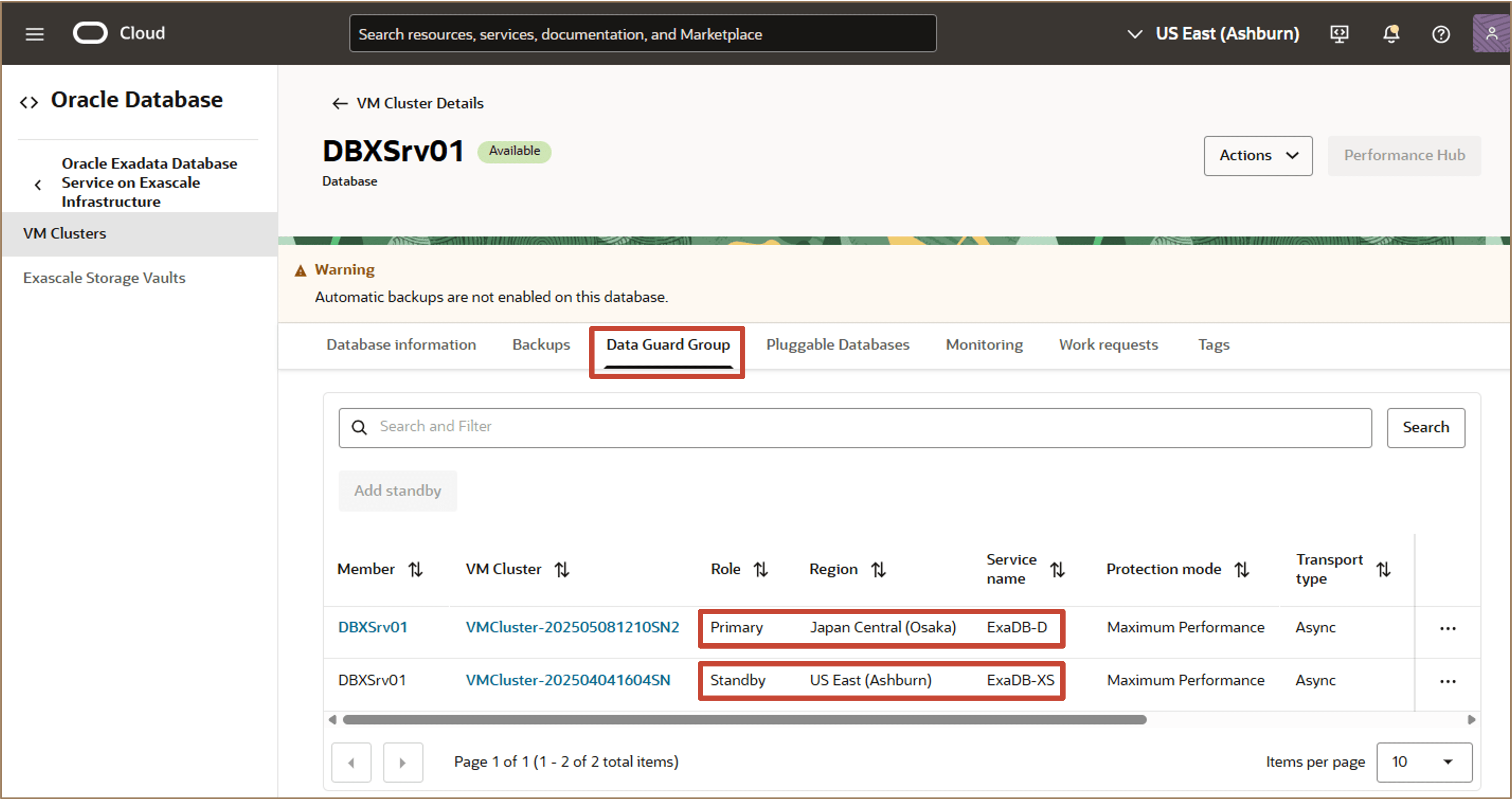
The Data Guard Group is created. Oracle Data Guard group details are displayed under the Data Guard Group tab.
Note: Information for all the member databases in the Oracle Data Guard group will be shown. This allows the user to view all the standby databases for a given database in one place.
Related Links
-
What’s New in Oracle Exadata Database Service on Dedicated Infrastructure
-
Exadata Database Service on Dedicated Infrastructure How To’s Video Playlist
-
What’s New in Oracle Exadata Database Service on Cloud@Customer
-
Exadata Database Service on Cloud@Customer How To’s Video Playlist
-
Oracle LiveLabs Workshop: Get Started with Oracle Exadata Database Service on Cloud@Customer
-
Oracle Exadata Database Service on Exascale Infrastructure Overview
-
Introducing Oracle Exadata Database Service on Exascale Infrastructure
-
Title Get Started with Oracle Exadata Database Service on Exascale Infrastructure
Acknowledgments
- Authors - Leo Alvarado, Dileep Thiagarajan, Tammy Bednar (Product Management)
More Learning Resources
Explore other labs on docs.oracle.com/learn or access more free learning content on the Oracle Learning YouTube channel. Additionally, visit education.oracle.com/learning-explorer to become an Oracle Learning Explorer.
For product documentation, visit Oracle Help Center.
Set up Oracle Data Guard Configuration between Databases on Oracle Exadata Database Service on Dedicated Infrastructure and Oracle Exadata Database Service on Exascale Infrastructure
G40560-01