View Oracle Data Guard Health Status for Oracle Exadata Database Service
Introduction
Maintaining clear visibility of Disaster Recovery (DR) readiness is fundamental for operational resilience in any environment. Previously, Exadata Database Service users relied on a single Data Guard status indicator, which provided only limited insight into failover readiness and potential data loss.
Now, users can access key health information covering overall Data Guard health status, switchover/failover readiness, and data loss exposure. These visual indicators help users quickly assess the preparedness of databases for role transitions and failover events. Comprehensive and actionable health metrics are accessible through the OCI Console, API, SDK, and Terraform. Additionally, detailed redo transport lag metrics help customers evaluate potential data loss scenarios, enabling proactive disaster recovery planning and improved operational reliability. Enhanced Data Guard Health Status reporting is available for Oracle Exadata Database Service on Dedicated Infrastructure, Oracle Exadata Database Service on Exascale Infrastructure, and Oracle Exadata Database Service on Cloud@Customer.
Objectives
- View Oracle Data Guard Health Status for Oracle Exadata Database Service
Prerequisites
- Oracle Database 19c release and later.
- To use this feature, you need to switch to the new Data Guard Group resource. This can be done at any time without impacting database availability. The new Data Guard Group resource includes a new API and associated user interfaces. learn more
Task 1: View health status and readiness details in the Data Guard Group
-
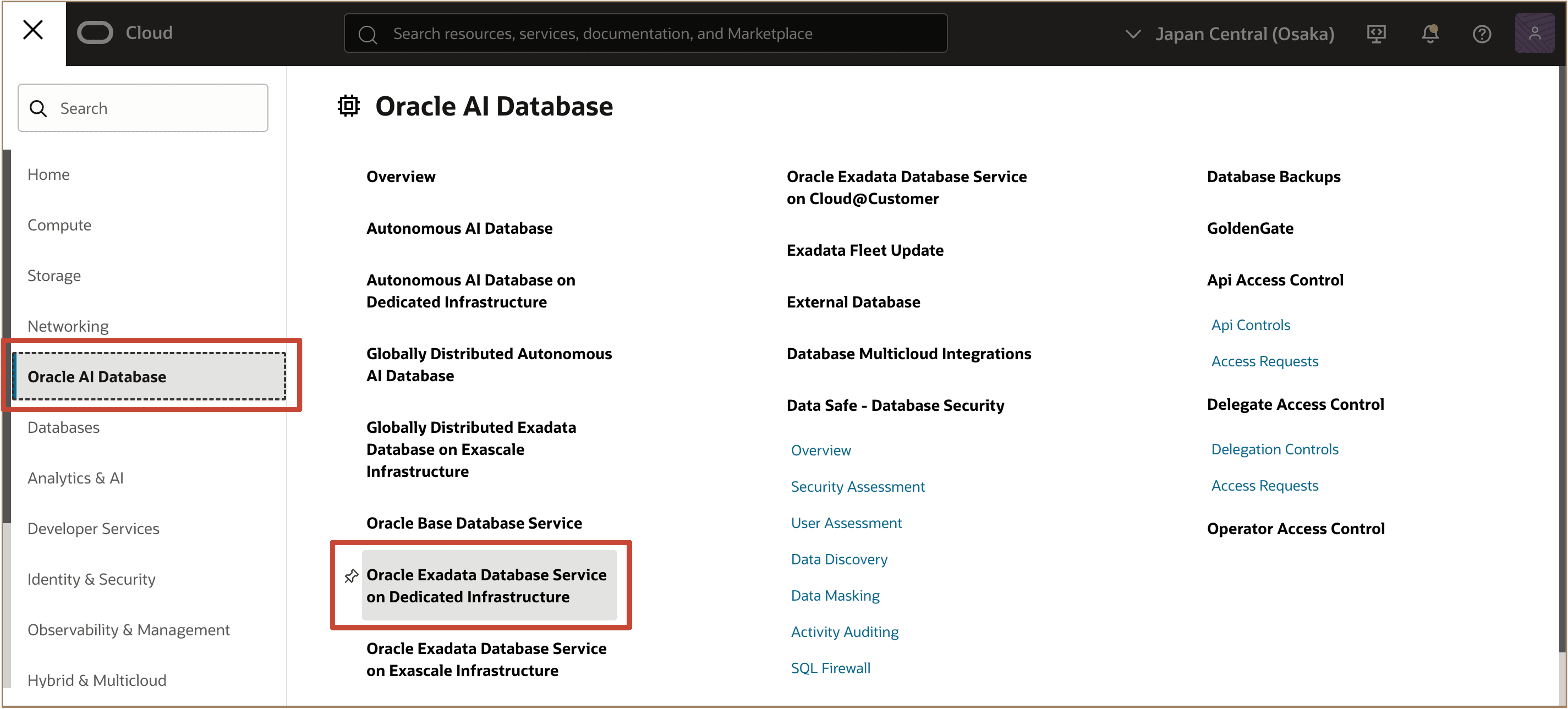
Log in to the OCI Console. Navigate to Oracle AI Database and select Oracle Exadata Database Service on Dedicated Infrastructure.
-
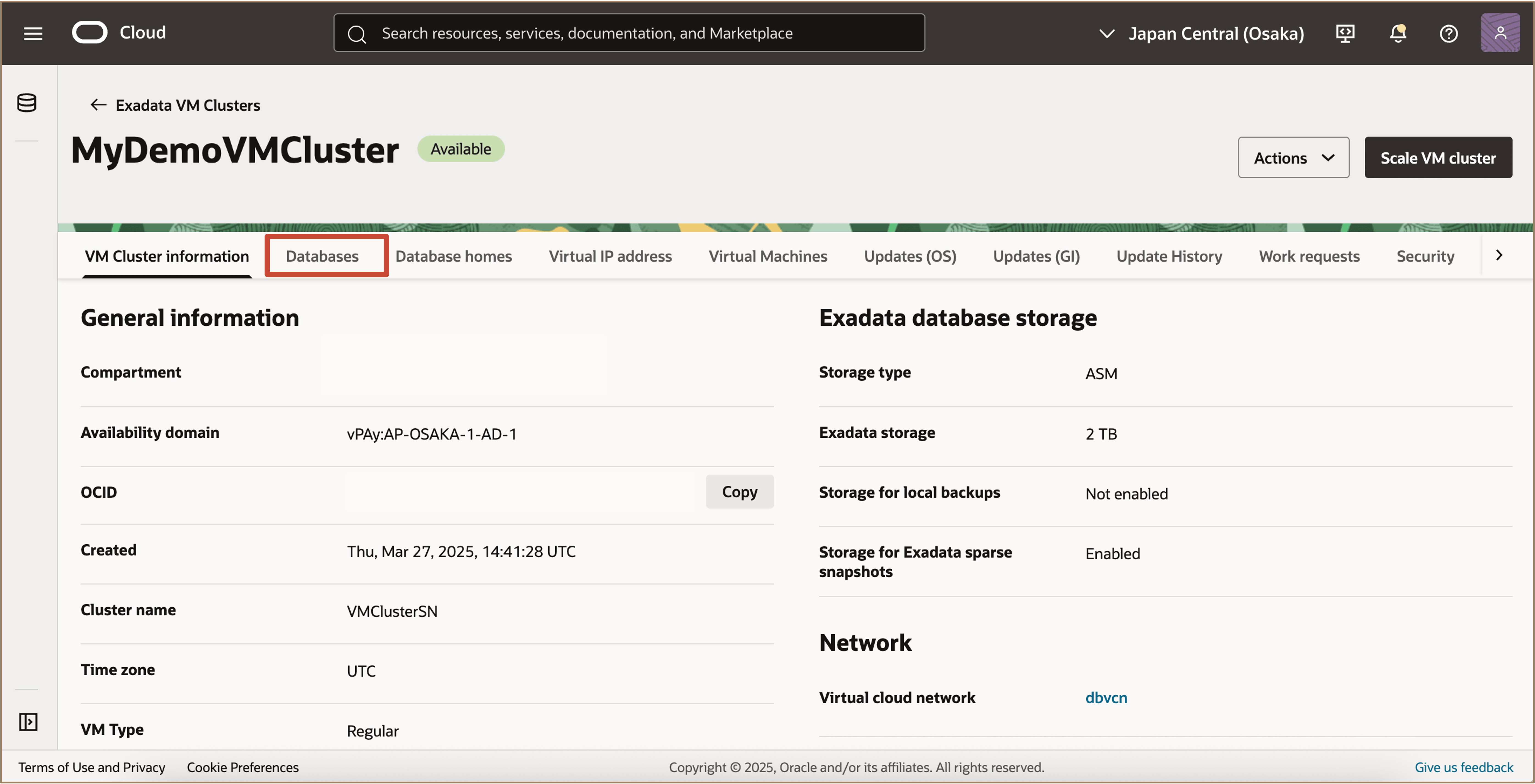
Navigate to the VM Cluster that contains the database of an existing Data Guard Group for which you want to view the Data Guard Health status. Click on the Databases tab and select the name of the Database.
-
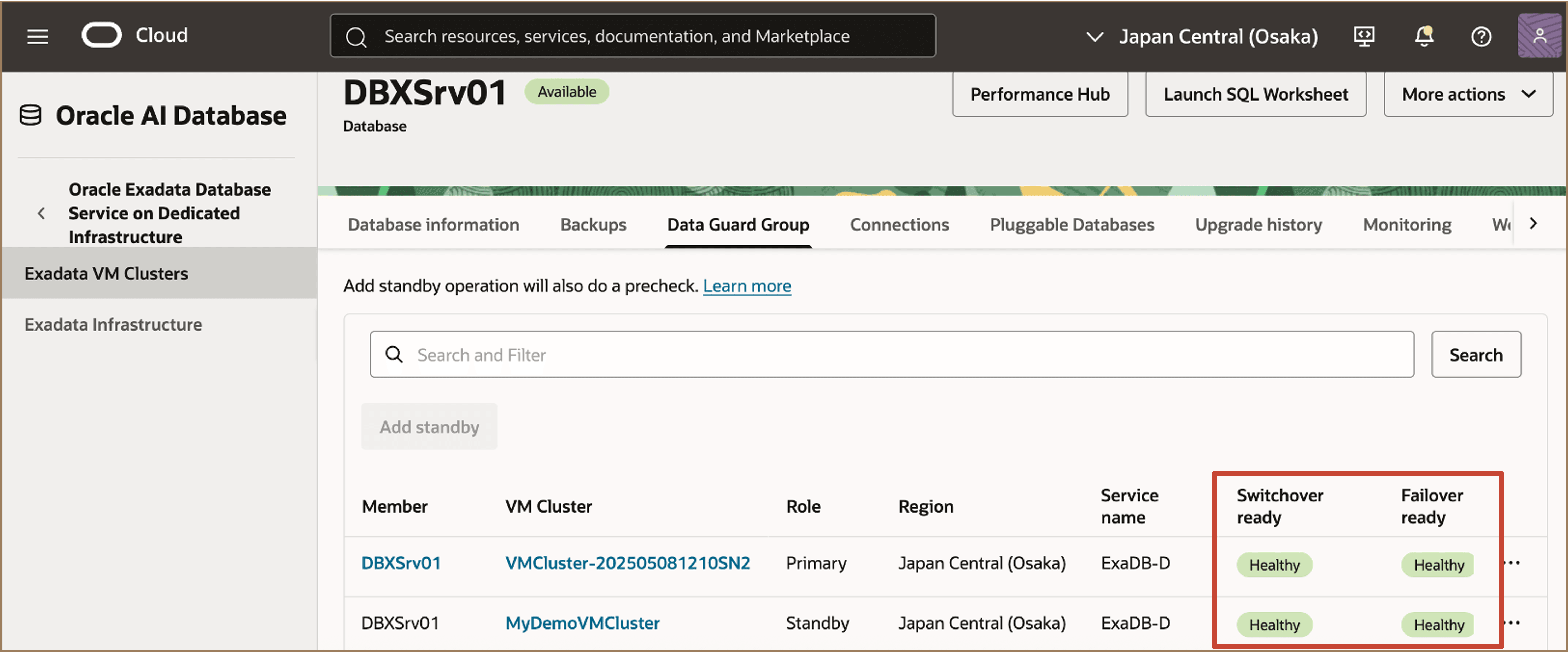
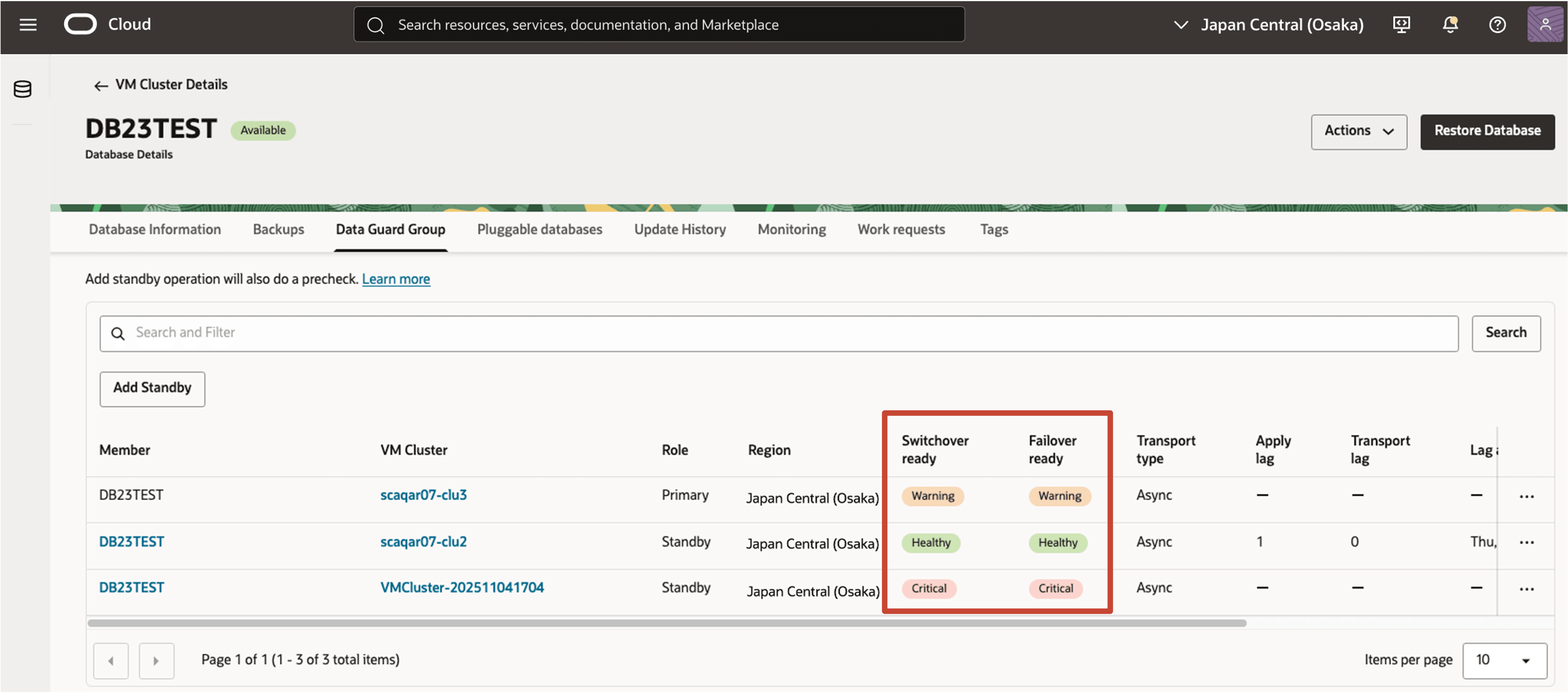
From the Database Details page, navigate to the Data Guard Group tab. In the Data Guard Group tab, view the Switchover ready and Failover ready status.
Description of the illustration view-data-guard-group-health-status.png
-
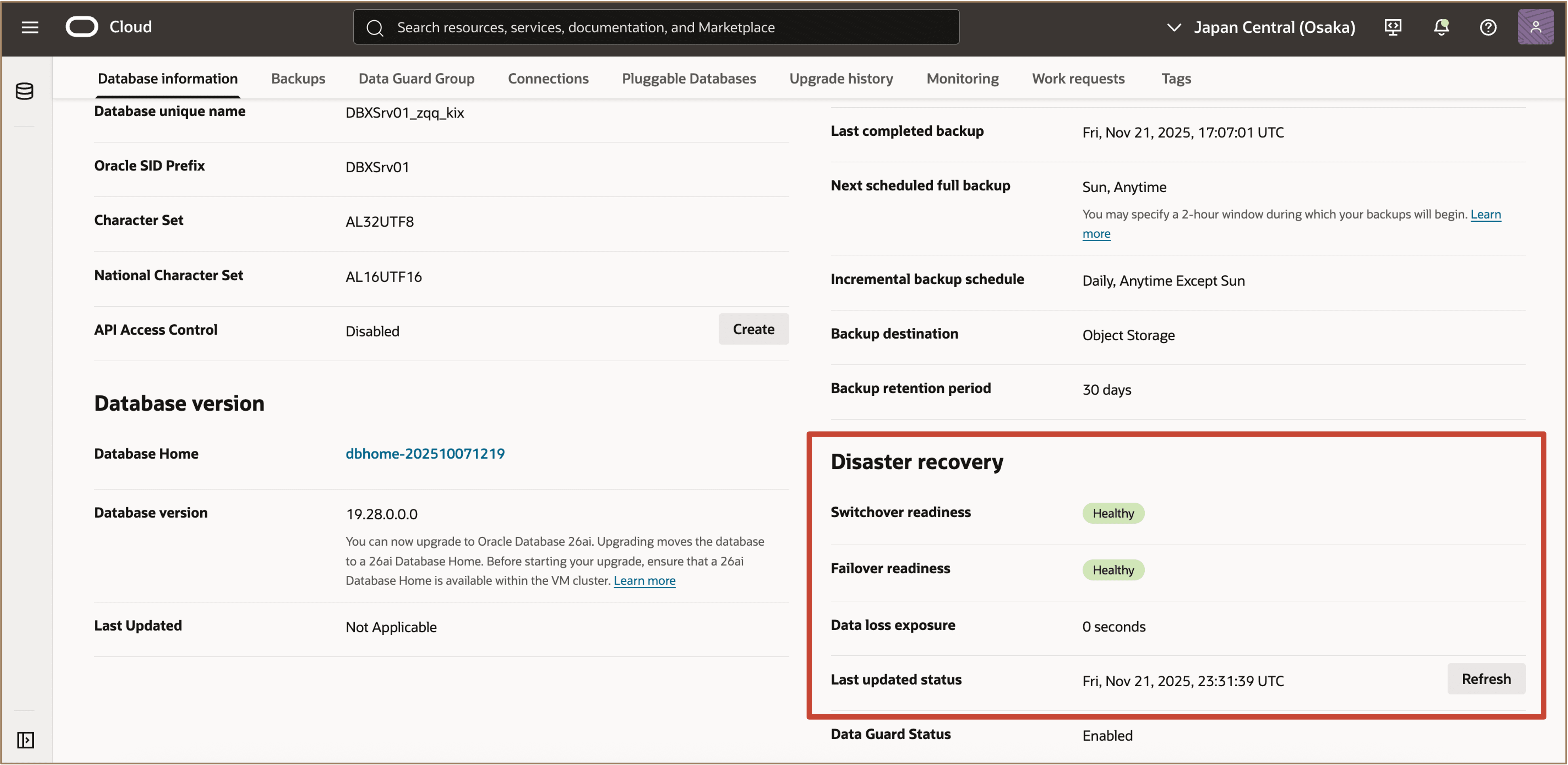
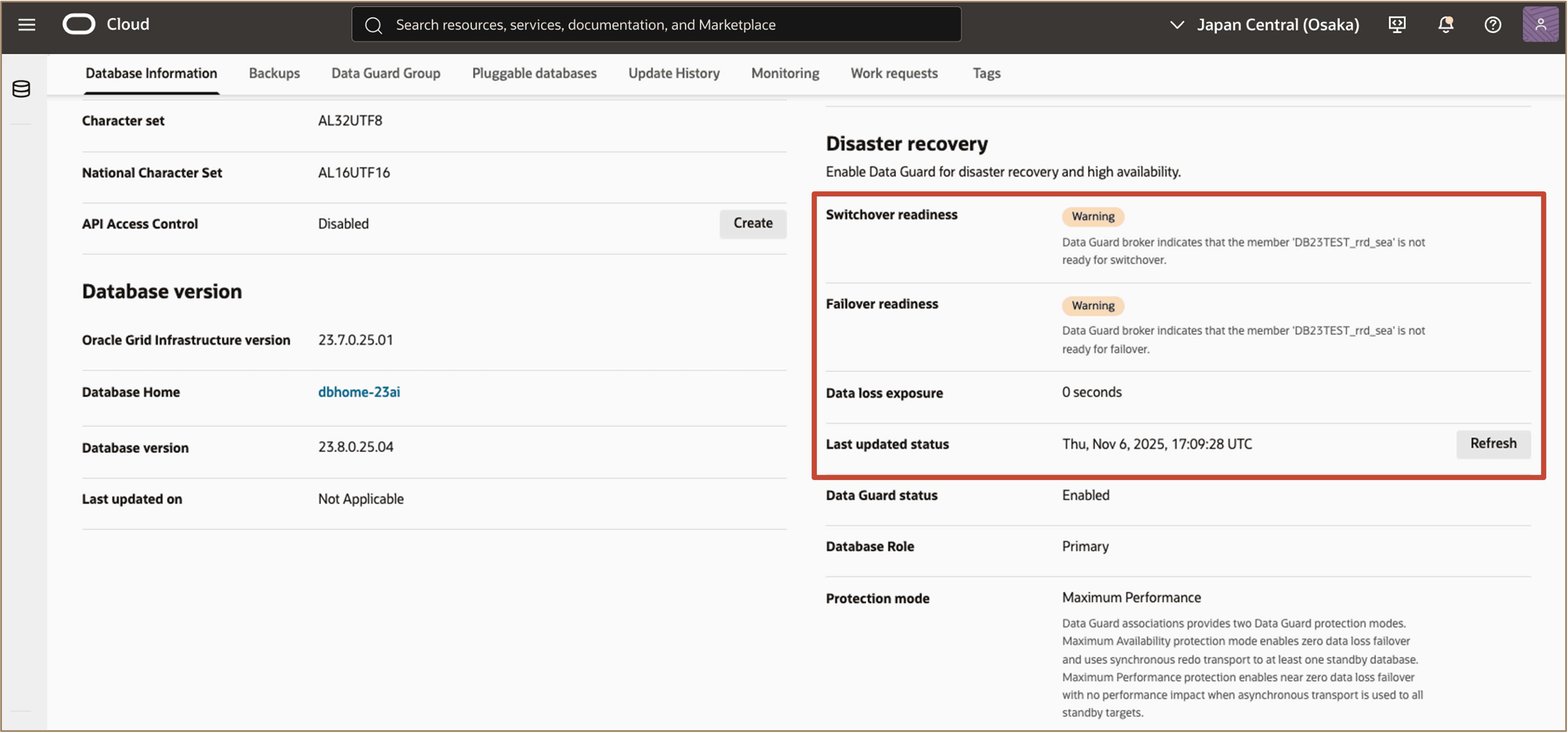
To view the latest Disaster Recovery (DR) readiness information for a specific database, navigate to the Database Information tab and locate the Disaster recovery section. Here, you can review key metrics such as Switchover readiness, Failover readiness, and Data loss exposure. Click the Refresh button next to Last updated status to retrieve the most current health and readiness data.
Description of the illustration view-database-dg-health-status.png
-
If a database is not ready for switchover or failover, this status is clearly displayed in the console under the Disaster recovery section. Warnings will appear next to Switchover readiness and Failover readiness, along with additional details to help you identify and resolve any issues before proceeding with Data Guard operations.
-
You can view the health status of all database members in the Data Guard Group tab.
Description of the illustration all-db-details.png
The status indicators are as follows:
- Healthy: The standby database has passed all readiness checks.
- Warning: At least one standby database in a multi-standby setup is not switchover-ready or failover-ready.
- Critical: The standby database is not switchover-ready or failover-ready.
- Unknown: The health status cannot be determined at this time.
These indicators help you quickly assess which databases are ready for operations and which may require attention.
Related Links
-
What’s New in Oracle Exadata Database Service on Dedicated Infrastructure
-
What’s New in Oracle Exadata Database Service on Exascale Infrastructure
-
What’s New in Oracle Exadata Database Service on Cloud@Customer
Acknowledgments
- Authors - Leo Alvarado, Dileep Thiagarajan, Tammy Bednar (Product Management)
More Learning Resources
Explore other labs on docs.oracle.com/learn or access more free learning content on the Oracle Learning YouTube channel. Additionally, visit education.oracle.com/learning-explorer to become an Oracle Learning Explorer.
For product documentation, visit Oracle Help Center.
View Oracle Data Guard Health Status for Oracle Exadata Database Service
G48392-01