Configure Storage Auto Scaling for Exascale Database Storage Vault on Oracle Exadata Database Service on Exascale Infrastructure
Introduction
Users can now configure Storage Auto Scaling for Exascale Database Storage Vault on Oracle Exadata Database Service on Exascale Infrastructure. This feature enhances agility by allowing the Exascale Database Storage Vault to automatically expand as usage grows. Manual capacity increases are no longer necessary when the vault approaches its limits. Instead, storage scales dynamically, ensuring that mission-critical workloads continue to run smoothly, efficiently, and without interruption.
Objectives
- Provision an Exascale Storage Vault with Storage Auto Scaling enabled.
Prerequisites
- Oracle AI Database 26ai and later.
Task 1: Provision an Exascale Storage Vault with Storage Auto scaling enabled
-
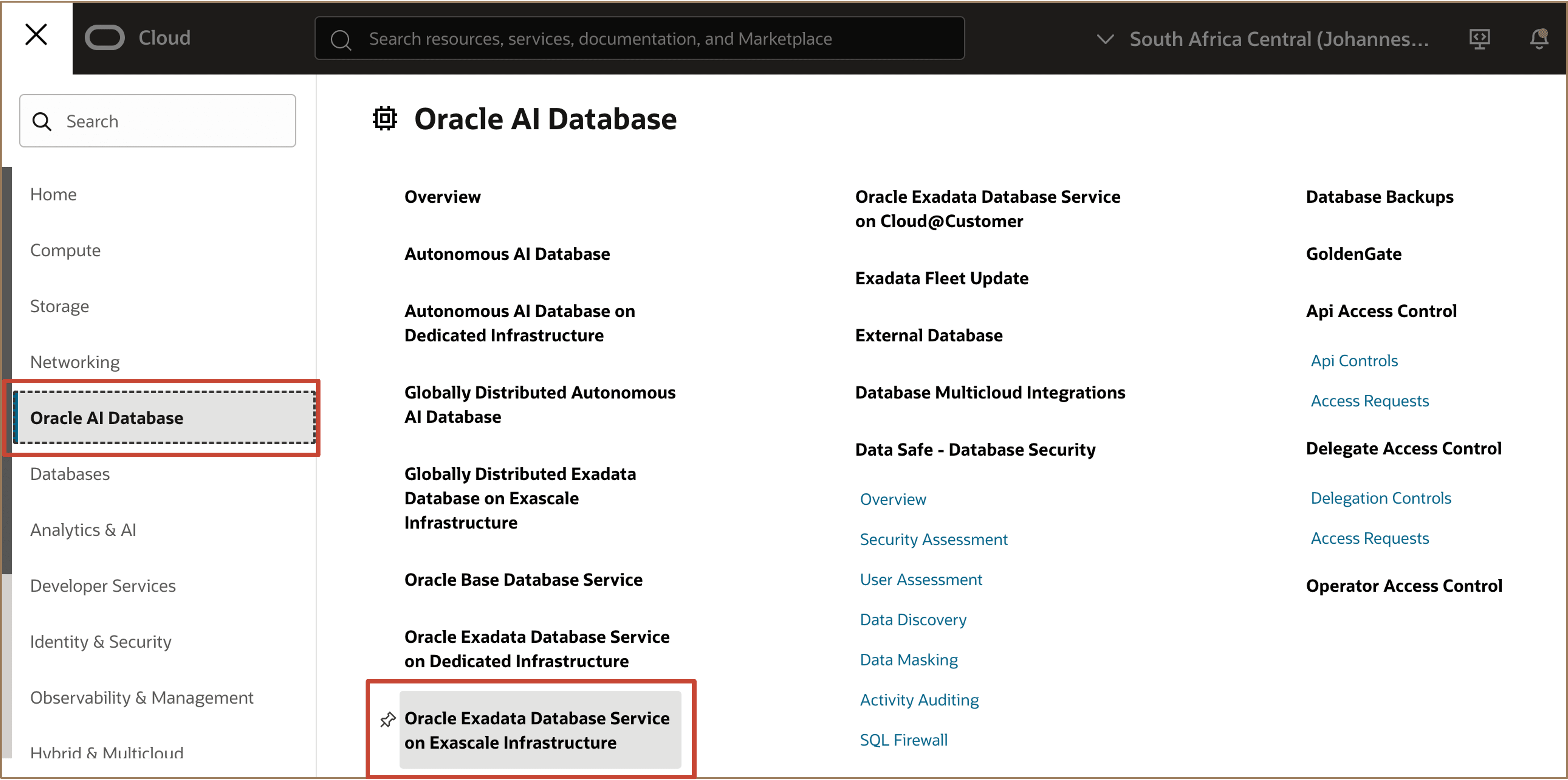
Log in to the OCI Console. Navigate to Oracle AI Database and select Oracle Exadata Database Service on Exascale Infrastructure.
-
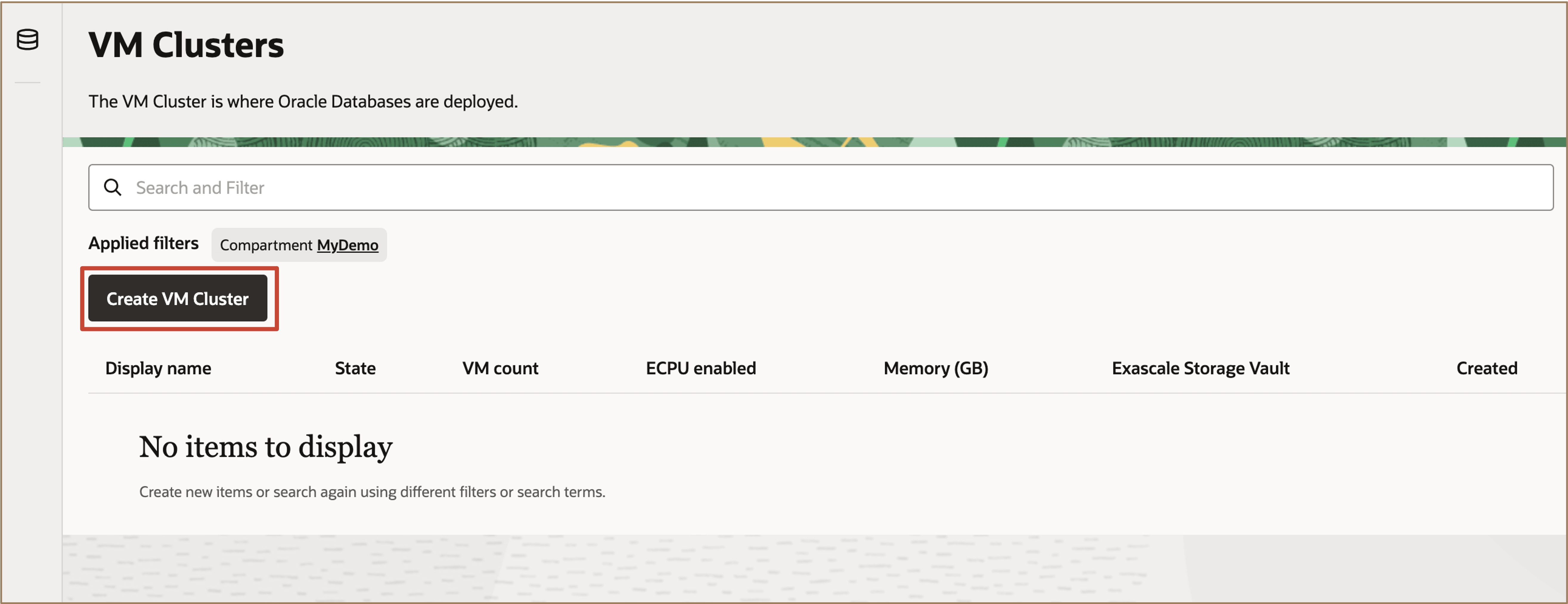
Click Create VM Cluster to provision a new Exadata Database Service on Exascale Infrastructure VM cluster.
-
Enter the required information and proceed through the VM Cluster creation workflow as usual.
-
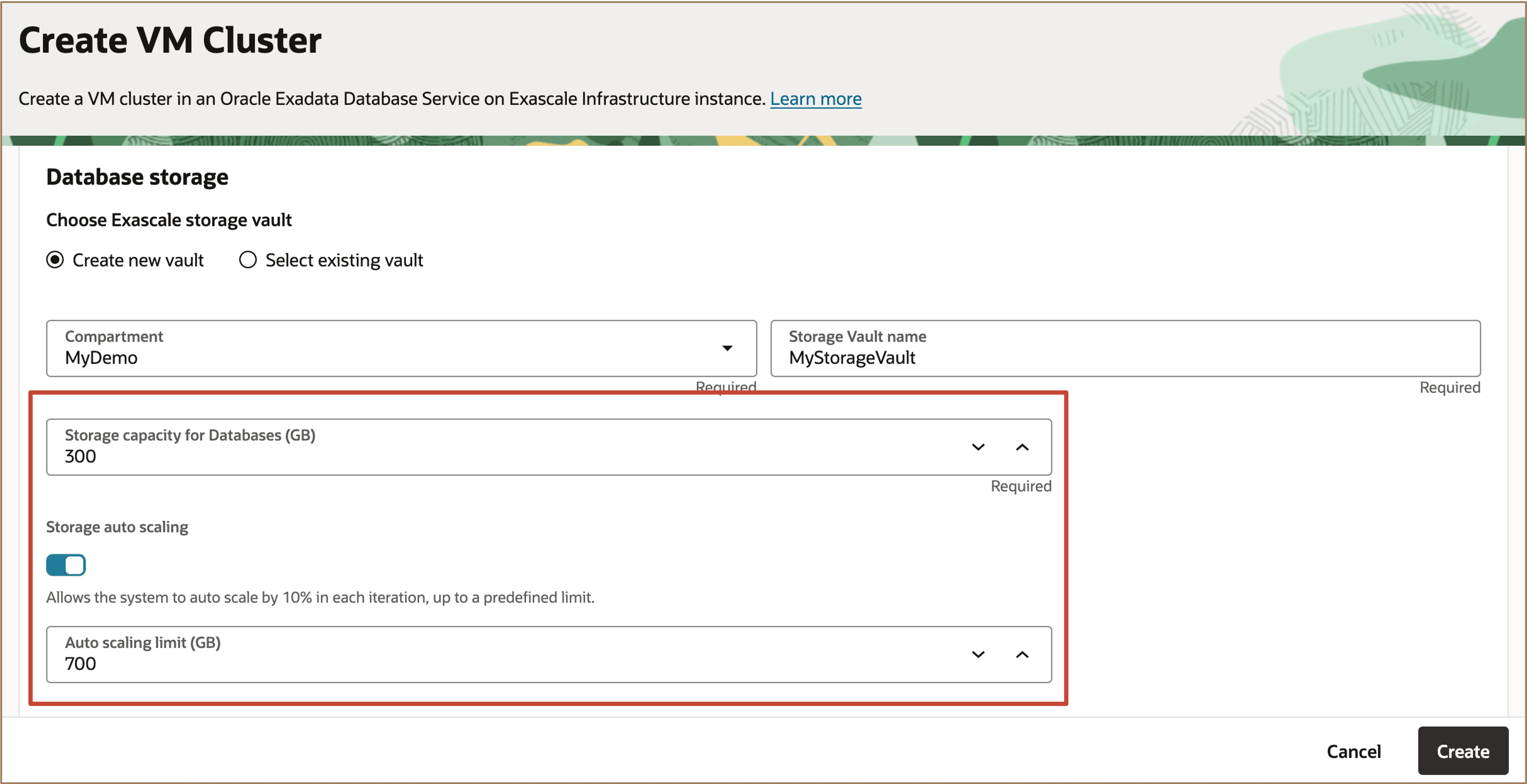
In the Database storage section, select the Create new vault option. For Storage auto scaling, ensure the toggle switch is turned on. By default, the Storage auto scaling is on.
Specify the desired Auto scaling limit in GB.
Note: Users must define an auto scaling limit. By default, the auto scaling limit is set to 10% above the allocated storage vault size.
Description of the illustration auto-scale-storage.png
With auto scaling enabled, if the system detects that vault’s free space is less than or equal to 5% of allocated storage capacity, it automatically expands the vault capacity in increments of 10% (of the allocated storage) until the user-defined auto scaling limit is reached.
-
When finished, click Create.
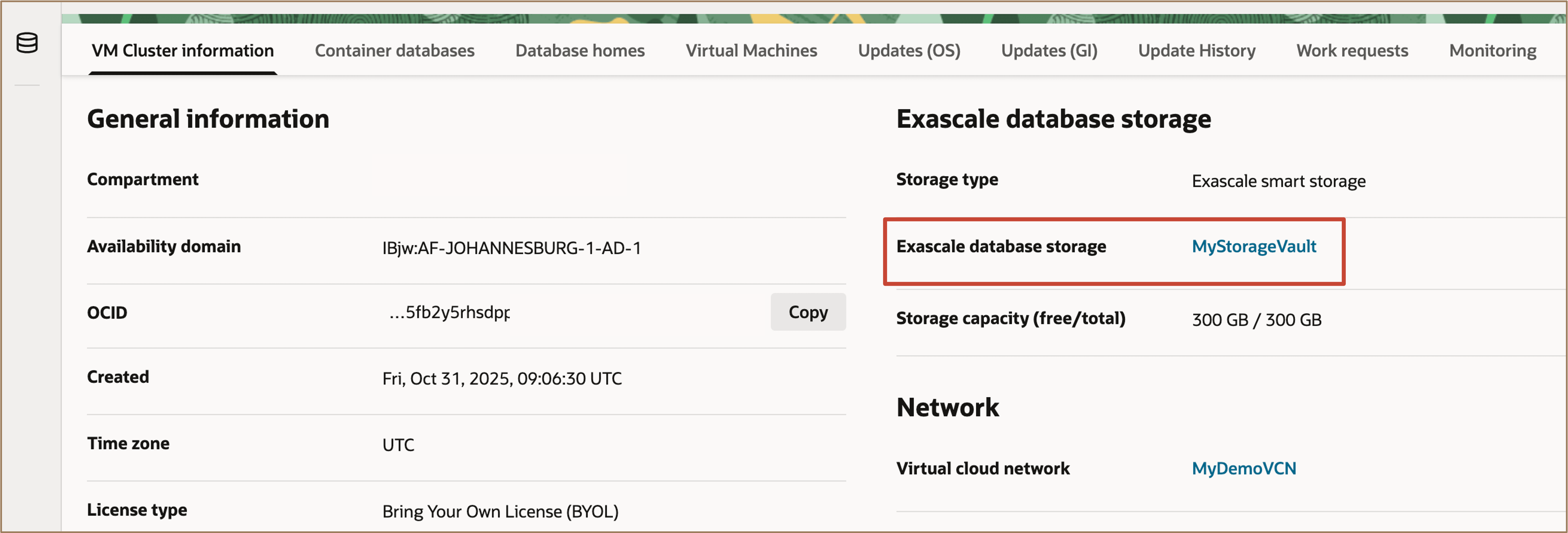
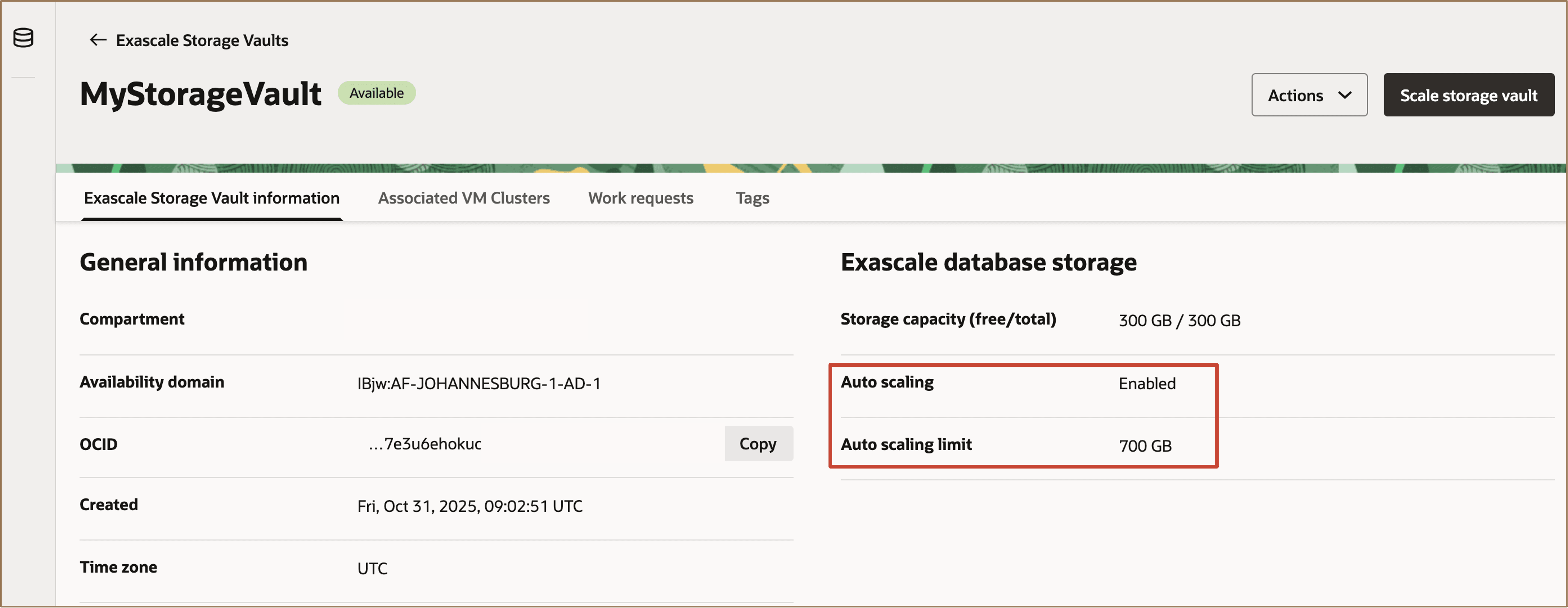
From the VM Cluster Information page, Under the Exascale database storage section. Click the name of the provisioned Exascale database storage.
-
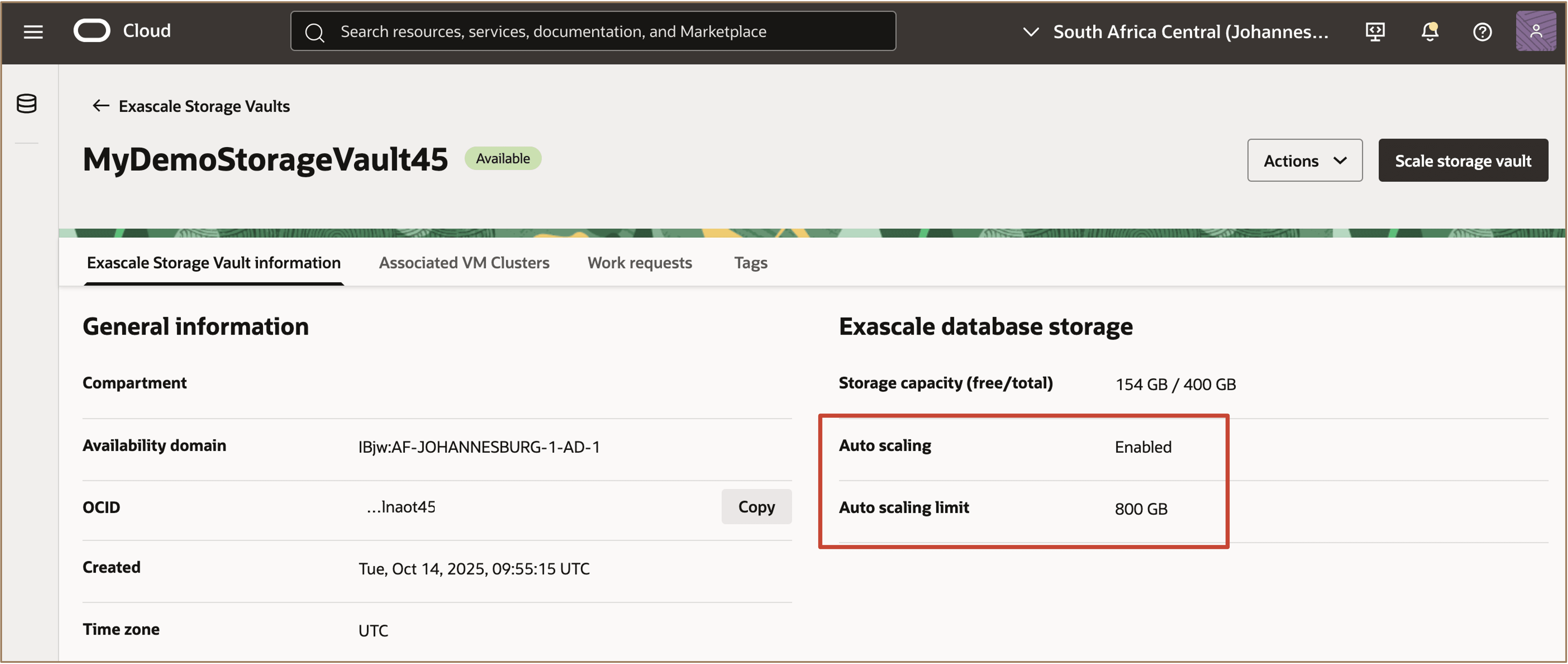
The Exascale database storage section shows the Auto scaling is Enabled, and the value of the Auto scaling limit (in GB).
Task 2: Enable Storage Auto Scaling on an existing Exascale Storage Vault
-
Log in to the OCI Console. Navigate to Oracle AI Database and select Oracle Exadata Database Service on Exascale Infrastructure.
-
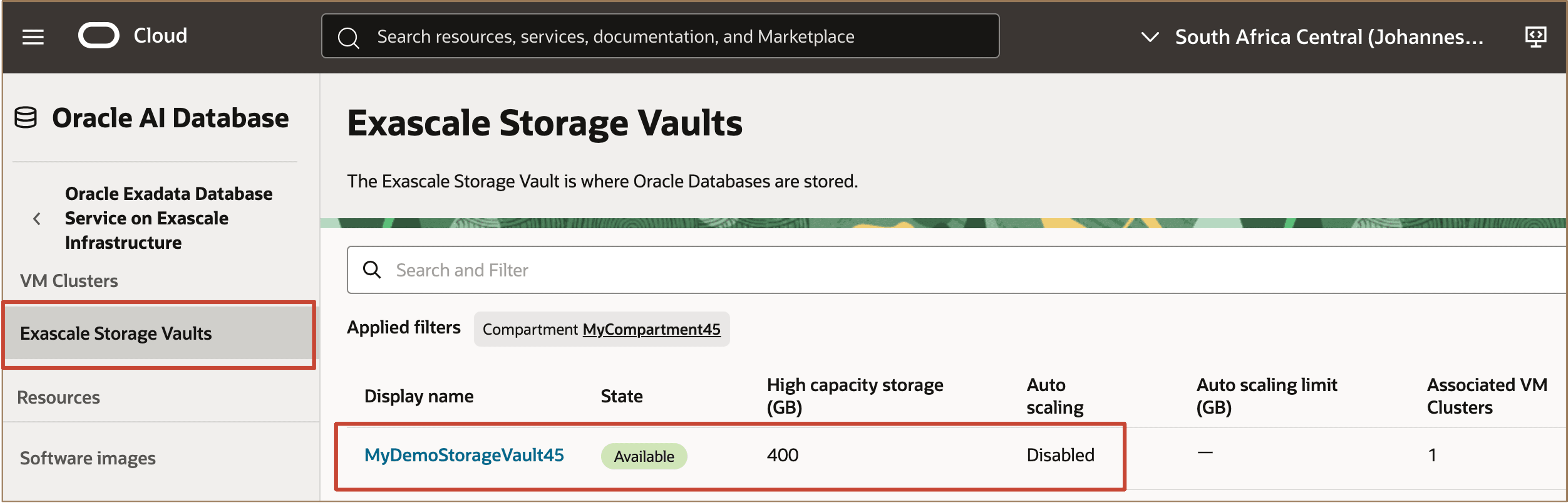
In the left pane, select Exascale Storage Vaults and choose the desired Exascale Storage Vault.
-
Click Scale Storage Vault.
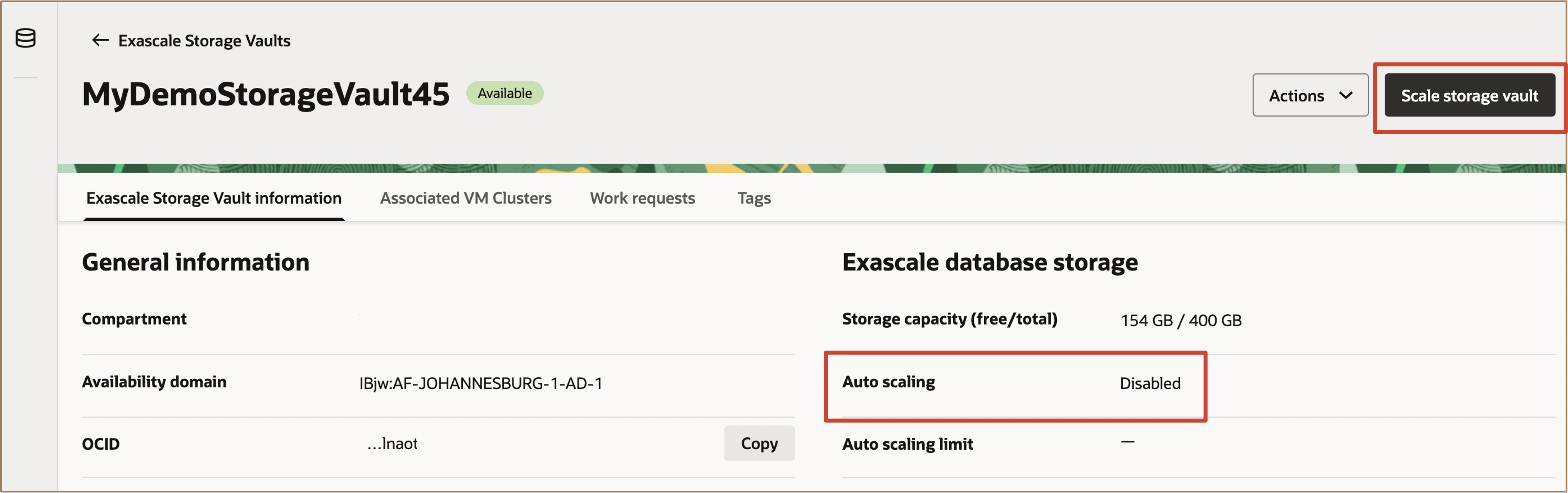
Description of the illustration scale-storage-vault.png
Enable Storage auto scaling by toggling the switch, then specify the Auto scaling limit (in GB).
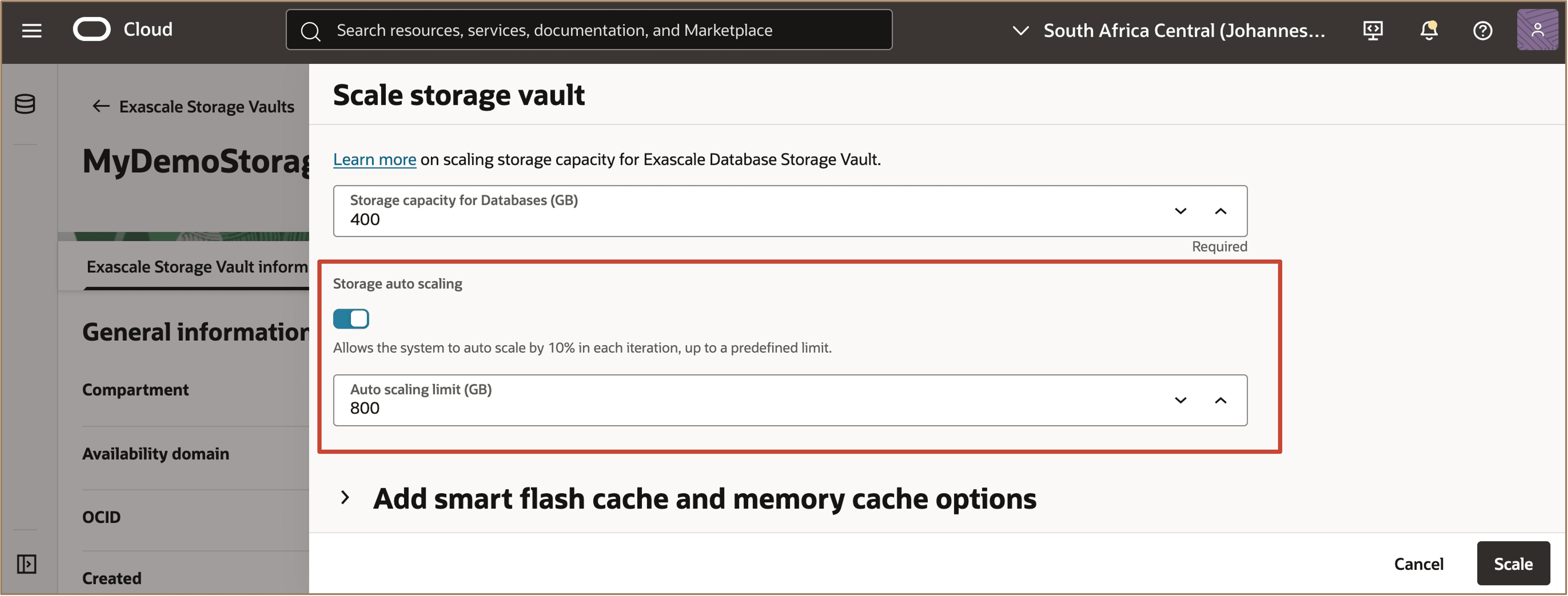
Description of the illustration enable-auto-scale.png
Click Scale.
-
The Exascale database storage section now displays Auto scaling as Enabled, along with the configured Auto scaling limit (in GB).
Related Links
-
Oracle Exadata Database Service on Exascale Infrastructure Overview
-
Introducing Oracle Exadata Database Service on Exascale Infrastructure
Acknowledgments
- Authors - Leo Alvarado, Deepika Pandhi, Tammy Bednar (Product Management)
More Learning Resources
Explore other labs on docs.oracle.com/learn or access more free learning content on the Oracle Learning YouTube channel. Additionally, visit education.oracle.com/learning-explorer to become an Oracle Learning Explorer.
For product documentation, visit Oracle Help Center.
Configure Storage Auto Scaling for Exascale Database Storage Vault on Oracle Exadata Database Service on Exascale Infrastructure
G46589-01