Create VM file system snapshots for Oracle Exadata Database Service on Exascale Infrastructure
Introduction
Users can now create point-in-time snapshots of their VM file systems for Oracle Exadata Database Service on Exascale Infrastructure through the Oracle Cloud Console or APIs. It leverages redirect-on-write technology, implemented in Exascale, to instantly protect a VM’s exact state without duplicating storage blocks, saving space, and improving efficiency.
With these new features, users gain the ability to:
-
Real-Time Configuration Protection: Capture the state of a VM file system instantly before making configuration changes, ensuring quick access in case of errors and reducing downtime risk.
-
Immediate File-Level Recovery: Retrieve specific files by mounting a VM file system snapshot in read-only mode. Users can access the exact state of the system from an earlier moment, enabling fast recovery from administrative errors.
Objectives
- Create a snapshot of a Virtual Machine.
- Mount a VM file system snapshot (read-only).
- Unmount a VM file system snapshot.
- Delete a VM file system snapshot.
- Create VM file system snapshots for all the VMs in the VM Cluster.
Task 1: Create a snapshot of a Virtual Machine
-
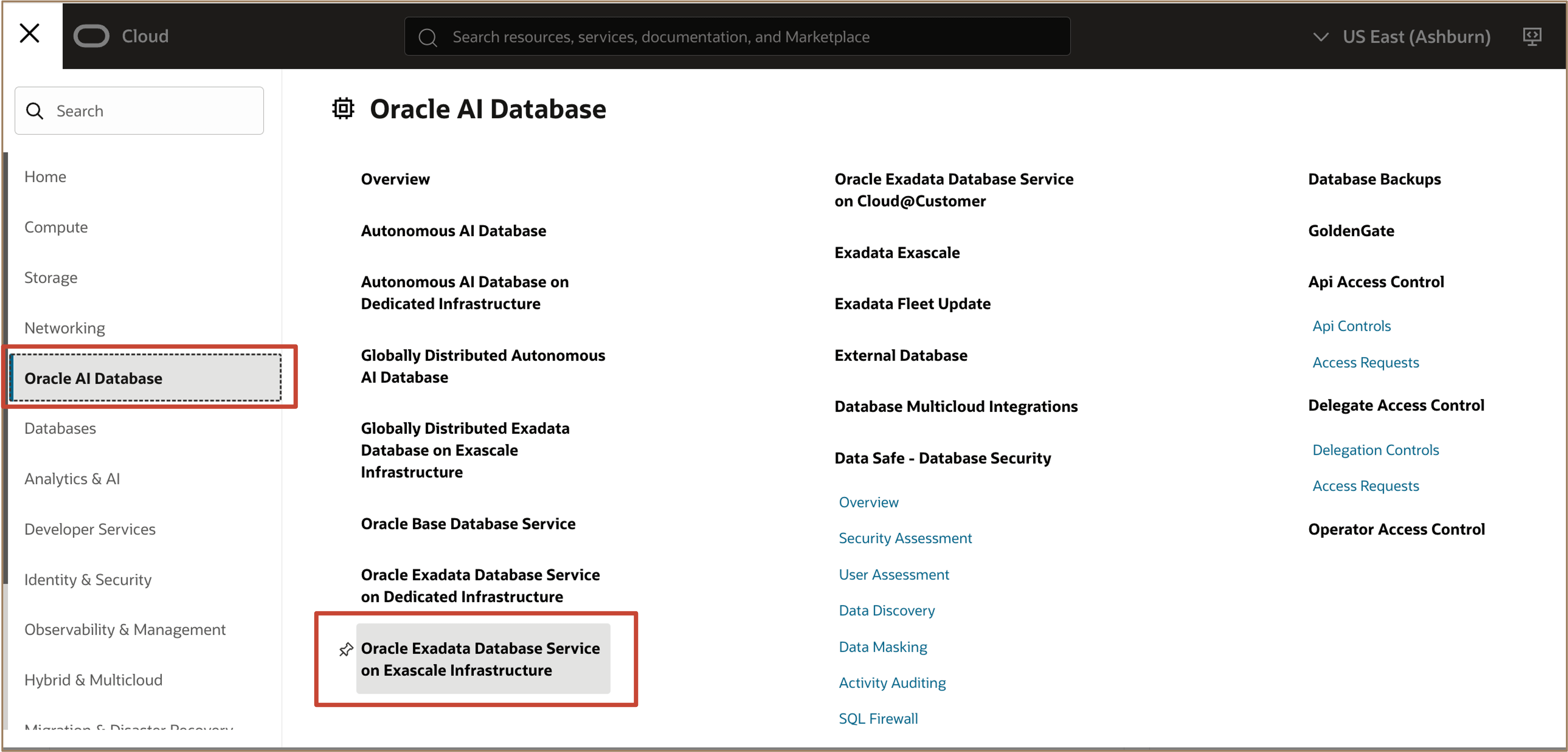
Log in to the OCI Console. Navigate to Oracle AI Database and select Oracle Exadata Database Service on Exascale Infrastructure.
-
In the list of VM clusters, find the cluster you want to manage and click its highlighted name to view the details page for the cluster.
On the VM Cluster main page, click the Virtual Machines tab to navigate to the Virtual Machines resource for a VM Cluster.
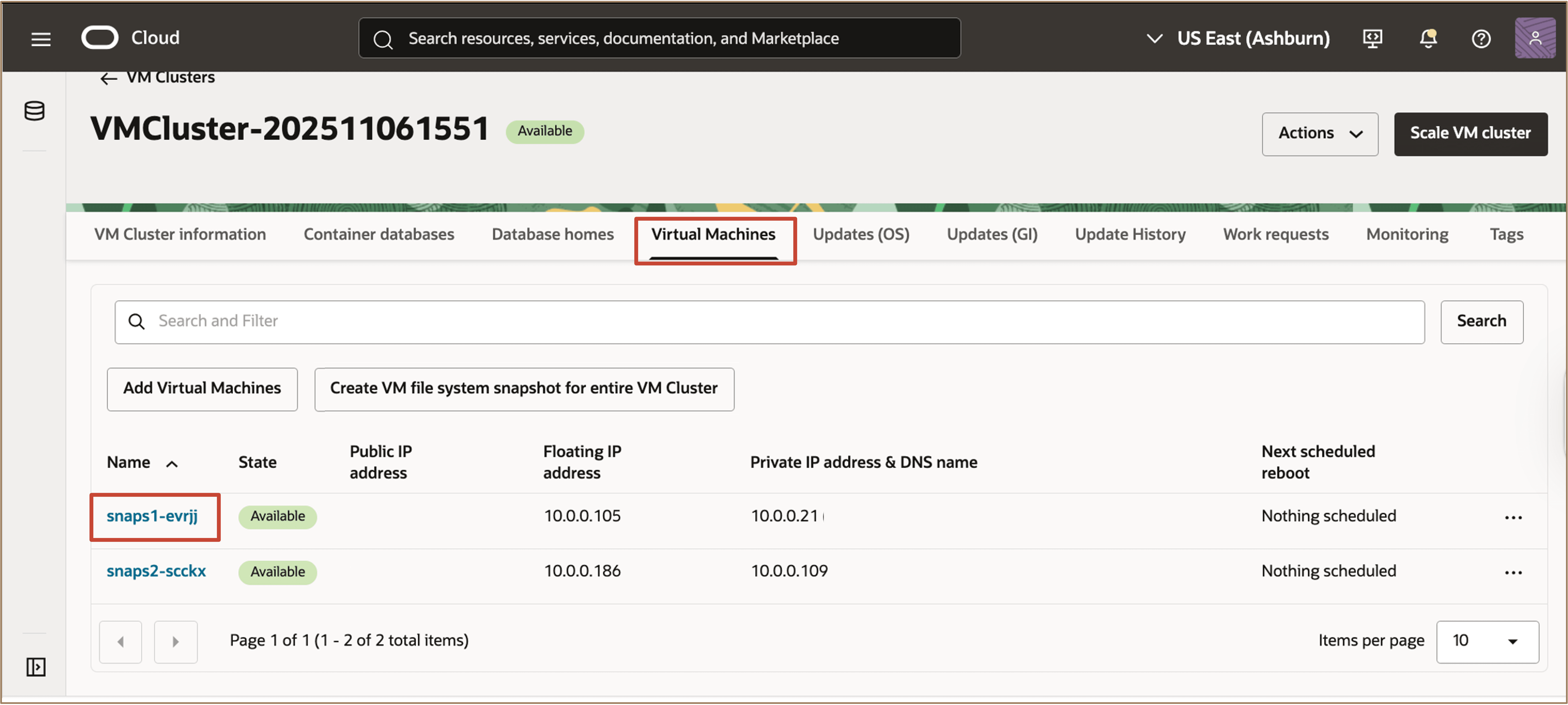
Description of the illustration navigate-virtual-machines.png
-
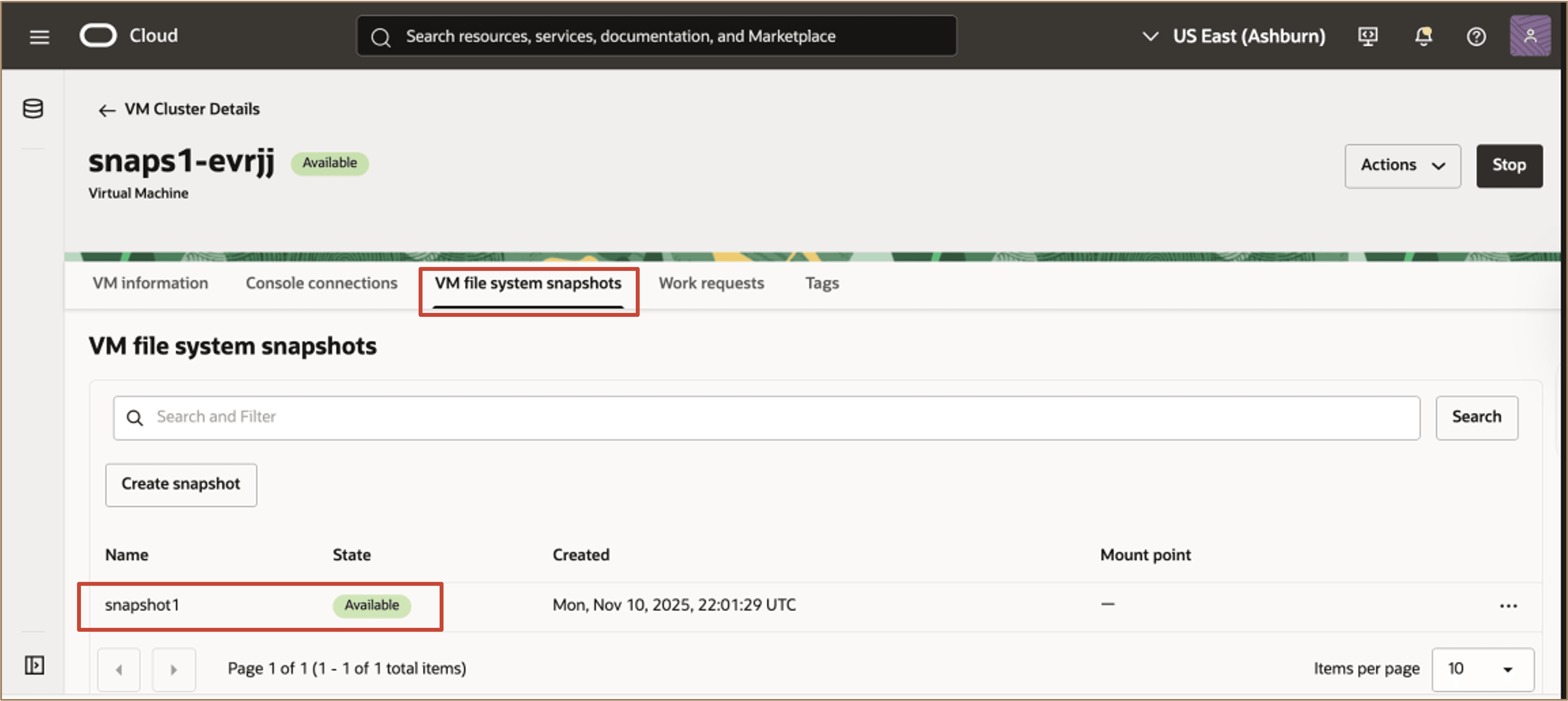
On the Virtual Machine detail page, select VM file system snapshots and click on Create snapshot.

-
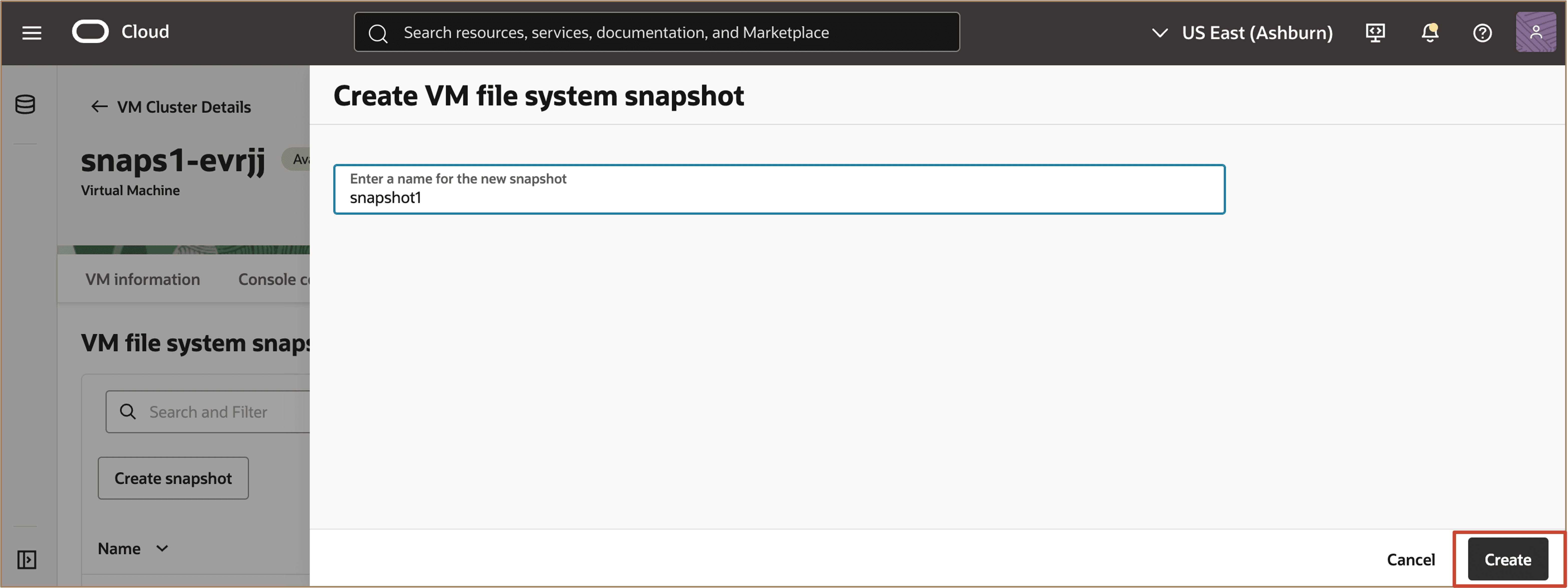
Enter a name for the new VM file system snapshot and click Create.
-
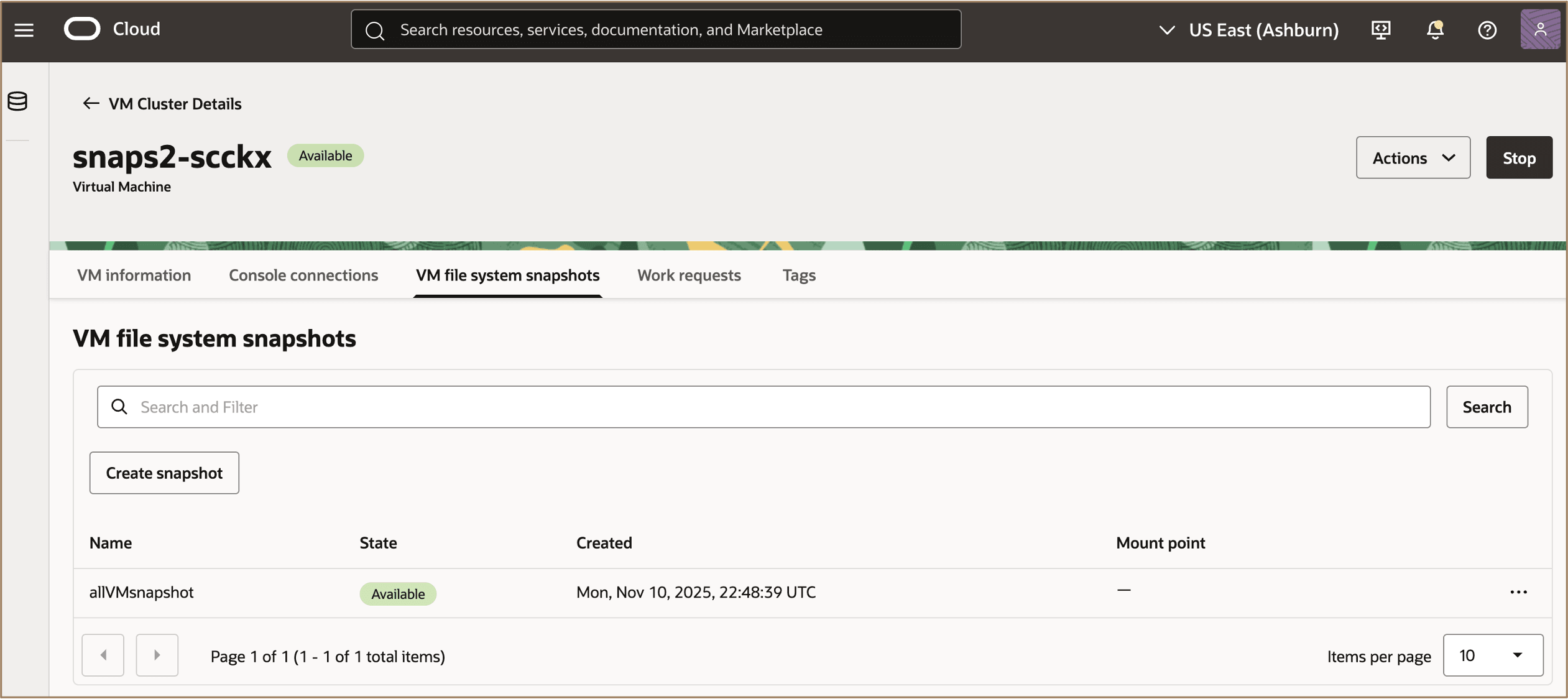
A VM file system snapshot will then be created which can be viewed under VM file system snapshots.
Task 2: Mount a VM file system snapshot (read-only)
To access or recover files from a specific snapshot, you can initiate a read-only mount from the OCI console.
-
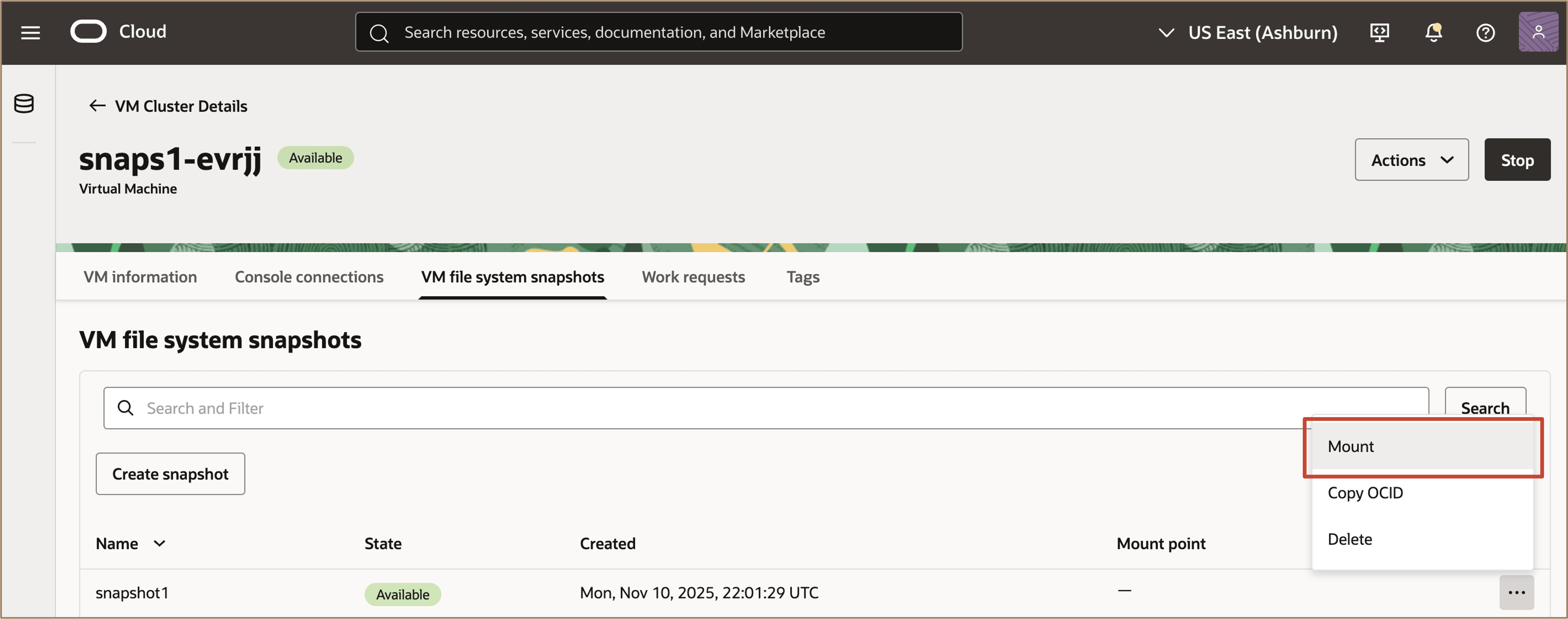
Navigate to the VM file system snapshots page and select the desired VM snapshot to mount. Click the action menu, then click Mount.
-
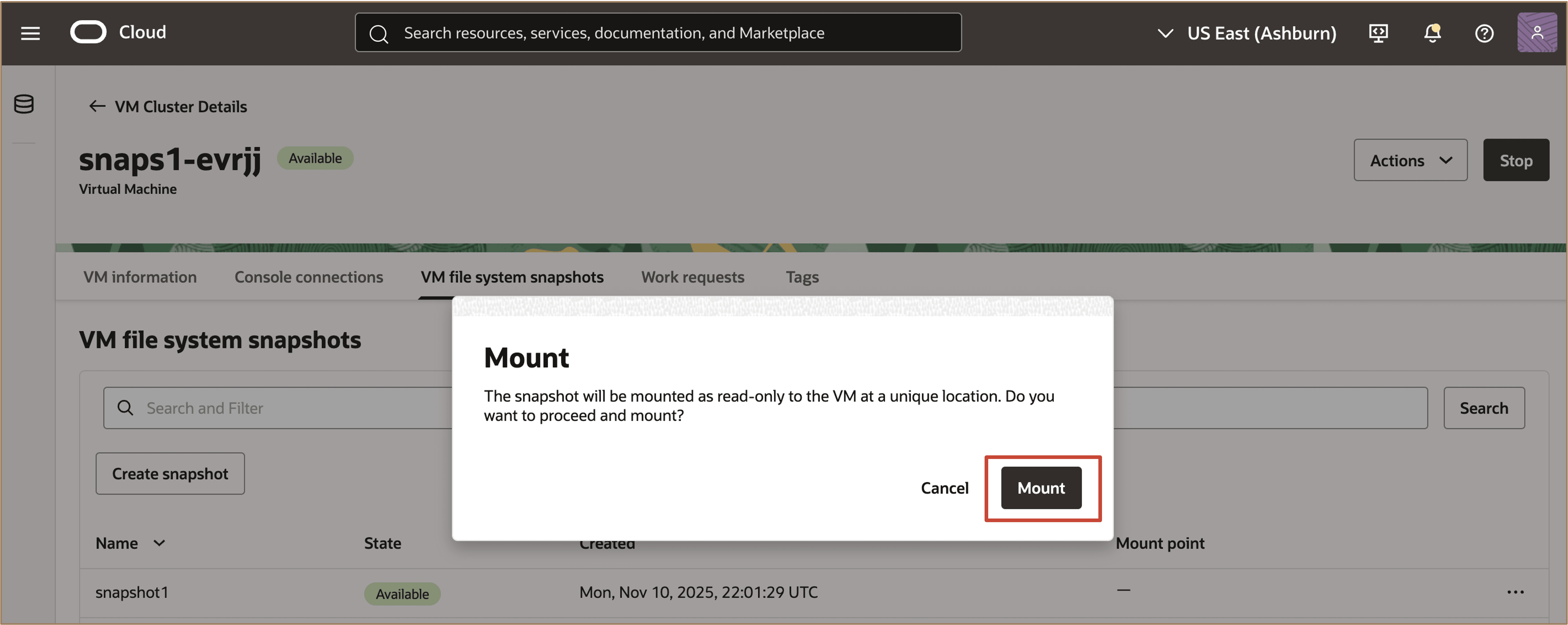
Read the message and click Mount to acknowledge that you want to mount the snapshot.
-
Once the snapshot is mounted, users can navigate to the mount point location and access the file system exactly as it existed at that earlier moment. From this location, they can copy older versions of files back into the active VM to quickly fix issues (for example, restoring previous firewall rules after an incorrect update, or retrieving an earlier SSH configuration that was accidentally overwritten). This read-only view of the previous configuration enables users to safely undo changes and recover only what they need, without disrupting the running VM.
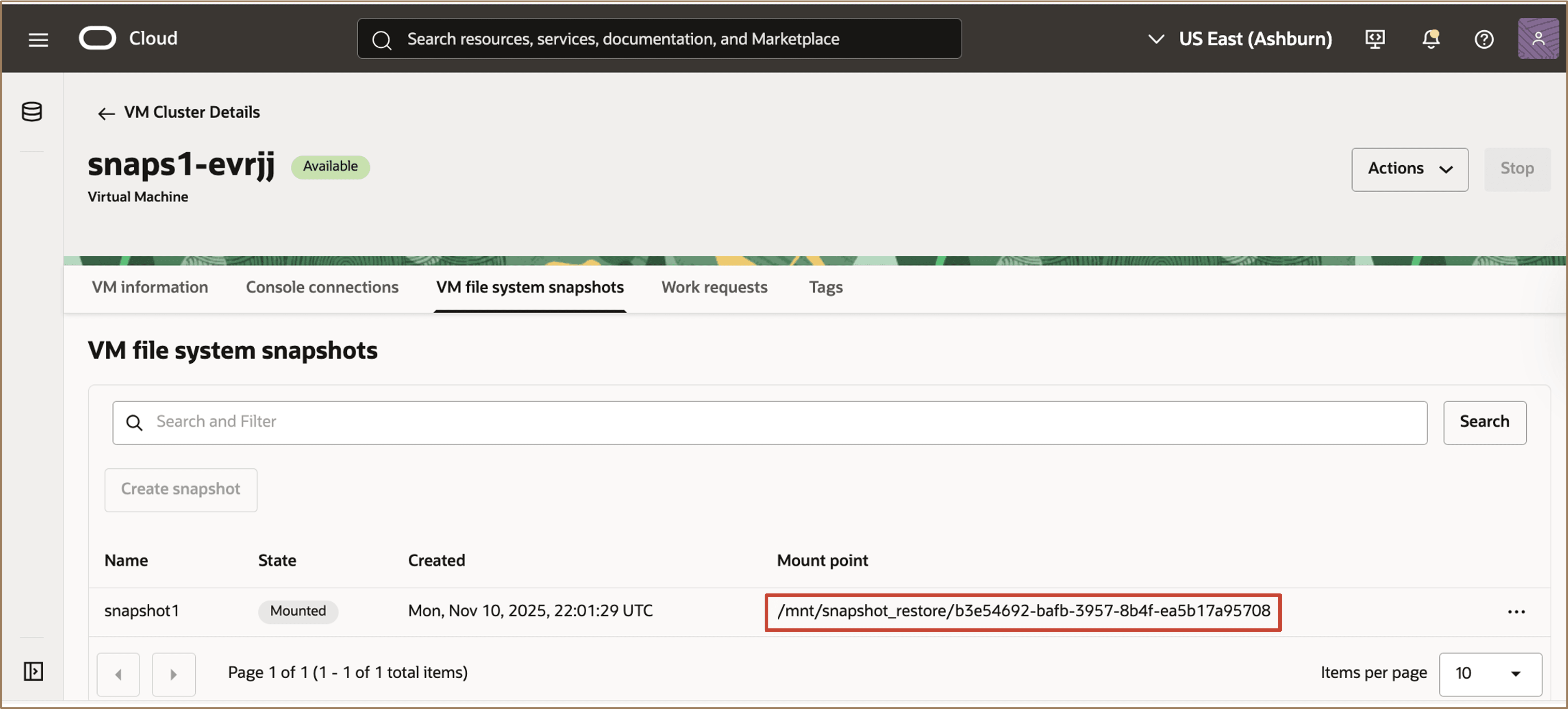
Description of the illustration view-mount-point-location.png
Task 3: Unmount a VM file system snapshot
-
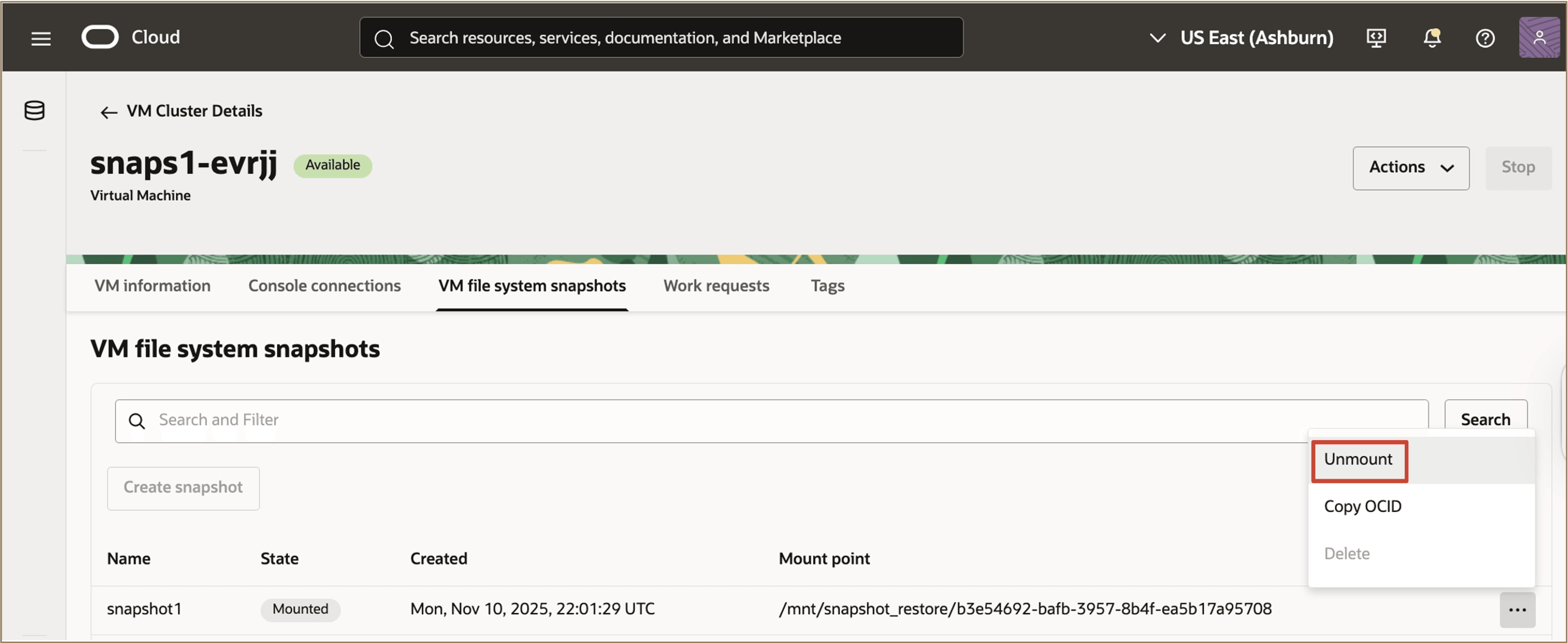
To unmount a VM file system snapshot, navigate to the VM file system snapshots page, select the corresponding snapshot you want to unmount, click the action menu, and then click Unmount.
-
Read the message and click Unmount to acknowledge that you want to unmount the snapshot.
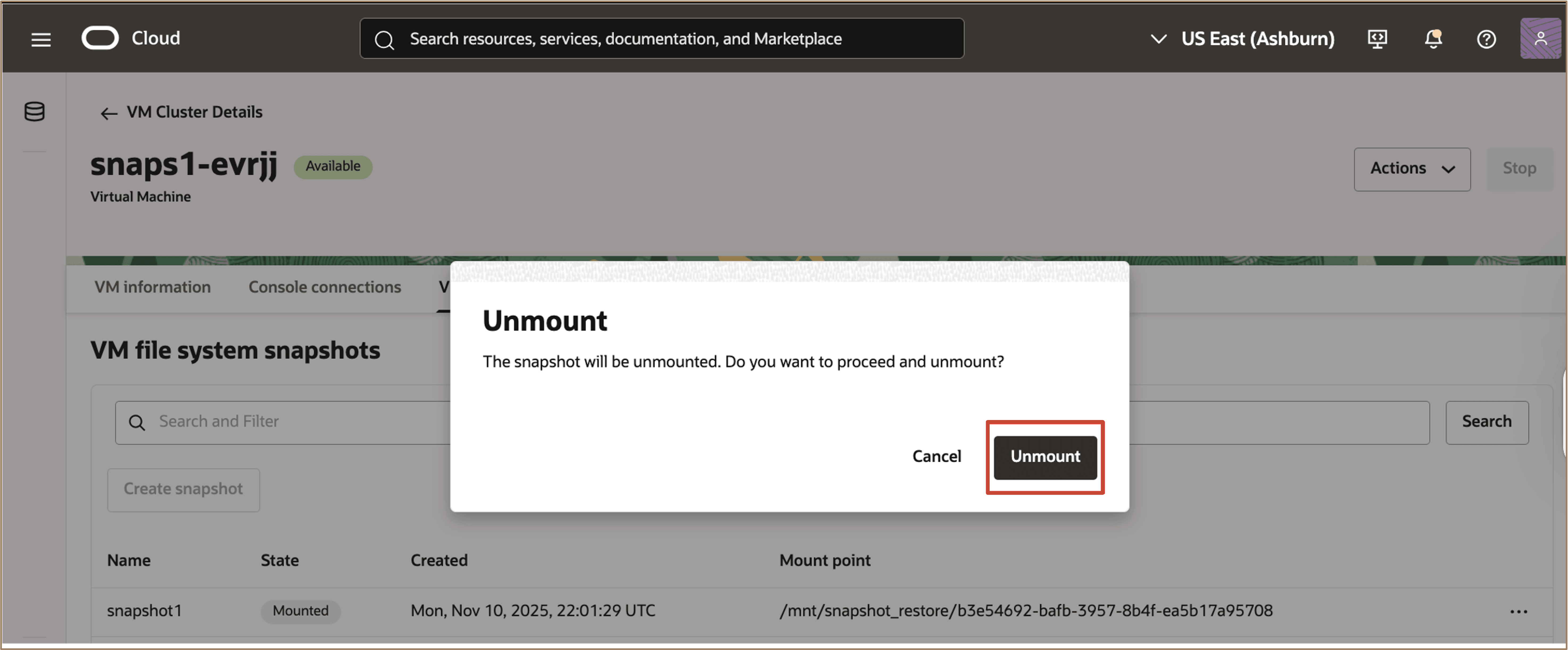
Description of the illustration confirm-unmount-snapshot.png
-
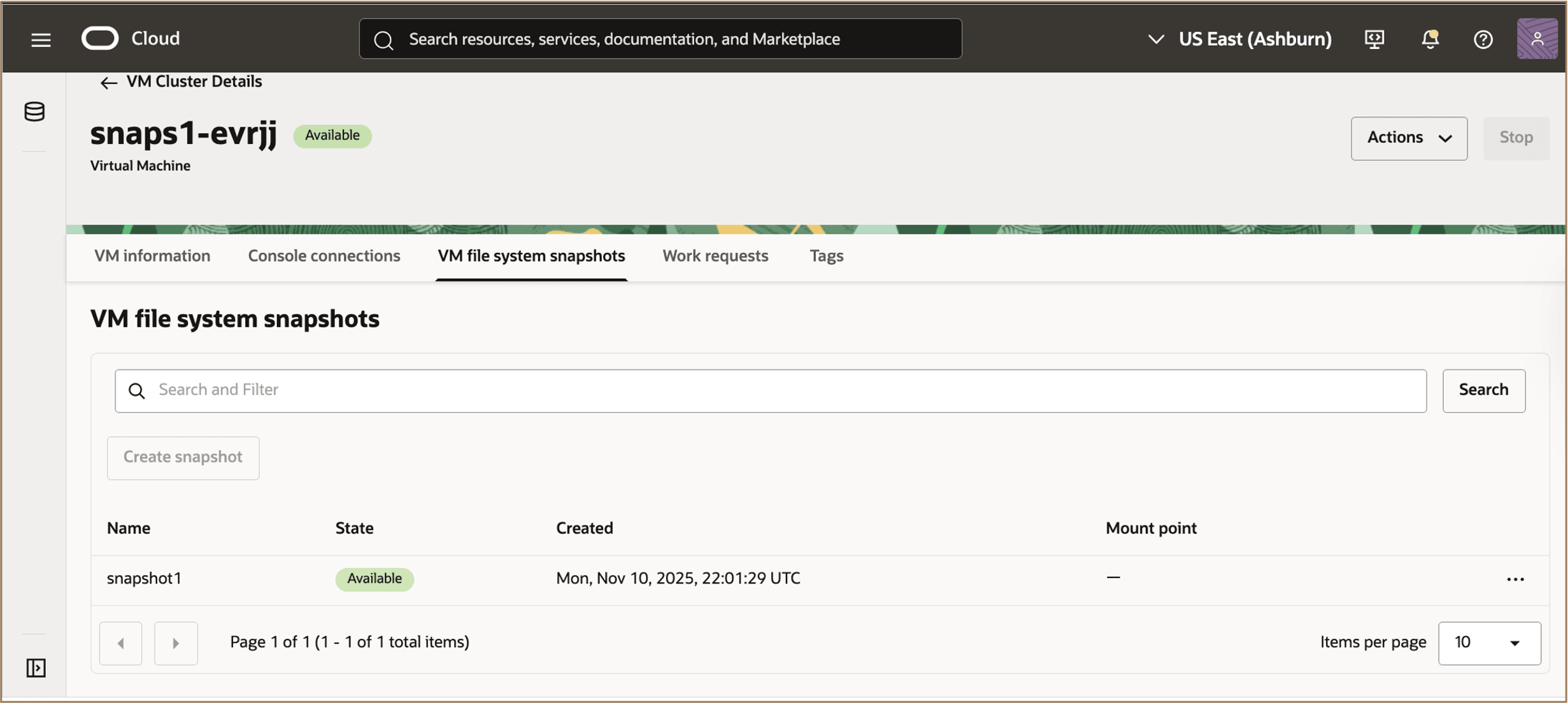
After the unmount operation completes, the status of the snapshot changes to Available, and the associated mount point is removed. The snapshot is preserved and can be re-mounted at any time, allowing repeated access for file retrieval or restoration.
Task 4: Delete a VM file system snapshot
-
To delete a VM snapshot, select the snapshot and choose Delete from the action menu.
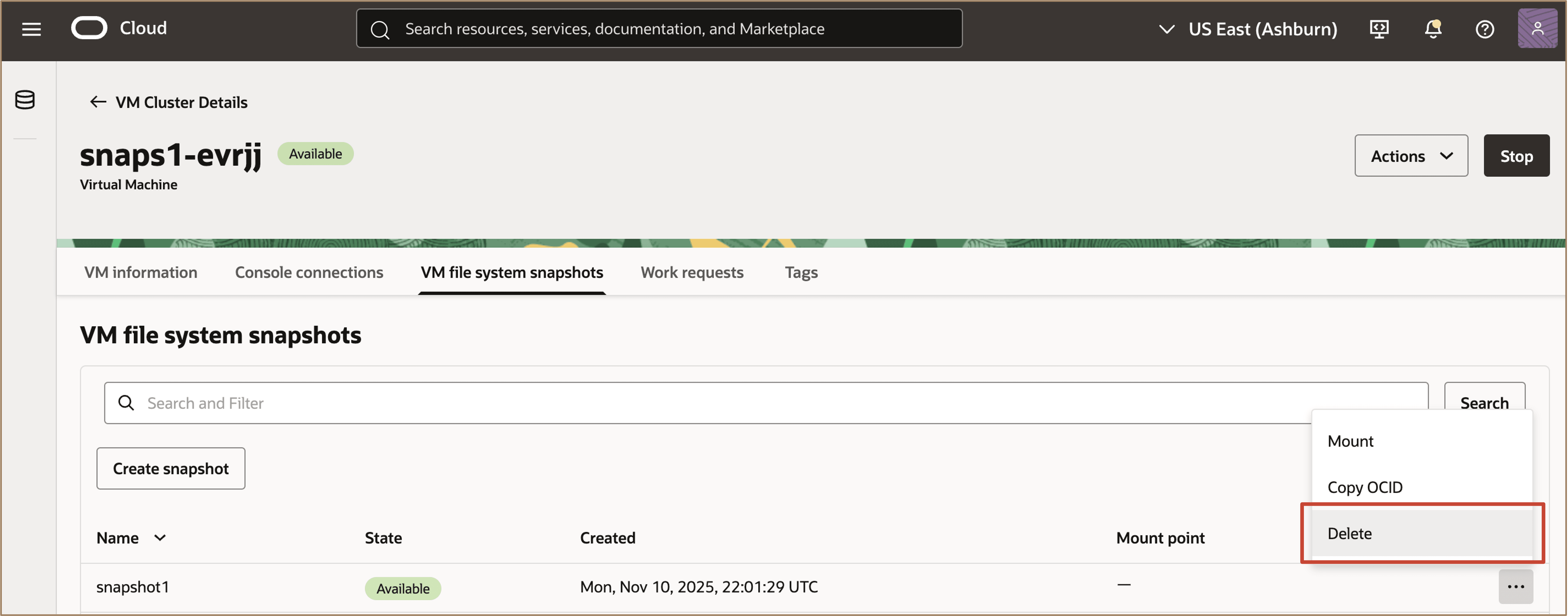
Description of the illustration delete-snapshot.png
Note: After deletion, the historical VM file system captured in that snapshot is no longer accessible, but the active parent volumes of the snapshot remain unaffected and continue to operate normally.
Task 5: Create VM file system snapshots for all the VMs in the VM Cluster
Users can choose to create snapshots of all the VMs in a VM Cluster at once.
-
Navigate to the Virtual Machines tab of the VM Cluster main page. Click Create VM file system snapshot for entire VM Cluster.
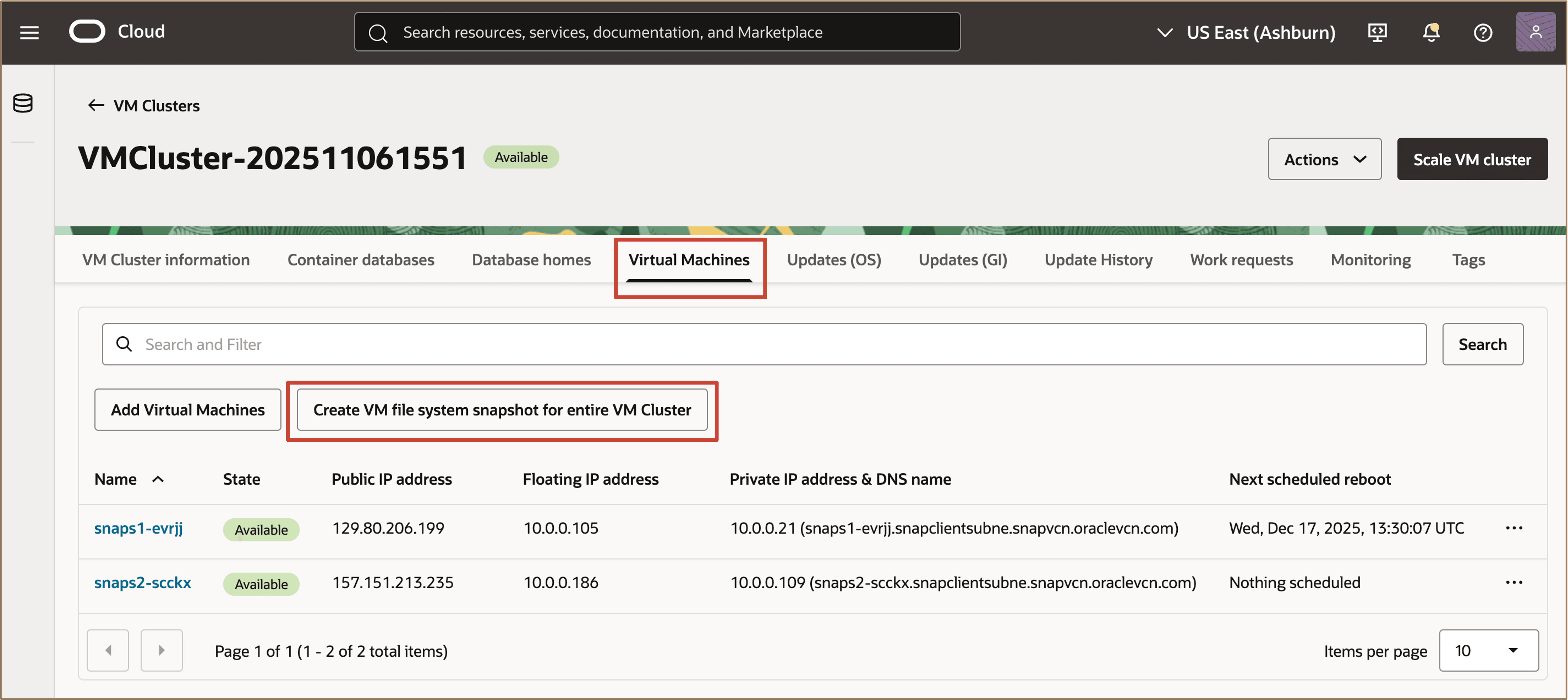
Description of the illustration create-snapshot-for-entire-vmc.png
-
Enter the name (prefix) to be used for all the VM file system snapshots to be created for a VM Cluster and click Create.
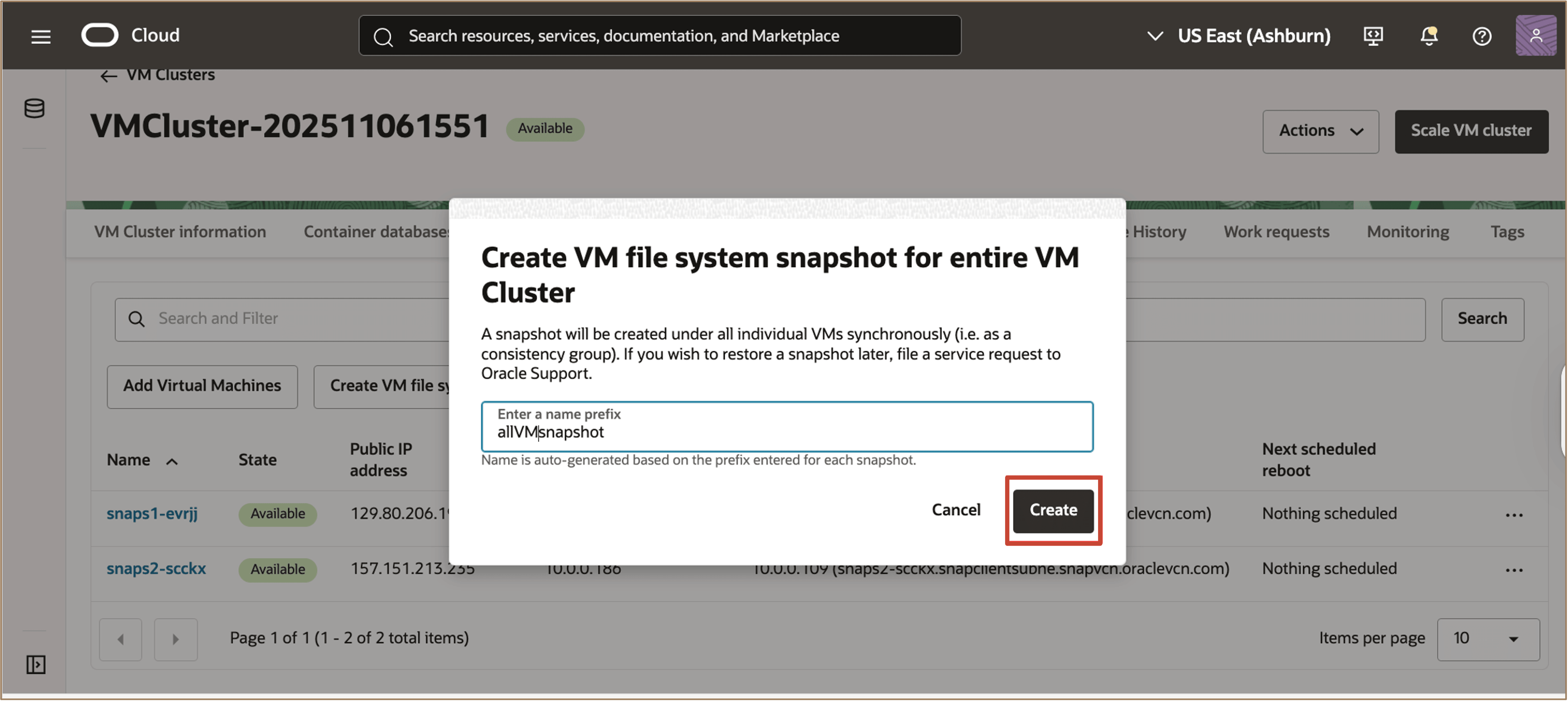
Description of the illustration create-prefix-all-vm-snapshot.png
Note: These snapshots are not available at the VM Cluster level, but are created synchronously for all individual Virtual Machines in the VM cluster.
-
When the snapshot creation is complete, the state of the Virtual Machines changes from Updating to Available.
Related Links
Acknowledgments
- Authors - Leo Alvarado, Deepika Pandhi, Tammy Bednar (Product Management)
More Learning Resources
Explore other labs on docs.oracle.com/learn or access more free learning content on the Oracle Learning YouTube channel. Additionally, visit education.oracle.com/learning-explorer to become an Oracle Learning Explorer.
For product documentation, visit Oracle Help Center.
Create VM file system snapshots for Oracle Exadata Database Service on Exascale Infrastructure
G49357-01