Enable and Configure Fully Managed Automatic Failover for Oracle Exadata Database Service on Exascale Infrastructure
Introduction
Fully managed automatic failover for Oracle Data Guard on Oracle Exadata Database Service on Exascale Infrastructure combines Oracle Data Guard with OCI automation to deliver automatic failover, helping reduce downtime during planned maintenance and unplanned outages.
Oracle Data Guard Automatic Failover simplifies this process with single-click setup, automated health monitoring, and failover orchestration without requiring changes to application connection strings.
OCI transparently manages high availability orchestration. Oracle Cloud automation deploys an Observer to monitor the health and availability of the primary and standby databases, and connection details for both database roles are provided for administrators to download. When the configured failover conditions are met, Oracle Data Guard Fast-Start Failover automatically promotes the standby database, enabling application workloads to continue to operate on the new primary database, fully eliminating the need for manual intervention.
Oracle Data Guard Automatic Failover helps protect data integrity, maintain the availability of critical workloads, and reduce overall recovery time. Customers retain full control over their primary and standby databases, while Oracle automates the underlying health monitoring and failover orchestration. This capability can be enabled and configured using the OCI Console, REST APIs, SDKs, or Terraform.
Key Benefits
-
Faster database recovery
Reduces recovery time objective (RTO) by eliminating manual steps and failover delays, achieving Oracle’s Maximum Availability Architecture (MAA) Gold and Platinum RTO targets. -
Zero data loss
Enables rapid automatic failover while preserving zero data loss. -
Simplified operations
Reduces operational complexity by automating health monitoring and failover orchestration, minimizing manual intervention during disaster recovery operations. -
Improved business resilience
Helps maintain mission-critical application availability during unexpected infrastructure events without immediate operator intervention.
Objectives
The following sections describe the user journey for managing automatic failover in the OCI Console:
- Enable automatic failover on an existing Oracle Data Guard configuration
- Enable automatic failover when creating a standby database using the new Oracle Data Guard Group resource
- Modify failover targets for automatic failover
Planning Essentials
- This feature is available for Oracle Database 19c and Oracle AI Database 26ai.
- Primary and standby databases must reside in the same OCI region.
Task 1: Enable Automatic Failover on an Existing Data Guard Configuration
Use this task when you already have an existing Data Guard Group configuration and want to enable automatic failover.
-
In the OCI Console, Open the navigation menu. Under Oracle AI Database, click Oracle Exadata Database Service on Exascale Infrastructure.
-
Open the VM cluster that contains the primary database.
-
On the VM cluster details page, in Container Databases, select the database.
-
Open the Data Guard Group tab.
-
Click Enable automatic failover.
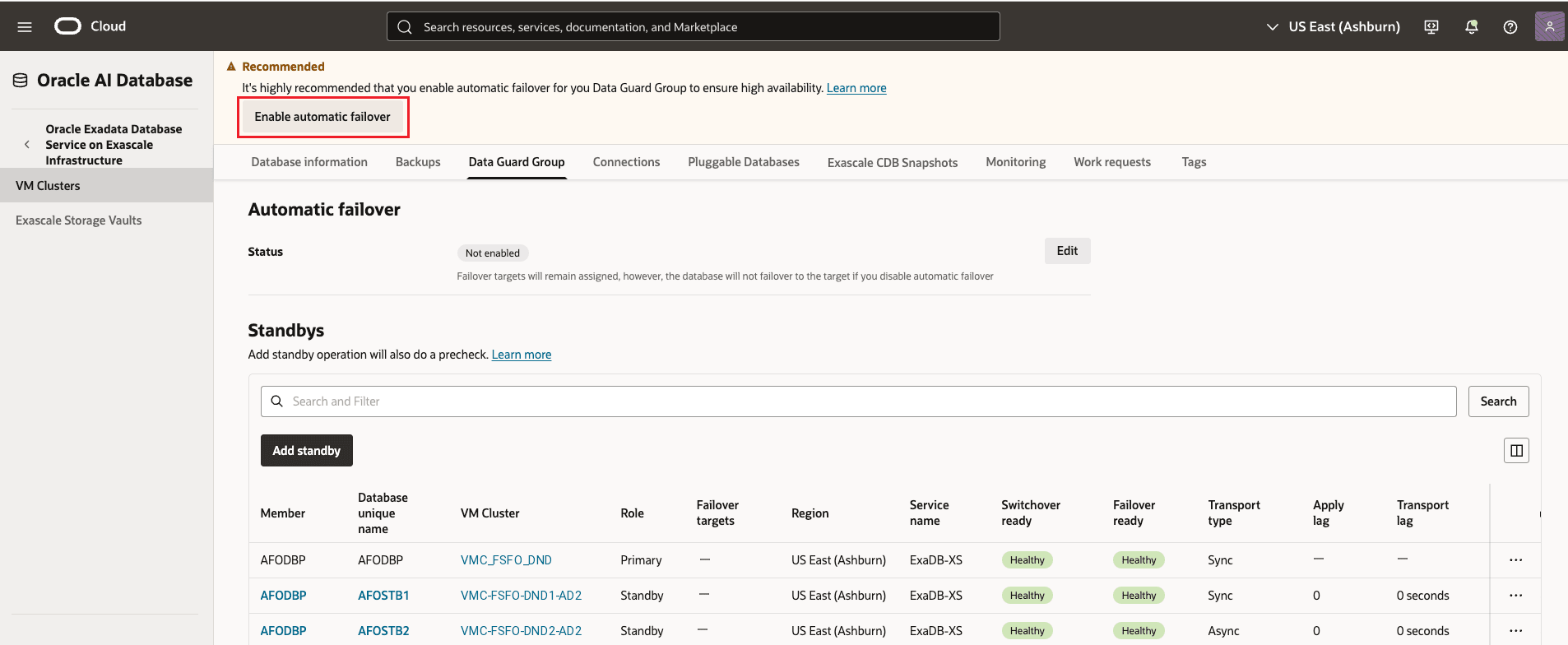
Description of the illustration enable-automatic-failover.png
-
On the Manage automatic failover page, turn on Enable automatic failover.
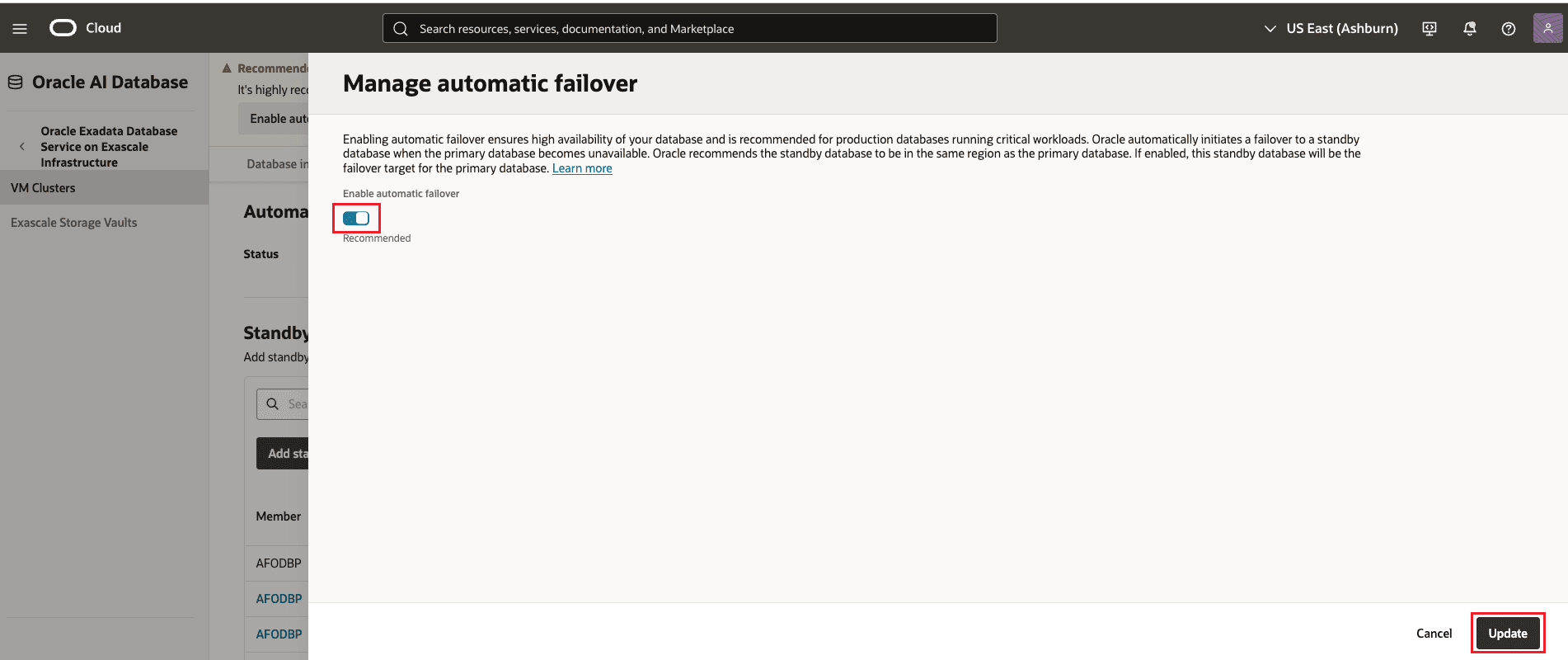
Description of the illustration manage-automatic-failover.png
-
Click Update or Save to apply the settings.
-
After automatic failover has been enabled, you can add or modify failover targets for the primary database or any standby database.
The Automatic failover status is displayed as Enabled, indicating that fully managed automatic failover is active for the Data Guard Group configuration. The Standbys table lists the primary and standby databases, with the configured Failover targets highlighted to show the automatic failover sequence.
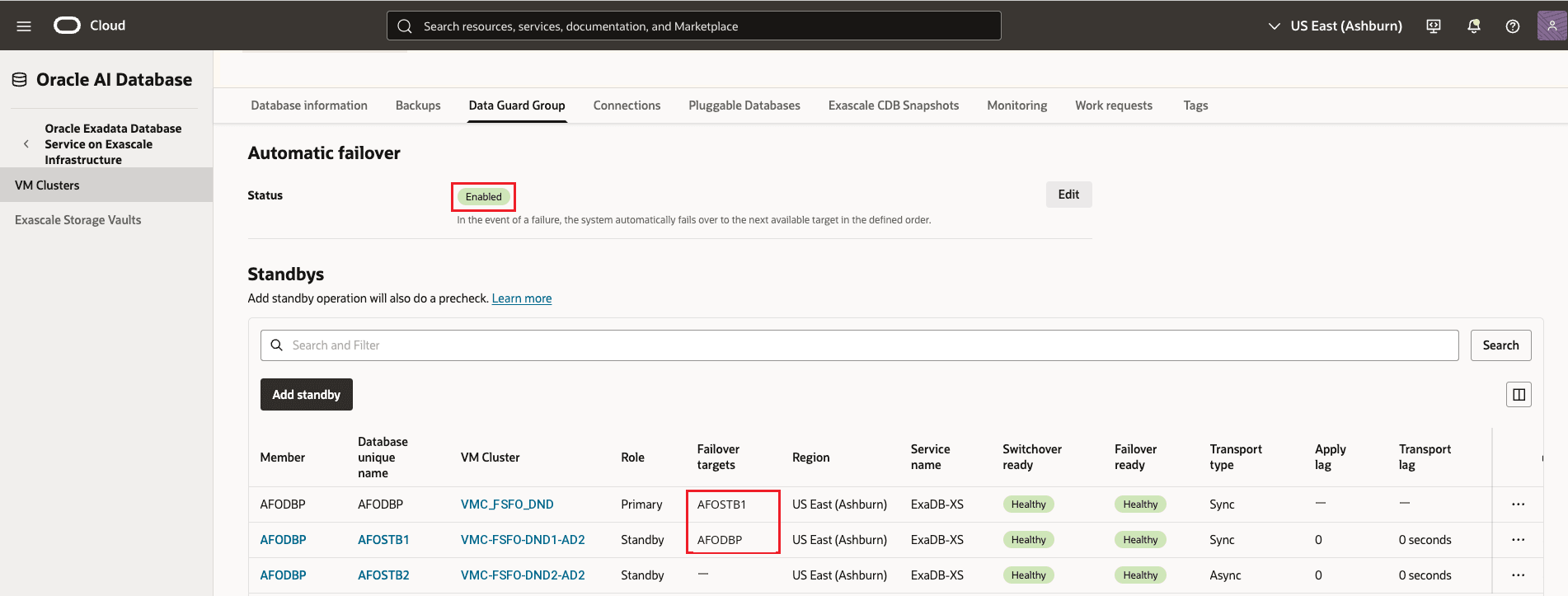
Description of the illustration automatic-failover-enabled.png
Note:
- After automatic failover is enabled, you can still update failover targets for the primary database or any standby database.
- The failover target list is used when the primary database becomes unavailable.
You can also view the automatic failover status from the Database Information page. This page displays whether fully managed automatic failover is enabled, along with the Data Guard protection mode and transport type for the selected database.
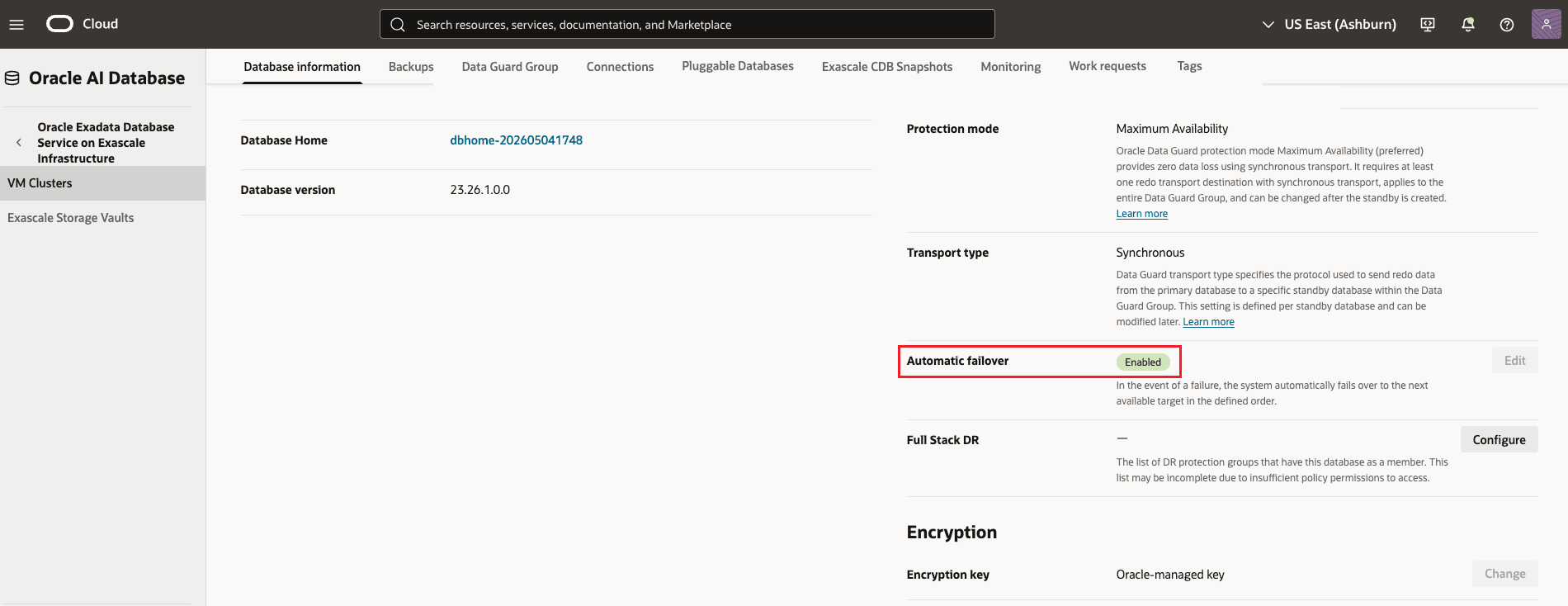
Description of the illustration db-details-page-showing-af-status.png
-
Download the PDB connection bundle and use the connection strings in your application configuration.
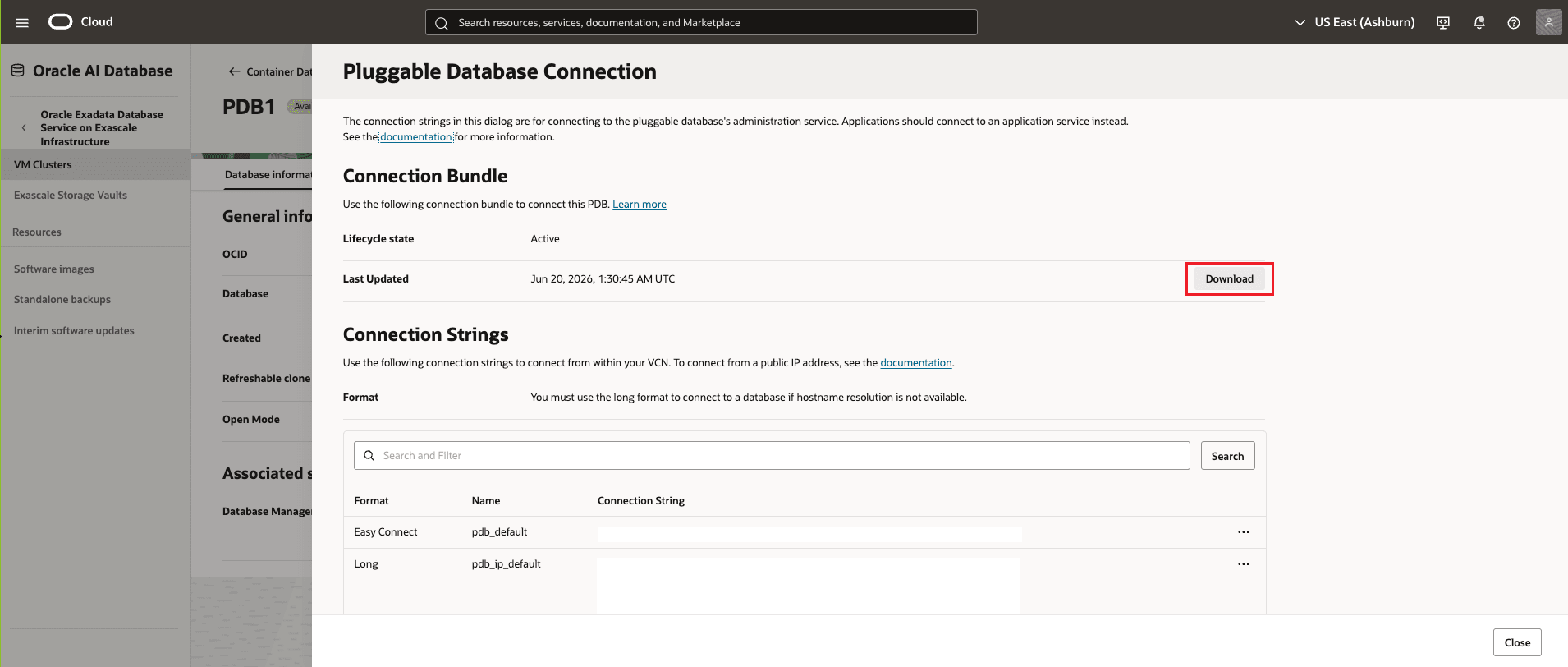
Description of the illustration download-pdb-connection-bundle.png
Task 2: Enable Automatic Failover When Creating a Standby Database Using the New Data Guard Group Resource
Use this task when you are creating a new standby and want automatic failover enabled from the start.
-
In the Data Guard Group workflow, click Add standby.
-
In the add-standby flow, select Use the new Data Guard Group resource.
-
In the Automatic failover section, keep Automatic failover enabled.
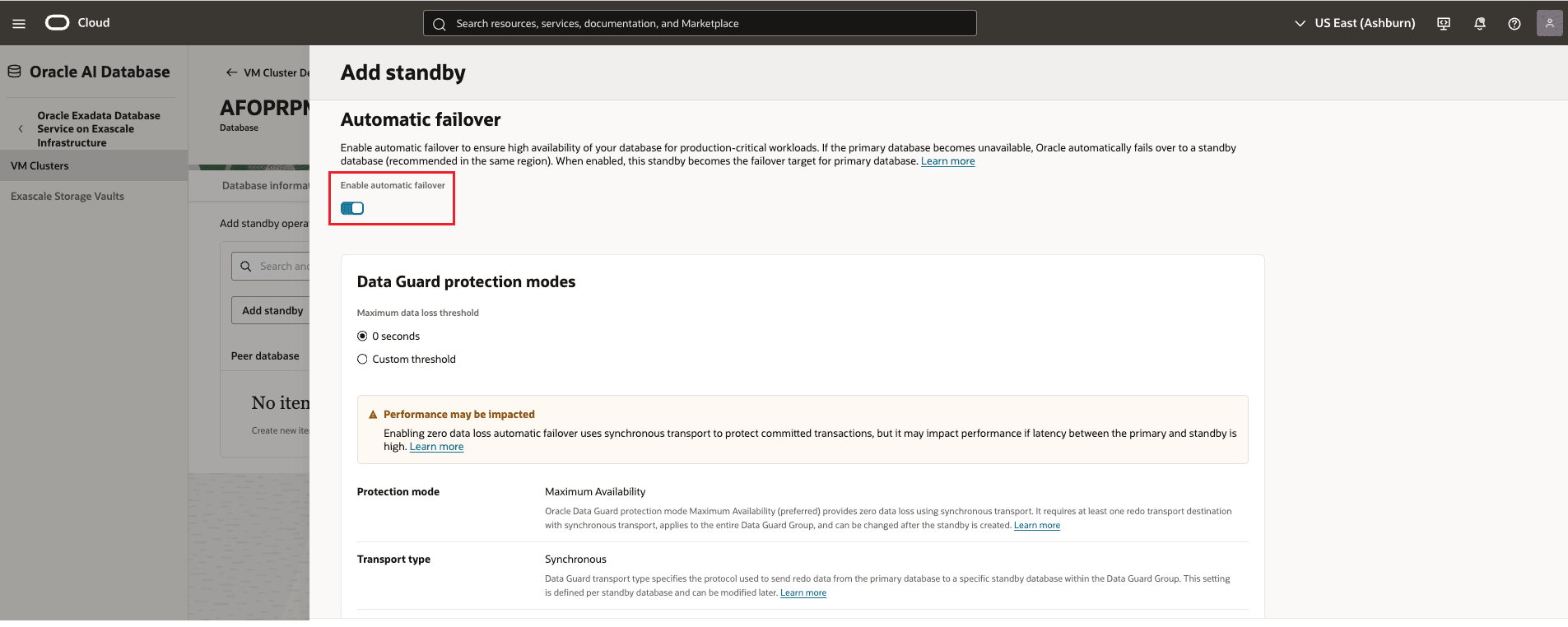
-
Choose the Maximum Data Loss Threshold that fits your recovery goals:
- 0 seconds
If the Maximum data loss threshold is set to 0 (Zero):
- The protection mode must be Maximum Availability.
- The transport type must be Synchronous.
- A warning message is displayed if there are no standby databases configured with these settings.
- Only standby databases configured with:
- Protection mode: Maximum Availability
- Transport Type: Synchronous will be available for selection as failover targets.
- Custom threshold
If a custom (non-zero) maximum data loss threshold is specified:
- Protection mode: Maximum Performance
- Transport Type: Asynchronous In this configuration, standby databases using asynchronous transport can be selected as failover targets.
- 0 seconds
If the Maximum data loss threshold is set to 0 (Zero):
-
Complete the remaining standby database details, including the database home and network settings.
-
Click Add or Create to finish provisioning.
-
Verify that the new standby appears in the Data Guard Group and is assigned as a failover target.
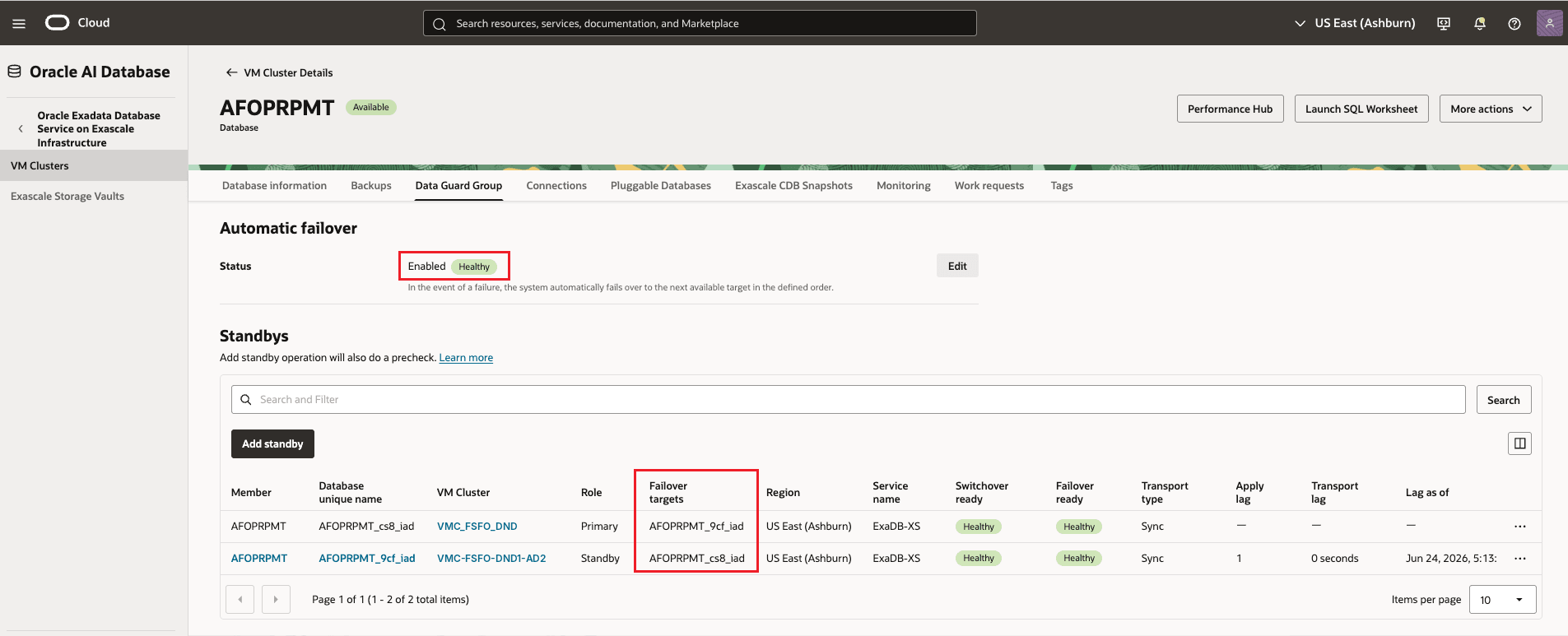
Description of the illustration standby-created-as-failover-target.png
Note:
- The new Data Guard Group view shows all member databases in one place.
- Automatic failover is enabled by default in this workflow.
Task 3: Modify Failover Targets for Automatic Failover
Use this task to modify the failover targets after automatic failover has been enabled.
-
In the Data Guard Group tab, select the primary database or any standby database.
-
Open the Actions menu (three dots).
-
Select Configure Failover Target.
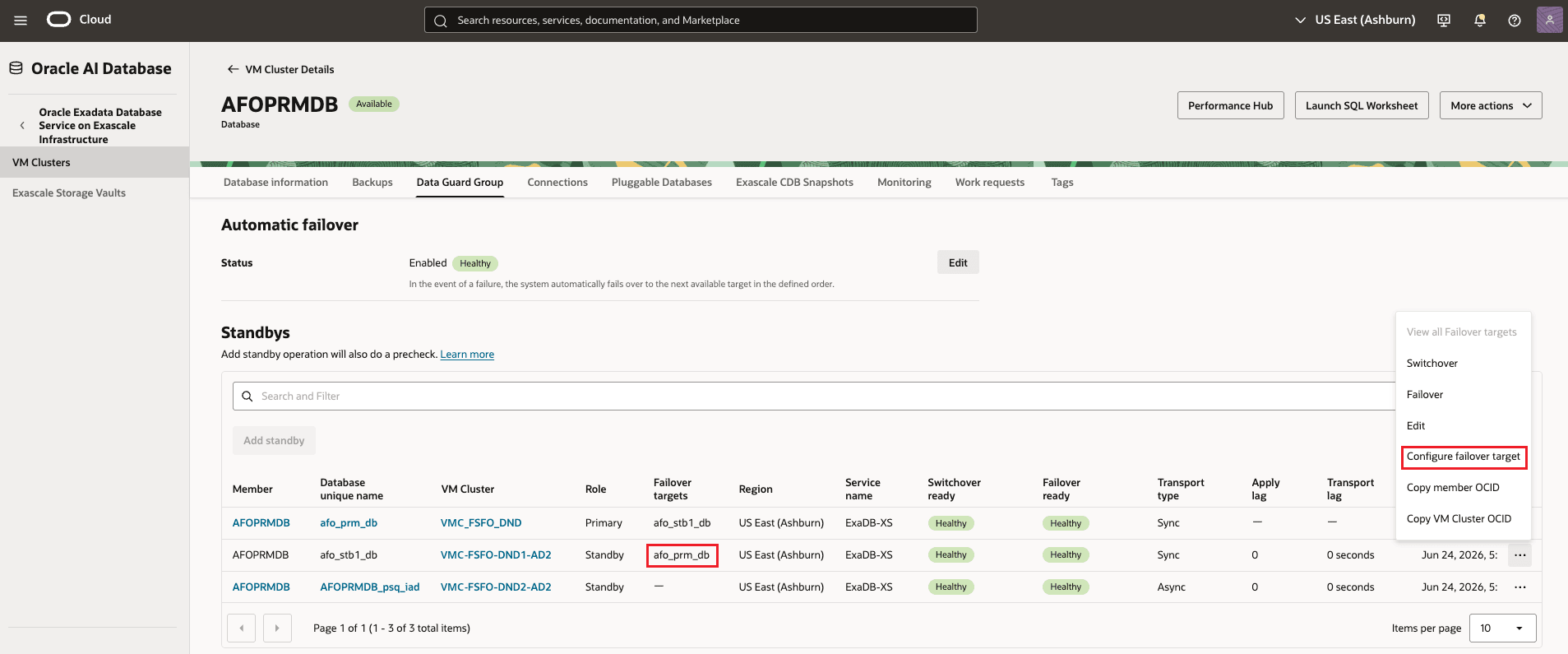
Description of the illustration configure-failover-target.png
-
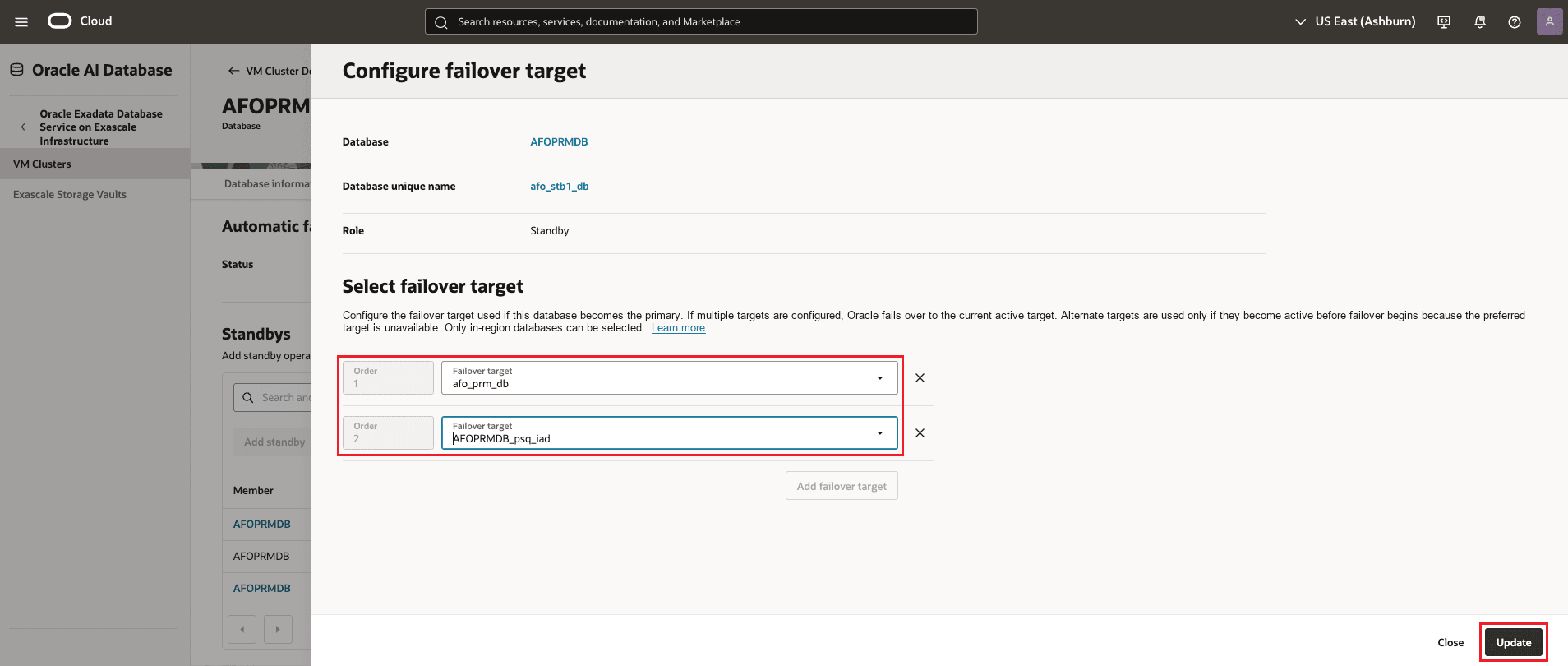
Add a new failover target or adjust the existing target order.
-
Select the standby databases you want to use as failover targets.
-
Click Update to save your changes.
-
Confirm that the updated failover targets appear in the Data Guard Group tab.
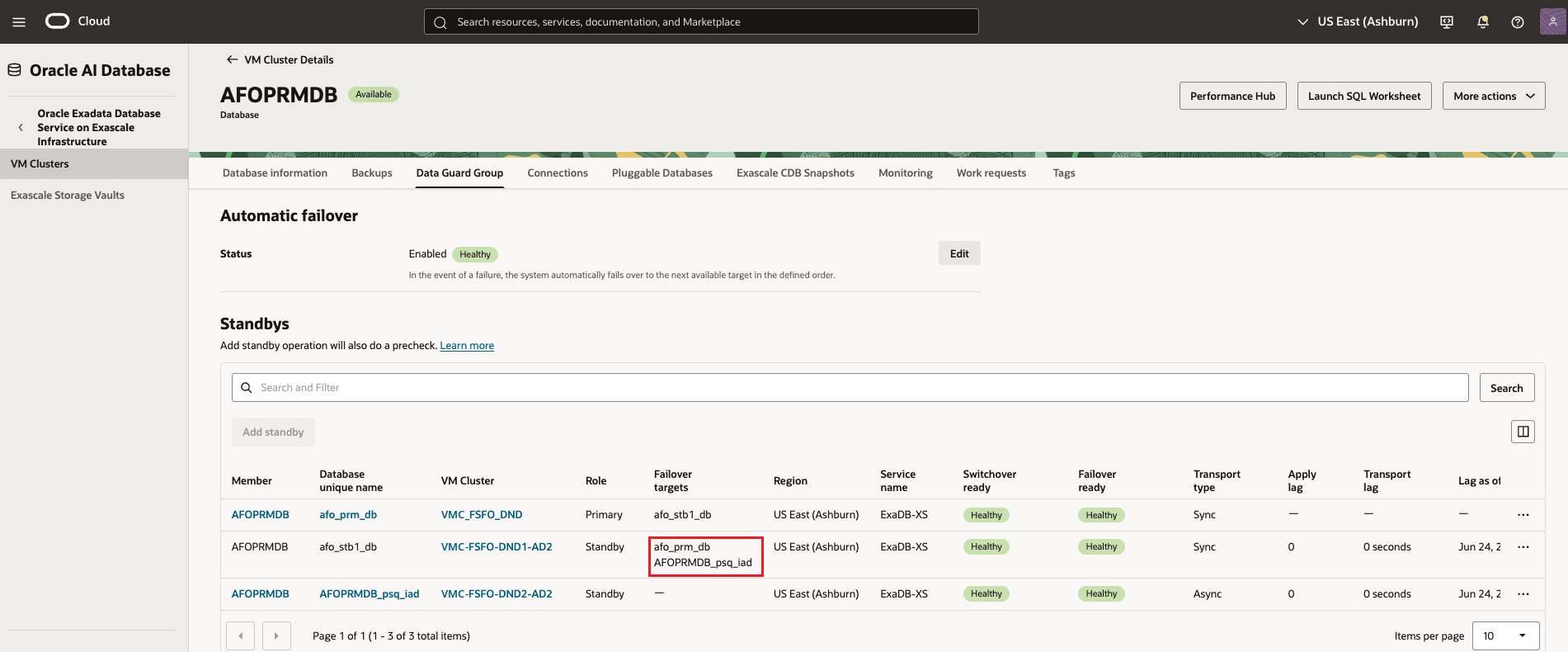
Description of the illustration updated-failover-targets.png
Note:
- You can only choose standby databases in the same OCI region.
- If you use a custom threshold, prefer standby databases that match that transport mode.
Related Links
Acknowledgments
- Authors - Leo Alvarado, Dileep Thiagarajan, Tammy Bednar (Product Management)
More Learning Resources
Explore other labs on docs.oracle.com/learn or access more free learning content on the Oracle Learning YouTube channel. Additionally, visit education.oracle.com/learning-explorer to become an Oracle Learning Explorer.
For product documentation, visit Oracle Help Center.
Enable and Configure Fully Managed Automatic Failover for Oracle Exadata Database Service on Exascale Infrastructure
G59498-02