Configure Oracle Managed Database Software Updates for Oracle Exadata Database Service on Exascale Infrastructure
Introduction
With Oracle managed database software updates, you can offload software maintenance for Exadata Database Service on Exascale Infrastructure databases to Oracle.
For enrolled databases, Oracle periodically runs readiness checks before scheduled maintenance, stages software in advance, applies the latest available Release Update (RU) during the maintenance window, and provides proactive notifications throughout the update process. Updates are applied in a rolling manner, one database instance at a time.
Oracle managed database software updates can use Delegate Access Control to let Oracle investigate and resolve eligible issues encountered during scheduled database software updates. If an issue cannot be fixed during the planned maintenance window, Oracle rolls back the update to keep the database healthy and available, then engages with you to resolve the issue before a future maintenance window.
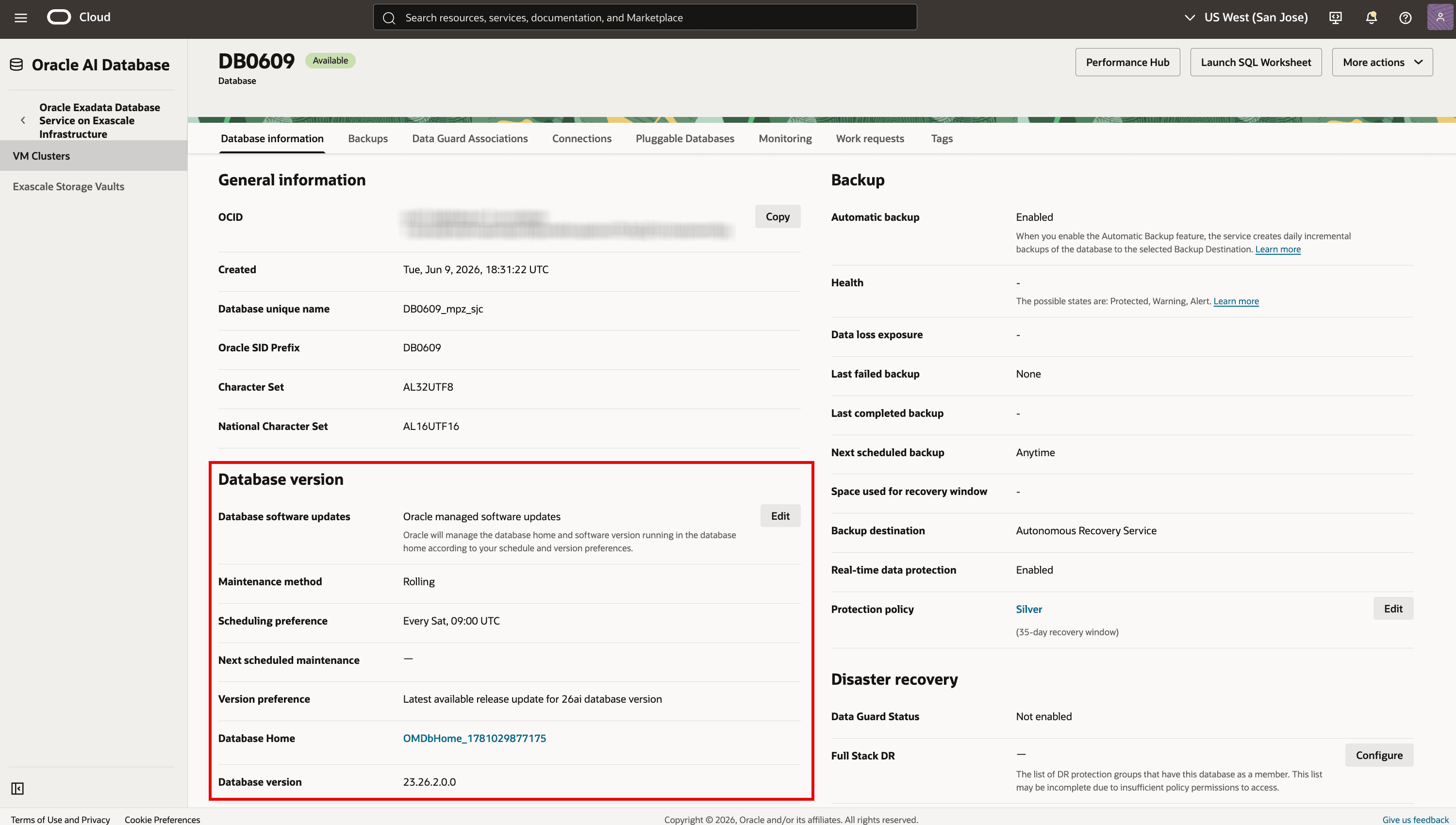
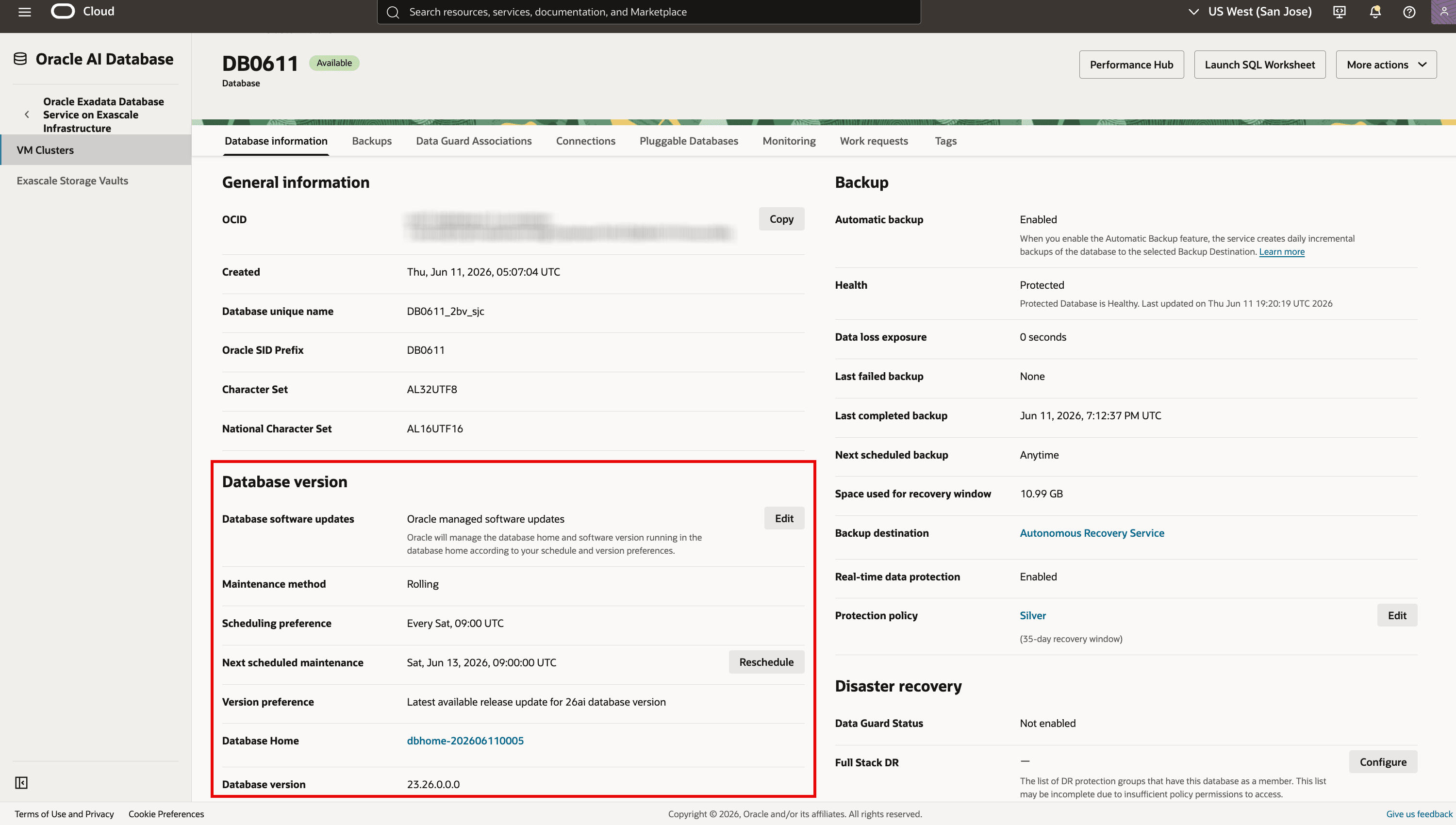
You can enroll a database in Oracle managed database software updates during database creation or enroll an existing database. After enrollment, the Database Details page shows update details such as scheduling preference, next scheduled maintenance, software version, and maintenance method.
Key points
- Enrolling a database in Oracle managed database software updates automatically creates a Delegation Control for the VM cluster that hosts the database.
- Oracle creates, manages, and deletes Oracle managed database homes as needed.
- You cannot manually perform operations on Oracle managed database homes.
- Oracle automatically applies the latest RU for the database release version.
- You can change the software management preference later from More Actions > Manage database software update.
Objectives
In this tutorial, you will:
-
Enroll a database in Oracle managed database software updates when you create it.
-
Enroll an existing database in Oracle managed database software updates.
-
Subscribe to event notifications for Oracle managed database software updates.
-
Subscribe to notifications for Delegate Access Control.
-
Reschedule the next scheduled maintenance.
-
Review and resolve Oracle managed database software update issues.
-
Unenroll a database from Oracle managed database software updates.
-
Move a database from an Oracle managed database home to a customer managed database home.
Prerequisites
Before you begin, make sure you have:
- Permissions to create databases and update database software management settings, including
VM_CLUSTER_SUBSCRIBE_DB_SW_UPDATESin the VM cluster compartment. - Permissions to create OCI Events rules, OCI Notifications topics, and subscriptions.
- Permissions to read Delegate Access Control service providers, provider actions, subscriptions, and work requests, and to use Delegation Controls to update the notification topic.
- Network security rules that allow SSH access to and within the VM cluster client subnet, and access to OCI Object Storage through a Service Gateway. Configure the client subnet route table for
All <region> Services in Oracle Services Networkand any applicable NSG or ZPR policies.
Ask your tenancy administrator to verify the policies and network configuration described in Preparing for Delegate Access Control, using the ExaDB-XS checklist for When only Oracle Managed Software Updates for Database Cloud Services is subscribed.
Task 1: Enroll a database in Oracle managed database software updates when you create it
Use the database creation workflow to enroll a new database in Oracle managed database software updates.
-
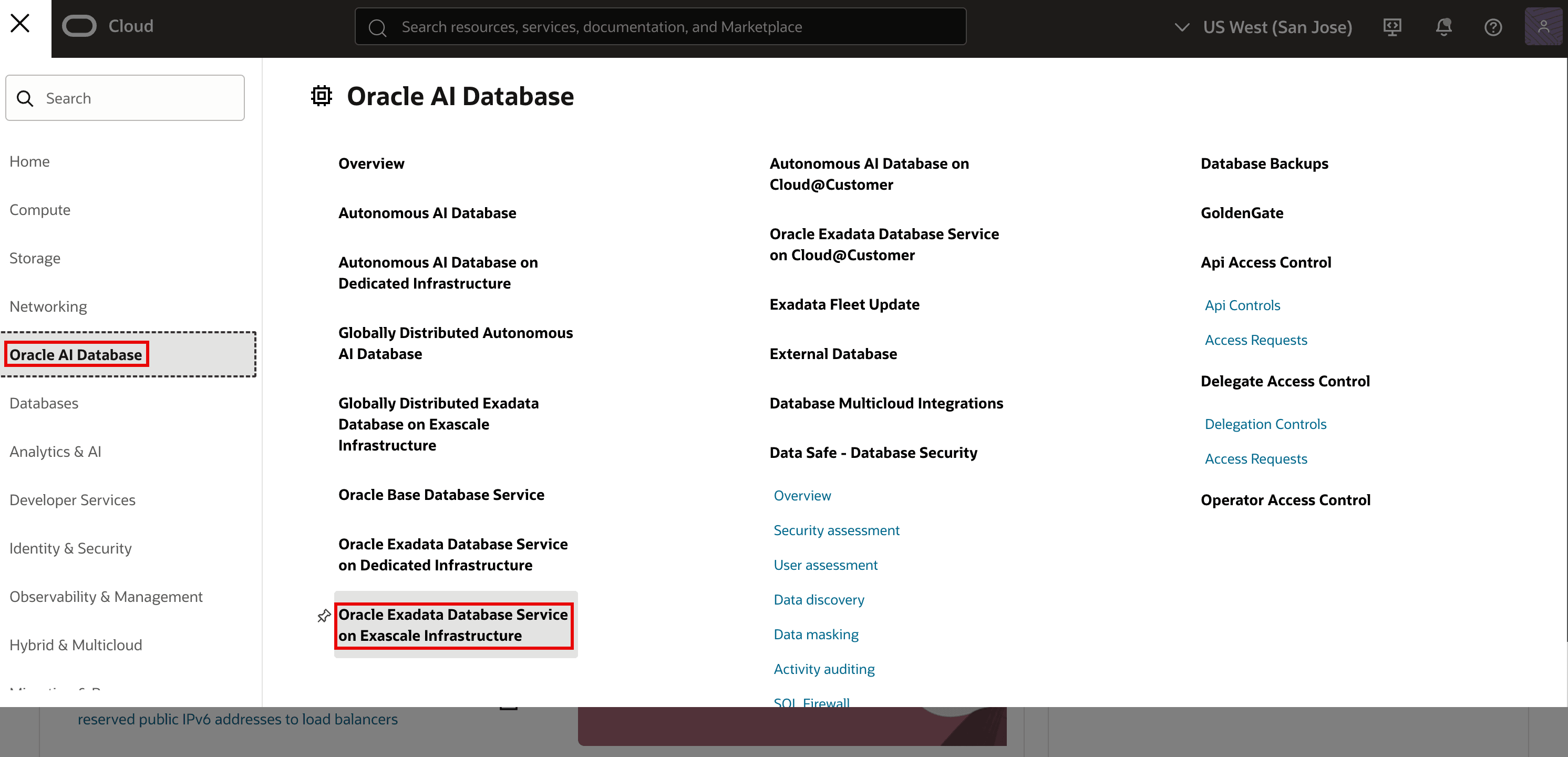
Open the navigation menu. Click Oracle AI Database, and then click Oracle Exadata Database Service on Exascale Infrastructure.
-
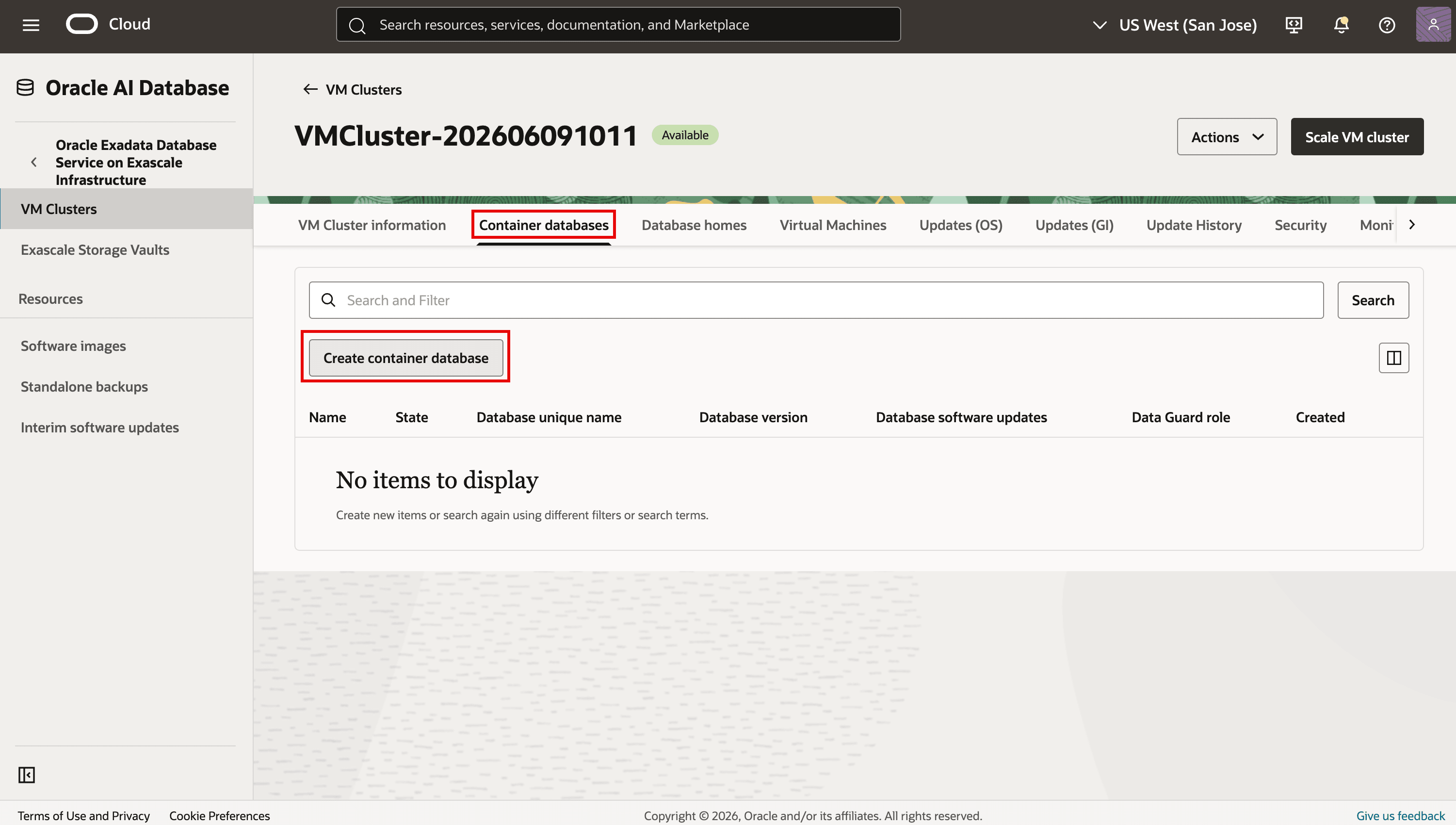
Select the compartment that contains the target VM cluster. Open the Exadata VM cluster, go to the Container databases tab, and then click Create container database.
-
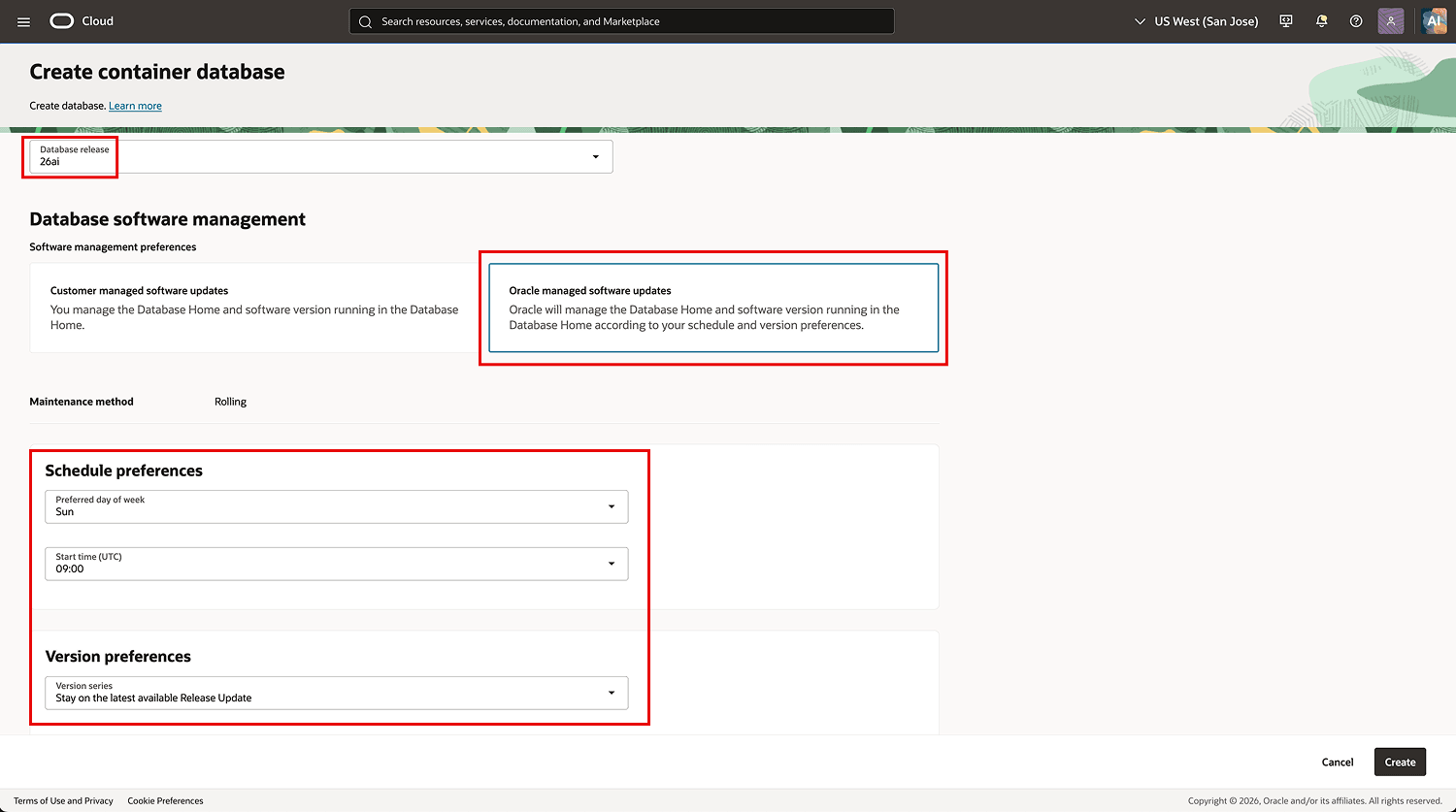
In the database configuration workflow, go to Database Software Management. For Software Management Preference, select Oracle managed software updates. Provide the preferred day and start time (UTC) for maintenance under Scheduling preferences. Complete the remaining database creation options. Click Create.
-
After the database is created, review the Oracle managed software update preference in the Database Version section on the Database Details page.
Task 2: Enroll an existing database in Oracle managed database software updates
Use this task to enroll an existing database in Oracle managed database software updates.
-
Open the navigation menu. Click Oracle AI Database, and then click Oracle Exadata Database Service on Exascale Infrastructure.
-
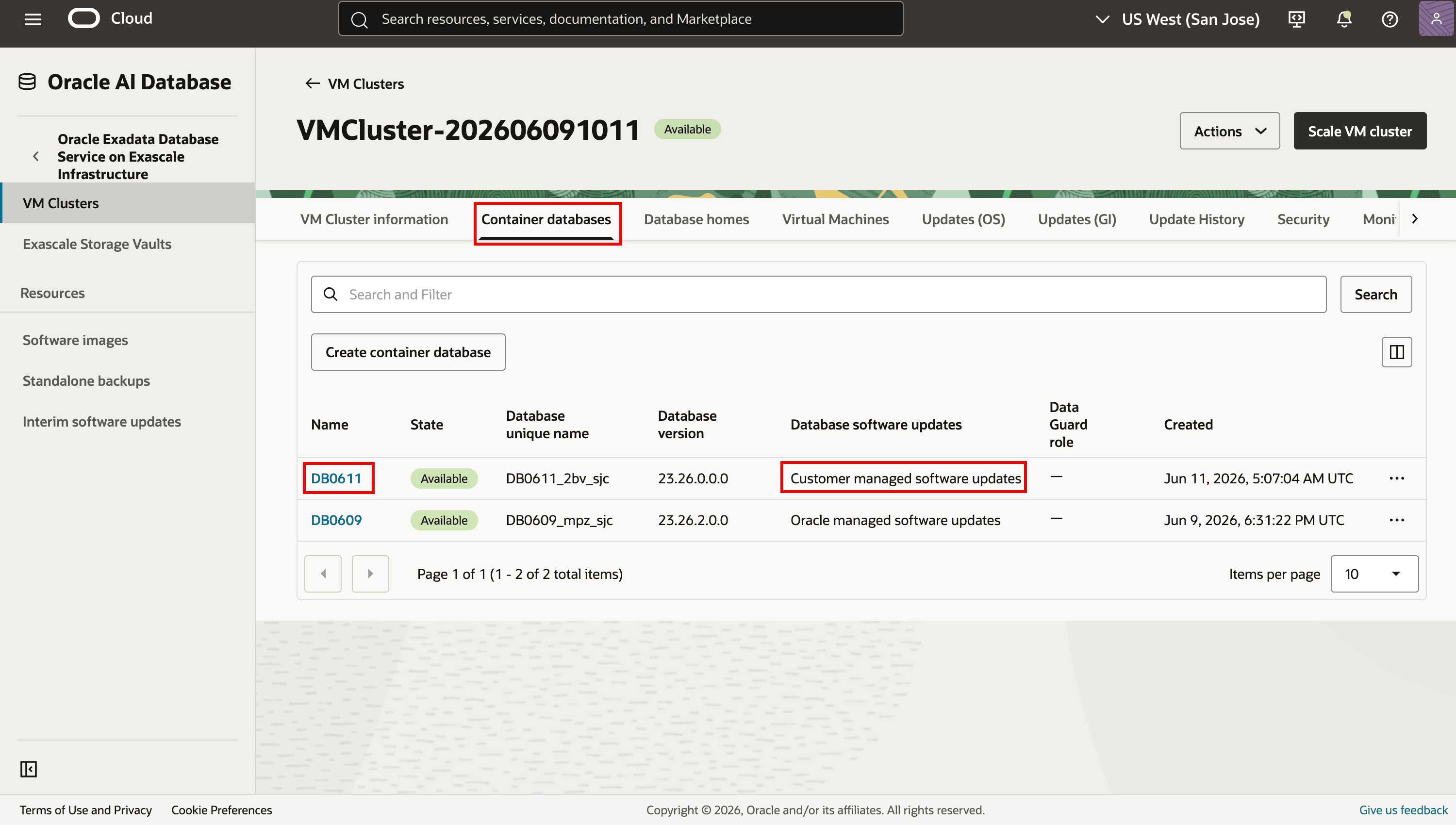
Select the compartment that contains the target VM cluster. Open the Exadata VM cluster, go to the Container databases tab, and then click the name of the container database that you want to modify.
-
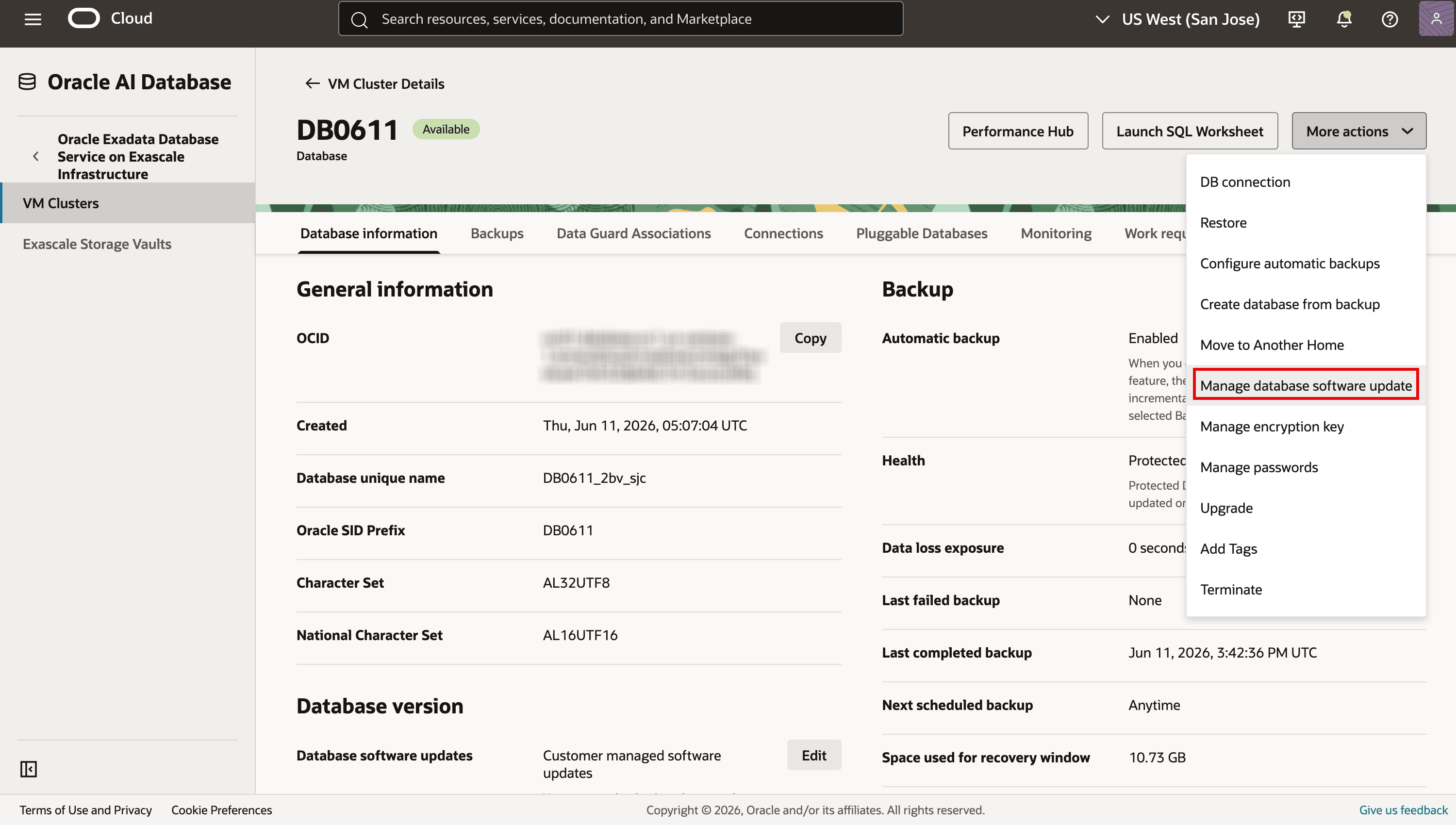
On the Database Details page, click More Actions, and then select Manage database software update.
-
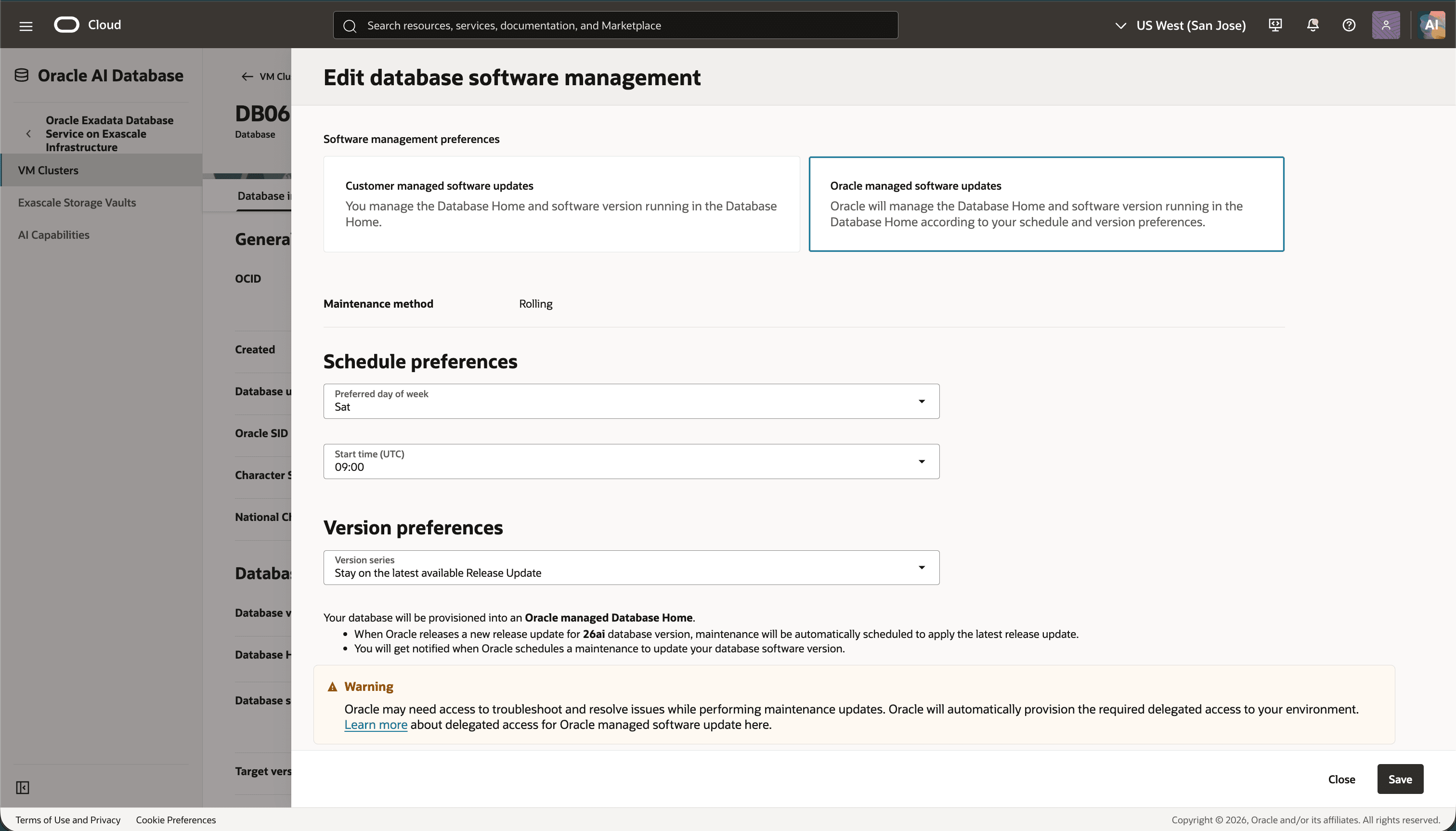
In the resulting window, select Oracle managed software updates. Provide the preferred day and start time (UTC) for maintenance under Scheduling preferences, and then click Save.
-
Review the Oracle managed software update preference in the Database Version section on the Database Details page. On the next scheduled maintenance date, Oracle updates the database and moves it to an Oracle managed database home. After the scheduled update, you can view and access the new database home in the Database Version section.
Task 3: Subscribe to event notifications for Oracle managed database software updates
Subscribe to events for Oracle managed database software updates to receive the scheduled-maintenance notification at least one week in advance. Events also report readiness-check results, update status changes, and maintenance completion.
-
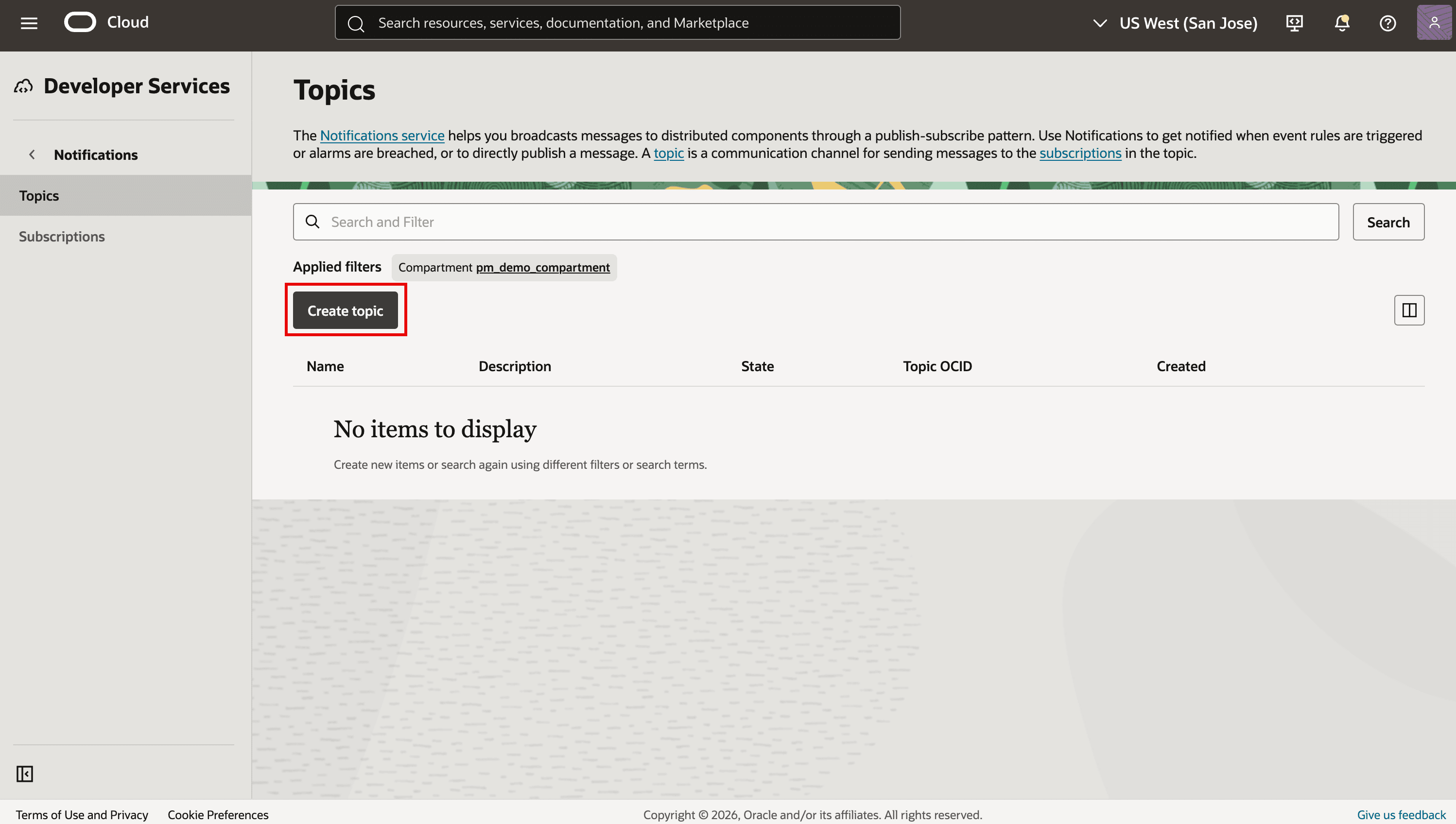
Open Developer Services > Notifications > Topics. Select the topic compartment, and then click Create topic. If you already have a topic, open it and continue with step 3.
-
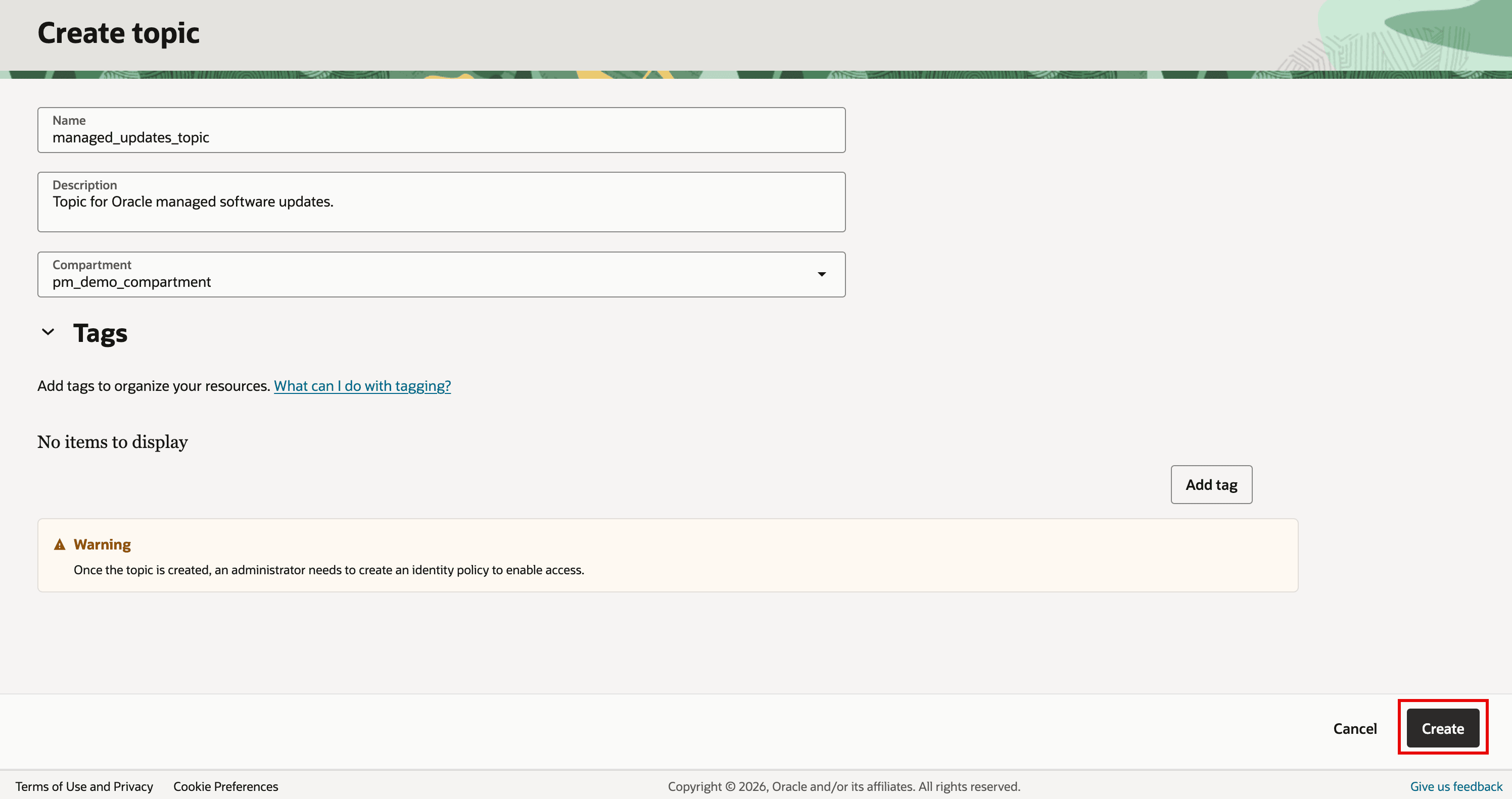
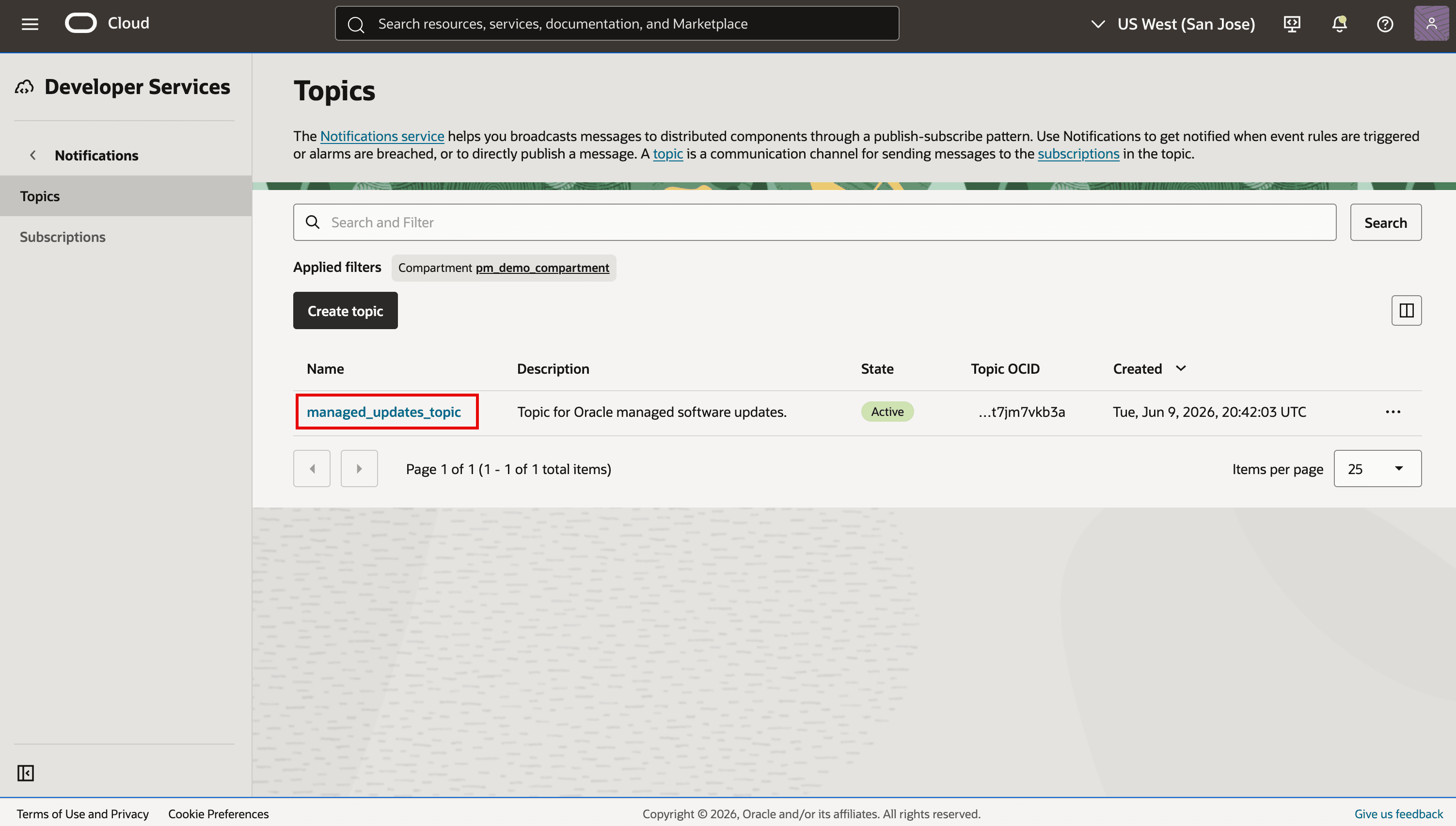
Enter a topic name and optional description, select the compartment, and then click Create. Open the topic after it is created.
-
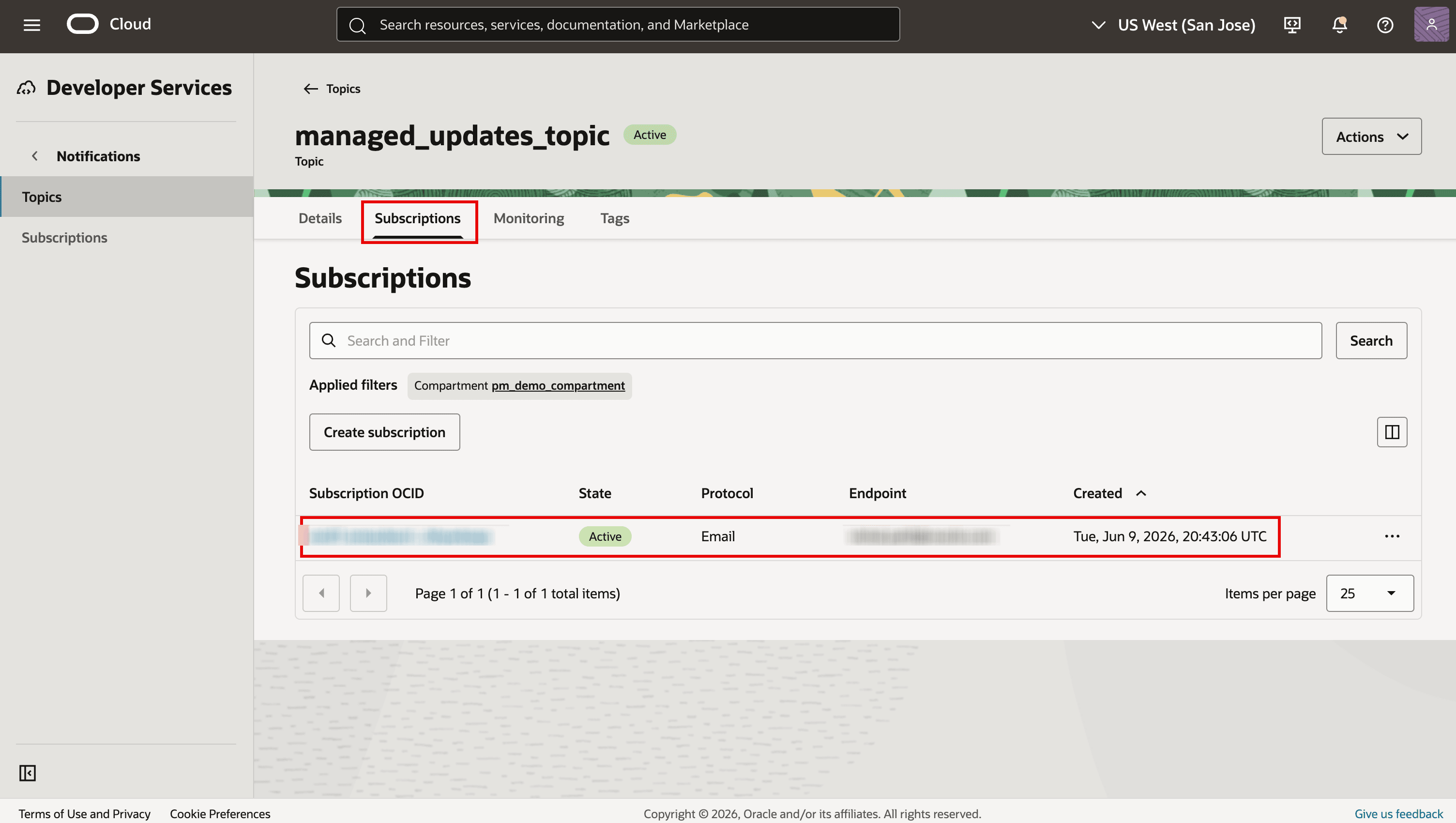
On the Subscriptions tab, click Create subscription, select the protocol, enter the endpoint, and then create the subscription. Repeat for additional subscribers. For email and other protocols that require confirmation, follow the confirmation link sent to the endpoint. Verify that each subscription is Active. See Creating a subscription.
-
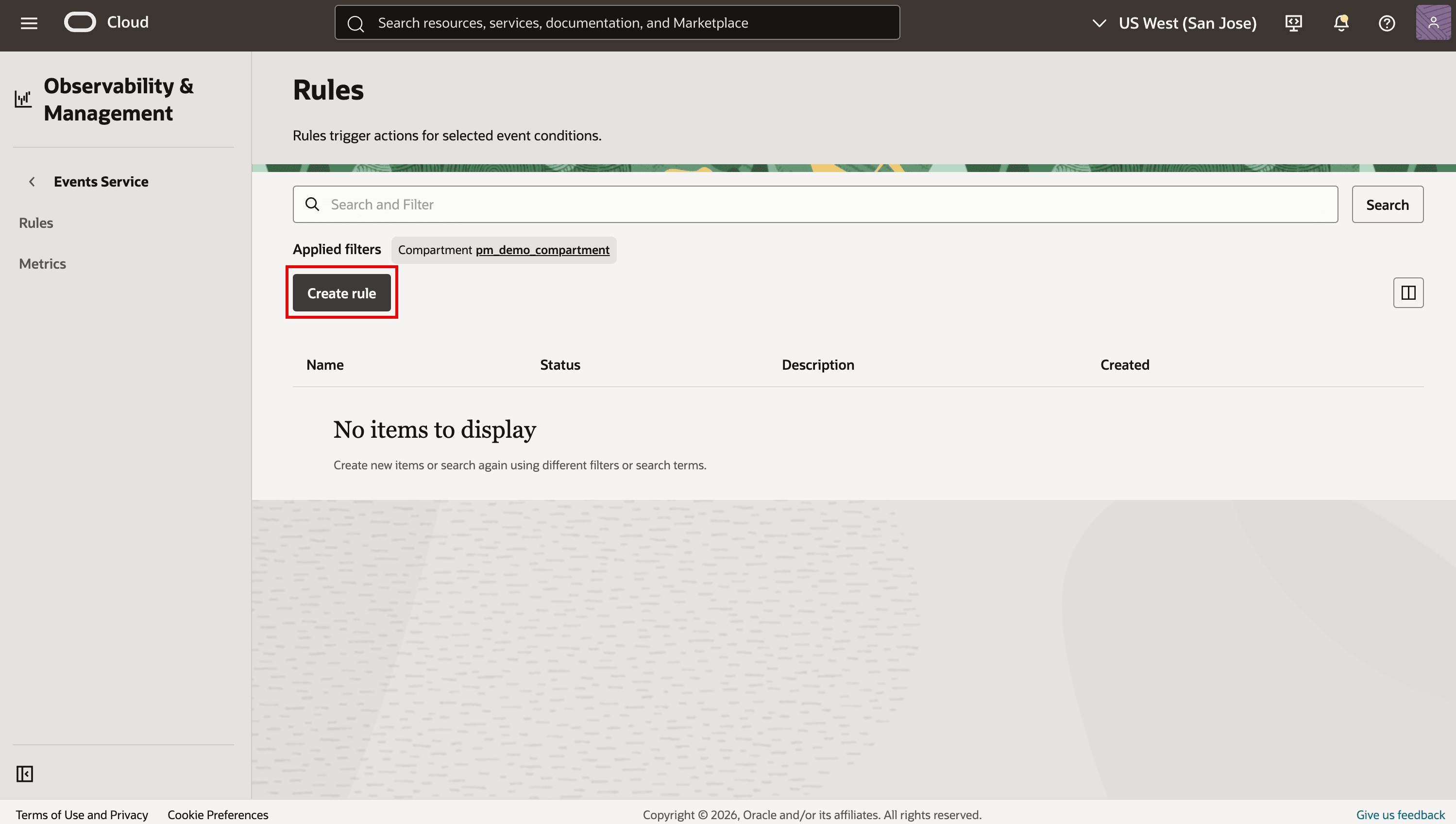
To create event rules, open Observability & Management > Events Service > Rules. Select the compartment containing the databases and database homes to monitor, and then click Create rule. Enter a display name and optional description.
-
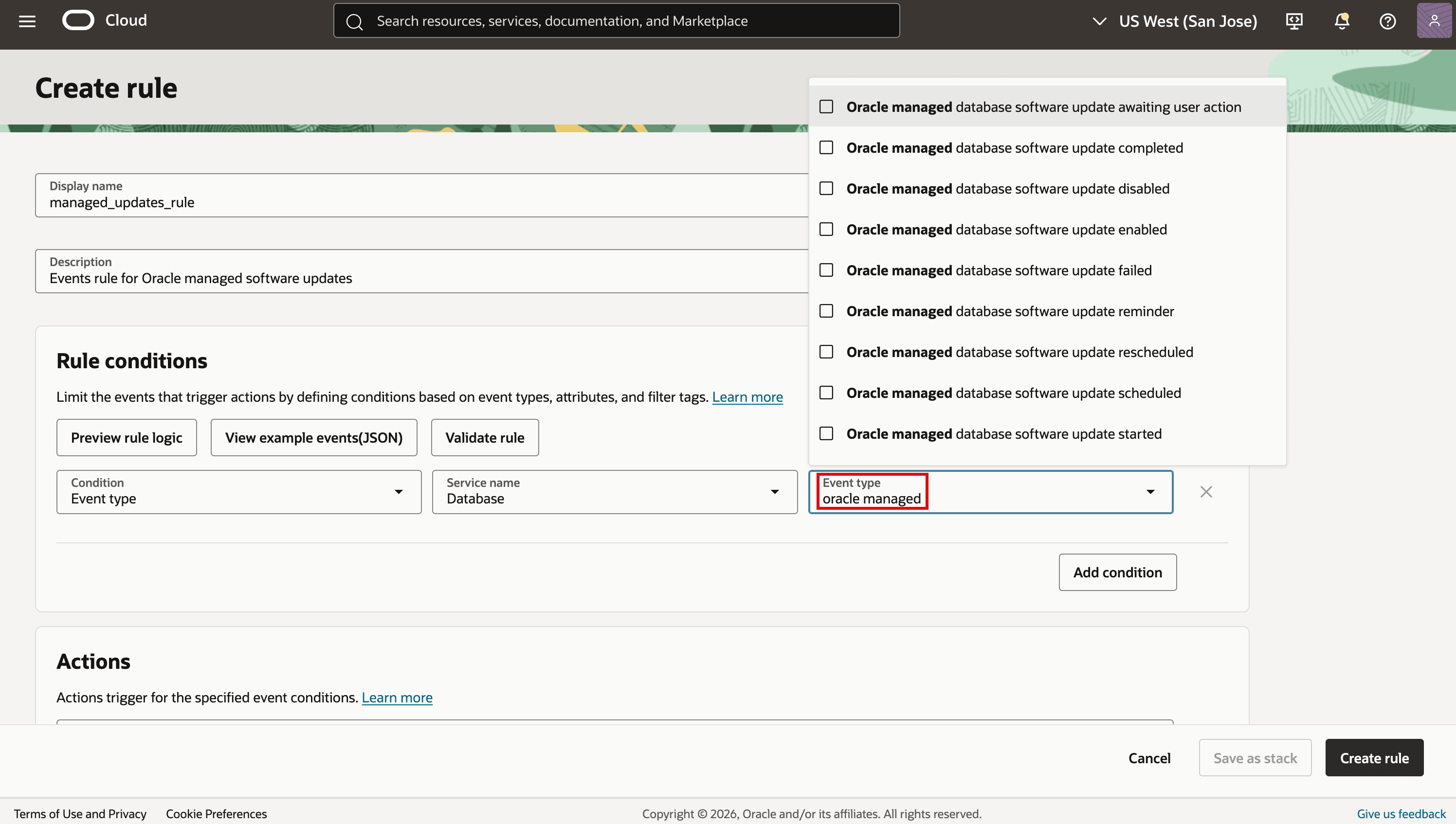
In Rule conditions, select Event type as the condition and Database as the Service name. In the Event type field, enter Oracle managed. Select the Oracle managed database software updates event types for both databases and database homes.
-
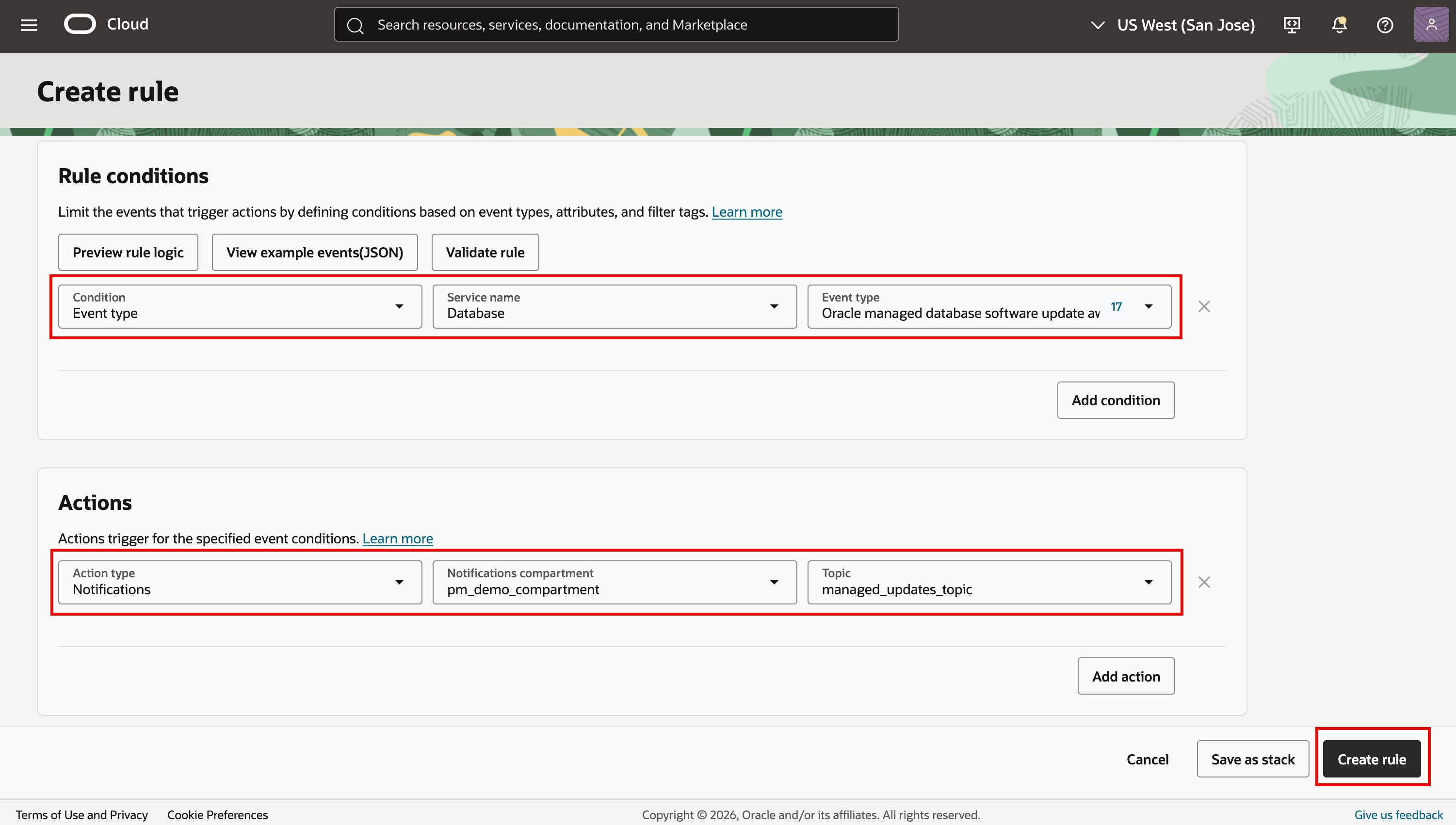
In Actions, select Notifications as the action type, select the Notifications compartment and topic, and then click Create rule.
Task 4: Subscribe to notifications for Delegate Access Control
Enrolling a database in Oracle managed database software updates automatically creates a Delegation Control for the VM cluster hosting that database. Configure Delegate Access Control notifications so that you receive notifications for delegated access activity associated with Oracle managed maintenance. Delegate Access Control notifications are sent to the configured Notifications topic.
Ask your tenancy administrator to allow Delegate Access Control to publish to the topic. Replace <topic_compartment> with the compartment that contains the topic:
allow any-user to use ons-topics in compartment <topic_compartment> where ALL { request.principal.type='dlgtmgmtdelegationcontrol' }For the required user permissions and ExaDB-XS setup, see Preparing for Delegate Access Control.
-
Create an OCI Notifications topic for Delegate Access Control notifications, or identify an existing topic to use. Follow Task 3, steps 1–3, to create and confirm the required subscriptions. Verify that the subscriptions are Active.
-
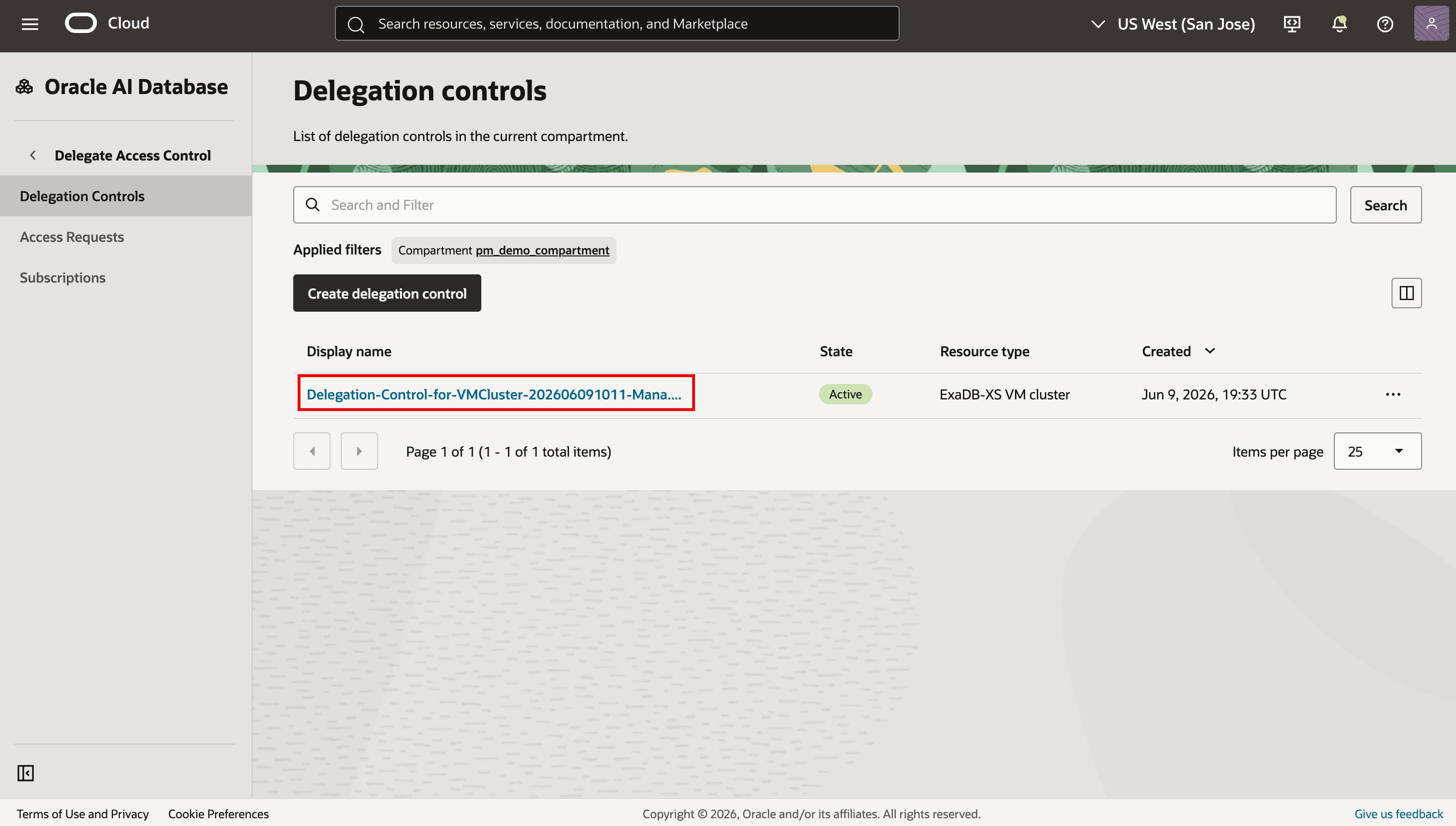
Open Oracle AI Database > Delegate Access Control > Delegation Controls. Select the compartment and open the Delegation Control for the VM cluster that hosts the database.
-
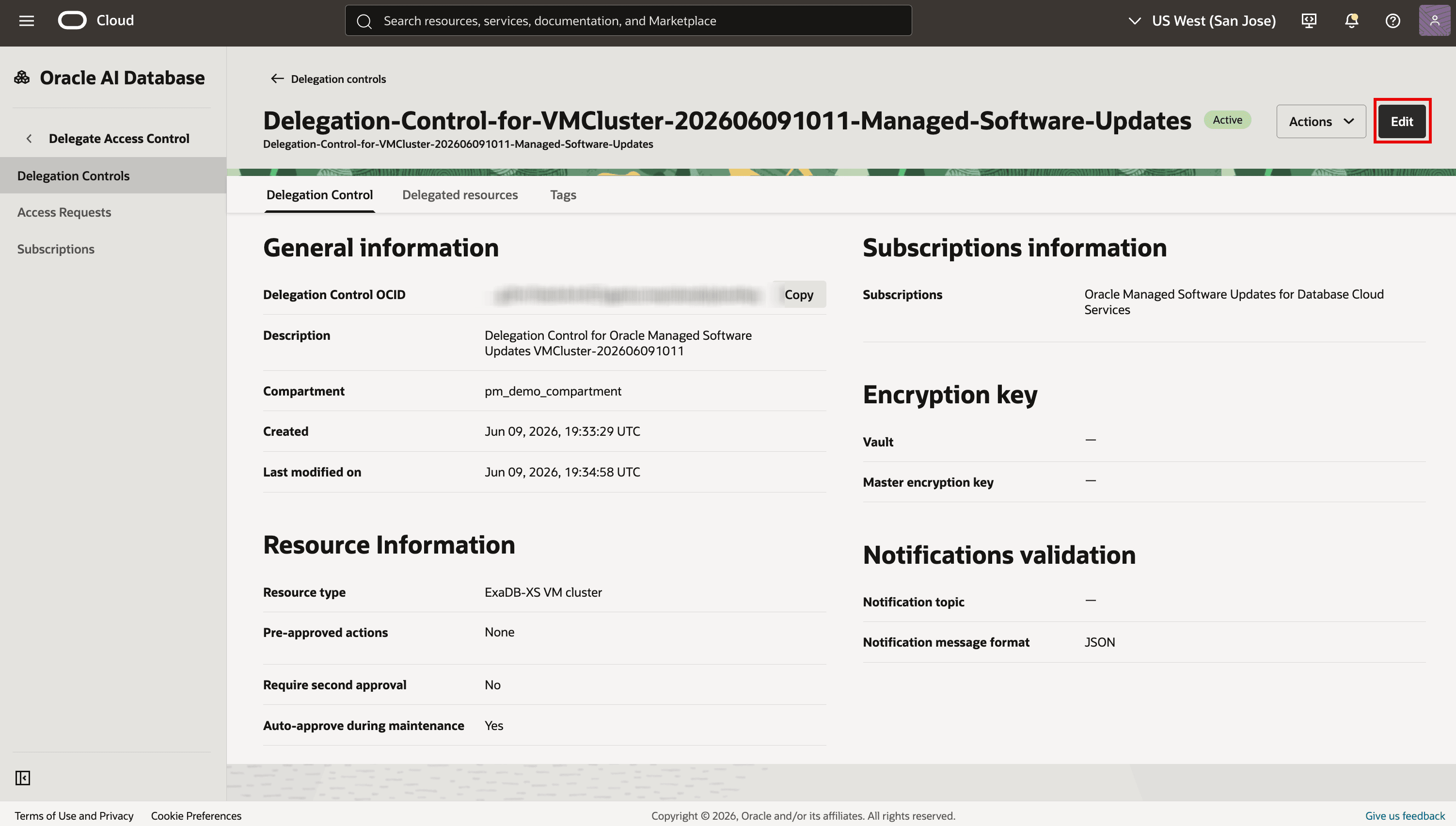
On the Delegation Control details page, click Edit.
-
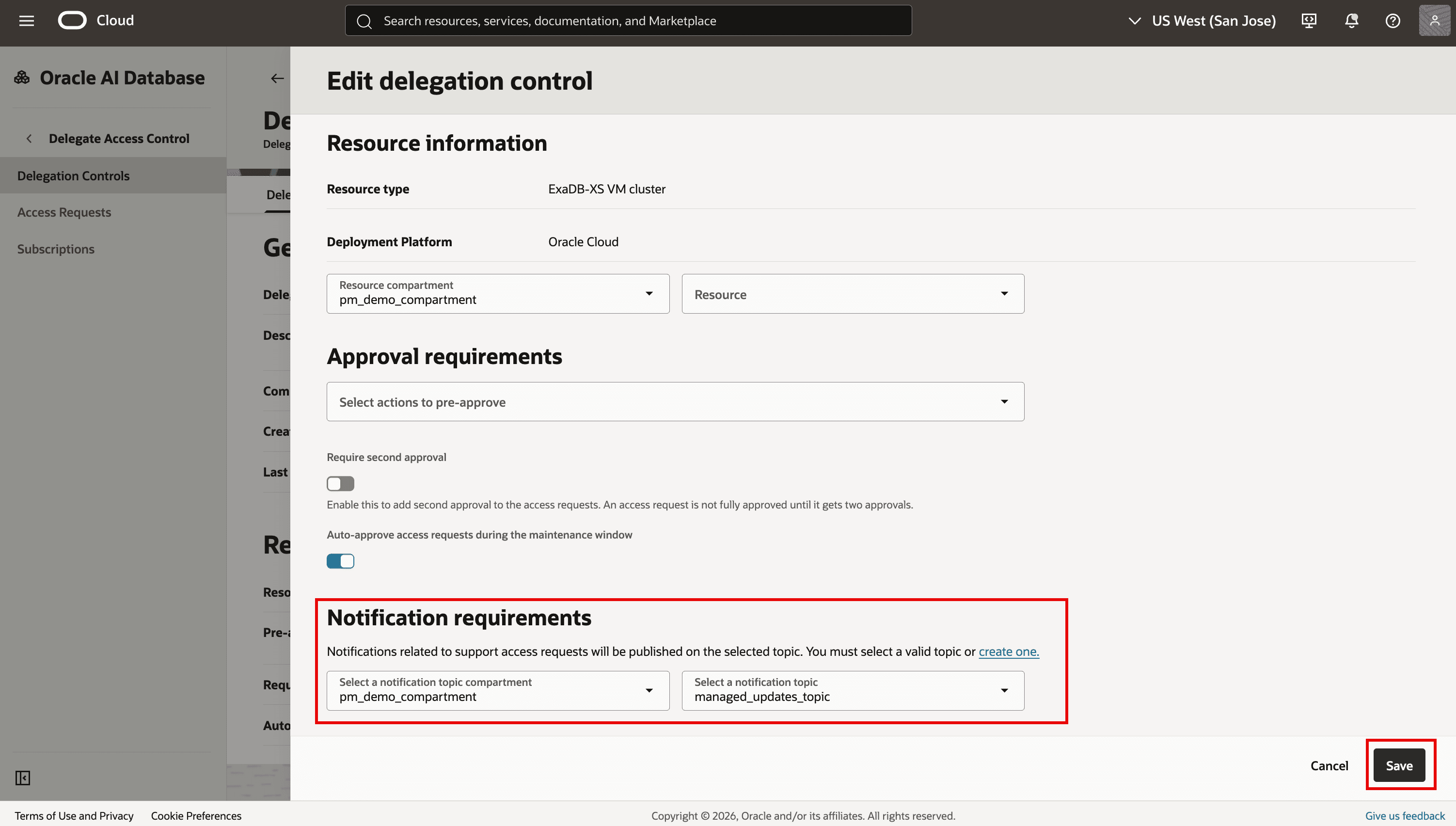
Under Notification requirements, select the notification topic compartment and topic, and then click Save.
Task 5: Reschedule the next scheduled maintenance
Use this task to reschedule the next Oracle managed database software update for a database. You can reschedule only the upcoming maintenance instance. You cannot use the reschedule window to modify the maintenance day and time. Oracle determines the next feasible maintenance date and time based on the scheduling preference selected for the database. To change the recurring preference, use Manage database software update as described in Task 2.
-
Open the navigation menu. Click Oracle AI Database, and then click Oracle Exadata Database Service on Exascale Infrastructure.
-
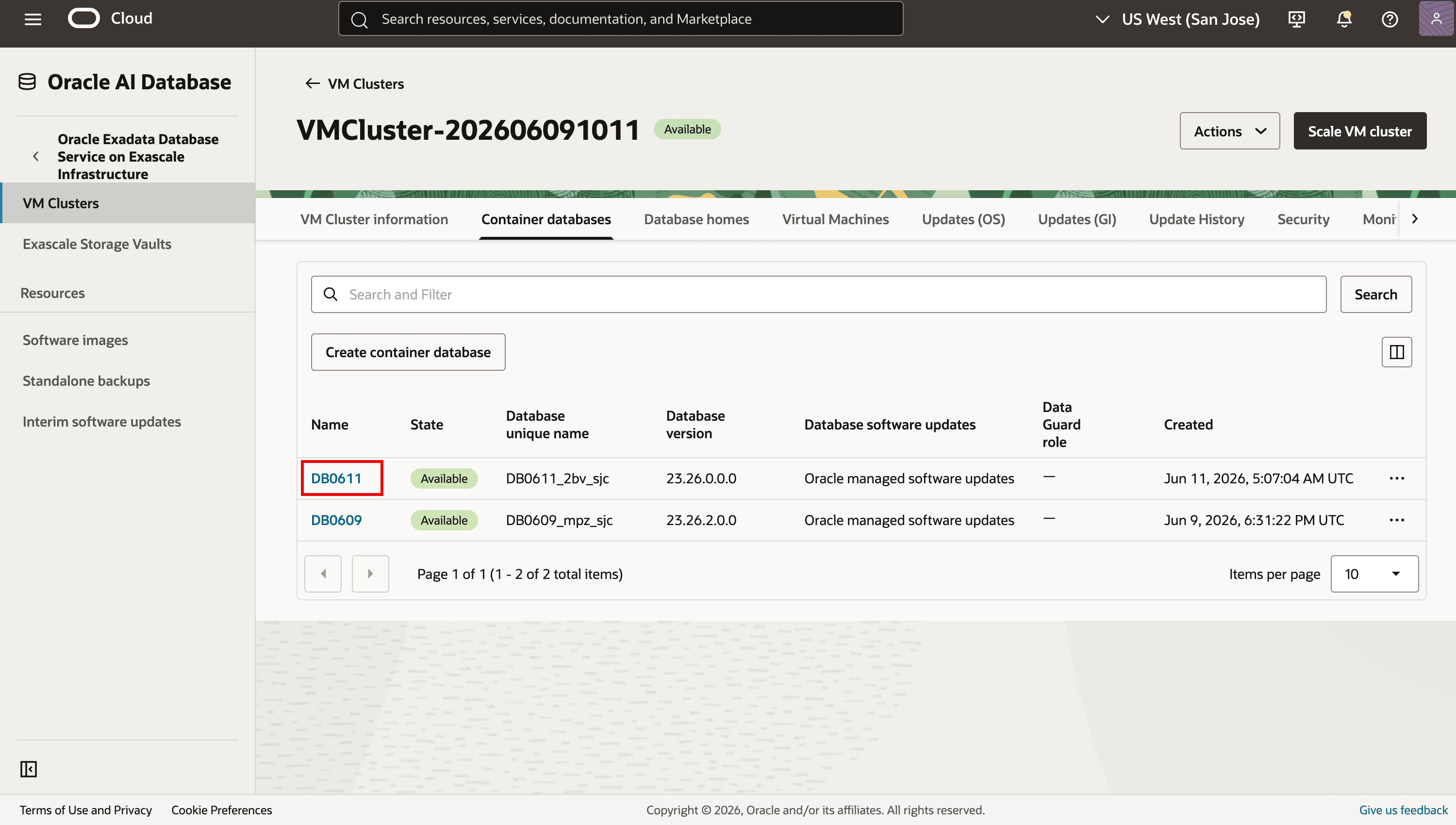
Select the compartment that contains the target VM cluster. Open the Exadata VM cluster, go to the Container databases tab, and then click the name of the container database whose next managed software update you want to reschedule.
-
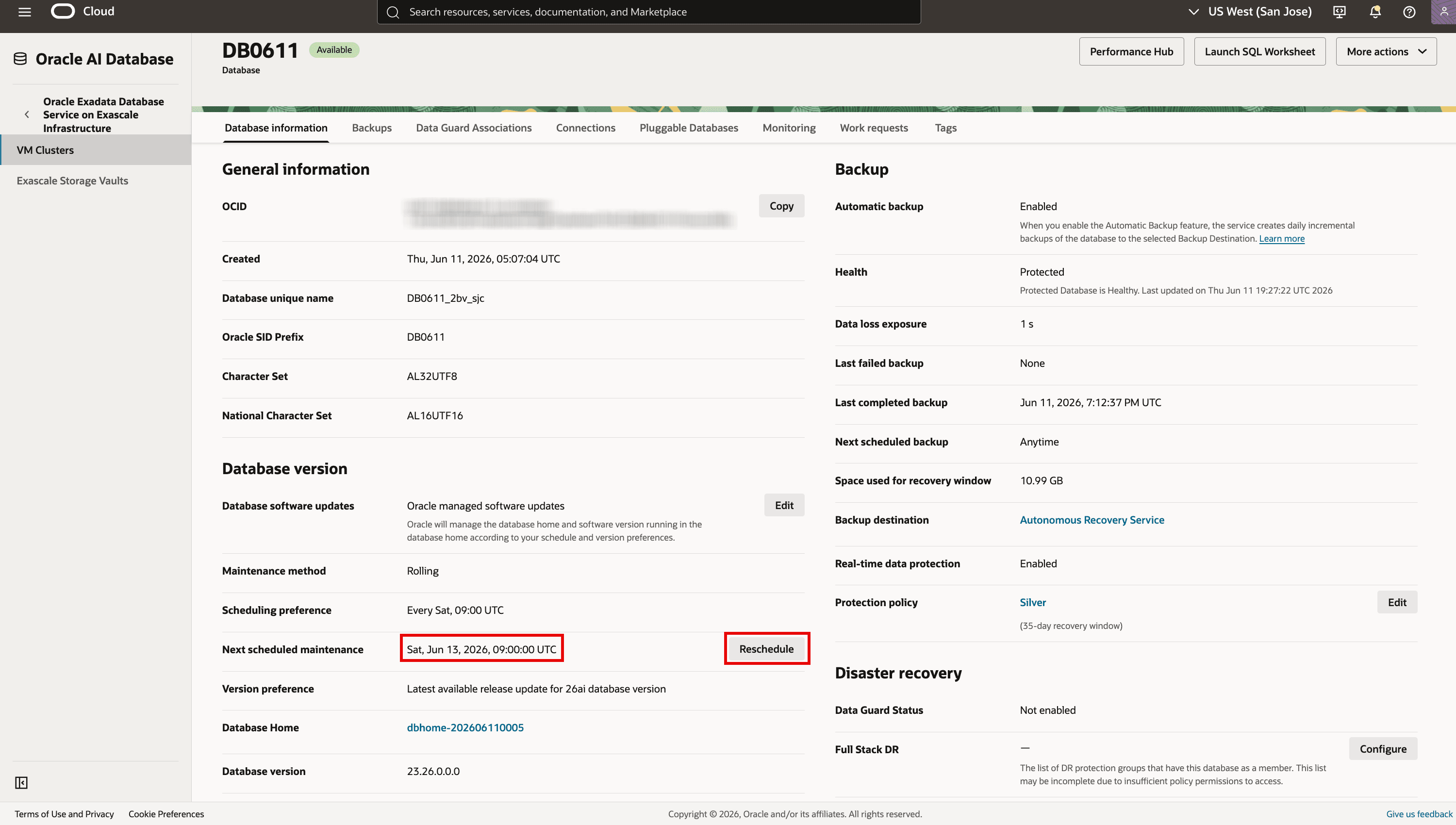
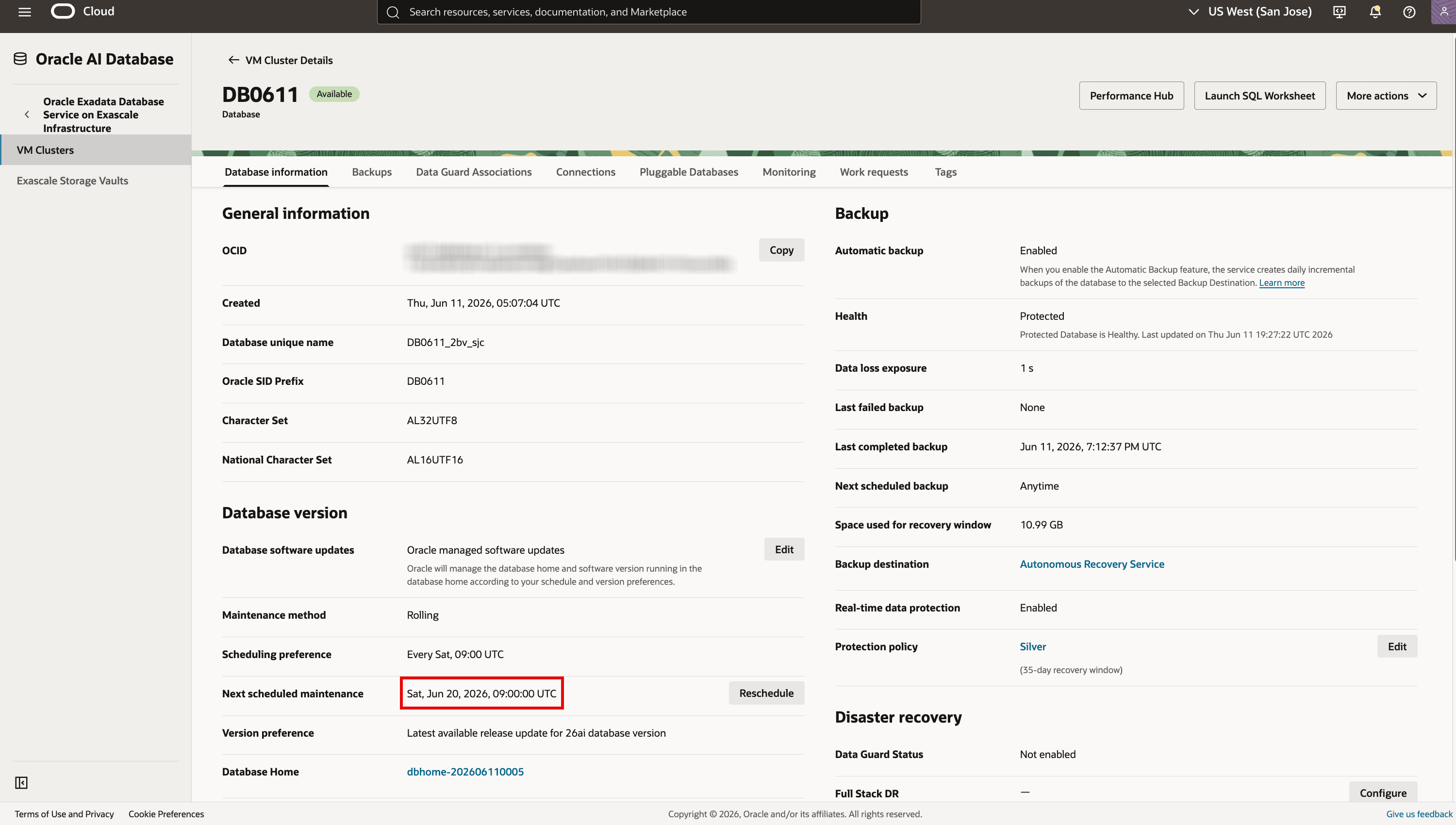
In the Database Version section, locate Next Scheduled Maintenance, and then click Reschedule.
-
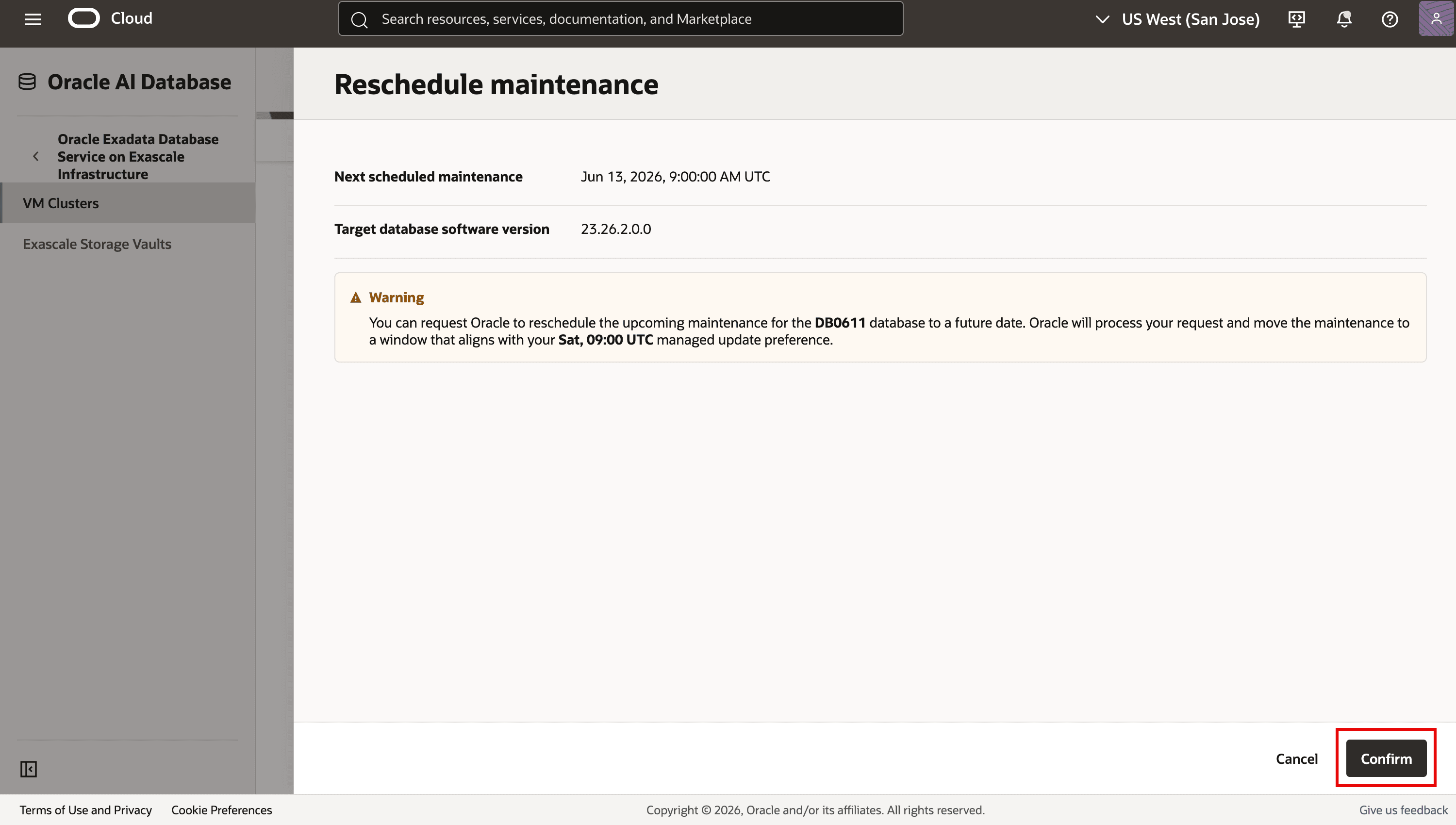
In the Reschedule maintenance window, review the read-only Next Scheduled Maintenance and Target Database Software Version fields. Review the warning message, and then click Confirm.
-
Open the Work requests tab to monitor the reschedule request. After the request completes successfully, review Next Scheduled Maintenance in the Database Version section.
Task 6: Review and resolve Oracle managed database software update issues
Oracle periodically performs readiness checks before the scheduled maintenance window. If readiness checks detect an issue, the Database Details page displays the issue and recommended resolution steps. Issues that require your action must be resolved before the maintenance window.
Key points
- If the listed issues are not resolved at least two hours before the scheduled maintenance time, Oracle cancels the current schedule and does not create another schedule for that database until the issues are addressed.
- When customer action is required, the Next Scheduled Maintenance status is set to Awaiting Customer Action.
- If an issue occurs during an Oracle managed software update, the status can show Awaiting Resolution while Oracle reviews the root cause and, if required, reschedules maintenance.
- If operations-related issues remain unresolved, Oracle can temporarily cancel the maintenance schedule until the issues are addressed.
-
Open the navigation menu. Click Oracle AI Database, and then click Oracle Exadata Database Service on Exascale Infrastructure.
-
Select the compartment that contains the target VM cluster. Open the Exadata VM cluster, go to the Container databases tab, and then click the name of the container database for which you want to view managed database software update issues.
-
In the Database panel, click View details on the banner that reports the readiness issues.
-
Review each issue and follow the Fix Recommendation comments. For additional issue-resolution guidance, see Exadata Database Service on Exascale Infrastructure troubleshooting documentation.
-
After resolving the listed issues, optionally click Run Check to manually rerun readiness checks, and confirm the action in the resulting window.
-
Click Close. Review Next Scheduled Maintenance in the Database Version section for the current maintenance status.
Task 7: Unenroll a database from Oracle managed database software updates
Unenroll a database from Oracle managed database software updates when you want to stop Oracle managed database software maintenance and return the database to customer managed software updates. After unenrollment, the database continues to be hosted by the Oracle managed database home and is unaffected by scheduled Oracle managed maintenance.
-
Open the navigation menu. Click Oracle AI Database, and then click Oracle Exadata Database Service on Exascale Infrastructure.
-
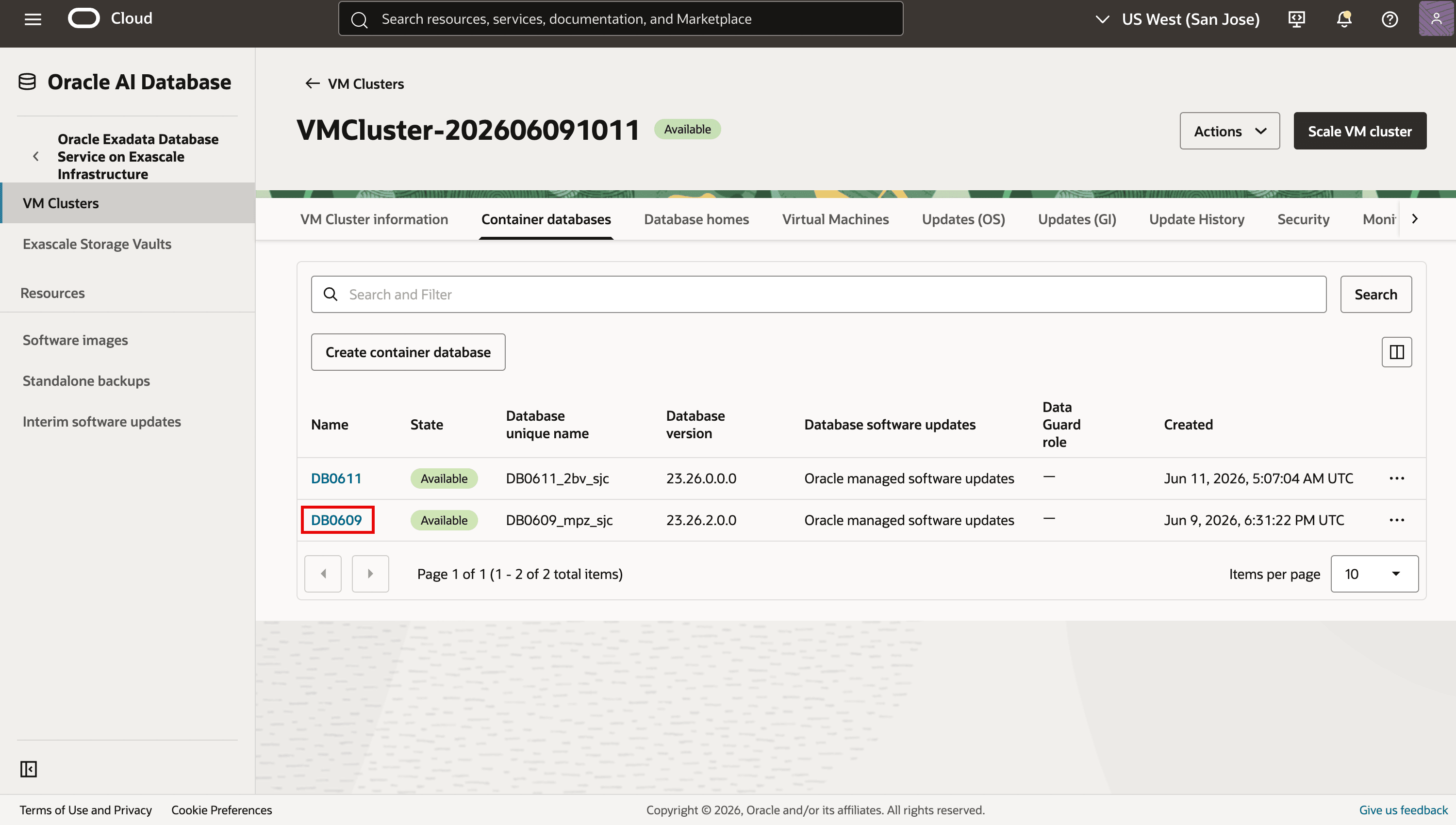
Select the compartment that contains the target VM cluster. Open the Exadata VM cluster, go to the Container databases tab, and then click the name of the container database that you want to unenroll from Oracle managed database software updates.
-
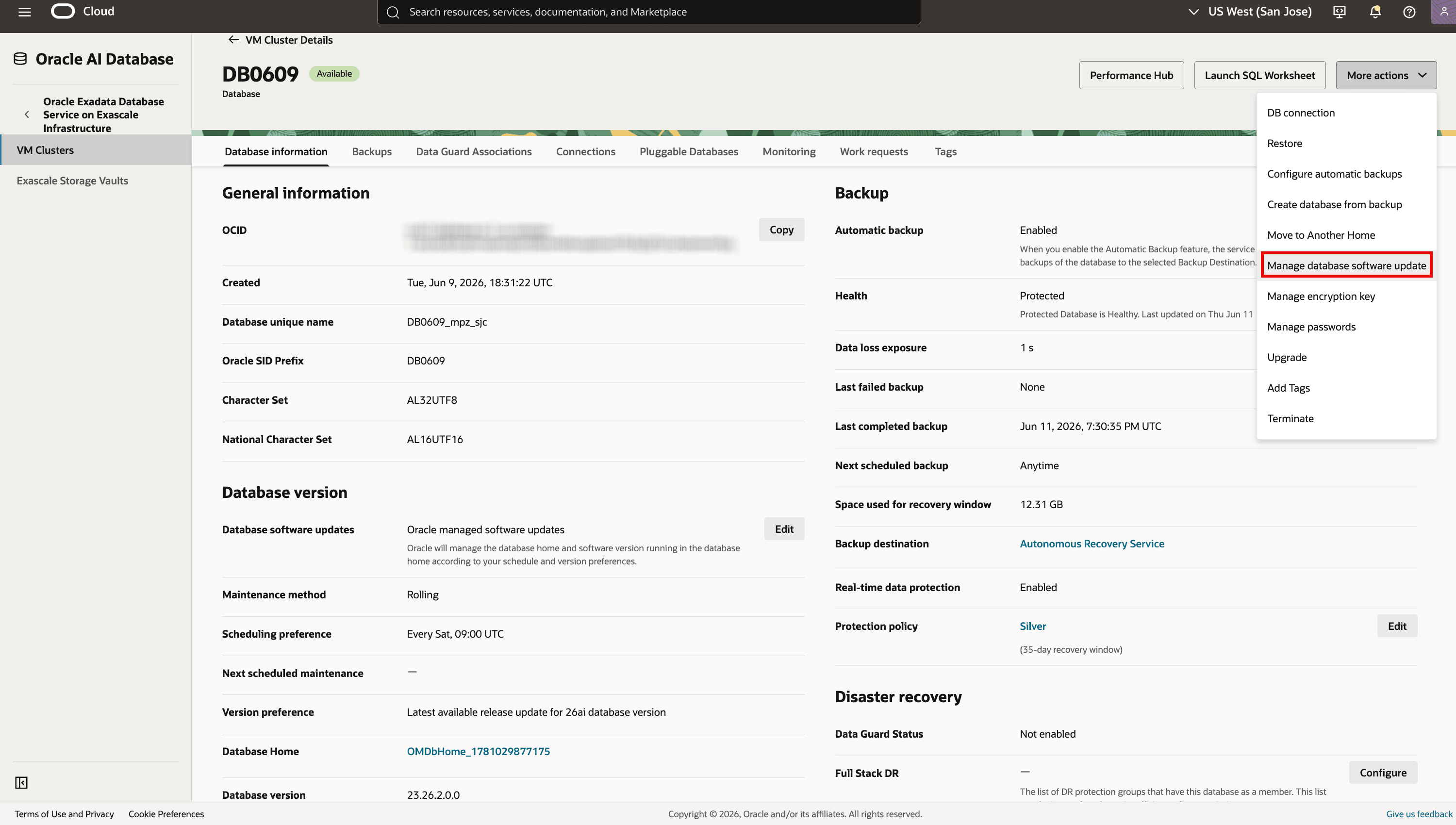
On the Database Details page, click More Actions, and then select Manage database software update.
-
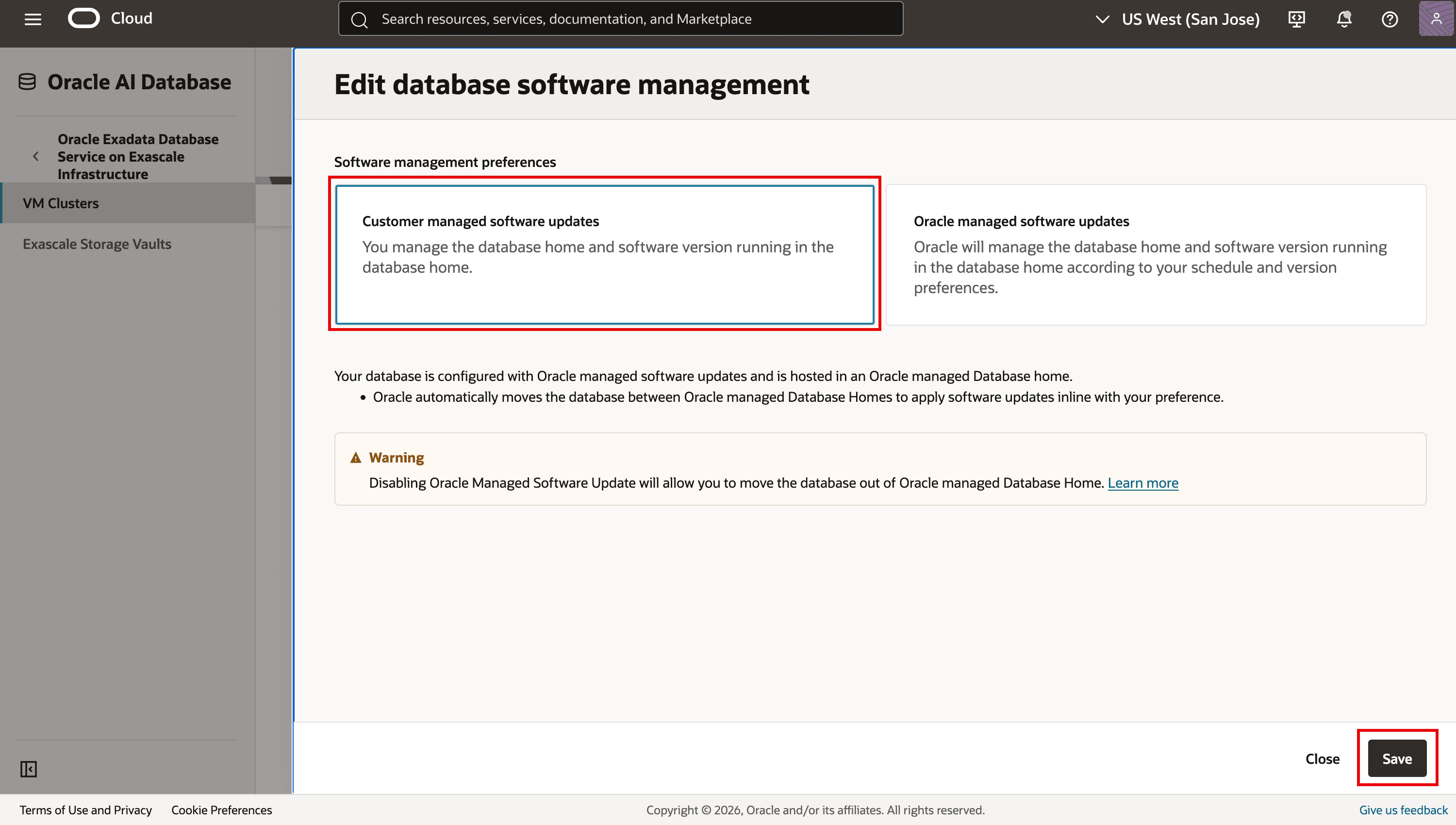
In the resulting window, select Customer managed software updates. Click Save.
-
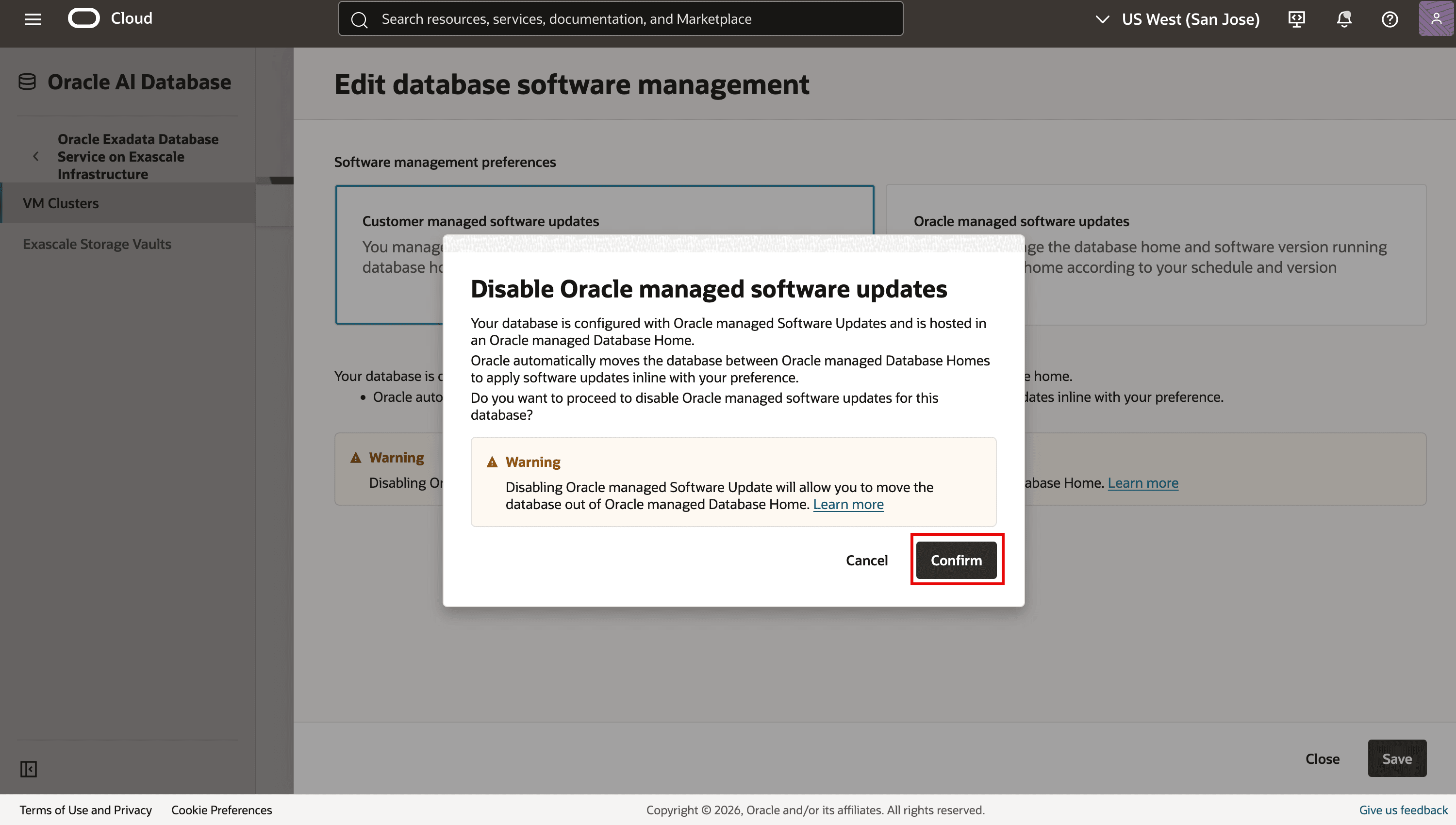
Review the warning message. Click Confirm.
-
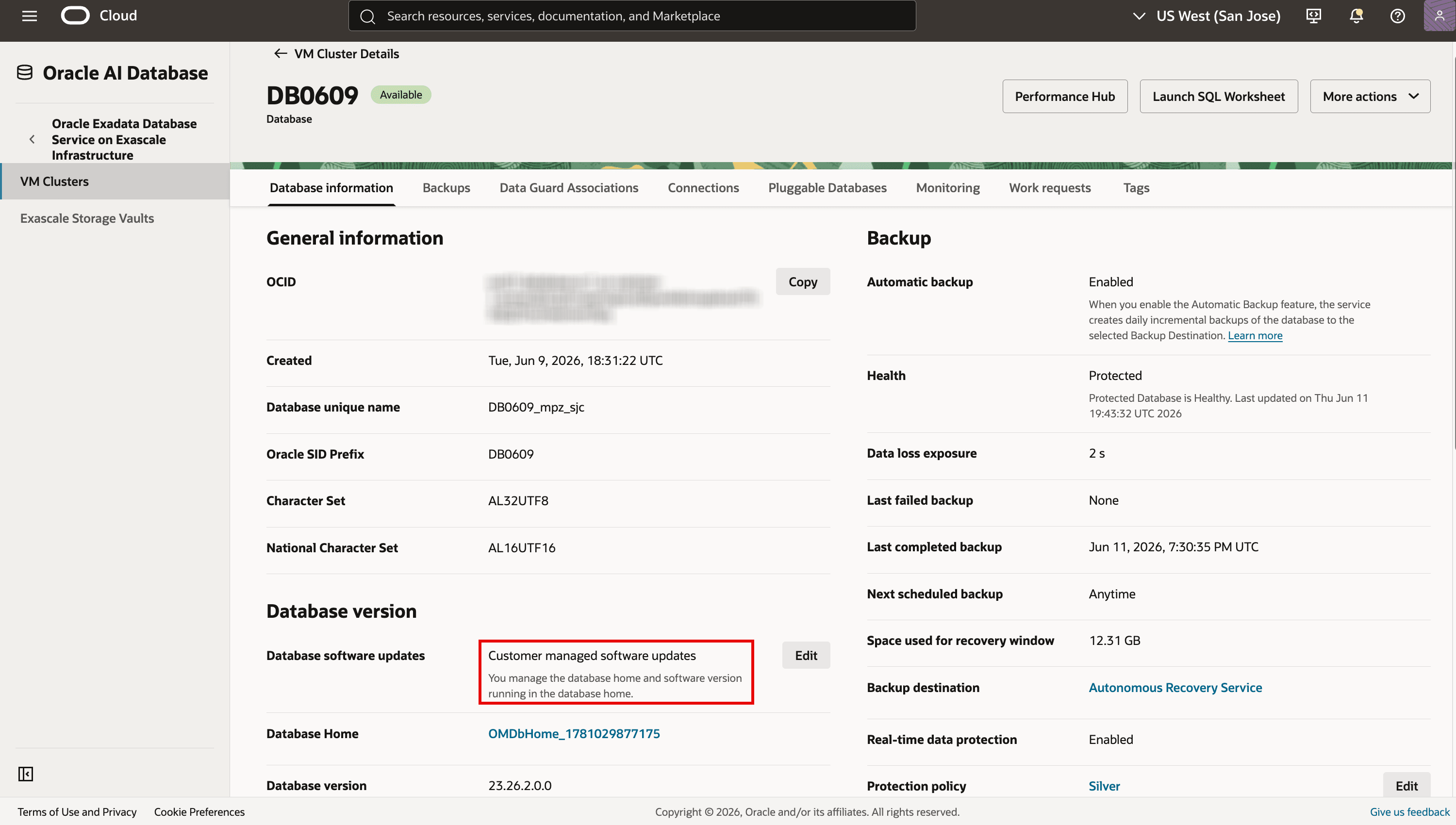
In the Database Version section on the Database Details page, verify that Database software updates shows Customer managed software updates. The database home remains unchanged.
Task 8: Move a database from an Oracle managed database home to a customer managed database home
A database enrolled in Oracle managed database software updates cannot be moved to another database home. To move the database to a customer managed database home, first unenroll the database from Oracle managed database software updates. After unenrollment, the database remains hosted by the Oracle managed database home. Follow these steps to move the database from an Oracle managed database home to a customer managed database home.
-
Open the navigation menu. Click Oracle AI Database, and then click Oracle Exadata Database Service on Exascale Infrastructure.
-
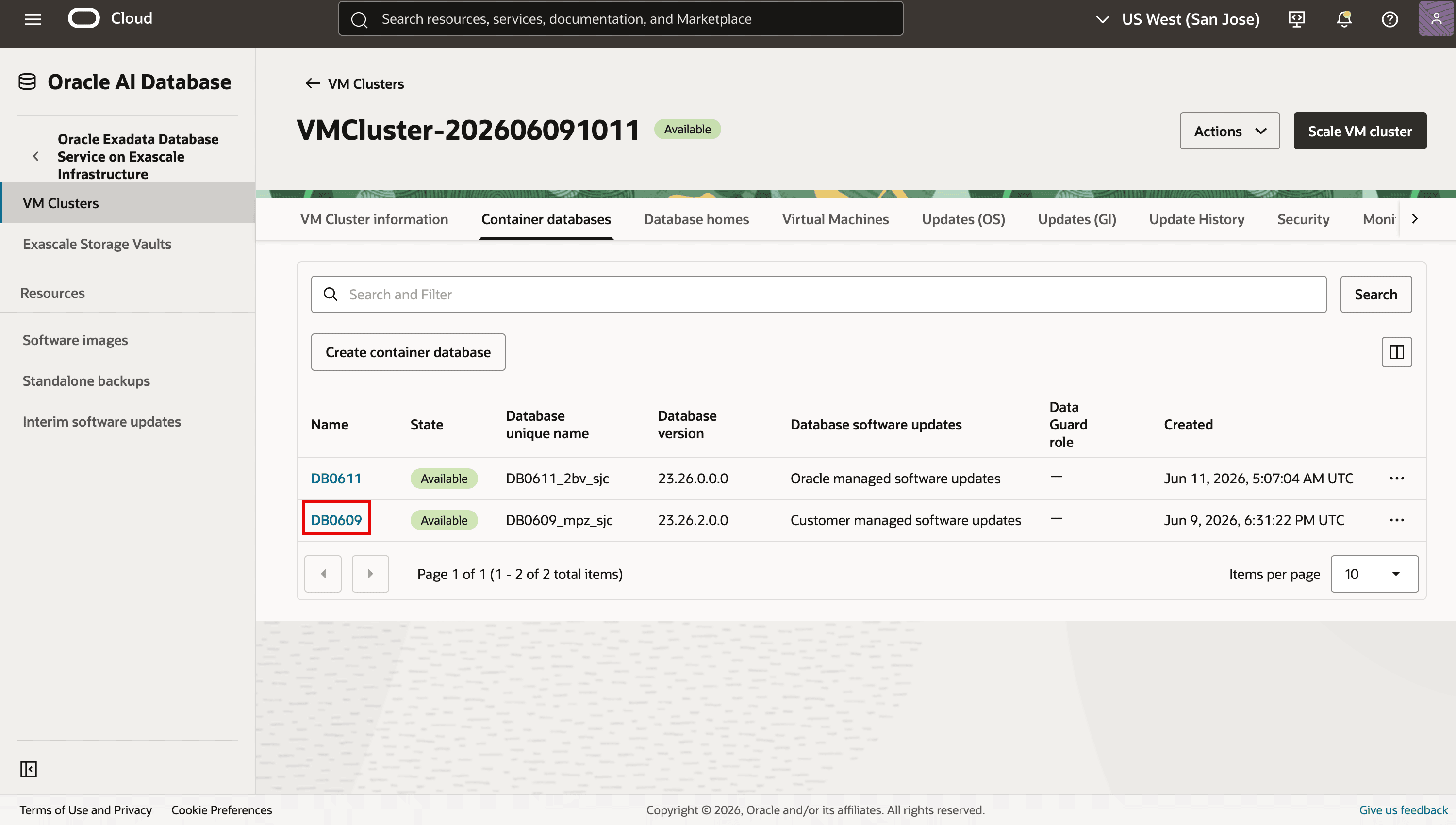
Select the compartment that contains the target VM cluster. Open the Exadata VM cluster, go to the Container databases tab, and then click the name of the container database that you want to move from an Oracle managed database home to a customer managed database home.
-
If the database is enrolled in Oracle managed database software updates, unenroll it using the steps in Task 7 above.
-
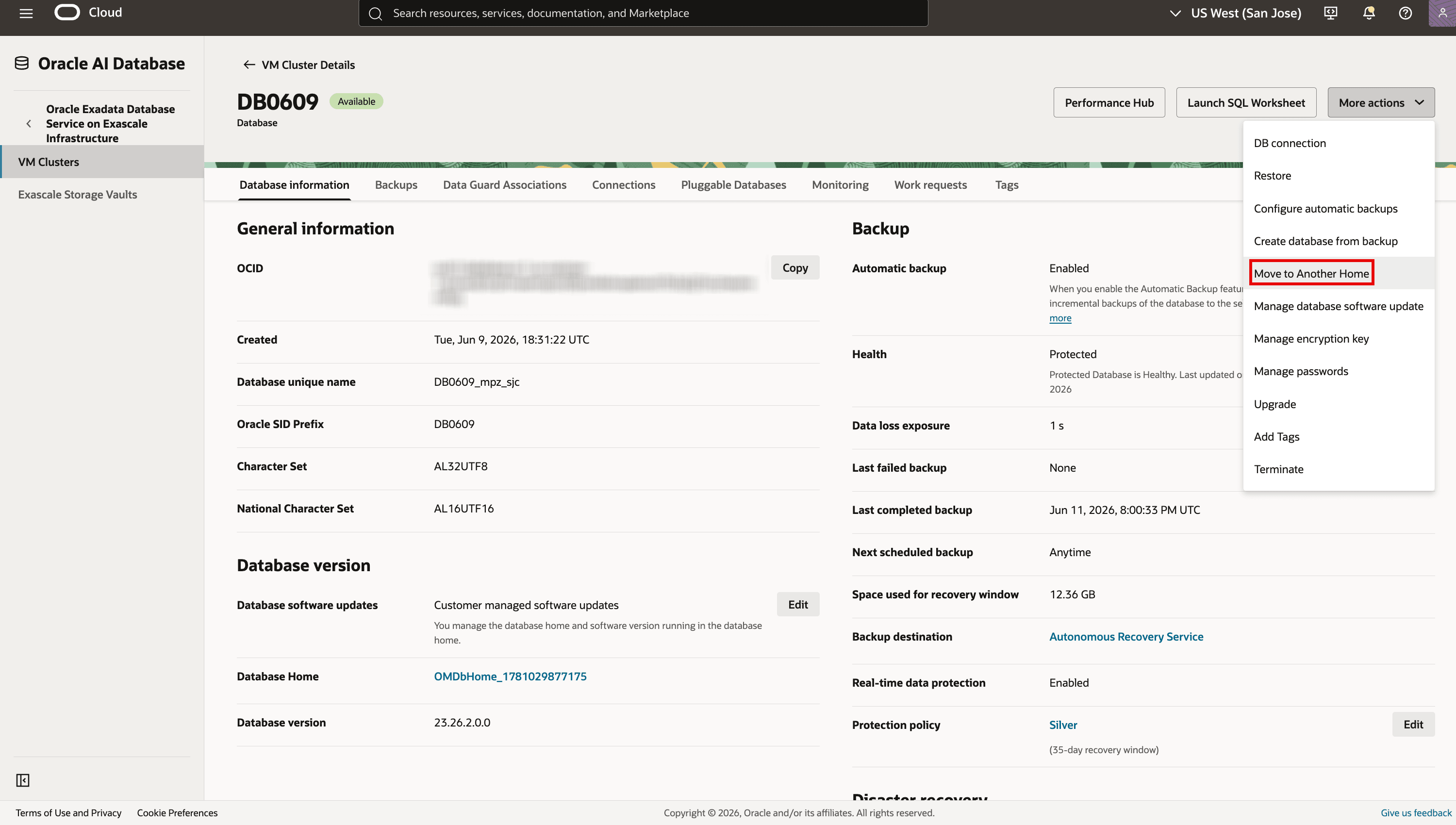
Make sure a compatible customer managed database home exists on the VM cluster. Use the same database release and a supported target patch version; see Database home eligibility for the current requirements. To change to a different major database release, use the database upgrade workflow. Click More Actions, and then select Move to Another Home.
-
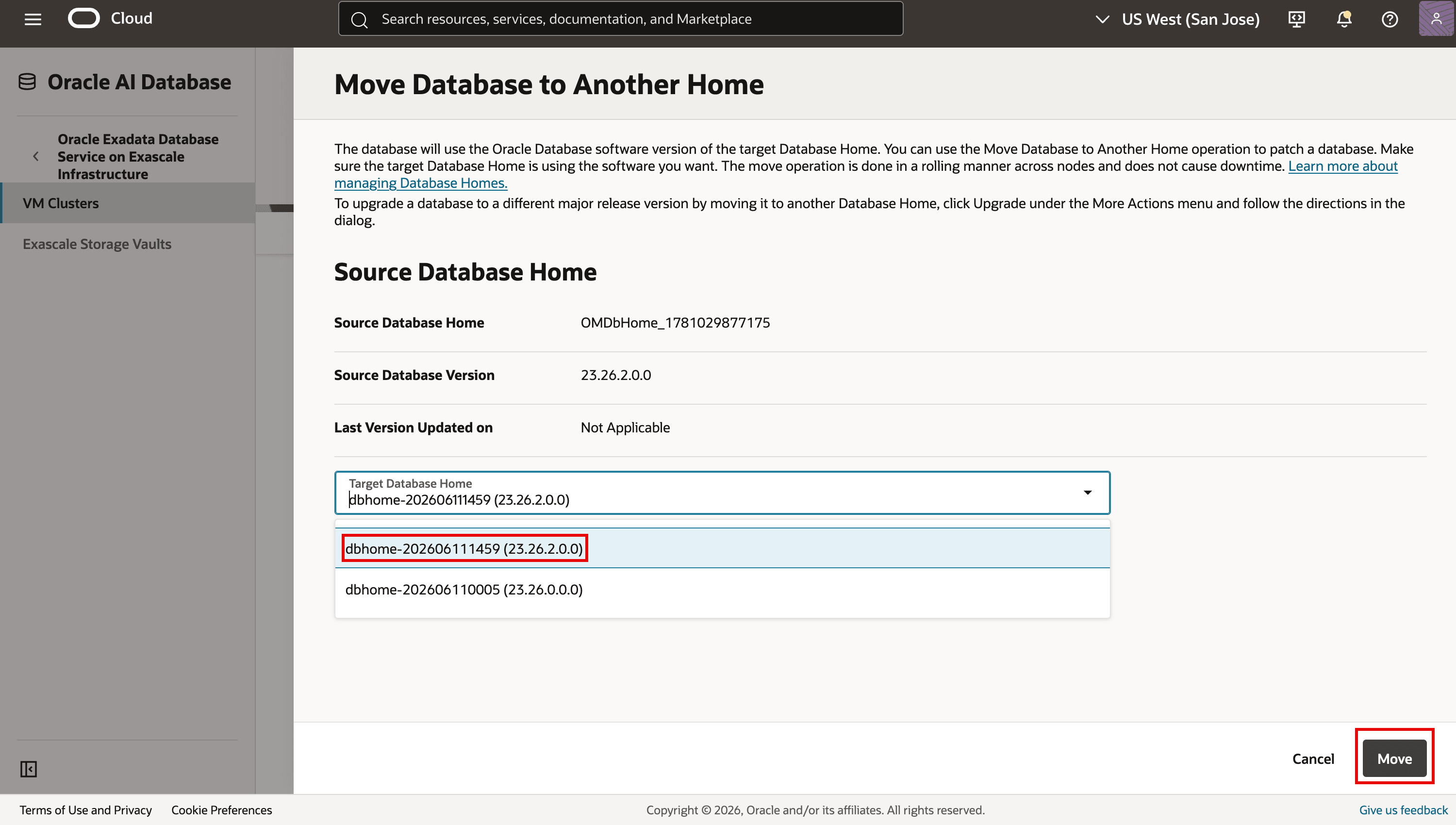
In the resulting dialog, select the target customer managed database home. Click Move.
-
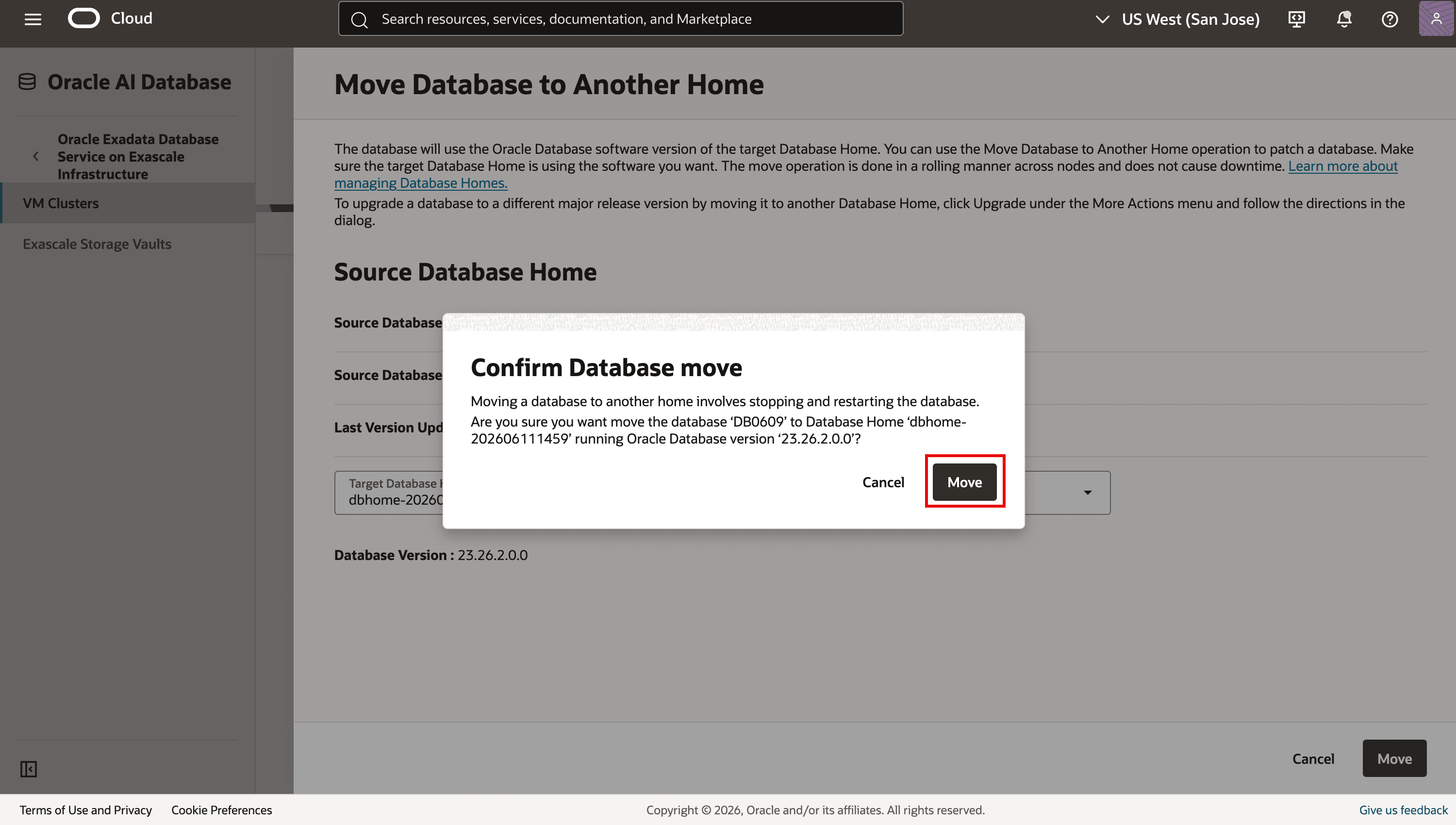
Review the Confirm Database move dialog. The move stops and restarts database instances in a rolling manner, one node at a time. Click Move.
-
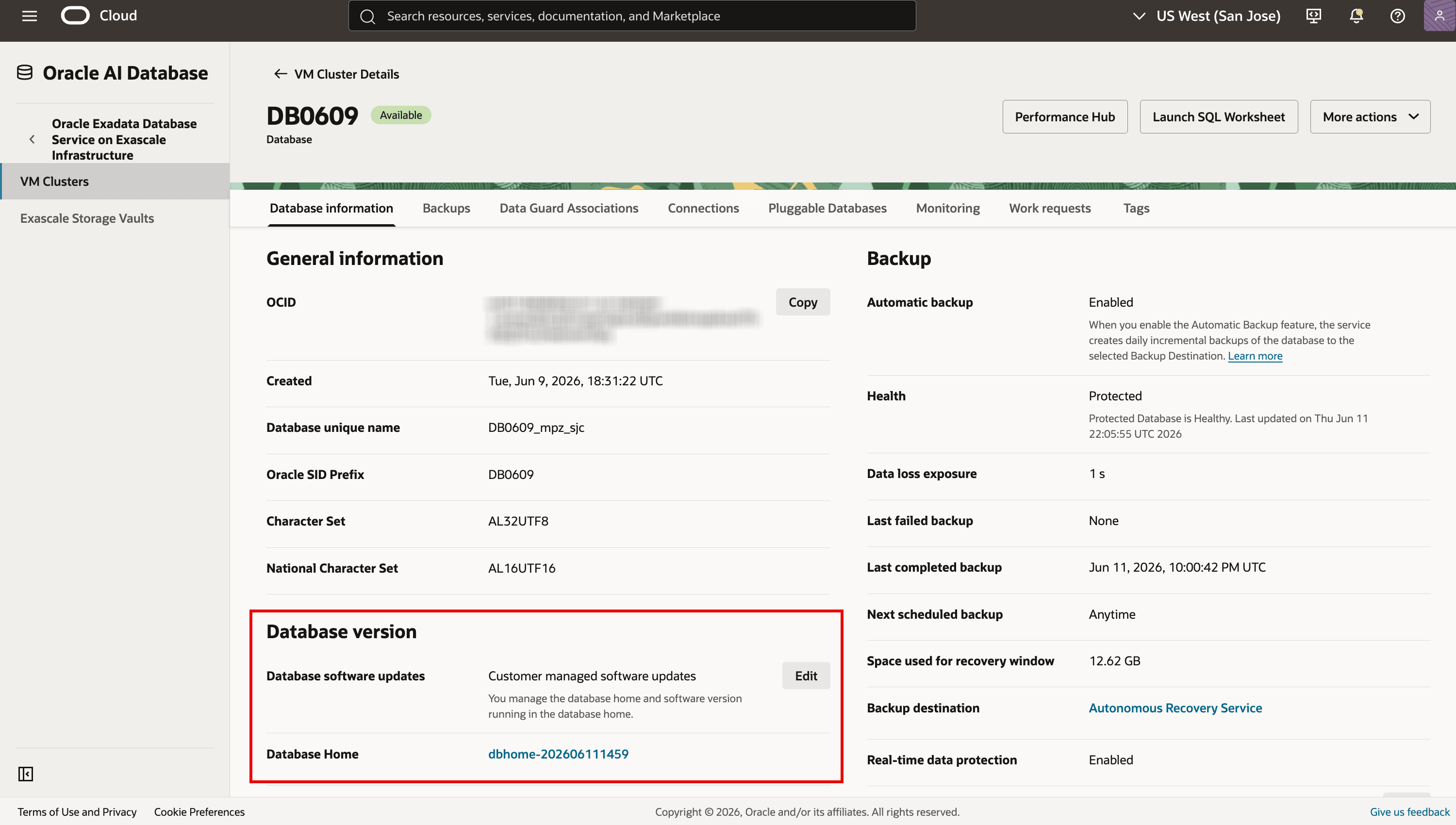
Monitor the move in Work requests. After it completes successfully, verify the target Database Home and Database version in the Database Version section on the Database Details page.
Related links
- Oracle Exadata Database Service on Exascale Infrastructure What’s new documentation
- Provisioning and Managing Exadata Databases
- Create an Events rule
- Delegate Access Control overview
Acknowledgments
- Contributors - Vishal Patil, Prince Mathew, Leo Alvarado, Tammy Bednar (Product Management)
More Learning Resources
Explore other labs on docs.oracle.com/learn or access more free learning content on the Oracle Learning YouTube channel. Additionally, visit education.oracle.com/learning-explorer to become an Oracle Learning Explorer.
For product documentation, visit Oracle Help Center.
Configure Oracle Managed Database Software Updates for Oracle Exadata Database Service on Exascale Infrastructure
G63026-01