Introduction
This tutorial shows you how to add Oracle JavaScript Extension Toolkit (Oracle JET) components to the navdrawer starter template of your Oracle JET web app.
Oracle JET is a development toolkit that you use to build client-side web apps. To create your web app, use the Oracle JET Cookbook to locate the component samples that illustrate the specific functionality you want to add to your app. The Oracle JET Cookbook also provides instructions that you can follow to support behavior specific to the components.
Objectives
In this tutorial, you will learn how to use the Oracle JET Cookbook to add Oracle JET Select Single and Chart components to the Dashboard tab of your web app. You will also learn how to connect these two components to add interactivity between them.
Prerequisites
- A development environment set up to create Oracle JET web apps that includes an installation of Node.js
- Completion of the previous tutorial in this learning path, Create an Oracle JET Web Application by Using a Starter Template
- Access to the Oracle JET Cookbook
Task 1: Add Style Classes
It is good practice to place styles that you want to apply to components in a separate CSS file rather than use the inline style attribute demonstrated in the following example:
<oj-select-single
  id="basicSelect"
  style="max-width:20em"
  data="[[chartTypesDP]]"
  value="{{val}}"
></oj-select-single>
Before we add the Select Single and Chart components to our page, we’ll create style classes in our app's CSS file that the components can then reference.
-
Navigate to the
JET_Web_Application/src/cssdirectory and open theapp.cssfile in an editor. -
At the end of the
app.cssfile, add the following style classes that will determine style properties for the Select Single and Chart components..selectSingleStyle { max-width: 20em; } .chartStyle { max-width: 500px; width: 100%; height: 350px; }Later in this tutorial, the Select Single and Chart components reference these styles using the component’s
classattribute:<oj-select-single id="basicSelect" . . . class="selectSingleStyle" >. . . <oj-chart id="barChart" . . . class="chartStyle" >. . .</oj-chart ></oj-select-single >
Task 2: Add a Select Single Component
-
Navigate to the
JET_Web_Application/src/ts/viewsdirectory and open thedashboard.htmlfile in an editor. -
Within the HTML
divelement of the Dashboard Content Area, add anoj-labelcustom HTML element and anoj-select-singleelement. Also add anidattribute with a value ofitemDetailsContainerto thedivelement.<h1>Dashboard Content Area</h1> <div id="itemDetailsContainer"> <oj-label for="basicSelect">Select Chart:</oj-label> <oj-select-single id="basicSelect" class="selectSingleStyle" data="[[chartTypesDP]]" value="{{val}}" > </oj-select-single> </div>The square brackets surrounding the
chartTypesDPobservable on thedataattribute means the value can be read but not updated by the component. The curly braces surrounding thevalobservable on thevalueattribute means the value can be read and updated by the component. Thus, square brackets surrounding an observable define a one-way binding, whereas curly braces surrounding an observable define a two-way binding. -
Edit the HTML
h1element to display the header Product Information.<h1>Product Information</h1> -
Save the
dashboard.htmlfile. Yourdashboard.htmlcode snippet should look similar to add-select-single-dashboard-html.txt. -
Navigate to the
JET_Web_Application/src/ts/viewModelsdirectory and open thedashboard.tsfile in an editor. -
At the top of the
dashboard.tsfile, import the Knockout library, the Oracle JET mutable array data provider module, and the Oracle JET modules for the Label component and the Select Single component.import * as ko from "knockout"; import MutableArrayDataProvider = require("ojs/ojmutablearraydataprovider"); import "ojs/ojselectsingle"; import "ojs/ojlabel"; -
Before the
DashboardViewModel()class, add a type alias for the chart types (ChartType). Within theDashboardViewModel()class, add a chart type data array (chartTypes) and an instance of mutable array data provider (chartTypesDP) to allow binding of the chart type data by the Select Single component.type ChartType = { value: string; label: string; }; class DashboardViewModel { chartTypes: Array<Object>; chartTypesDP: MutableArrayDataProvider<ChartType["value"], ChartType>; constructor() { this.chartTypes = [ { value: "pie", label: "Pie" }, { value: "bar", label: "Bar" }, ]; this.chartTypesDP = new MutableArrayDataProvider< ChartType["value"], ChartType >(this.chartTypes, { keyAttributes: "value", }); } // End constructor -
Add the
ko.observablemethod to display the pie chart type as the default value for the Knockout observable of the Select Single component.class DashboardViewModel { val: ko.Observable<string>; . . . constructor() { this.val = ko.observable("pie"); . . . -
Save the
dashboard.tsfile. Yourdashboard.tscode snippet should look similar to add-select-single-dashboard-ts.txt. -
Open a terminal window, change to the
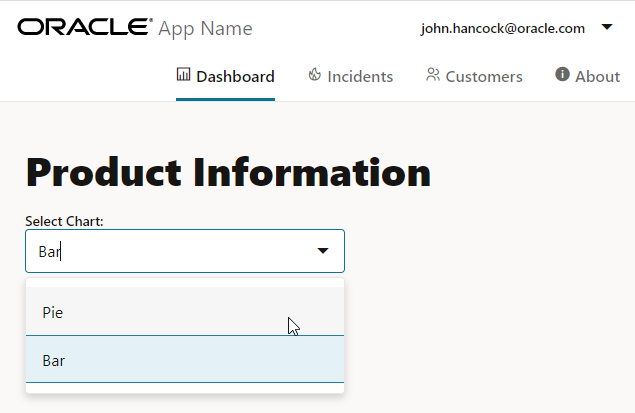
JET_Web_Applicationdirectory, and run the app.npx ojet serveThe browser displays the navdrawer starter template with the Select Single component visible in the Dashboard tab of your web app.
-
Leave the terminal window and the browser that displays your web app open.
The Oracle JET command-line interface's
servecommand lets you make changes to the app code in theJET_Web_Application/srcthat are immediately reflected in the browser. One exception is that if you add or delete a file, you need to runnpx ojet serveto see the change reflected in the browser. Do not make changes to the app code in theJET_Web_Application/webfolder because you will overwrite these changes the next time that you run thenpx ojet servecommand. Thenpx ojet servecommand builds and serves the content of theJET_Web_Application/srcfolder to theJET_Web_Application/webfolder.
Task 3: Add a Chart Component
-
Navigate to the
JET_Web_Application/src/ts/viewsdirectory and open thedashboard.htmlfile in an editor. -
Add the
oj-chartcustom HTML element below theoj-select-singlecustom HTML element such that the two elements appear inside the same HTMLdivelement of the Dashboard content area.<oj-select-single id="basicSelect" . . . </oj-select-single> <oj-chart id="barChart" type="bar" data="[[chartDataProvider]]" animation-on-display="auto" animation-on-data-change="auto" hover-behavior="dim" class="chartStyle"> </oj-chart> -
Within the
oj-chartcustom HTML element, add an HTMLtemplateelement with aslotattribute to render each item in the chart.<oj-chart id="barChart" . . . class="chartStyle"> <template slot="itemTemplate" data-oj-as="item"> </template> </oj-chart> -
Within the template element, add an
oj-chart-itemcustom HTML element with attributes that use one-way bindings to get the chart data from the current object.<oj-chart id="barChart" . . . class="chartStyle"> <template slot="itemTemplate" data-oj-as="item"> <oj-chart-item value="[[item.data.value]]" group-id="[[ [item.data.group] ]]" series-id="[[item.data.series]]" > </oj-chart-item> </template> </oj-chart> -
Save the
dashboard.htmlfile. Yourdashboard.htmlcode snippet should look similar to add-chart-dashboard-html.txt. -
Navigate to the
JET_Web_Application/src/ts/viewModelsdirectory and open thedashboard.tsfile in an editor. -
Add the
chartDataProviderobservable set to a new Oracle JETMutableArrayDataProviderobject that will contain the chart data.class DashboardViewModel { . . . chartDataProvider: MutableArrayDataProvider<string, {}>; constructor() { . . . this.val = ko.observable("pie"); this.chartDataProvider = new MutableArrayDataProvider(this.chartData, { keyAttributes: "id", }); . . . } -
Within the
DashboardViewModel()class, add thechartDataarray below the Knockout observable. You declare the type of this array to beArray<Object>.chartTypesDP: MutableArrayDataProvider<ChartType["value"], ChartType>; chartData: Array<Object>; constructor() { this.val = ko.observable("pie"); this.chartData = [ { "id": 0, "series": "Baseball", "group": "Group A", "value": 42 }, { "id": 1, "series": "Baseball", "group": "Group B", "value": 34 }, { "id": 2, "series": "Bicycling", "group": "Group A", "value": 55 }, { "id": 3, "series": "Bicycling", "group": "Group B", "value": 30 }, { "id": 4, "series": "Skiing", "group": "Group A", "value": 36 }, { "id": 5, "series": "Skiing", "group": "Group B", "value": 50 }, { "id": 6, "series": "Soccer", "group": "Group A", "value": 22 }, { "id": 7, "series": "Soccer", "group": "Group B", "value": 46 } ]; -
Import the module for the Oracle JET Chart component.
import "ojs/ojchart"; -
Save the
dashboard.tsfile. Yourdashboard.tsfile should look similar to final-chart-dashboard-ts.txt. -
Return to the browser to view the changes in your web app.
The browser displays the navdrawer starter template with the Bar Chart component visible in the Dashboard tab of your web app.
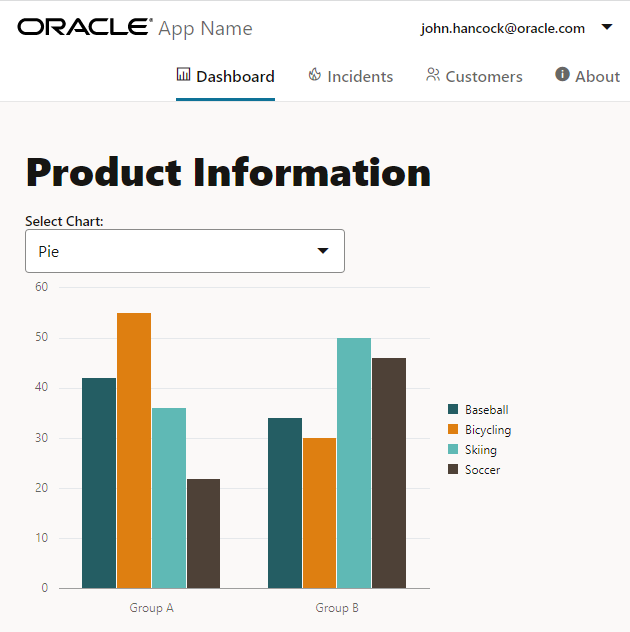
Notice that the Dashboard tab displays only the bar chart format for each Select Chart dropdown list option. You must add a dependency between the two components to display each chart format.
-
Leave the terminal window and the browser that displays your web app open.
Task 4: Connect the Two Components
-
Navigate to the
JET_Web_Application/src/ts/viewsdirectory and open thedashboard.htmlfile in an editor. -
In the
dashboard.htmlfile, edit theoj-chartcustom HTML element to connect thetypeattribute of the Chart component to thevalueattribute of the Select Single component with a one-way binding.<oj-chart id="barChart" type="[[val]]" . . . </oj-chart>The square braces surrounding the
valobservable on thetypeattribute means the value can be read but not updated by the component. Square braces surrounding an observable define a one-way binding. -
Save the
dashboard.htmlfile. Yourdashboard.htmlfile should look similar to final-connect-dashboard-html.txt. -
Return to the browser to view the changes in your web app.
The browser now displays the navdrawer starter template with the Select Single and Pie Chart components visible in the Dashboard tab of your web app.

-
To see the different chart formats, choose between the options in the Select Chart dropdown list.
-
Close the browser window or tab that displays your running web app.
-
In the terminal window, press Ctrl+C, and if prompted, enter
yto terminate the Oracle JET tooling batch job. -
Leave the terminal window open for your next tutorial.
Next Step
Proceed to the next tutorial in this module.
This tutorial is part of the module Your First Oracle JET Web Application.
- Create an Oracle JET Web Application by Using a Starter Template
- Add Components to an Oracle JET Web Application
- Data Bind a Component in an Oracle JET Web Application
- Debug an Oracle JET Web Application
- Add Unit Tests to an Oracle JET Web Application
- Prepare to Deploy an Oracle JET Web Application
You can return to the learning path’s main page to access all the modules on building web apps.
More Learning Resources
Explore other labs on docs.oracle.com/learn or access more free learning content on the Oracle Learning YouTube channel.
For product documentation, visit Oracle Help Center.
Add components to an Oracle JET web app
E97150-10
Copyright © 2022,2026 Oracle and/or its affiliates.