Enhance and archive the Oracle JET web component
Introduction
A web component is a reusable piece of user interface that you can embed as a custom HTML element in your web app. Web components can contain Oracle JavaScript Extension Toolkit (Oracle JET) components, other web components, HTML, JavaScript, TypeScript, and Cascading Style Sheets (CSS). You use the Oracle JET tooling to create the web component, and you can use an Oracle JET starter template to generate the HTML and Typescript or JavaScript files that you modify to add and configure the web component.
In the previous tutorial, you created a web component that displays four input text fields. In this tutorial, you learn how to change the Item ID field to a read-only field, add a currency converter to the Item Price field, and add a length validator to the Item Description field. To pass values to these fields, define the attributes for the four input text fields in the HTML source of the web app. The attributes you use must have a corresponding property that is defined in the web component metadata file. You can pass static values to the attributes or use the data-bound expression syntax for one-way or two-way data binding between the web app and the web component.
Objectives
In this tutorial, you will enhance the web component with additional features in an Oracle JET web app. You also learn how to package the web component and prepare it to share with another app.
Prerequisites
- A development environment set up to create Oracle JET web apps that includes an installation of Node.js
- Completion of the previous tutorial in this learning path, Create an Oracle JET Web Component
Task 1: Edit Item ID to Read-Only
The Item ID field in your web component must be read-only. For accessibility purposes, replace the oj-input-text custom HTML element for the Item ID field with the oj-label-value custom HTML element. The oj-label-value element defines a slot that uses the oj-bind-text element to modify the Item ID field to read-only.
-
Navigate to the
JET_Web_Component_Application/src/ts/jet-composites/demo-update-itemdirectory and open thedemo-update-item-view.htmlfile in an editor. -
Locate the
oj-input-textcustom HTML element with the attributevalue="ID number", and replace theoj-input-textelement with theoj-label-valueelement.<oj-form-layout id="form-container" label-edge="[[labelEdge]]"> <oj-label-value> <oj-label slot="label">Item ID</oj-label> <div slot="value"> <oj-bind-text value="ID number"></oj-bind-text> </div> </oj-label-value> <oj-input-text value="Name" label-hint="Item Name"></oj-input-text> . . . </oj-form-layout> -
Save the
demo-update-item-view.htmlfile.Your
demo-update-item-view.htmlcode should look similar to readonly-itemid.txt. -
Navigate to the
JET_Web_Component_Application/src/ts/jet-composites/demo-update-itemdirectory and open thedemo-update-item-viewModel.tsfile in an editor. -
In the
demo-update-item-viewModel.tsfile, import theojs/ojlabelvalueloader module after the entry that imports theojs/ojinputtextmodule."use strict"; import * as ko from "knockout"; import componentStrings = require("ojL10n!./resources/nls/demo-update-item-strings"); import Context = require("ojs/ojcontext"); import Composite = require("ojs/ojcomposite"); import "ojs/ojknockout"; import * as ResponsiveUtils from "ojs/ojresponsiveutils"; import * as ResponsiveKnockoutUtils from "ojs/ojresponsiveknockoututils"; import "ojs/ojformlayout"; import "ojs/ojinputtext"; import "ojs/ojlabelvalue"; -
Save the
demo-update-item-viewModel.tsfile. -
In the terminal window, change to the
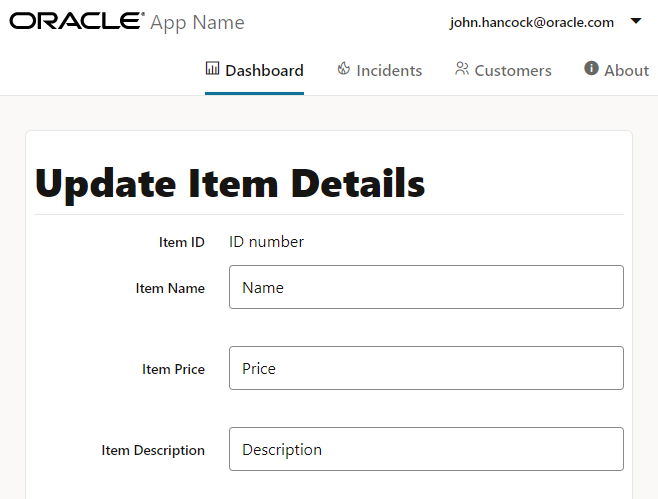
JET_Web_Component_Applicationdirectory and run the app.npx ojet serveThe browser displays the web component with the four input text fields in the Dashboard tab of your web app. The Item ID field is now a read-only field.
-
Leave the terminal window and the browser window or tab that displays your web app open.
The
npx ojet servecommand allows you to make changes to your app code that are immediately reflected in the browser.
Task 2: Add a Currency Converter
Use a currency converter for the Item Price field.
- Navigate to the
JET_Web_Component_Application/src/ts/jet-composites/demo-update-itemdirectory and open thedemo-update-item-view.htmlfile in an editor. -
Locate the
oj-input-textcustom HTML element with the attributevalue="Price", and update it to use a currency converter that we’ll define in a later step. We enter00rather thanPriceas the placeholder value for thevalueproperty because the converter requires a valid number rather than a string.<oj-form-layout id="form-container" label-edge="[[labelEdge]]"> ... <oj-input-text value="Name" label-hint="Item Name"></oj-input-text> <oj-input-text value="00" help.instruction="enter an amount with or without grouping separator" converter="[[currency]]" label-hint="Item Price"> </oj-input-text> <oj-input-text value="Description" label-hint="Item Description"></oj-input-text> </oj-form-layout> -
Save the
demo-update-item-view.htmlfile. Yourdemo-update-item-view.htmlcode should look similar to currency-code-html.txt. -
Navigate to the
JET_Web_Component_Application/src/ts/jet-composites/demo-update-itemdirectory and open thedemo-update-item-viewModel.tsfile in an editor. -
At the top of the
demo-update-item-viewModel.tsfile, importIntlNumberConverterfrom theojs/ojconverter-numbermodule:"use strict"; import * as ko from "knockout"; . . . import "ojs/ojinputtext"; import "ojs/ojlabelvalue"; import { IntlNumberConverter } from "ojs/ojconverter-number"; -
In the
ViewModelclass, add a currency field for the currency converter that you’ll initialize in the next step.export default class ViewModel implements Composite.ViewModel<Composite.PropertiesType> { busyResolve: (() => void); . . . currency: IntlNumberConverter; constructor(context: Composite.ViewModelContext<Composite.PropertiesType>) { . . . -
In the
constructor()method after the example observable entries, add the currency converter.constructor(context: Composite.ViewModelContext<Composite.PropertiesType>) { . . . this.res = componentStrings["demo-update-item"]; this.currency = new IntlNumberConverter({ style: "currency", currency: "USD ", currencyDisplay: "code", }); -
Save the
demo-update-item-viewModel.tsfile.Your
demo-update-item-viewModel.tscode should look similar to currency-code-ts.txt. -
Return to the browser to view the changes in your web app.
-
Enter the price in the Item Price field, and press Enter to verify the changes.
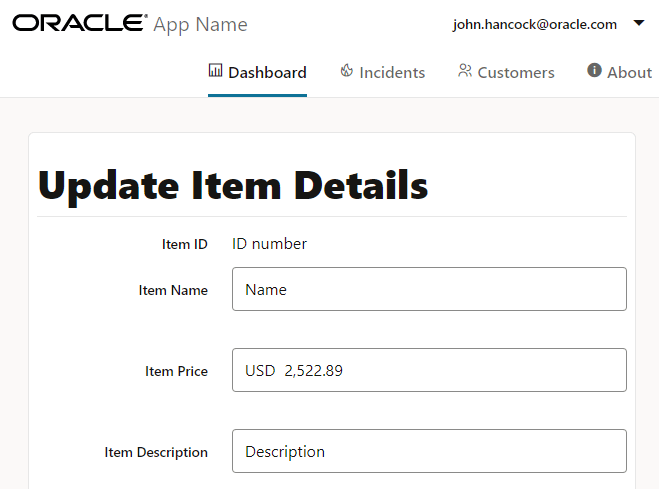
The price you enter shows a USD prefix. If you enter a non-numeric value, the Item Price field displays an error.
-
Leave the terminal window and the browser window or tab that displays your web app open.
The
npx ojet servecommand allows you to make changes to your app code that are immediately reflected in the browser.
Task 3: Add a Length Validator
Use a length validator for the Item Description field.
- Navigate to the
JET_Web_Component_Application/src/ts/jet-composites/demo-update-itemdirectory and open thedemo-update-item-view.htmlfile in an editor. -
Locate the
oj-input-textcustom HTML element with the attributevalue="Description", and update it to use a length validator that we’ll define in a later step.<oj-form-layout id="form-container"> ... <oj-input-text value="00" help.instruction="enter an amount with or without grouping separator" converter="[[currency]]" label-hint="Item Price"> </oj-input-text> <oj-input-text value="{{lengthValue1}}" validators="[[validators]]" placeholder="Enter a description of 5-50 characters" label-hint="Item Description" ></oj-input-text> </oj-form-layout> -
Save the
demo-update-item-view.htmlfile.Your
demo-update-item-view.htmlcode should look similar to validator-code-html.txt. -
Navigate to the
JET_Web_Component_Application/src/ts/jet-composites/demo-update-itemdirectory and open thedemo-update-item-viewModel.tsfile in an editor. -
At the top of the
demo-update-item-viewModel.tsfile, importAsyncLengthValidatorfrom theojs/ojasyncvalidator-lengthmodule:import * as ko from "knockout"; . . . import { IntlNumberConverter } from "ojs/ojconverter-number"; import AsyncLengthValidator = require("ojs/ojasyncvalidator-length"); -
In the
ViewModelclass, add fields for the Knockout observables that you’ll initialize in the next step.export default class ViewModel implements Composite.ViewModel<Composite.PropertiesType> { busyResolve: (() => void); . . . currency: IntlNumberConverter; lengthValue1: ko.Observable<string>; validators: ko.ObservableArray<AsyncLengthValidator<string>>; -
In the
constructormethod after the currency converter, add the length validator.constructor(context: Composite.ViewModelContext<Composite.PropertiesType>) { . . . this.res = componentStrings["demo-update-item"]; this.currency = new IntlNumberConverter({ style: "currency", currency: "USD ", currencyDisplay: "code", }); this.lengthValue1 = ko.observable(""); this.validators = ko.observableArray([ new AsyncLengthValidator({ min: 5, max: 50 }), ]);The length validator defines a minimum character length of 5 and a maximum character length of 50 for the Item Description field.
-
Save the
demo-update-item-viewModel.tsfile.Your
demo-update-item-viewModel.tscode should look similar to final-demo-update-item-viewModel-ts.txt. -
Return to the browser to view the changes in your web app.
-
Enter a description in the Item Description field and press Enter, and then press Tab to clear the tooltip.
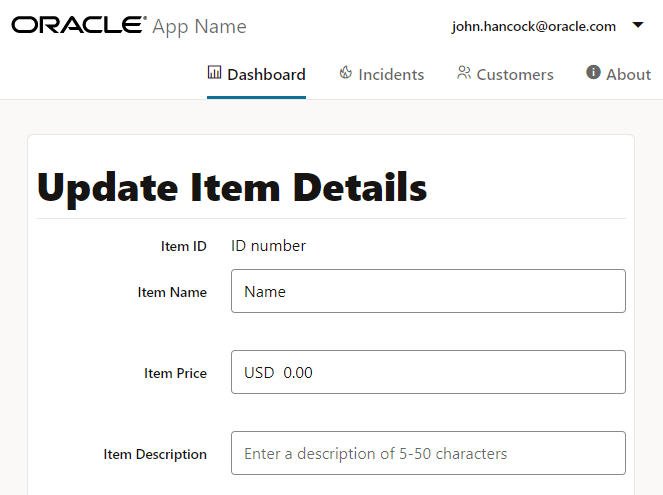
If the description is longer than the set range, then the Item Description field displays an error.
-
Leave the terminal window and the browser window or tab that displays your web app open.
The
npx ojet servecommand allows you to make changes to your app code that are immediately reflected in the browser.
Task 4: Define the Web Component Metadata
The web component metadata file defines the web component’s required properties. Each input text field of the web component must have an associated property that will write back updates from the web component.
-
Navigate to the
JET_Web_Component_Application/src/ts/jet-composites/demo-update-itemdirectory and open thecomponent.jsonfile in an editor. -
Define the
displayNameanddescriptionmetadata properties.{ "name": "demo-update-item", "version": "1.0.0", "jetVersion": "^16.0.0", "displayName": "demo-update-item", "description": "A Web Component with form layout", ... } -
Below the
descriptionmetadata property, use the camel-case naming convention to define the properties bound to the fields in the web component view."description": "A Web Component with form layout", "properties": { "itemId": { "type": "number" }, "itemName": { "type": "string", "description": "Description for the item-name attribute", "writeback": true }, "itemPrice": { "type": "number", "writeback": true }, "itemDesc": { "type": "string", "writeback": true } },The
writebackproperty set totrueensures that these properties will receive updates from the web component that references the property in a two-way data binding expression. -
Save the
component.jsonfile.Your
component.jsoncode should look similar to component-json.txt.
Task 5: Define the Attributes and Attribute Values
Attributes of the web component element can reference the properties that you declared in the web component metadata file. In the HTML source of the web app, property references appear as case-insensitive HTML element attribute names with hyphens.
-
Navigate to the
JET_Web_Component_Application/src/ts/viewsdirectory and open thedashboard.htmlfile in an editor. -
In the
demo-update-itemelement, define the attributes with static values for the four input text fields.<div class="oj-hybrid-padding"> <div class="oj-panel oj-sm-margin-2x demo-mypanel"> <h1 class="oj-header-border">Update Item Details</h1> <div> <demo-update-item item-id="34" item-name="John" item-price="3434.55" item-desc="This is an updated item"> </demo-update-item> </div> </div> </div> -
Save the
dashboard.htmlfile.
Task 6: Define the Web Component View
You can access any property defined in the web component’s metadata file by using the $properties variable of the view binding context.
- Navigate to the
JET_Web_Component_Application/src/ts/jet-composites/demo-update-itemdirectory and open thedemo-update-item-view.htmlfile in an editor. -
In the custom HTML elements of the
oj-form-layoutelement, bind thevalueattributes to the properties that are defined in thecomponent.jsonfile by using the$propertiesvariable.<oj-form-layout id="form-container" label-edge="[[labelEdge]]"> . . . <div slot="value"> <oj-bind-text value="[[$properties.itemId]]"></oj-bind-text> </div> </oj-label-value> <oj-input-text value="{{$properties.itemName}}" label-hint="Item Name"></oj-input-text> <oj-input-text value="{{$properties.itemPrice}}" help.instruction="enter an amount with or without grouping separator" ...> </oj-input-text> <oj-input-text value="{{$properties.itemDesc}}" . . .> </oj-input-text> </oj-form-layout>To define attribute values, use the
[[]]syntax to define one-way data binding and the{{}}syntax for two-way data binding. -
Save the
demo-update-item-view.htmlfile.Your
demo-update-item-view.htmlcode should look similar to final-demo-update-item-view-html.txt. -
Return to the browser to view the changes in your web app.
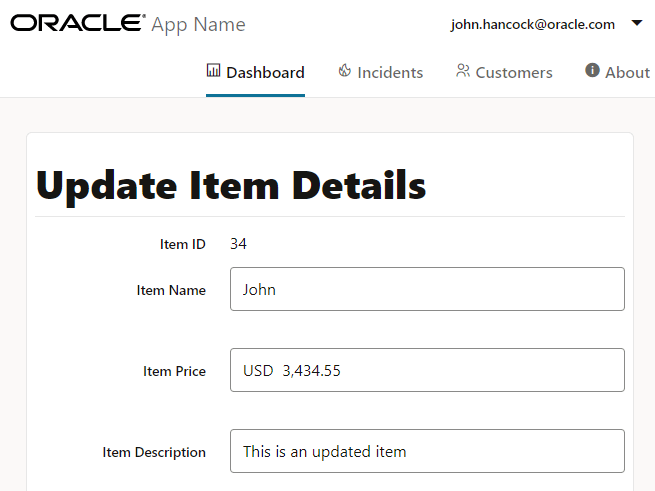
The browser displays the web component with the static values in the four input text fields.
-
Close the browser window or tab that displays your running web app.
- In the terminal window, press Ctrl+C, and if prompted, enter
yto exit the Oracle JET tooling batch job. Close the terminal window.
Task 7: Archive the Web Component
After you configure your web component, you must prepare the web component for other apps.
Open a terminal window, change to the JET_Web_Component_Application directory, and run the npx ojet package component command with the name of the component, demo-update-item, as a command parameter:
npx ojet package component demo-update-item
Oracle JET packages the content of the JET_Web_Component_Application/src/ts/jet-composites/demo-update-item directory into a ZIP file (demo-update-item_1-0-0.zip) that it creates in the JET_Web_Component_Application/dist directory. As part of the packaging task, Oracle JET transpiles the TypeScript code in the JET_Web_Component_Application/src/ts/jet-composites/demo-update-item directory into JavaScript code. If, for example, you open the JET_Web_Component_Application/dist/demo-update-item_1-0-0.zip file, you’ll notice that it contains a demo-update-item-viewModel.js file that the Oracle JET tooling has transpiled from the demo-update-item-viewModel.ts file in the JET_Web_Component_Application/src/ts/jet-composites/demo-update-item directory.
You distribute the demo-update-item_1-0-0.zip file from the JET_Web_Component_Application/dist directory to consumers who want to reuse your web component in their web app. To use the web component in their web app, consumers extract the content of the ZIP file to a demo-update-item directory in their web app. We’ll go into detail about this latter task in the next tutorial.
Next Step
Proceed to the next tutorial in this module.
This tutorial is part of the module Reusable Web Components.
- Create an Oracle JET Web Component
- Enhance and Archive the Oracle JET Web Component
- Use the Web Component in an Oracle JET Web App
- Import the Oracle JET Web Component into Oracle Visual Builder
You can return to the learning path’s main page to access all the modules on building web apps.
More Learning Resources
Explore other labs on docs.oracle.com/learn or access more free learning content on the Oracle Learning YouTube channel. Additionally, visit education.oracle.com/learning-explorer to become an Oracle Learning Explorer.
For product documentation, visit Oracle Help Center.
Enhance and archive the Oracle JET web component
F11866-08