Create an Oracle JET Data Grid Provider
Introduction
An Oracle JET (JavaScript Extension Toolkit) Data Grid Provider distributes data to a JET Data Grid element (oj-data-grid), which displays hierarchical data in a cell-oriented table.
A Data Grid Provider implementation class is created in TypeScript by implementing the Data Grid Provider interface, which defines the contract by which the Data Grid retrieves data.
Objectives
In this tutorial, you will build an Oracle JET MVVM-based app with a JET Data Grid element that displays sample customer JSON data. By implementing the Data Grid Provider interface, you will create a Data Grid Provider in Typescript to distribute data to your Data Grid.
You will learn key features of the Data Grid Provider and how to get most of its functionality to the Data Grid. In addition to building a simple table displaying the data items, you will learn how to add column headers, row headers, column end headers, column header labels, and nested headers to the Data Grid, as well as how to merge multiple cells that share the same data into one cell.
The final version of the app will look similar to the following image.
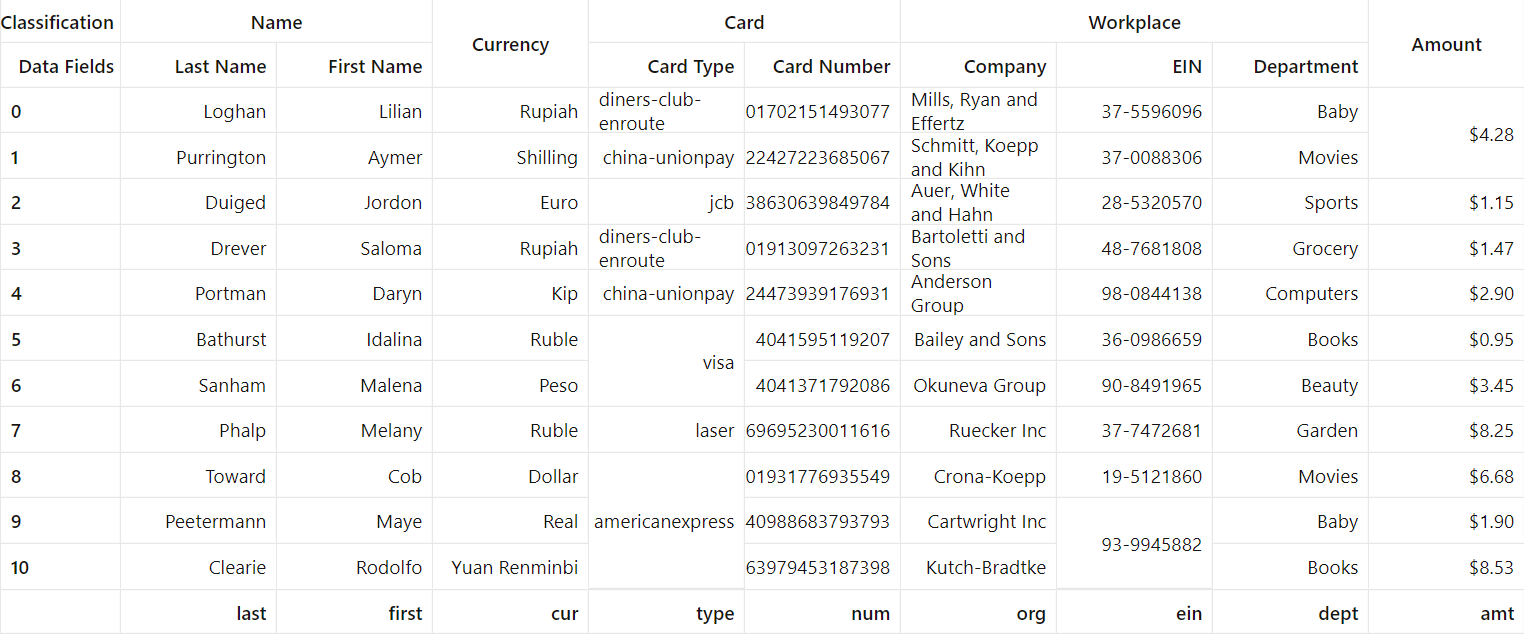
Description of the illustration final_data_grid.png
Prerequisites
- A development environment set up to create Oracle JET apps, with the JavaScript runtime, Node.js, and the latest Oracle JET command-line interface installed (a minimum of JET 12 required).
- Access to the Oracle JET Cookbook and API documentation.
- Optionally, you may download the final and stripped tutorial app and restore it:
sampledatagridprovider.zip. See the final task of this tutorial for instructions.
Task 1: Install the Latest Oracle JET Command-Line Interface
-
Confirm that your installed version of the Oracle JET command-line interface (CLI) is the latest available version. Open a terminal window and check your OJET CLI version.
$ ojet --version -
The latest available version should be displayed. A minimum of JET 12 is required for this tutorial. If your version is not current, then please reinstall the OJET CLI by using the
npm installcommand for your platform.-
For Windows:
$ npm install -g @oracle/ojet-cli -
For Mac and Linux systems:
$ sudo npm install -g @oracle/ojet-cli
-
Task 2: Create the Web Application and Prepare Project Files
With the OJET CLI, create the web application using the basic starter template made for this tutorial. Then create both the file in which you will build your Data Grid Provider implementation and the file holding the JSON data that your Data Grid will display.
-
In the location in your file system where you want the JET web app to reside, open a terminal window and create the
sampledatagridproviderapp.$ ojet create sampledatagridprovider --typescriptJET tooling creates the app in the current folder and displays progress messages until it finishes with a confirmation message.
Your app is ready! Change to your new app directory 'sampledatagridprovider' and try 'ojet build' and 'ojet serve'. -
Navigate to the
sampledatagridproviderdirectory you created and open thetsconfig.jsoncompiler configuration file in an editor. Add"resolveJsonModule": trueto the compiler options. This allows your project to import JSON files.{ "compileOnSave": true, "compilerOptions": { "resolveJsonModule": true, "baseUrl": ".", "target": "es6", "module": "amd", . . . -
Save and close the
tsconfig.jsonfile. Then navigate to thesampledatagridprovider/src/tsdirectory and create aSampleDataGridProvider.tsfile. This is where you will add TypeScript code to create your Data Grid Provider implementation. -
Finally, within the
sampledatagridprovider/src/tsdirectory, add the downloaded customers.ts file, which contains an array of objects with the customer data that your Data Grid will display.
Task 3: Import Interface Contracts and Implement the Data Grid Provider
The DataGridProvider interface defines how the JET Data Grid retrieves data. The instance of the DataGridProvider class that you create must implement all methods of its interface and will also use interfaces describing the data that the Data Grid Provider handles and passes to the Data Grid.
-
Open
SampleDataGridProvider.tsin an editor. At the top of the file, import the following interfaces from theojdatagridprovidermodule: DataGridProvider, FetchByOffsetGridParameters, FetchByOffsetGridResults, GridItem, GridBodyItem, and GridHeaderItem.import { DataGridProvider, FetchByOffsetGridParameters, FetchByOffsetGridResults, GridItem, GridBodyItem, GridHeaderItem } from 'ojs/ojdatagridprovider'; -
Below the import block, create the
SampleDataGridProviderclass.export class SampleDataGridProvider<D> implements DataGridProvider<D> { constructor() { } } -
Next, implement the methods required by the
DataGridProviderinterface. TheSampleDataGridProviderclass must includefetchByOffset,getCapability, andisEmptymethods. ThegetCapabilityandisEmptymethods return, respectively, information regarding the availability of features for the Data Grid Provider and an indication of whether the Data Grid Provider is empty or not.export class SampleDataGridProvider<D> implements DataGridProvider<D> { constructor() {} public fetchByOffset( parameters: FetchByOffsetGridParameters ): Promise<FetchByOffsetGridResults<D>> { return null; } public getCapability(capabilityName: string): any { return null; } public isEmpty(): 'yes' | 'no' | 'unknown' { return (this.dataParams.dataArray.length <= 0) ? 'yes' : 'no'; // Returns 'yes' if not given any data, returns 'no' otherwise } }The
fetchByOffsetmethod retrieves data for specified ranges of row and column data by their count and index offset. The parameters passed into thefetchByOffsetmethod, defined by the FetchByOffsetGridParameters interface, indicate the ranges of the data to fetch. ThefetchByOffsetmethod returns a promise with values conforming to the FetchByOffsetGridResults interface, including aresultsobject with properties consisting of the data items that will be displayed in the Data Grid, sorted in order by their relevant types (for example, arrays ofcolumnHeaderitems,databodyitems, etc.). -
Additionally, the
DataGridProviderinterface requiresaddEventListenerandremoveEventListenermethods. Though these may be implemented directly, in this tutorial, we will alternatively useEventTargetMixin, which is a mixin class. A mixin class contains properties and methods that can be used by other classes without them inheriting from it. We will use theapplyMixinmethod of theEventTargetMixinclass to implement the listeners. However, in TypeScript, there still must be placeholders in theSampleDataGridProviderclass foraddEventListenerandremoveEventListenerto satisfy the compiler. First, importEventTargetMixinfrom theojs/eventtargetmodule.import { DataGridProvider, FetchByOffsetGridParameters, FetchByOffsetGridResults, GridItem, GridBodyItem, GridHeaderItem } from 'ojs/ojdatagridprovider'; import { EventTargetMixin } from 'ojs/ojeventtarget';Then declare the
addEventListenerandremoveEventListenerproperties above theconstructor()method ofSampleDataGridProvider, in order to fullfill the interface contract.export class SampleDataGridProvider<D> implements DataGridProvider<D> { addEventListener: () => void; removeEventListener: () => void; constructor() {} . . . -
Below the
SampleDataGridProviderclass definition, add aapplyMixinmethod call on theSampleDataGridProviderclass to register listeners.// This is a convenience for registering addEventListener/removeEventListener EventTargetMixin.applyMixin(SampleDataGridProvider); -
Above the
SampleDataGridProviderclass definition, create aDataParamsinterface to define the data parameters that your Data Grid Provider accepts. The data arrays themselves will be added later to the ViewModel in theroot.tsfile.interface DataParams { dataArray?: Array<Object>, } -
Finally, add the
dataParamsparameter to theconstructor()method.constructor(protected dataParams?: DataParams) { } -
Save the file.
Your
SampleDataGridProvider.tsfile should look similar to sample-data-grid-provider1-ts.txt.
Task 4: Add the Data Grid to the DOM and Apply Bindings
-
Navigate to the
sampledatagridprovider/srcdirectory and open theindex.htmlfile in an editor. -
Within the
<body>section, add an Oracle JET Data Grid element with a one-way binding to the Data Grid Provider through itsdataattribute. A one-way binding, indicated with square brackets, is used on thedataattribute because we will not enable the user to edit the Data Grid in this tutorial.<body> <oj-data-grid id="datagrid" style="margin:5px;width:90%;height:90vh" header.column.label.style="padding:5px" header.column.style="width:130px" data="[[dataGridProvider]]"> </oj-data-grid> </body>Note: As a best practice, we recommend that you define CSS styles in a separate file, not inline as they are here.
Save and close the
index.htmlfile. -
Navigate to the
sampledatagridprovider/src/tsdirectory and open theroot.tsfile in an editor. Here you will create adataGridProviderinstance of your exportedSampleDataGridProviderclass that will be used by your ViewModel. -
At the top of the file, import the
ojdatagridmodule, theSampleDataGridProviderclass you created, and the JSON customer data fromcustomers.ts.import "ojs/ojdatagrid"; import { SampleDataGridProvider } from "./SampleDataGridProvider"; import { jsonData } from "./customers"; -
Beneath the import block, add the
ViewModelclass that binds to the Data Grid element you added toindex.htmland that handles updates and passes data to your component. Also add Knockout bindings to theinit()function to apply bindings between your ViewModel and your Data Grid in the DOM.class ViewModel { public dataGridProvider = new SampleDataGridProvider({ dataArray: jsonData }); }; function init() { ko.applyBindings(new ViewModel(), document.getElementById('datagrid')); } -
Save the file.
Your
root.tsfile should look similar to root1-ts.txt. -
In a terminal window, navigate to the
sampledatagridproviderdirectory, and run the app.$ ojet serveOracle JET tooling runs your web app, which displays a blank screen, in your local web browser. Leave the terminal window and the browser that displays your web app open so that your app will automatically update with changes.
Task 5: Add Required Interface Classes
Now implement interface classes in the SampleDataGridProvider class, which will be instantiated later in this tutorial.
-
In
SampleDataGridProvider.ts, within theSampleDataGridProviderclass definition, implement theFetchByOffsetGridResultsinterface class, which defines the values of a promise returned by afetchByOffsetmethod call.private FetchByOffsetGridResults = class <D> implements FetchByOffsetGridResults<D> { constructor( public readonly fetchParameters: FetchByOffsetGridParameters, public readonly rowDone: boolean, public readonly columnDone: boolean, public readonly rowOffset: number, public readonly columnOffset: number, public readonly rowCount: number, public readonly columnCount: number, public readonly totalRowCount: number, public readonly totalColumnCount: number, public readonly results: { readonly databody?: Array<GridBodyItem<D>>, }, public readonly version: number, public next?: Promise<FetchByOffsetGridResults<D>> ) { } }; -
Underneath
FetchByOffsetGridResults, implement the following interface classes: GridItem, GridHeaderItem, GridBodyItem, and GridHeaderMetadata. These respectively define the structure of items, header items, databody items, and header metadata that are returned by afetchByOffsetmethod call within theresultsobject.private GridBodyItem = class <D> implements GridBodyItem<D> { constructor( public readonly rowExtent: number, public readonly columnExtent: number, public readonly rowIndex: number, public readonly columnIndex: number, public readonly metadata: Object, public readonly data: D ) { } }; private GridHeaderItem = class <D> implements GridHeaderItem<D> { constructor( public readonly index: number, public readonly extent: number, public readonly level: number, public readonly depth: number, public readonly metadata: Object, public readonly data: D ) { } }; private GridItem = class <D> implements GridItem<D> { constructor(public readonly metadata: Object, public readonly data: D) { } }; private GridHeaderMetadata = class { constructor(public readonly sortDirection?: 'ascending' | 'descending', public readonly sortable?: boolean) { } }; -
Save the file.
Your
SampleDataGridProvider.tsfile should look similar to sample-data-grid-provider2-ts.txt.
Task 6: Render the Data
Now display the databody items from your customer data in the Data Grid. You must obtain the row and column count of your customer data, create a method to obtain the databody items from the data, and modify your fetchByOffset method to take those databody items and pass them to your Data Grid.
-
For your Data Grid Provider to fetch row and column data by index offset and count, it must first find the total number of rows and columns in your customer data. Above the
constructor()method in theSampleDataProviderclass, declare the propertiestotalRowsandtotalCols.private readonly totalRows; private readonly totalCols; -
Then add the
totalColsandtotalRowsproperties to theconstructor()method, sourcing their respective values from the JSON data incustomers.ts, where the number of keys in an object is the total columns count and the number of object entries is the total rows count.// Treats each key in the data as a column this.totalCols = this.dataParams?.dataArray?.[0] ? Object.keys(this.dataParams.dataArray[0]).length : -1; // Counts the number of individual entries in the JSON data as rows this.totalRows = this.dataParams?.dataArray ? this.dataParams.dataArray.length : -1; -
Modify the
fetchByOffsetmethod to fetch the data by column and row offset and count and to provide the returned promise results. The variables and theresultsobject returned by the method will be edited later in this tutorial to include values necessary for the addition of column headers, row headers, and so on. Currently, thefetchByOffsetmethod only returns the databody items in your data, which are obtained through the method added in the next step.public fetchByOffset( parameters: FetchByOffsetGridParameters ): Promise<FetchByOffsetGridResults<D>> { return new Promise((resolve: Function) => { const rowOffset = parameters.rowOffset; const columnOffset = parameters.columnOffset; // Minimum of the rowCount given in parameters and the number of rows remaining until the end of the data const rowCount = Math.min(parameters.rowCount, this.totalRows - rowOffset); const columnCount = Math.min(parameters.columnCount, this.totalCols - columnOffset); // True if the final row specified by parameters is greater than the total number of rows const rowDone = rowOffset + rowCount >= this.totalRows; const columnDone = columnOffset + columnCount >= this.totalCols; const databody = this.getDatabodyResults(rowOffset, (rowOffset + rowCount), columnOffset, (columnOffset + columnCount)); const next = null; const results = { databody: databody } resolve( new this.FetchByOffsetGridResults( parameters, rowDone, columnDone, rowOffset, columnOffset, rowCount, columnCount, this.totalRows, this.totalCols, results, next) ); }); } -
Underneath the
fetchByOffsetmethod definition, add agetDatabodyResultsmethod to return the databody items and their values, within the range of rows and columns described in thefetchByOffsetmethod. ThefetchByOffsetmethod creates adatabodyvariable that holds the array of databody items obtained via athis.getDatabodyResultscall. Then the databody items are included in the resolved promise’sresultsobject and passed to your Data Grid.private getDatabodyResults(rowStart: number, rowEnd: number, columnStart: number, columnEnd: number): Array<GridBodyItem<D>> | undefined { if (this.dataParams?.dataArray?.[0]) { // Sets columnKeys to be all of the keys specified in the data const columnKeys = Object.keys(this.dataParams.dataArray[0]) const databody = []; // Iterates through every row in the region fetched for (let i = rowStart; i < rowEnd; i++) { const arrayOfIndex = this.dataParams.dataArray[i]; // Iterates through every column of the current row for (let j = columnStart; j < columnEnd; j++) { // Sets the extent of the cell vertically to correspond to one row let rowExtent = 1; // Sets the extent of the cell horizontally to correspond to one column let columnExtent = 1; // Get the value from the data const value = { data: arrayOfIndex[columnKeys[j]] } as any; // Creates GridBodyItem with value, extents and indexes const item: GridBodyItem<D> = new this.GridBodyItem<D>(rowExtent, columnExtent, i, j, {}, value); databody.push(item); }; } return databody; } return null; } -
Save the file. Your
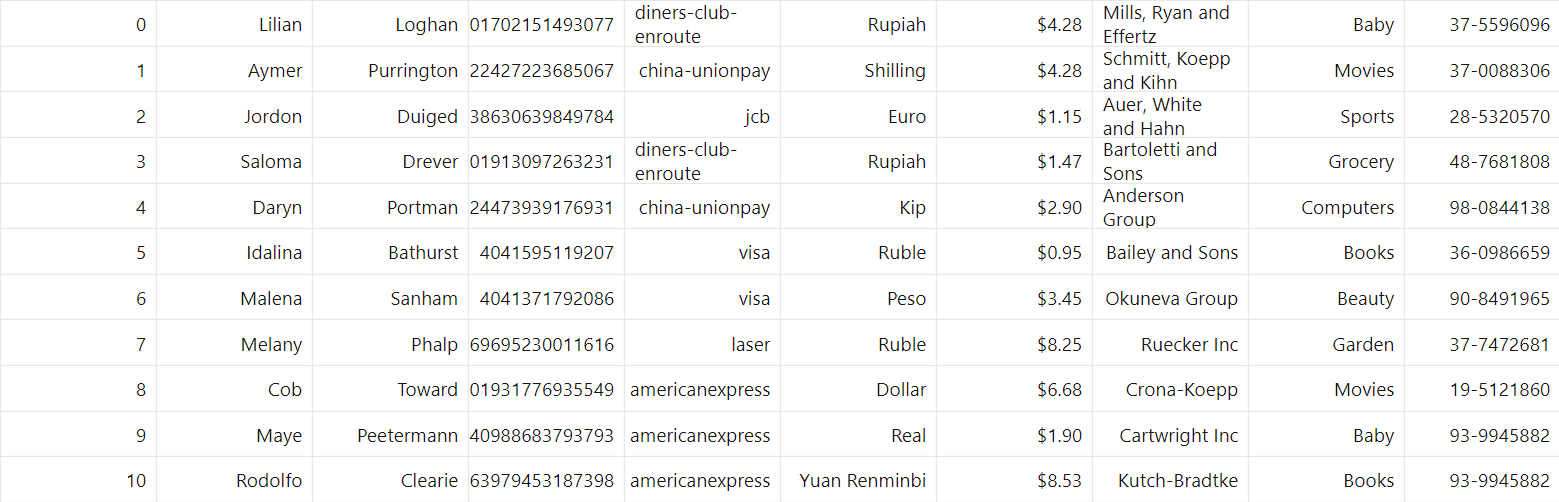
SampleDataGridProvider.tsfile should look similar to sample-data-grid-provider3-ts.txt.Then view the changes in your web app running in the browser. Your Data Grid should be visible and display the databody items from the customer data.
Task 7: Create Column Headers
-
To include column headers in your Data Grid, in the
SampleDataGridProvider.tsfile, first add agetColumnHeaderResultsmethod beneath thegetDatabodyResultsmethod in yourSampleDataGridProviderclass. This method uses the keys from a customer data object to create the column headers for your Data Grid.private getColumnHeaderResults(startIndex: number, endIndex: number): Array<GridHeaderItem<D>> | undefined { if (this.dataParams?.dataArray?.[0]) { // List of the keys used in the data, which will become the column headers const columnKeys = Object.keys(this.dataParams?.dataArray?.[0]); const results = []; for (let i = startIndex; i < endIndex; i++){ const value = { data: columnKeys[i] } as any; // Sets index to i, extent to 1, level to 0 (there's only one column header level), and depth to 1 // Add metadata for sortability here const item: GridHeaderItem<D> = new this.GridHeaderItem(i, 1, 0, 1, new this.GridHeaderMetadata(null, null), value); results.push(item); } return results; } return null; } -
Then update the
fetchByOffsetmethod so that it can access the list of column headers returned from athis.getColumnHeaderResultsmethod call. Underneath thecolumnDonevariable, add the followingcolumnheadervariable.// Will have start column for the headers be columnOffset and continue up through columnOffset + columnCount const columnHeader = this.getColumnHeaderResults(columnOffset, (columnOffset + columnCount)); -
Finally, update the
resultsobject in thefetchByOffsetmethod with acolumnHeaderproperty.const results = { databody: databody, columnHeader: columnHeader } -
Save the file. Your
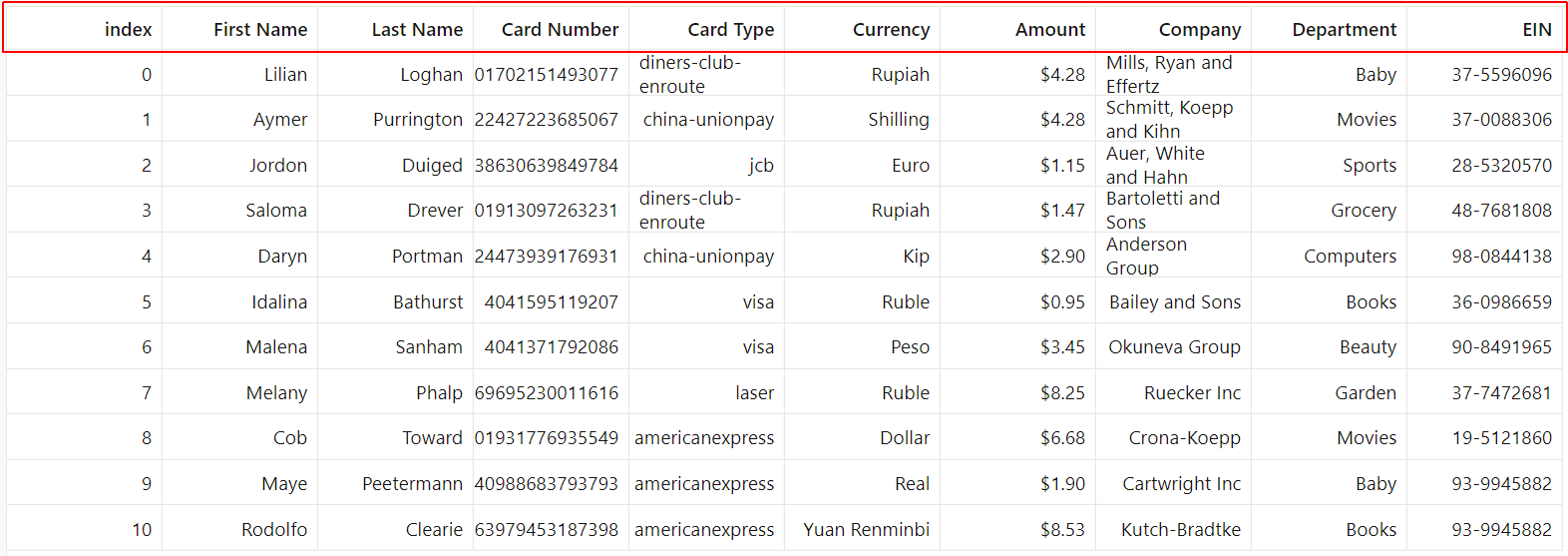
SampleDataGridProvider.tsfile should look similar to sample-data-grid-provider4-ts.txt.Then view the changes in your web app running in the browser. Column headers should be visible at the top of the Data Grid.
Task 8: Order Column Headers
Rather than infer the order of Data Grid colum headers from the data’s object keys, pass a column headers list as a parameter to the SampleDataGridProvider class constructor() method. Then modify the class to use the columnKeys variable that contains the column headers list instead of the inferred object keys.
-
In
SampleDataGridProvider.ts, modify theDataParamsinterface to pass in the list ofcolumnHeaders.interface DataParams { dataArray?: Array<Object>, columnHeaders?: Array<string> } -
Then declare the
columnKeysproperty in theSampleDataGridProviderclass, and update theconstructor()method with code specifying that thecolumnKeysvariable should hold the value of the column headers list included in the data parameters. The length ofcolumnKeysbecomes the new value oftotalCols. If nocolumnHeaderslist is provided with the data parameters, then the column headers’ order is inferred from customer data object keys.private readonly totalRows; private readonly totalCols; private readonly columnKeys; constructor(protected dataParams?: DataParams) { if (this.dataParams?.columnHeaders) { this.columnKeys = this.dataParams.columnHeaders; } else { this.columnKeys = this.dataParams?.dataArray?.[0] ? Object.keys(this.dataParams.dataArray[0]) : []; } // Treats each key in the data as a column this.totalCols = this.columnKeys.length; // Counts the number of individual entries in the json data as rows this.totalRows = this.dataParams?.dataArray ? this.dataParams.dataArray.length : -1; } -
Change the
columnKeysvariable in both thegetColumnHeaderResultsandgetDatabodyResultsmethods so that its value is comes directly from thecolumnKeyslist.// Use the new list of the keys, if provided, else use the provided data, which will become the column headers const columnKeys = this.columnKeys; -
Open the
root.tsfile and update the ViewModel’sdataGridProviderinstance with acolumnHeadersproperty.public dataGridProvider = new SampleDataGridProvider({ dataArray: jsonData, columnHeaders: ["Last Name", "First Name", "Currency", "Card Type", "Card Number", "Company", "EIN", "Department", "Amount"] }); -
Save the files. Your
SampleDataGridProvider.tsfile should look similar to sample-data-grid-provider5-ts.txt. Yourroot.tsfile should look similar to root2-ts.txt.Then view the changes in your web app running in the browser. Note that the
indexcolumn header and items, which existed in the first column of the previous iteration of the Data Grid, are no longer present because they are not inferred from the data object keys.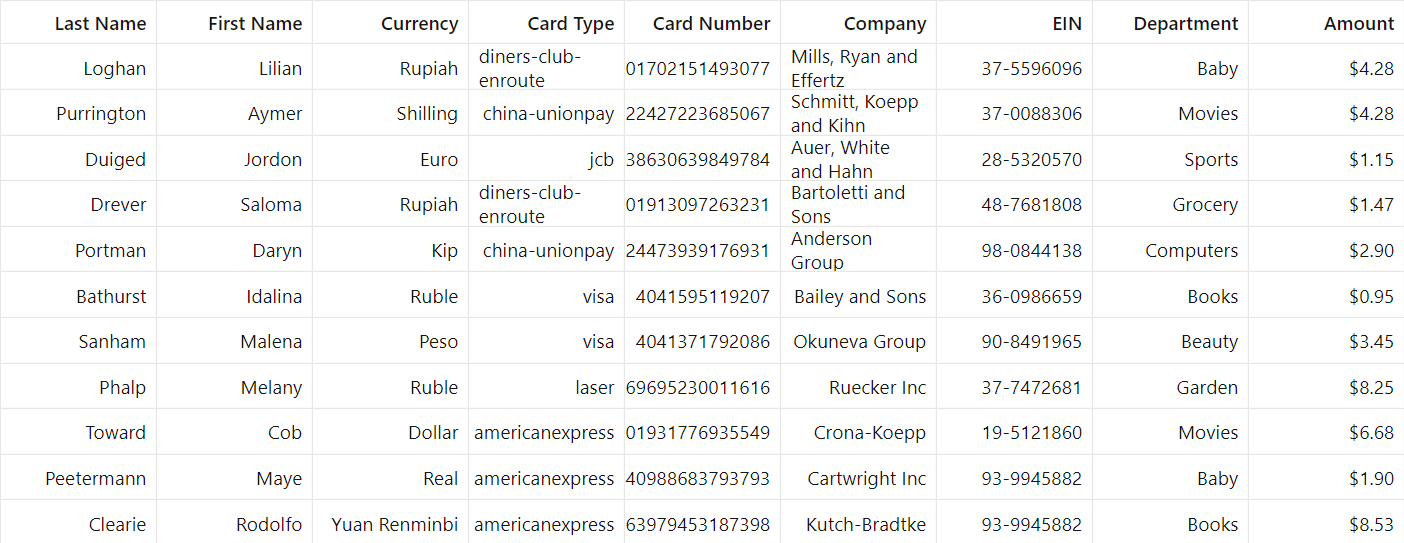
Task 9: Render Sort Icons
You can add sort icons to your Data Grid Provider to provide your Data Grid with more detail and structure. The sort icons demonstrated here include row headers, column end headers, and a label for your column headers. Sort icons are determined by header item metadata and are created using similar processes.
GridHeaderMetadata is the interface describing the metadata object, which is a property of header items (interface GridHeaderItem). The metadata object is used to specify additional information about a header item, including its sortability and sort order in the Data Grid. For example, the metadata object’s sortDirection property is used to indicate the direction a header is sorted: ascending, descending, or unsorted.
To add sort icons to the Data Grid Provider, you must modify the metadata object of the header items to make them sortable. In SampleDataGridProvider.ts, find the item variable in the getColumnHeaderResults method and update the this.GridHeaderMetadata property. Change the sortable property’s value to true to allow sortability, though leave the sortDirection property’s value null, or unsorted.
// Use the new list of the keys, if provided, else use the provided data, which will become the column headers
const item: GridHeaderItem<D> = new this.GridHeaderItem(i, 1, 0, 1, new this.GridHeaderMetadata(null, true), value);
Create Row Headers
The row headers you will add to your Data Grid Provider come from the values of the index keys in the customer data objects. First, add a method to parse the data for a list of these values. Then create a variable in the fetchByOffset method to hold the row headers list. Finally, update the results object to hold the row headers.
-
In the
SampleDataGridProviderclass, before thegetColumnHeaderResultsmethod, add agetRowHeaderResultsmethod to capture the list of row headers.private getRowHeaderResults(startIndex: number, endIndex: number): Array<GridHeaderItem<D>> | undefined { const results = []; for (let i = startIndex; i < endIndex; i++) { // Uses the index as the value for the rowHeader const value = { data: i } as any; // Sets index to i, extent to 1, level to 0 (there's only one row header level), and depth to 1 const item: GridHeaderItem<D> = new this.GridHeaderItem(i, 1, 0, 1, {}, value); results.push(item); } return results; } -
Then update the
fetchByOffsetmethod with a variable to hold the list of row header items returned from athis.getRowHeaderResultsmethod call. Underneath therowdonevariable, add the followingrowHeadervariable.const rowHeader = this.getRowHeaderResults(rowOffset, (rowOffset + rowCount)); -
Finally, update the
resultsobject in thefetchByOffsetmethod with arowHeaderproperty.const results = { databody: databody, columnHeader: columnHeader, rowHeader: rowHeader } -
Save the file. Your
SampleDataGridProvider.tsfile should look similar to sample-data-grid-provider6-ts.txt.View the changes in your web app running in the browser. Row headers as index values are visible along the left edge of your Data Grid.

Create Column End Headers
A similar method is used for adding column end headers to the Data Grid Provider; however, you must add an additional column end headers list to the data parameters that the SampleDataGridProvider class uses.
-
In
SampleDataGridProvider.ts, modify theDataParamsinterface to accept a list of column end headers.interface DataParams { dataArray?: Array<Object>, columnHeaders?: Array<string>, columnEndHeaders?: Array<string> } -
Open the
root.tsfile and update the ViewModel’sdataGridProviderinstance with acolumnEndHeadersarray property.public dataGridProvider = new SampleDataGridProvider({ dataArray: jsonData, columnHeaders: ["Last Name", "First Name", "Currency", "Card Type", "Card Number", "Company", "EIN", "Department", "Amount"], columnEndHeaders: ["last", "first", "cur", "type", "num", "org", "ein", "dept", "amt"] }); -
In
SampleDataGridProvider.ts, after thegetColumnHeaderResultsmethod, add agetColumnEndHeaderResultsmethod.private getColumnEndHeaderResults(startIndex: number, endIndex: number): Array<GridHeaderItem<D>> | undefined { const results = []; // Only do this if there were column end headers passed in if (this.dataParams?.columnEndHeaders?.[0]) { for (let i = startIndex; i < endIndex; i++) { const value = { data: this.dataParams.columnEndHeaders[i] } as any; // Sets index to i, extent to 1, level to 0 (there's only one column end header level), and depth to 1 const item: GridHeaderItem<D> = new this.GridHeaderItem(i, 1, 0, 1, {}, value); results.push(item); } } return results; } -
Then update the
fetchByOffsetmethod with a variable to hold the list of column end header items returned from athis.getColumnEndHeaderResultsmethod call. Underneath thecolumnHeadervariable, add the followingcolumnEndHeadervariable.const columnEndHeader = this.getColumnEndHeaderResults(columnOffset, (columnOffset + columnCount)); -
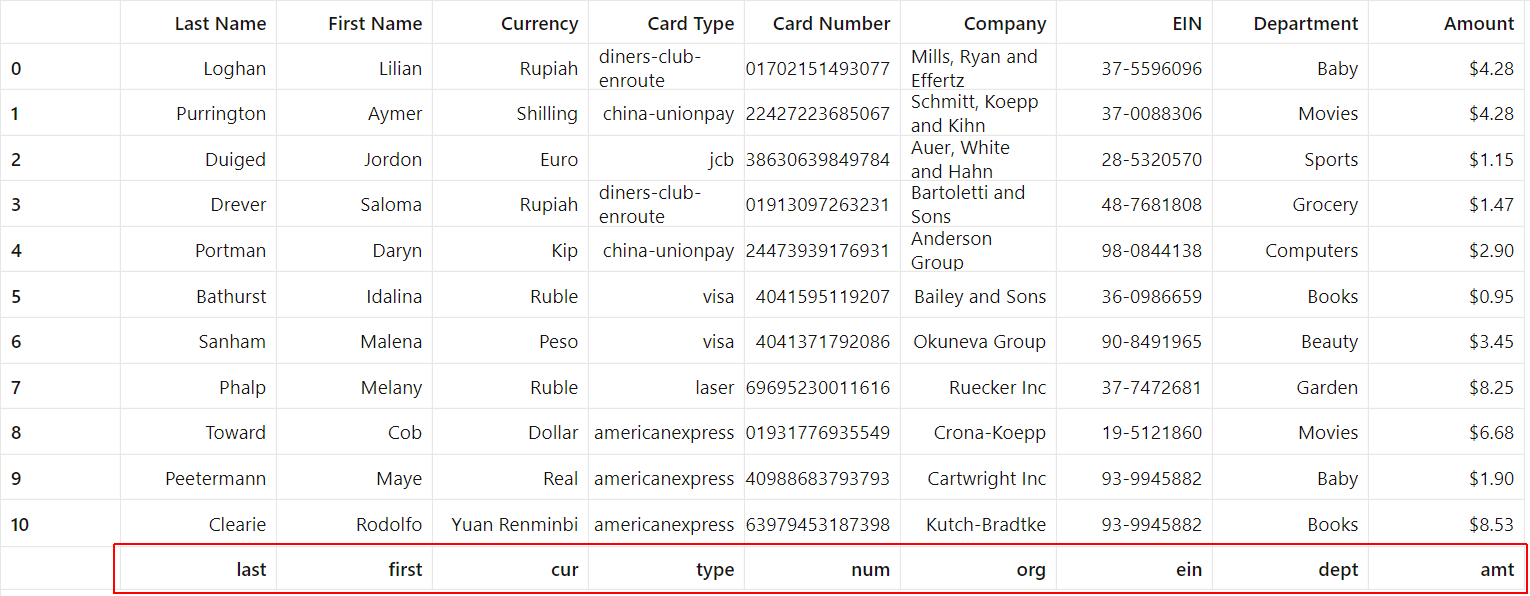
Finally, update the
resultsobject in thefetchByOffsetmethod with acolumnEndHeaderproperty.const results = { databody: databody, columnHeader: columnHeader, rowHeader: rowHeader, columnEndHeader: columnEndHeader } -
Save the files. Your
SampleDataGridProvider.tsfile should look similar to sample-data-grid-provider7-ts.txt. Yourroot.tsfile should look similar to root3-ts.txt.View the changes in your web app running in the browser. Column row headers should be visible in the last row of the Data Grid.
Create Column Header Label
To create a label for your Data Grid’s column headers, implement the same procedure as is used for creating column end headers.
-
In
SampleDataGridProvider.ts, modify theDataParamsinterface to pass in a list of column header labels.interface DataParams { dataArray?: Array<Object>, columnHeaders?: Array<string>, columnEndHeaders?: Array<string>, columnHeaderLabels?: Array<string> } -
Open the
root.tsfile and update the ViewModel’sdataGridProviderinstance with acolumnHeaderLabelsarray property.public dataGridProvider = new SampleDataGridProvider({ dataArray: jsonData, columnHeaders: ["Last Name", "First Name", "Currency", "Card Type", "Card Number", "Company", "EIN", "Department", "Amount"], columnEndHeaders: ["last", "first", "cur", "type", "num", "org", "ein", "dept", "amt"], columnHeaderLabels: ["Data Fields"] }); -
In
SampleDataGridProvider.ts, after thegetColumnEndHeaderResultsmethod, add agetColumnHeaderLabelResultsmethod.private getColumnHeaderLabelResults(): Array<GridItem<D>> | undefined { const results = []; // Only do this if there were column header labels passed in if (this.dataParams?.columnHeaderLabels?.[0]) { for (let i = 0; i < this.dataParams.columnHeaderLabels.length; i++) { // Adds GridItem with ith element of columnHeaderLabels const item: GridItem<D> = new this.GridItem<D>({}, { data: this.dataParams.columnHeaderLabels[i] } as any); results.push(item); } return results; } return null; } -
Then update the
fetchByOffsetmethod with a variable to hold the list of column header label items returned from agetColumnHeaderLabelResultsmethod call. Underneath thecolumnEndHeadervariable, add the followingcolumnHeaderLabelvariable.const columnHeaderLabel = this.getColumnHeaderLabelResults(); -
Finally, update the
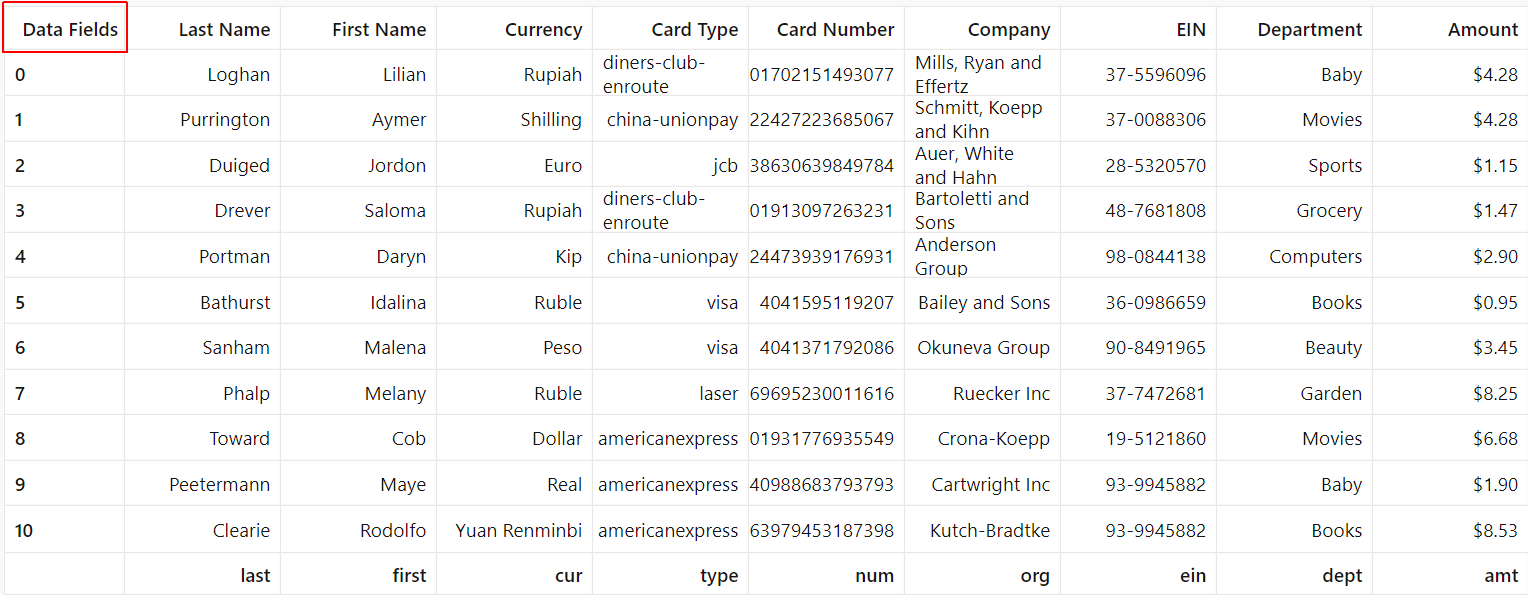
resultsobject in thefetchByOffsetmethod with acolumnHeaderLabelproperty.const results = { databody: databody, columnHeader: columnHeader, rowHeader: rowHeader, columnEndHeader: columnEndHeader, columnHeaderLabel: columnHeaderLabel } -
Save the files. Your
SampleDataGridProvider.tsfile should look similar to sample-data-grid-provider8-ts.txt. Yourroot.tsfile should look similar to root4-ts.txt.View the changes in your web app running in the browser. A column header label, “Data Fields”, should be visible in the cell in the first column and row of the Data Grid.
Task 10: Merge Cells
The horizontal and vertical extents of cells can be combined to create one cell out of multiple cells. For cells containing databody items, this is accomplished through use of their rowExtent and columnExtent properties, as described by the GridBodyItem interface. These properties represent the number of rows/columns spanned by a databody item’s cell. The values of these properties should be 1 for unmerged cells but can be changed to specify cell merges.
-
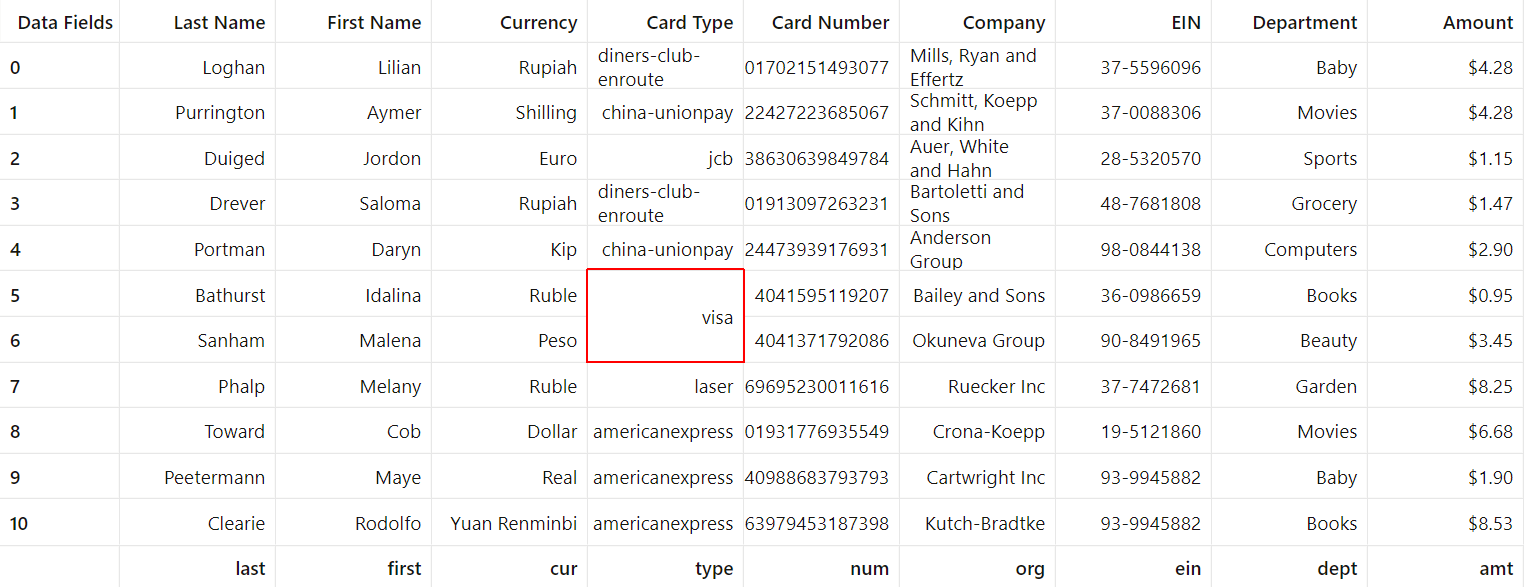
Combine the cells in rows 5 and 6 of the “Card Type” column, which share the ‘visa’ value, into a single cell. Replace the
getDatabodyResultsmethod inSampleDataGridProvider.tswith the following code.private getDatabodyResults(rowStart: number, rowEnd: number, columnStart: number, columnEnd: number): Array<GridBodyItem<D>> | undefined { if (this.dataParams?.dataArray?.[0]) { // Use the new list of the keys, if provided, else use the provided data, which will become the column headers const columnKeys = this.columnKeys; const databody = []; // Iterates through every row in the region fetched for (let i = rowStart; i < rowEnd; i++) { const arrayOfIndex = this.dataParams.dataArray[i]; // Iterates through every column of the current row for (let j = columnStart; j < columnEnd; j++) { // Sets the extent of the cell horizontally to correspond to one row let rowExtent = 1; // Sets the extent of the cell vertically to correspond to one row let columnExtent = 1; // If in the 5th row of the 3rd column, create a cell with rowExtent 2 if (i == 5 && j == 3) { rowExtent = 2; } // If in the 6th row of the 3rd column, already created a cell there if (!(i == 6 && j == 3)) { // Take the value corresponding to the jth key in the current row const value = { data: arrayOfIndex[columnKeys[j]] } as any; // Create GridBodyItem with this value const item: GridBodyItem<D> = new this.GridBodyItem<D>(rowExtent, columnExtent, i, j, {}, value); databody.push(item); } }; } return databody; } return null; }In the cell in row 5 and column 3 of the data, the databody item’s
rowExtentproperty is set torowExtent = 2. In the cell in row 6 of the same column, the databody item takes the previous row’s value. -
Save the file. Then view the changes in your web app running in the browser. Note the merged cells in rows 5 and 6 of the “Card Type” column that share the “visa” value.
-
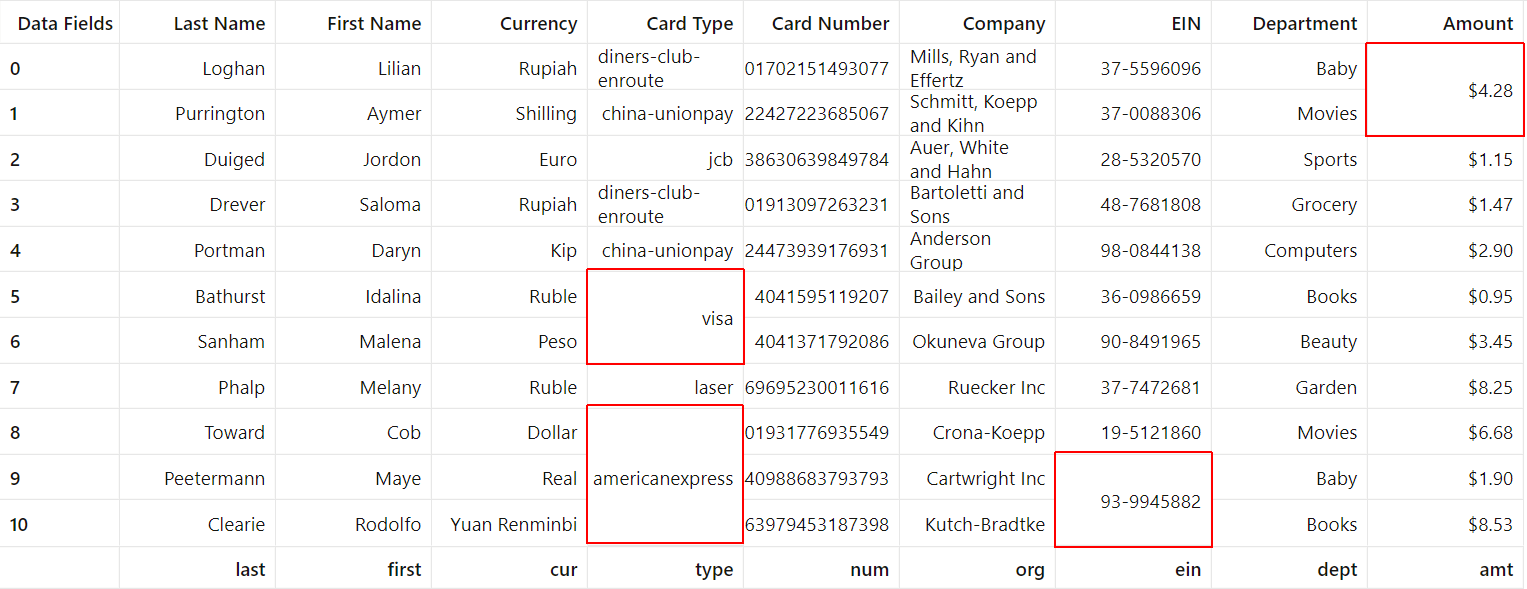
Now update the
getDatabodyResultsmethod further so that cells in the same column that are in adjacent rows are merged if they share the same value.private getDatabodyResults(rowStart: number, rowEnd: number, columnStart: number, columnEnd: number): Array<GridBodyItem<D>> | undefined { if (this.dataParams?.dataArray?.[0]) { const databody = []; for (let j = columnStart; j < columnEnd; j++) { let rowCount = rowStart; // Default extent of the row is 1 let extent = 1; // Set columnKey to a list of all of the keys of the data const columnKey = this.columnKeys[j]; for (let i = rowStart; i < rowEnd;) { // Sets objectOfIndex to be the ith object of the data const objectOfIndex = this.dataParams.dataArray[i]; if (i == rowStart) { let current = i; let prev = i - 1; // If there exists an object before the ith object of the data... while (this.dataParams.dataArray?.[prev]) { // Increase extent and decrease rowCount for each previous cell that is the same if (this.dataParams.dataArray[current][columnKey] == this.dataParams.dataArray[prev][columnKey]) { extent += 1; rowCount -= 1; current -= 1; prev -= 1; } else { // Break as soon as there are two nonequal cells break; } } } if (i < rowEnd) { // If the object is not the first or the last row in the startRow to endRow range... let current = i; let next = i + 1; // If there exists an object after the ith object of the data... while (this.dataParams.dataArray?.[next]) { // Increase extent for each following cell that has the same value if (this.dataParams.dataArray[current][columnKey] == this.dataParams.dataArray[next][columnKey]) { extent += 1; current += 1; next += 1; } else { // Break as soon as there are two nonequal cells break; } } } // Updates the rowExtent for this cell to the extent we have calculated let rowExtent = extent; // Sets column extent to 1 let columnExtent = 1; // Sets the value to the value in the ith row of the jth column const value = { data: objectOfIndex[columnKey] } as any; // Creates the GridBodyItem with the data const item: GridBodyItem<D> = new this.GridBodyItem<D>(rowExtent, columnExtent, rowCount, j, {}, value); databody.push(item); // Updates rowCount by the extent of the cell we just created rowCount += extent; i += extent; // Resets extent to 1 extent = 1; } }; // Sorts the databody primarily by rowIndex and secondarily by columnIndex databody.sort((a, b) => a.rowIndex < b.rowIndex ? -1 : a.rowIndex > b.rowIndex ? 1 : (a.columnIndex < b.ColumnIndex ? -1 : a.columnIndex > b.columnIndex ? 1 : 0)) return databody; } return null; } -
Save the file. Your
SampleDataGridProvider.tsfile should look similar to sample-data-grid-provider9-ts.txt.View the changes in your web app running in the browser. Note the four instances of cells in the same column and adjacent rows that are merged together and share the same value.
Task 11: Add Nested Headers
Multiple levels of headers can be specified in your Data Grid Provider. Here you will add a second level of column headers to your Data Grid, grouping the “First Name” and “Last Name” headers under a “Name” header; “Card Number” and “Card Type” under a “Card” header; and “Company”, “EIN”, and “Department” under a “Workplace” header. The remaining headers without a header level above them will stay the same but now span two levels to match up with the rest.
-
Open the
root.tsfile and update thecolumnHeaderLabelsarray property in thedataGridProviderinstance with a “Classification” column header label.class ViewModel { public dataGridProvider = new SampleDataGridProvider({ dataArray: jsonData, columnHeaders: ["Last Name", "First Name", "Currency", "Card Type", "Card Number", "Company", "EIN", "Department", "Amount"], columnEndHeaders: ["last", "first", "cur", "type", "num", "org", "ein", "dept", "amt"], columnHeaderLabels: ["Classification", "Data Fields"] }); };In the updated Data Grid, the “Classification” column header label will be directly above the “Data Fields” label and adjacent to the second level of column headers added in the next step.
-
In
SampleDataGridProvider.ts, replace thegetColumnHeaderResultsmethod in theSampleDataGridProviderclass with code that creates two levels of column headers.private getColumnHeaderResults(startIndex: number, endIndex: number): Array<GridHeaderItem<D>> | undefined { if (this.dataParams?.dataArray?.[0]) { const columnKeys = this.columnKeys; const classVals = ["Name", "Card", "Workplace"] const results = []; for (let i = startIndex; i < endIndex; i++) { const value = { data: columnKeys[i] } as any; if (i == 0) { // broaderValue of "Name" for the "First Name" and "Last Name" fields // Sets index to i, extent to 2, level to 0 (starts at uppermost column header level), and depth to 1 const broaderValue = { data: classVals[0] } as any; const firstItem: GridHeaderItem<D> = new this.GridHeaderItem(i, 2, 0, 1, {}, broaderValue); results.push(firstItem); // Sets index to i, extent to 1, level to 1 (starts at uppermost column header level), and depth to 1 const secondItem: GridHeaderItem<D> = new this.GridHeaderItem(i, 1, 1, 1, {}, value); results.push(secondItem); } else if (i == 3) { // broaderValue of "Card" for the "Card Number" and "Card Type" fields // Sets index to i, extent to 2, level to 0 (starts at uppermost column header level), and depth to 1 const broaderValue = { data: classVals[1] } as any; const firstItem: GridHeaderItem<D> = new this.GridHeaderItem(i, 2, 0, 1, {}, broaderValue); results.push(firstItem); // Sets index to i, extent to 1, level to 1 (starts at uppermost column header level), and depth to 1 const secondItem: GridHeaderItem<D> = new this.GridHeaderItem(i, 1, 1, 1, {}, value); results.push(secondItem); } else if (i == 5) { // broaderValue of "Workplace" for the "Company", "EIN", and "Department" fields // Sets index to i, extent to 3, level to 0 (starts at uppermost column header level), and depth to 1 const broaderValue = { data: classVals[2] } as any; const firstItem: GridHeaderItem<D> = new this.GridHeaderItem(i, 3, 0, 1, {}, broaderValue); results.push(firstItem); // Sets index to i, extent to 1, level to 1 (starts at uppermost column header level), and depth to 1 const secondItem: GridHeaderItem<D> = new this.GridHeaderItem(i, 1, 1, 1, {}, value); results.push(secondItem); } else if (i == 1 || i == 4 || i == 6 || i == 7) { // First level of headers is taken care of, only need to add secondary levels // Sets index to i, extent to 1, level to 1 (starts at second column header level), and depth to 1 const item: GridHeaderItem<D> = new this.GridHeaderItem(i, 1, 1, 1, {}, value); results.push(item); } else { // Headers with extent 1 and depth 2 for the "Currency" and "Amount" values // Sets index to i, extent to 1, level to 0 (starts at uppermost column header level), and depth to 2 const item: GridHeaderItem<D> = new this.GridHeaderItem(i, 1, 0, 2, {}, value); results.push(item); } } return results; } return null; }Note: This is a simplified and specific way of doing this. Ideally, you would accept these
classValsheaders as parameters incolumnHeadersin the ViewModel inroot.tsand specify some structure there.In the
getColumnHeaderResultsmethod, conditional statements create the nested header items according to the index values of the innermost column headers in thecolumnKeyslist. For example, the index value of “Company” is5, so its header item’sindexproperty is set to5. Additionally, the “Workplace” header item uses theindexproperty value of5because the header should begin in the same column but above “Company” in the Data Grid.While the two levels of column header items are sorted in the Data Grid by their
indexproperty values, thelevel,depth, andextentproperties of header items control the merging and nesting of the header item levels.Setting these values for the “Workplace” and “Company” headers in the method above, where
(i == 5), thefirstItemheader item’sextentproperty is set to3so that the “Workplace” header spans three columns. Thelevelproperty is set to0because it starts at the topmost header level. And thedepthproperty is set to1so that “Workplace” is unmerged with the column header level below it.For the “Company” header, the
secondItemheader item’slevelproperty is set to1, since the “Company” header starts at the innermost header level. Thedepthproperty’s value is1because it should be unmerged with “Workplace”, and theextentproperty’s value is1because the header only uses one column.Note: The Data Grid requires a one-to-one mapping of innermost column header rows to indexes. This means that header items closest to the databody must have their
extentproperty set to1. -
Save the files. Your
SampleDataGridProvider.tsfile should look similar to sample-data-grid-provider10-ts.txt. Yourroot.tsfile should look similar to root5-ts.txt.View the changes in your web app running in the browser. Nested headers should be visible at the top of the Data Grid.
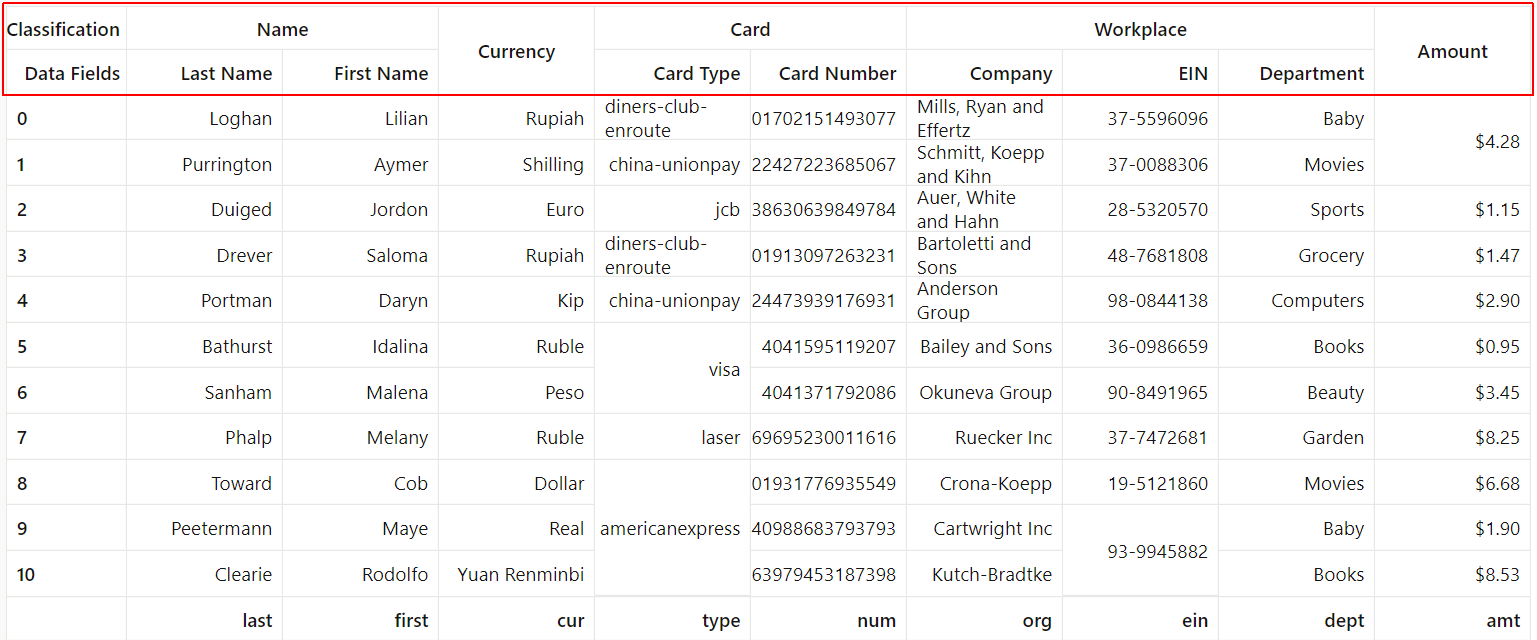
This is the final state of the Data Grid Provider and its functionality as discussed in this tutorial.
Task 12: (Optional) Download and Run the Completed Application
-
Download the completed application:
sampledatagridprovider.zip. -
Extract the zipped contents to a
sampledatagridproviderfolder in the directory you want the app to reside. -
In a terminal window, verify that you installed the latest version of Oracle JET. If you didn’t, update your version of Oracle JET.
$ npm list -g @oracle/ojet-cli$ npm install -g @oracle/ojet-cli -
Navigate to the
sampledatagridproviderfolder, and restore the Oracle JET app.$ ojet restore -
You can now run the app in your local web browser.
$ ojet serve
More Learning Resources
Explore other labs on docs.oracle.com/learn or access more free learning content on the Oracle Learning YouTube channel. Additionally, visit education.oracle.com/learning-explorer to become an Oracle Learning Explorer.
For product documentation, visit Oracle Help Center.
Create an Oracle JET Data Grid Provider
F55484-01
April 2022
Copyright © 2022, Oracle and/or its affiliates.