Introduction
In this tutorial, you complete the Oracle JavaScript Extension Toolkit (Oracle JET) virtual DOM app's composition by creating and connecting the ParentContainer2 and ActivityItemContainer components.
In the final version of the virtual DOM app, the ActivityContainer component allows the selection of an activity from the Activities list, which then displays an Activity Items list in the ActivityItemContainer component. The selection of an activity item from the latter list then displays pricing and stock level information in the ItemDetailContainer component. The ItemDetailContainer was created in the first learning path in this series, and you will now render it inside of the ParentContainer2 component.
Objectives
In this tutorial, you will complete the composition of the components in the virtual DOM app, and to aid in the visualization of the app layout, you also apply the Oracle JET oj-panel and oj-bg style classes to add borders and color to the components.
Prerequisites
- A development environment set up to create Oracle JET virtual DOM apps that includes an installation of Node.js
- Completion of the previous tutorial in this learning path, Create Parent Container 1 and Activity Container Components
- Access to the Oracle JET Cookbook
Task 1: Create the Parent Container 2 Component
Create the ParentContainer2 component, which renders in the ParentContainer1 component and contains the ItemDetailContainer and ActivityItemContainer components.
-
In the
JET-Virtual-DOM-app/src/componentsdirectory, create aParentContainer2.tsxfile. -
Add the following
importstatements to the top of the file.import { h } from "preact"; import ItemDetailContainer from "./ItemDetail/ItemDetailContainer"; -
Create the
ParentContainer2component's function definition, which returns adivelement that contains theItemDetailContainerelement. Thedivelement includes an Oracle JEToj-panelstyle class to create a border and anoj-bgstyle class to add a light red background color to the container.const ParentContainer2 = () => { return ( <div id="parentContainer2" class="oj-panel oj-bg-danger-30"> <ItemDetailContainer /> </div> ); }; -
Add an
exportstatement for theParentContainer2component to the end of the file.export default ParentContainer2; -
Save and close the file.
Your code should look similar to
parent-container2-1-tsx.txt. -
From the
JET-Virtual-DOM-app/src/componentsdirectory, open theParentContainer1.tsxfile in your editor. Add animportstatement for theParentContainer2component to the top of the file.import ParentContainer2 from "./ParentContainer2"; -
Inside the
returnstatement of theParentContainer1function, add theParentContainer2component.const ParentContainer1 = () => { return ( <div id="parentContainer1" class="oj-panel oj-bg-warning-20"> <ActivityContainer /> <ParentContainer2 /> </div> ); }; -
Save and close the file.
Your code should look similar to
parent-container1-1-tsx.txt.
Task 2: Create the Activity Item Container Component
Create the ActivityItemContainer component, a child component rendered by the ParentContainer2 component. The ActivityItemContainer component renders a header and a list of activity items.
-
In the
JET-Virtual-DOM-app/src/componentsdirectory, create anActivityItemdirectory with anActivityItemContainer.tsxinside it. -
Add the following
importstatement to the top of the file.import { h, ComponentProps } from "preact"; -
Create the
ActivityItemContainercomponent, which returns anh3header, Activity Items, and a list of activity items. The parentdivincludes an Oracle JEToj-bgstyle class to add a green background color to the container.const ActivityItemContainer = () => { return ( <div id="activityItemsContainer" class="oj-bg-success-20"> <div id="container" class="item-display no-wrap"> <h3>Activity Items</h3> <ul> <li class="li-item">Louisville Slugger Bat</li> <li class="li-item">SureCatch Baseball Glove</li> <li class="li-item">Baseball</li> <li class="li-item">Western R16 Helmet</li> <li class="li-item">Western C1 Helmet</li> <li class="li-item">Sure Fire Ball (Set of 4)</li> </ul> </div> </div> ); }; -
Add an
exportstatement for the component to the end of the file.export default ActivityItemContainer; -
Save and close the file.
Your code should look similar to
activity-item-container-tsx.txt. -
From the
JET-Virtual-DOM-app/src/componentsdirectory, open theParentContainer2.tsxfile in your editor. At the top of the file, import theActivityItemContainercomponent.import ActivityItemContainer from "./ActivityItem/ActivityItemContainer"; -
Inside the
returnstatement of theParentContainer2function, add theActivityItemContainercomponent.const ParentContainer2 = () => { return ( <div id="parentContainer2" class="oj-panel oj-bg-danger-30"> <ActivityItemContainer /> <ItemDetailContainer /> </div> ); }; -
Save and close the file.
Your code should look similar to
parent-container2-2-tsx.txt.
Task 3: Run the Virtual DOM App
-
In the terminal window, run the virtual DOM app from the
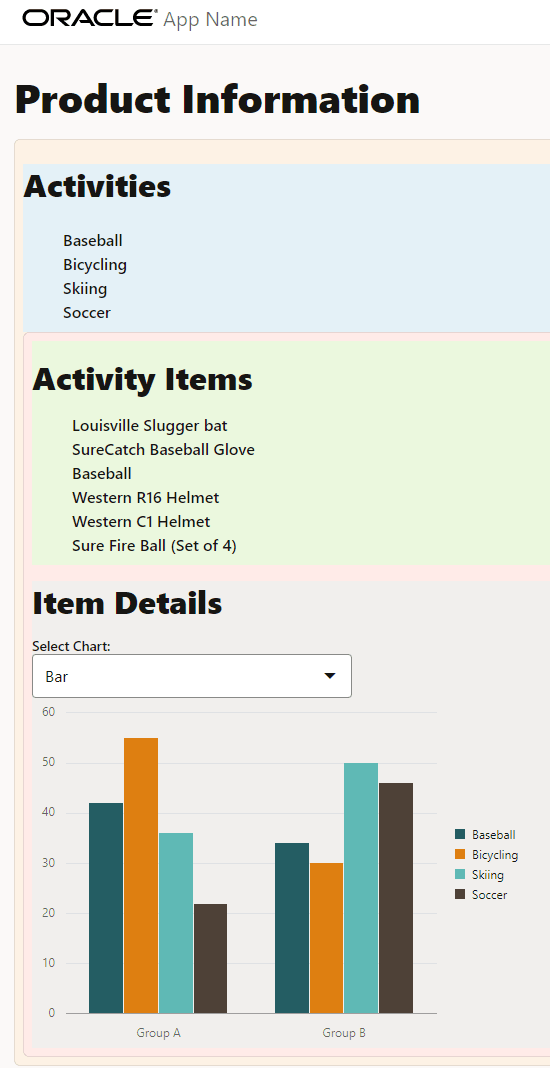
JET-Virtual-DOM-appdirectory.npx ojet serveThe Activity Item Container renders with a green background, within the Parent Container 2 component and adjacent to the Item Detail Container component. The list of activity items for the Baseball activity are displayed.
-
Close the browser window or tab that displays your running virtual DOM app.
-
In the terminal window, press Ctrl+C, and if prompted, enter
yto exit the Oracle JET tooling batch job.
Next Step
This tutorial concludes the module Compose Components in this learning path on building virtual DOM web apps.
- Create Parent Container 1 and Activity Container Components
- Create Parent Container 2 and Activity Item Container Components
You can proceed to the next tutorial in the learning path, Add Containers to the Oracle JET Virtual DOM App, in the module Responsive Design.
You can also return to the virtual DOM learning path’s main page to access all the modules on building virtual DOM apps.
More Learning Resources
Explore other labs on docs.oracle.com/learn or access more free learning content on the Oracle Learning YouTube channel.
For product documentation, visit Oracle Help Center.
Create parent container 2 and activity item container components
F72919-04
Copyright © 2024,2026 Oracle and/or its affiliates.