Deploy Cloud Native Batch Workloads Using Oracle Cloud Infrastructure Batch Service
Introduction
Modern applications rely heavily on background processing to handle tasks such as data transformation, report generation, media processing, and large-scale simulations. These workloads are often compute-intensive, run asynchronously, and can vary significantly in scale and frequency. Managing such workloads using traditional approaches can be complex, requiring teams to provision infrastructure, build scheduling systems, and handle scaling manually.
Oracle Cloud Infrastructure (OCI) Batch Service is designed to simplify this process. It provides a fully managed way to run batch workloads at scale, allowing you to focus on defining your jobs while the platform handles execution and resource management.
In this tutorial, we’ll explore how OCI Batch works, its architecture, and how it can be used effectively in real-world scenarios.
What Problem Does OCI Batch Solve?
Running batch workloads traditionally involves multiple layers of complexity. Teams often need to provision compute resources in advance, implement their own job scheduling mechanisms, and build logic to handle retries, failures, and scaling. Even when using platforms like Kubernetes, significant effort is required to configure and maintain the environment. This increases operational overhead and slows down development.
OCI Batch addresses these challenges by providing a unified service that manages the lifecycle of batch workloads. It removes the need to build custom schedulers or manage infrastructure, enabling teams to run large-scale jobs more efficiently and with less operational effort.
OCI Batch Service Overview
OCI Batch acts as a centralized service for managing and running batch workloads. When a job is submitted, it is placed into a queue and processed based on scheduling decisions and resource availability. The service evaluates job requirements and provisions compute capacity dynamically to run tasks. Each task runs in a containerized environment, ensuring consistency and isolation. Once execution is complete, outputs are stored and logs are generated for monitoring and troubleshooting.
This approach provides a streamlined workflow where job submission, scheduling, execution, and observability are handled within a single managed service.
Architecture Deep Dive
The architecture of OCI Batch follows a clear flow from job submission to execution and output, as shown in the diagram.
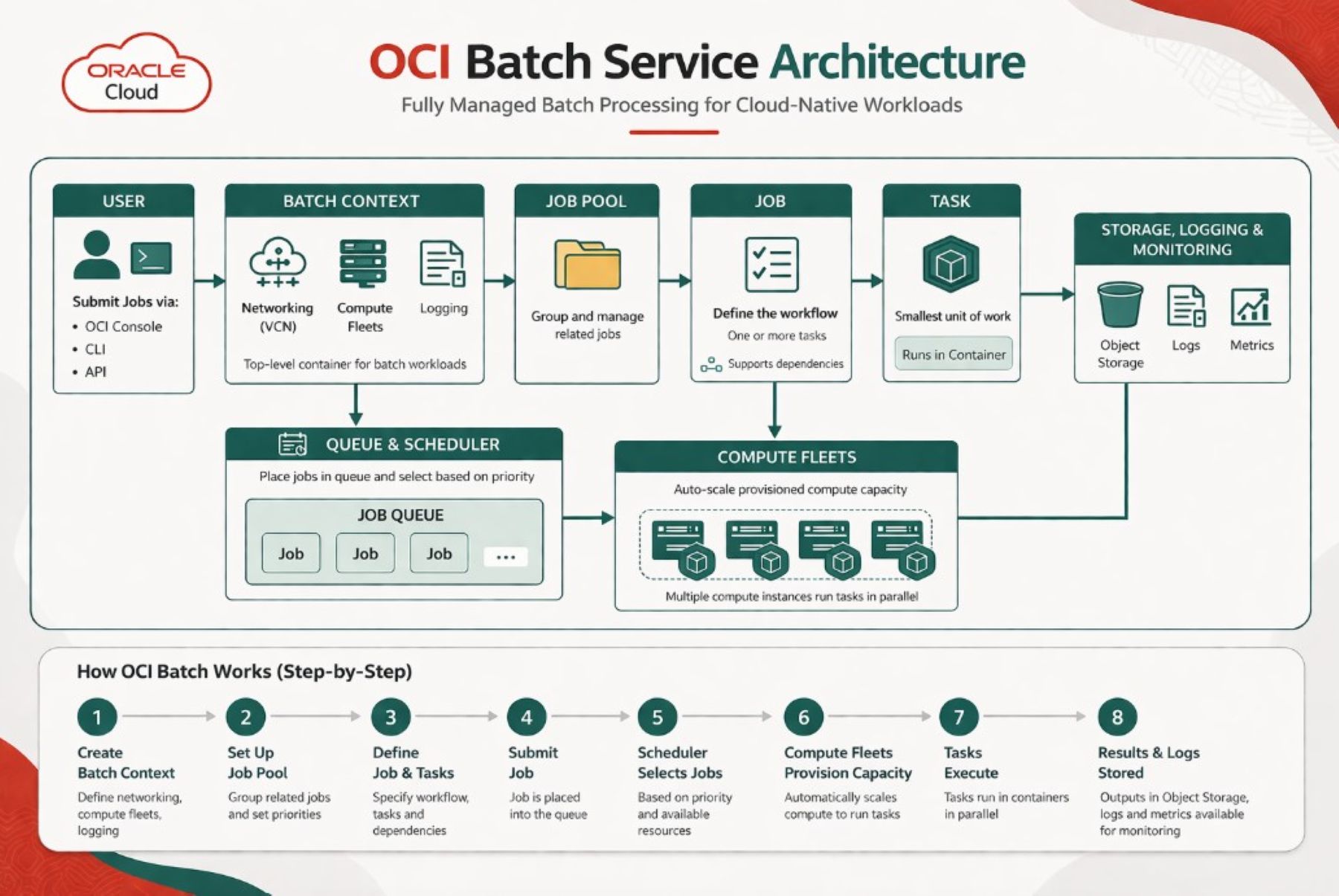
The process begins when a user submits a job using the OCI Console, CLI, or API. This request is associated with a Batch Context, which acts as the foundational configuration layer. The context defines key settings such as networking, compute fleets, and logging, ensuring that all jobs run within a consistent environment.
Jobs are then organized into Job Pools, which provide logical grouping and help control scheduling behavior. This is particularly useful when managing workloads across different teams or environments, as it allows prioritization and isolation. Each submitted Job represents a complete unit of work and can include one or more Tasks. Tasks are the smallest executable units and run using a defined Task Environment. This allows jobs to be broken down into smaller pieces that can run independently or in sequence, depending on defined dependencies.
Once submitted, jobs are placed into a Queue, where they wait until resources are available. The scheduler continuously evaluates the queue and selects jobs based on priority and capacity. This ensures that workloads are processed efficiently without overwhelming the system.
To execute these tasks, OCI Batch uses Compute Fleets, which represent the underlying compute capacity. These fleets are provisioned dynamically based on workload demand. As more jobs are submitted, additional capacity is allocated; when demand decreases, resources are scaled down. This ensures efficient usage without requiring manual intervention.
After execution, results are stored in OCI storage services, and logs and metrics are captured for visibility. This provides a complete view of job execution and system performance.
Why This Architecture Matters
A key strength of OCI Batch lies in its separation between job submission and execution. Instead of immediately running every job, the system uses queues and scheduling logic to manage workloads efficiently. This design allows OCI Batch to handle sudden spikes in demand without requiring preprovisioned infrastructure. It also ensures that higher-priority jobs can be run first, improving predictability in shared environments.
By managing resource allocation dynamically and controlling execution through queues, the service provides a balance between performance, scalability, and cost efficiency.
Core Components of OCI Batch
OCI Batch is built around a set of core components that work together to deliver batch processing capabilities.
- The Batch Context defines the environment for workloads, including networking, compute fleets, and logging configurations. It ensures consistency across all jobs.
- Job Pools are used to group related jobs and manage scheduling behavior. They help organize workloads and control priorities in multi-team environments.
- A Job represents a complete workflow and may consist of multiple tasks. It defines what needs to be run and how tasks are related.
- Tasks are the smallest units of execution. Each task runs inside a container and performs a specific operation. Tasks can run in parallel or follow dependencies, enabling both simple and complex workflows.
- Task Profiles define how tasks are run by specifying resource requirements such as CPU, memory, container images, and environment variables. This allows workloads to be optimized based on their needs.
Real-World Example: Video Processing Pipeline
Consider a scenario where thousands of videos need to be processed. For example, converting formats, generating thumbnails, or applying filters.
Using OCI Batch, each video can be treated as a separate task within a job. These tasks can run in parallel across multiple compute resources, significantly reducing total processing time. As workload demand increases, OCI Batch automatically provisions additional compute capacity to handle the tasks. Once processing is complete, results are stored, and logs are generated for monitoring. This pattern can be applied to many other use cases, including data pipelines, machine learning workloads, and engineering simulations.
Prerequisites
Follow IAM Policy Examples to allow the OCI Batch service access to the required OCI services.
You will also need to download the OCI CLI if you are going to use it to create jobs.
Task 1. Create Batch Context
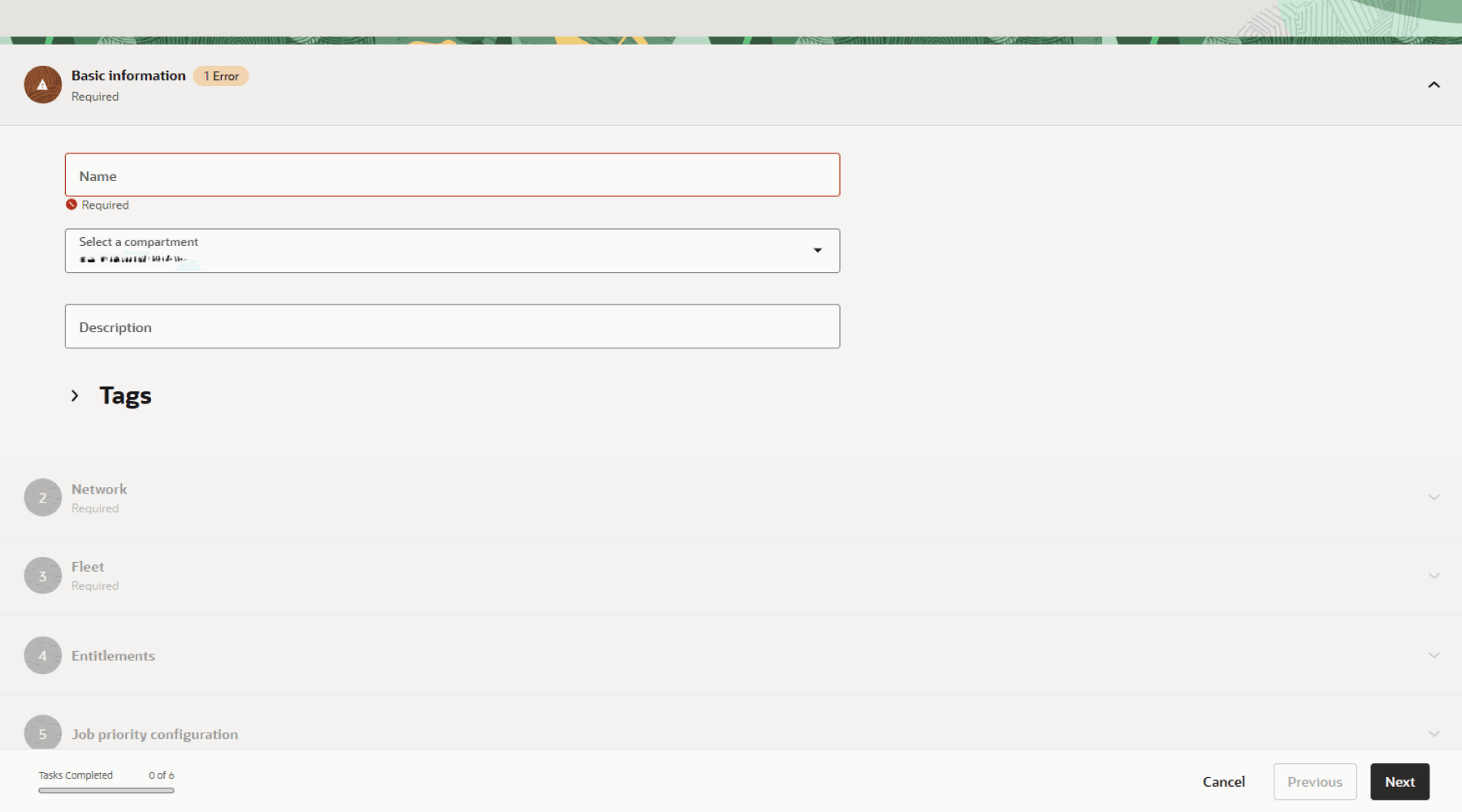
The Batch Context is the top-level configuration layer for your batch workloads. It includes networking, fleets, entitlements, job priority settings, and logging configuration.
To create a batch context, go to the Batch service and select Batch Contexts, then select Create Batch Context. Fill out the following details based on your environment.
- Name
- Compartment
- Description
- VCN
- Subnet
- Fleet
- Entitlements (Optional)
- Job Priority Configuration (Optional)
-
Logging Configuration
Task 2. Create Job Pool
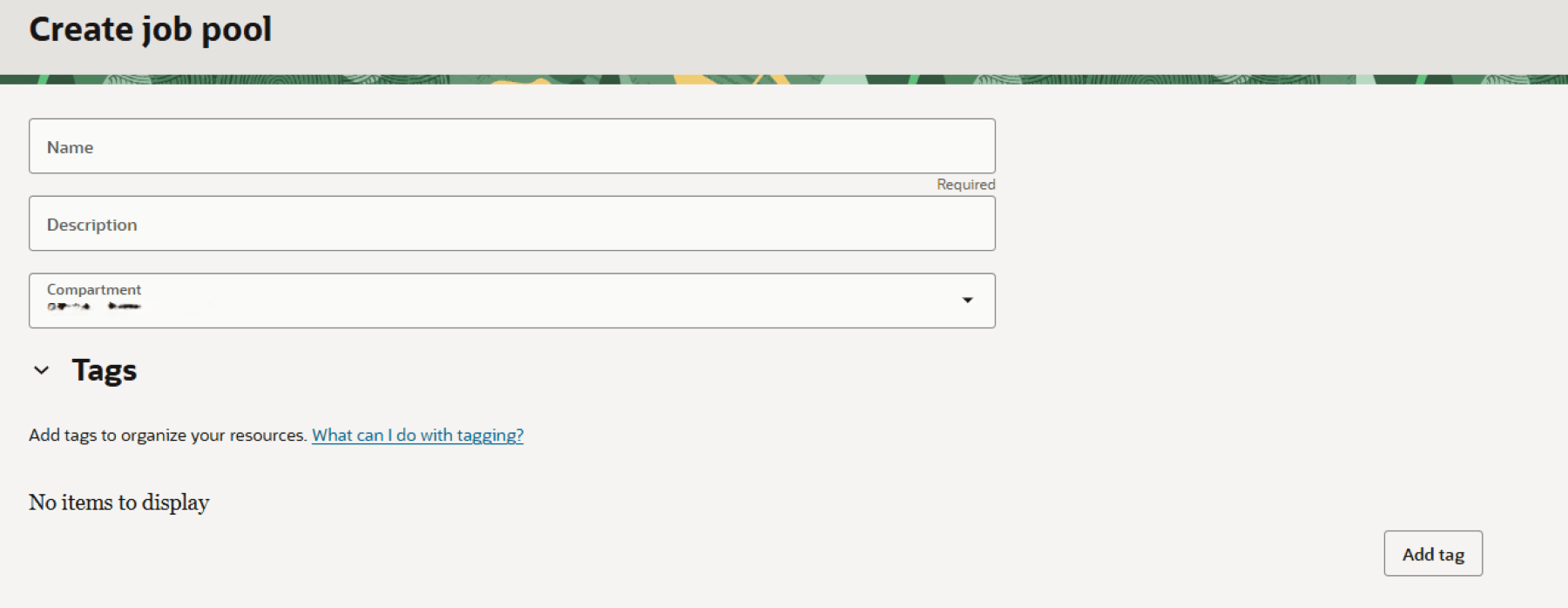
A Job Pool is simply a logical container for jobs. When running a job, you will select a job pool to create it under. To create a job pool, you only need the following configurations.
- Name
- Description
-
Compartment
Task 3. Create Task Profile
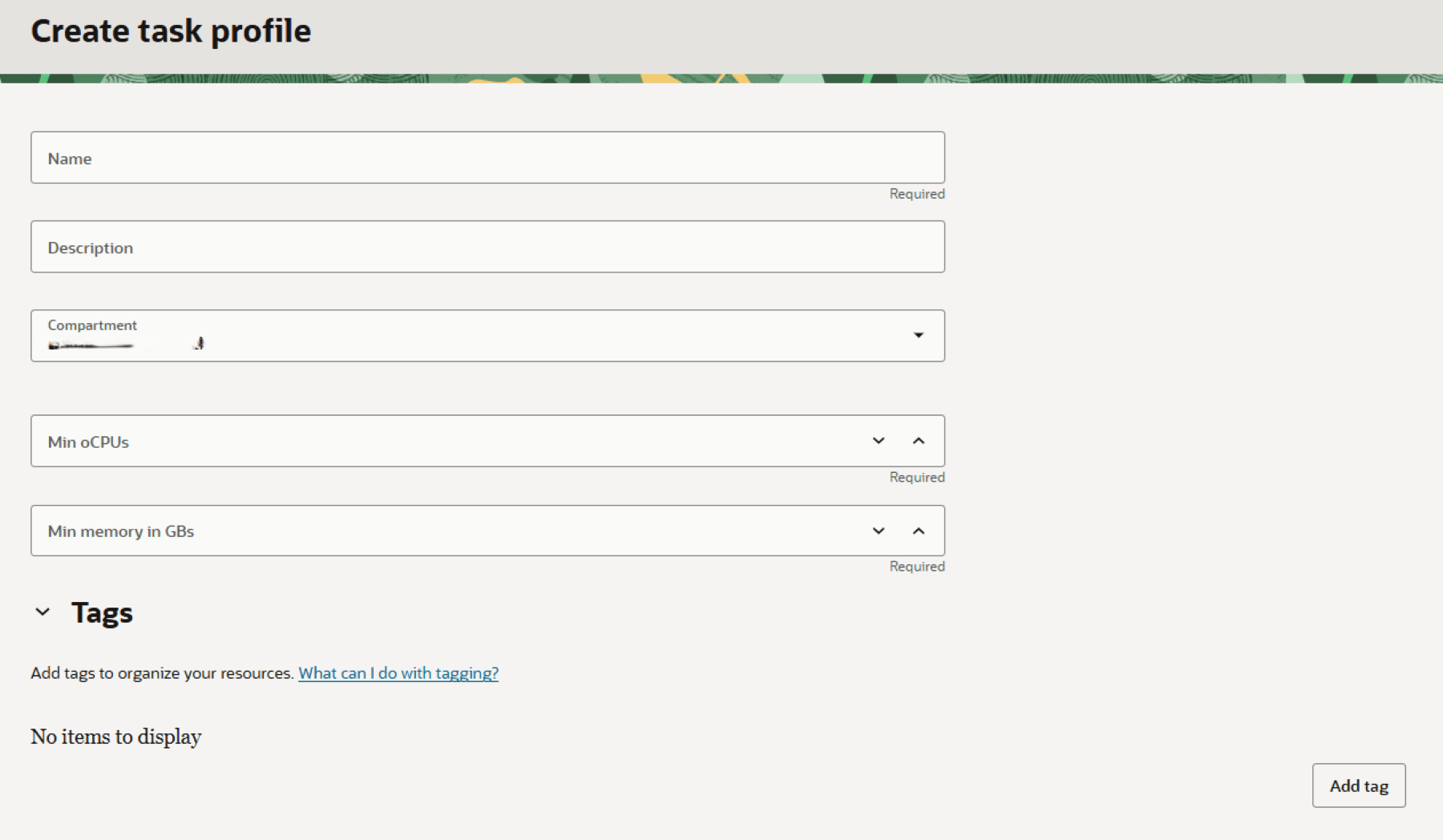
A Task Profile is a reusable configuration that defines the minimum compute resources required for tasks, such as 1 OCPU and 16 GB of memory. You can create multiple profiles, each corresponding to a different resource requirement. To create a task profile, you need the following configurations:
- Name
- Description
- Minimum OCPUs - You can set this to 1 for this example
-
Minimum memory in GBs - You can set this to 8 for this example
Task 4. Set Up Local Environment and Push Container Images
-
Pull code from GitHub and move to the correct directory.
git clone https://github.com/oracle-devrel/technology-engineering.git cd technology-engineering/app-dev/developer-tools-and-lowcode/batch/video-transcoding/ -
Create a repository in OCI Container Registry (OCIR).
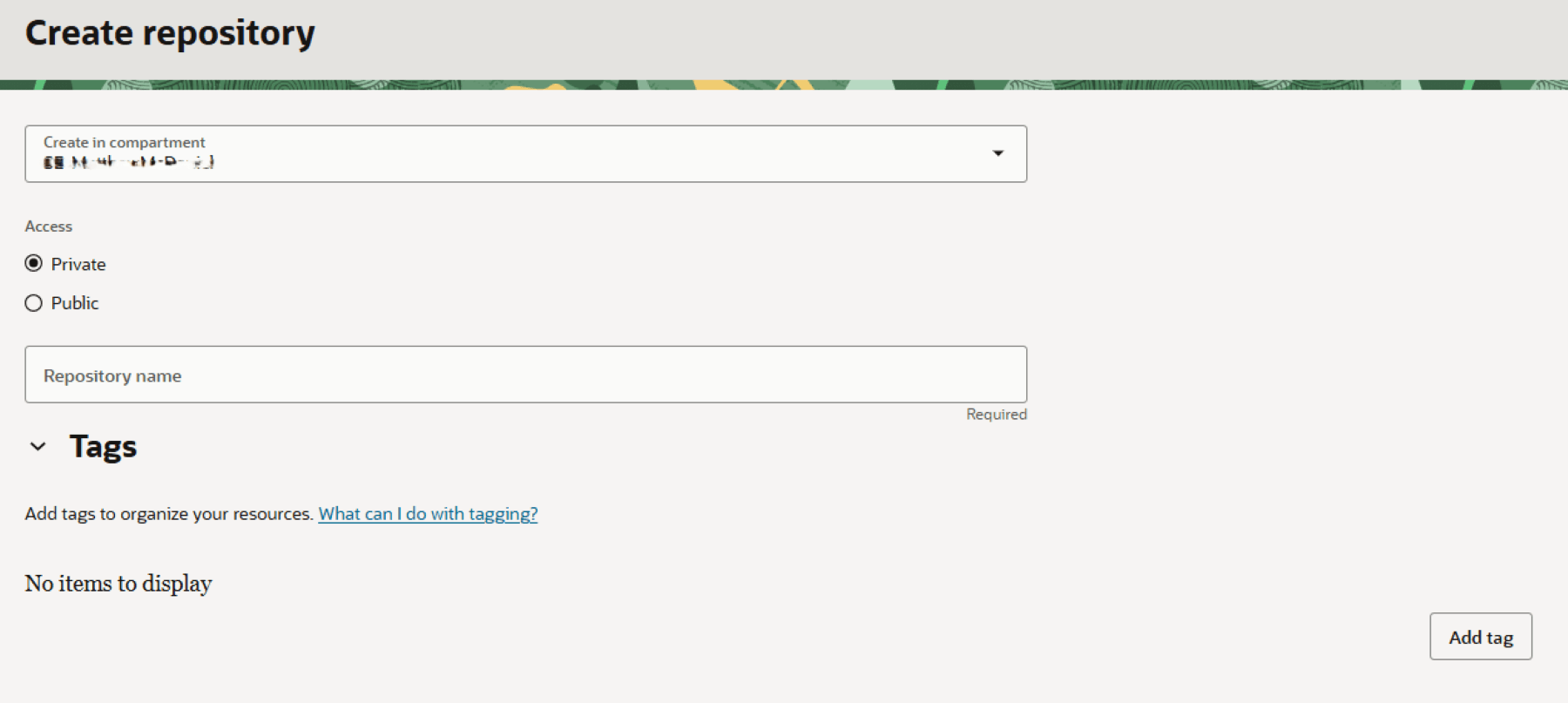
-
Push the container image to OCIR. The image path should match your region, tenancy namespace, repository name, and image tag, that is
iad.ocir.io/<tenancy-namespace>/convert_mp4_to_avi:latestdocker build -t <image>:<tag> . docker push <image>:<tag>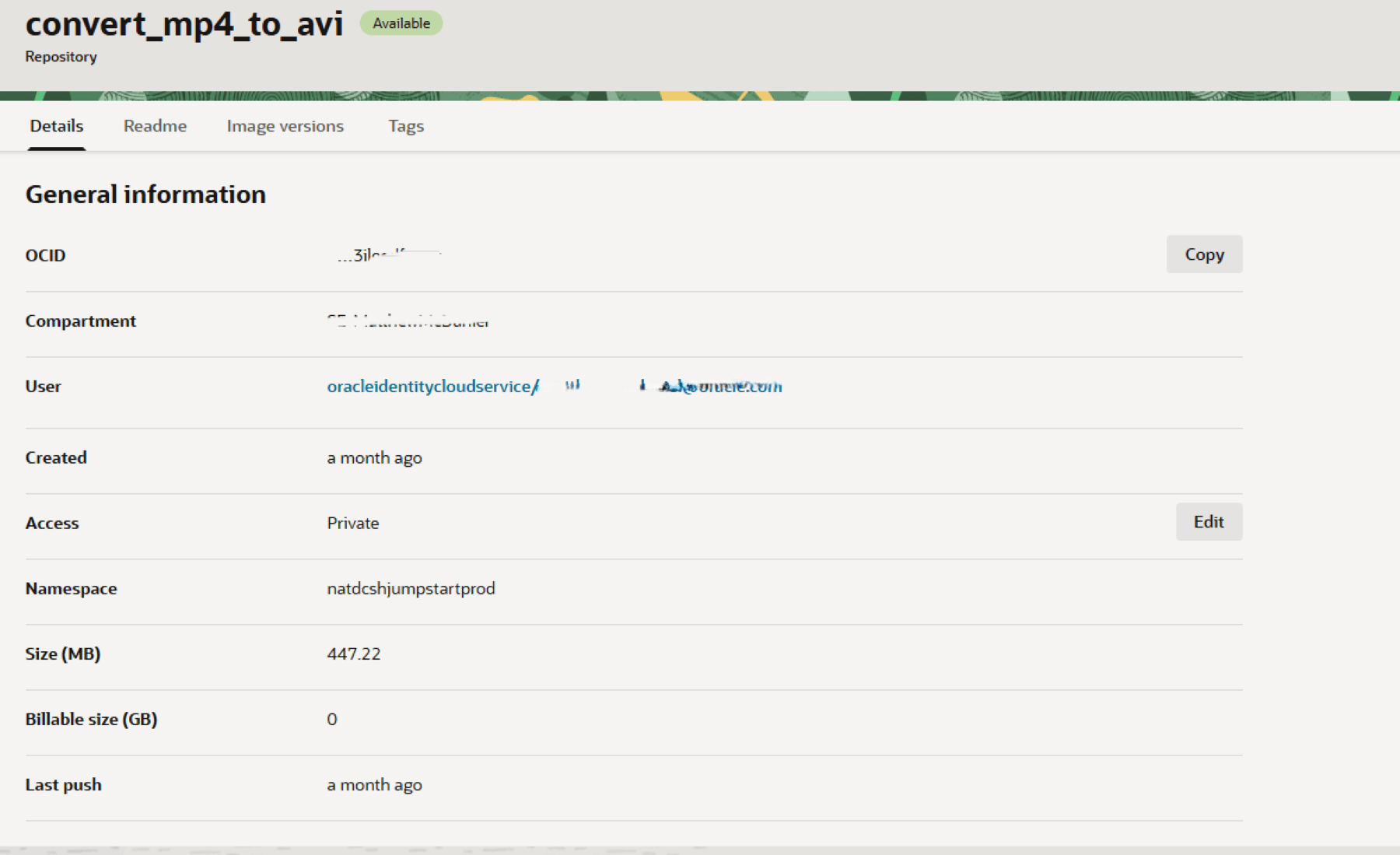
-
Create Object Storage buckets for input and output videos.
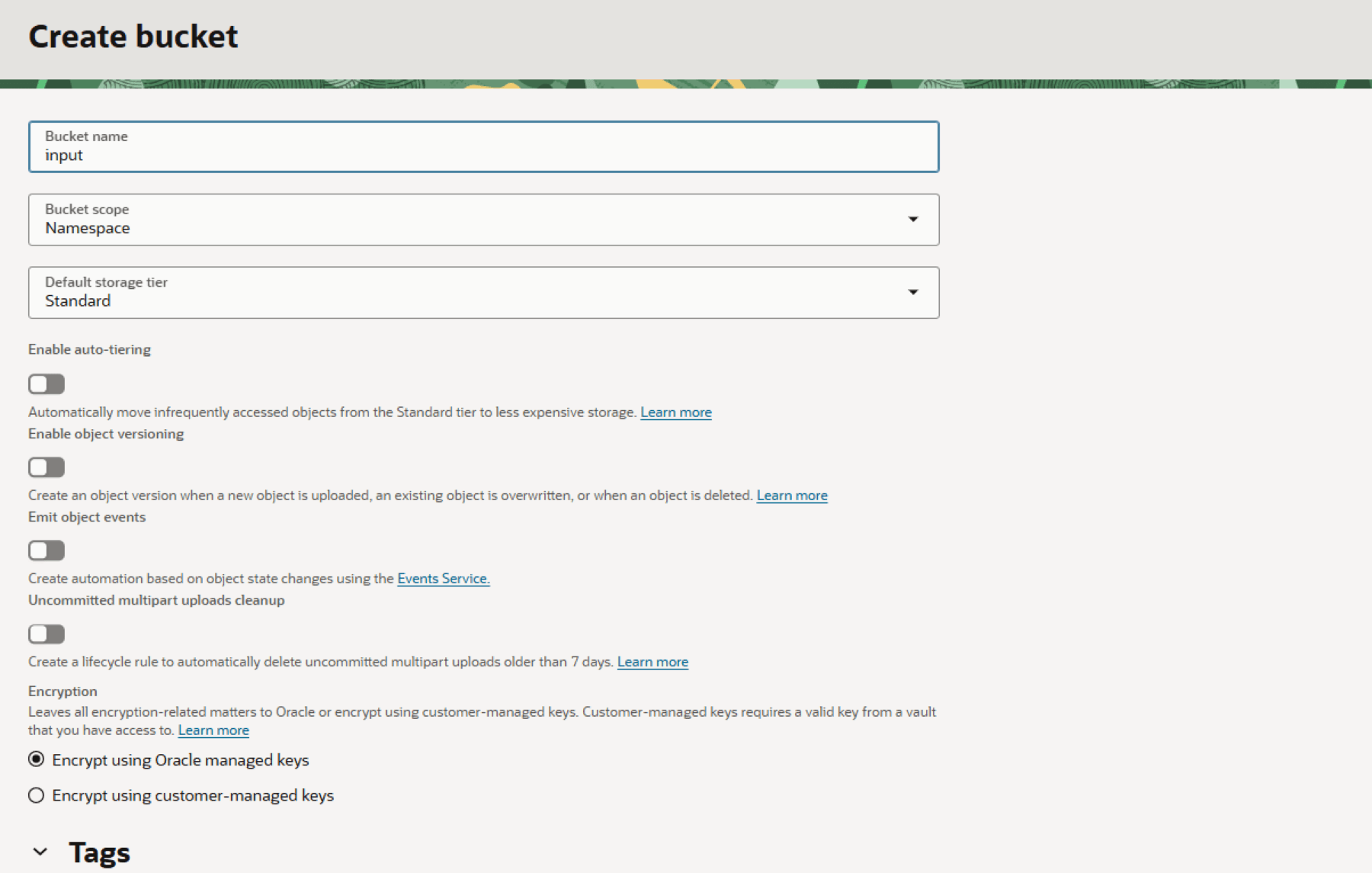
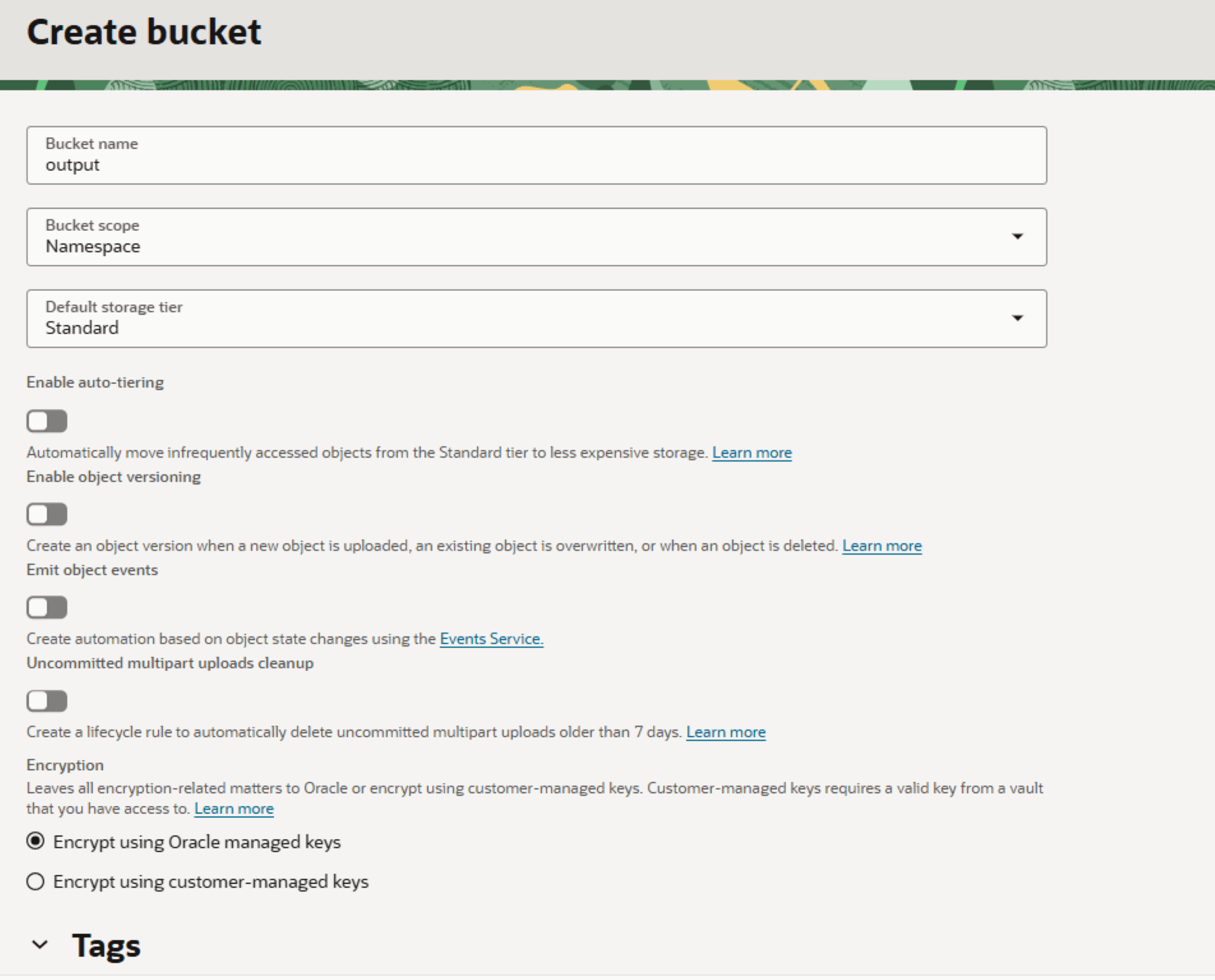
-
Upload video file to Object Storage
Task 5. Create Task Environment
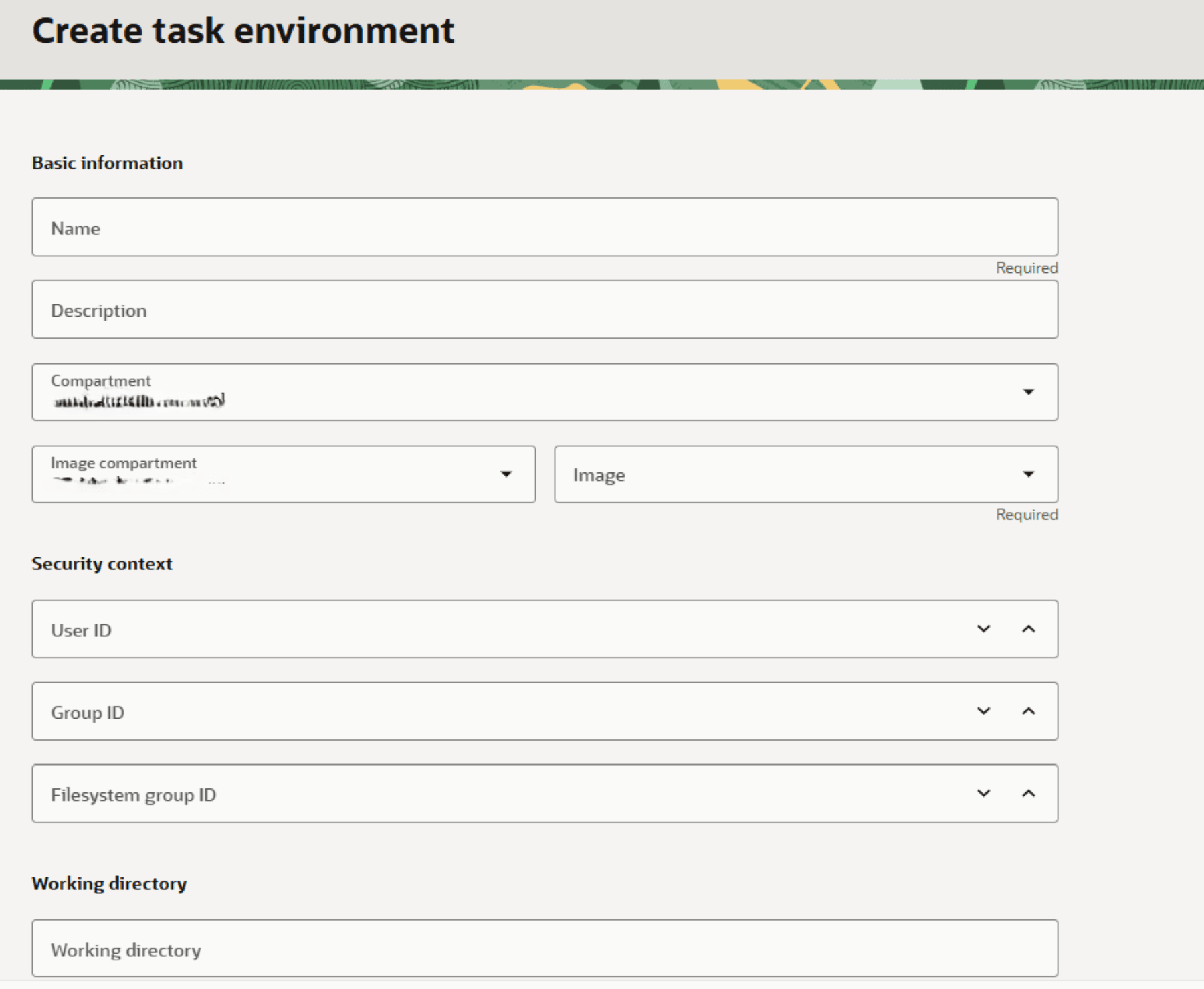
A Task Environment is the runtime configuration for your tasks. To set up a task environment, you will need:
- Name
- Description
- Security Context:
- User ID: Set this to 1
- Group ID: Set this to 1
- Filesystem group ID: Set this to 1
-
Working directory: Set this to /video
Task 6. Submit Job
There are various ways to submit a job to the Batch service. For this tutorial, we are going to use the OCI CLI.
- Create a file called
video_conversion_job.json - Copy and paste the following into
video_conversion_job.json{ "batchJobPoolId": "JOB_POOL_OCID", "compartmentId": "COMPARTMENT_ID", "description": "Task to convert video from MP4 to AVI format", "displayName": "convert_video", "maxWaitSeconds": 0, "tasks": [ { "batchJobPoolId": "JOB_POOL_OCID", "compartmentId": "COMPARTMENT_ID", "description": "Task to convert video from MP4 to AVI format", "displayName": "convert_video", "maxWaitSeconds": 0, "tasks": [ { "batchTaskEnvironmentId": "TASK_ENVIRONMENT_OCID", "batchTaskProfileId": "TASK_PROFILE_OCID", "description": "Task to convert video from MP4 to AVI format", "environmentVariables": [ { "name": "INPUT_BUCKET", "value": "input_bucket" }, { "name": "INPUT_OBJECT", "value": "input.mp4" }, { "name": "OCI_BUCKET", "value": "output_bucket" }, { "name": "OUTPUT_FILENAME", "value": "output.avi" }, { "name": "OCI_NAMESPACE", "value": "TENANCY_NAMESPACE" }, { "name": "OCI_REGION", "value": "REGION" } ], "fleetAssignmentPolicy": { "type": "BEST_FIT" }, "name": "convert_video", "type": "COMPUTE" } ], "waitForState": [ "ACCEPTED" ], "waitIntervalSeconds": 0Replace the following according to your environment:
- JOB_POOL_OCID
- COMPARTMENT_ID
- TASK_ENVIRONMENT_OCID
- TASK_PROFILE_OCID
- TENANCY_NAMESPACE
- REGION
-
Run the following command:
oci batch batch-job create --from-json file://video_conversion_job.jsonThe job will take up to 10 minutes to complete. Observe the job in the OCI Console to see what stage it is in.
Task 7. Validate Results
- In the OCI Console, go to Object Storage.
- Find the output bucket and validate if transcoded video is present.
OCI Batch vs. Traditional Approaches
Traditional batch processing solutions often require managing infrastructure, configuring schedulers, and handling scaling manually. This increases complexity and operational overhead. However, OCI Batch eliminates these challenges by providing a managed environment where scheduling, execution, and resource provisioning are handled automatically. This makes it easier to run large-scale workloads without deep infrastructure expertise.
Best Practices
To use OCI Batch effectively, workloads should be designed with scalability in mind. Breaking large jobs into smaller tasks allows for better parallel execution and improved performance. It is also important to define appropriate task profiles so that resources are allocated efficiently. Proper logging and monitoring should be enabled to ensure visibility into job execution. Using job pools and priorities helps ensure that critical workloads are executed on time, especially in shared environments.
Conclusion
OCI Batch Service provides a streamlined and scalable way to run batch workloads in the cloud. By handling job orchestration, scheduling, and compute provisioning within a single service, it reduces operational complexity and improves efficiency. For organizations dealing with large-scale, compute-intensive workloads, OCI Batch offers a reliable and flexible solution that allows teams to focus on delivering results rather than managing infrastructure.
Related Links
- OCI Batch Service – Managed Compute Orchestration Engine for Cloud-Native Workloads
- OCI Batch Service
Acknowledgments
- Authors: Payal Sharma (Senior Cloud Architect), Matthew McDaniel (Staff Cloud Engineer)
More Learning Resources
Explore other labs on docs.oracle.com/learn or access more free learning content on the Oracle Learning YouTube channel. Additionally, visit education.oracle.com/learning-explorer to become an Oracle Learning Explorer.
For product documentation, visit Oracle Help Center.
Deploy Cloud Native Batch Workloads Using Oracle Cloud Infrastructure Batch Service
G56438-01