Integrate Oracle Data Safe and OCI Logging Analytics with OCI IAM and Microsoft Entra ID
Introduction
Securing Oracle databases in hybrid and multicloud landscapes demands complete visibility into user activity, especially when authentication is managed externally by Microsoft Azure Entra ID and Oracle Cloud Infrastructure Identity and Access Management (OCI IAM). This tutorial outlines a critical integration that unifies Oracle Data Safe audit logs with rich OCI IAM metadata from these centralized identity providers. The result is a comprehensive user footprint, delivering unparalleled end-to-end traceability for all database interactions, regardless of the authentication source, thereby enhancing security and simplifying access management.
Why We Need This?
Traditional database audit logs often lack the crucial identity context needed to trace actions back to specific cloud users, particularly when authentication occurs through external identity providers. This integration directly addresses this gap. By correlating Oracle Data Safe and OCI Logging Analytics with OCI IAM metadata from Microsoft Azure Entra ID and OCI IAM, organizations gain enhanced audit transparency, improved user traceability across hybrid systems, and centralized monitoring of access activities. This unified, identity-aware logging is vital for strengthening security posture, streamlining audit investigations, and meeting stringent compliance requirements in modern enterprise environments.
Audiences
- OCI IAM Professionals, Database Administrators and Security Analysts and Auditors.
Objectives
- Integrate Oracle Data Safe audit logs with OCI IAM and Microsoft Entra ID metadata, and then visualize this enriched data within OCI Logging Analytics. This process ultimately enhances audit transparency and enables detailed, end-to-end user traceability across cloud and database environments.
Prerequisites
-
OCI Tenancy: Access and permissions for OCI Logging Analytics, Oracle Data Safe, OCI Compute, and OCI IAM services.
-
Microsoft Entra ID Tenant: Administrative access.
-
OCI IAM Access: Necessary configuration permissions.
-
Required Tools: OCI CLI, Azure CLI,
jq,csvkit,pandas, and LibreOffice (or similar). -
Logging Analytics Setup: Ensure OCI Logging Analytics is enabled and the management agent is installed and configured. For more information, see:
-
OCI Compute Instance: Management Agent plugin enabled.
Task 1: Create a Custom Oracle Data Safe Audit Report for Externally Authenticated Users Across all Databases
-
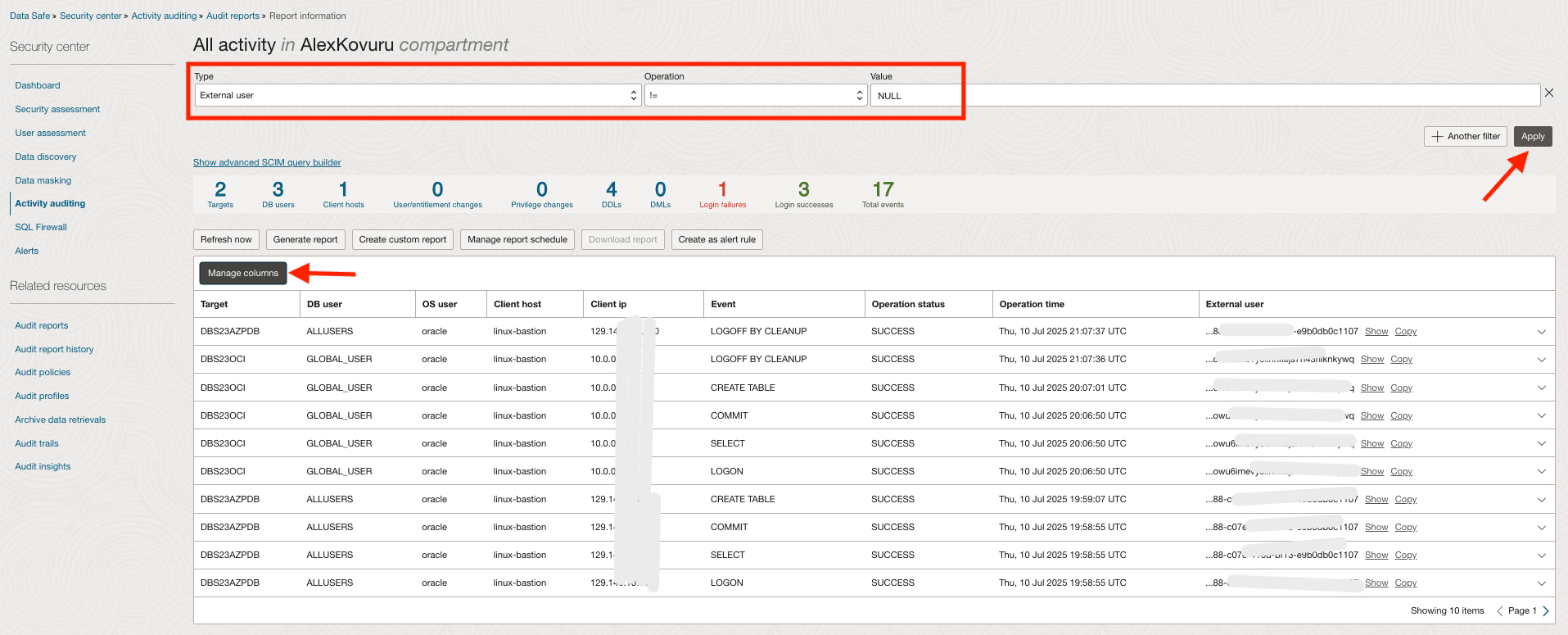
Log in to the OCI Console, navigate to Oracle Databases, Data Safe – Activity Auditing and click Audit reports – All Activity under Related Resources.
-
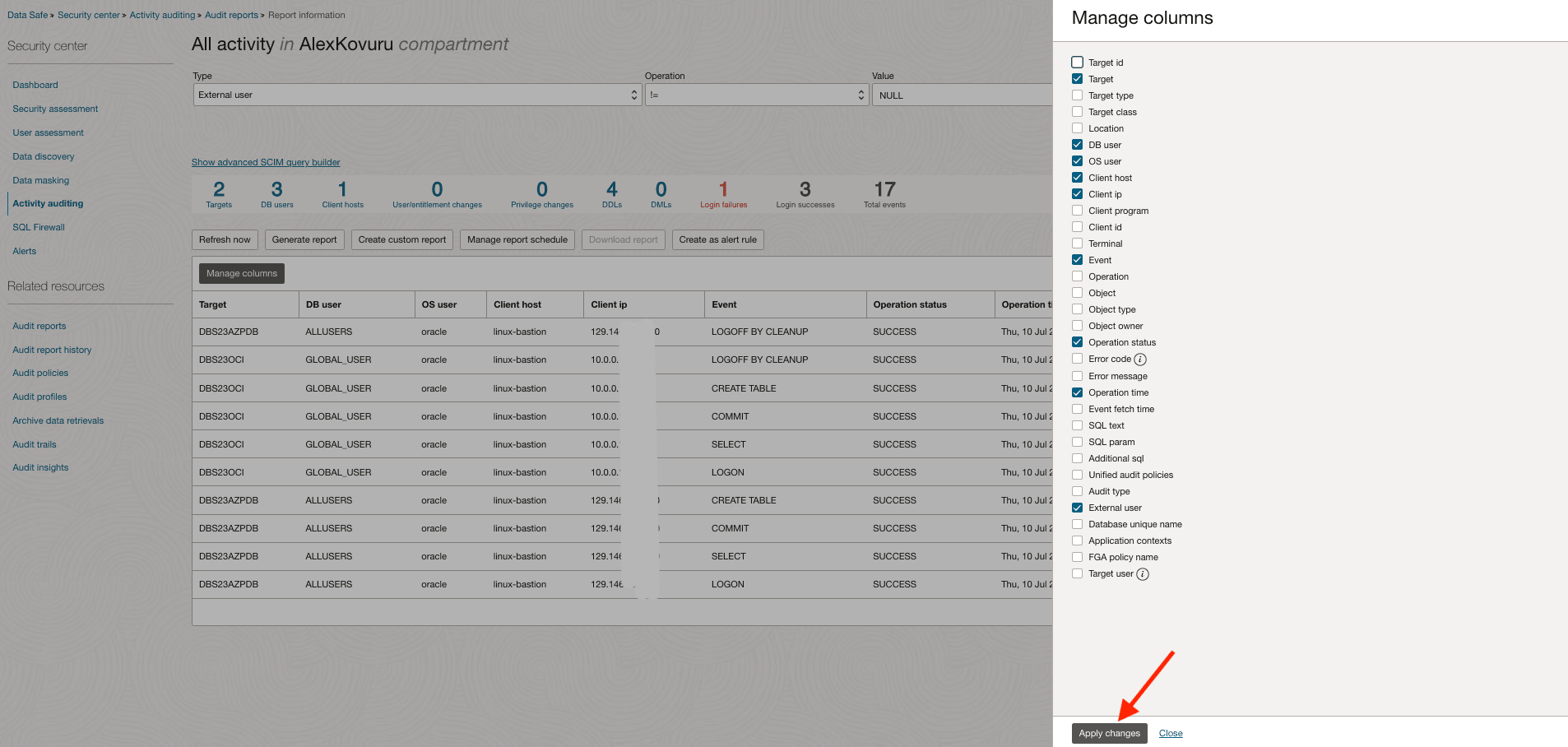
Click Manage Columns and select the required columns.
-
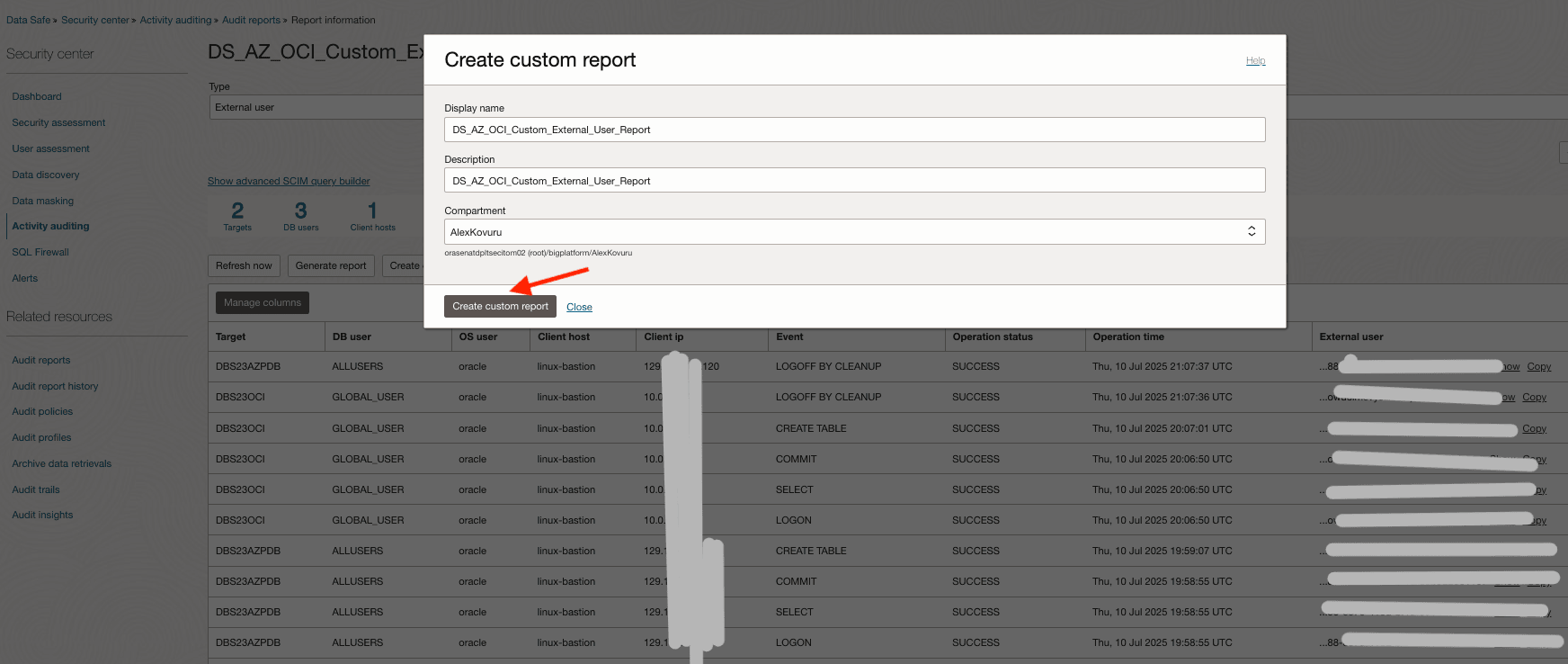
In Create Custom report, enter the Display name, Description and Compartment details.
-
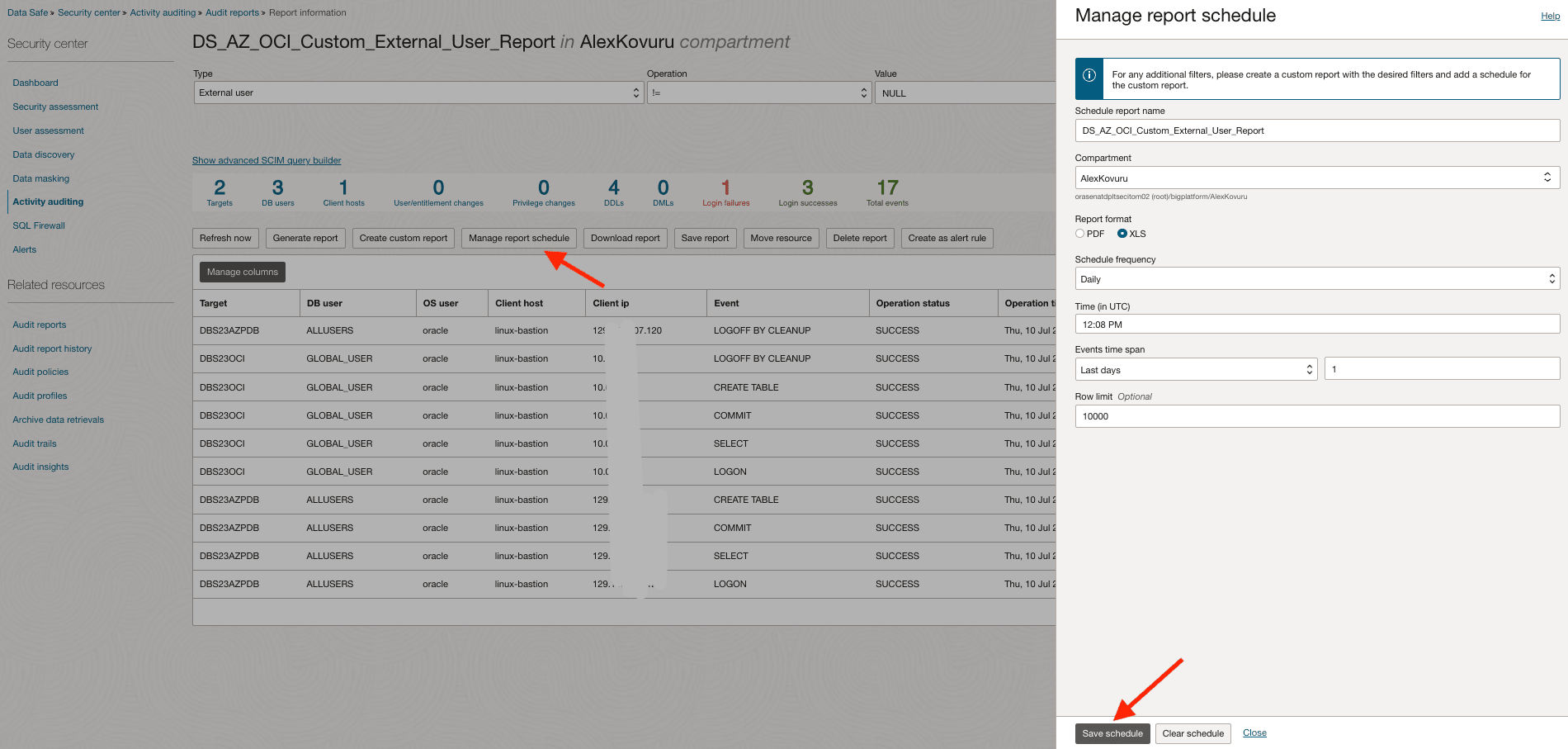
In Manage report schedule, from the Schedule frequency drop-down list, select Daily and click Save schedule.
Task 2: Set up your OCI Compute Instance for Data Collection and Correlation
In this task, we will set up your OCI Compute instance to retrieve user identity details from Microsoft Entra ID and OCI IAM, and to process Oracle Data Safe audit reports. The ultimate goal is to correlate external user IDs in audit logs with enriched identity metadata, providing a complete user footprint.
Note: Download the following scripts from here:
scripts.
-
Fetch Microsoft Entra ID Users.
Run the following commands to retrieve user information from Microsoft Entra ID using the Microsoft Graph API (
fetch_azure_ad_users.sh)../fetch_azure_ad_users.shOutput:
[oracle@linux-bastion:~]$ ./fetch_azure_ad_users.sh
Fetching Access Token...
Calling Graph API for users list...
Parsing users and converting to CSV...
Users list saved to: azure_ad_users.csv
head -3 azure_ad_users.csvOutput:
[oracle@linux-bastion:~]$ head -3 azure_ad_users.csv "id","displayName","userPrincipalName","mail" "b41b0688-c07xxxxxxx3-e9b0db0c1107","Alex Kovuru","akovuruxxxxxxjtripaigmail.onmicrosoft.com","alex.xxxuru@gmail.com" "7eb35b90-dc0xxxxxxxxxx-bc0b-48789368e9cf","Anuj Tripathi","anujtxxxxxai_gmail.com#EXT#@anujtripaigmaixxmicrosoft.com","anujtrxxx@gmail.com" -
Fetch OCI IAM Users.
Run the following commands to obtain user details from OCI IAM using the OCI CLI (
oci_user_list_to_csv.sh)../oci_user_list_to_csv.sh head -3 oci_iam_users.csvOutput:
[oracle@linux-bastion:~]$ ./oci_user_list_to_csv.sh CSV file generated: oci_iam_users.csv [oracle@linux-bastion:~]$ head -3 oci_iam_users.csv id,name,email "ocid1.user.oc1..aaaaaaaaqv3tai2mxxxxxxxxxxepkk5hrfinedvj67ieb7phkirwxfeupv3cbq","alexk",alex.kovuxxx@oracle.com "ocid1.user.oc1..aaaaaaaaoq7ypwb5xxxxxxxxx2l5i6yjlnsedvkcni3dxdjdkkw5lyf73lma","ag-admin","anujtripaxxxx2@gmail.com" [oracle@linux-bastion:~]$ -
Merge User Data.
Consolidate the fetched user data from both sources into a single, standardized CSV file (
merge_users_csv.sh)../merge_users_csv.sh head -3 merged_users.csvOutput:
[oracle@linux-bastion:~]$ ./merge_users_csv.sh Merged CSV created: merged_users.csv [oracle@linux-bastion:~]$ head -3 merged_users.csv id,displayName,userPrincipalName,mail,source "7eb35b90-dc0d-4135-bc0b-48789368e9cf","Anuj Tripathi","anujtrip.ai_xxx.com#EXT#@anujtripaigmail.onmicrosoft.com","anujtrixxxx@gmail.com",AzureAD "ocid1.user.oc1..aaaaaaaaqv3tai2miu6vtgxxxxxxxxxxxfinedvj67ieb7phkirwxfeupv3cbq","alexk",null,"alex.kovxxxxu@oracle.com",OCI [oracle@linux-bastion:~]$ -
Process Data Safe Audit Report.
Download, convert, clean, and standardize the latest audit report from Oracle Data Safe (
process_data_safe_report.sh)../process_data_safe_report.sh head -3 cleaned_audit_records_final.csvOutput:
[oracle@linux-bastion:~]$ ./process_data_safe_report.sh Downloading report from OCI Data Safe... Converting XLS to CSV... convert /home/oracle/DS_AZ_OCI_Custom_External_User_Report_202507240745.xls -> /home/oracle/DS_AZ_OCI_Custom_External_User_Report_202507240745.csv using filter : Text - txt - csv (StarCalc) Cleaning the CSV file... Extracting specific columns... Post-processing the final CSV... Final post-processing complete. [oracle@linux-bastion:~]$ head -3 cleaned_audit_records_final.csv Target,DB user,OS user,Client host,Client ip,Event,Operation status,Operation time,External user DBS23AZPDB,ALLUSERS,oracle,linux-bastion,129.146.107.120,LOGOFF BY CLEANUP,SUCCESS,2025-07-10T21:07:37Z,b41b0688-c07e-416d-bf13-xxxxxxxxxc1107 DBS23AZPDB,ALLUSERS,oracle,linux-bastion,129.146.107.120,CREATE TABLE,SUCCESS,2025-07-10T19:59:07Z,b41b0688-c07e-416d-bf13-xxxxxxxx0c1107 [oracle@linux-bastion:~]$ -
Correlate Data
Enrich the Oracle Data Safe audit logs by correlating external user IDs with the merged OCI IAM user data (
DataSafe_External_Users_Audit_Dashboard.sh)../DataSafe_External_Users_Audit_Dashboard.sh head -3 DataSafe_External_Users_Audit_Dashboard.csvOutput:
[oracle@linux-bastion:~]$ ./DataSafe_External_Users_Audit_Dashboard.sh
Correlated Data : DataSafe_External_Users_Audit_Dashboard.csv
[oracle@linux-bastion:~]$  head -3 DataSafe_External_Users_Audit_Dashboard.csv
Target,DB user,OS user,Client host,Client ip,Event,Operation status,Operation time,External user,displayName,mail,source
DBS23OCI,ANUJ,oracle,linux-bastion,10.0.0.124,LOGON,FAILURE,2025-07-02T17:38:58Z,ocid1.user.oc1..aaaaaaaaam4ulylhebm4zwtiaqsy4xxxxxxxwu6imevy3lihnkejs7h43nlknkywq,anuj.t.tripaxxxx@oracle.com,anuj.t.tripaxxxx@oracle.com,OCI
DBS23AZPDB,ALLUSERS,oracle,linux-bastion,129.146.107.120,COMMIT,SUCCESS,2025-07-10T19:34:38Z,b41b0688-c07e-416d-bf13-e9b0dbxxx107,Alex Kovuru,alex.kovuruxx@gmail.com,AzureAD
[oracle@linux-bastion:~]$
You will utilize a set of provided shell scripts to automate these processes. Ensure these scripts are downloaded to your OCI Compute instance. To ensure daily dashboard updates, schedule these scripts to run through a cron job on your OCI Compute instance. This job should be scheduled to execute after the custom Oracle Data Safe report generation time.
Task 3: Configure OCI Logging Analytics
-
Prepare Your Host to Transmit Logs to OCI Logging Analytics.
Run the following command to ensure logs can be read by oracle-cloud-agent.
sudo -u oracle-cloud-agent /bin/bash -c "head -3 /home/oracle/DataSafe_External_Users_Audit_Dashboard.csv"Expected Output:
Target,DB user,OS user,Client host,Client ip,Event,Operation status,Operation time,External user,displayName,mail,source DBS23OCI,GLOBAL_USER,labuser,clienthost,49.37.181.25,LOGOFF BY CLEANUP,SUCCESS,2025-07-17T15:26:10Z,ocid1.user.oc1..aaaa...,alexk,alexxxx@example.com,OCI DBS23OCI,GLOBAL_USER,labuser,clienthost,49.37.181.25,COMMIT,SUCCESS,2025-07-17T15:15:02Z,ocid1.user.oc1..aaaa...,alexk,alexxxxxx@example.com,OCI -
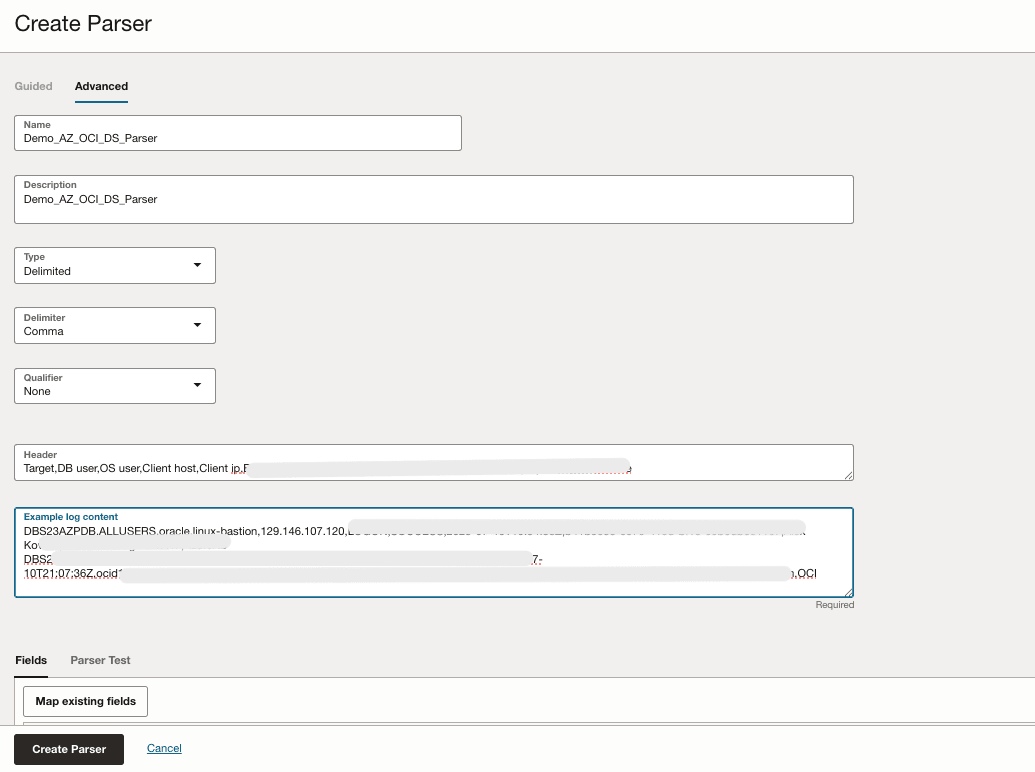
Create a Delimited Parser for the Audit CSV.
We will build a parser that converts each CSV line into structured log fields, OCI Logging Analytics can filter, enrich, and visualize.
-
Go to the OCI Console, navigate to Observability & Management, Logging Analytics, Administration, Parsers, Create Parser and enter the required information as shown in the following image.
-
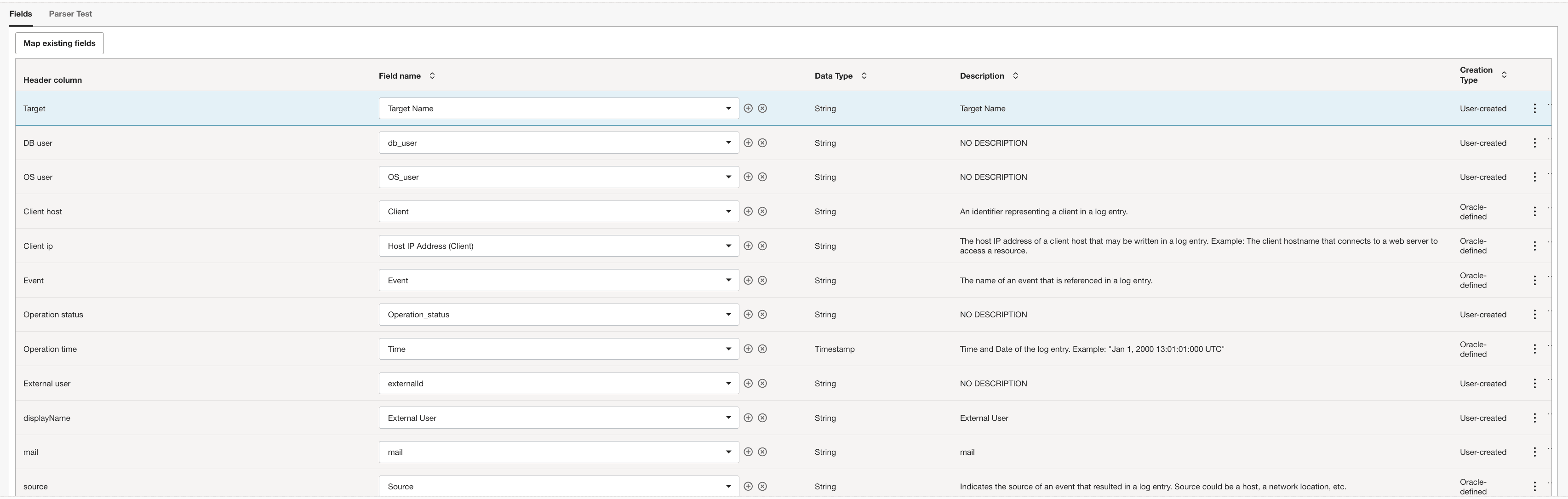
Click Fields and map Header Column to OCI Logging Analytics Fields name.
For each CSV column, select an existing field or create a User Defined Field (UDF) if no suitable field exists. Use the + icon to create as needed.
-
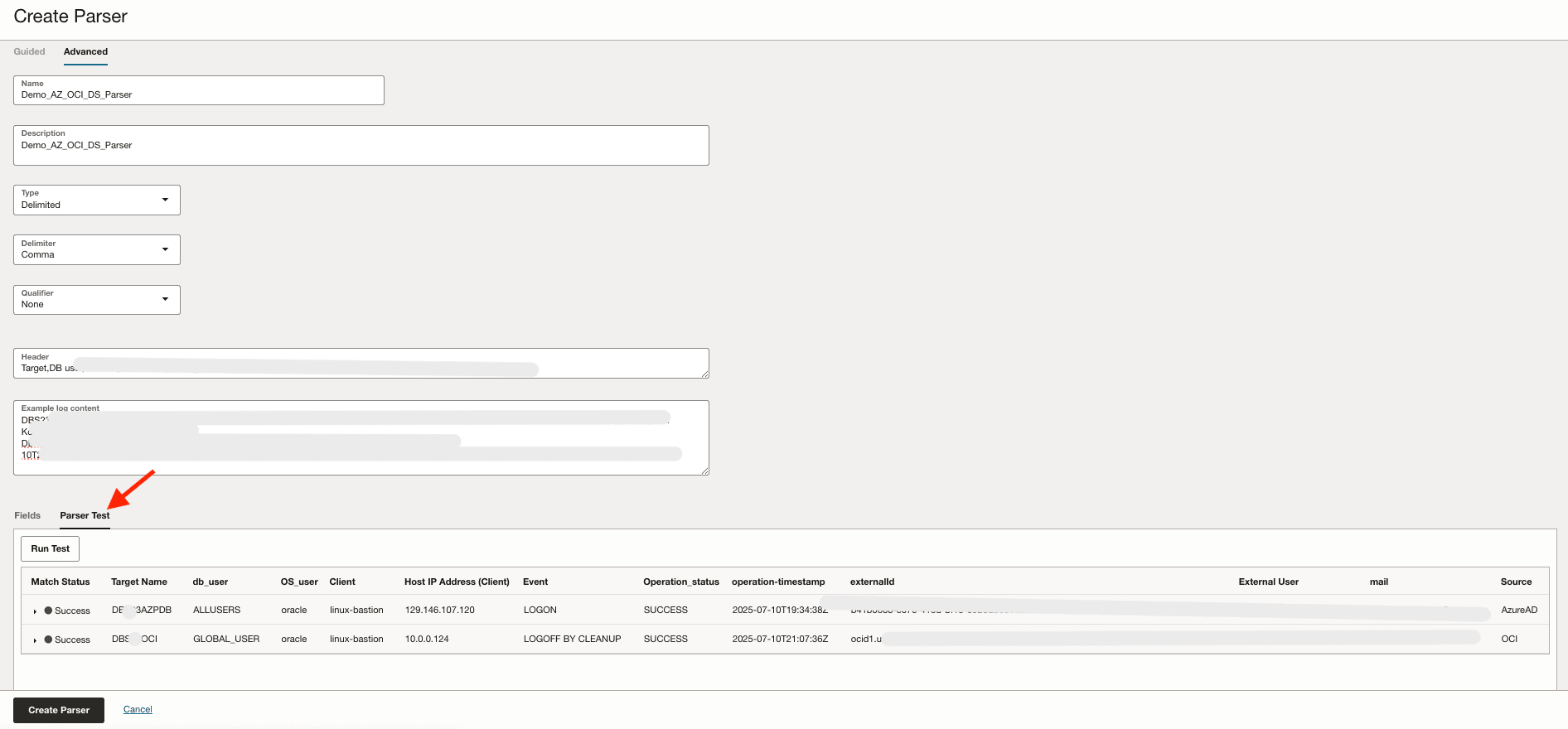
Click Parser Test and follow the steps:
-
Switch to Parser Test.
-
Ensure the sample lines parse successfully. The preview grid should show each column mapped to your selected field.
-
Confirm the Timestamp column resolves correctly (no parse errors; correct date/time zone).
-
Click Create Parser to save.
-
-
-
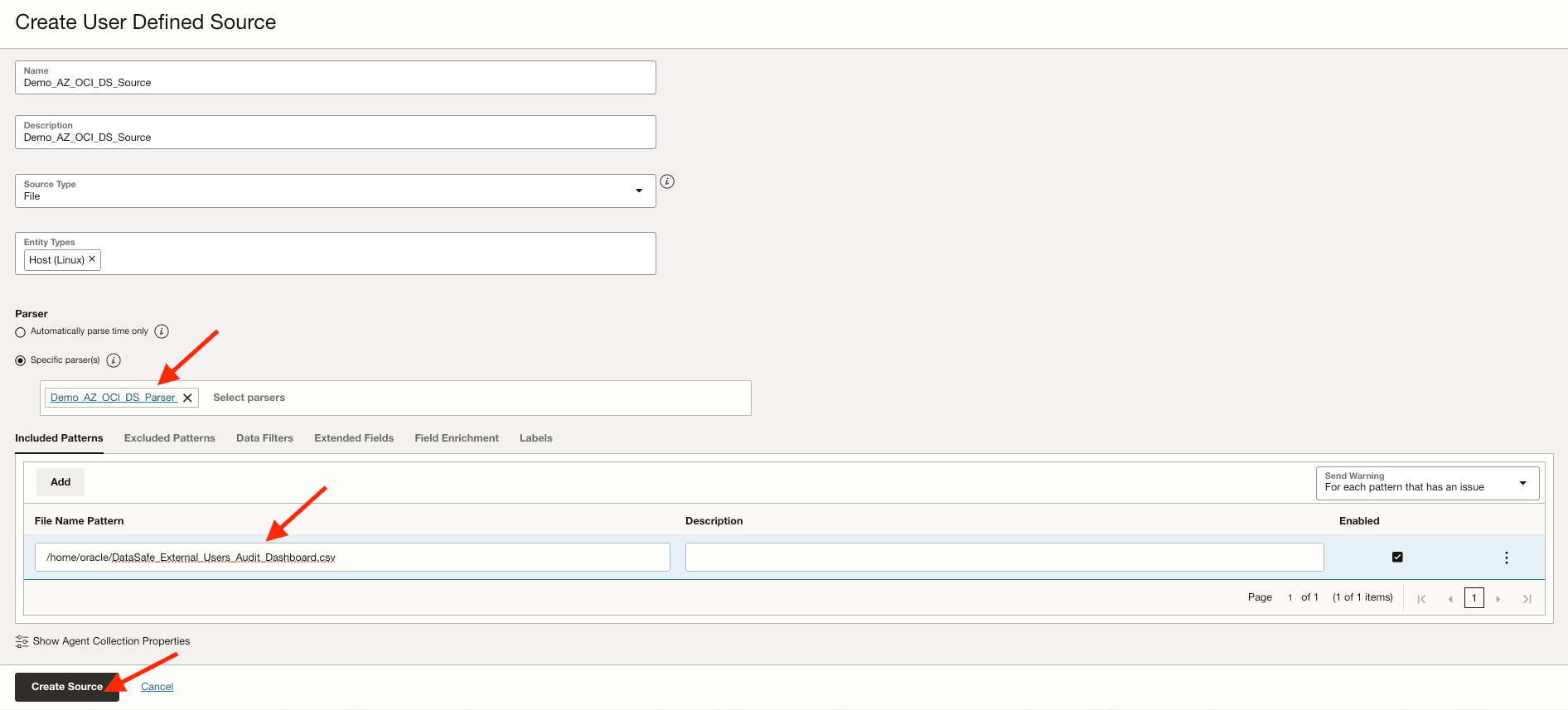
Create a File Source That Uses the Parser.
A source tells OCI Logging Analytics where to find logs (path patterns, collection method) and how to interpret them (parser and metadata).
Go to the OCI Console, navigate to Observability & Management, Logging Analytics, Administration, Sources, Create Source and enter the required information as shown in the following image and click Create Source.
-
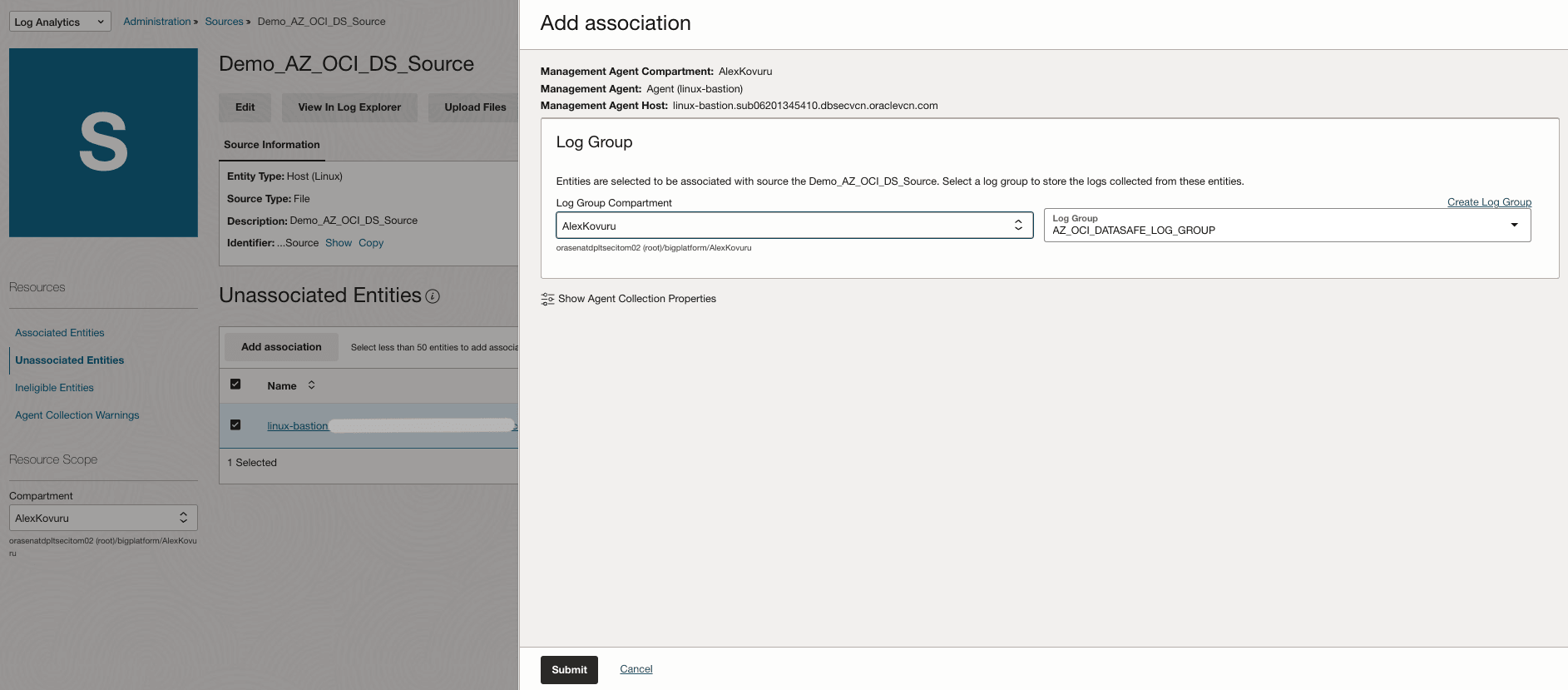
Associate the Source with Entities and Log Group.
Associations activate the collection process: the source is linked to specific entities (such as hosts), and the collected logs are routed to a designated log group.
-
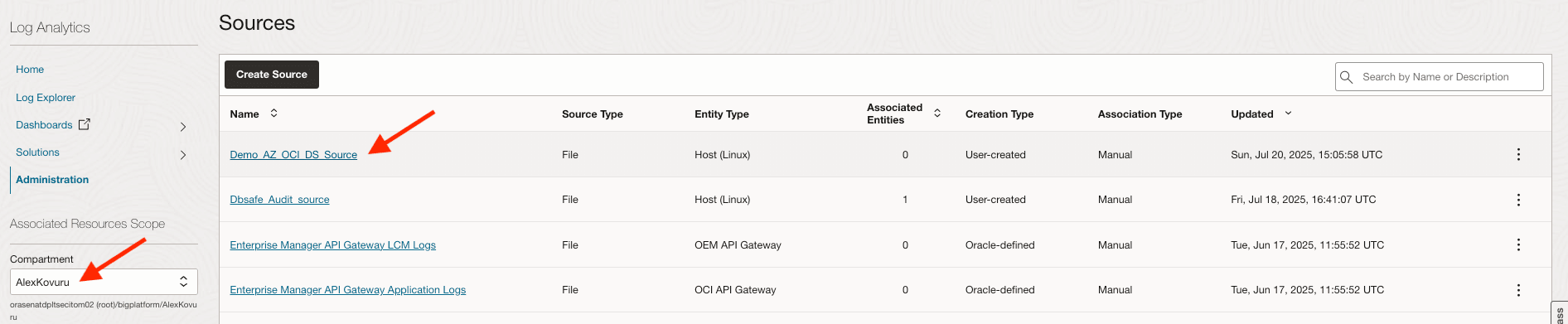
Go to the OCI Console, navigate to Logging Analytics, Administration and click Sources.
-
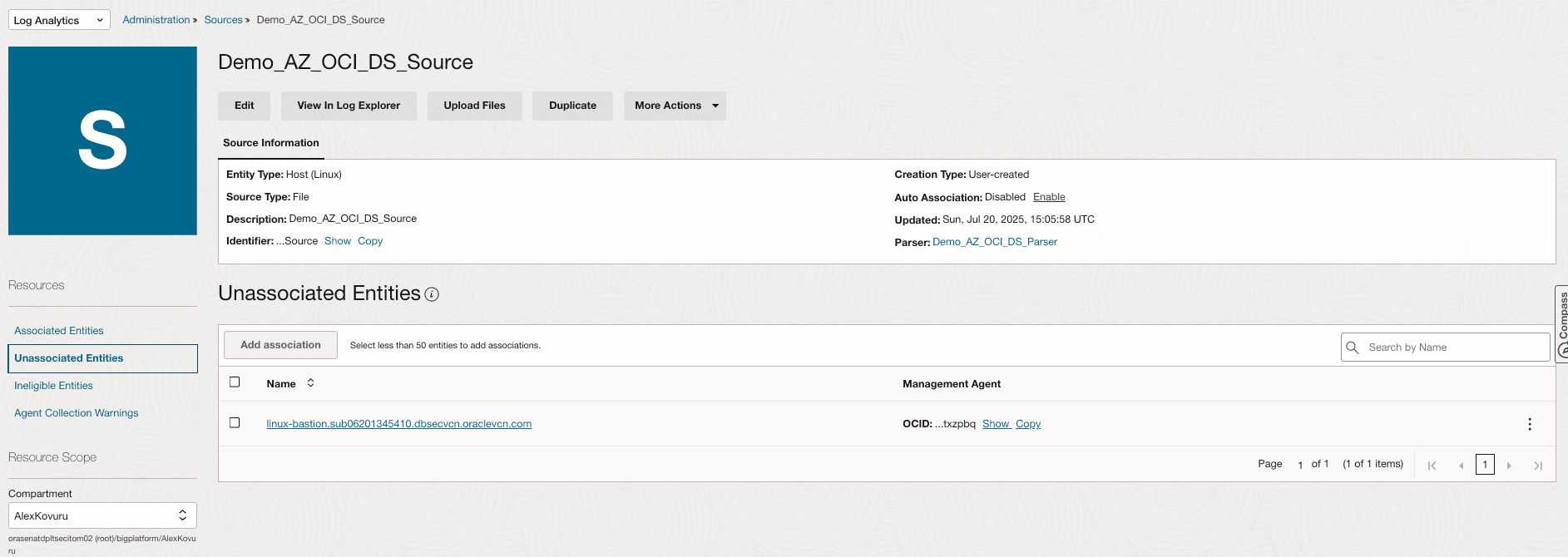
In the Source detail page, select Compartment that contains the entities you want to associate.
-
Click Unassociated Entities to list entities of the correct type that are available/eligible for association.
-
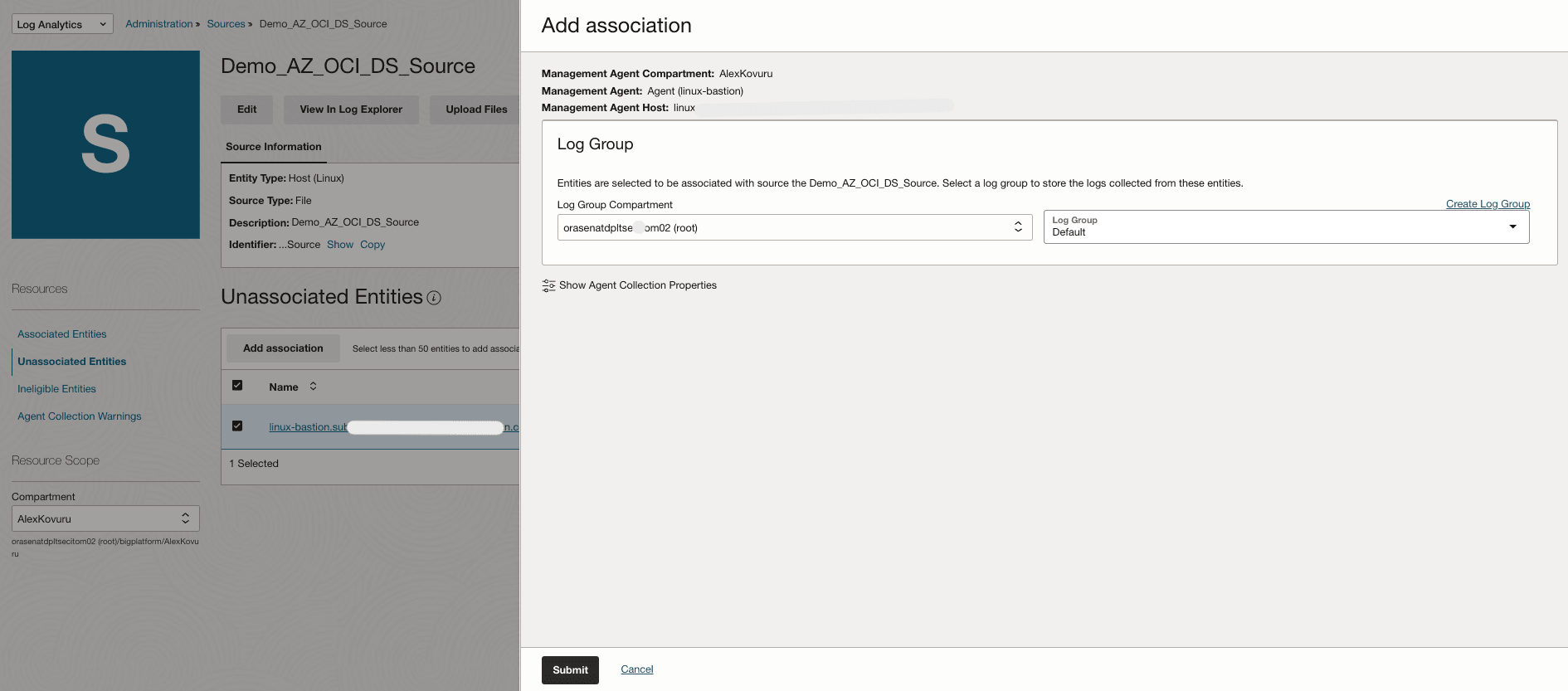
Select the one in Unassociated Entities and click Add Association.
-
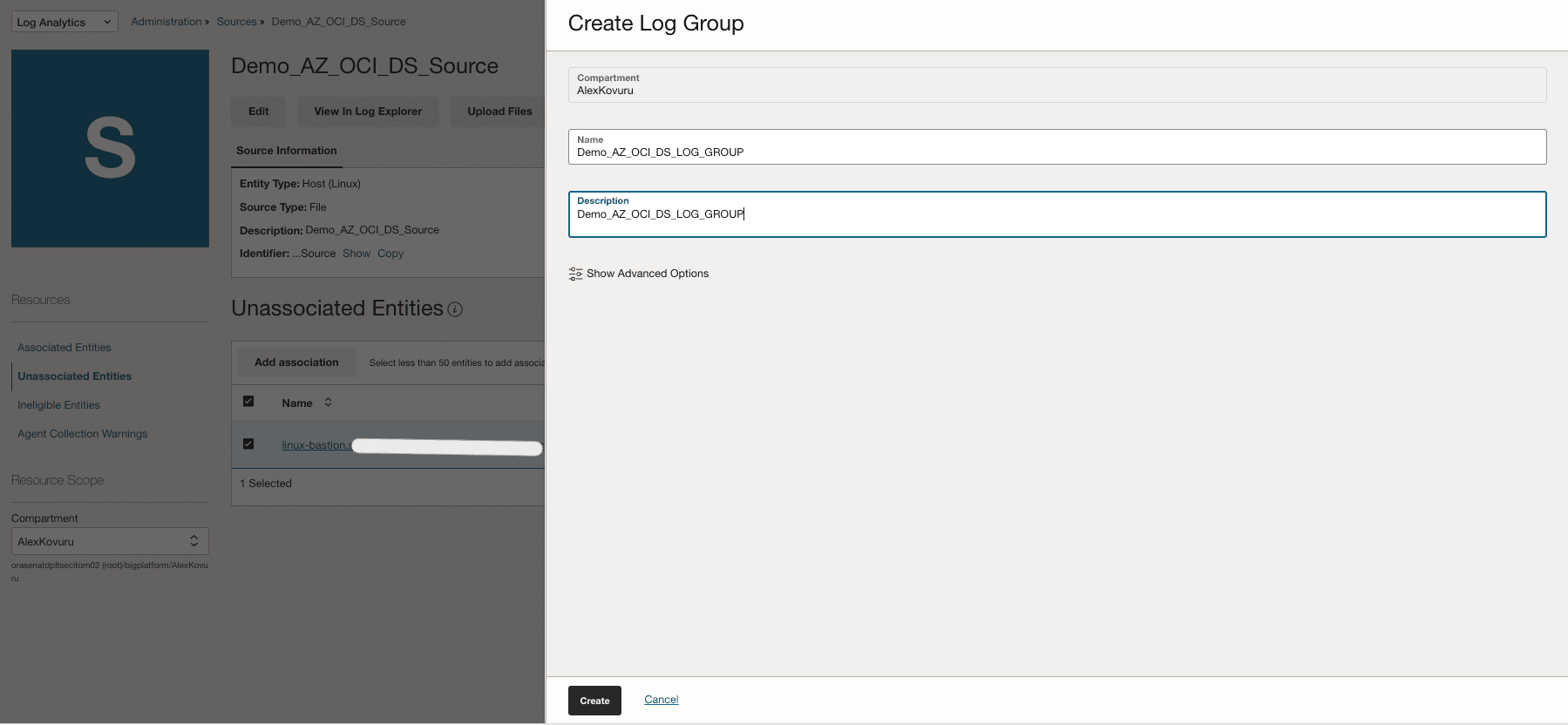
Select an existing log group if available. In this tutorial, we will create the new log group by clicking Create Log Group.
-
Click Submit.
-
-
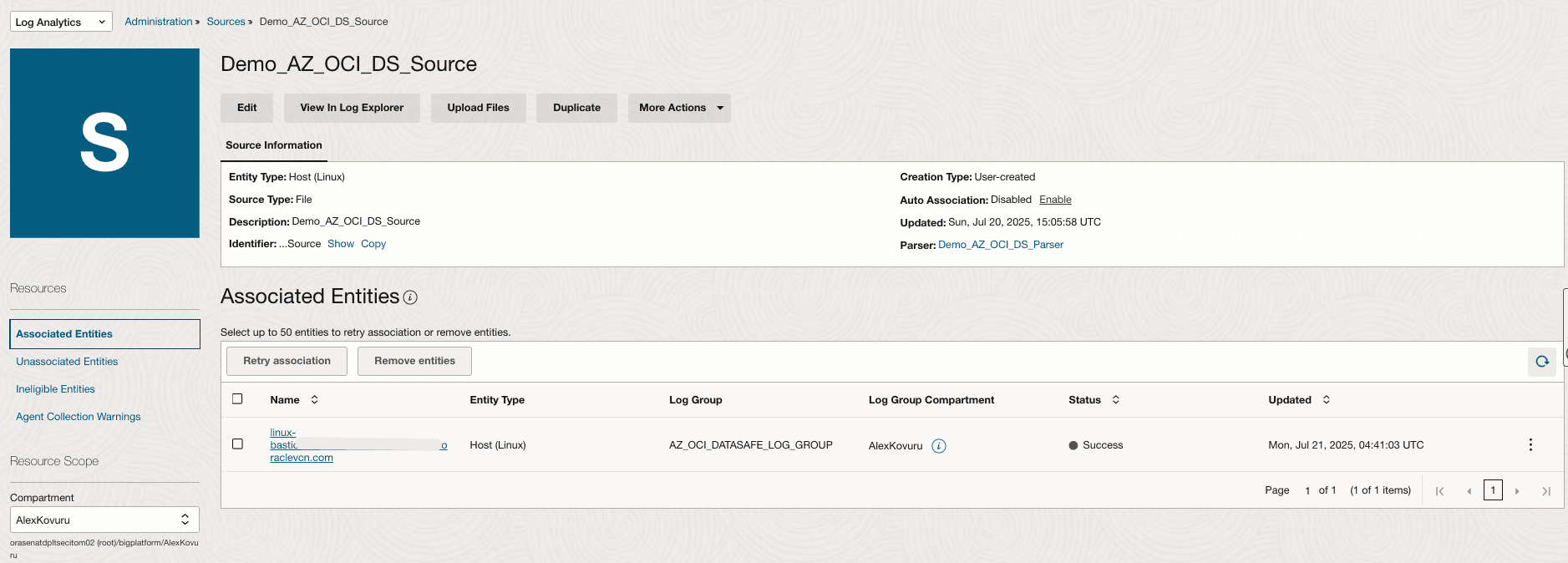
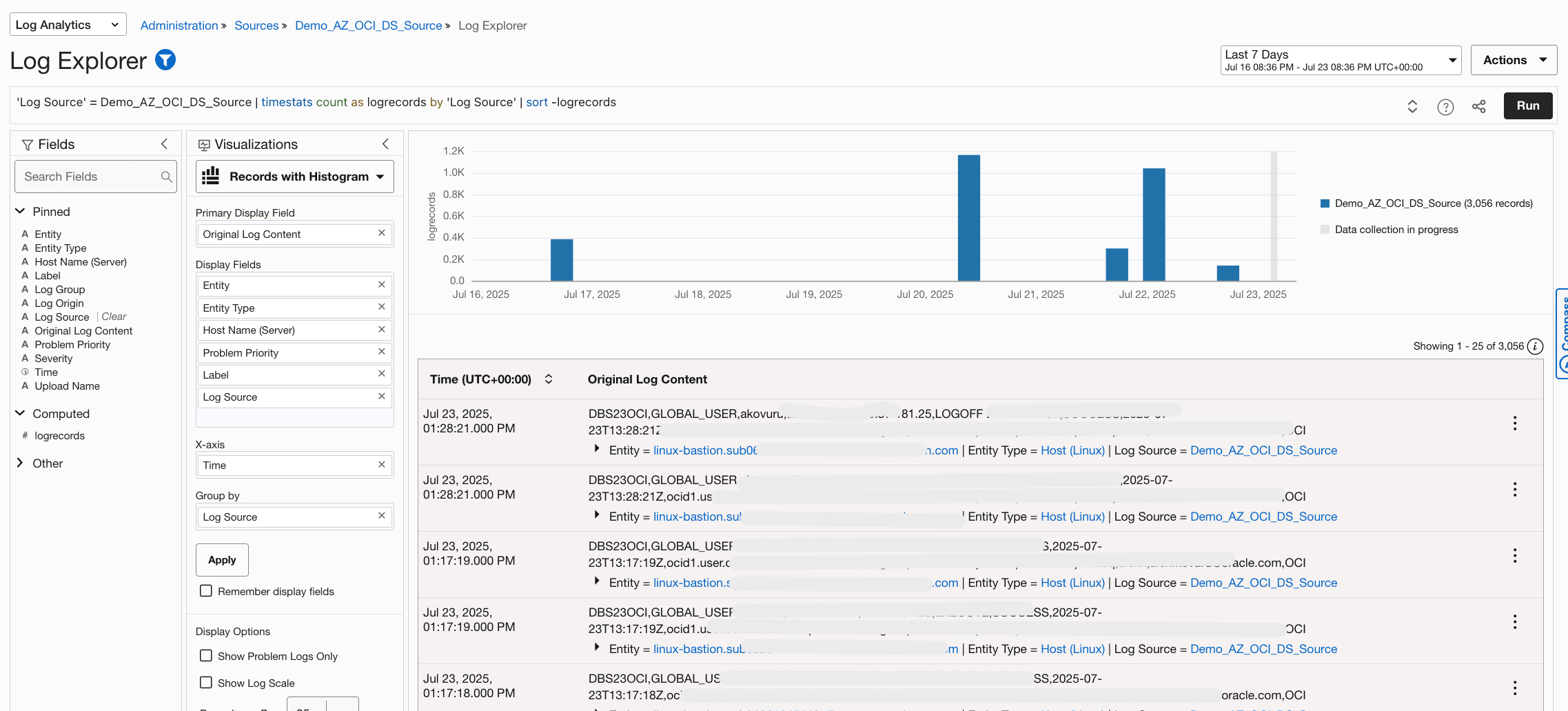
Once ingestion starts, confirm that records are searchable and fields are populating as expected.
View the Log Explorer:
Task 4: Explore Logs and Build a Dashboard with Three Widgets
Leverage OCI Logging Analytics to visualize Oracle Data Safe audit logs enriched with external identity metadata. Build a dashboard with Microsoft Azure User Footprint Pie Chart, OCI User Footprint Pie Chart, and a Detailed Audit Table View.
-
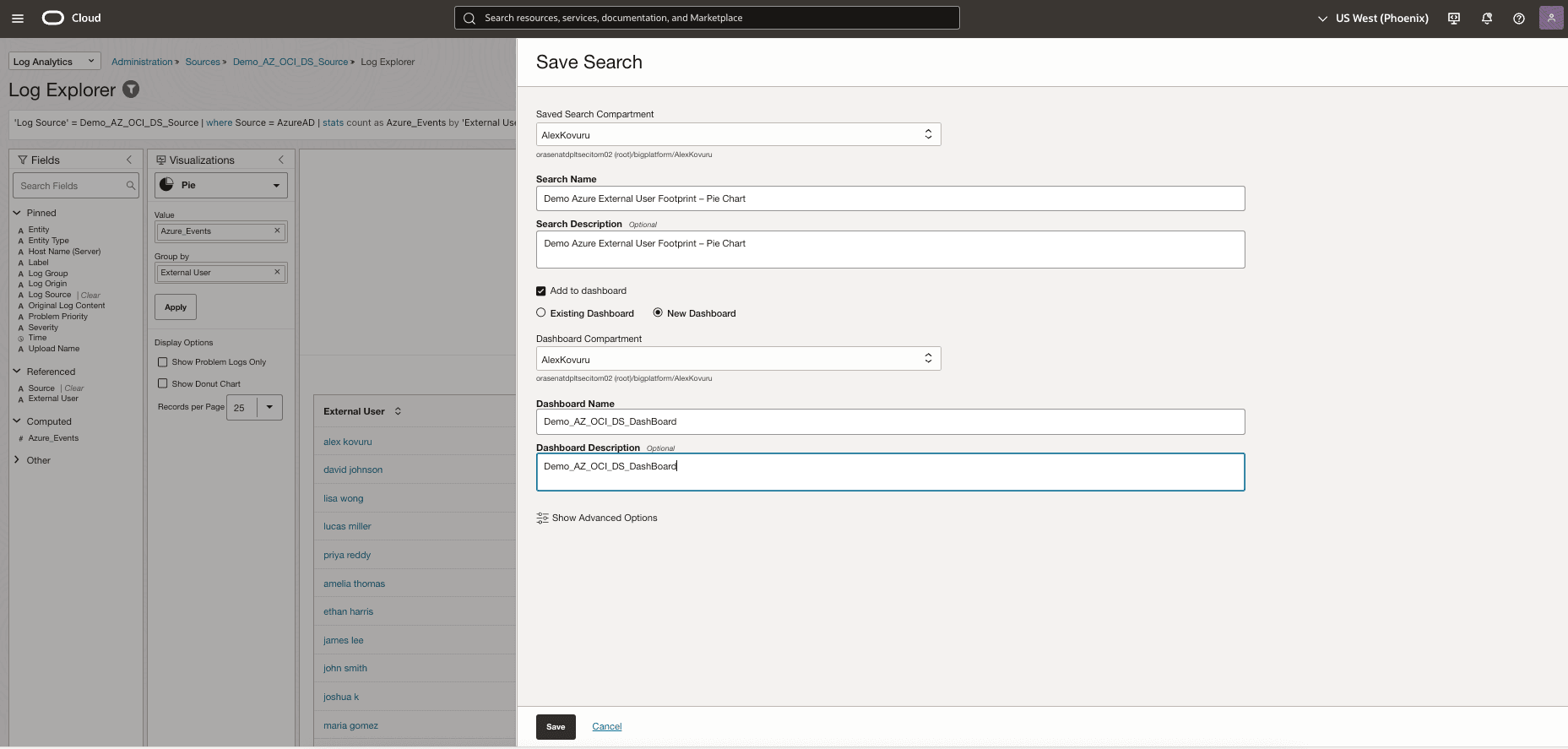
Create Azure User Footprint Pie Chart Widget.
Run the following log explorer query:
'Log Source' = Demo_AZ_OCI_DS_Source | where Source = AzureAD | stats count as Azure_Events by 'External User' | sort -Azure_Events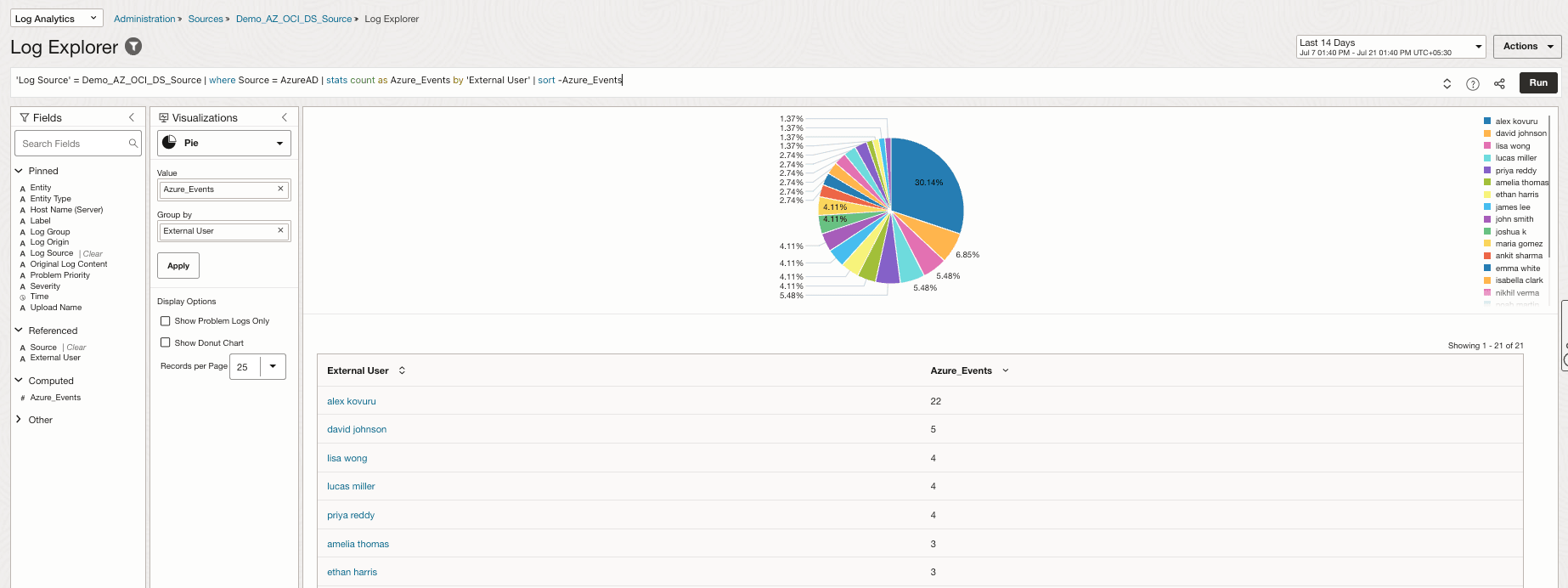
Click Actions and Save the search as shown in the following image and add to dashboard (If dashboard does not exist, then create a New Dashboard).
-
Create OCI User Footprint Pie Chart Widget.
Run the following log explorer query:
'Log Source' = Demo_AZ_OCI_DS_Source | where Source = OCI | stats count as OCI_Events by 'External User' | sort -OCI_Events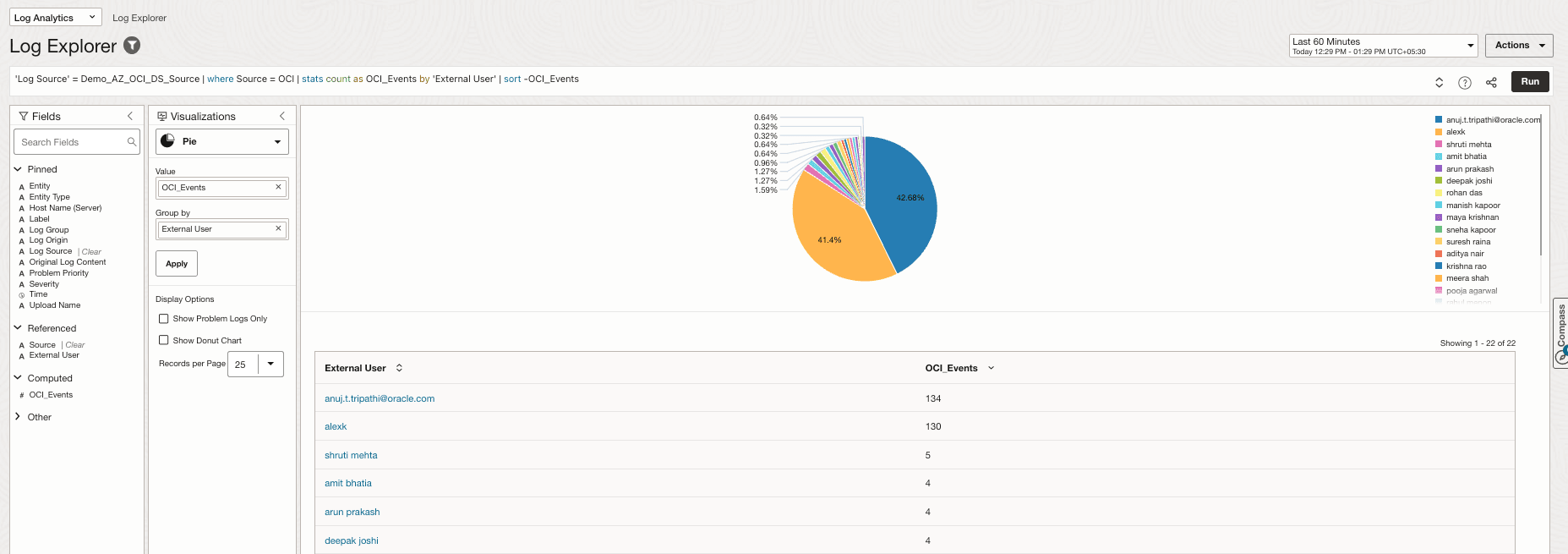
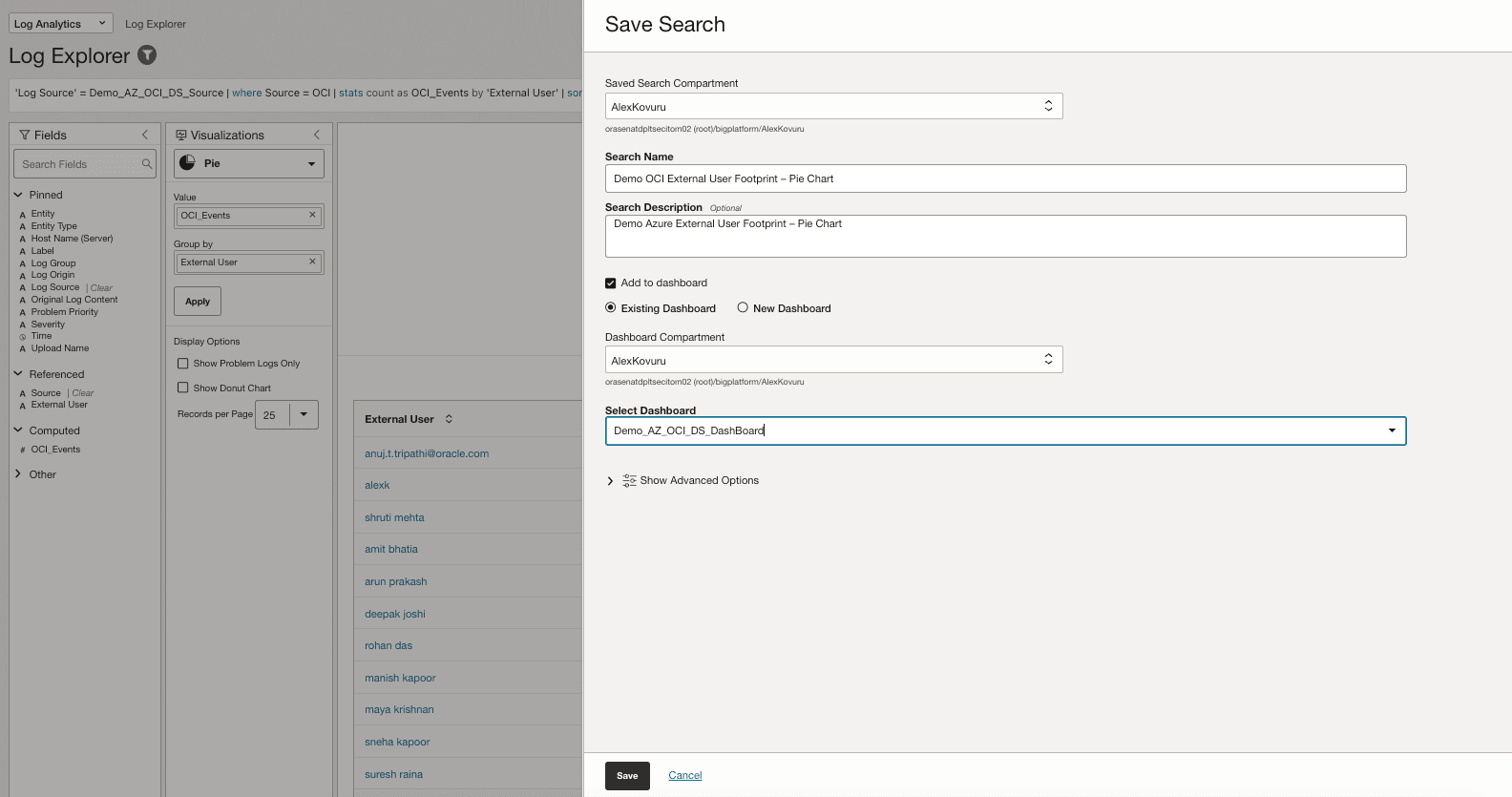
Click Actions, Save the search as shown in the following image and add to the existing dashboard.
-
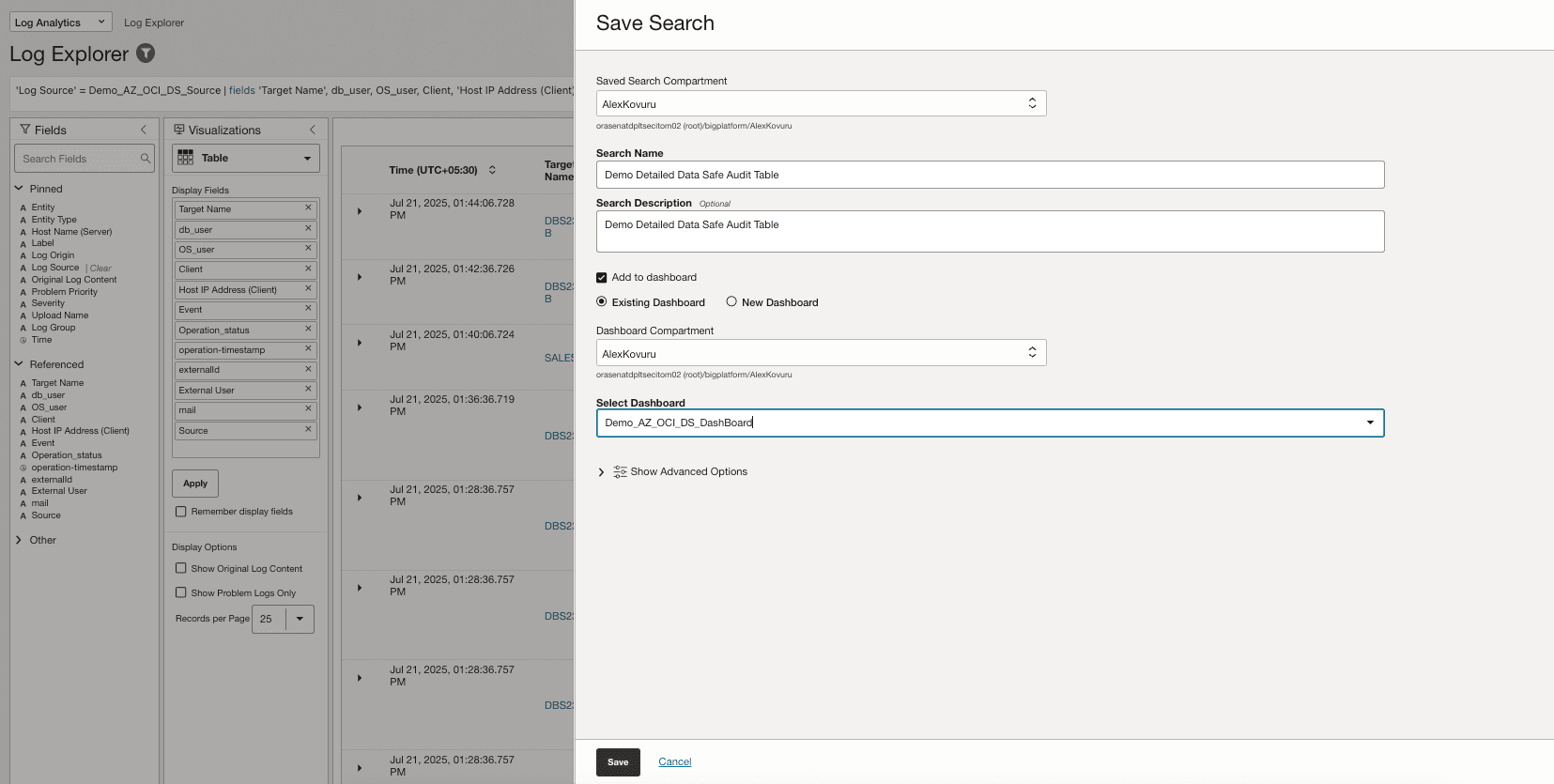
Create Detailed Audit Table View.
Run the following log explorer query:
'Log Source' = Demo_AZ_OCI_DS_Source | fields 'Target Name', db_user, OS_user, Client, 'Host IP Address (Client)', Event, Operation_status, externalId, 'External User', mail, Source, -Entity, -'Entity Type', -'Host Name (Server)', -'Problem Priority', -Label, -'Log Source'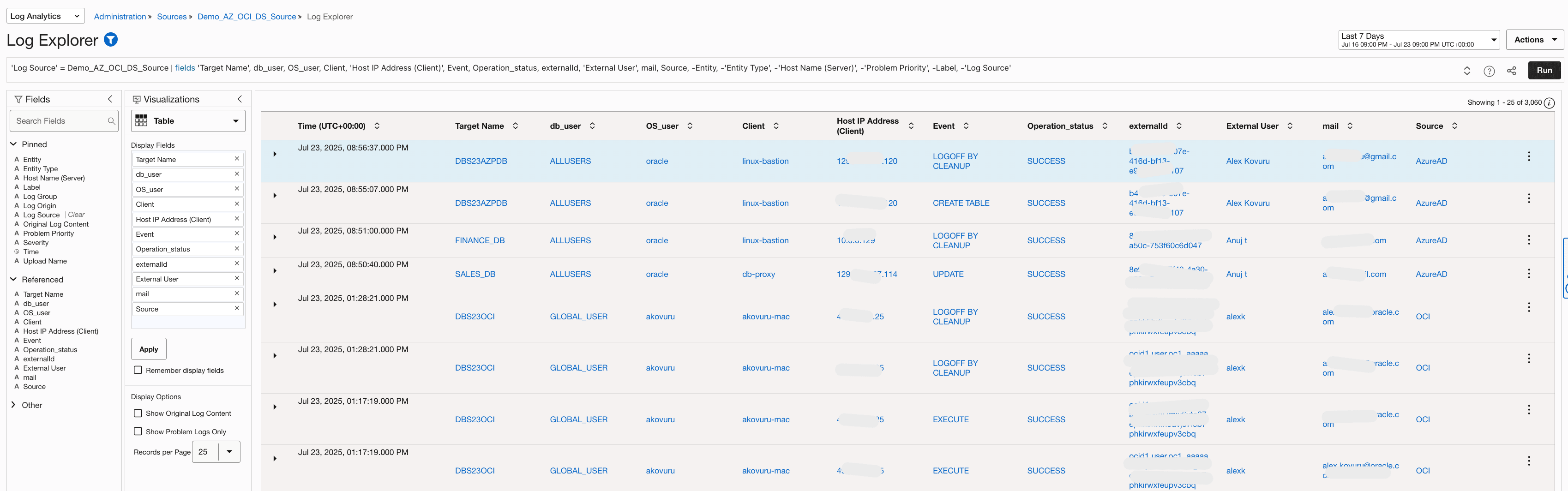
Click Actions, Save the search as shown in the following image and add to the existing dashboard.
-
View the Saved Dashboard.
Go to the OCI Console, navigate to Logging Analytics, Administration, Dashboards and click the created dashboard (
Demo_AZ_OCI_DS_DashBoard).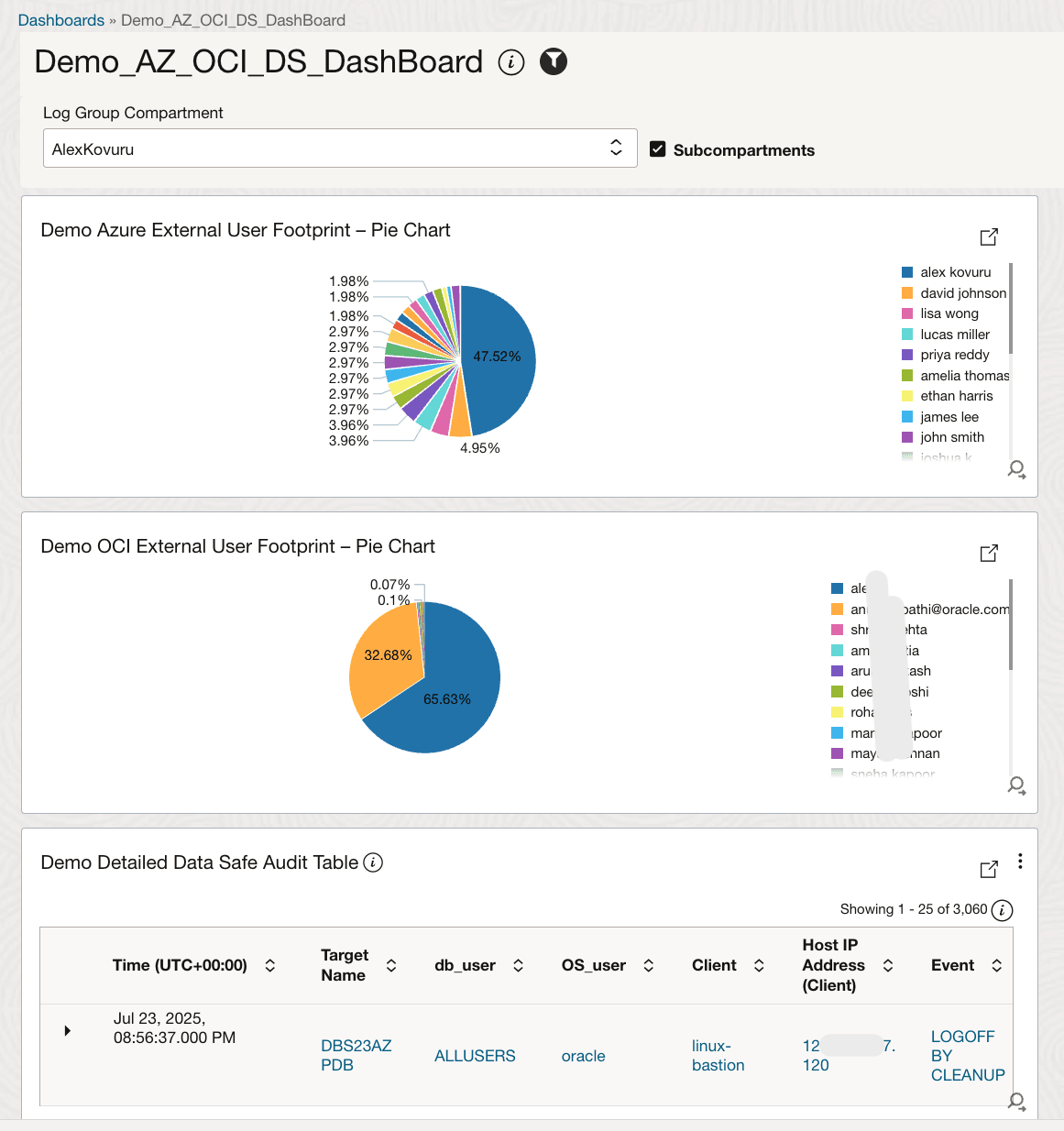
Related Links
Acknowledgments
-
Authors - Alex Kovuru (Principal Cloud Architect), Anuj Tripathi (Principal Solution Architect)
-
Contributor - Indiradarshni Balasundaram (Senior Cloud Engineer)
More Learning Resources
Explore other labs on docs.oracle.com/learn or access more free learning content on the Oracle Learning YouTube channel. Additionally, visit education.oracle.com/learning-explorer to become an Oracle Learning Explorer.
For product documentation, visit Oracle Help Center.
Integrate Oracle Data Safe and OCI Logging Analytics with OCI IAM and Microsoft Entra ID
G39618-02
Copyright ©2025, Oracle and/or its affiliates.